The HSE Module is structured to address all queries in a single unit. The safety report will never be an unfamiliar entity to its place of origin, considering the fact that it comes directly from the same source - well, project, or equipment. This is how it operates on each screen.
Areas, Roles and Who Looks After What
The module needs to know where events occur and who is in charge at that location in order to report anything. The responsibility for this lies with the HSE Area: a site, facility or zone within your operation is defined. There is one HSE Manager, some HSE Officers, and Members listed for each of these Areas. All this hangs off this. Who sees the reports, who gets the reminders, and which daily report depends on this.
Supervisors and higher levels can serve as officers who will then review and validate the information. Managers receive the serious events and authorize closures. Administrators maintain the lists. In case you forget to select an Area for a report, the system will figure out the right Area from the selected well or project, saving you considerable time from nagging.
The HSE Dashboard
Most managers open the dashboard first, so it answers the first questions they ask. How many incidents this year? How many days since the last lost time injury? Is anything overdue? Is a gas detector past its check date?
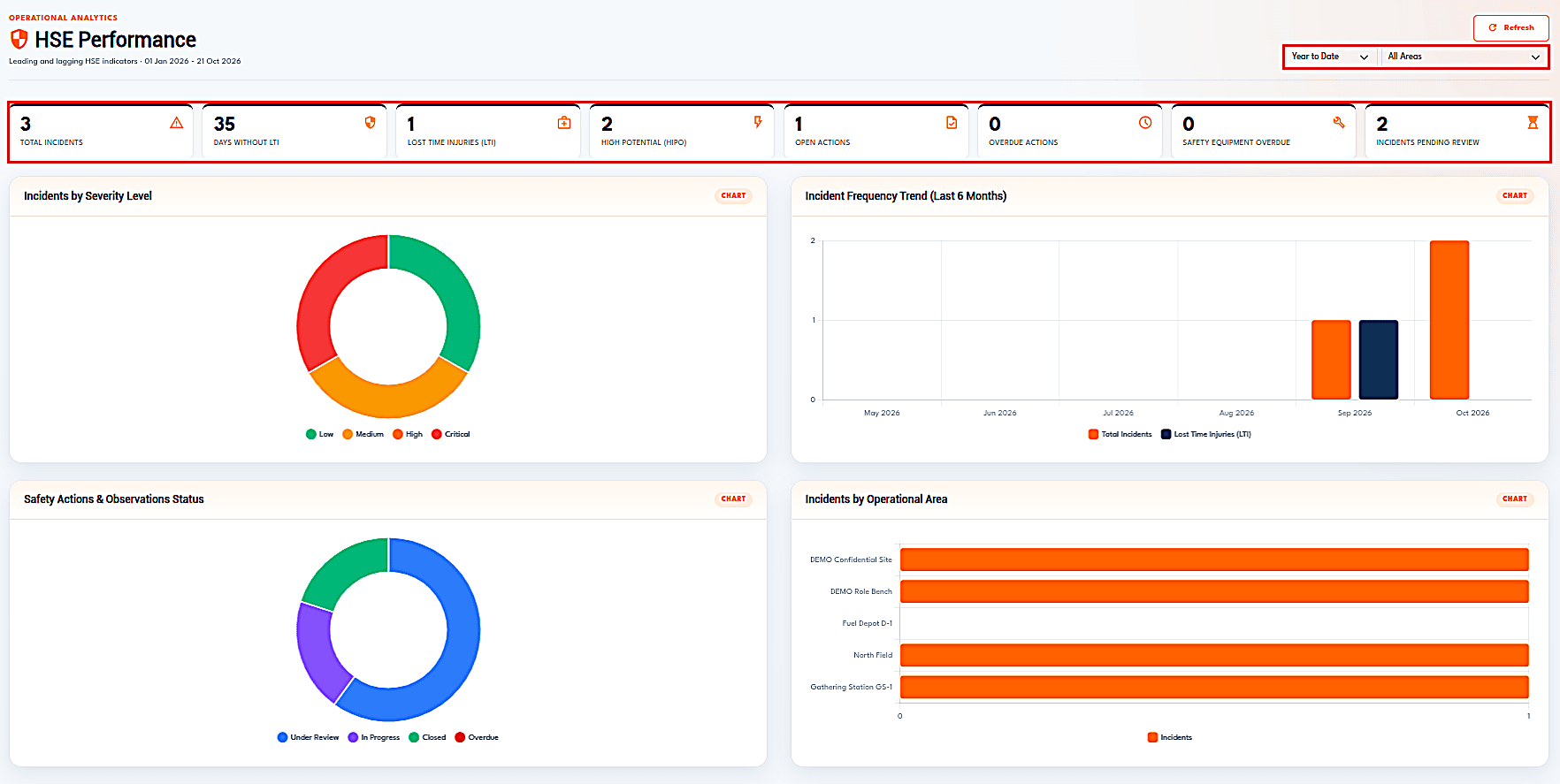
The HSE Performance dashboard with its indicator tiles and the period and area filters highlighted.
The first row displays the total number of incidents, days without LTI, lost time injuries, high potential incidents, open actions, overdue actions, overdue safety equipment, and incidents pending review. Underneath them are charts displaying incidents based on severity, six-month trends in frequency, status of safety actions, and incidents in areas. The period and area filters at the upper-right corner update all tiles instantly so that the depot manager and head office will be able to use the same view. The "Days without LTI" tile starts counting the days from the latest lost time injury or from the beginning of the selected period if there hasn't been any.
Observations and SOC Cards
The Safety Observation Card is the most cost-effective safety tool in existence. An individual observes something, reports it, and then fixes it before anybody gets hurt. The problem with the system is that it depends on the fact that the report is short and the card doesn’t disappear.
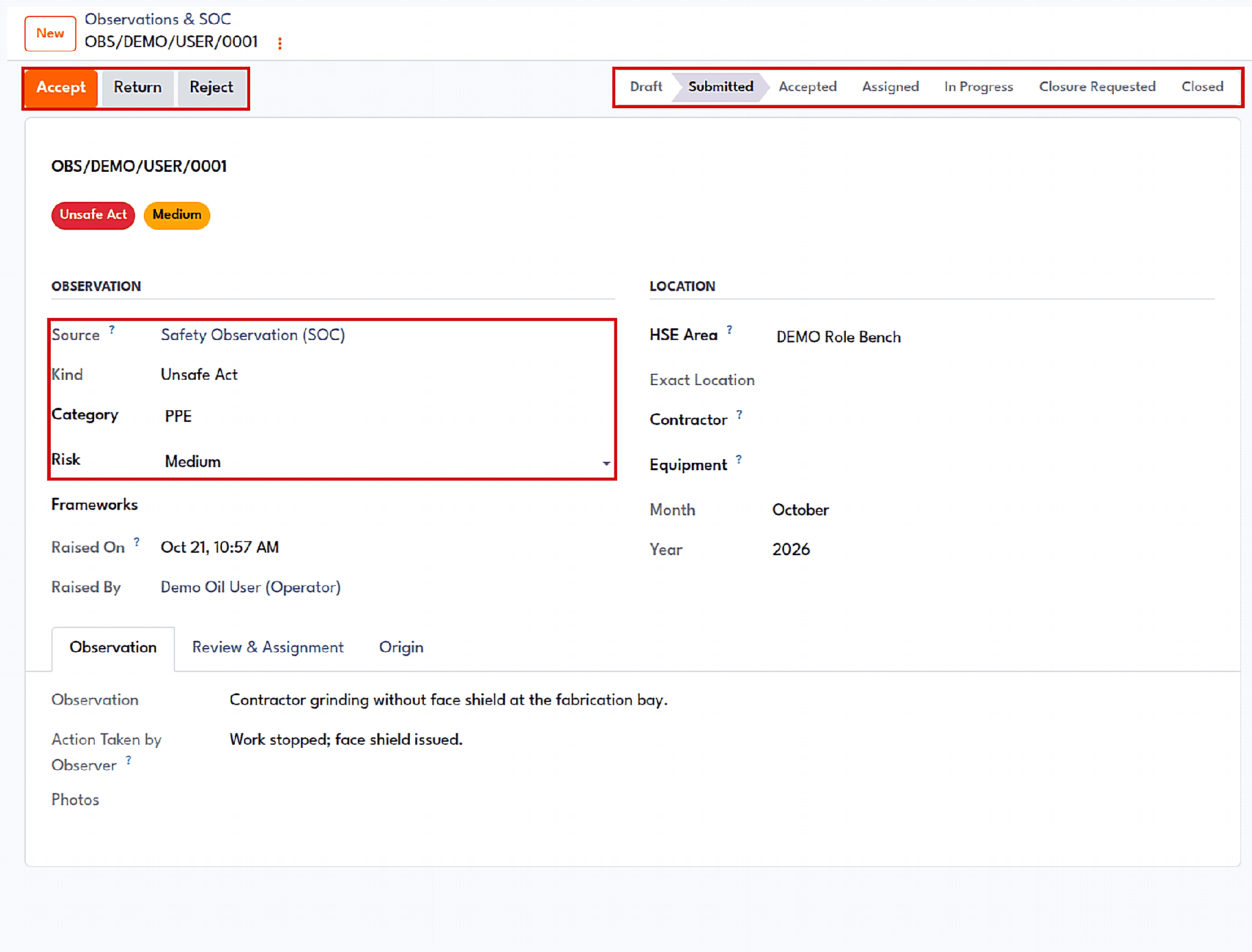
An observation moves through its status bar: source, kind, category, and risk, with the Accept, Return, and Reject buttons.
Then, the reporter selects the type of finding as either an unsafe act, unsafe condition, positive observation, non-conformity, or an improvement idea; selects a category like personal protective equipment (PPE); and selects a risk level. This is what the form actually captures: Contractor grinding without a face shield - stopped work, issued face shield. Positive observations do not require a selection of the risk. All other forms should have the category and risk selected, or the form cannot be submitted.
From this point on, the card goes through an established process: Draft, Submitted, Accepted, Assigned, In Progress, Closure Requested, and Closed. The officer then reviews the report and either accepts it, returns it for further information, or rejects it. Positive observations are accepted and closed immediately because there is nothing to correct. Otherwise, the officer assigns the corrective action to the appropriate person with a target date, and there is an option to accept and assign the action.
The individual carrying out the task has to make notes of the work done, date of completion, and comments. The company can insist on the attachment. Another officer verifies the work done. It should not be verified by the same individual who carried out the correction. In case it is a high risk, the area manager will have to confirm the completion of the process. Each day, the system identifies any overdue action and sends reminders several days before the deadline and escalates to the officers and manager in case of very overdue action.
Another design issue is also worth considering. This is not applicable to SOC cards alone. Findings from inspections, audits, drills, meetings, equipment checks, and incident recommendations all turn into the same type of records. As a result, there will be only one open-actions list at each site rather than five separate spreadsheets that contradict each other. The findings on defective equipment can trigger a maintenance request automatically.
Incident Reporting and Investigation
Where there is an error, the incident form will request the details of what went wrong, its location, and severity. Another question asked, which most systems do not ask, is the potential severity of the incident. The "potential severity" helps determine whether an incident was just a near miss or almost became an incident.
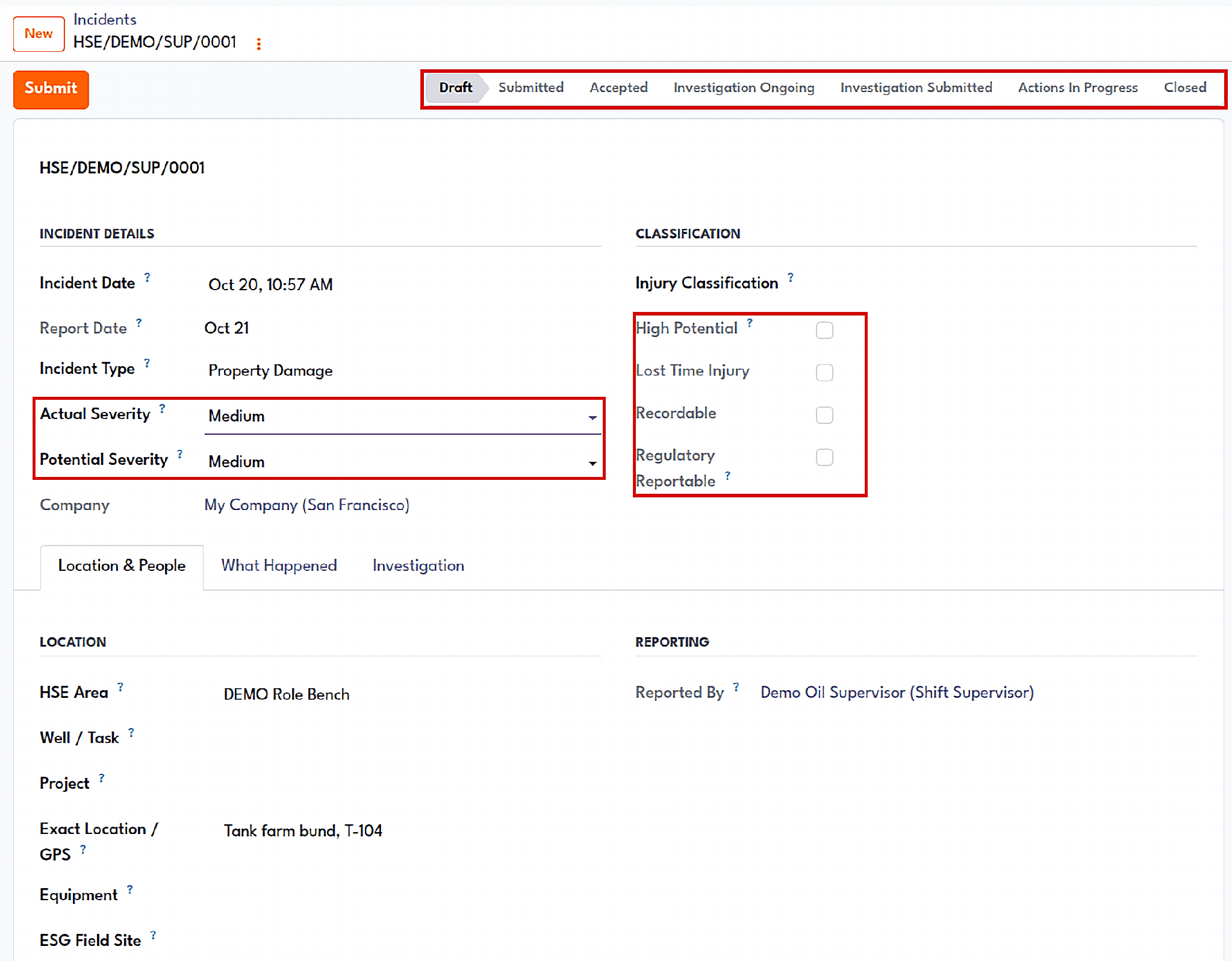
Reporting an incident: actual and potential severity, classification flags and the lifecycle status bar.
In order to submit an incident, one has to classify it by type and severity, and add a description, while an injurious incident must also contain a minimum of one person's information. Where the company is using the system, a flash report will be sent automatically upon submission of the incident. Incidents can also originate from the systems themselves, including alarms from tanks, SCADA, and weather.
This is reviewed by the officer, and an injury classification is established. In this case, the module will decide on your behalf. This is done based on the investigation matrix, which consists of a series of rules relating to the type and severity of the incident and corresponding investigation levels, deadlines, and whether terms of reference are required. If the severity potential of the incident meets the threshold of the company (which is high by default), then the incident is escalated to the area manager for approval. Otherwise, it is approved immediately.
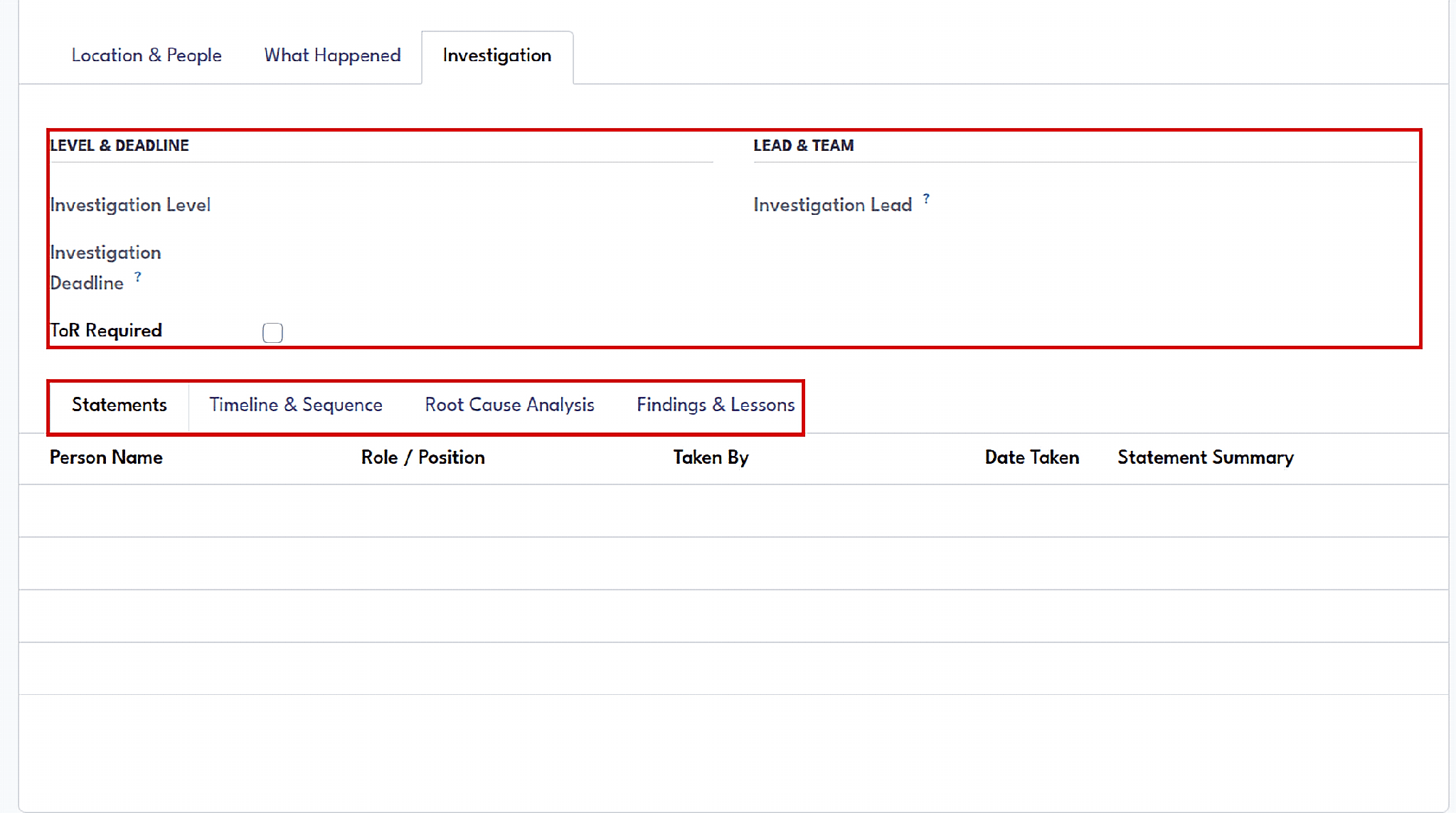
The investigation tab: level, deadline, terms of reference, lead, and the statements, timeline, root cause, and findings sub-tabs.
Where there is a need to conduct an investigation according to the matrix, the incident becomes a small workspace. Local investigations are handled by an officer, and the default duration is fifteen days. The lead receives notifications before and after the default period. The workspace has tabs that include statements of witnesses, a timeline of events, root cause analysis (why-why), and findings & lessons learned. An incomplete submission of the report containing no root causes is not accepted.
Once the investigation is accepted, recommendations become an automatic action in the observation tracker with an owner and a completion date. The incident can only be closed by the manager when all actions become complete; an incident can be reopened in case it turns out that the story has not been completed. Both the flash report and investigation report can be generated automatically from the record.
Inspections and Audits
Inspections use the template of a checklist. The default checklist will have PPE, housekeeping, and a Permit to Work audit, but you can change them or create your own according to the type of inspection that you would like to do.
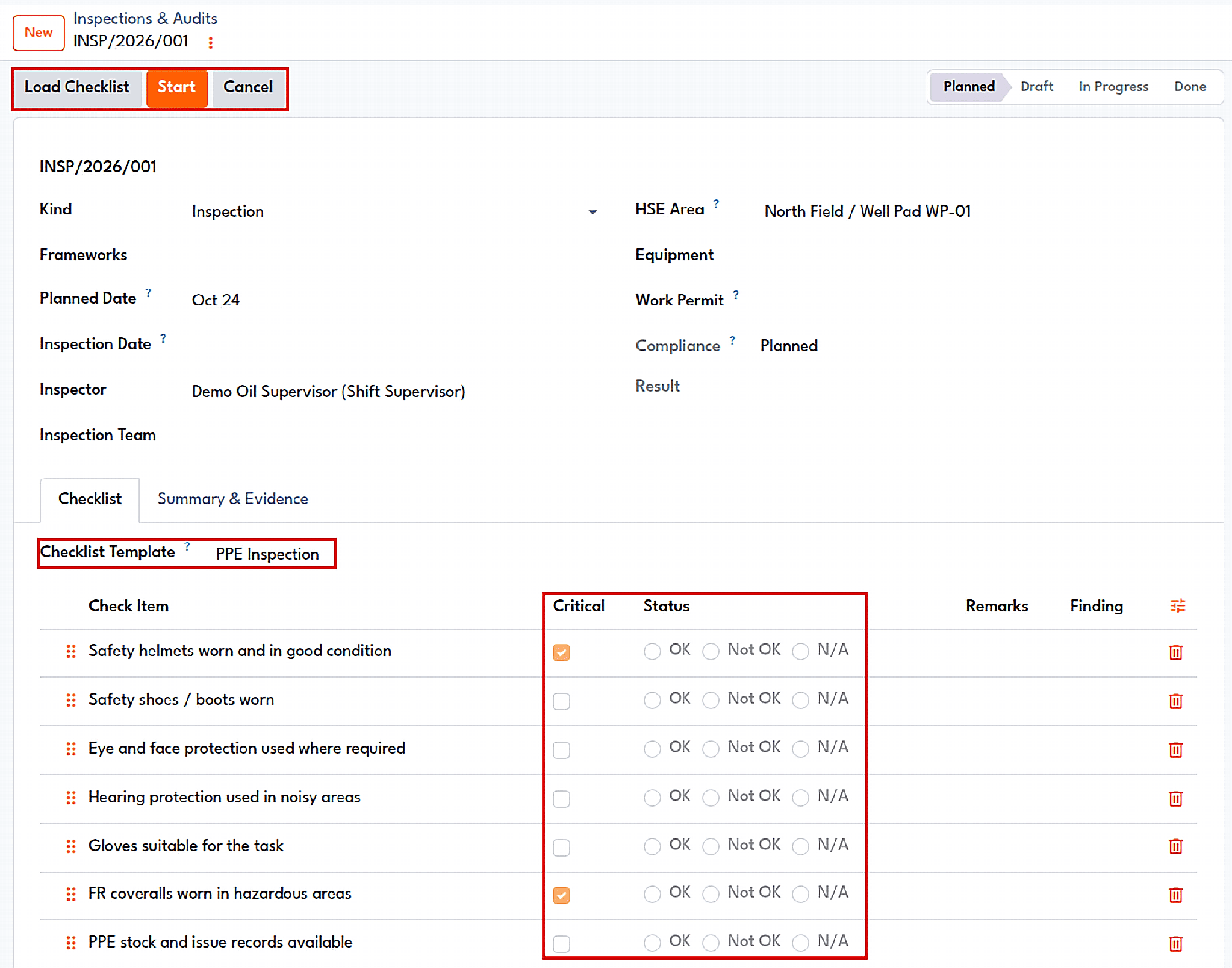
A planned PPE inspection: the checklist template, the Load Checklist and Start buttons, and the Critical and Status columns.
The inspector puts in the checklist and then begins the inspection, answering OK, Not OK, or N/A for every line. Those lines that are critical get flagged. All lines need to be answered to complete the inspection, and all 'Not OK' lines need a comment. This is where it gets smart. Upon completion, every 'Not OK' line will automatically generate a finding on the observation tracking system: high risk if it was a critical line and medium risk if not. No one needs to enter it again, and it won’t go unnoticed. If the inspection is a check of safety equipment, it will update the last inspection date for that equipment.
Another aspect is that the inspections and tasks like drills and toolbox talks have a planning mechanism as well. They all have a planned date and compliance status, which could be either planned, due, overdue, completed on time, or completed late.
Work Permits That Actually Stop the Work
A permit to work becomes meaningful only when the activity cannot begin without the permit. In many systems, it is a form that one fills after the event, since no compelling reason exists to make it happen. In the case under discussion, however, the permit is integrated within the project board.
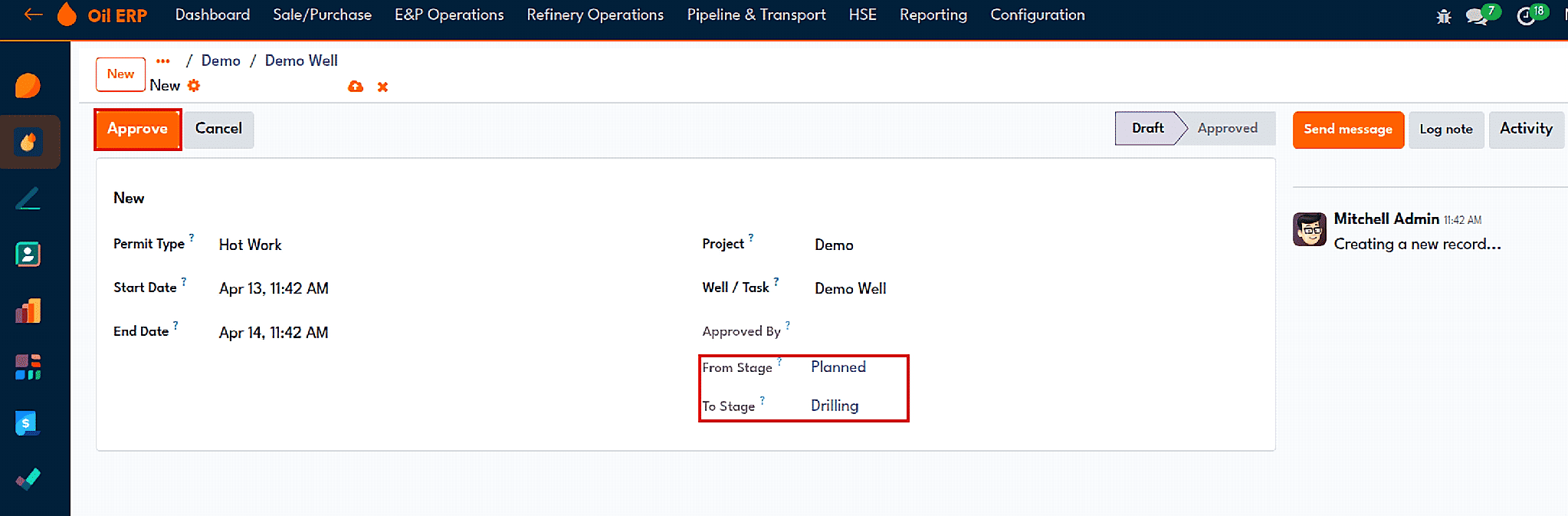
A hot work permit with its 'From Stage' and 'To Stage' fields, which are used to move the well forward on approval.
There are four categories of permits, which include Hot Work Permit, Cold Work Permit, Confined Space, and Electrical. These all have a start time, an end time, a project, and a well or a task. What is intriguing about this is the task stages. The administrator can flag a task as “Work Permit Required” and choose only one of those stages as the Waiting stage. Then, when somebody drags a well from Planned to Drilling, and if the latter requires a permit, the task does not move but waits in the Waiting stage.
A “button” in the waiting task will generate a new permit, already populated with the task, project, From Stage, and To Stage. Once the permit is approved, an approver is logged, the task will advance to the desired stage, and waiting info is cleared. The permit is a separate entity with its own state: draft, approved, expired, or cancelled; the permit can be reverted to draft state for reevaluation. A well or task has several pieces of information that become critical in emergencies, such as H2S presence, HSE category, emergency contacts, closest hospital, and muster point.
Risk Assessment
Each and every well or project may have its own individual risk entry, which will have a title, description, mitigation measure, and level.
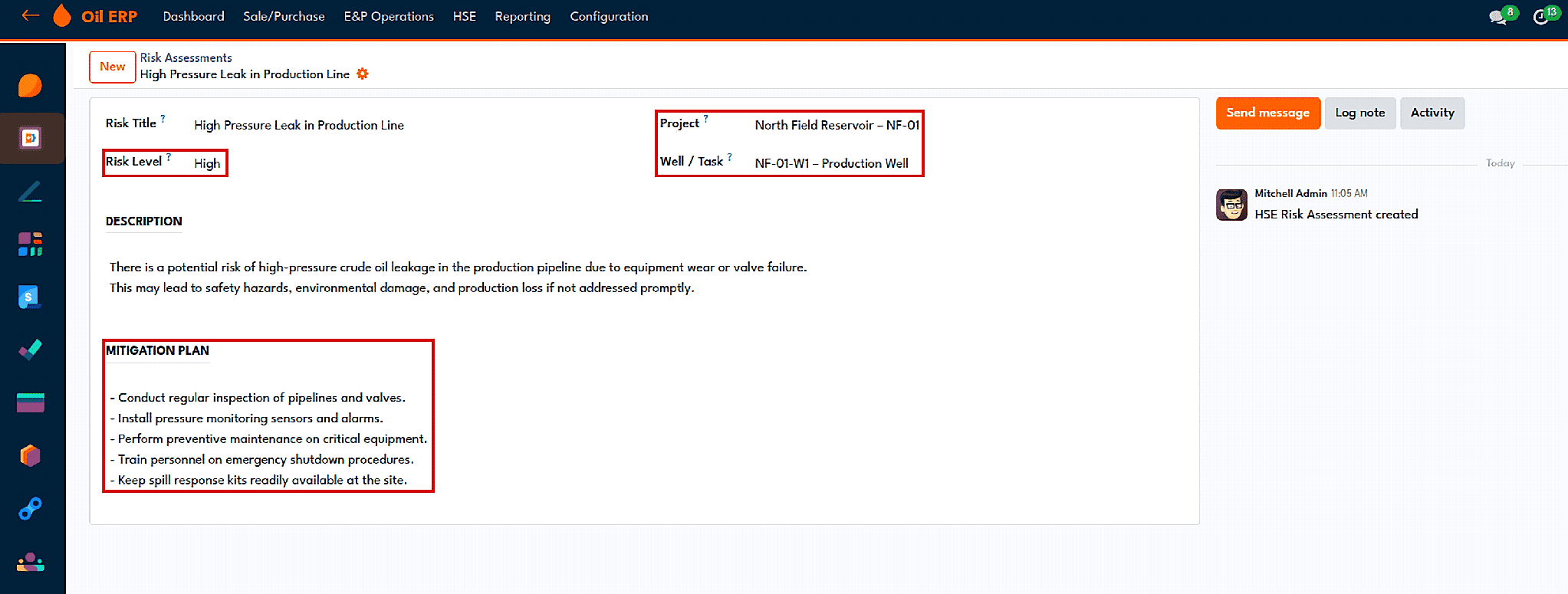
A risk entry for a high-pressure leak in a production line, with its well and mitigation plan.
The level is not manually keyed into the system. Each risk is assigned a probability and a level between one and five; their multiplication gives the score. This score is then matched against the risk matrix of the company. The default option is the well-known 5x5 matrix: Scores of 1-4 = low, 5-9 = medium, 10-16 = high, and 17-25 = critical. Each range is also classified as acceptable, ALARP, or intolerable. The administrators have the flexibility to define different labels, ranges, and color codes, or even create a new matrix, but it will be the choice of the company setting used by the module.
Numbers, Reports and Reminders
A daily HSE report documents the manpower, man-hours, and a suite of customizable leading and lagging metrics along with the cutoff hour when the day is closed. Using those man-hours, the system calculates LTIFR and TRIR based on a rate base of your choice (200,000 for OSHA reporting or 1,000,000 for IOGP) and maintains a cumulative count of safe man-hours since the last lost time injury. Monthly performance reports are exported in PDF and XLSX formats, and the pivot/graph view allows you to go deeper without the need for exporting any information.
No need to remind anyone about chasing. The system flags all pending tasks, sends due date reminders, changes the compliance status of scheduled inspections, and reminds investigation leads about their due date. In the middle of the morning, it escalates pending tasks.
Management of Change (MOC)
Management of Change (MOC) is the process of ensuring that the change goes through the proper authorities. The MOC module covers all kinds of changes on one form, forwards it to the right reviewers/approvers, and prevents its forward movement until all the necessary criteria are satisfied. The MOC module takes its scope, risk matrix, and work permit process from the HSE module.
The Life of a Change
Every MOC is done the same way. The initiating party creates it and presents it. After that, it passes through review and acceptance. When it is accepted, it is executed. At the completion of its execution, it is closed out, and it is finally closed out by the Area Manager. In between all that, it is possible for a change to terminate as rejected, voided, or cancelled, and each of these requires reasons to be noted.
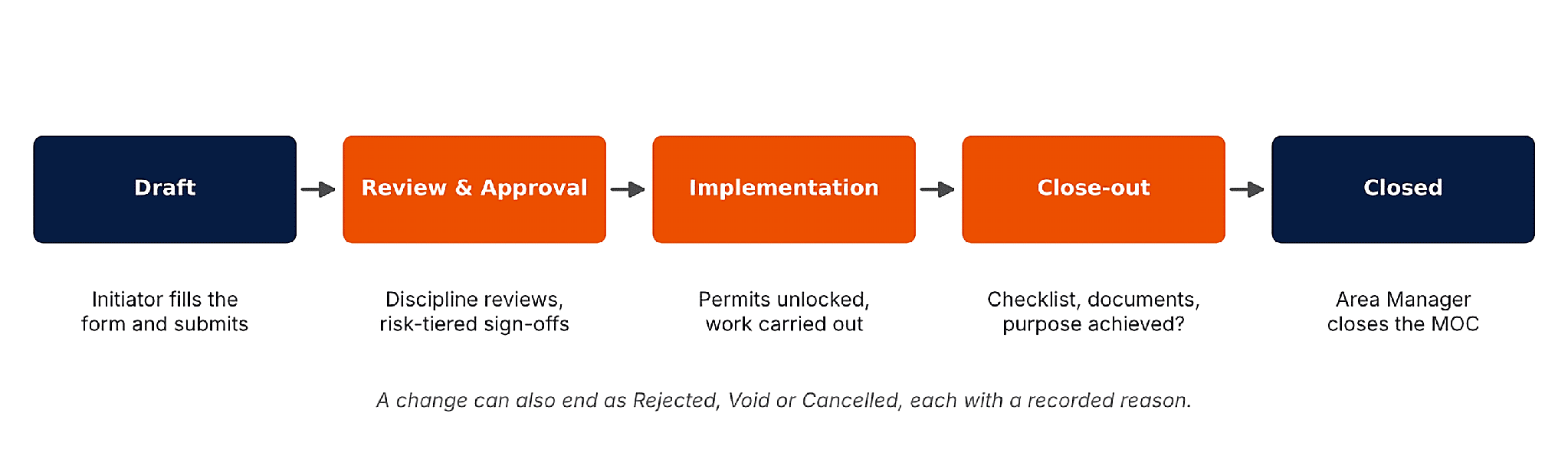
The five stages of an MOC, from the draft to the closed record.
There are two aspects that make the process effective. Firstly, the format will defend itself because each individual will be allowed to edit only his/her part, which means that the initiator will not be able to change the part that has been done by the reviewers and the approvers. Secondly, all gates are verified by the system rather than memory.
Setting It Up Once
There is nothing in the MOC process that is inherently tied to one company's operations. It is all configurable, and the module comes with a default configuration that you can modify or archive as you like.
The category defines what sort of change it is: plant and equipment, process and operating condition, controls and software, chemicals and materials, facility layout, subsurface and wells, procedure and documentation, and organization and personnel. The category also states if it requires a PSSR, if it is always a major change regardless of the calculated severity, and what documentation is required. "Subsurface and wells" has been flagged "always major", so a well barrier change will always receive the full scrutiny of a major change, no matter what its severity score.
Disciplines refer to HSE, Process, Mechanical, and Electrical, which are specialists in reviewing the change. Impact areas represent those aspects on which the initiator answers in regard to the changes being considered. The document types identify the documents that need to be provided and at which stage: a marked-up P&ID at submission, a HAZOP report prior to approval, test records and a new procedure prior to start-up, and as-built drawings prior to closure. Checklist entries populate the PSSR, closure, and restoration checklists. Also, the approval requirements describe signatories. The company settings add a few more numbers: the maximum duration of a temporary change (by default - 180 days), the number of hours permitted for retrospective approval of an emergency (by default - 72 hours), and two cost thresholds that promote the change to moderate and major.
Sites originate from the HSE areas tree structure. Sites have a unique site code; therefore, MOC numbers look like MOC-NFLD-2026-038 and include an Area Manager. This module finds the manager for the area or the highest area above it and disallows submission when the manager does not exist.
Raising the Change
A new MOC is brief. The person who initiates it names it, chooses its category, and designates whether it is temporary or permanent. The temporary change should have an end date, and the system compares it to the maximum possible period at the time of submission. If the period of a temporary change exceeds the limit, the system prompts raising a permanent MOC. The initiator explains what is being changed and why, provides alternative options, states the estimated cost and target date, and attaches the equipment.
There are three checkboxes which state whether there is an engineering change, a HAZOP, or a regulatory approval needed. Selecting one of them automatically adds the relevant document to the list of documentation to be prepared. The emergency change is indicated on the same form, and the justification is obligatory.
The submission process does not only validate the form. It verifies whether the description and rationale have been filled out, that the temporary change falls within the specified time frame, that there is a manager for the affected region, and that all the needed documents at submission are included. The questions about impact are answered accordingly, as affected or not affected, but never left blank, since all the answers will eventually become either affected or not applicable. Upon submission, the MOC is assigned a number which does not change thereafter.
Risk Decides the Tier
Not all changes have the same level of importance. Changing a sign does not equate to changing out a crude oil pump. It is in the Risk tab where this is determined.
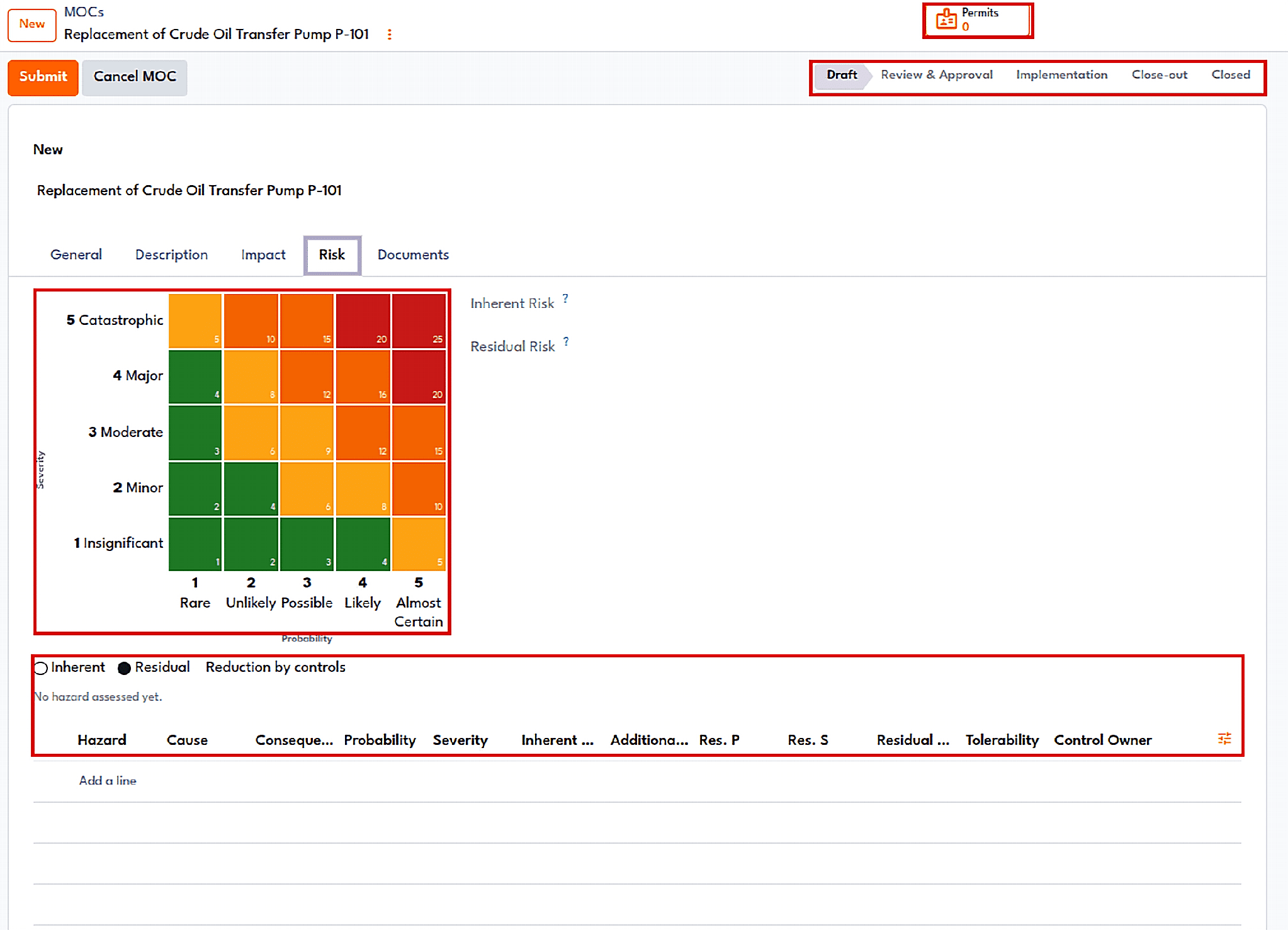
The Risk tab of an MOC for replacing a crude oil transfer pump: the heat map, the risk lines, and the status bar.
The person initiating or reviewing adds a row for each hazard, which consists of cause, consequence, probability, and severity. The rating and the level are based on the same 5 x 5 matrix as the HSE module; hence, the word "high" has the same meaning everywhere. The row is rated for the second time after the control measures are taken into account; hence, there will be a residual risk that is marked as acceptable, ALARP, or intolerable. The heat map indicates both. The location of the hazard by its nature is presented in an outline form, and the residual location is presented in a filled dot form, with an arrow in between to demonstrate the impact of the control measures.
These lines allow the system to determine what level the change will be classified as. If the highest inherent risk level is high or critical, if the cost exceeds the major cost threshold, if the category itself is always major, or if there is any critical equipment that is connected to the change, then it is considered to be major. If the inherent risk level is medium, the cost exceeds the moderate threshold, the equipment is high or critical, or there is any emergency change, then it is considered to be moderate.
Reviews and the Approval Chain
Upon submission, the module executes two functions simultaneously. One function is to generate a review request for each discipline the initiator marked as affected, which is sent to reviewers of the said discipline or, as an alternative, the coordinator, and each reviewer receives an activity. The second function is to create the approval chain.
The approval chain consists of several approval steps. Each step can apply from a certain tier onwards, only in certain areas, or even only when a certain impact area is affected. The person to whom the signature is assigned can be an Area Manager, any individual belonging to a certain group, or any selected set of managers, in which case any one of those managers can sign. Steps located at the same point of the chain are signed concurrently, while the subsequent point becomes available only after all steps have been completed. Steps not relevant are left on the form and marked as such, with a corresponding explanation, for an auditor to understand the reasoning behind not signing.
One thing worth noting is that should a step be applicable but have no signee, then the submission will be declined, and it will state which step has no signee. A change cannot remain in the waiting status since the approver has not been assigned to it.
Approvals have the option called "Decide", which can approve, approve with conditions, return, or reject a change. Rejection and returning require comments. Approval with conditions requires conditions, their owners, and the due dates, and it makes an actionable step in the MOC. All decisions are noted down in the history of the change. The approval timeline displays all the steps along with who approved them, when, and what for, putting parallel steps next to one another. While the change is being reviewed, it shows the steps applicable to it and who will sign them.
Implementation, Permits and the Link to HSE
Once this final step gets approval, the change gets into Implementation, and its approval date gets registered. It is also at this stage when the integration of the MOC module starts showing its effect. A work permit can be linked to MOC, and a work permit cannot be approved until its MOC gets approval. The employee needing a hot work permit for the newly purchased pump will have to wait until the change is approved.
The reverse is also true. Any incident recommendation gets a "Raise MOC" button through which the draft MOC form, with all the necessary information from the incident and recommendation, pops up. So, any lesson learned from an accident becomes a controlled change. An equipment record has the list of MOCs associated with it, and a critical piece of equipment escalates the level of change.
Start-up Checks, Close-out and Closing
At the stage when the coordinator declares the task complete, the system initiates the start-up checks and then allows the change to proceed further. The PSSR checklist, if required for the category, should be filled out, with all answers of No being addressed first. The documentation required prior to start-up, such as testing documents, revised operating procedures, and training records should be included in the package. Any pending action blocking the start-up should be completed.
Then, the MOC goes into the close-out stage, which generates a new checklist. For the close-out process to be completed, that checklist should be completed as well, and somebody should fill in the closure remarks indicating whether the objectives of the change were accomplished and whether the documentation was updated, explaining in case the objective was partially achieved. The documents required before close-out, such as as-built drawings, should be added, and the pending actions should be completed.
Temporary and Emergency Changes
Temporary changes are those that everyone forgets about. One gets put through as a temporary measure for a week and is still around after a year. This change module helps in giving an expiry date to these changes and monitoring them daily - reminders are sent to the change coordinator and the Area Manager as the expiry date nears, and a change that is past its expiration date is marked as expired and shown up in the dashboard. The maximum time limit gets enforced at the time of change submission.
There is no exemption from scrutiny for emergency changes, but there can be an exemption from delay. There has to be a document for justification; these changes cannot have a low tier, and an interim authorization by the Area Manager sets the clock for the retrospective approval process, which is 72 hours on average. An alert is raised if the clock times out.
The MOC Dashboard and Register
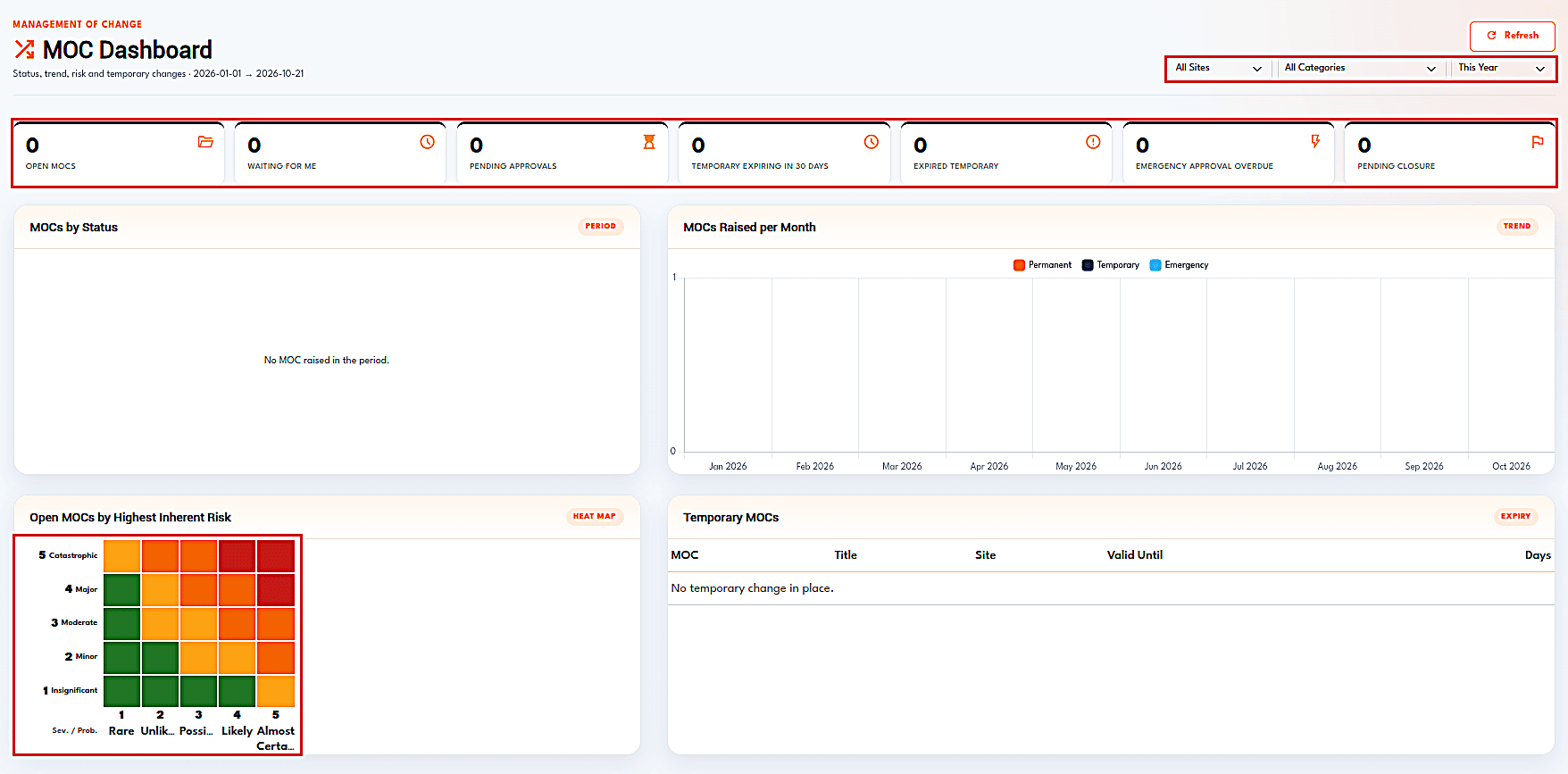
The MOC dashboard on a fresh install: indicator tiles, filters, and the risk heat map of open changes.
The dashboard provides an overview of every change that has occurred in flight. The top section indicates open MOCs, MOCs awaiting my action, MOCs pending approval, MOCs of a temporary nature whose expiry date is within the coming thirty days, expired temporary MOCs, overdue emergency approvals, and MOCs waiting for closure. Underneath this are found a status breakdown, a monthly trend divided into permanent, temporary, and emergency trends, a heatmap showing open MOCs according to their maximum inherent risk, and the list of current temporary MOCs. Filters are applied in combination to site, category, and period. This is a snapshot from a fresh installation; hence, all counters are zero.
Behind this dashboard is the register, which contains information about each MOC, including register status and turnaround times. This makes it possible to determine the bottleneck. Every MOC prints as a PDF form.
Where to Start
In case this is being set up for the first time, it is best to start with the HSE sections and their respective officers, since nothing in both modules would work without them. Following, one sets the HSE thresholds, like the number of days before the deadline to remind, the number of days after the deadline to escalate, which risk level requires approval from the manager, and the hours base of the rates. The rest may be adjusted later on. In reality, the majority of sites have started reporting their observations within the first week.
When you have that working, assign an Area Manager to each area and work on the MOC approval process, since an approval process with no one to approve changes will go nowhere. Begin with a small approval chain that includes only an Area Manager for minor changes and a set of managers for large changes, and then add more as your process requires. Then initiate two or three actual changes, and see how your form gets hung up on something. That’s typically the easiest way to uncover the blind spots in your procedure.
HSE and Management of Change work best as one system, and that is how Oil ERP treats them. Both modules share the same areas, the same 5x5 risk matrix, and the same work permit process, so a high risk means the same thing in an incident report as it does in a change request. Observations, inspection findings, audits, and incident recommendations all end up in a single list of open actions, and the system, not someone's memory, chases them until they are closed.
The links run in both directions. A work permit cannot be approved until its MOC is approved, and an incident recommendation can raise a new MOC with one button. The result is a safety process where lessons learned turn into controlled changes, permits actually stop work, and every decision leaves an audit trail.
To read more about How Oil ERP Manages Oil and Gas Operations, refer to our blog How Oil ERP Manages Oil and Gas Operations.