Odoo’s customer portal provides a Download button on sales orders and quotations which generates the same report each time. However, there are many companies that would wish there were a second downloadable document, for example, packing lists, fulfilment summaries, or acknowledgements available. Achieving this in Odoo 20 is simple – one report, one controller route and a few lines of inheritance of templates.
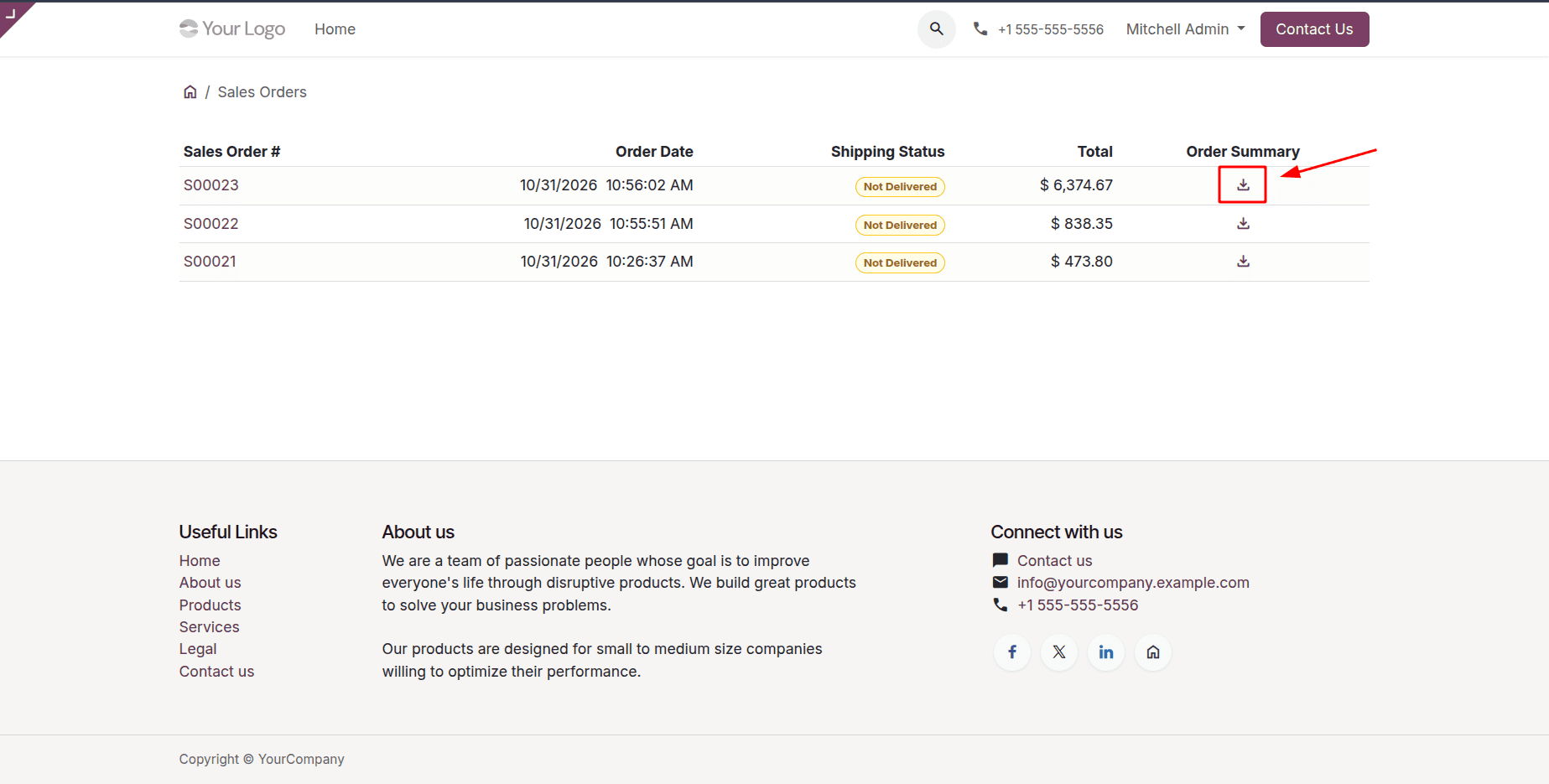
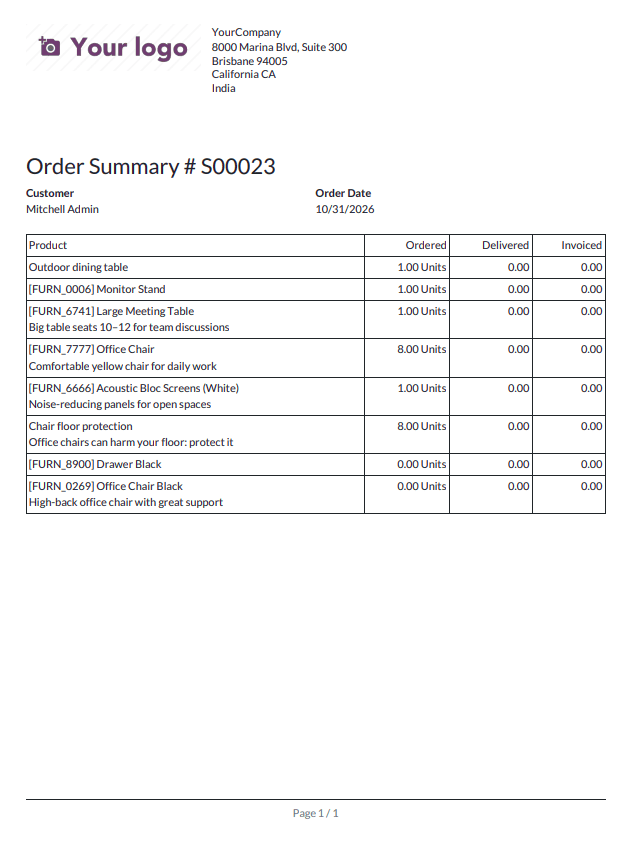
We will proceed to implement an Order Summary icon download link into every sales order in the portal Sales Orders grid. The order summary will consist of all the products with quantities ordered, delivered, and invoiced, to help customers track their orders without contacting your support team.
We will encompass all the code below into a custom module that depends on sales.
Creating the Portal Controller
The PDF is available through a new route at /my/orders. We need to create the controllers/portal.py file and extend the functionality of the sale portal controller.
from odoo import http
from odoo.exceptions import AccessError, MissingError
from odoo.http import request
from odoo.http.stream import content_disposition
from odoo.addons.sale.controllers.portal import CustomerPortal

class SaleOrderSummaryPortal(CustomerPortal):
    @http.route('/my/orders/<int:order_id>/summary', type='http', auth='public', website=True)
    def portal_order_summary(self, order_id, access_token=None, download=False, **kw):
        try:
            order_sudo = self._document_check_access('sale.order', order_id, access_token=access_token)
        except (AccessError, MissingError):
            return request.redirect('/my')
        if order_sudo.state != 'sale':
            return request.redirect(order_sudo.get_portal_url())
        response = self._show_report(
            model=order_sudo,
            report_type='pdf',
            report_ref='sale_portal_order_summary.action_report_order_summary',
            download=download,
        )
        response.headers['Content-Disposition'] = content_disposition(
            f"Order Summary - {order_sudo.name}.pdf",
            disposition_type='attachment' if download else 'inline',
        )
        return response
The route is classified as auth='public', which means that both registered users and regular clients with a shared link can use it. Access to the order is handled by _document_check_access(). This function either allows the request for the order if the user has the right to access it or raises an error if not and redirects to /my. The only orders that can be summarized are confirmed orders (order state sale). To send quotation requests, we need to go back to the normal portal page.
The function _show_report() generates the report with root access to the company's records, as per the specified command, and generates a PDF output. The file is named by default as per the order number (Sales_Order_S00020.pdf), which is the standard name for the report; this is why we need to change its Content-Disposition header option. In Odoo 20, however, the odoo.http module has been separated into a separate package, and now content_disposition needs to be imported from odoo.http.stream.
Defining the Report
The controller uses an XML ID to reference the report, so we first create a report action and its QWeb template in report/order_summary_report.xml.
Xml:
<?xml version="1.0" encoding="utf-8"?>
<odoo>
    <record id="action_report_order_summary" model="ir.actions.report">
        <field name="name">Order Summary</field>
        <field name="model">sale.order</field>
        <field name="report_type">qweb-pdf</field>
        <field name="report_name">sale_portal_order_summary.report_order_summary</field>
        <field name="print_report_name">'Order Summary - %s' % object.name</field>
        <field name="binding_model_id" ref="sale.model_sale_order"/>
        <field name="binding_type">report</field>
    </record>
    <template id="report_order_summary">
        <t t-call="web.html_container">
            <t t-foreach="docs" t-as="doc">
                <t t-set="layout_document_title">
                    <span>Order Summary # </span>
                    <span t-field="doc.name"/>
                </t>
                <t t-call="web.external_layout"
                    company="doc.company_id.sudo()"
                    layout_document_title="layout_document_title">
                    <div class="page">
                        <div class="row mb-4">
                            <div class="col">
                                <strong>Customer</strong>
                                <div t-field="doc.partner_id"/>
                            </div>
                            <div class="col">
                                <strong>Order Date</strong>
                                <div t-field="doc.date_order" t-options='{"widget": "date"}'/>
                            </div>
                            <div class="col" t-if="doc.client_order_ref">
                                <strong>Your Reference</strong>
                                <div t-field="doc.client_order_ref"/>
                            </div>
                        </div>
                        <table class="table table-sm">
                            <thead>
                                <tr>
                                    <th class="text-start">Product</th>
                                    <th class="text-end">Ordered</th>
                                    <th class="text-end">Delivered</th>
                                    <th class="text-end">Invoiced</th>
                                </tr>
                            </thead>
                            <tbody>
                                <tr t-foreach="doc.order_line.filtered(lambda l: not l.display_type)" t-as="line">
                                    <td><span t-field="line.label"/></td>
                                    <td class="text-end">
                                        <span t-field="line.product_uom_qty"/>
                                        <span t-field="line.product_uom_id"/>
                                    </td>
                                    <td class="text-end"><span t-field="line.qty_delivered"/></td>
                                    <td class="text-end"><span t-field="line.qty_invoiced"/></td>
                                </tr>
                            </tbody>
                        </table>
                    </div>
                </t>
            </t>
        </t>
    </template>
</odoo>
Thanks to the binding_model_id, the report appears in the Print submenu of sales orders in the backend as well, so your team gets the same document that the client has downloaded.
The title is passed to web.external_layout using layout_document_title, and it is the same way the standard sales and invoice reports do it in Odoo 20. The section and note lines are ignored due to the display_type filter.
The product column outputs line.label, not line.name. In Odoo 20, line.name for sales order lines only has the additional message, so for most of the products that field is empty since the line.label contains the concatenation of that name and the additional message.
Adding the Download Icon to the Portal List View
Customers can get to the summary directly from the Sales Orders list in their account without having to open each order. In Odoo 20, the order list is displayed via sale.portal_my_orders, and the Total cell header and cell have the identifiers order_total and order_amount_total, granting us stable reference points. Prepare the file called views/sale_portal_templates.xml.
<?xml version="1.0" encoding="utf-8"?>
<odoo>
    <template id="portal_my_orders_order_summary" inherit_id="sale.portal_my_orders">
        <xpath expr="//th[@name='order_total']" position="after">
            <th class="text-center">Order Summary</th>
        </xpath>
        <xpath expr="//td[@name='order_amount_total']" position="after">
            <td class="text-center">
                <a t-att-href="order.get_portal_url(suffix='/summary', download=True)"
                    title="Download Order Summary"
                    aria-label="Download Order Summary">
                    <i class="oi" data-icon="download"/>
                </a>
            </td>
        </xpath>
    </template>
</odoo>
The two xpaths are different, with the first adding a header cell following Total and the second inserting the cell for the download link in each line.get_portal_url(suffix='/summary', download=True) produces /my/orders//summary with the token for the order and download=true in the query string. Thus, the icon downloads the file instead of opening it in the browser.
The list ends up containing only confirmed orders since it applies a filter based on state sale. Thus, it doesn’t need a t-if. Quotations live in a separate Quotations list, and it remains unchanged. The icon utilizes Odoo 20, which replaced Font Awesome with Material Symbols, so the old fa fa-download class does not work anymore.
Once you have installed this module, log in as a portal user and go to My Account > Sales Orders. In the Order Summary column, there is a download icon for each of the confirmed orders.
[Screenshot: Portal Sales Orders list with the Order Summary column]
By clicking on the download icon, the system generates a file, Order Summary-pdf, with information on quantity ordered, shipped, and invoiced for every order item.
[Screenshot: Downloaded Order Summary PDF]
The addition of a download button for PDF reports in Odoo 20’s customer portal involves three key aspects: the creation of the report, the establishment of the routing mechanism, which will facilitate access control and rendering, and the use of template inheritance. The routing is conducted through _document_check_access(), thereby ensuring that the button will be secure without requiring additional security features. The same principle applies to invoices, deliveries, and custom models. In the case of a custom model, make sure to inherit the portal.mixin, which will provide the model with an access token and a URL leading to the portal. Furthermore, a method referred to as _get_report_base_filename() should be defined, for it is being invoked by the method called _show_report() while creating the response.
To read more about How to Create and Manage PDF Reports in Odoo 19, refer to our blog How to Create and Manage PDF Reports in Odoo 19.