In Odoo 20, the Search Panel is a highly effective sidebar navigation function that enables users to navigate as well as search for their records quickly and easily. Located on the left side of different multi-record views (for example, List, Kanban, and Graph), search panels cluster and categorize information by certain parameters such as product category, department, vendor, tag, or record stage.
So rather than spending time looking for necessary information in a traditional way, users can work efficiently and manage their data in record time.
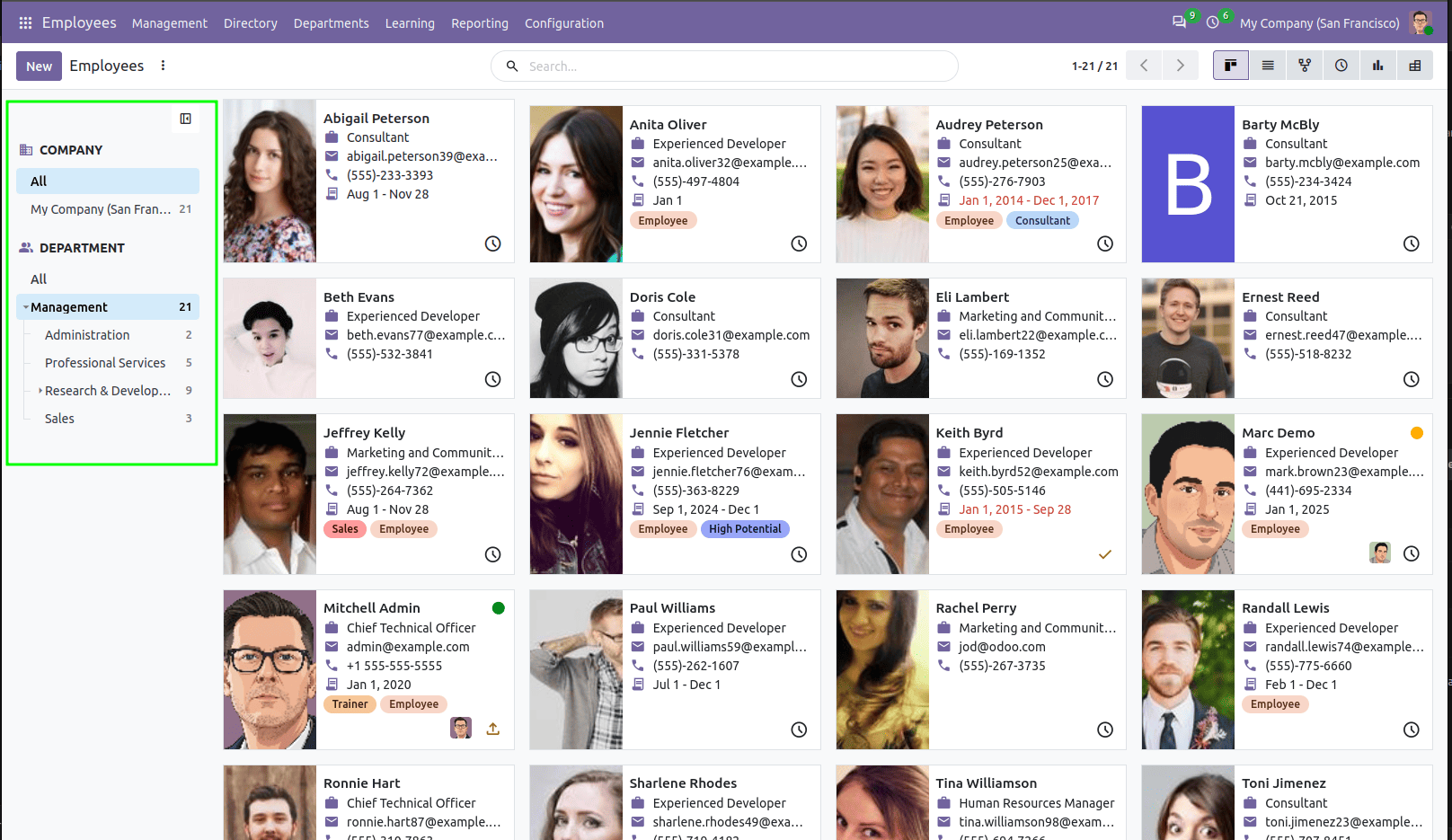
In this guidance document, you will understand the syntax used in creating search panels in Odoo 20. You will learn to implement these into your custom models, such as extending the existing views and configuring some settings such as the record counter settings, multi-selection options, icons, and hierarchical selections.
1. Understanding Search Panel Syntax
A search panel is defined inside the <search> view using the <searchpanel> root tag.
<search>
   <searchpanel>
      <field name="department_id"/>
   </searchpanel>
</search>
Inside <searchpanel>, you declare one or more <field> tags representing the fields you want to categorize by.
Search panels support:
- Many2one fields (e.g., department_id, category_id, company_id)
- Many2many fields (e.g., tag_ids, category_ids)
- Selection fields (e.g., state, gender, priority)
2. Creating a Search Panel in a Custom Model
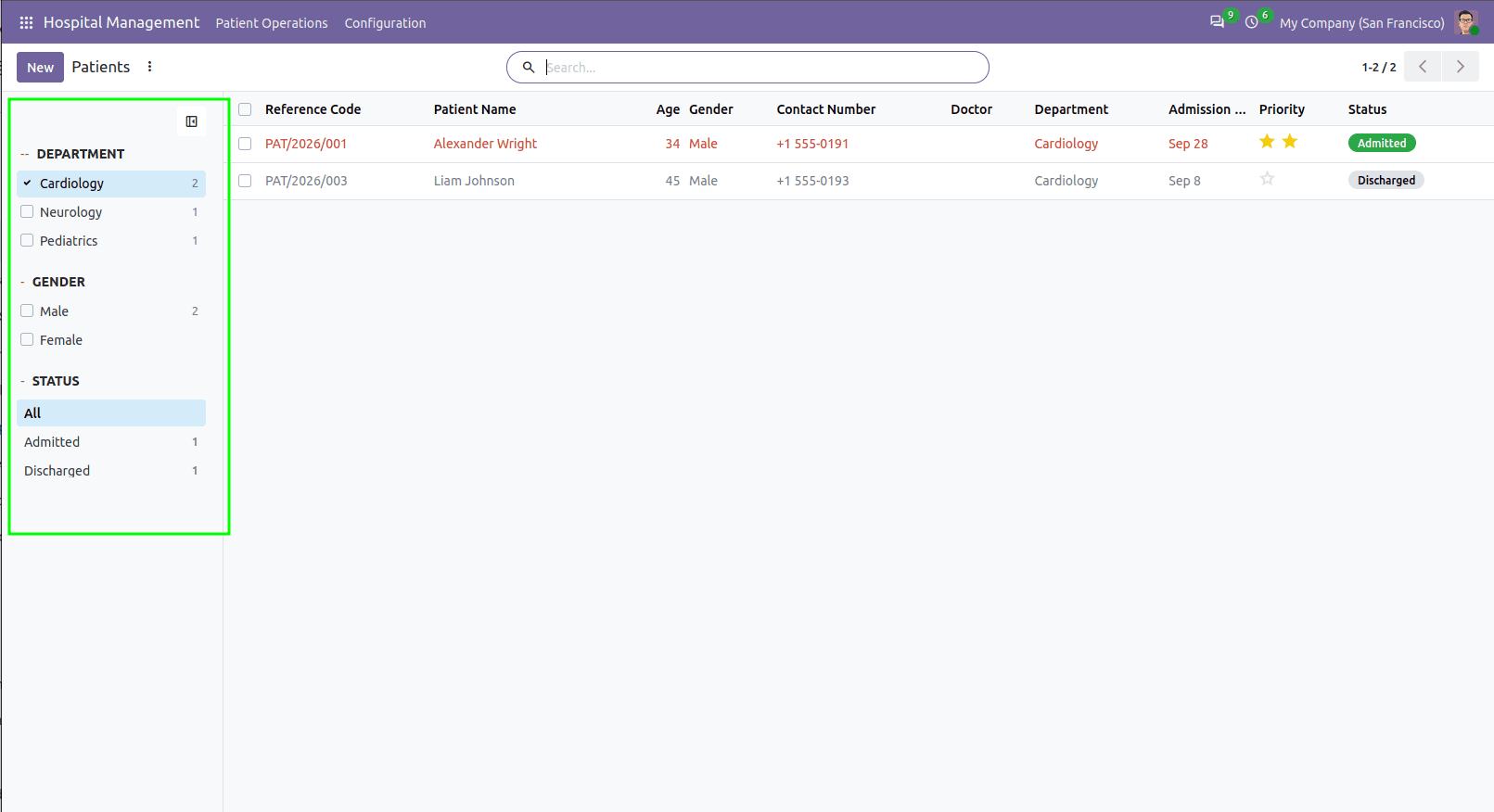
Let us introduce a Search Panel to the Hospital Management model (hospital.patient) so as to enable users to filter patients by Department, Gender, and Admission Status.
models/hospital_patient.py
python-
from odoo import fields, models
class HospitalDepartment(models.Model):
   _name = 'hospital.department'
   _description = 'Hospital Department'
   name = fields.Char(string='Department Name', required=True)
   code = fields.Char(string='Department Code')
class HospitalPatient(models.Model):
   _name = 'hospital.patient'
   _description = 'Hospital Patient'
   name = fields.Char(string='Patient Name', required=True)
   department_id = fields.Many2one('hospital.department', string='Department')
   gender = fields.Selection([
       ('male', 'Male'),
       ('female', 'Female'),
       ('other', 'Other')
   ], string='Gender', default='male')
   state = fields.Selection([
       ('draft', 'Draft'),
       ('admitted', 'Admitted'),
       ('discharged', 'Discharged')
   ], string='Status', default='admitted')
views/hospital_patient_views.xml
Declare the <searchpanel> inside the <search> view tag:
Xml-
<?xml version="1.0" encoding="utf-8"?>
<odoo>
   <record id="hospital_patient_view_search" model="ir.ui.view">
       <field name="name">hospital.patient.view.search</field>
       <field name="model">hospital.patient</field>
       <field name="arch" type="xml">
           <search string="Search Patients">
               <!-- Search Panel on Left Sidebar -->
               <searchpanel>
                   <field name="department_id"
                          string="Departments"
                          icon="fa-hospital-o"
                          enable_counters="1"
                          select="multi"/>
                   <field name="gender"
                          string="Gender"
                          icon="fa-users"
                          enable_counters="1"
                          select="multi"/>
                   <field name="state"
                          string="Status"
                          icon="fa-tasks"
                          enable_counters="1"/>
               </searchpanel>
           </search>
       </field>
   </record>
</odoo>
3. Extending Existing Views (Inheritance)
In the case of wanting to add a search panel to a core Odoo model (like product.template), you will use XML view inheritance to inherit the existing search view.
XML
<record id="product_template_search_panel_inherit" model="ir.ui.view">
   <field name="name">product.template.search.panel.inherit</field>
   <field name="model">product.template</field>
   <field name="inherit_id" ref="product.product_template_search_view"/>
   <field name="arch" type="xml">
       <search position="inside">
           <searchpanel>
               <field name="categ_id"
                      string="Category"
                      icon="fa-folder-open"
                      enable_counters="1"
                      hierarchize="1"/>
               <field name="type"
                      string="Product Type"
                      icon="fa-tags"/>
           </searchpanel>
       </search>
   </field>
</record>
4. Key Attributes of Search Panel Fields
You can customize each <field> inside a <searchpanel> with several attributes:
| Attribute | Description | Example |
| name | Technical name of the model field (Required). | name="department_id" |
| string | Custom heading label displayed above the section. | string="Departments" |
| icon | FontAwesome or Material icon displayed next to the label. | icon="fa-users" |
| select | Defines selection behavior: 'single' (radio) or 'multi' (checkbox). | select="multi" |
| enable_counters | Displays live record counts next to each filter option ("1" or "0"). | enable_counters="1" |
| hierarchize | Displays parent-child trees for hierarchical models (e.g., categories). | hierarchize="1" |
| domain | Domain filter to restrict which category options are shown in the panel. | domain="[('active', '=', True)]" |
| color | Custom hex color code for visual accents. | color="#875A7B" |
| groups | Restricts visibility of the filter section to specific security user groups. | groups="base.group_multi_company" |
You can also restrict which view modes show the search panel using the view_types attribute on the <searchpanel> tag:
XML
<searchpanel view_types="list,kanban">
   ...
</searchpanel>
In Odoo 20, the Search Panel is a feature that provides a modern sidebar interface, which makes it easy to navigate through large databases and filter their contents. By leveraging relation, selection, and many-to-many fields, as well as using live counters and multiple selection checkboxes, you can improve your custom Odoo app without much programming.
To read more about How to Create a Search Panel in Odoo 19, refer to our blog, How to Create a Search Panel in Odoo 19.