A Calendar module is a time management tool that helps users to organize meetings, manage team availability, and schedule events. It helps organizations manage their business more efficiently. In Odoo 20, this module allows users to create and organize their meetings and events with ease.
This blog will provide an overview of how to create recurring meetings and edit individual occurrences in the Calendar module in Odoo 20.
Create Recurring Meeting
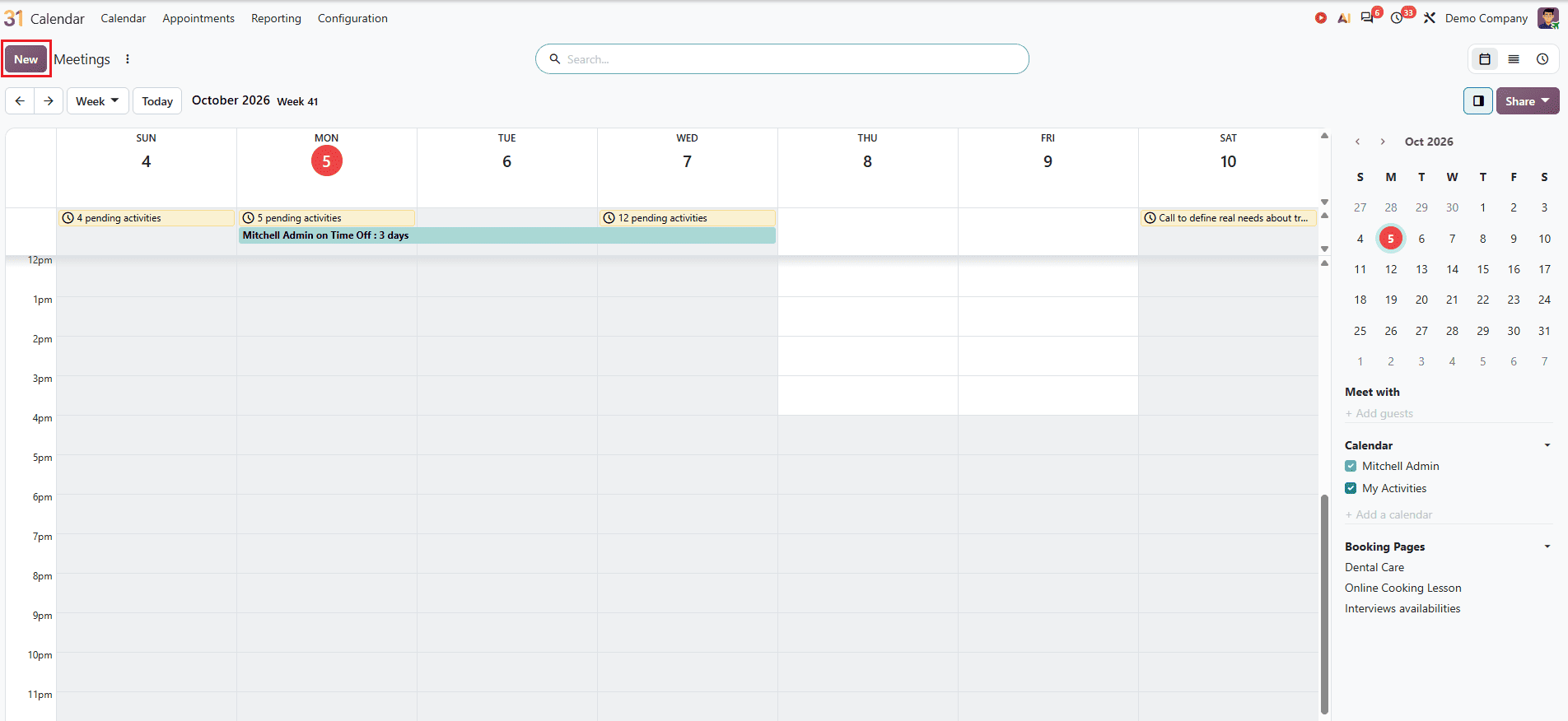
Open the Calendar module in Odoo 20, the default view will be the meeting page display. To create a new meeting, click the New button on the left.
Then a new window will pop up, and you can simply enter the meeting subject, time, durations and location etc. After entering the required details, move to the additional details, such as notes, options, and invitation. Click on the Options tab, which is given below.
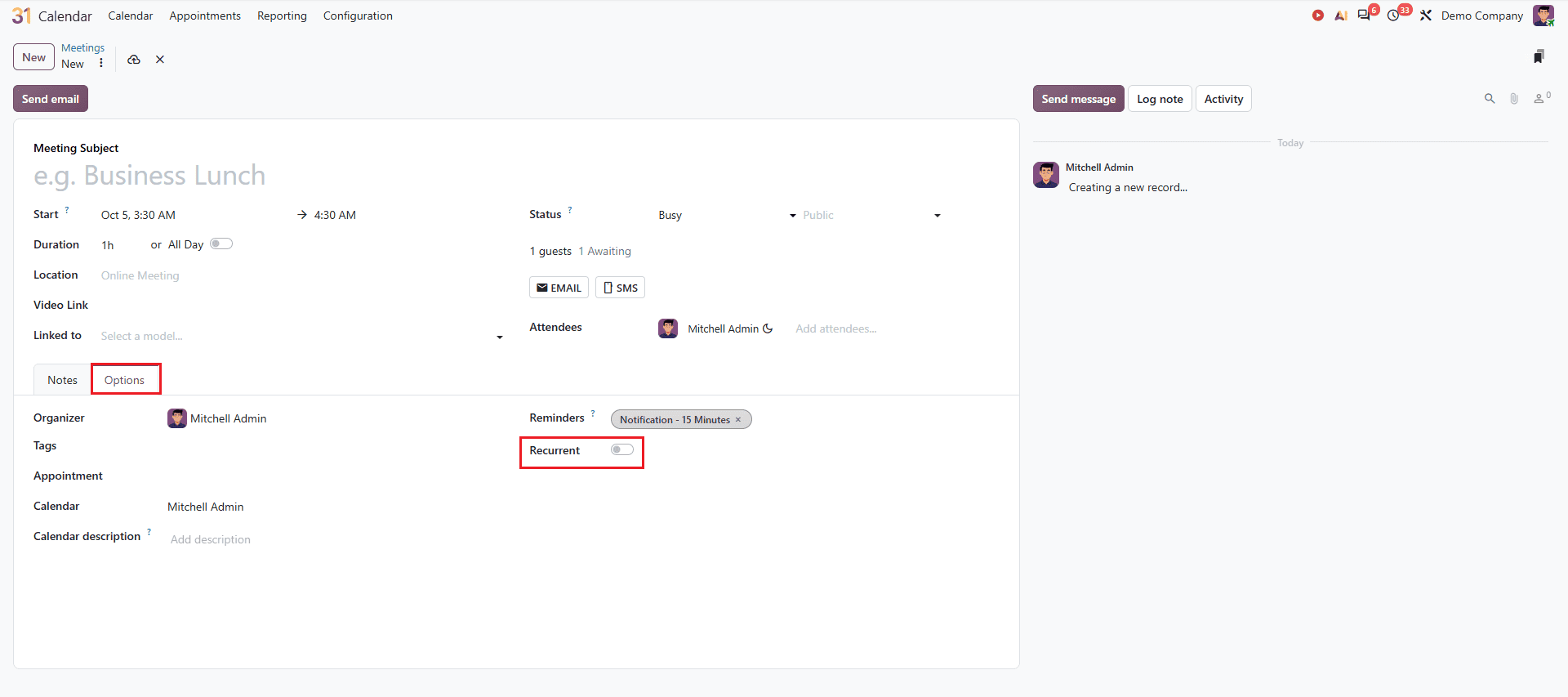
To schedule a recurring meeting, enable the recurrence toggle. This allows you to schedule the meeting to repeat automatically at your preferred frequency.
Once you configure the recurrent option, you can configure how often and how long the meeting should be repeated. The repeat field allows you to choose repetition of the meeting, such as daily, weekly, monthly or yearly. The interval field determines how frequently the meeting should repeat within the selected recurrence type. For example, you can set a weekly meeting to repeat every two weeks instead of every week.
Based on the selected frequency, you can choose the repeat on to set the specific date on which the meeting occurs. For example, if you choose a weekly recurrence, you can select a day of the week on which the meeting should repeat. For monthly meetings, you can also specify whether the recurrence should follow a particular day of month or specific weekly day pattern. Move to the next field Until to set how long the recurring meeting should continue, you can choose a specific number of repetitions, set an end date or forever.
And finally, you can set the appropriate timezone to ensure accurate scheduling across different regions. These features allow you to schedule recurring meetings according to your requirements without creating each meeting separately, while ensuring accurate scheduling across different time zones.
If the invitation field is not visible in the meeting tab, you may need to activate developer mode from the settings.
Once you have completed all the required settings, the recurring option will appear at the top of the meeting and it provides options to update recurring meetings such as this event, this and following events, all events. You can update as per your requirement and then you can save it.
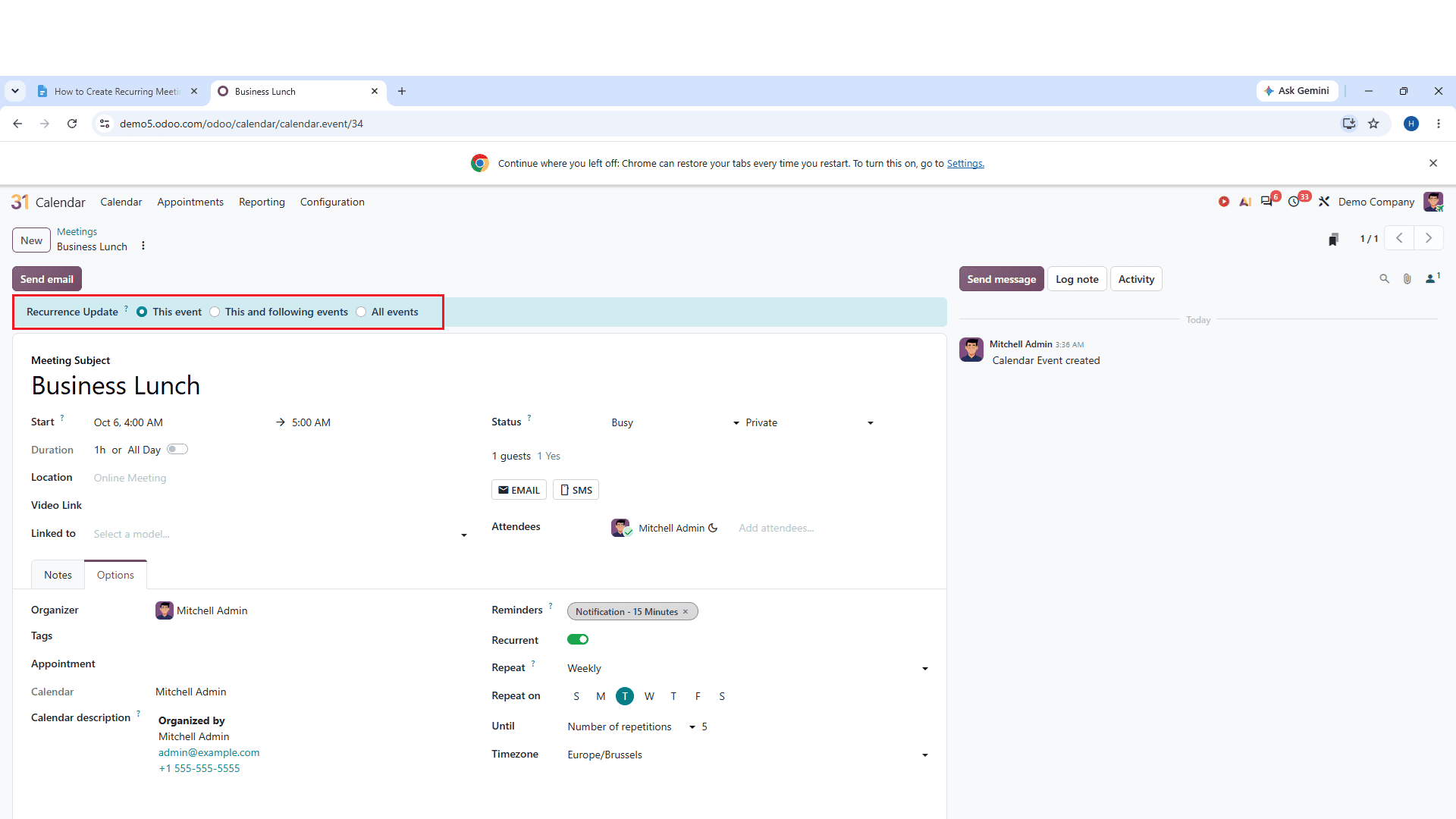
With these options, you can easily manage and update your recurring events while keeping your schedule organized.
Edit A Recurring Meeting Series
In Odoo 20 also allows you to modify the details of an entire recurring meeting series. You can also update the meetings information and apply the changes to all events in the series without editing individually.
Once we scheduled a recurring meeting you can see that on the calendar dashboard. You can use navigation arrows to move across dates and also change views to daily, weekly and monthly or yearly. So here we can change the view to monthly to see the recurring meetings we scheduled. Just as given below:
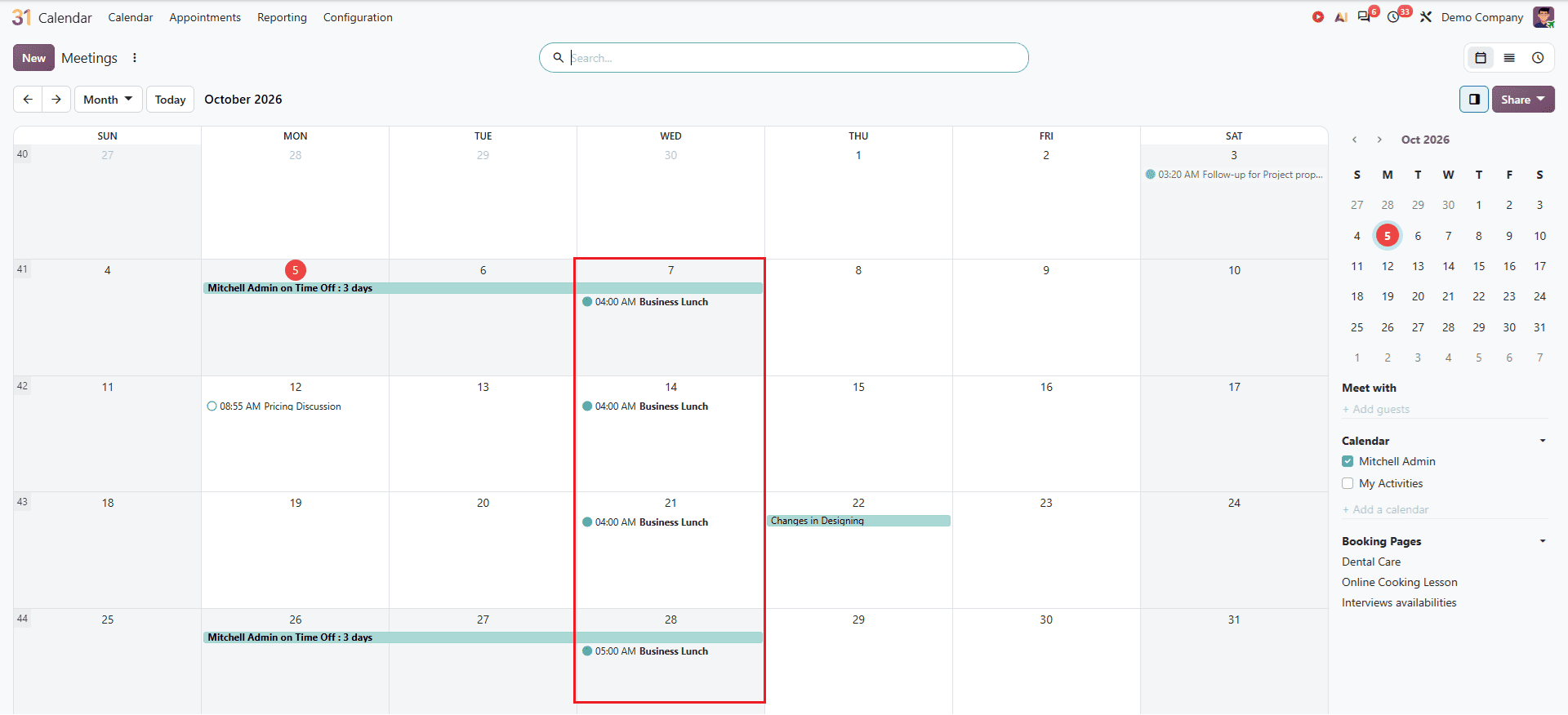
If you click on the scheduled meeting of any date, a new pop up window will appear like this. Here you can see the details of your recurring meetings. To edit recurring meetings you can click on the edit button on that pop up window. Then you will move to the edit window, and you can edit as per your requirement.
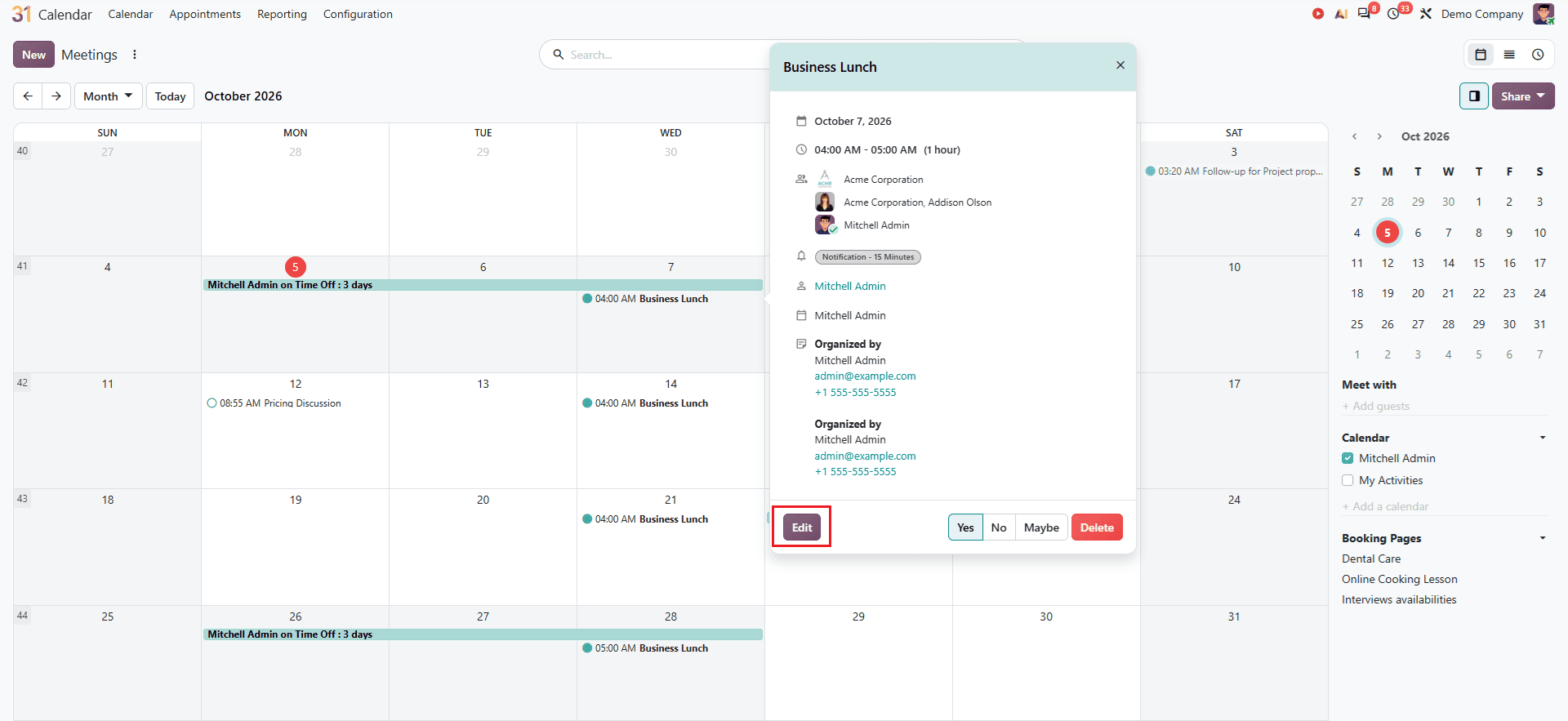
When editing a recurring meeting, Odoo 20 provides three options to determine how the changes should be applied; The Event, This And Following Event, And All The Events. These options allow you to apply changes to a specific occurrence, the remaining occurrences, or the complete recurring meeting series according to your requirements.
To edit only one occurrence of this recurring event, you have to select a recurrence update as this event. This allows you to modify details such as the time, date or attendees without affecting the other meeting in recurring series.
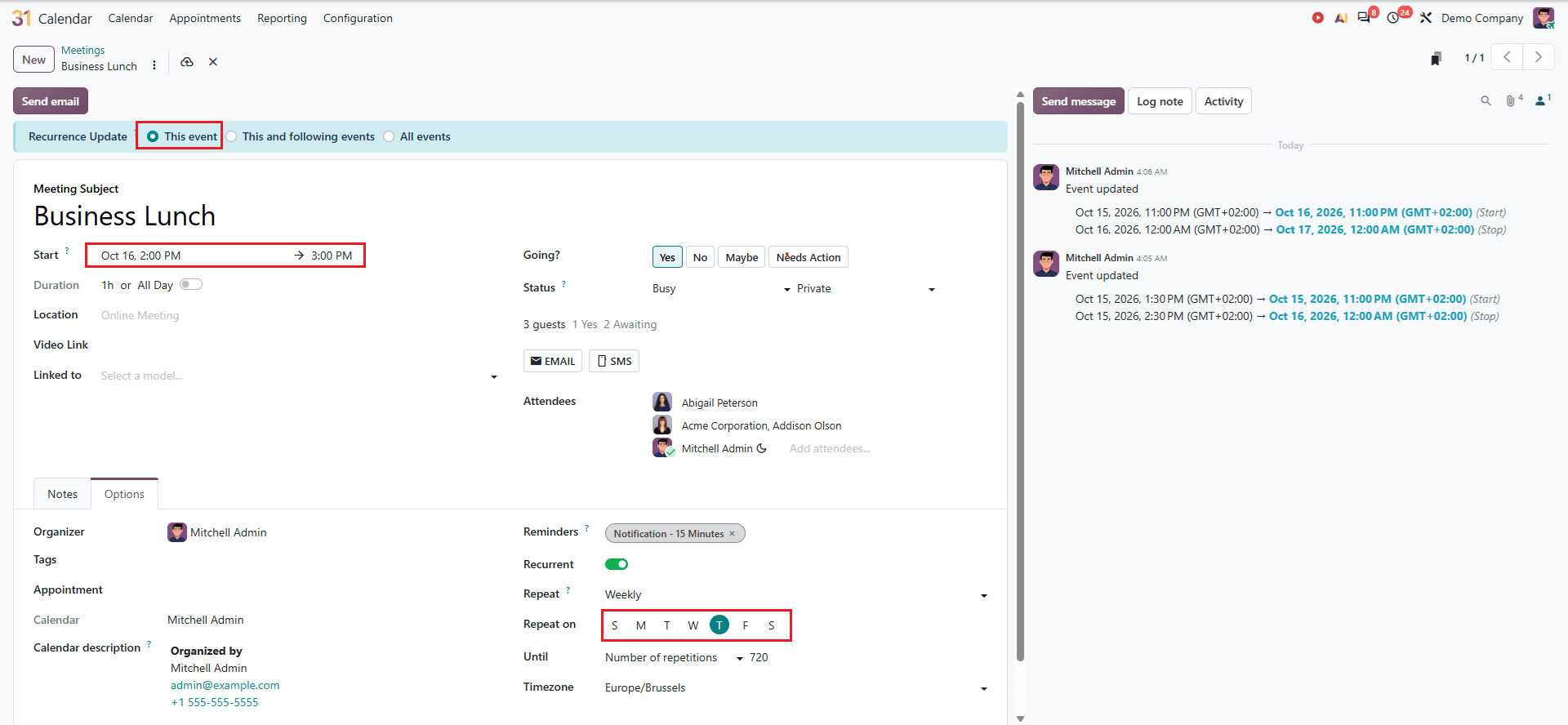
Here you can see the updated changes such as date, time and attendees.
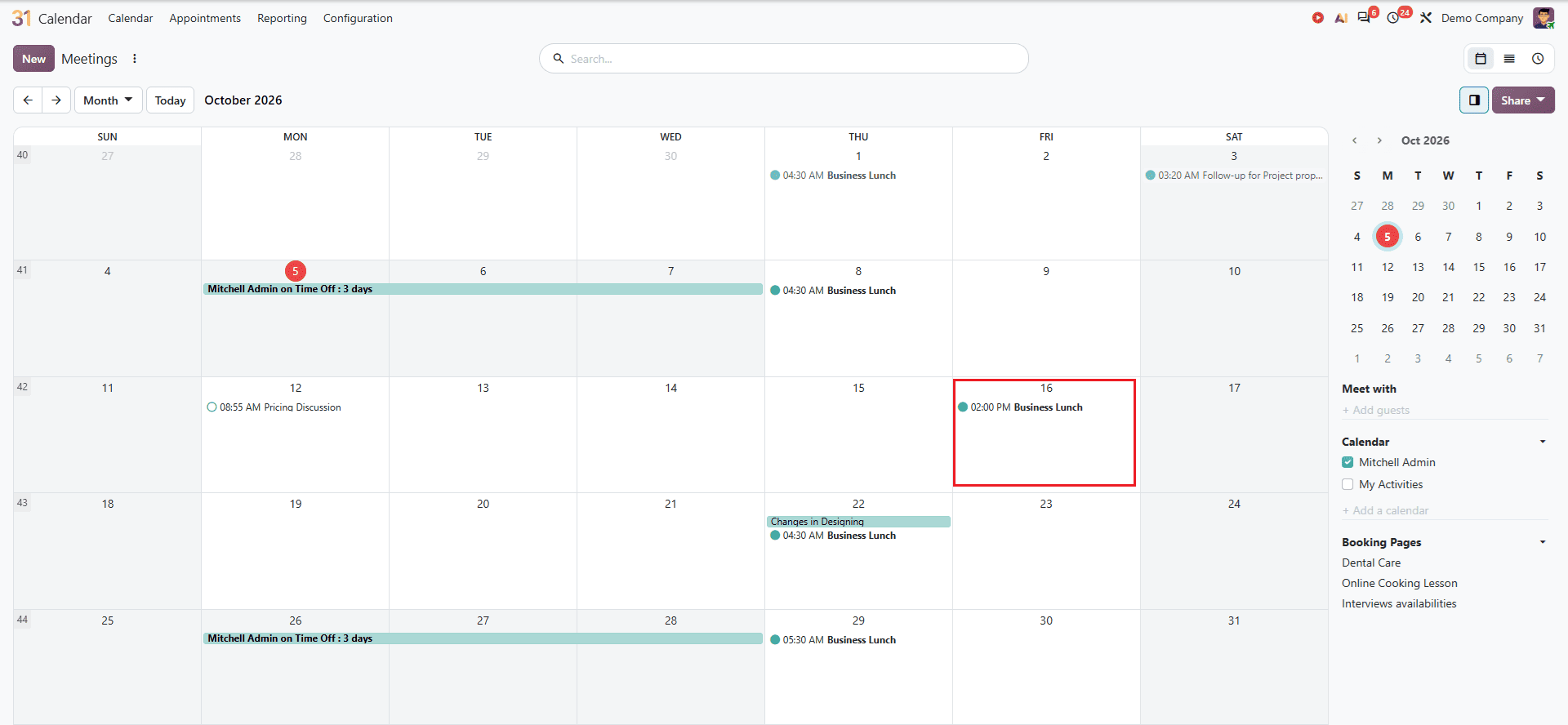
Once you save the changes you can see the updated occurrence will appear separately in the calendar dashboard like this;
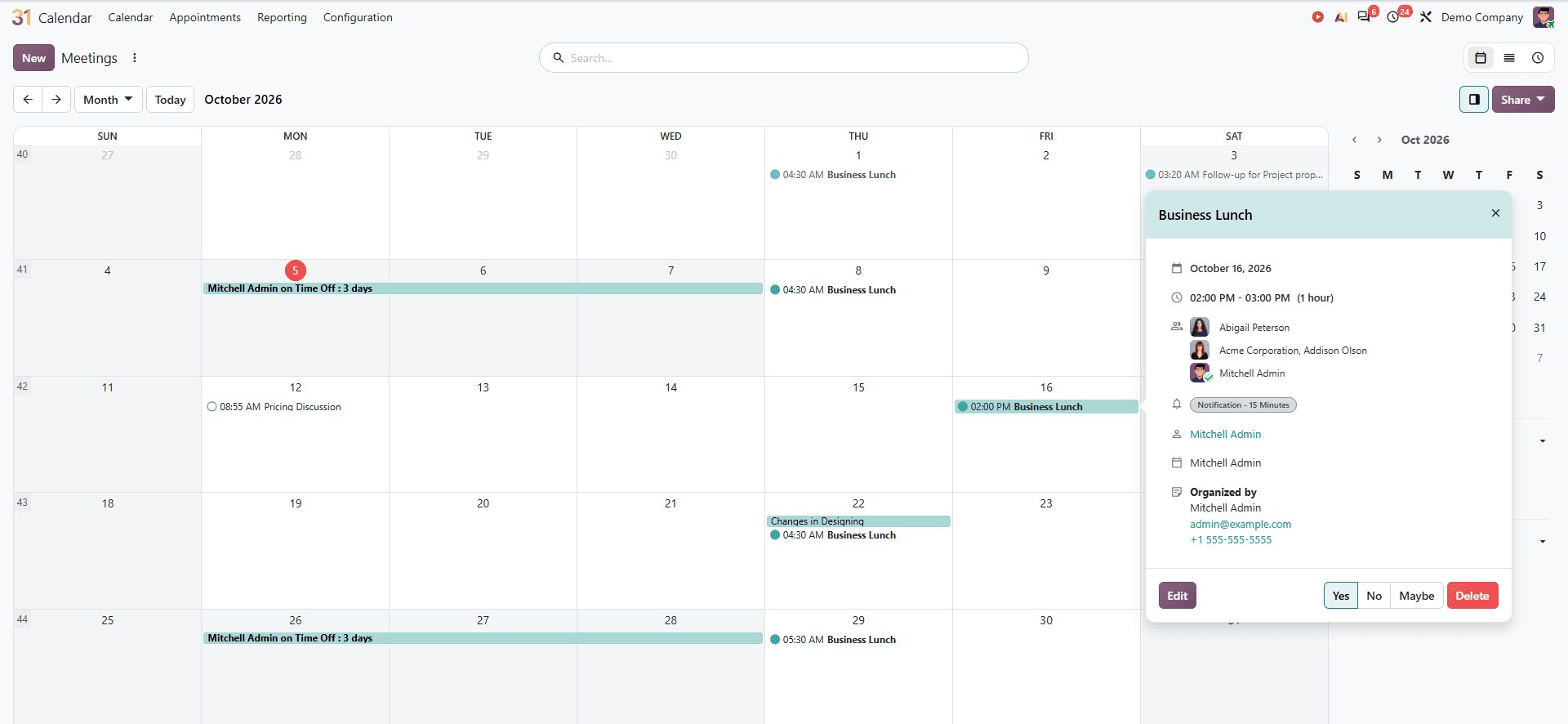
If you click on the edited recurrent meeting you can see the details in a pop up window.
If you want to change the meeting schedule from a particular occurrence onward, select This And Following Events. Any changes made to the selected meeting will also be applied to all following events in the recurring series. You can see the changes in the picture below.
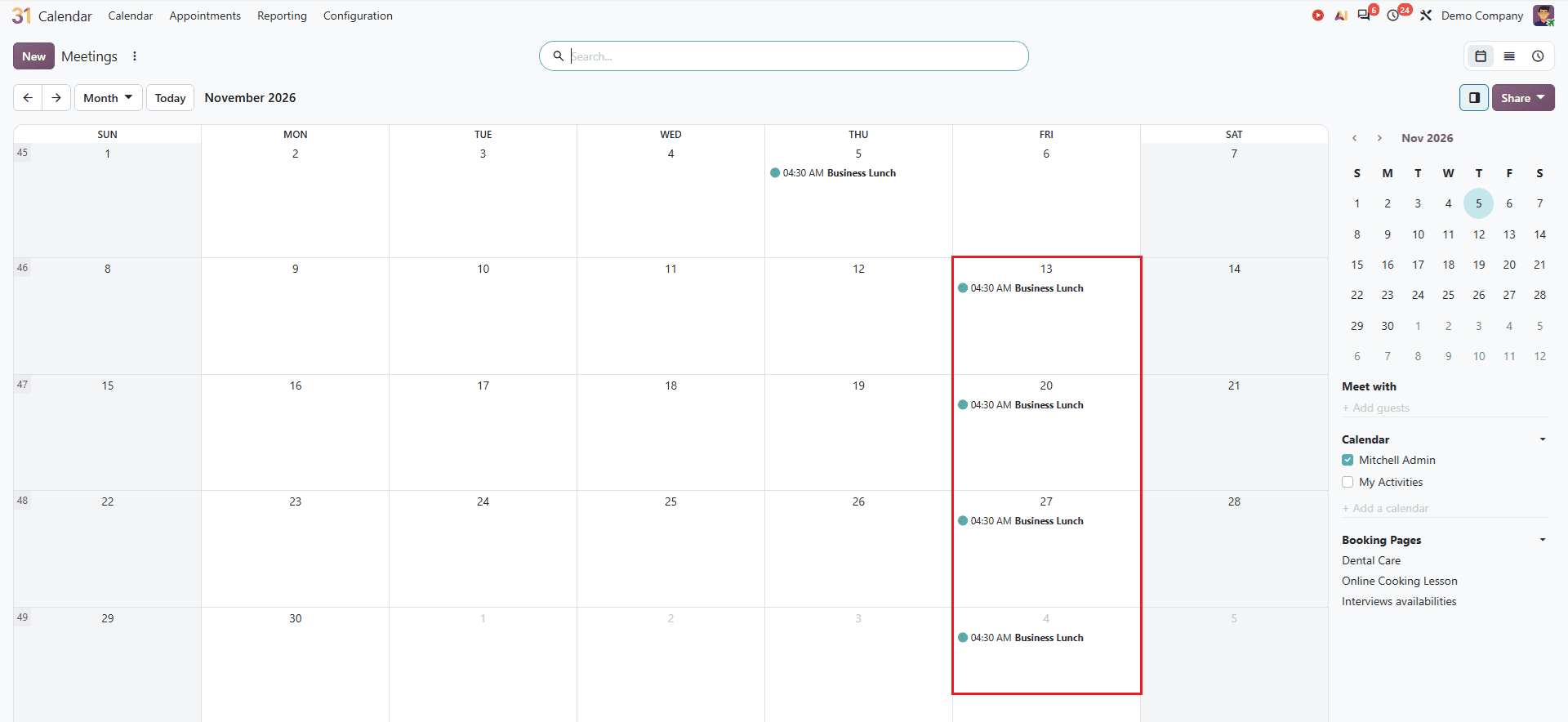
And then, to modify the complete recurring series, select All Events from the recurring updates. You can then make the required changes, such as updating the meeting time, date or attendees. After saving it all changes you made will apply to all the occurrences including recurring series.
With Odoo 20 Calendar, scheduling meetings and managing events becomes more efficient and less challenging. Users can simply create recurring meetings without manually creating each occurrence. Recurring meetings can be modified according to users requirements, providing the flexibility to update either a single occurrence or the recurring series. Odoo 20 also supports synchronization with external calendars and helps to keep scheduled events consistent between the Odoo calendar and connected external calendar services when changes are synchronized. All these features help to reduce the time spent managing meetings, simplify scheduling, and keep schedules organized.
To read more about How to Master the Calendar Module in Odoo 19, refer to our blog How to Master the Calendar Module in Odoo 19.