Searching for records quickly is important while working with data-intensive applications like Odoo 20. Odoo has several view types like List, Form, Kanban, Pivot, and Graph version. While List and Kanban views are for viewing multiple records, Search View acts as a navigation tool on the control bar above them.
Search View does not display records but specifies the search fields, quick filters, and grouping of records.
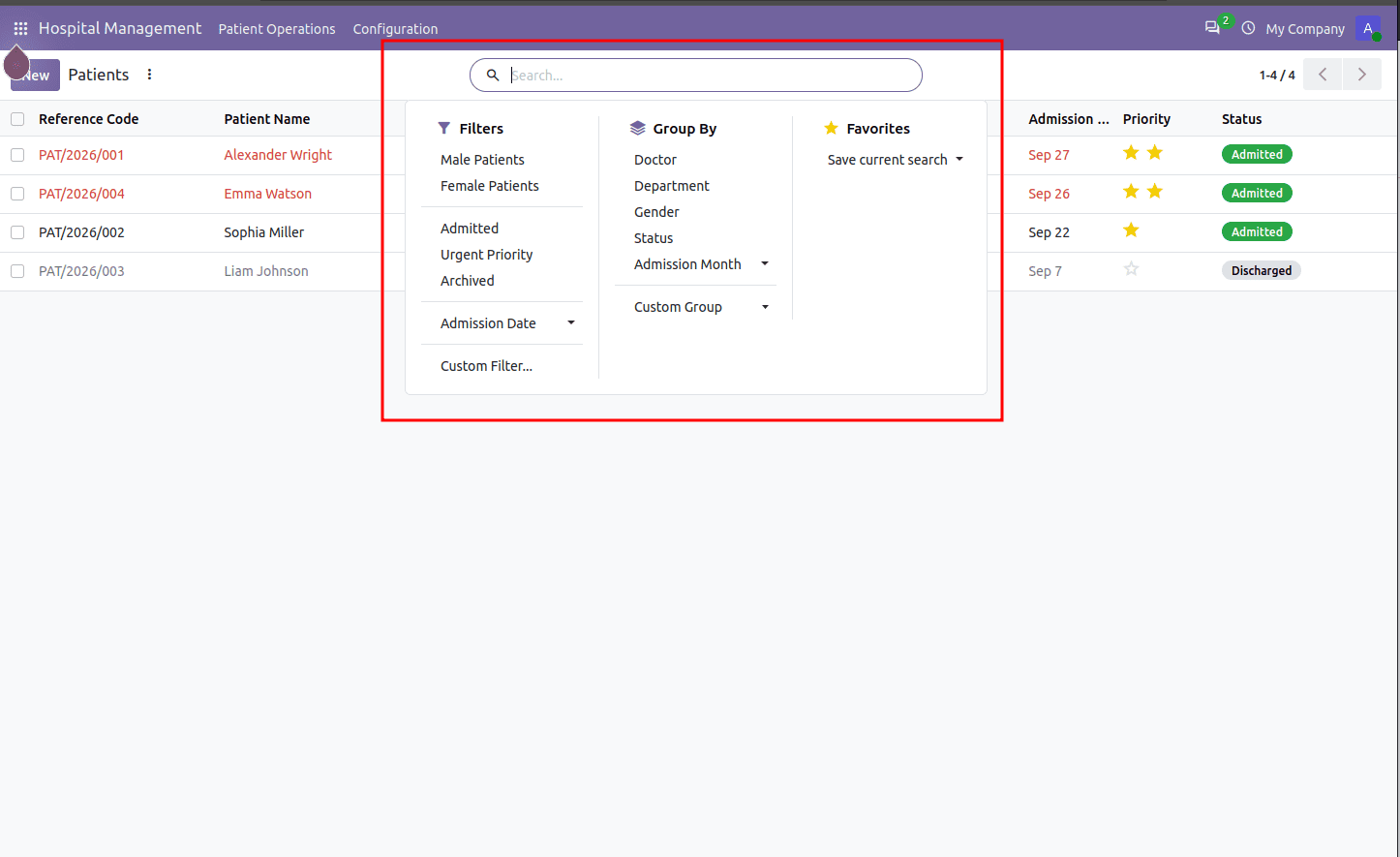
In this tutorial, we will create a Search View from the beginning with an easy Hospital Management (hospital.patient) module.
1. Defining the Model Fields
Let’s look at a simple Python model with common field types that we want to search, filter, and group.
python
# models/hospital_patient.py
from odoo import fields, models
class HospitalPatient(models.Model):
   _name = 'hospital.patient'
   _description = 'Hospital Patient'
   name = fields.Char(string='Patient Name', required=True)
   phone = fields.Char(string='Phone Number')
   age = fields.Integer(string='Age')
   gender = fields.Selection([
       ('male', 'Male'),
       ('female', 'Female'),
       ('other', 'Other')
   ], string='Gender', default='male')
   doctor_id = fields.Many2one('res.partner', string='Assigned Doctor')
   state = fields.Selection([
       ('draft', 'Draft'),
       ('admitted', 'Admitted'),
       ('discharged', 'Discharged')
   ], string='Status', default='admitted')
2. Basic Search View
Search views are defined as XML records targeting the ir.ui.view model. The root tag inside <field name="arch" type="xml"> is <search>.
Create or update your view file inside the module’s views/ directory:
XML
<!-- views/hospital_patient_views.xml -->
<record id="hospital_patient_view_search" model="ir.ui.view">
   <field name="name">hospital.patient.view.search</field>
   <field name="model">hospital.patient</field>
   <field name="arch" type="xml">
       <search string="Search Patients">
           <!-- Searchable Fields -->
           <field name="name" string="Patient Name"/>
           <field name="phone" string="Phone Number"/>
           <field name="doctor_id" string="Doctor"/>
           <field name="age"/>
       </search>
   </field>
</record>
How It Works:
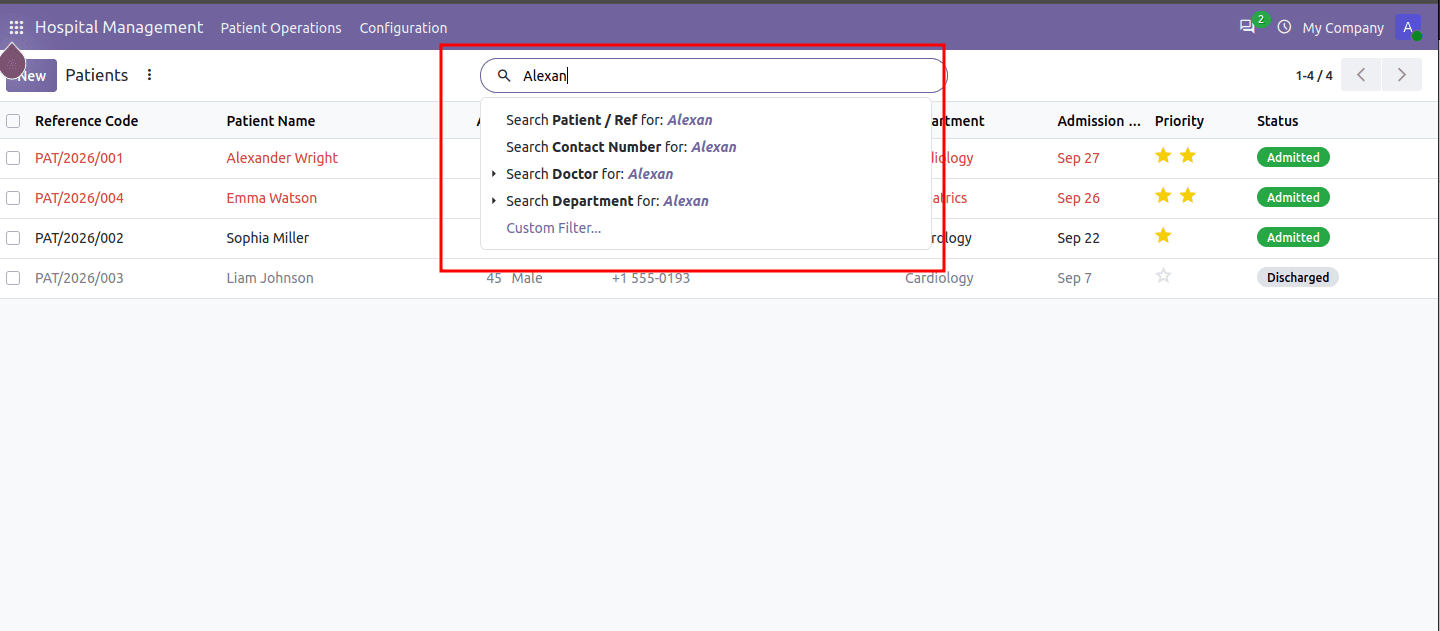
- <field name="field_name"/>: Tells Odoo to index this field in the search bar.
- When a user types in the search bar, Odoo suggests matching results along with these added fields
3. Adding Predefined Filters
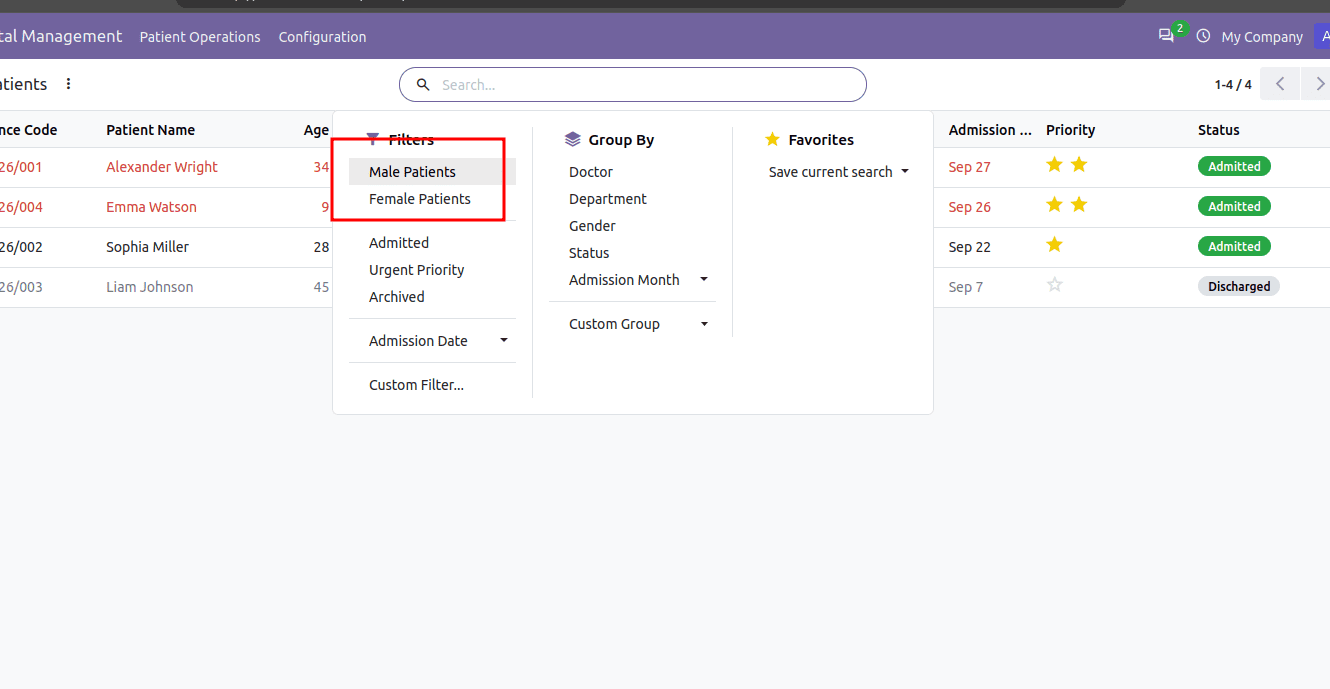
Instead of requiring users to build custom filters every time, you can define quick, reusable filters using the <filter> tag with a domain.
XML
<search string="Search Patients">
   <field name="name" string="Patient Name"/>
   <field name="phone"/>
   <field name="doctor_id"/>
   <separator/>
   <!-- Predefined Filters -->
   <filter string="Male Patients" name="filter_male"
           domain="[('gender', '=', 'male')]"/>
   <filter string="Female Patients" name="filter_female"
           domain="[('gender', '=', 'female')]"/>
   <separator/>
   <filter string="Currently Admitted" name="filter_admitted"
           domain="[('state', '=', 'admitted')]"/>
   <filter string="Discharged" name="filter_discharged"
           domain="[('state', '=', 'discharged')]"/>
</search>
Quick Rule on <separator/>:
- Filters which are present in the same group (without using any separator) function according to OR logic (e.g., selecting both Man and Woman would give patients of both genders).
- Filters which are separated are executed according to AND logic (e.g., selecting Male Patients and Currently Admitted will yield only admitted Male Patients).
4. Adding Group By Options
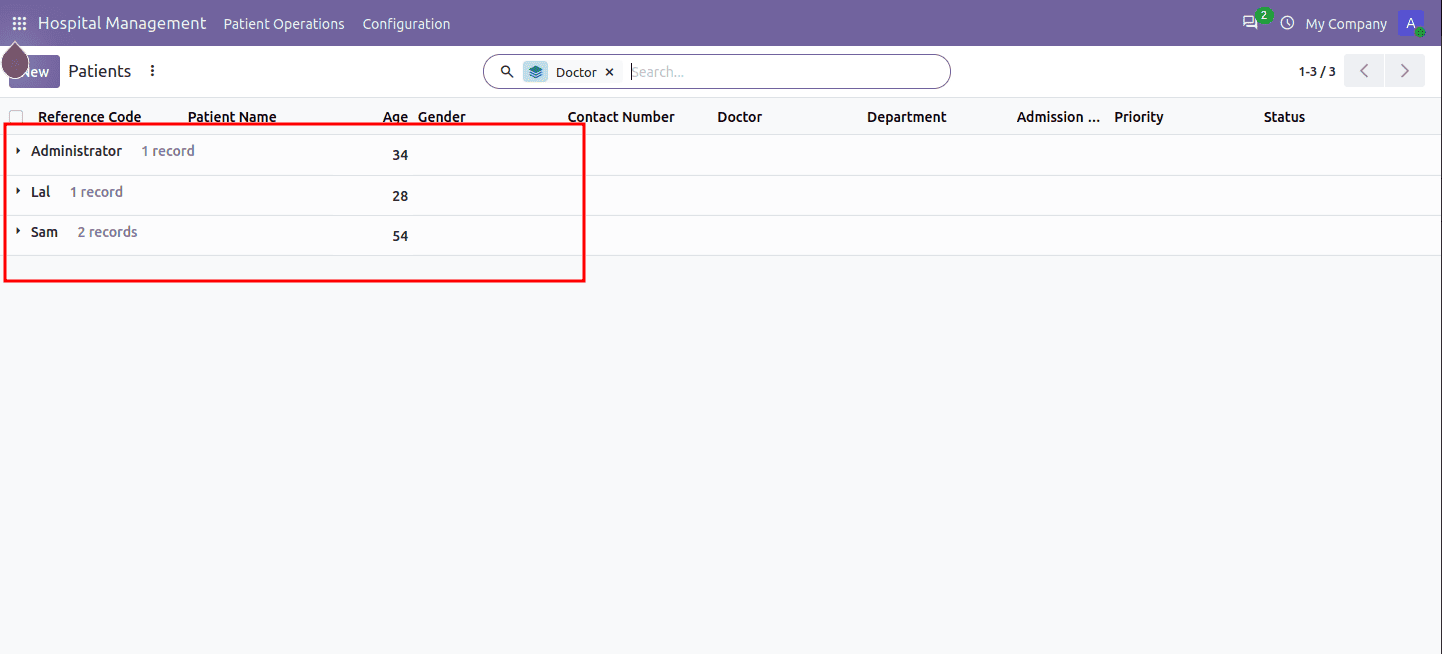
The Group By menu organizes records into collapsible categories. Grouping filters are placed inside a <group> tag with context="{'group_by': 'field_name'}".
XML
<search string="Search Patients">
   <!-- Search fields & filters -->
   <field name="name"/>
   <field name="doctor_id"/>
   <!-- Group By Section -->
   <group expand="0" string="Group By">
       <filter string="Doctor" name="groupby_doctor"
               context="{'group_by': 'doctor_id'}"/>
       <filter string="Gender" name="groupby_gender"
               context="{'group_by': 'gender'}"/>
       <filter string="Status" name="groupby_state"
               context="{'group_by': 'state'}"/>
   </group>
</search>
5. Setting Default Filters
To have specific filters or grouping active automatically when a user opens the menu, add search_default_<filter_name>: 1 in the action's context:
XML
<record id="action_hospital_patient" model="ir.actions.act_window">
   <field name="name">Patients</field>
   <field name="res_model">hospital.patient</field>
   <field name="view_mode">list,form</field>
   <field name="search_view_id" ref="hospital_patient_view_search"/>
   <field name="context">{
       'search_default_filter_admitted': 1,
       'search_default_groupby_doctor': 1
   }</field>
</record>
When users open the Patients menu, Odoo will automatically show only admitted patients grouped by doctor.
The ability to create and personalize Search and Filter views in Odoo 20 is a crucial step in developing a user-friendly interface. Thanks to a few lines of XML, we can activate fast suggestions, preset filtering with one click, and allow data to be organized in an understandable manner. Understanding search views gives you an advantage in letting your users work without effort with big amounts of information.
To read more about How to Create a Search Or Filter View in Odoo 19, refer to our blog, How to Create a Search Or Filter View in Odoo 19.