The appraisals module in Odoo helps to remove the following reasons: performance reviews are done daily, such as someone forgetting to do them; the skills discussed in the meeting or event are not being marked in the employee record, so when it comes to employee appraisal, no one will remember where the person has already improved or not.
The Odoo 19 appraisal module helps them review against a plan, structure the conversation with a template, collect input from colleagues via 360-degree feedback, and list every skill and performance repository.
1. Overview and views
Once you open the Appraisals module in Odoo, you will see the appraisal dashboard. Each review is a card, and clicking on it brings up the appraisal form.
The top half of the form holds the identifying information:
| Field | What it does |
| Employee to review | The individual being evaluated. |
| Appraisers | Defaults to the employee's manager; additional appraisers can be added. |
| Job / Department | Automatically pulled from the employee's profile. |
| Appraisal Date | The submission deadline defaults to one month from the current date. |
| Next Appraisal Date | Displays once the process is complete; shows "Ongoing" if managed by an appraisal plan. |
| Template | Defaults to the "Default" template generated during app installation. |
Once you press Confirm, the following happens: the appraisals are scheduled, the employee and appraisers receive notifications, and the form becomes editable. Moreover, the form uncovers two extra fields: Target Job and Final Rating.
It is crucial to take note of Target Job. Choose the position that an employee aims for, and then the required skills needed to achieve the position that will appear in the Skills tab along with their respective levels. Thus, the gap analysis forms the core of the conversation.
Note: Until the appraisal is confirmed, the feedback sections of that appraisal cannot be filled by the employee and appraisers. First, you should confirm the appraisal to be able to write your feedback.
The form contains tabs like the feedback template, Skills, and Private Note, as well as smart buttons, which refer to goals, past appraisals, and scheduled meetings of the employee.
For reporting views, see section 9.
2. The Configuration menu at a glance
Here's nearly everything you'll configure before your first review cycle:
- Settings - appraisal plans and the automation toggle
- Appraisal Templates - the question sets
- Evaluation Scale - the final rating options
- 360 Feedback - the peer-feedback surveys
- Library - the goals templates
- Tags - labels for organising goals
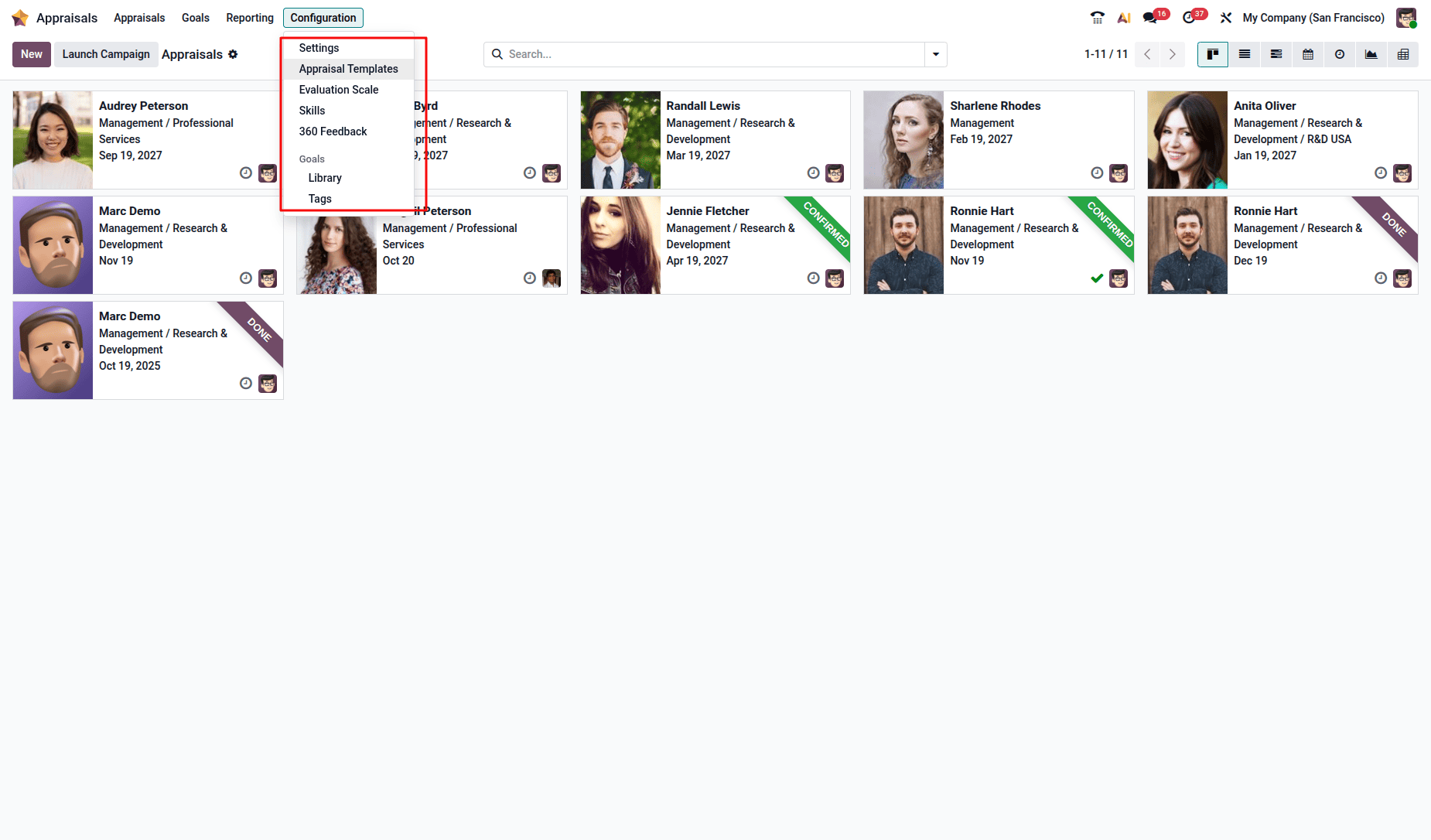
There is a separate setup for skill types in the Employees app. Read about it in section 5.
3. Appraisal templates
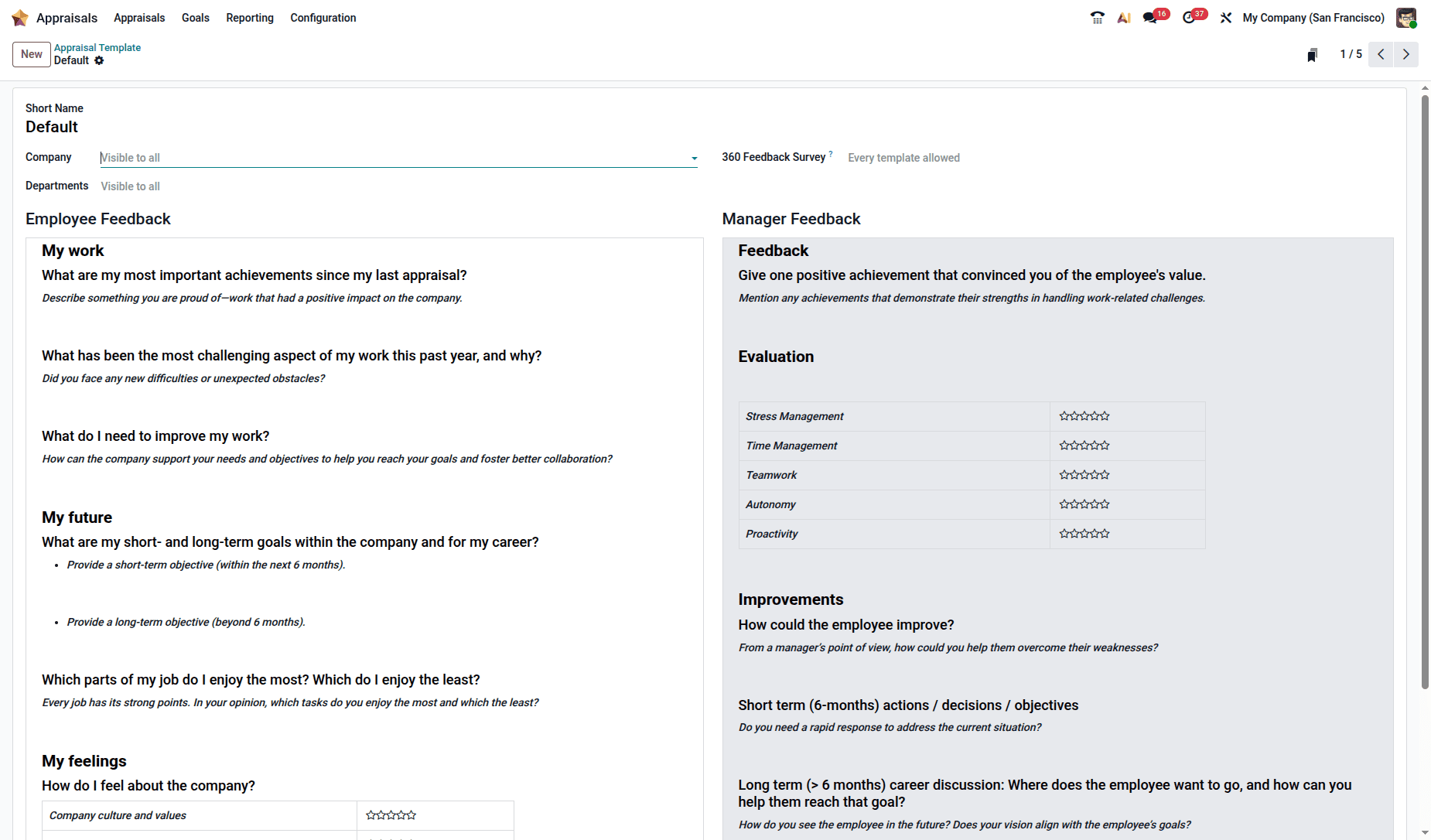
A template consists of a set of questions to be answered by both the employee and the manager. Odoo includes a general-purpose template named "Default", which can be accessed by navigating to Appraisals>- Configuration > Appraisal Templates.
It is divided into two halves:
Employee Feedback - sections titled My Work, My Future, and My Feelings.
Manager Feedback - sections titled Feedback, Evaluation, and Improvements.
Each section contains open-ended questions accompanied by brief prompts on how to respond.
Creating your own
The default template is intentionally generic. Larger organisations typically require role-specific versions; the questions relevant to a field technician differ from those suitable for an accountant.
There are two ways to create one:
- From scratch: Click New on the Appraisal Templates list and draft your questions using the rich-text editor.
- By duplication: Open the default template, click the Actions icon, select Duplicate, rename the copy, and modify it. This is generally faster, as it allows you to retain a proven structure while updating only what is necessary.
Important: Appraisal templates are technically Survey records stored within the Surveys app. If you create a template directly in the Surveys app, you must flag it for use with Appraisals; otherwise, it will not appear in the Template dropdown menu on the appraisal form.
4. Evaluation scale
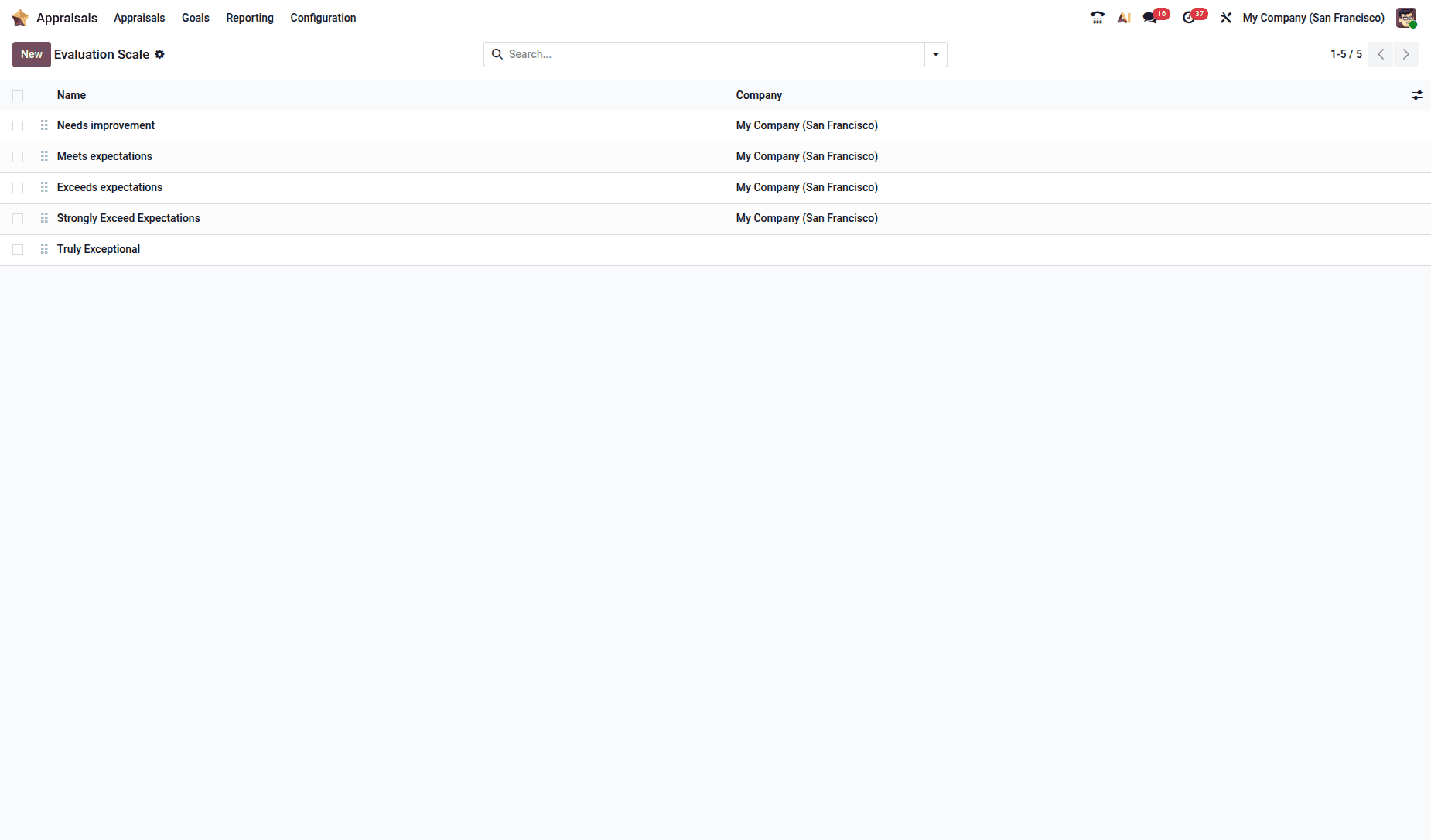
The Final Rating on a completed appraisal draws from a configurable list at Appraisals > Configuration > Evaluation Scale.
Odoo preconfigures four:
- Needs improvement
- Meets expectations
- Exceeds expectations
- Strongly exceeds expectations
To create your own, click New, enter the rating in the field appearing on the new line, and press Enter. It is possible to rearrange ratings through dragging and dropping.
Some practical advice for you not based on the documentation: do not try to create a ten-point scale. Wide bands make people take a decision; narrow scales make people nitpick and bunch up in the middle.
5. Skill types and the Skills tab
Skills are what turn an appraisal from a conversation into a record.
Configuring skill types
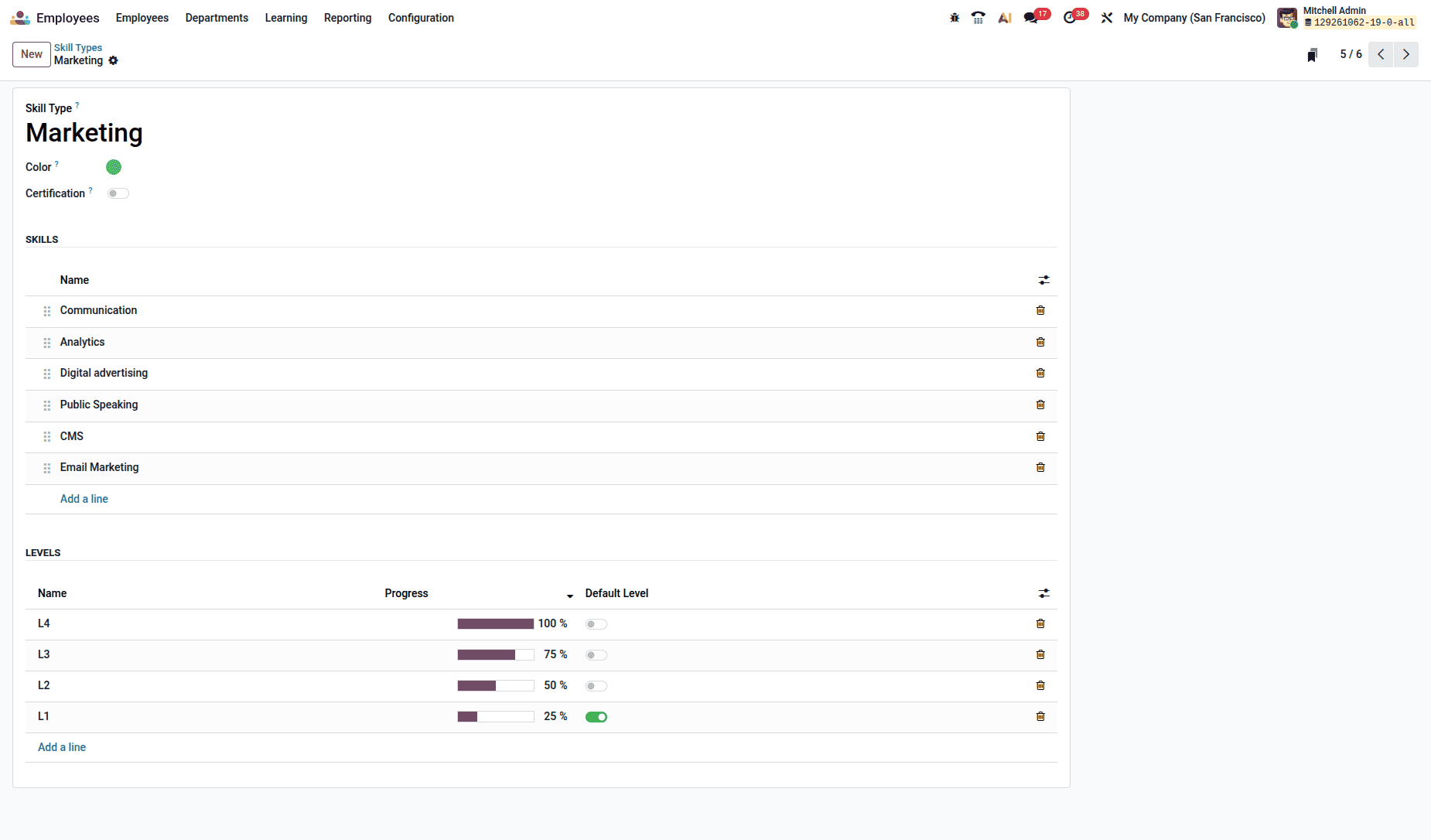
Skill types are master data owned by the Employees app: Employees > Configuration > Skill Types. A skill type is a category - Languages, Programming, Machinery, Soft Skills - and individual skills nest beneath it.
Each skill type record holds:
- Skill Type - the category name
- Color - for visual grouping
- Certification - a toggle marking the type as a certification rather than a proficiency
- Skills - the individual skills in the category, added line by line
- Levels - named proficiency levels, each with a Progress percentage from 0 to 100, and one flagged as the Default Level
The progress percentage is what makes skills measurable. "Beginner = 25%, Intermediate = 50%, Advanced = 75%, Expert = 100%" gives you something the reporting layer can actually chart.
Skills during an appraisal
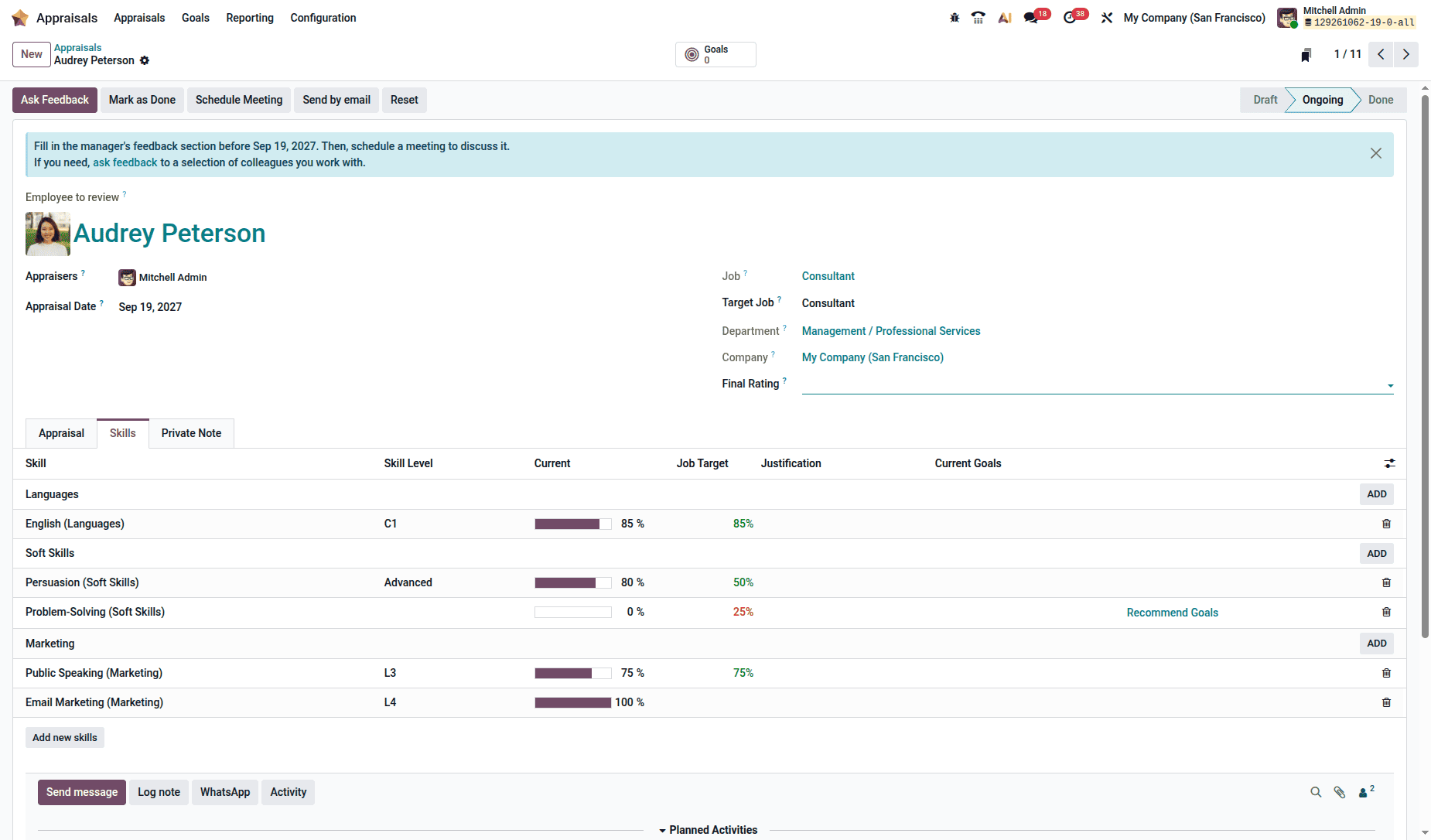
Once an appraisal is confirmed, the Skills tab auto-populates from the employee's record. If a Target Job is set, the required skills and their expected levels appear too, with the target shown in red in the Job Target column.
Skills are grouped by type, and each line shows Skill Level, Current progress, and Justification.
When a skill has improved, the manager updates the level from the dropdown - the Current percentage follows automatically - and records why in the Justification field. "Passed B2 fluency exam in March" or "Completed AWS Solutions Architect certification" is the kind of entry that makes the record defensible a year later.
New skills can be added at this point as well. Everything captured here carries forward: the next time an appraisal is confirmed, the updated skills are what populate the tab.
The Skills tab only appears after the appraisal is confirmed. It can be modified at any time thereafter.
6. 360 Feedback
A manager sees a slice of an employee's work. Colleagues, direct reports, and cross-functional partners see the rest. Odoo's 360 Feedback closes that gap.
The dashboard
Appraisals > Configuration > 360 Feedback lists every feedback survey configured for the app, with:
- Survey Name
- Responsible - the owner, with the month and year assigned
- Questions - how many does the survey contain
- Completed - how many people have submitted
A Test button opens the survey in a new tab so you can preview it without recording a response.
Requesting feedback
Open a confirmed appraisal and click Ask Feedback. (The button only appears on confirmed appraisals.) A pop-up loads using the Appraisal: Ask Feedback email template:
- Recipients - select one or more colleagues
- Answer Deadline - defaults to the appraisal's due date, adjustable
- Subject - pre-filled as Take part in (Employee Name) appraisal
- A free-text area for additional comments
Click Send, and the requests go out.
Reading the results
The Feedback button opens the Feedback Surveys dashboard, listing every person asked, with their Status, Deadline, and the Survey name (Employee Opinion Form by default).
- See results opens a Choose Survey pop-up - pick 360 Feedback and click See Results to view the combined, aggregated responses.
- Completed requests carry a green Completed tag; See Answers opens that individual's responses.
- Outstanding requests carry a blue New tag, with a Resend button to nudge them.
Viewing combined results rather than individual answers is generally the better habit - it protects candour, which is the entire point of collecting peer feedback.
7. Goals
Goals give employees something concrete to work on between reviews and give managers evidence to evaluate when the review comes around.
Nothing is preconfigured here. Every goal in your database is one you created.
The Goals Library
Appraisals > Configuration > Library holds reusable goal templates, each showing its Name, the skills it's Recommended for, and its sub-goals.
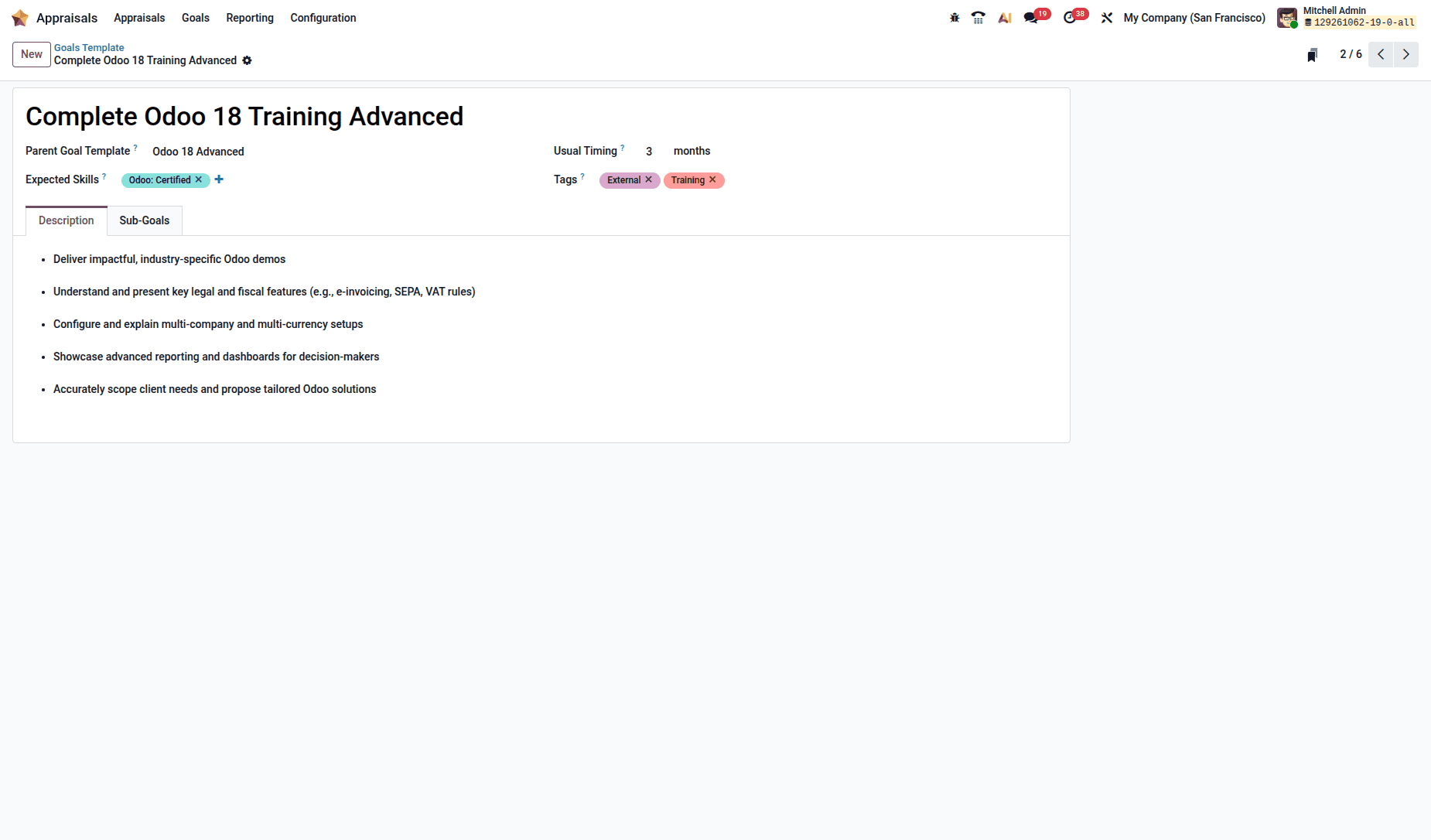
Creating one (New) opens a Goals Template form:
| Field | Purpose |
| Name | The goal's title |
| Parent Goal Template | The larger goal this one sits beneath, if any |
| Expected Skills | The skills this goal builds toward - when an employee is assigned one of these skills, this goal is recommended to them |
| Usual Timing | Typical months to completion; used to calculate the due date on assignment |
| Tags | Labels for filtering and reporting |
The Description Tab is meant for employees. A rich-text editor helps in arranging the description of goals: the steps, benefits, contact details, and checklist if the goal is divided into several subgoals.
The Sub-Goals Tab is meant for prerequisites. Just click on Add a line, and you will see a Create Sub-Goal Template pop-up with all the fields without a parent field.
Worked Example from Odoo Docs: A Goal by the name of Factory Safety Training belongs to its parent goal, Heavy Machinery Safety Training. The Expected Skills for this goal are Forklift Operation: Advanced. Whenever the employee wishes to gain that skill, the goal is recommended to him/her to reach the required skill proficiency level. The Usual Timing for this goal is one month. There are four sub-goals, each corresponding to training on each piece of equipment, respectively.
Tags
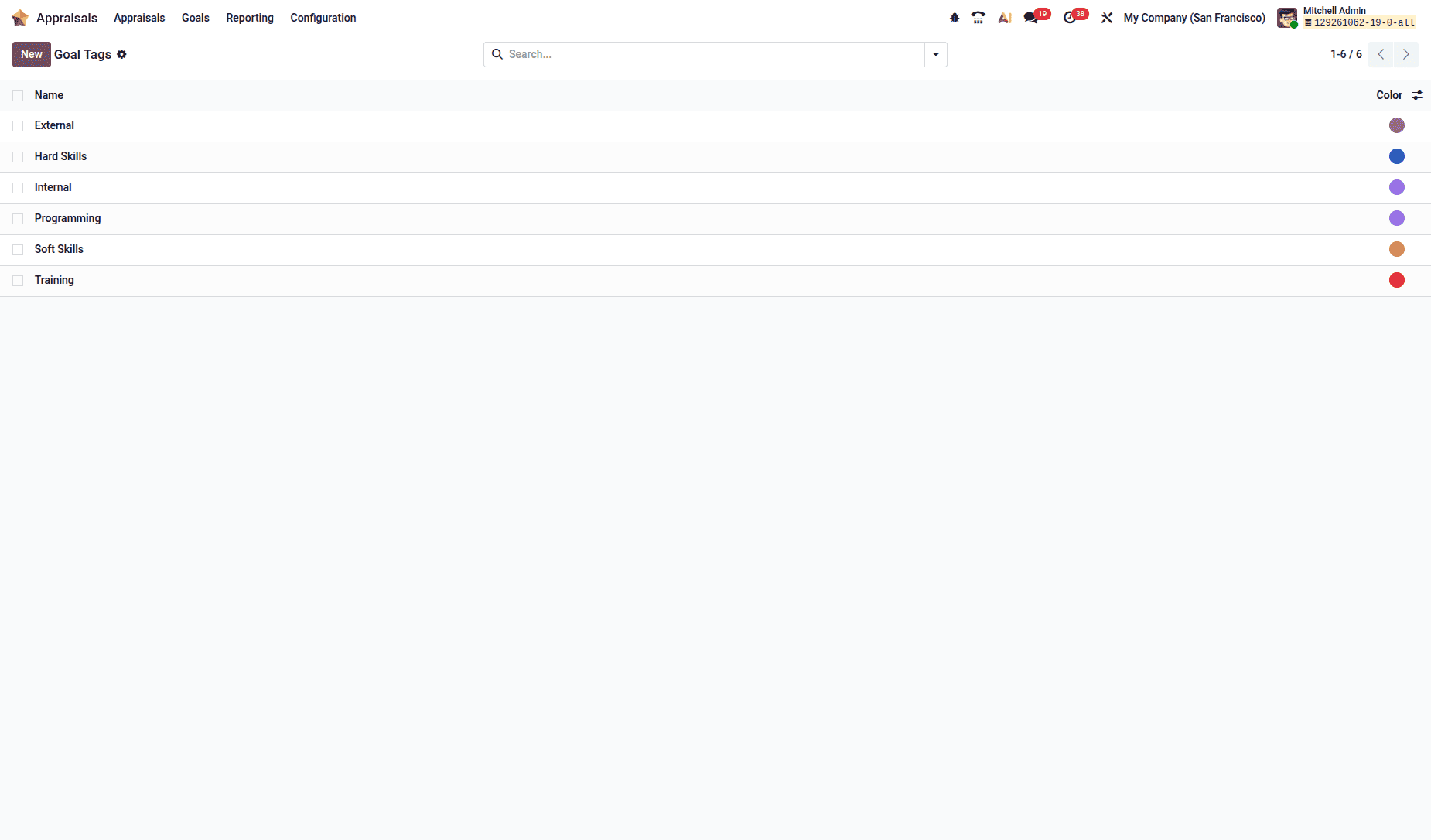
Appraisals > Configuration > Tags. None come preconfigured. Click New, type the tag name, press Enter, and click the colored dot at the end of the line to assign a color. Tags pay off when you want to ask "how many training goals are live across the company right now?"
Assigning and tracking
Appraisals > Goals shows every assigned goal, grouped by employee. Expand an employee to see Name, Progress, Employee, and Deadline. Progress renders in gray until complete, then green at 100%. Passed deadlines show in red. Employees without goals don't appear.
To assign from the library: click Open Library, tick the goals you want, click Continue, tick the employees, then Add Goals to Employees.
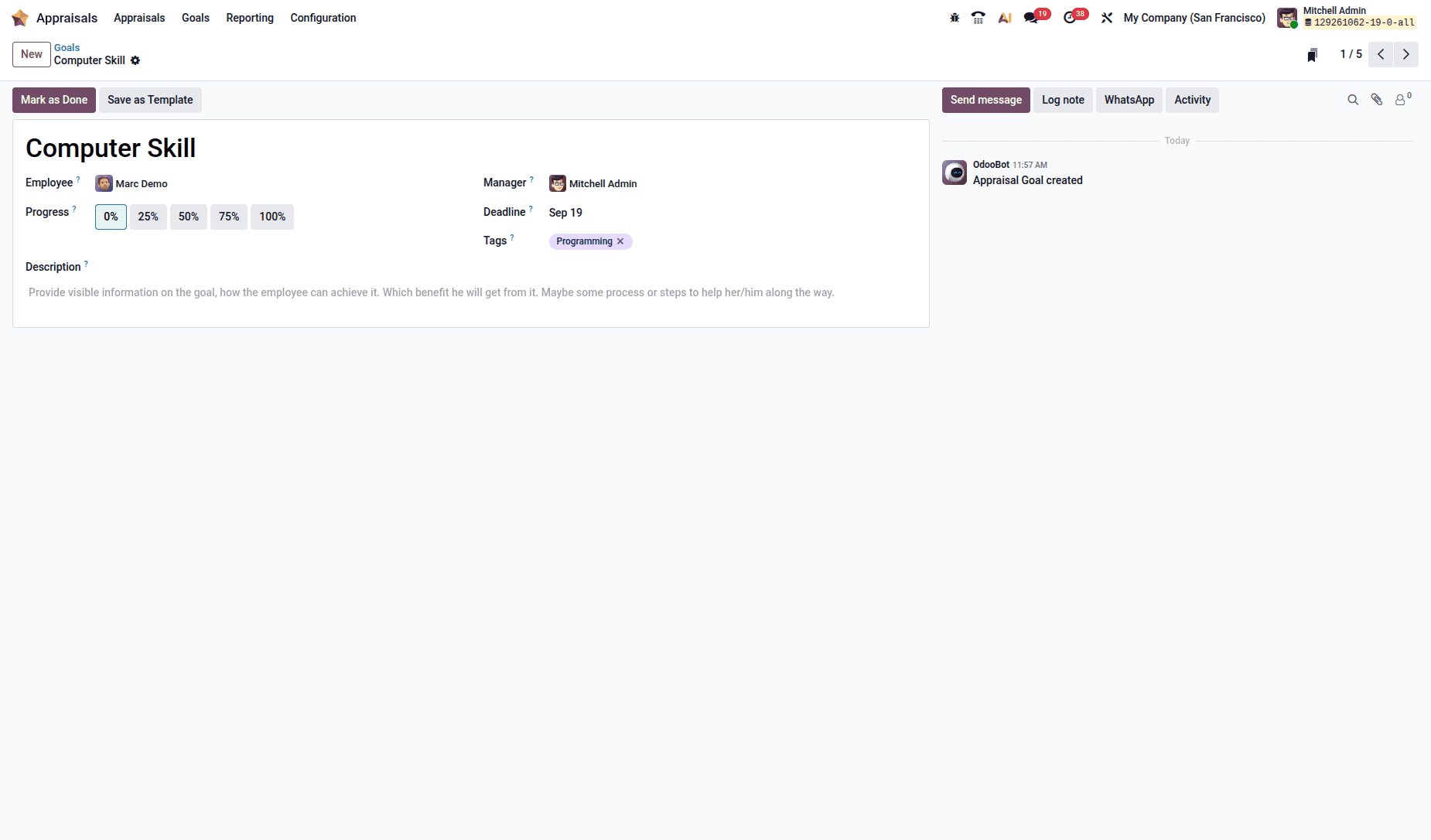
To create a one-off goal: click New and fill in Goal, Employee (which populates Manager), Progress (0%, 25%, 50%, 75%, or 100%), Deadline, Tags, and Description.
Progress is normally updated during the appraisal, but it can be changed any time - click the goal, set the new Progress, and note the date and supporting detail in the Description. When a goal is met, open it and click Mark as Done: a green Done banner appears, and Progress jumps to 100%.
8. Appraisal plans and automatic scheduling
This is where the module stops being a form and starts being a system.
The default plan
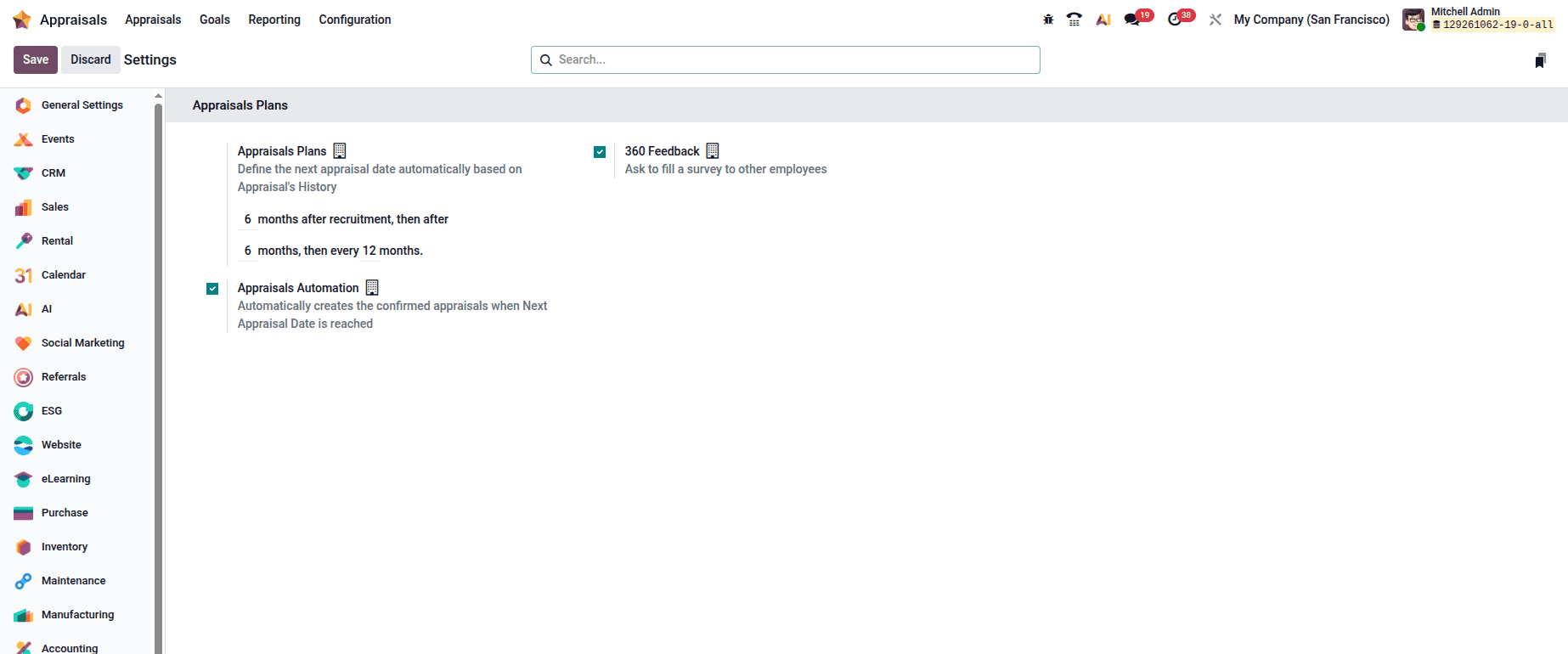
Go to Appraisals > Configuration > Settings. Under Appraisal Plans, Odoo ships with a sensible default:
- First appraisal - 6 months after the hire date
- Second appraisal - 6 months after that
- Thereafter - every 12 months
Change the schedule by editing the month values in those fields.
Important: Changing the Appraisal Plans values updates every employee record whose Next Appraisal Date is empty. Employees with a date already set are unaffected - a useful safety property, but one to be aware of before you edit.
Manual appraisals still exist
Plans handle the cycle; they don't handle exceptions. A promotion, a department transfer, a new role - any of these justify a review outside the schedule. Click New in the Appraisals app and create one directly. Both mechanisms coexist happily.
9. Appraisals Automation
In the same Settings page sits a checkbox labelled Appraisals Automation.
Tick it, and Odoo doesn't just schedule appraisals according to the plan - it confirms them too.
That single word is the whole feature. Odoo's Appraisals Plan settings define the intervals at which appraisals should be scheduled. Enabling Appraisals Automation allows Odoo to automatically schedule and confirm appraisals according to the configured plan. Managers can also create appraisals manually when reviews are needed outside the regular schedule. Nobody can fill anything in until then; the Skills tab doesn't even render. In practice, this is exactly where review cycles die - the appraisal exists, technically, and everyone assumes someone else will kick it off.
When Appraisals Automation is enabled, Odoo automatically schedules and confirms appraisals according to the configured plan. The employee and appraisers are notified, and they can begin completing their respective feedback sections. The Skills tab displays the employee's skills for review.
Before switching it on, consider:
- Notifications exit automatically, so your templates and assessment scale must be finalised first.
- Every worker's Next Appraisal Date turns into a stay commitment - audit the dates before enabling.
- Managers with massive groups can also see numerous value determinations move and stay as soon as possible. Check that your plan areas them sensibly.
It's a small checkbox with a massive impact on whether or not opinions without a doubt happen. Turn it on as soon as the relaxation of your configuration is stable.
(Note: this automation setting is likewise documented in Odoo 18.0 - if you are migrating in place of beginning fresh, you could have already got it.)
10. The appraisal workflow, end to end
Once the configuration was complete, here is the actual process of the review.
Step 1 - Employee self-assessment
The employee gets an email once the review is confirmed. They log in via the email link or from the Appraisals app, fill in the Employee's Feedback - My work, My future, My feelings, and update skills.
Once they are done, the employee clicks the grey button labelled 'Private'. The grey button changes to green and indicates 'Shared to Appraisers'.
Step 2 - Manager feedback
In parallel, the manager completes the Manager's Feedback - Feedback, Evaluation, Improvements, with a focus on achievements and development opportunities with next steps. This is also where the manager checks the goals of the employee and asks for 360-degree feedback from colleagues.
Also, the Private button should be switched to Shared to Employee once it turns green. Numerous managers deliberately leave feedback private prior to the meeting to avoid an email notification that might preempt the discussion.
Step 3 - Review meeting
To schedule the meeting, click Schedule Meeting on the appraisal card. The Meetings dashboard opens, where you should choose the date and time to get a pop-up window with New Event. The title is pre-populated as Appraisal of (Employee Name), the dates are populated automatically depending on your choice, and the Participants field already has the employee and appraisers. You just need to add Location or click Video to create a video call URL. Choose Visibility: Private, Public, or Only internal users, add Notes if you have them, and click Save. The invitations will be sent via email. During the meeting, both parts of the feedback are discussed, goals are reviewed, and skill levels are validated and updated.
Step 4 - Complete and rate
Once the meeting is done, the manager:
- Logs all manager-only information into the Private Note tab – invisible to the employee and not affecting the rating.
- Picks Final Rating from the evaluation scale.
- Clicks Mark as Done.
The status switches to Done, the record becomes read-only, and the Mark as Done button transforms into Reopen. To make corrections afterwards, use Reopen, Edit, and Mark as Done.
11. Reporting
Reporting is split into two sections:
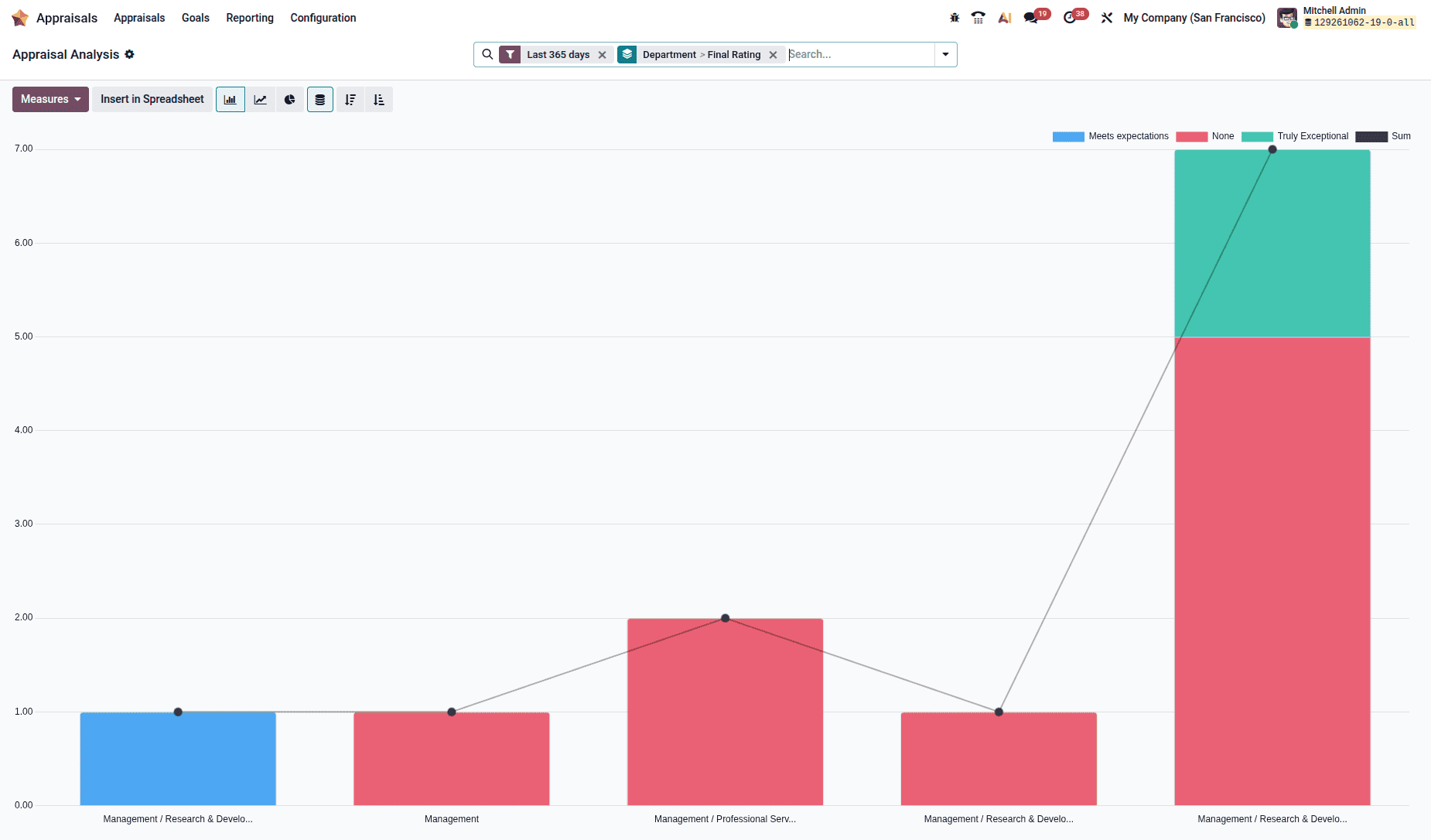
Appraisal analysis
The Reporting tab > The Appraisal Analysis section reports on appraisals from the past, current, and future periods and their respective statuses. This information is displayed as a graph categorized by Month and then by Department, making it easy to see which departments are falling behind and to confirm the expected cycle. It includes appraisals from the default reporting period and helps managers review performance ratings and identify employees or departments that may need additional support.
The Gantt view (the icon in the upper right corner) will give you the picture with the time dimension. The automatically scheduled appraisals will show in gray, so it's easier to identify those unconfirmed future reviews from active ones.
Customize the view using the From: (date) to (date) selector - Today, This week, This month, This quarter, This year, or a custom period. To focus on the present, use the Focus today button and click on any appraisal to open it.
This report gives an answer to the question managers should be asking themselves every month: what is overdue, and what needs to be confirmed?
Skills evolution
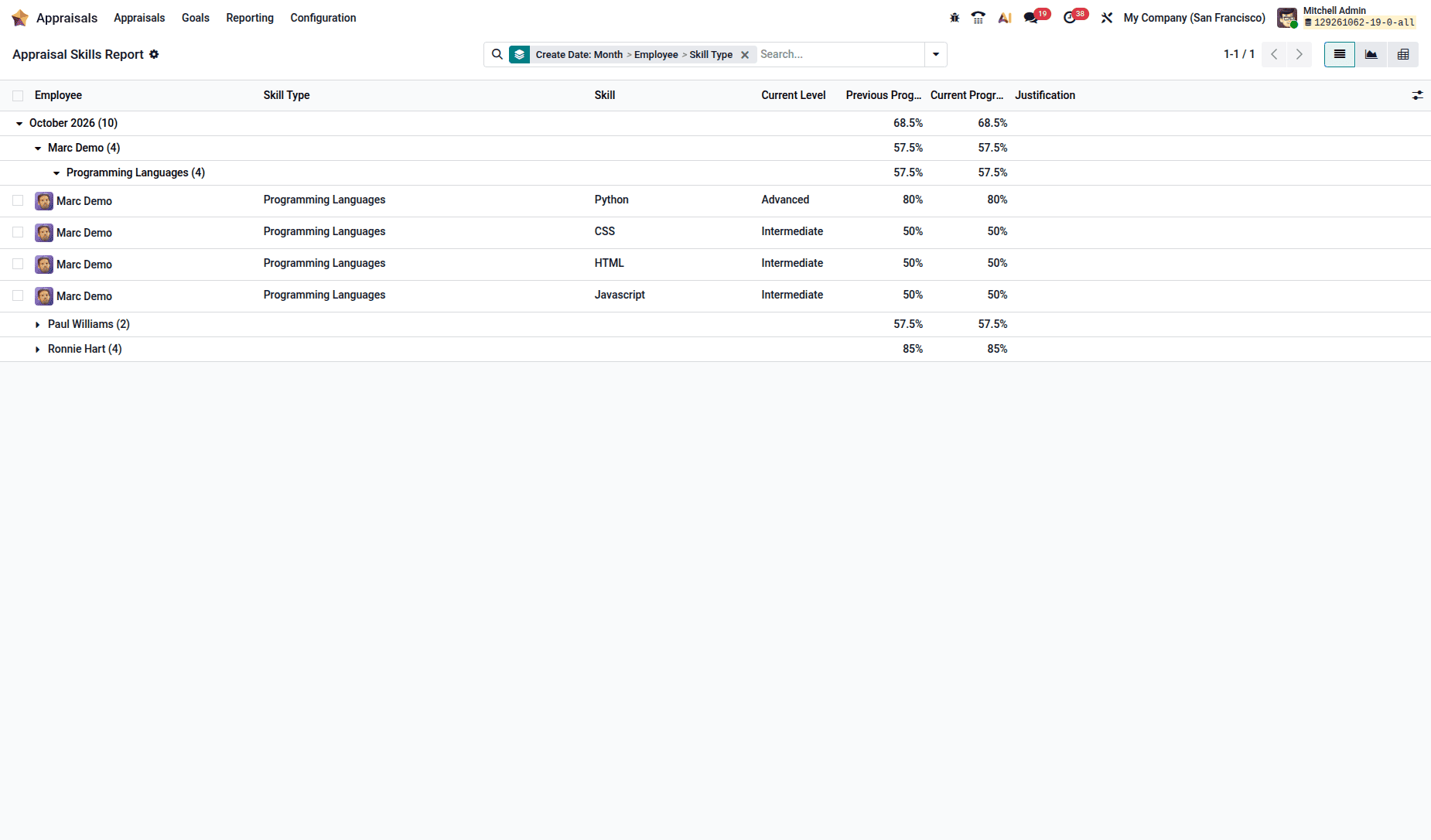
The Reporting tab > The Reporting tab > Skills Evolution, or as it's also known as the Appraisal Skills Report, keeps track of how skills evolve, organized by month, employee, and the skills themselves under skill types.
Each skill entry displays the employee, skill type, skill, current skill level, previous progress, current progress, and justification. Comparing the previous and current progress percentages helps managers identify changes in an employee's proficiency over time.
Two use cases from the documentation: Identify people with a particular skill at a particular level. Disable all active filters, open the search panel, and apply the custom filter: Skill is in Javascript, then New rule: Current Level is in Expert. You have your internal list ready - it can come handy for the staff selection process. Identify the biggest improvers. Disable the default filter, enable the Improvement filter, and display only skills that progressed since the last appraisal. Apply a custom filter on Create Date to restrict to a quarter/month. Now you have a number to the question "who is developing?".
Rollout order considerations
When you are configuring the module from scratch, order is important. Here's how you should do it:
- Skill types and levels (Employees app) - all other modules refer to this module.
- Evaluation scale - configure bands that you will be using.
- Appraisal templates - general first and per-department afterwards
- 360 Feedback surveys - evaluate the questions before making them public
- Goals library and goals tags - create a basic library - you will need more and more time to pass.
- Appraisal plans - schedule appraisals
- Appraisal Automation - turn it on last, after all other modules have been configured.
Perform a manual appraisal and then only turn on the automation throughout the company. This is where you will notice any deficiencies in your templates in the easiest way.
What makes the Odoo 19 Appraisals module so powerful is not any of its features alone but rather the way these features connect to each other. The skills defined in the Employees app appear as a job target in appraisals and Skills Evolution reports. Goal suggestions appear automatically because of the skills pursued by employees. Review plans appear because of the scheduling of the reviews, and automation ensures that they will be completed. Peer reviews are collected through Surveys. With proper configuration once, performance management becomes something automatic rather than a quarterly firefighting exercise.
To read more about An Overview of the Odoo 18 Appraisals Module, refer to our blog An Overview of the Odoo 18 Appraisals Module.