Collecting the right information before an appointment helps businesses understand customer requirements and prepare for meetings more effectively. Odoo 20 Appointments allows users to add questions to booking forms, making it easier to gather the necessary information when customers schedule an appointment.
Users can configure different questions, mark them as mandatory, and review the responses submitted through the booking form. The collected answers help businesses understand customer needs and manage appointments more efficiently.
This blog explains how to configure booking questions and analyze the submitted answers in Odoo 20 Appointments.
Configure Booking Questions in Odoo 20 Appointments
Odoo 20 Appointments allows users to add questions to an appointment type to collect additional information from customers during the booking process. These questions help businesses understand customer requirements before the scheduled meeting.
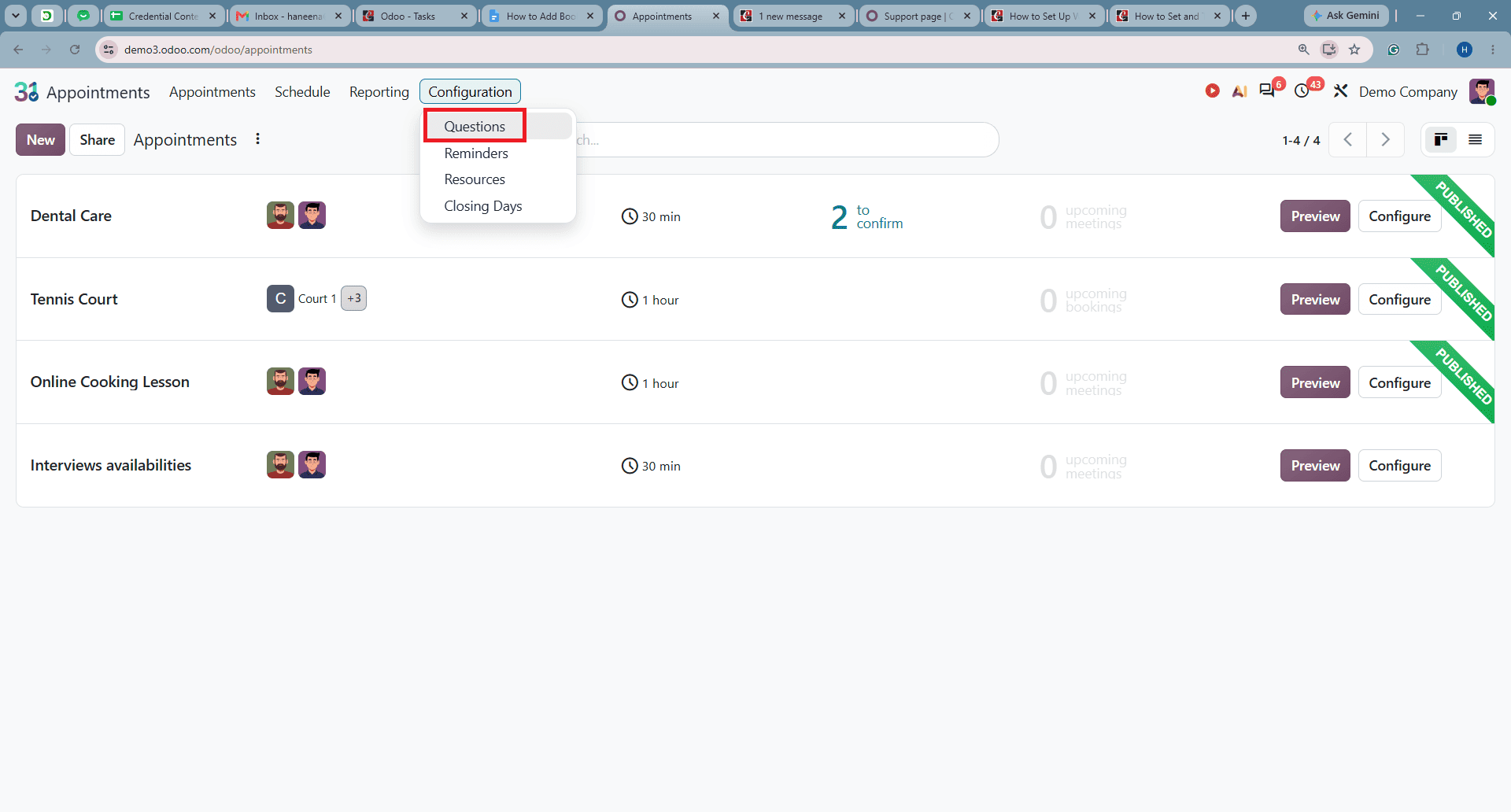
To add questions, go to Appointment > Configuration > Questions, as shown below.
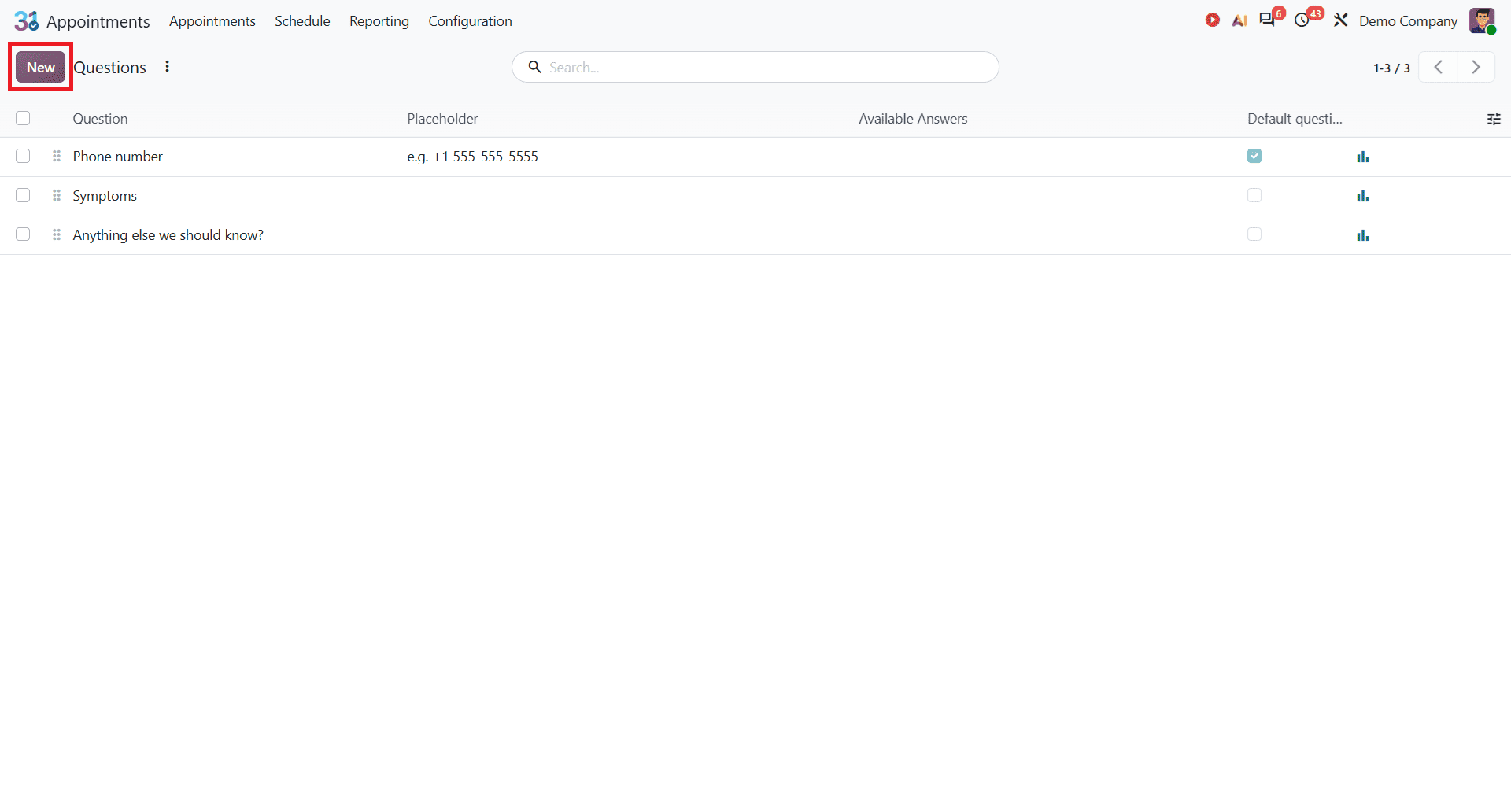
Open the Questions tab, and to create new questions, click the New button as shown below:
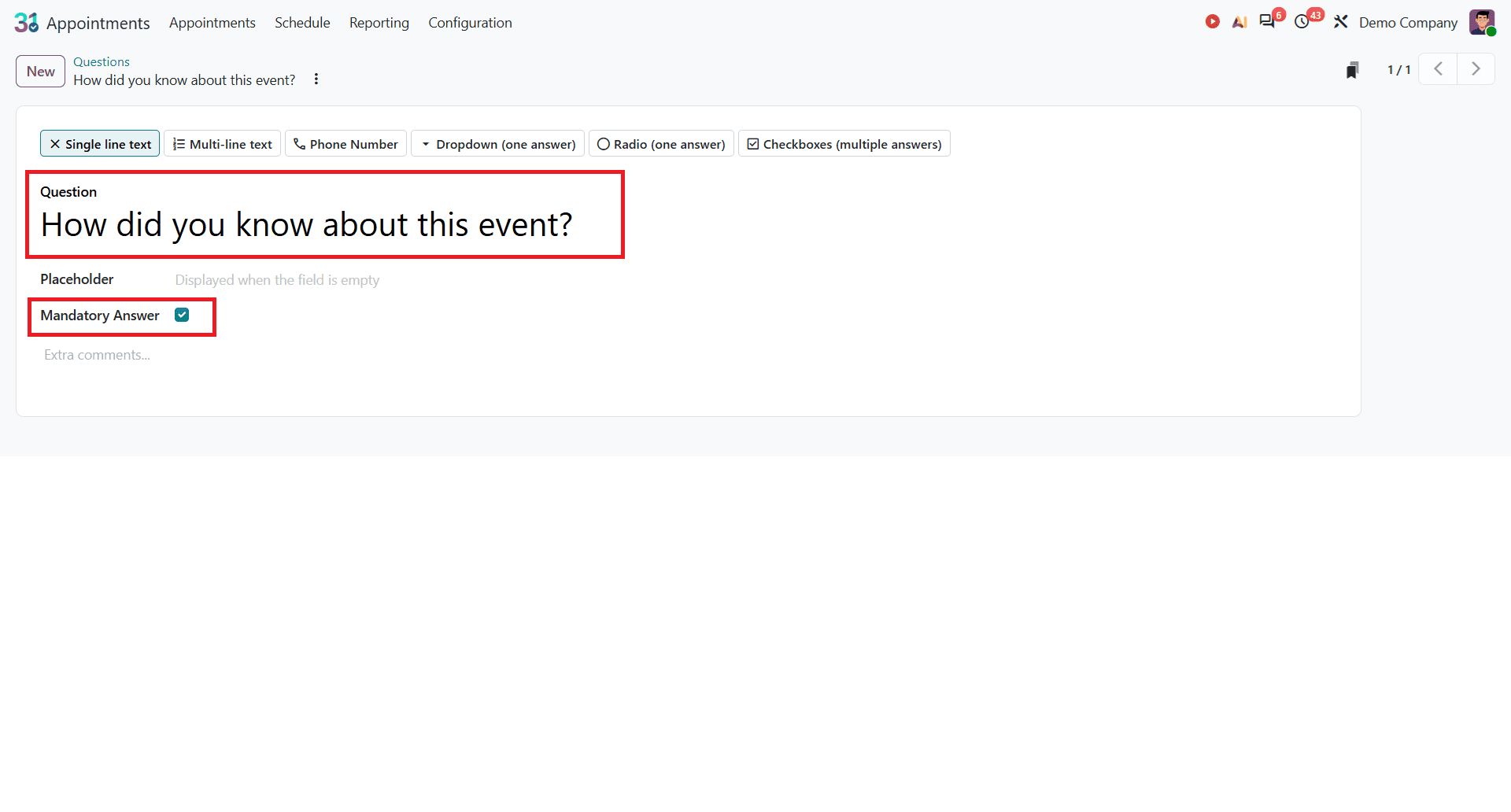
After clicking the New button, enter the question you want customers to answer during the booking process. Odoo 20 supports different answer types, including Single-line text, Multi-line text, Phone number, Dropdowns, Radio, and Checkbox. Choose the appropriate type based on the information you want to collect from the customer.
Text field allows customers to enter their responses, while Dropdown, Radio button, and Checkbox provide predefined options. Enable Mandatory Answers if the customer must respond before proceeding.
After saving the questions, add it to the required Appointment type as shown below:
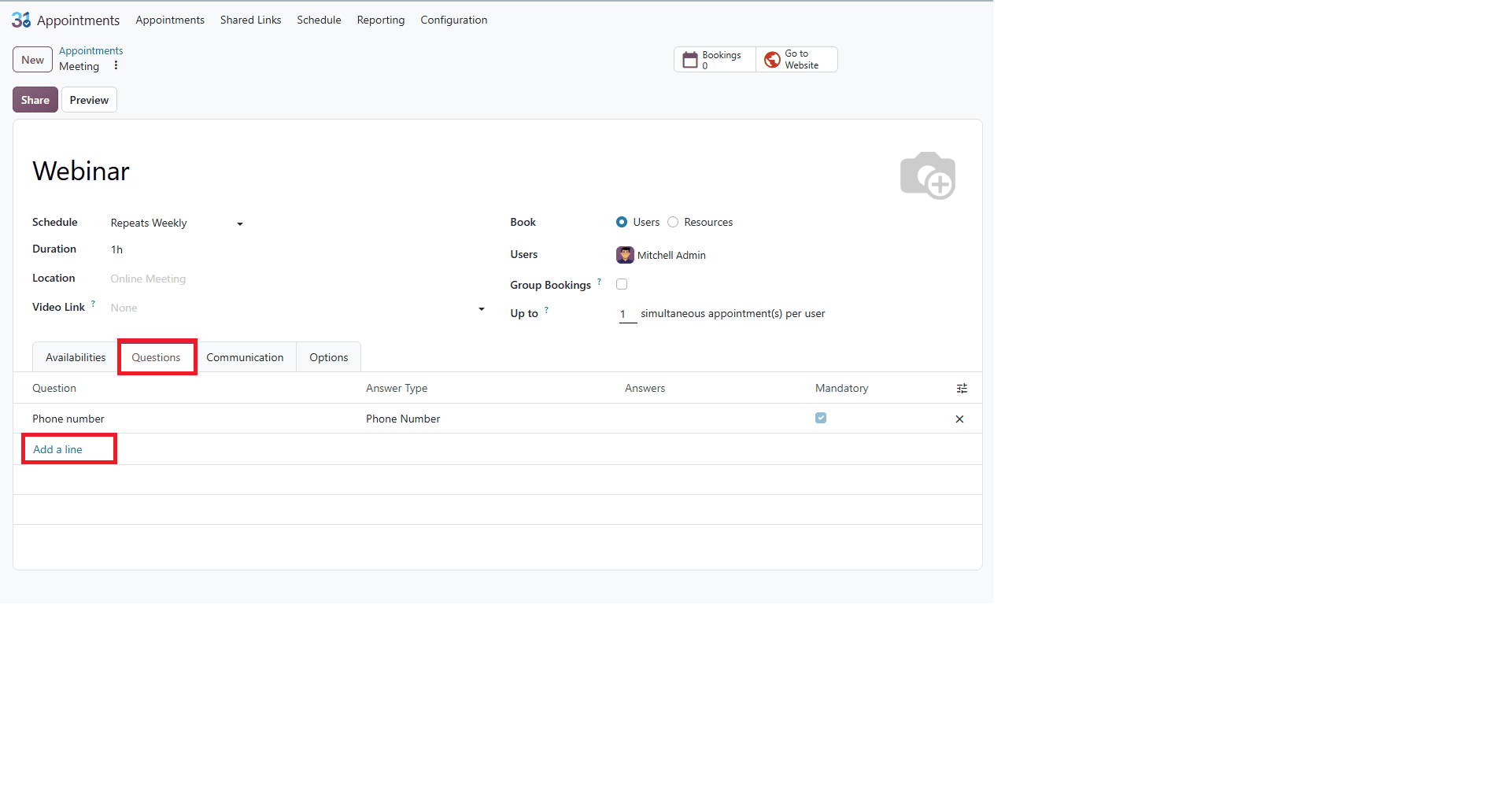
Open the Question field and click on Add a line to include the question you created. Select the required question from the list.
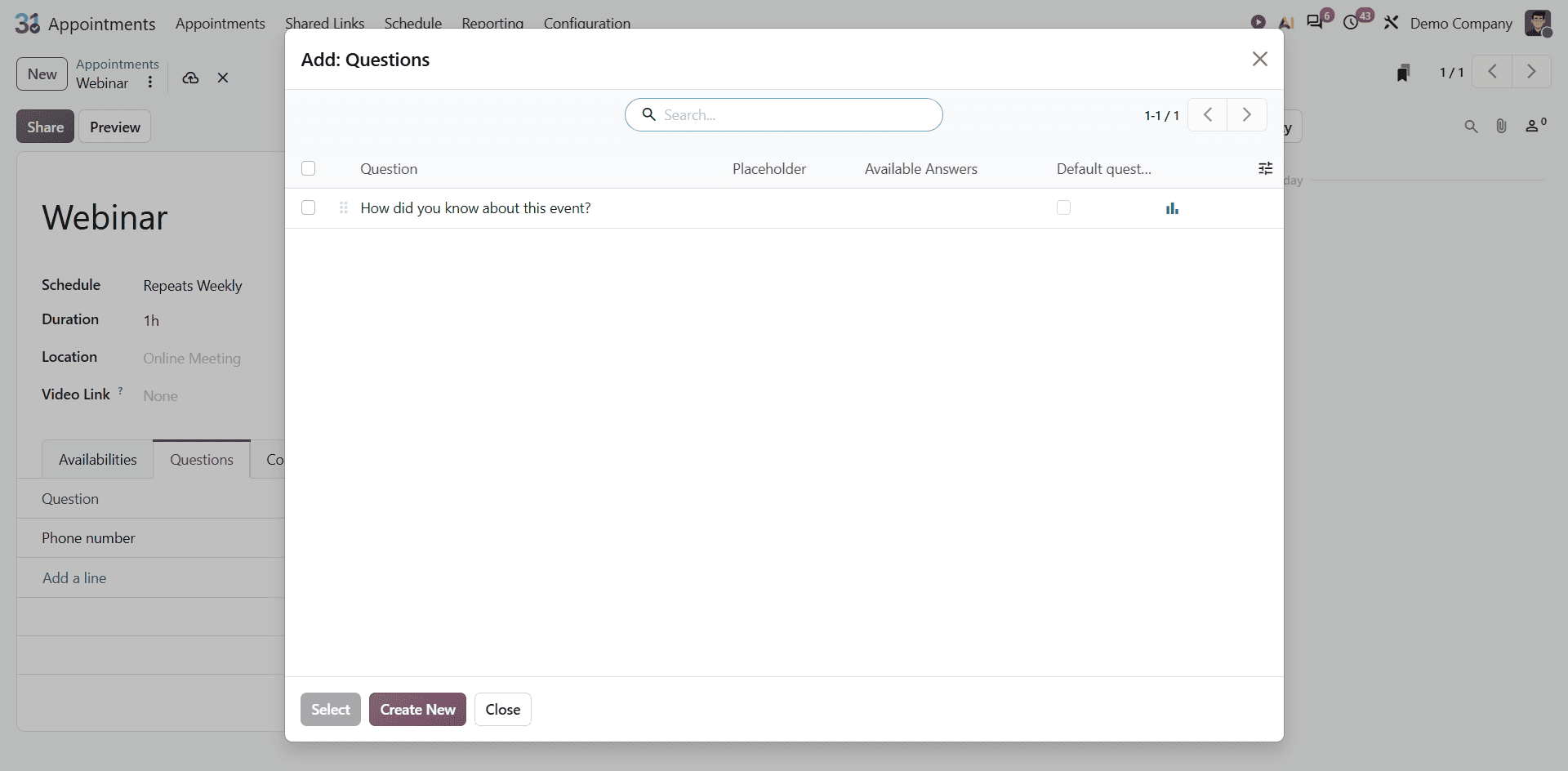
Once the question is added, it appears in the Question field of the Appointment type. Repeat the process to add more questions as needed. Save the appointment type to apply the changes.
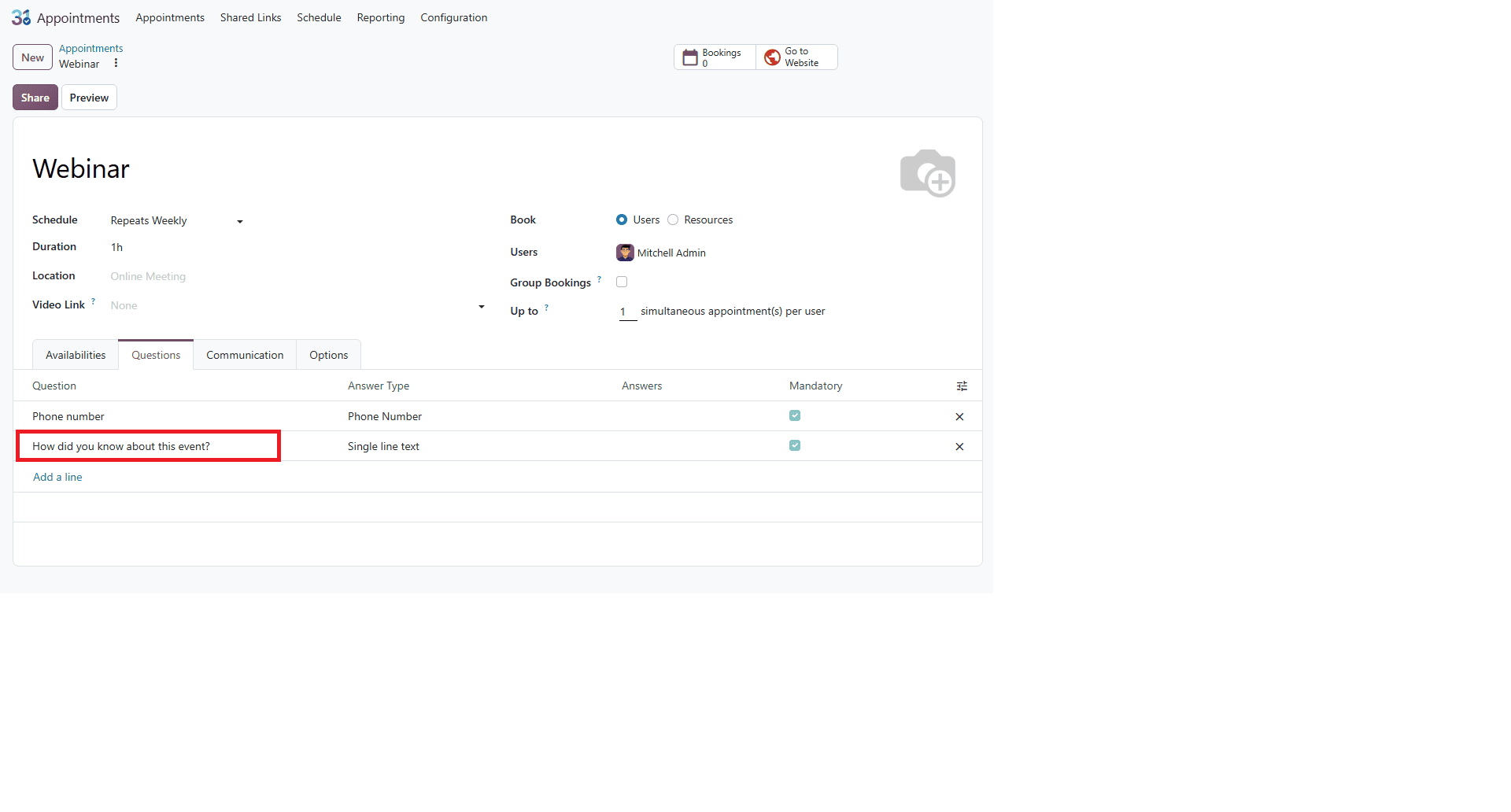
View Booking Questions on the Website
After configuring the questions in the appointment type, users can check how they appear on the website. Open an appointment type and click on Go to website as shown below:
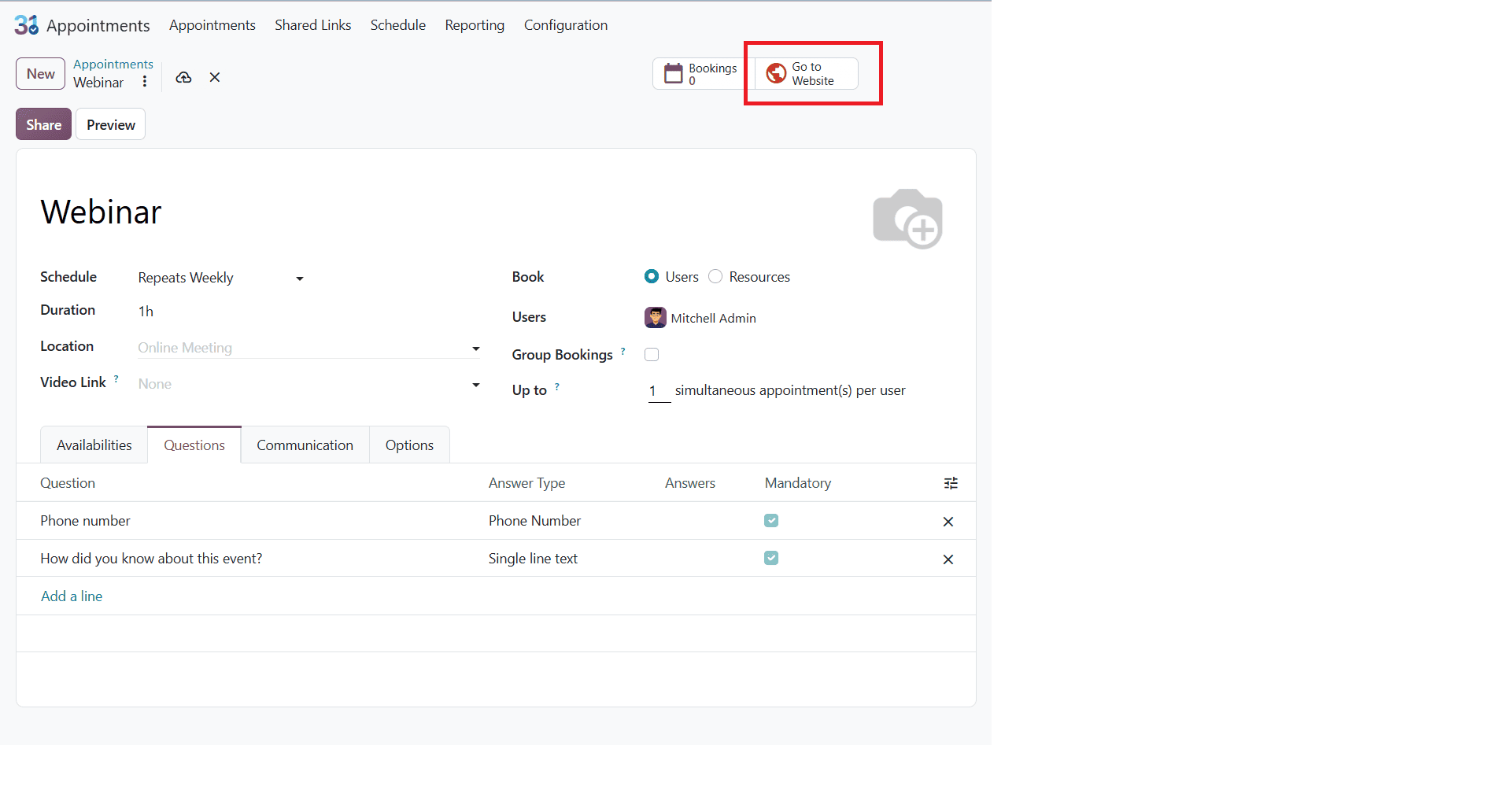
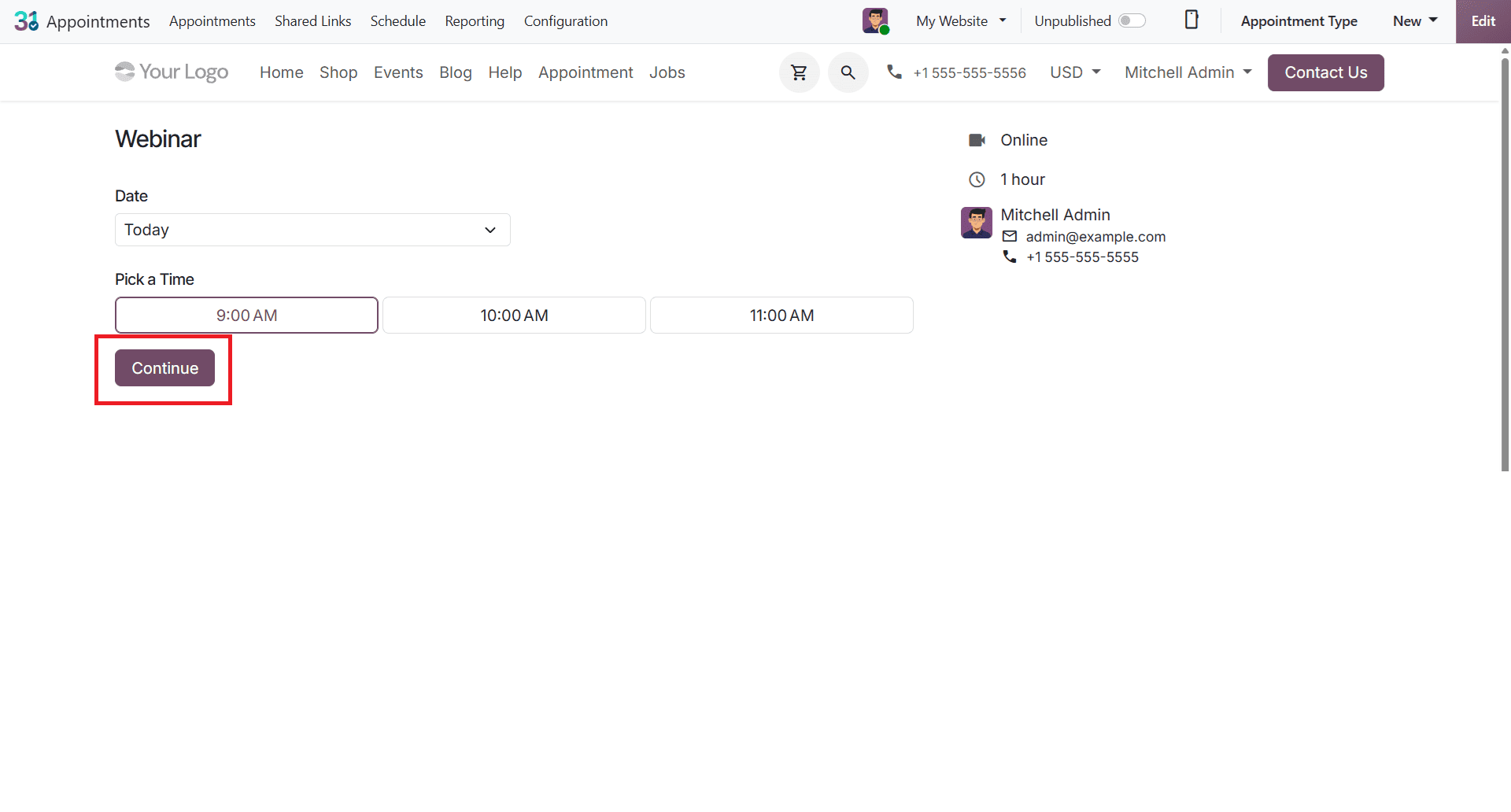
After opening the website, select an available date and time, then click Continue to proceed.
The next page displays the booking details along with the questions configured for the Appointment type. Customers can enter the requested information before confirming their booking.
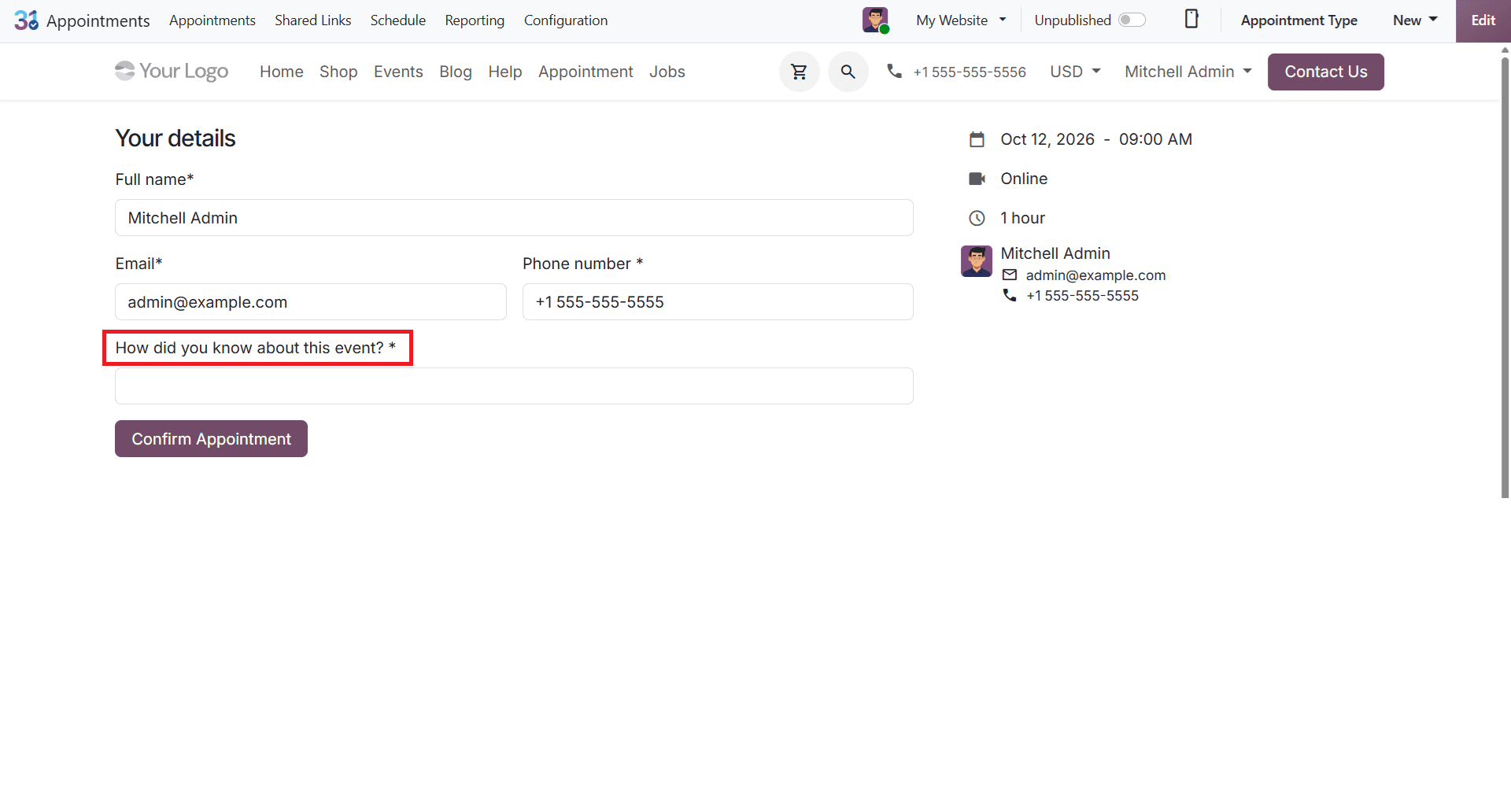
Once the required details have been entered, complete the booking to confirm the appointment.
Analyze Booking Answers
After customers submit their response through the Appointment website, users can review the collected information from the Answer Report in Odoo 20 Appointments.
To access the report, go to Appointment > Reporting > Answers, as shown below:
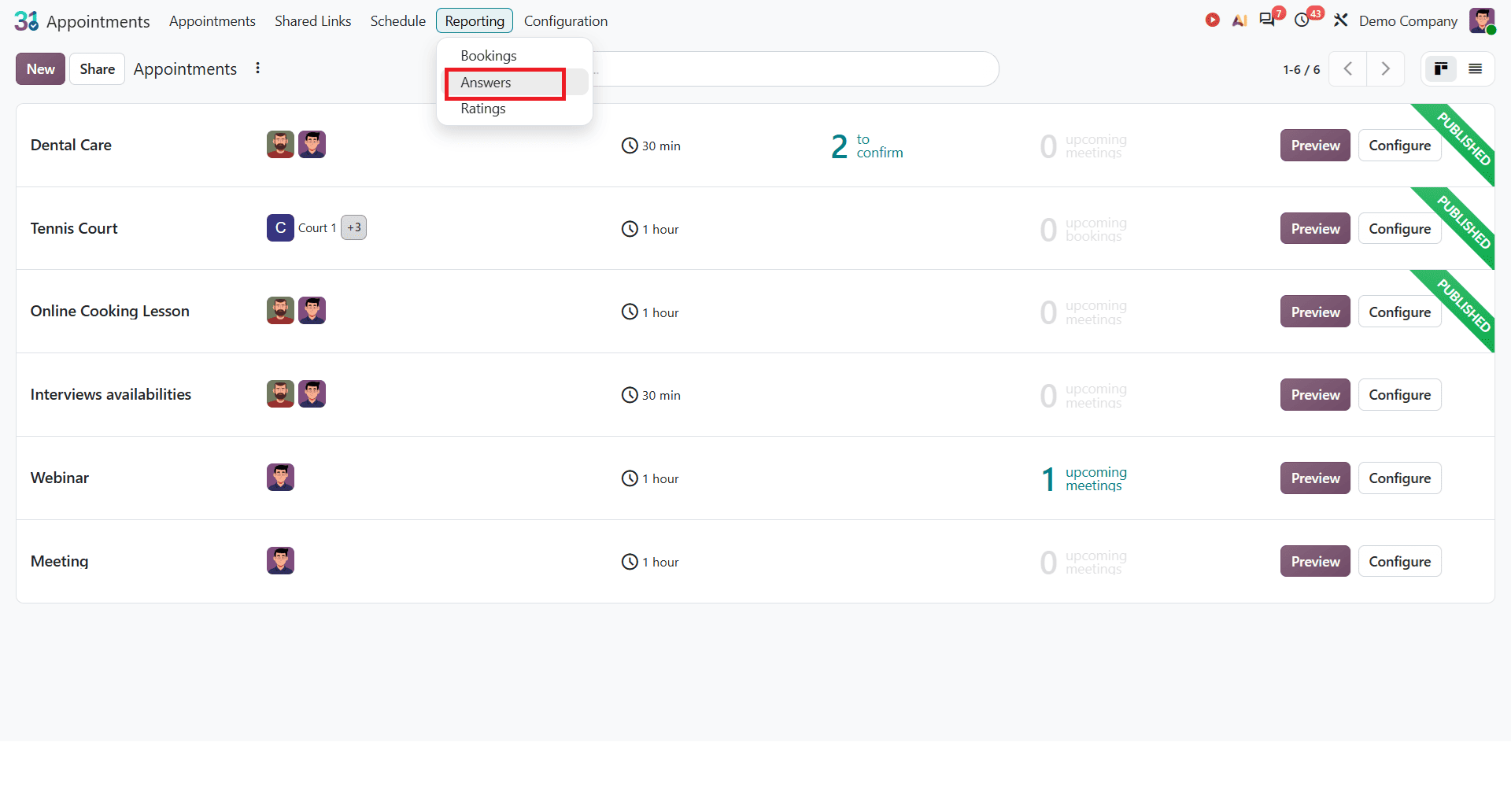
The answer report allows users to review the responses submitted by customers when booking Appointments. This information helps businesses to understand customer requirements and prepare for scheduled events more efficiently.
Users can refer to submitted answers and analyze them to understand the information provided during the booking process.

The Answer report displays the information collected through the appointment booking process. Users view the recorded answers and review the responses submitted for configured questions.
For example, if the question is "How did you know about the event?", customers can select an answer such as Website or WhatsApp, etc. By clicking on the records, users can view the corresponding responses submitted by customers.This information helps businesses identify the platforms through which customers discover an event and better understand how people learn about their services.
This information helps businesses identify the platforms through which customers discover an event and better understand how people learn about their services.
Odoo 20 Appointment allows businesses to collect relevant information from customers by adding questions to appointment booking forms. Users can configure different question types, make responses mandatory, and review submitted answers through the Answer report. By using these features, businesses can understand customer requirements, gather useful information, and prepare more effectively for appointments and events. It helps to fulfill customer wants and needs and makes customer relationships go smoothly.
To read more about How to Analyze Appointment Bookings, No-Shows, and Ratings in Odoo 20, refer to our blog, How to Analyze Appointment Bookings, No-Shows, and Ratings in Odoo 20.