Keeping customer and company details organized is essential for every business. Odoo 20 makes it easier to manage contact information and maintain records of companies and individuals in one place. It also helps businesses to organise customer, supplier, and other partner information, saving time and reducing manual errors.
In this blog, we will explore the Odoo 20 Contacts app and learn how to create and manage contacts, organise customer information, and use its features to keep records well organised.
Overview of the Contact Module in Odoo 20
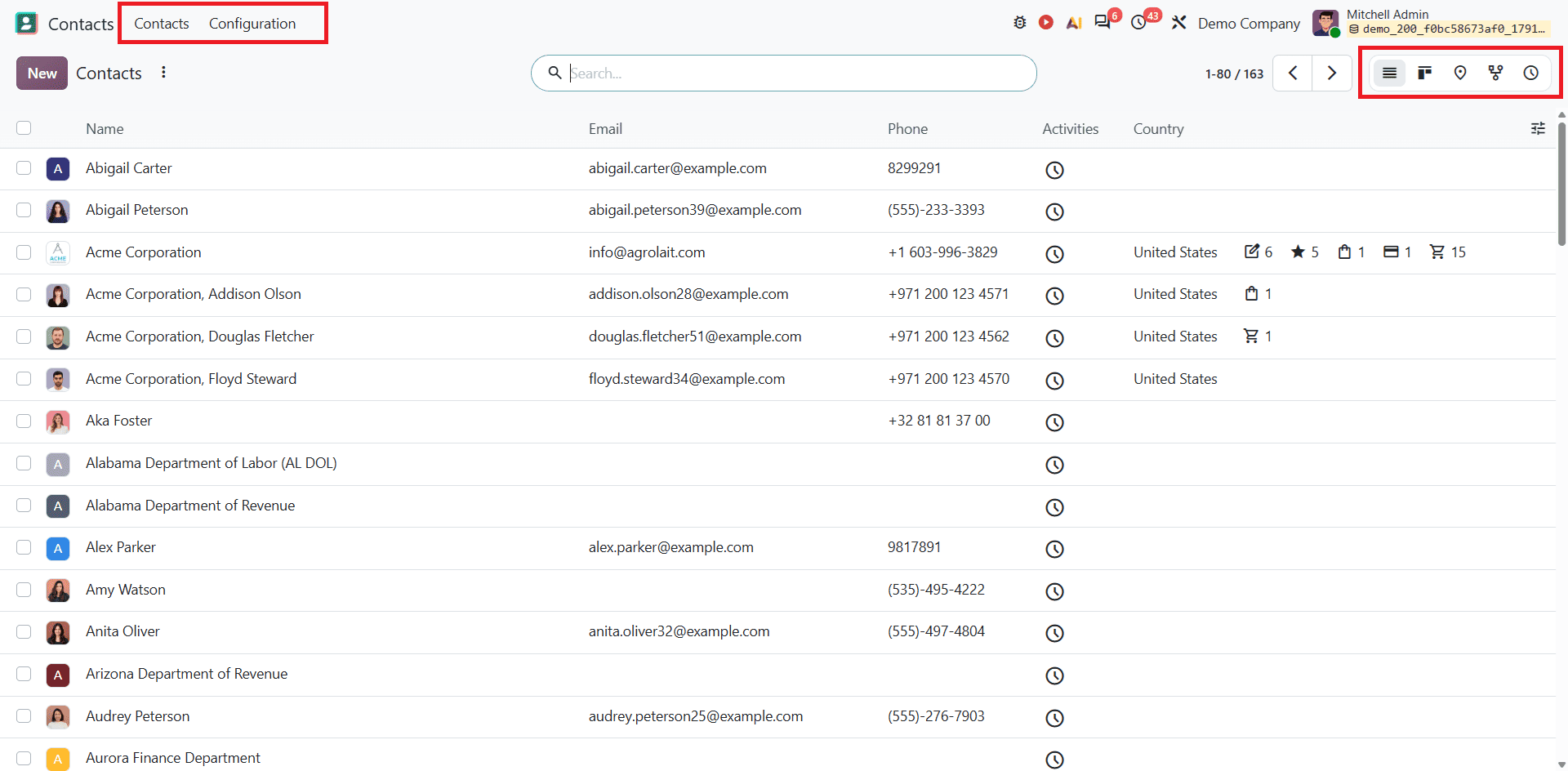
The Contact module in Odoo 20 offers different options for managing contact information and configuring contact-related details. The contact dashboard includes Contacts and Configuration, which provide access to contact records and settings.
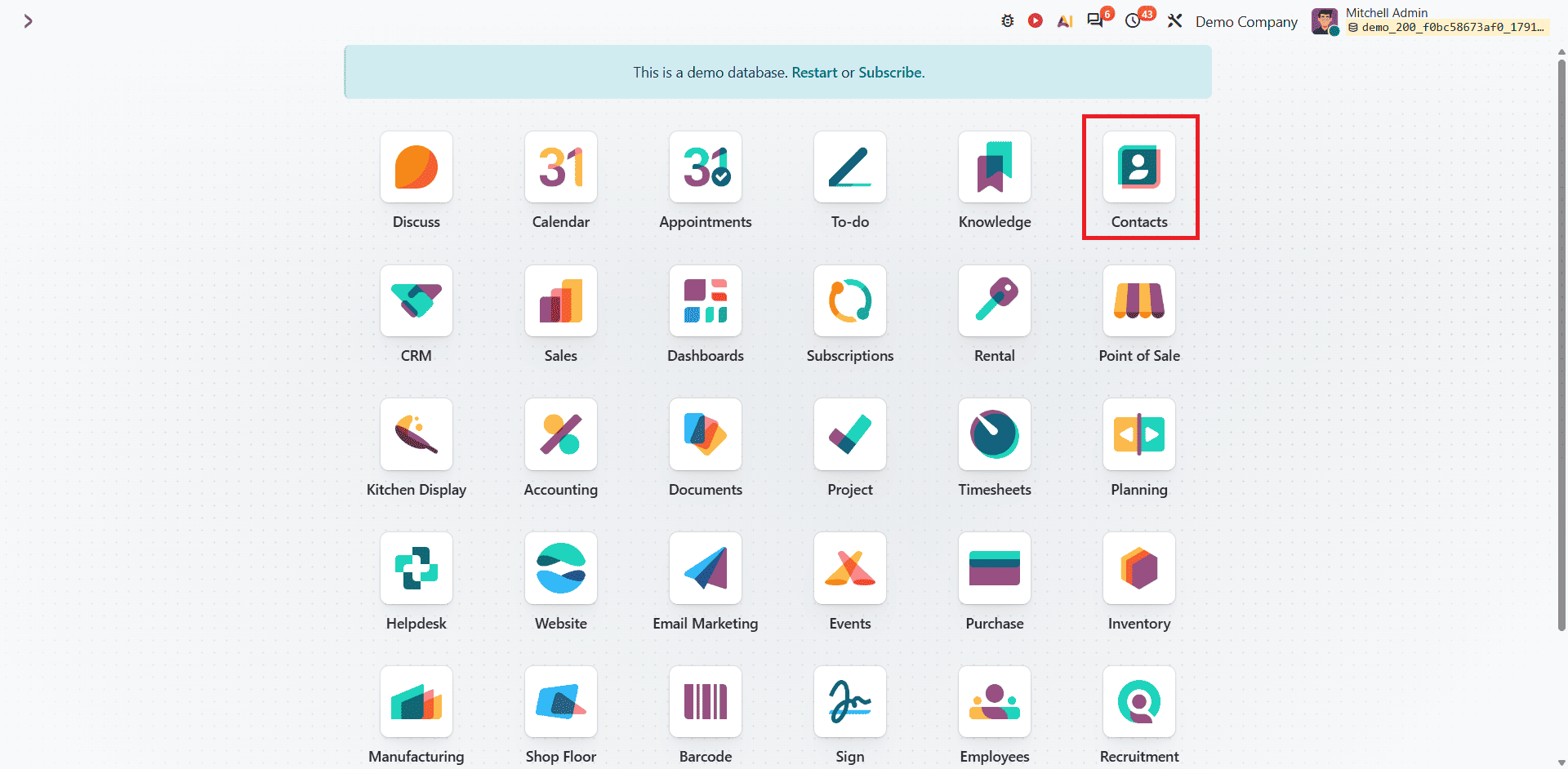
To begin managing contacts, open the Odoo 20 dashboard and select the Contacts app.
This opens the main Contacts interface, where users can view existing contact records and create new ones. The application also includes a Configuration menu for managing contact tags, industries, bank accounts, and other related settings. The contact dashboard also provides different types of views such as List, Kanban, Map, Hierarchy, and Activity views. You can switch between different views to match your team's workflow. The default view will be the List view as shown.
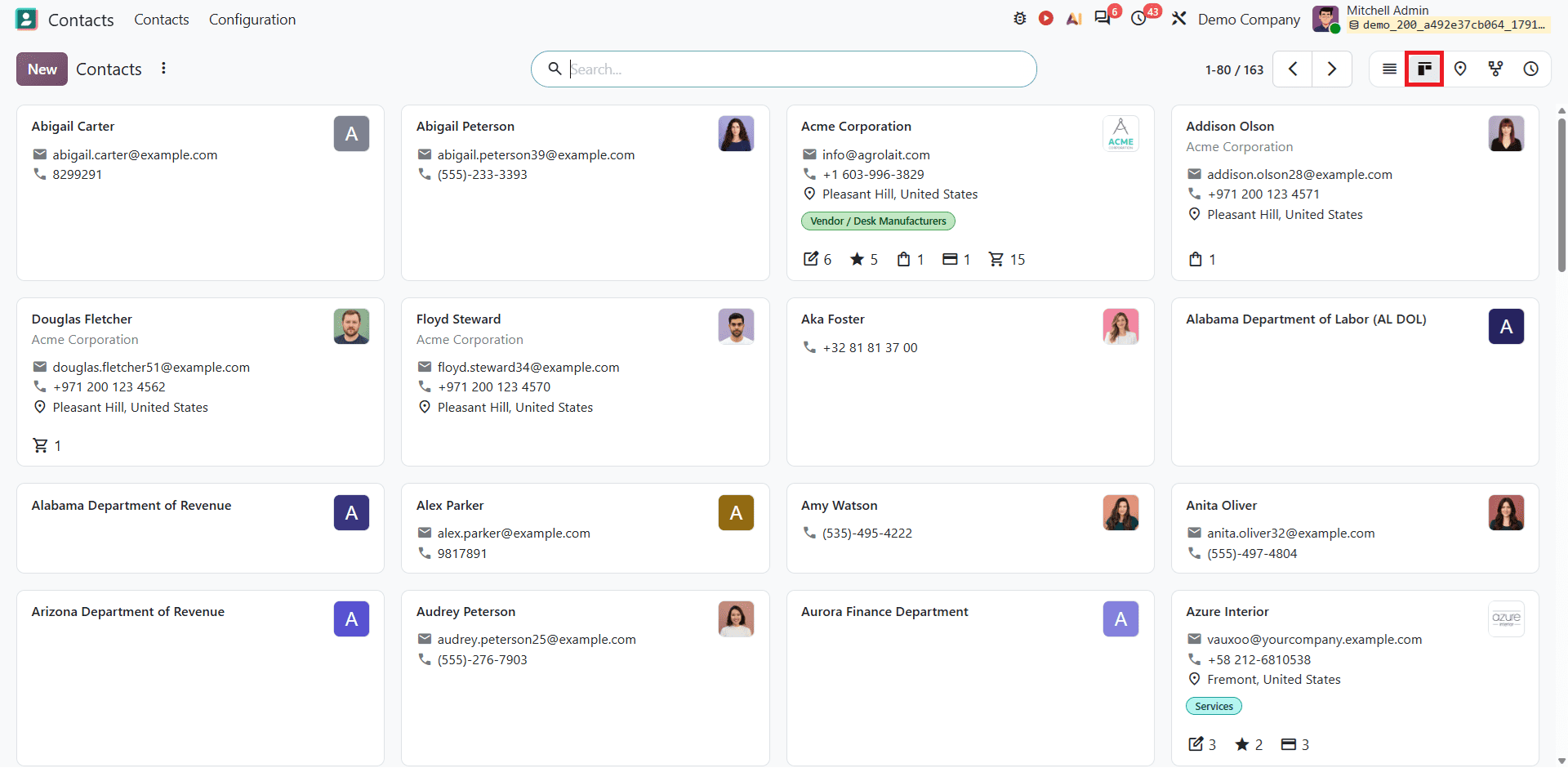
The Kanban view gives you an easy, visual overview of your database and highlights contacts’ details. Unlike the List view, the Kanban view displays tags that are attached to each contact. Tags are hidden when viewing contacts from the list view.
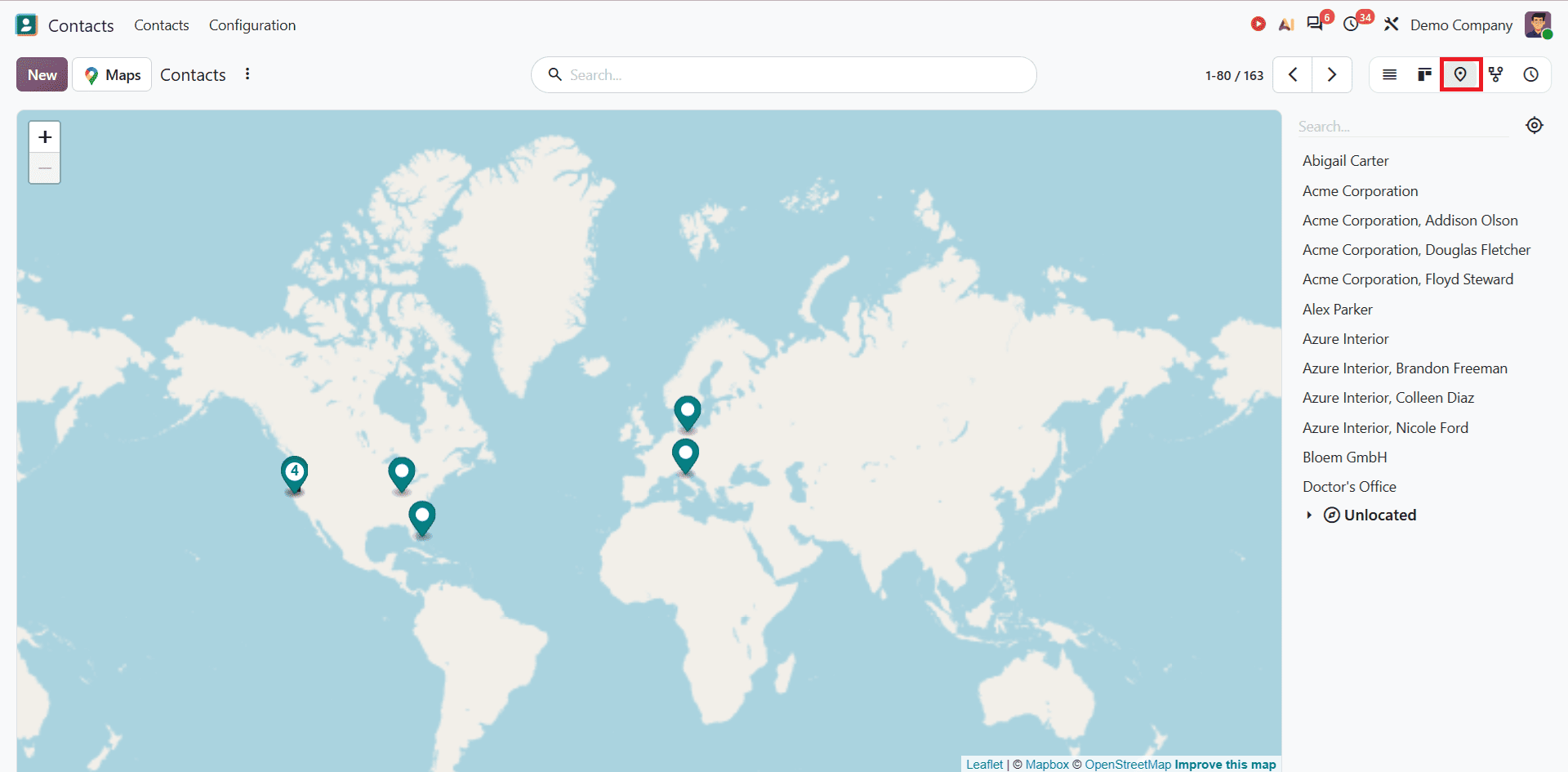
Map view helps visualise contacts geographically; it includes customers, vendors, and partners' locations. You can see the map view as shown below:
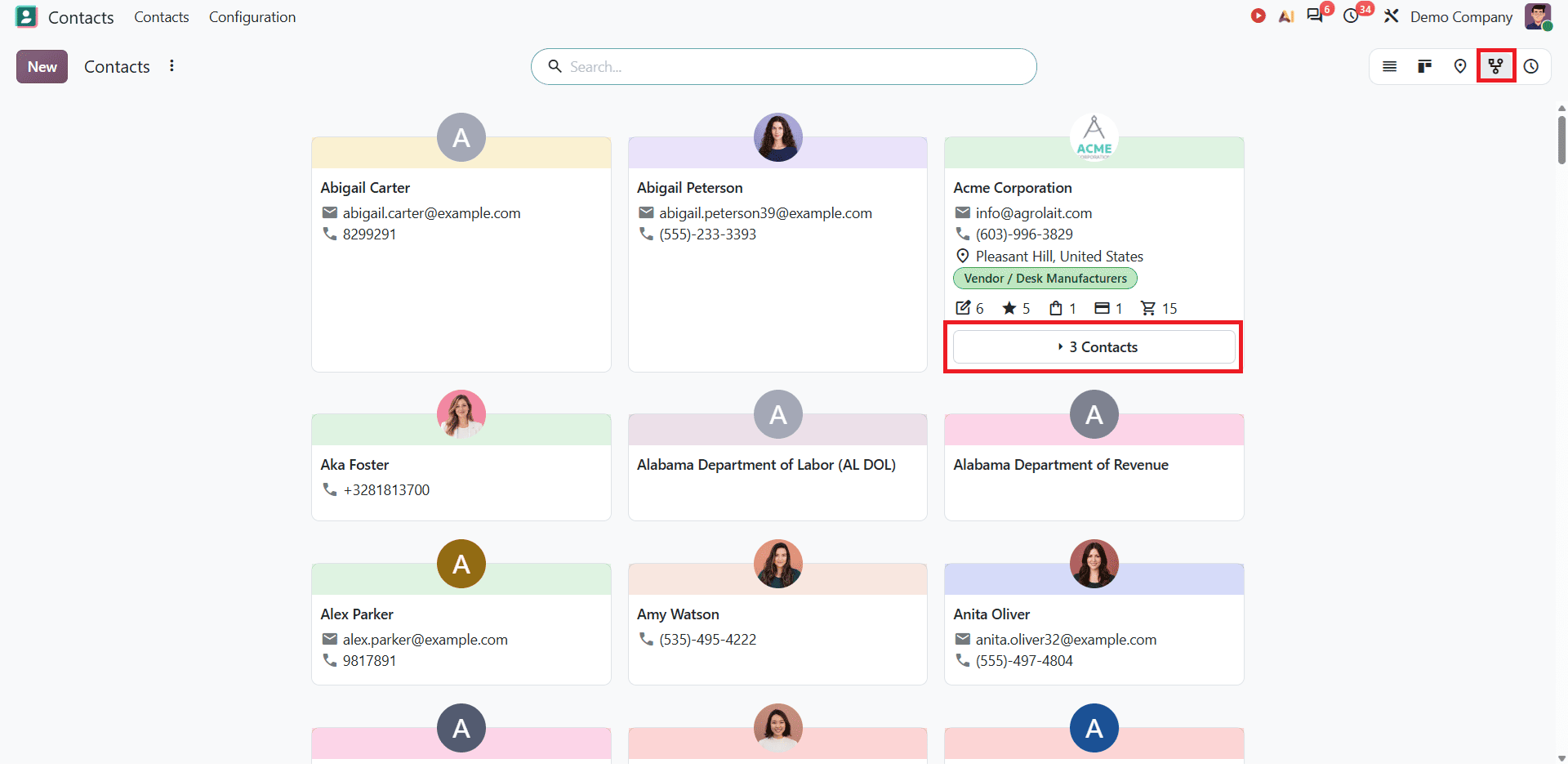
Odoo 20 also introduces the Hierarchy view, which is similar to the Kanban view, and it adds a Contacts button that shows child contacts that are associated with the organizations. It helps to make complex management chains immediately understandable at a glance. You can see associated contacts under the company profile as shown below.
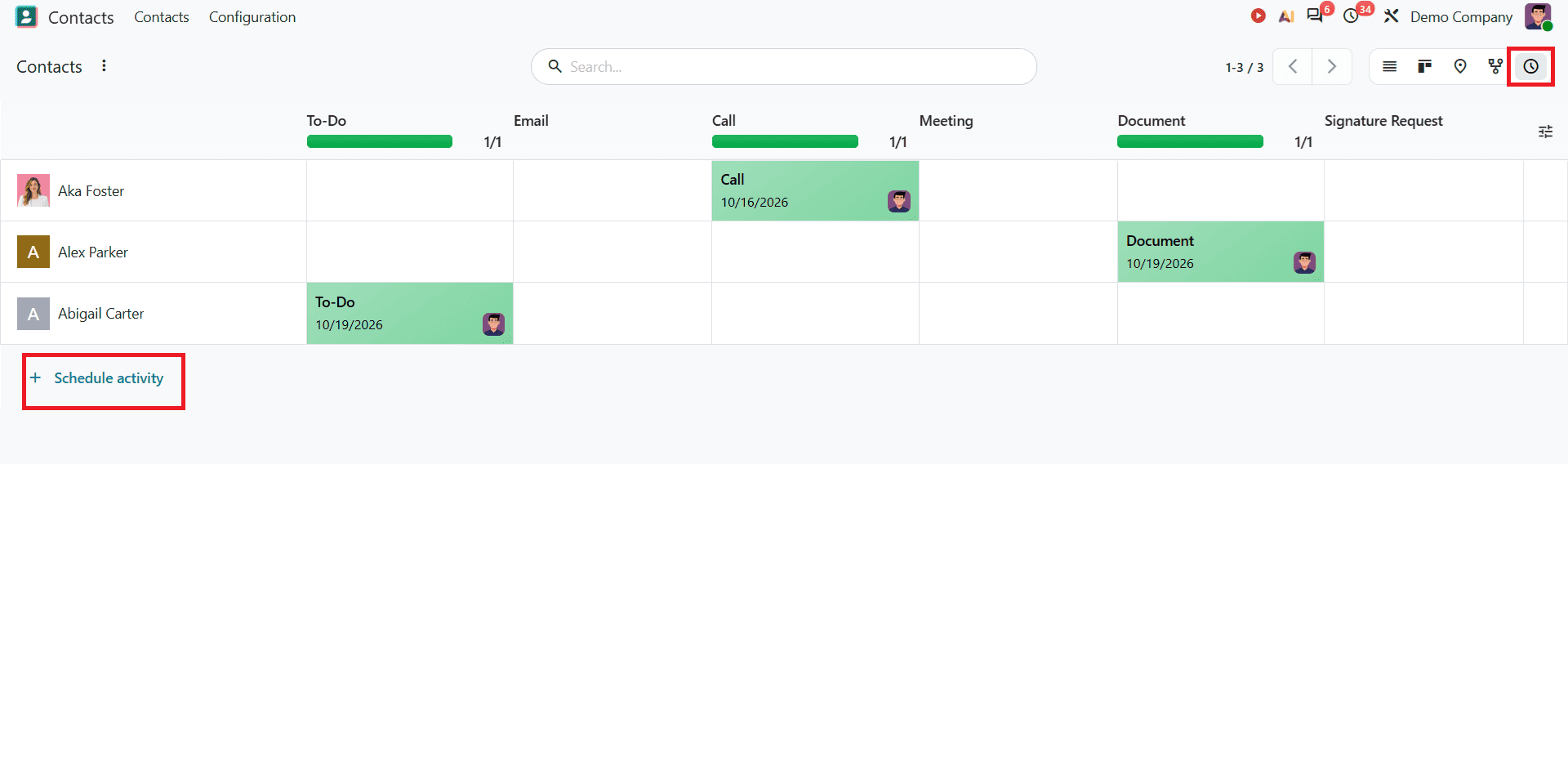
Under the Activity view, you can track scheduled calls, emails, meetings, or follow-up tasks linked to specific contact profiles. It helps to organize contacts based on schedules, and you can also schedule activities for the specific contact.
Create a New Contact
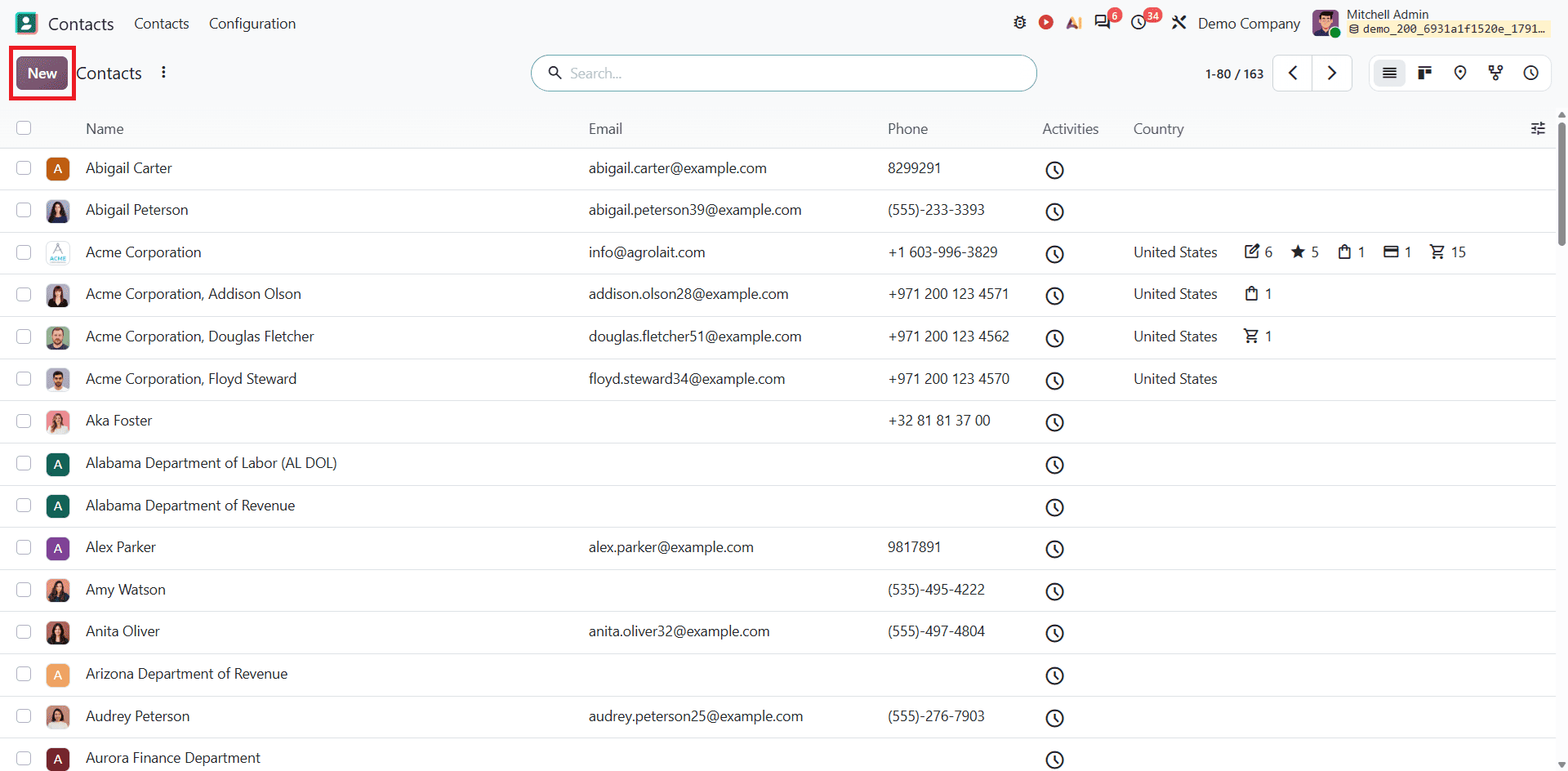
To add new contacts in Odoo 20, navigate to the Contact module and click on the New button.
Odoo opens a contact form where you can enter details of the company or an individual. The form allows you to record essential information and organize contact details in one place. You can provide additional information, such as the company, employer, email address, and phone number. You can see the contact form shown below:
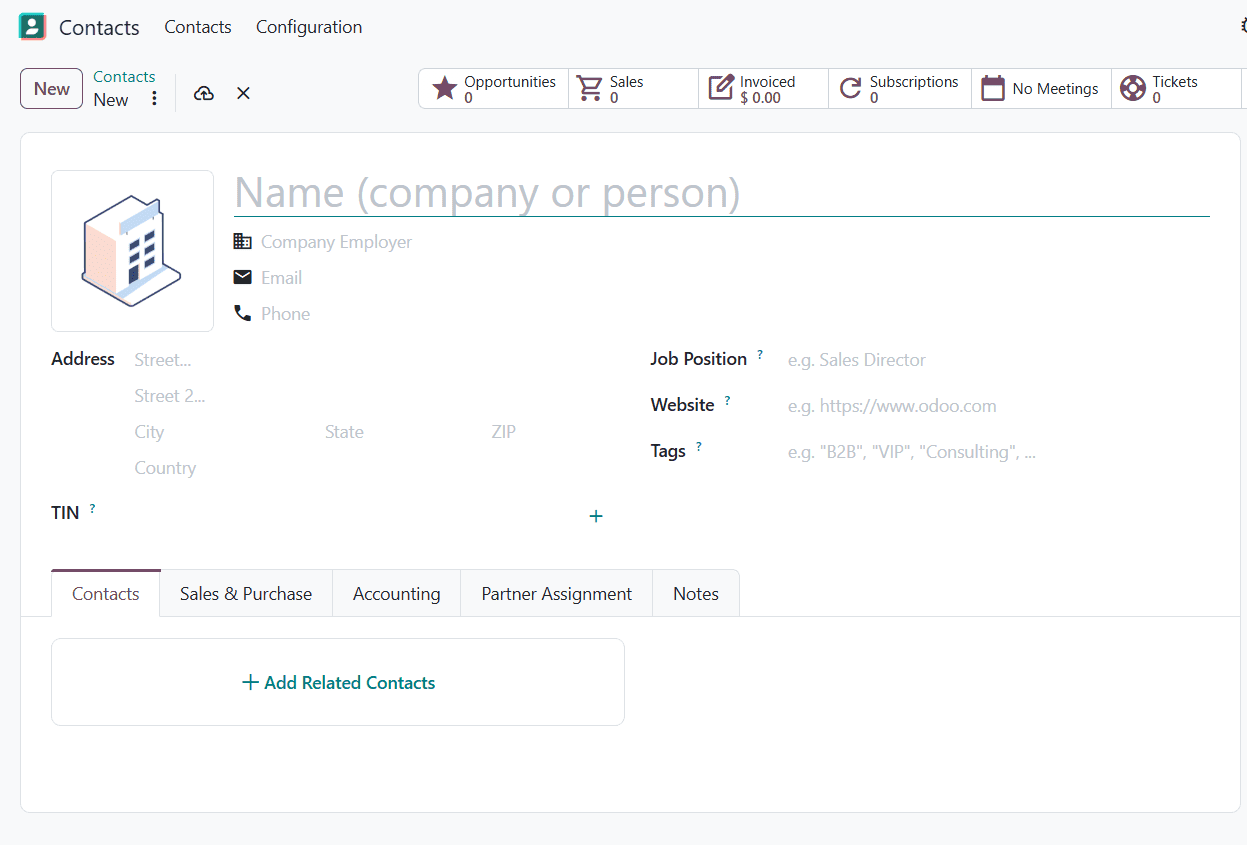
This form also includes fields for contact or company Address, Job position, website, and Tags. These details help organize contact records and make it easier to identify and access the required information. The form includes the Contact, Sales and Purchase, Accounting, Partner Assignment, and Notes tabs.
Smart Buttons appear at the top of this contact form and provide quick access to related records in other Odoo applications. Depending on the installed applications and available data, these buttons may include Opportunities, Sales, Invoiced, and Subscriptions, etc. They help users access related information without searching through different applications.
Odoo 20 lets you manage both company and individual contacts within the Contact module. A company contact represents a business or organization, while an individual contact represents a person. You can add the relevant details for each contact based on your requirements.
First, select whether the contact is an Individual or a Company. Enter the contact name and fill in the available details, such as the address, phone number, email address, and other relevant information. You can also add additional details based on your requirements.
Once you have entered the necessary information, save the record. The contact will then be available in the Contacts module, allowing you to access and manage its details whenever needed.
Contacts
Odoo 20 allows users to link multiple contacts to a single company. This is useful when managing employees, departments, or different contact persons within the same organization. It allows businesses to organize individuals and addresses under a parent company. This parent-child relationship helps keep employee details and other related addresses connected to the main company record.
To do that, click on Add Related Contact in the Contact tab.
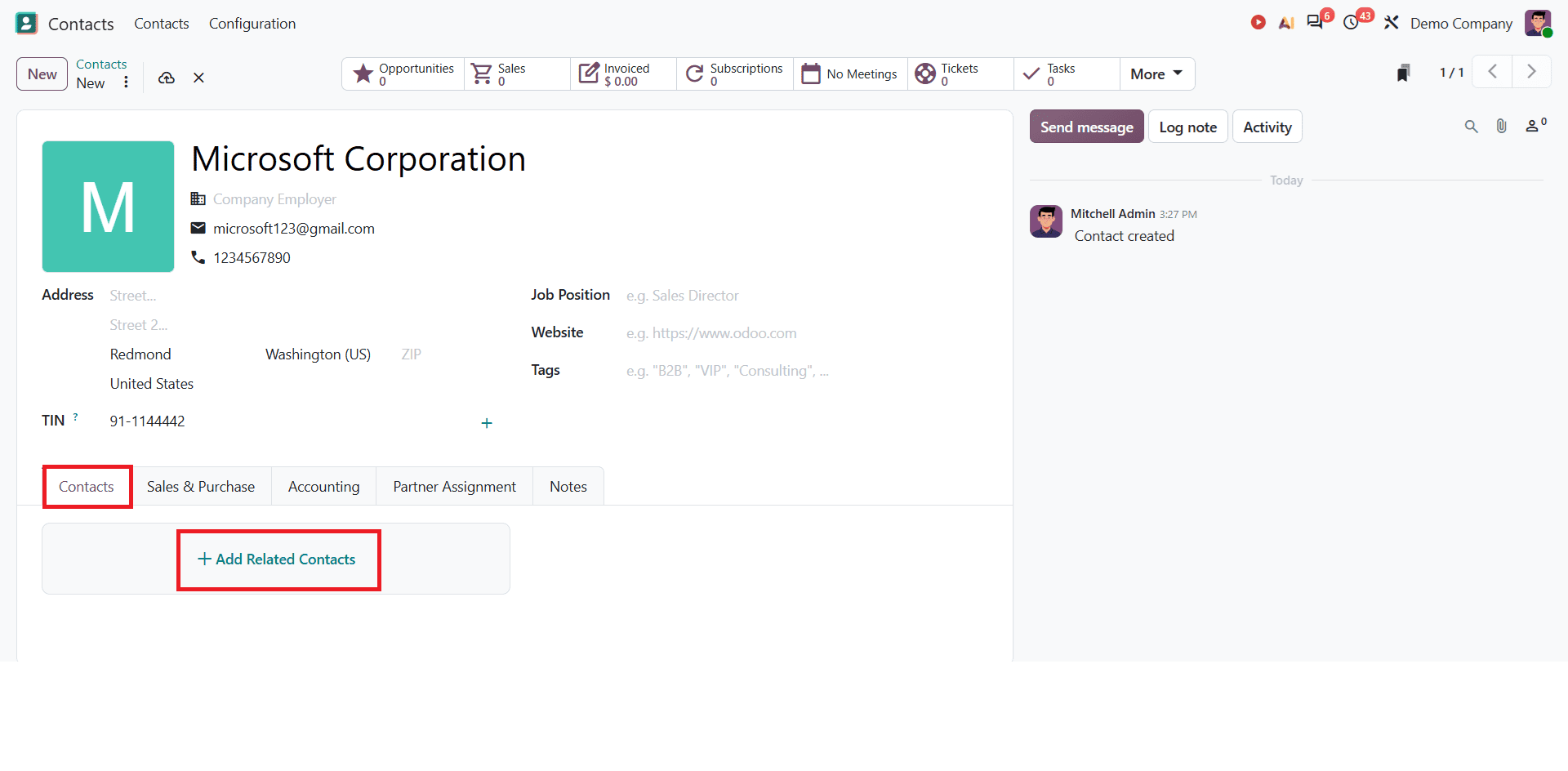
Once you click on that, a new window will open as shown below:
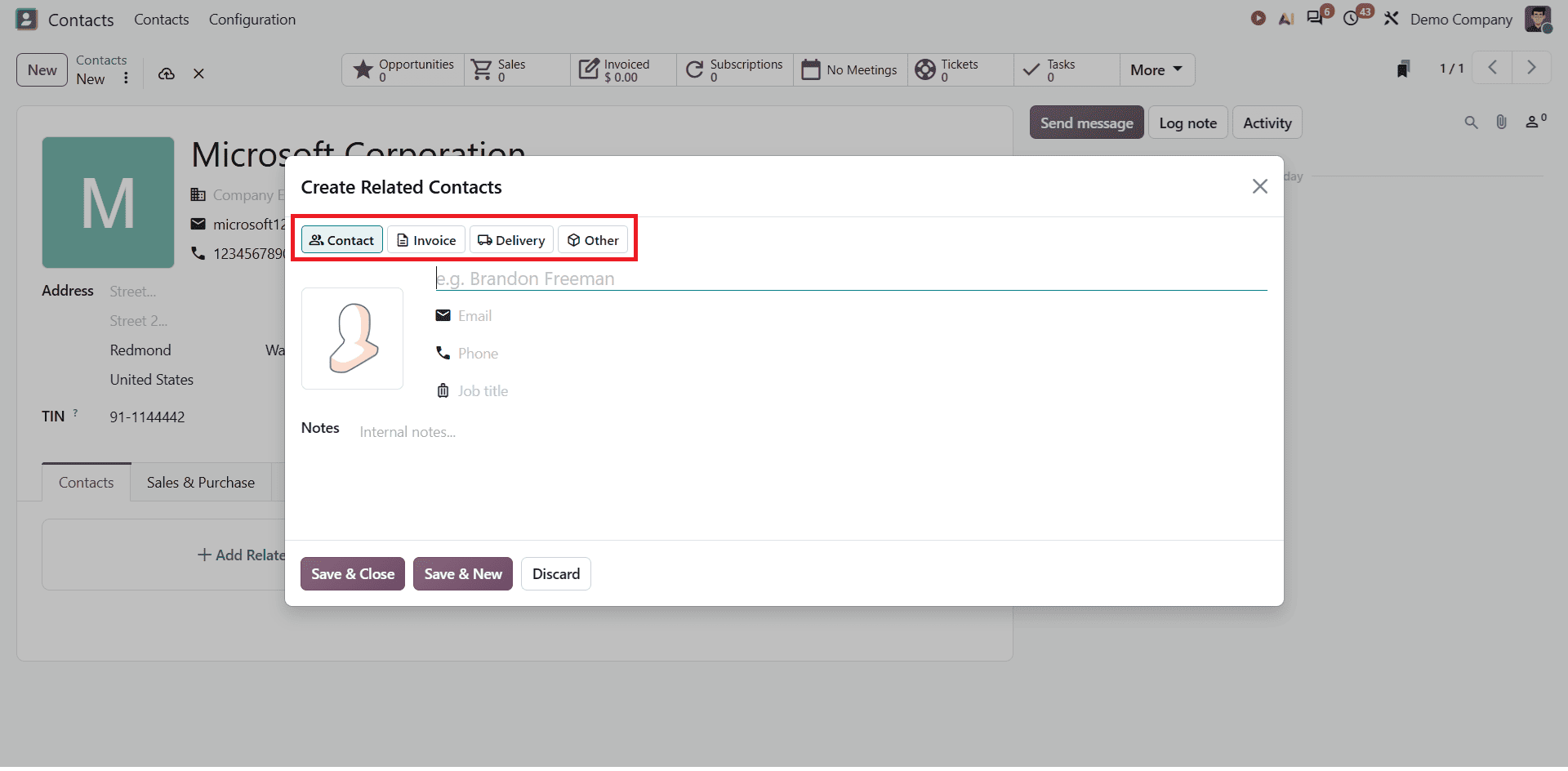
You can enter the person's details and select the appropriate contact type, such as Contact, Invoice Address, Delivery Address, or Other Address, depending on the available options. This helps keep related contact information organized under the same company record.
Contact: The contact field used to add a new person or employee associated with the company. This helps businesses to record multiple representatives of that organization.
Invoice: Used to specify the address where the invoice should be sent. It is useful for organizations when the billing address differs from the company address.
Delivery: This option allows you to add the delivery address where the product should be delivered.
Other: This option allows you to add another alternative address to the existing form for any other operational needs.
Apart from the Contact tab, Odoo 20 provides additional tabs to manage different aspects of a contact record. These include Sales & Purchase, Accounting, Partner Assignment, and Notes. Each of these settings helps businesses to manage customer and vendor information, accounting configurations, and additional information.
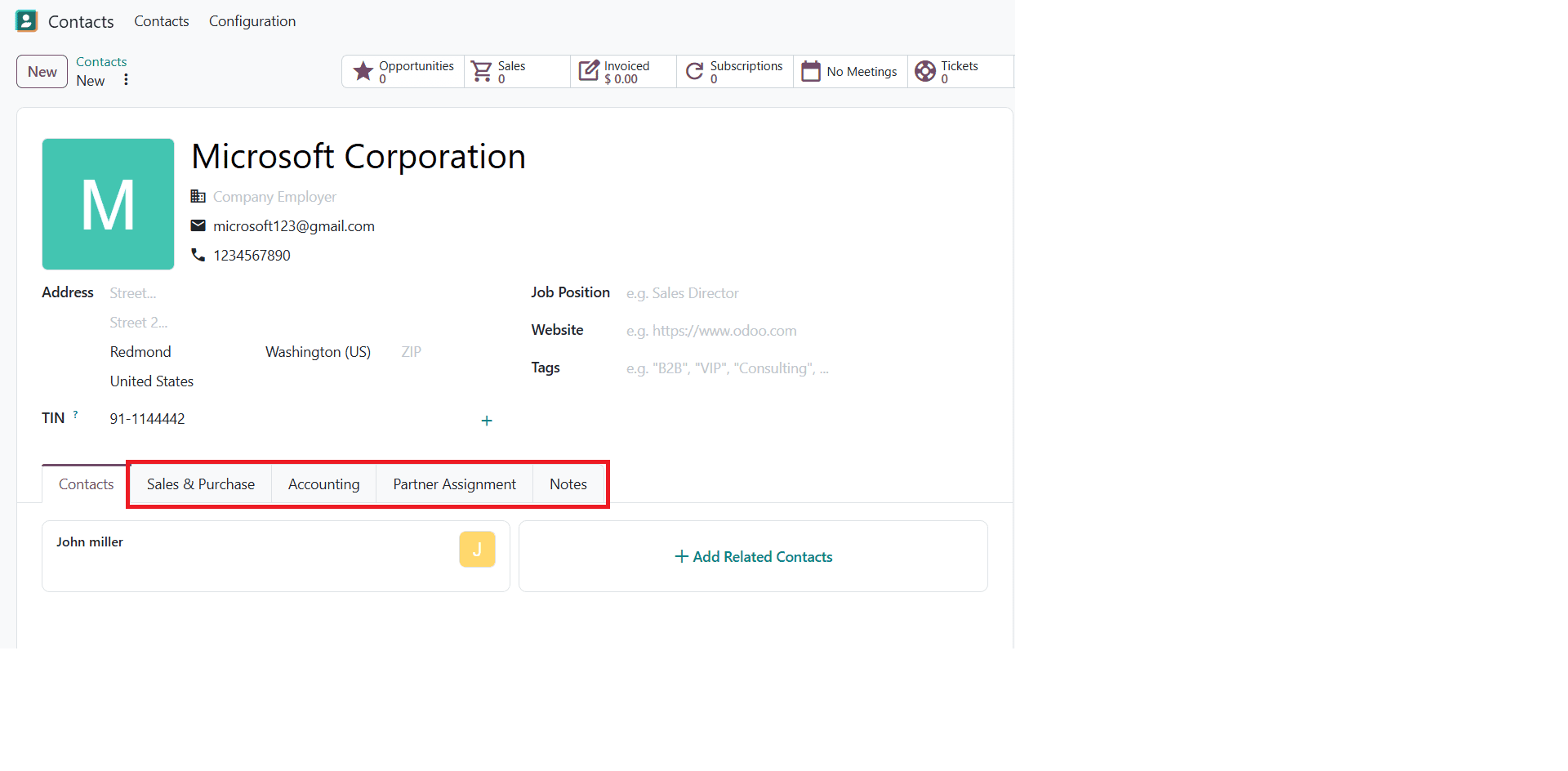
Sales and Purchase
The Sales & Purchase tab in Odoo 20 contains additional settings related to a contact's sales and purchasing activities. These options help businesses configure customer and vendor information according to their operational requirements.
The Sales section includes settings related to sales operations, while the Purchasing section provides options for financial transactions related to the contact and managing vendor-related activities. Fiscal Information allows users to configure the fiscal position associated with the contact. The Miscellaneous section contains additional settings, and the Inventory section allows users to specify relevant stock locations, including customer and vendor locations.
Accounting
The Accounting tab contains accounting-related information associated with a contact, such as bank account details and customer invoice configuration. These settings help businesses manage financial transactions with customers and vendors, including relevant payment and invoicing details.
Partner Assignment
The Partner Assignment tab contains geolocation options by default and includes partner activation and partner review.
Notes
The Notes tab allows users to add additional contact information. Businesses can use this tab to record relevant details that may be useful when managing customer or vendor relationships. Setting these notes within the contact records allows users to access important information when needed. The notes are only visible to internal users.
Overview of Configuration
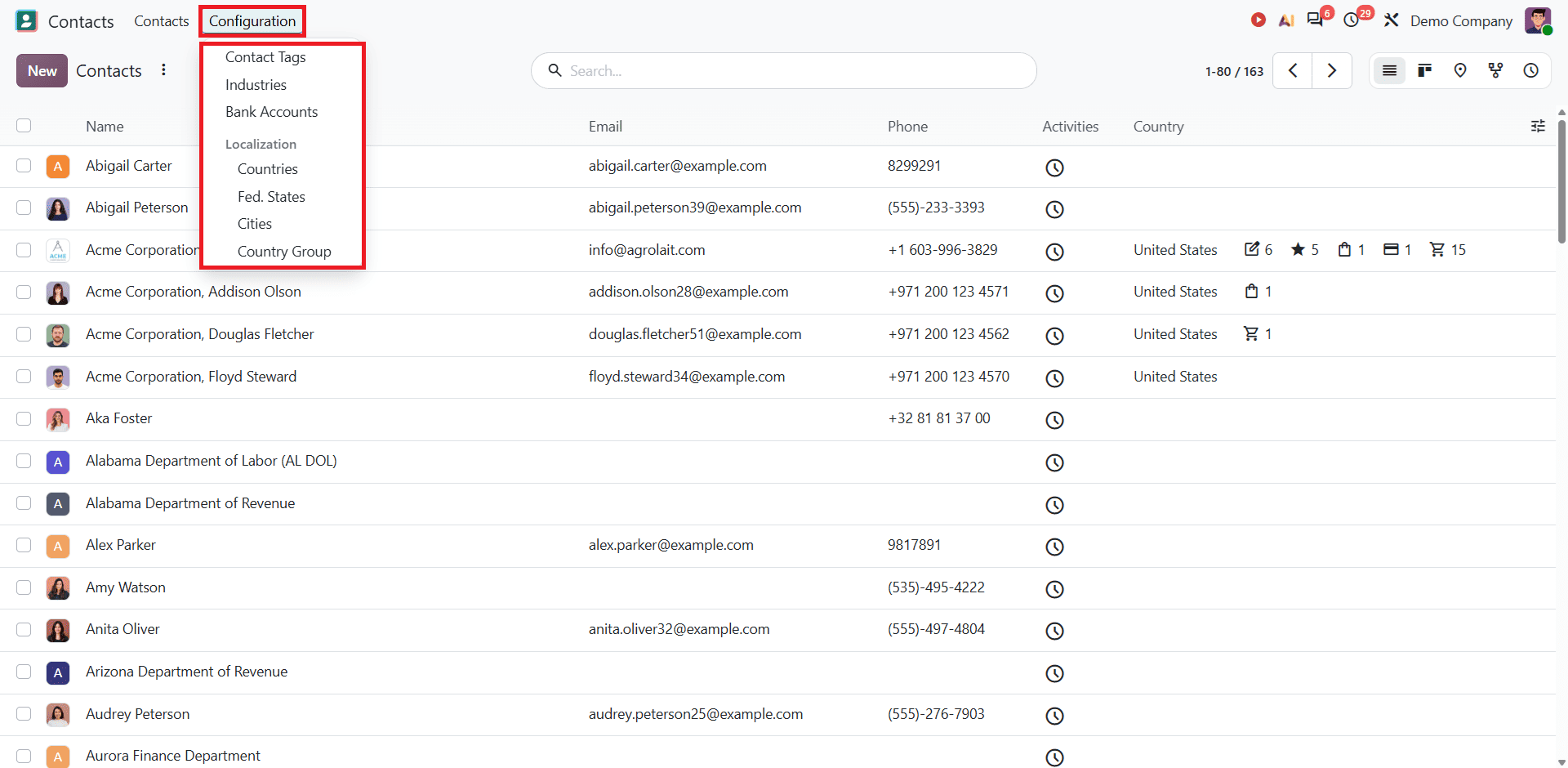
In Odoo 20, the Contact module provides different configuration settings. It includes Contact Tags, Industry, Bank Accounts, and Localization. It helps to classify contacts, manage segments, and transact with your contacts efficiently.
Contact tags
In Odoo 20, the Contact module allows you to create custom tags, used to categorize, filter, and organize customers, vendors, and partners. It helps users to organize contact information when they are creating a new contact. To manage Contact tags, go to Configuration and open Contact Tags.
To create a new Contact tag, click on the New button and type the new tag in the field that you want to create.
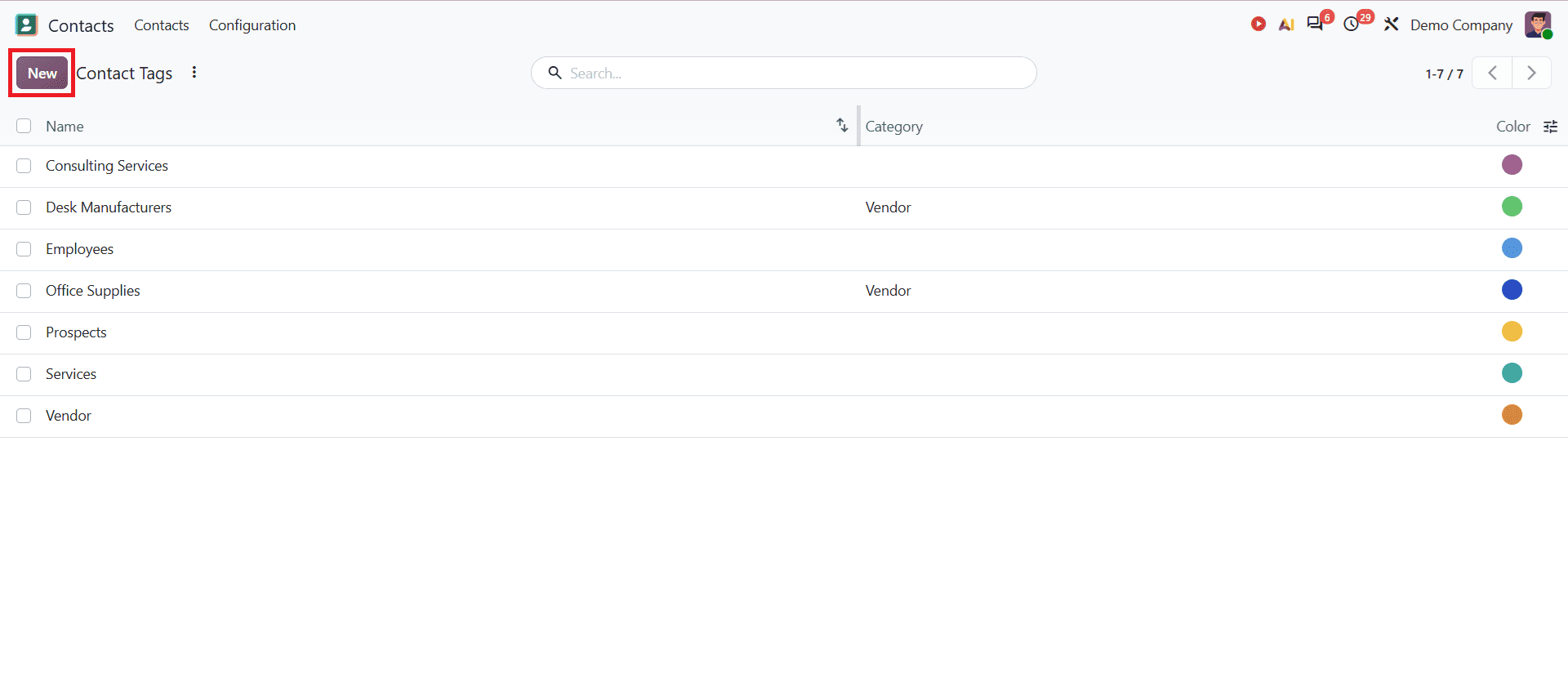
They make it easier to identify and filter specific groups of contacts when managing a large number of records.
Industries
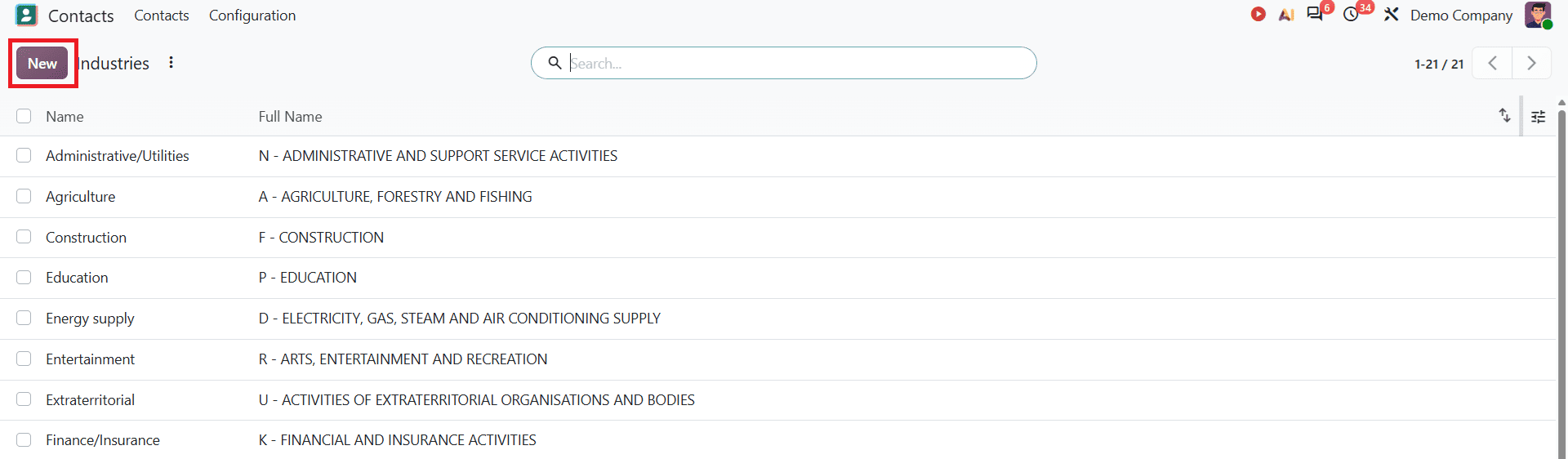
The industry classification defines the business sector a company contact operates in, like Agriculture, Education, or Construction, etc. Sometimes the users may need to assign an industry while creating a new contact. It helps to categorize and organize their contact records.
To manage these options, go to the Configuration menu and select Industries.
This will open a window showing all pre-configured industries in the system, and you can also create a new classification by clicking on the New button. Type the industry you want to add in the lines that appear below the existing list. Once the details are saved, you can add them while creating a new contact.
Bank Account
This field helps users to store bank account and financial information about contacts. If you link bank account details to a contact, you can pay vendor bills and send refunds to customers.
To set up the Bank Account field, go to Configuration and open Bank Account. Once you open it, a window appears as shown below.
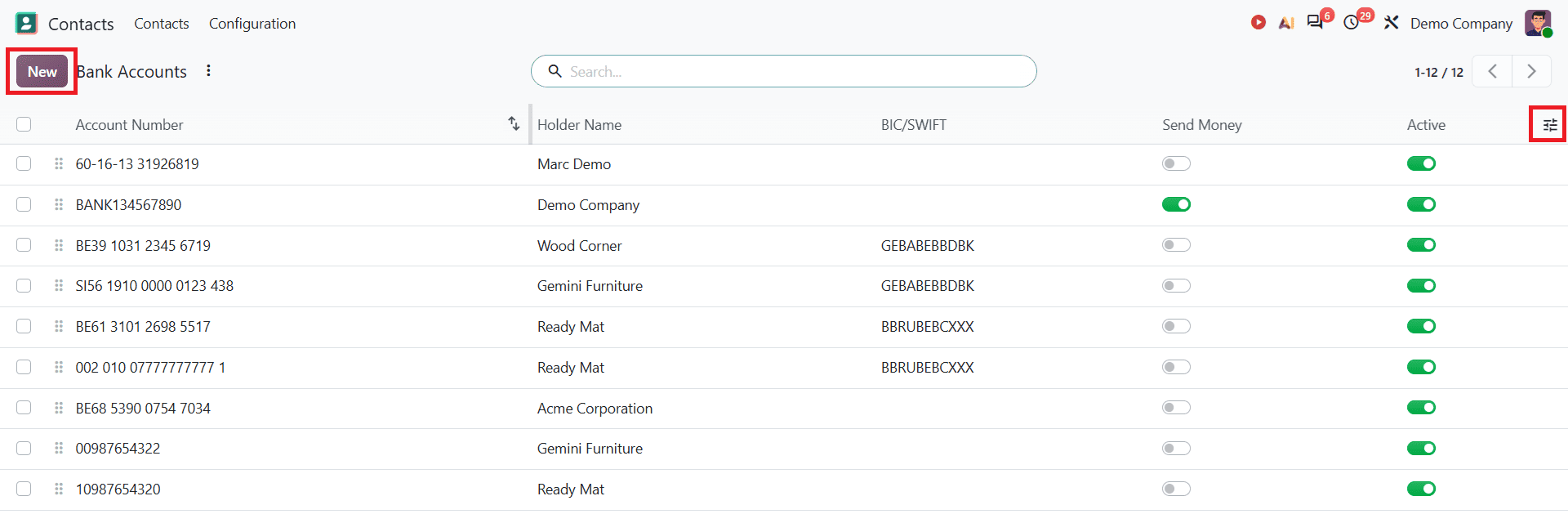
To create a new account, click on the New button. You will see a window as shown below. To show other fields on the dashboard, open the toggle on the right side and enable the fields that you want to show. Enter the required details and save the record to create the account.
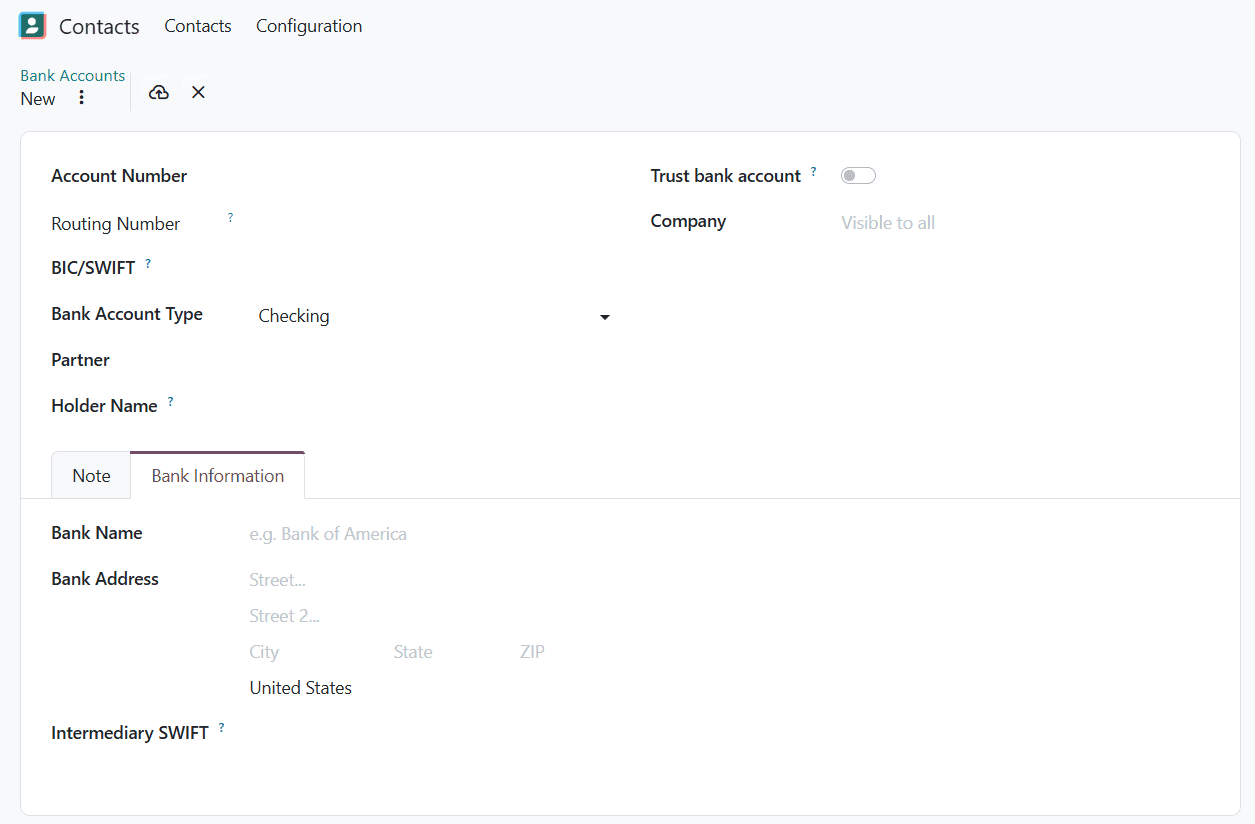
You can add one or more accounts to a contact by entering the account number, bank name, and holder name. This enables smooth bank synchronization and automated payments to manage business easily.
Localization
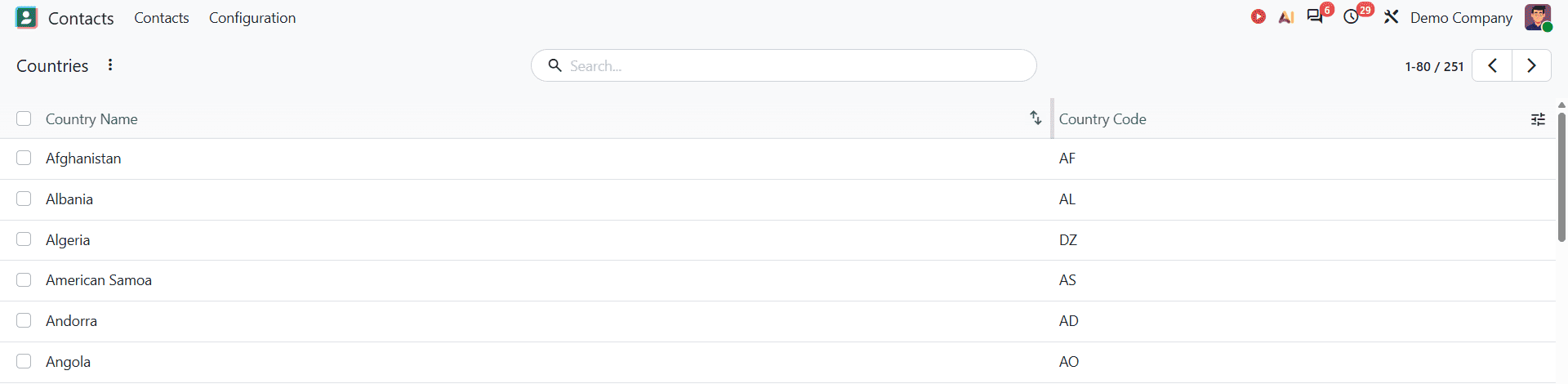
Under the localization tab, there are options like Countries, Fed. States, Cities, and Country Groups. This is used to manage and standardize regional and geographical data that is linked to customers, vendors, and partners.
Countries field shows the list of country names and country codes.
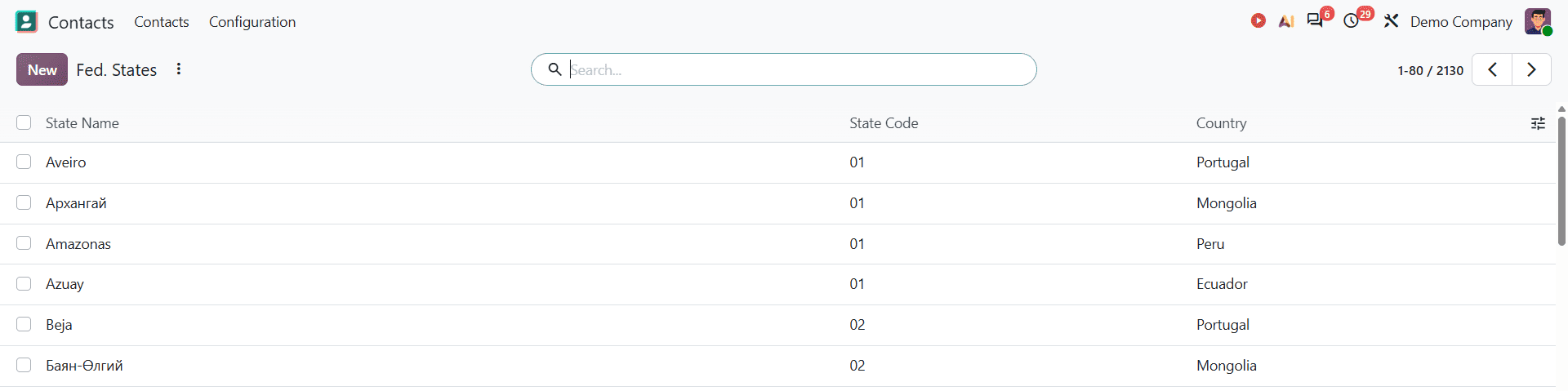
Fed. States provide subdivisions within the country, such as state, province, or region records for specific countries. This prevents errors in addresses. It shows State Name, State code, and Country. To add a state, click on New and type the state you want to add, then save it.
Cities field includes the city name, country, and state. You add cities by clicking the New button.

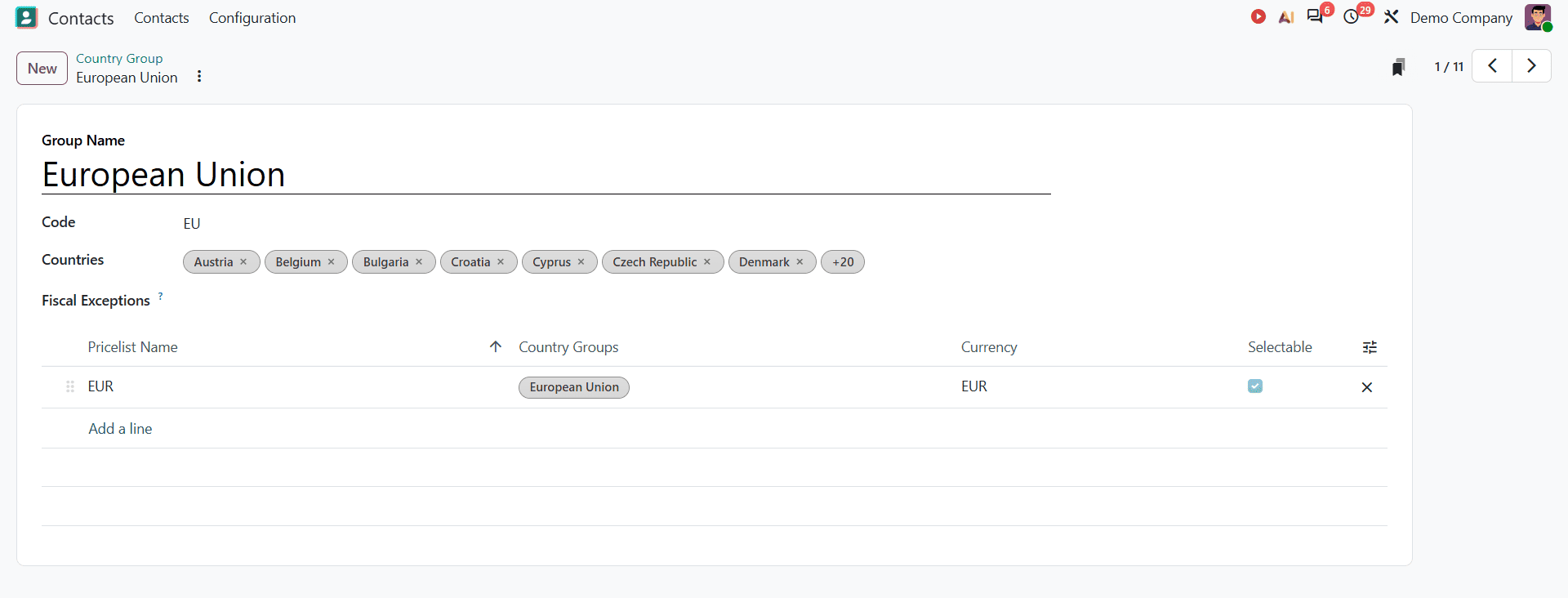
The Country Group field categorizes countries by group. This feature lets you group multiple nations into a single region, such as the European Union.
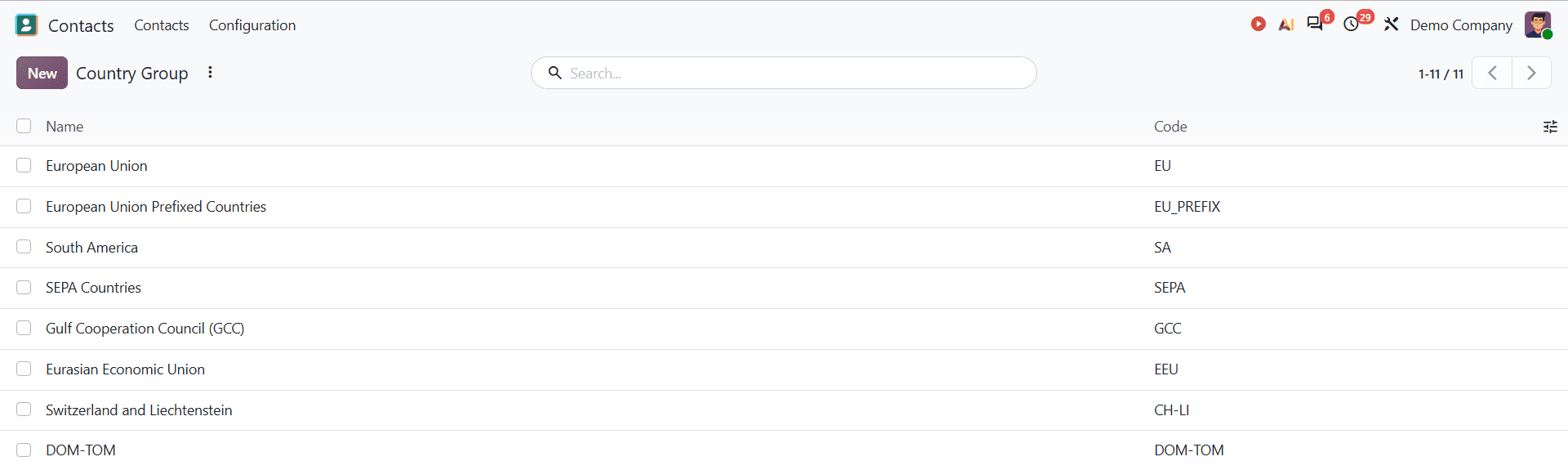
To add a new Country Group, click on New; a new window will pop up as shown below:
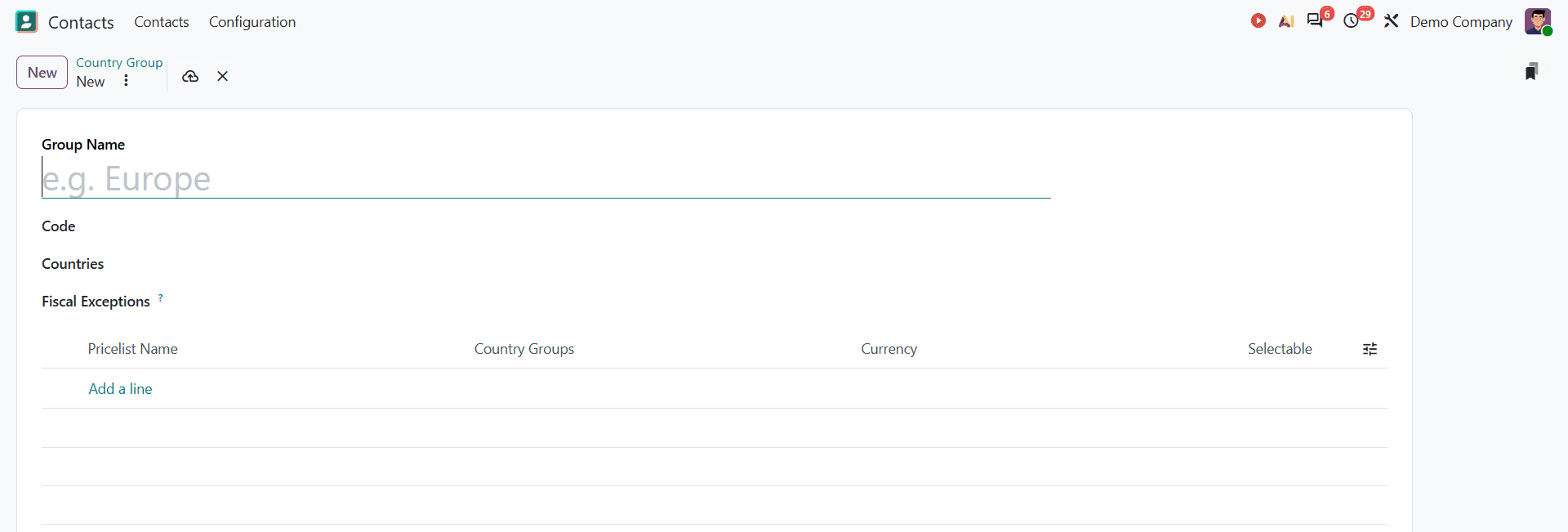
You can set a Group name, code, and the countries included under that group. You can also enter pricing details, such as Pricelist Name, Country Group, and currency. You can see an example shown below:
Archiving Contacts in Odoo 20
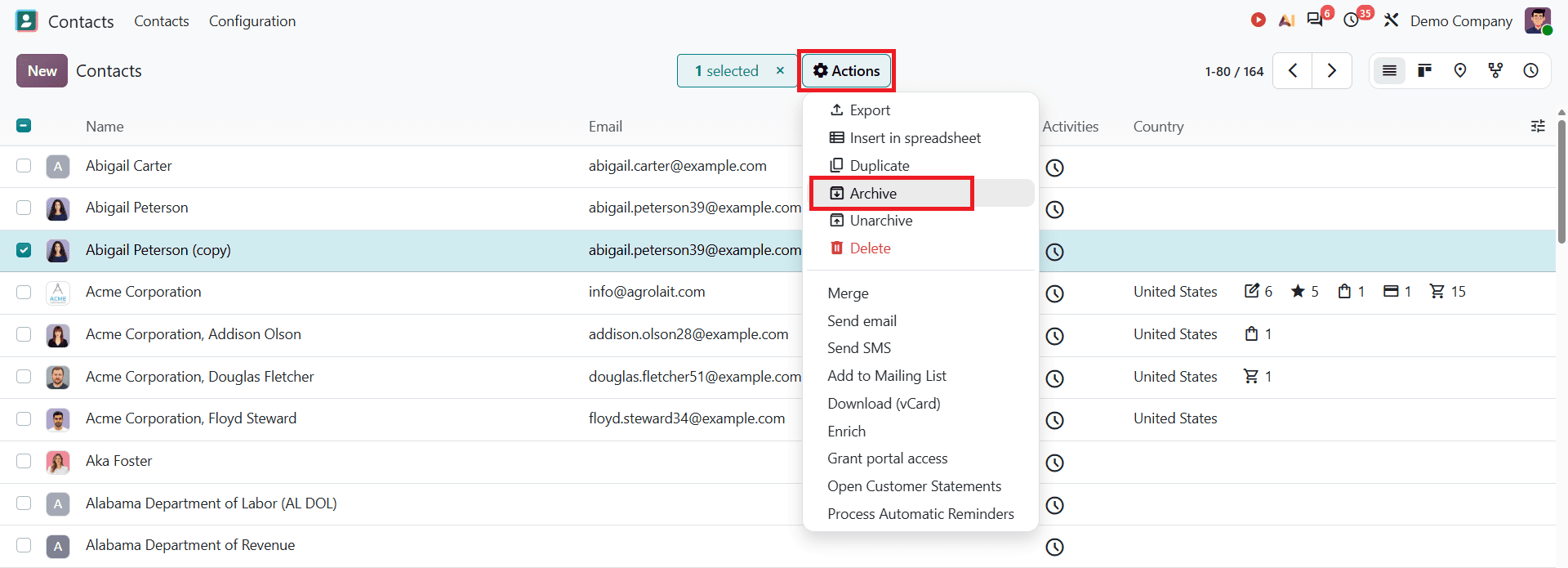
Keeping contact records organized is important for maintaining an accurate database. In Odoo 20, users can archive contacts that are no longer active without permanently deleting their information. This allows businesses to keep old records while removing them from the main contact list.
To archive a contact, from the contact list view, tick the contact checkbox on the left that you want to archive. Click on Actions at the top and select Archive.
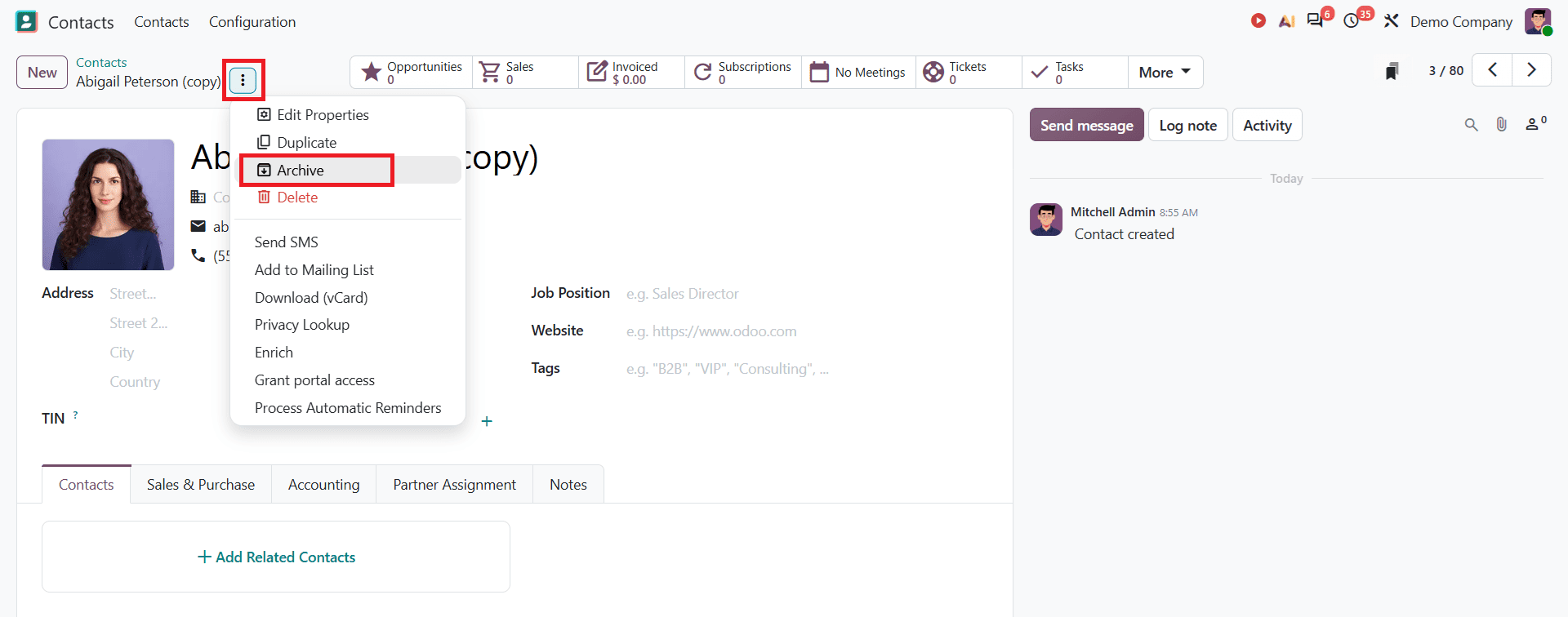
Or you can open the specific contact and click the Action menu at the top of the contact form, as shown below. Then select Archive and confirm your choice in the pop-up window.
Once you archive a contact, it will display an archive banner and will disappear from the main contact list. You can find them by using the Archived search filter.
Merge Duplicate Contacts in Odoo 20
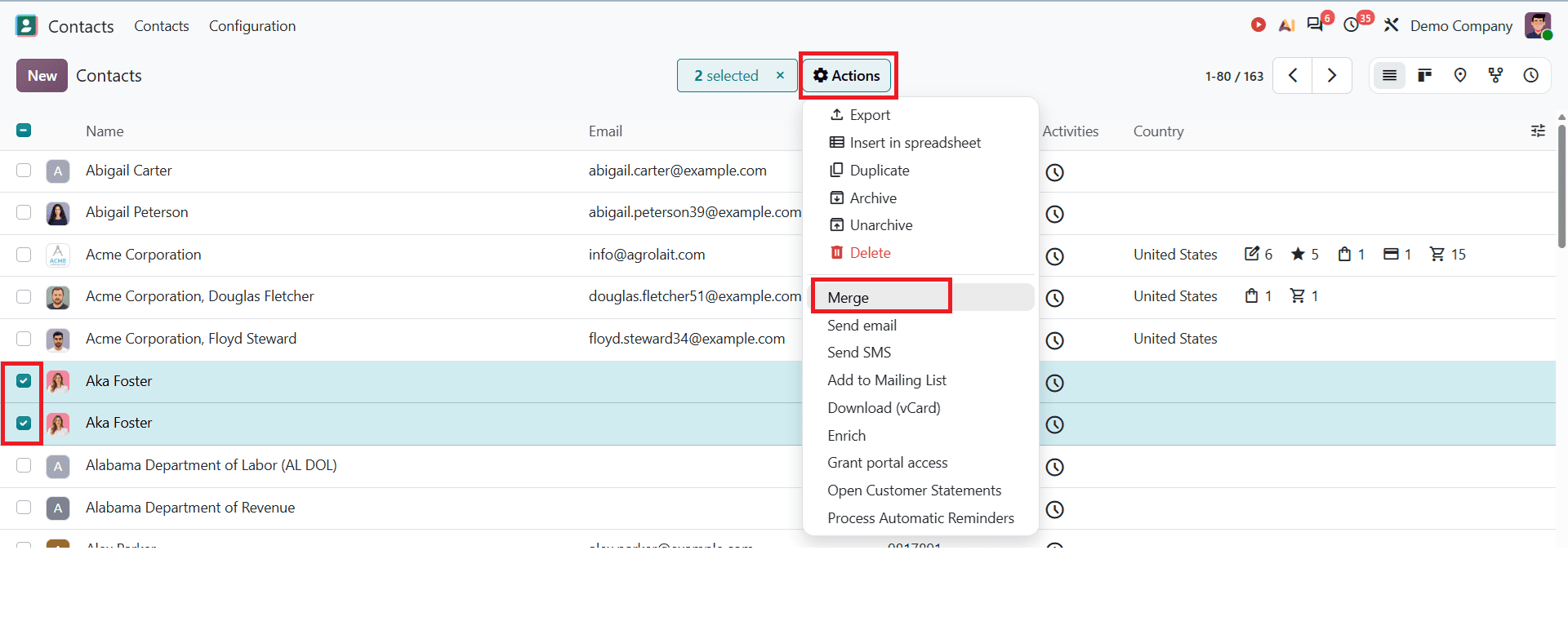
Merging allows you to merge duplicate contact records so you don't lose important information. It keeps your data organized and prevents multiple salespeople from contacting the same person.
In the list view, tick the contacts you want to merge, click on the Action icon at the top, and select Merge.
A pop-up window will appear as shown below:
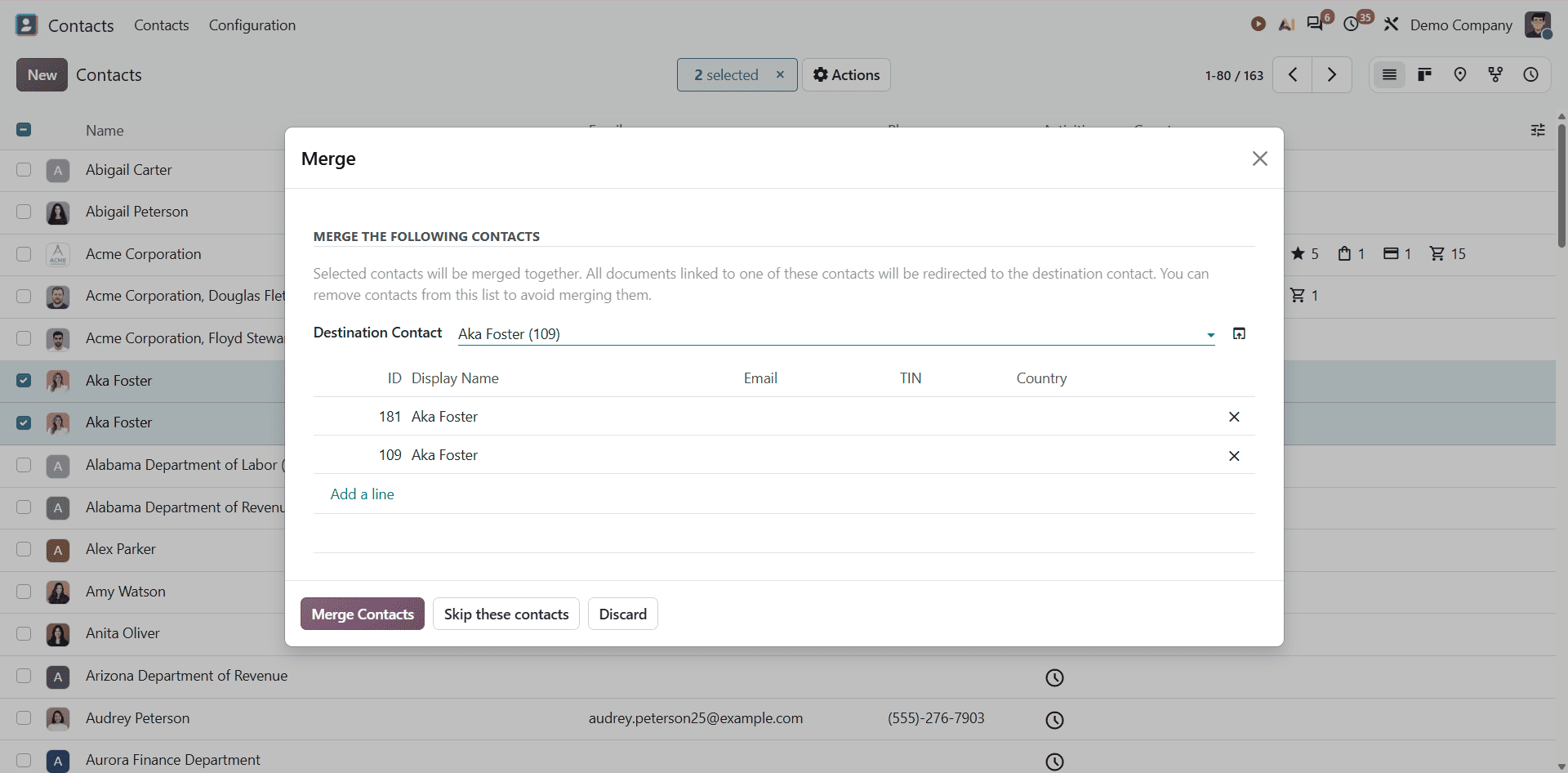
In this window, you can select the Destination contact and click Merge contact to complete the process.
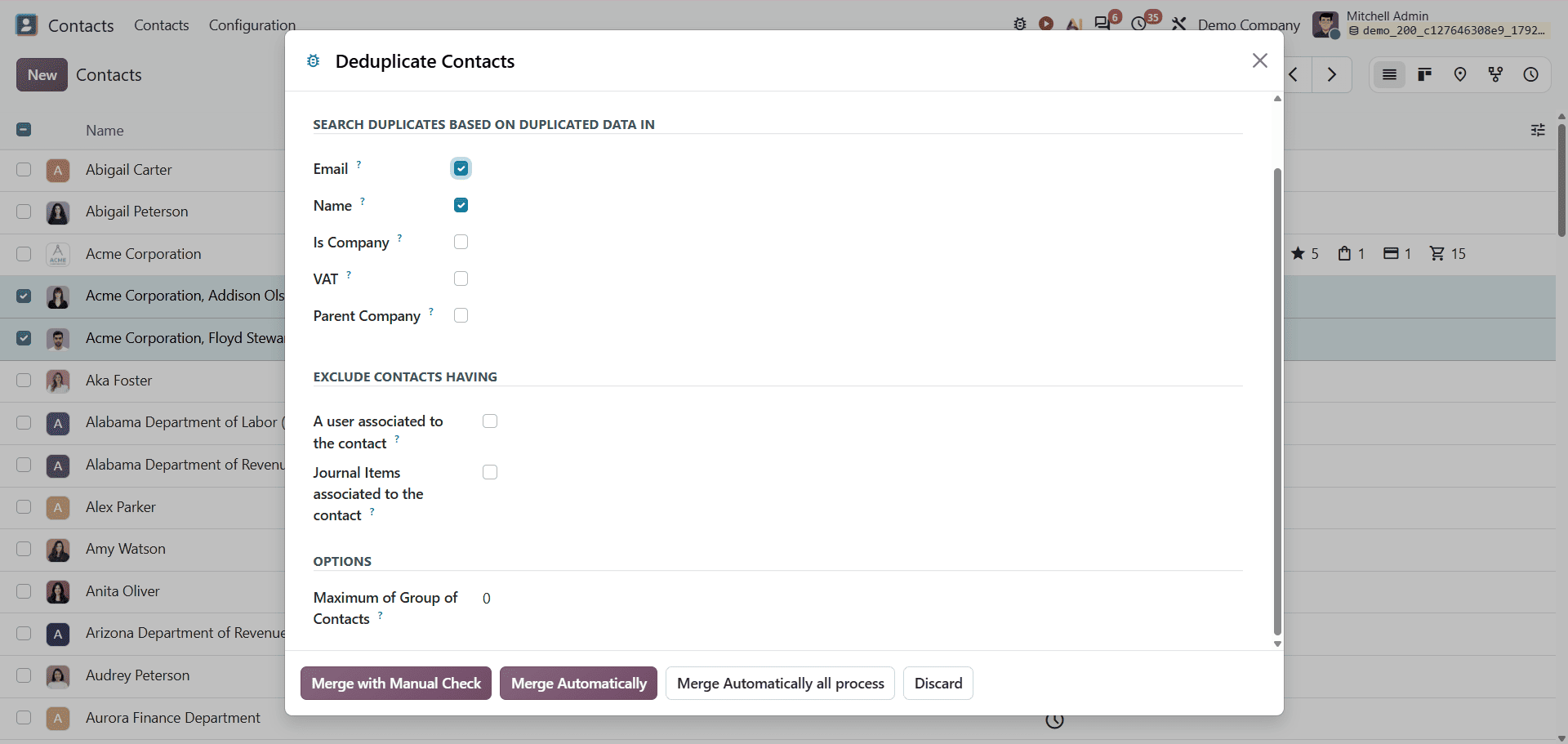
Once a merge is complete, a confirmation pop-up will appear and offer the Deduplicate the other Contacts button. Clicking this allows you to search your database for other duplicates based on criteria such as Email, Name, Is Company, VAT, and Parent Company. You can also select other options as shown below:
Contact Autocomplete
Odoo 20 provides integrated tools to automatically complete company details, full addresses, and tax data for contacts, such as Partner Autocomplete and Address Autocomplete.
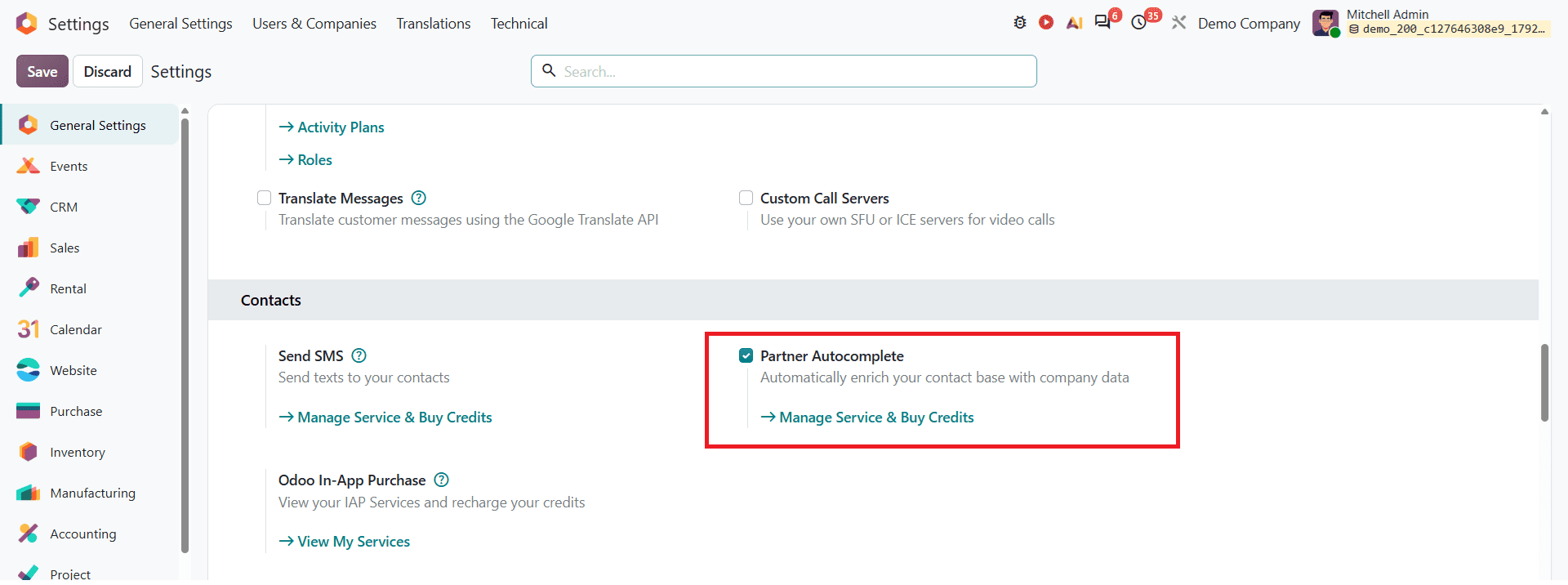
In Odoo, Partner Autocomplete is an In-App Purchase service that enhances new company records. When creating a new company contact, Odoo can fill in fields like the full company name, logo, phone number, email, tax ID, and addresses. To configure this, go to Settings from the Odoo 20 dashboard; in the Contact section, activate Partner Autocomplete.
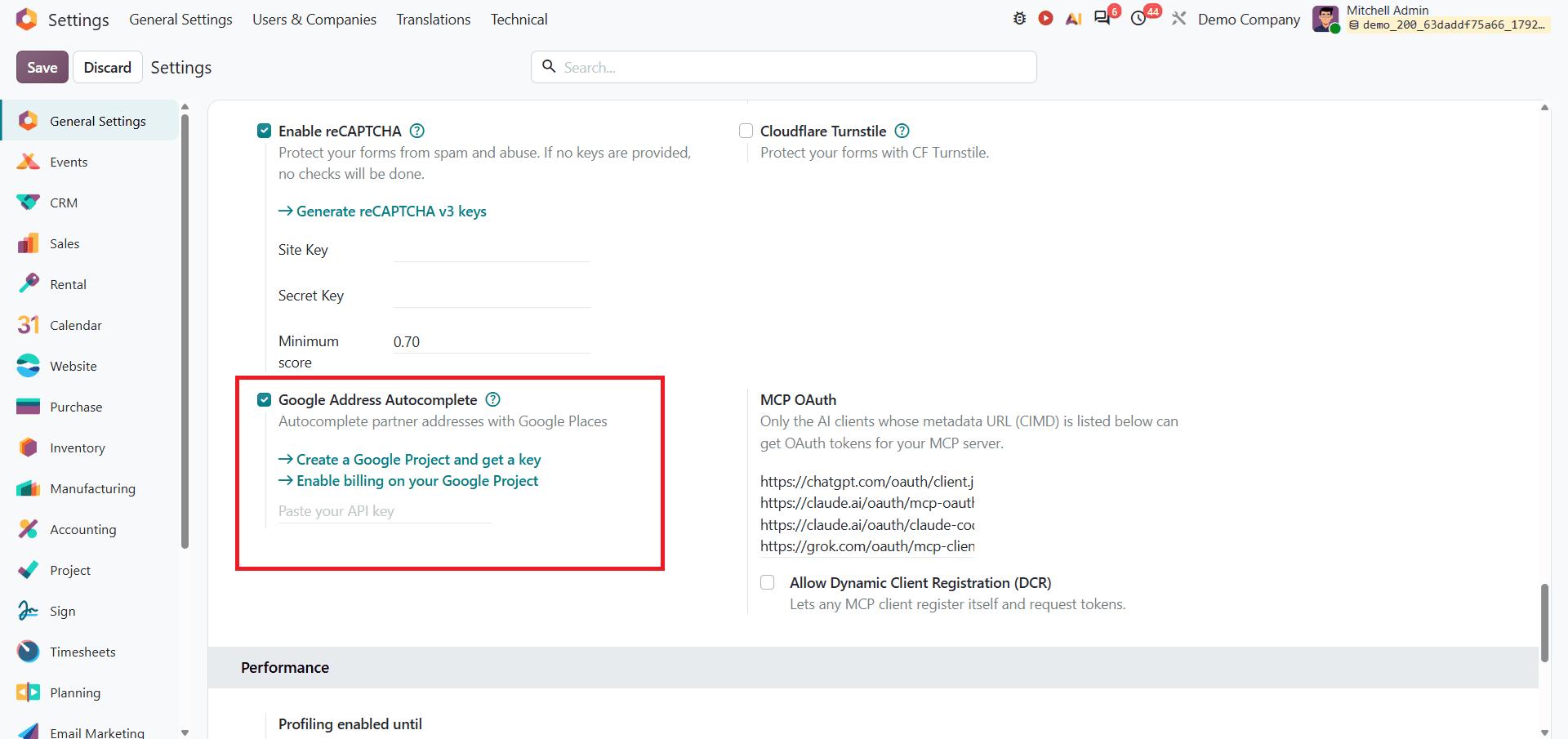
Address Autocomplete integrates with the Google Places API to autofill street addresses while creating a new contact. It helps to prevent manual errors and save time.
To configure this autocomplete, go to General settings in Odoo 20, scroll down to the Integration section, and enable Google Address Autocomplete as shown below:
The Odoo 20 Contact app provides a convenient way to manage company information, customer details, and business contacts all in one place. It allows users to create and organize contacts to manage additional information, tags, and address details. This enables people to maintain their contact records in a structured and easily accessible way. Also, this module includes contact autocomplete to simplify the process by reducing manual errors. By understanding these features, users can manage their contacts more effectively and keep their business information organised.
To read more about Odoo 20 Roadmap Explained: Key Updates and Future Expectations, refer to our blog Odoo 20 Roadmap Explained: Key Updates and Future Expectations.