Offering discounts could increase foot traffic and income in a store by attracting more customers. Giving devoted customers something of value can boost brand loyalty and assist get rid of out-of-date inventory to create room for new supplies. Additionally, discounts create a sense of urgency that encourages consumers to buy more rapidly.
Line discounts allow you to apply discounts to individual products in Odoo 19 Point of Sales, giving you more flexibility when determining prices for specific items. Global discounts, on the other hand, offer a fixed percentage or amount of the total cost for each product in the sale and are applied to the entire purchase.
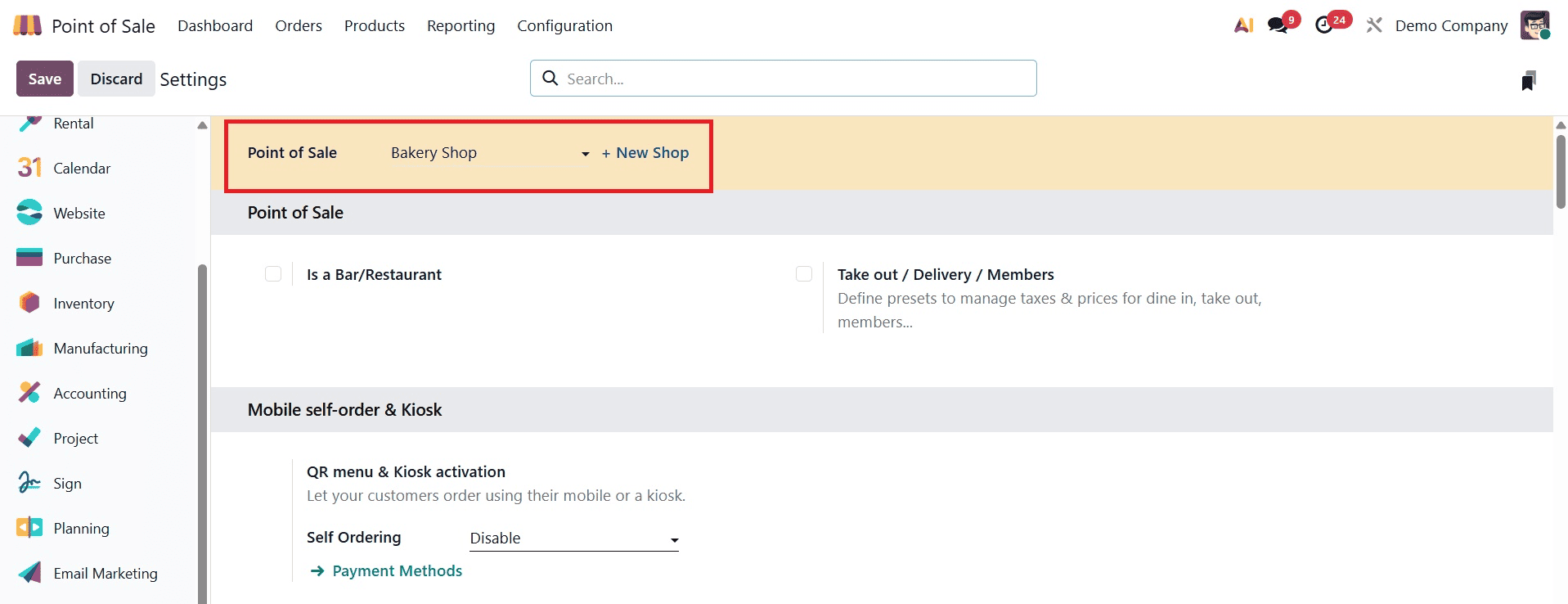
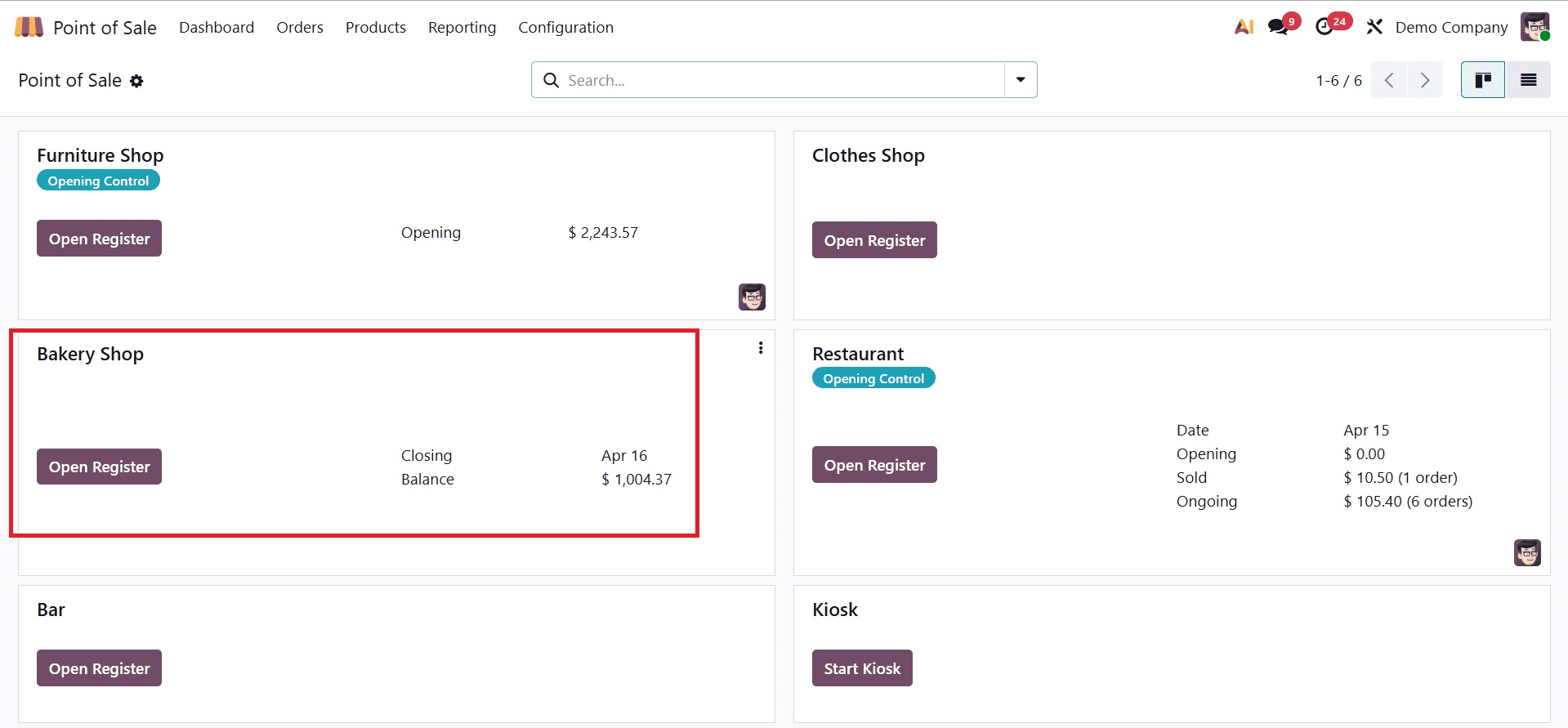
Let's move on to the point of sale module for that. The new point of sale is called Bakery. Navigate to the Settings from the Configuration menu to verify the configuration.
Line Discounts
Odoo19 Point of Sales line discounts give you flexibility by allowing you to tailor promotions and apply discounts to certain products.
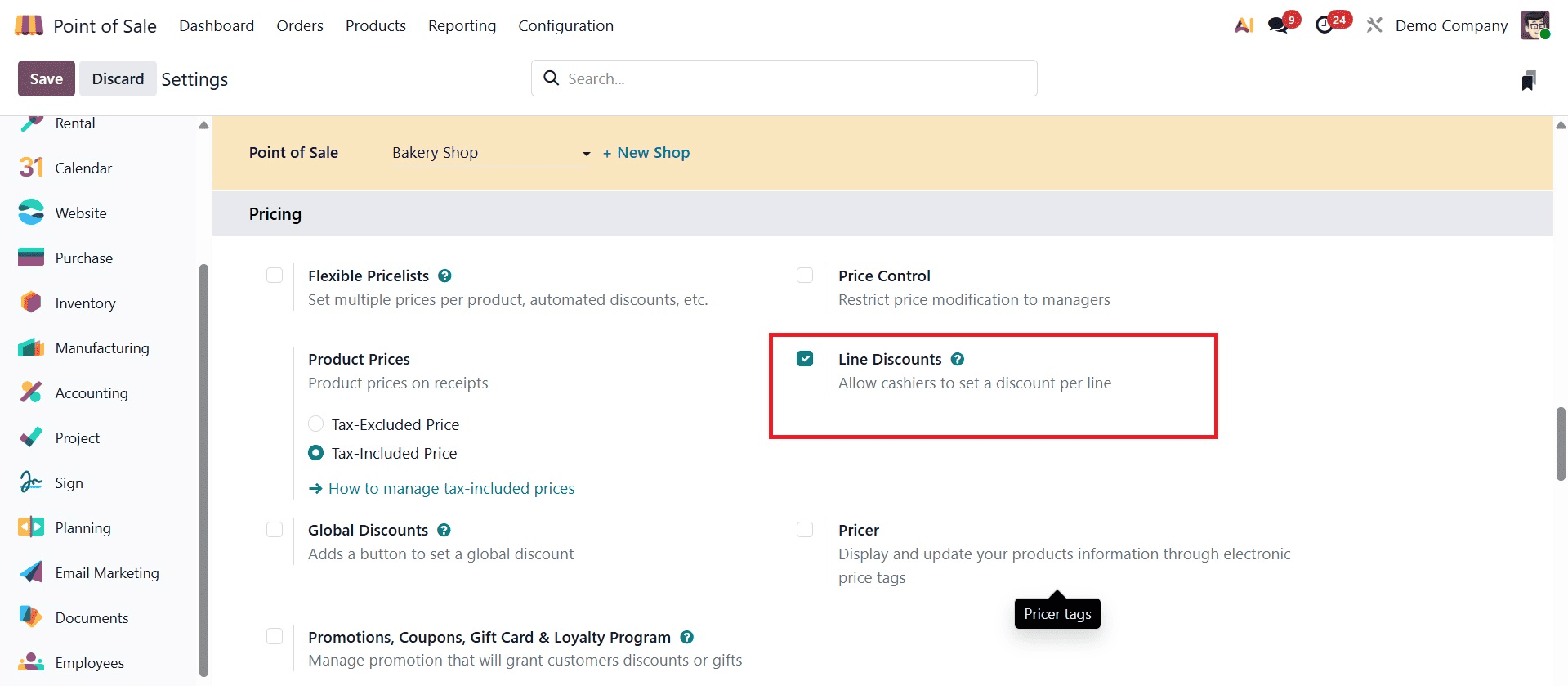
When you go down on the settings page, the Pricing section appears. The Line Discount field can be activated by the user to add line discounts. The cashier can set a discount for each order line if the Line Discounts feature is activated.
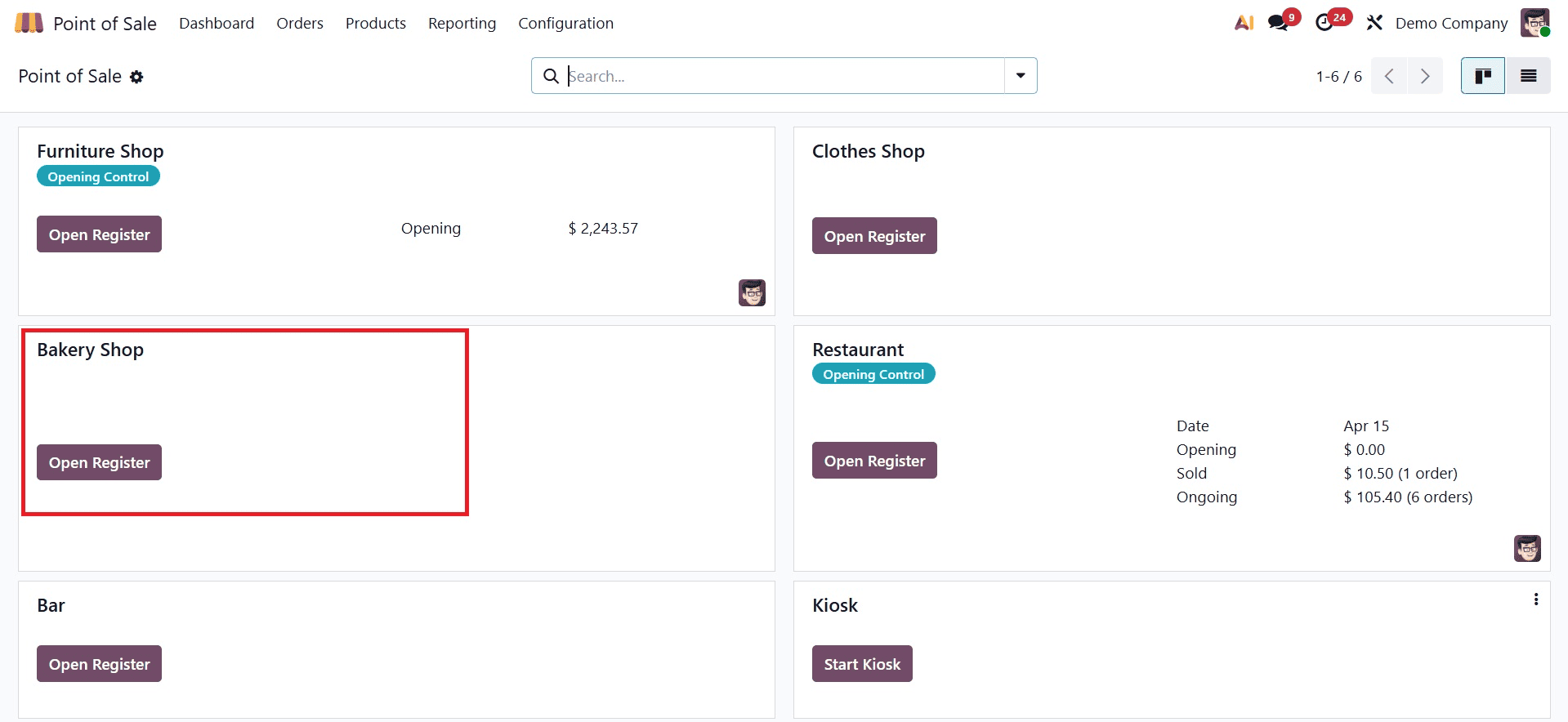
Navigate to the dashboard, which displays the bakery's point of sale. To start the session, click the Open Register button.
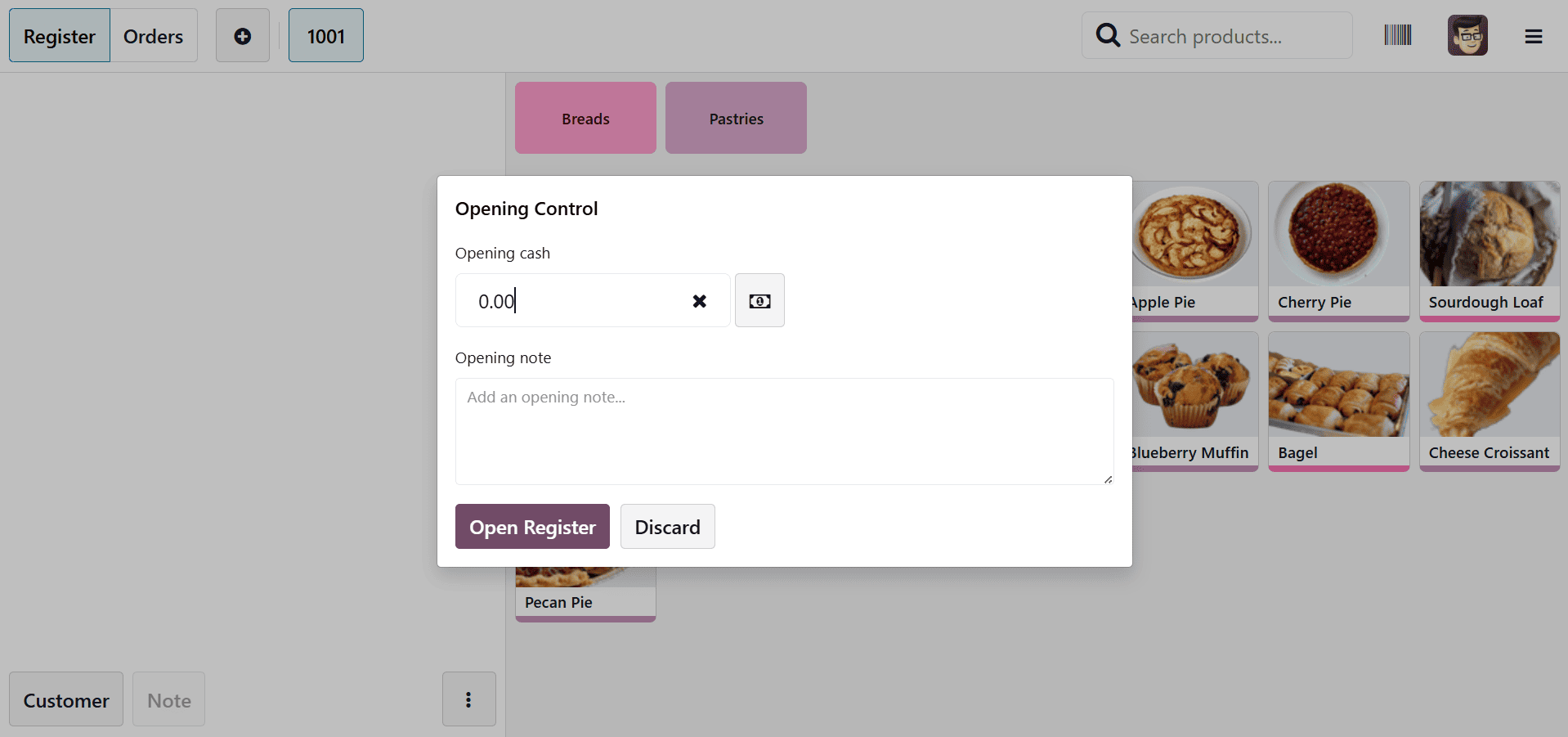
The salesman starts a fresh session here. If needed, the cashier can start by adding an opening balance. Next, press the "Open Register" button.
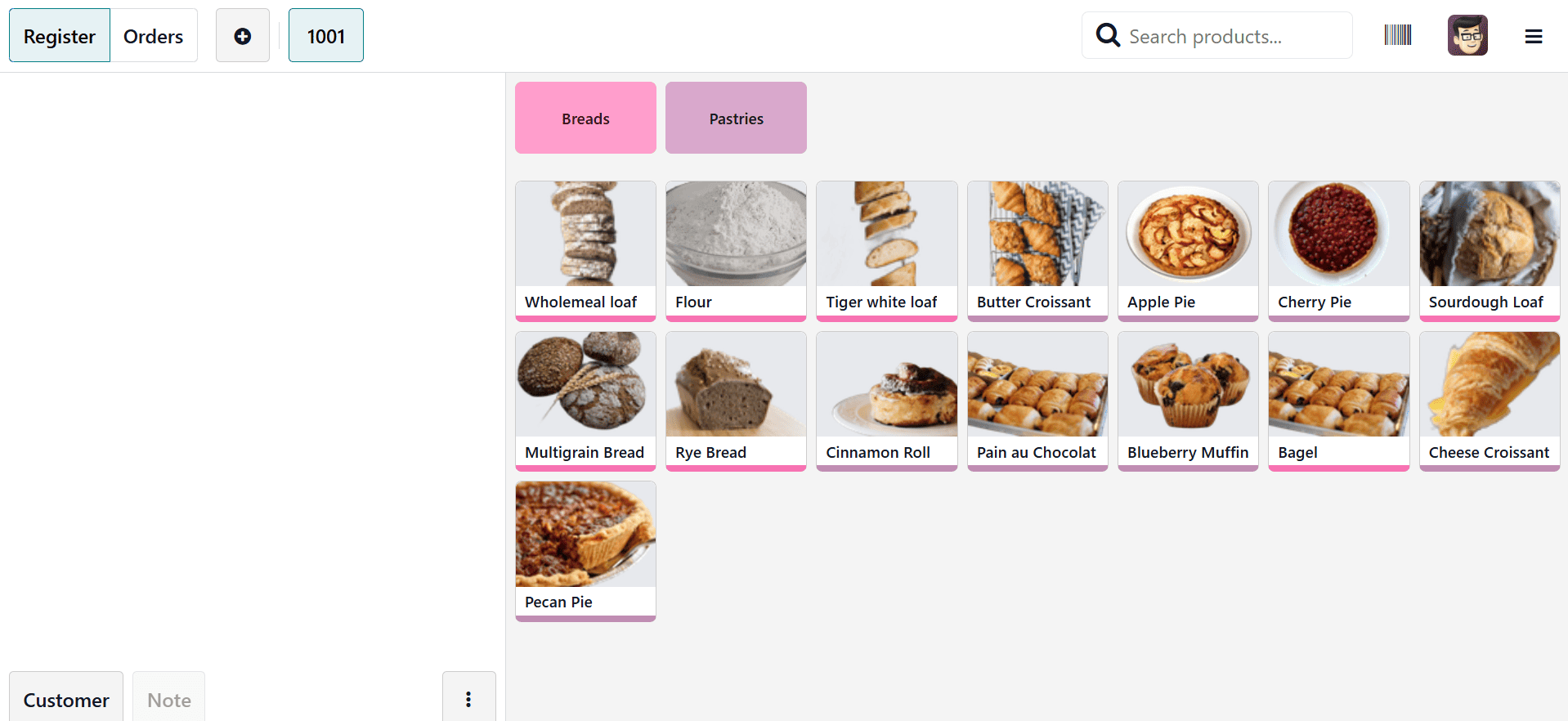
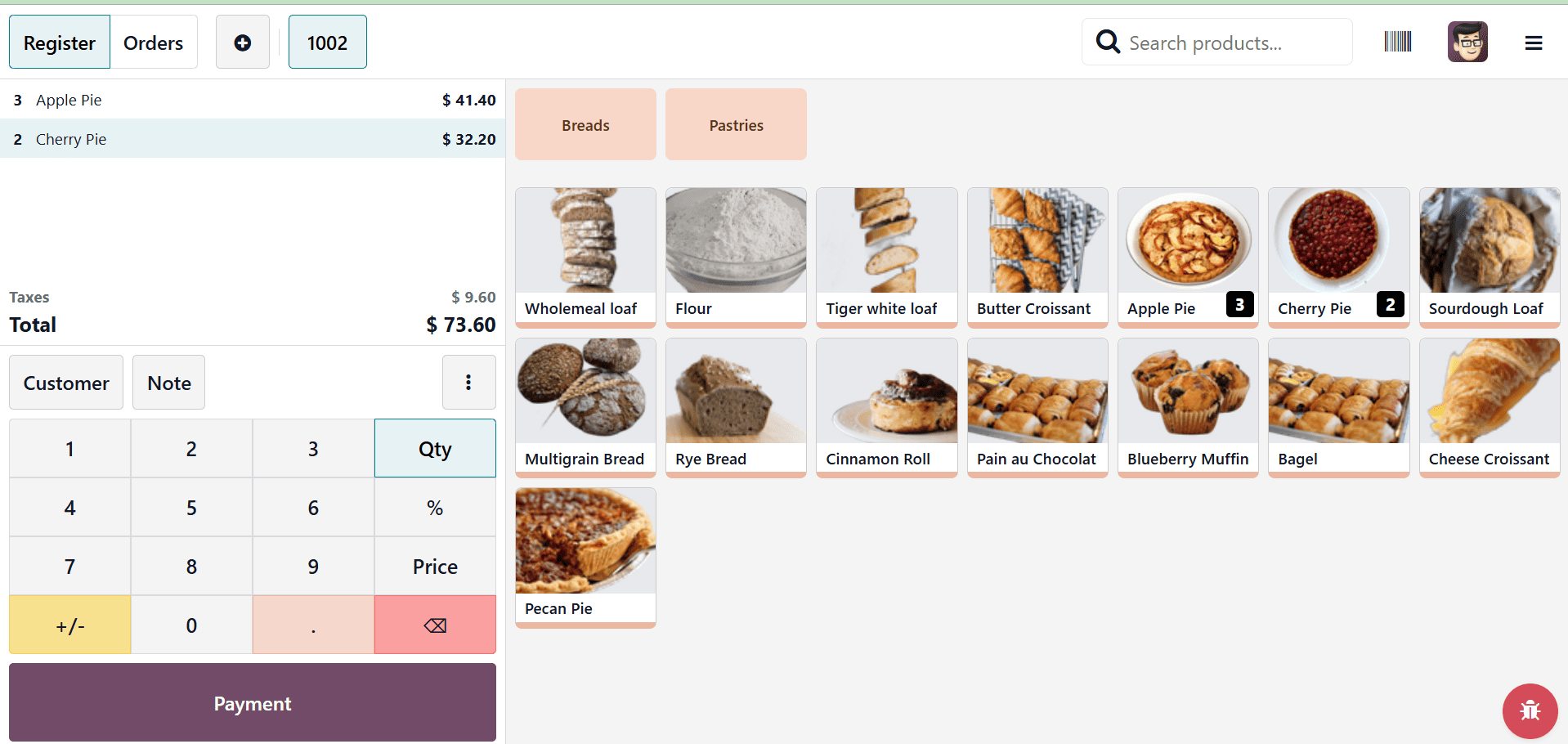
On the right side of the screen is a list of products. The upper bar of the right-side screen displays the product categories. The salesperson can select the necessary items if a customer needs to buy them, and those items will be added to the left side of the screen.
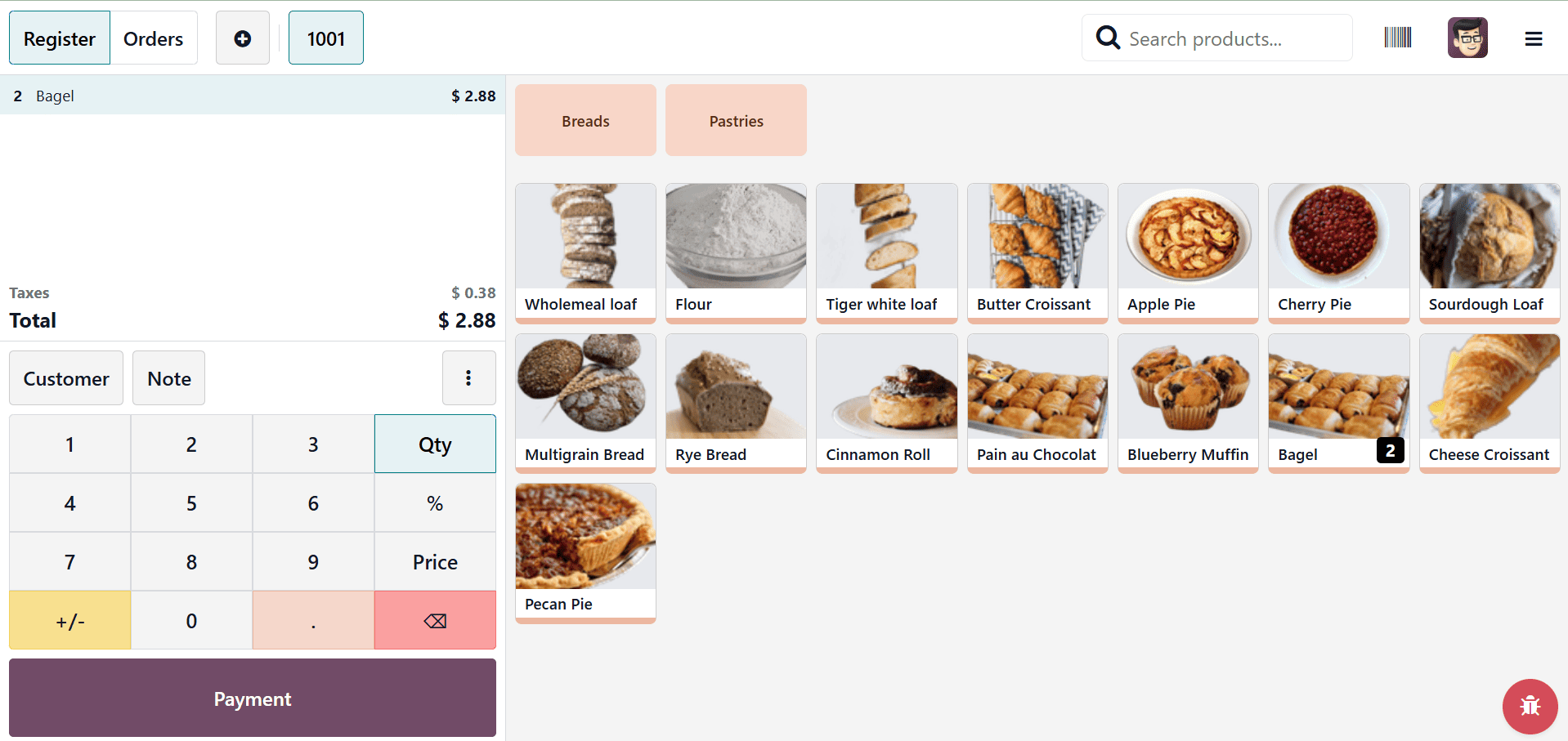
Here, a buyer wants to buy two amounts of bagels. in order for the salesperson to offer a discount on that specific item. The product's actual sales price, including tax, is $1.44 per unit, for a total of $ 2.88.
Take into account that the product is discounted by 2%. Thus, a button with a percentage icon is present. in order for the salesman to give the order line some discounts. After that, click 2 to add 2% of the discount to the order line.
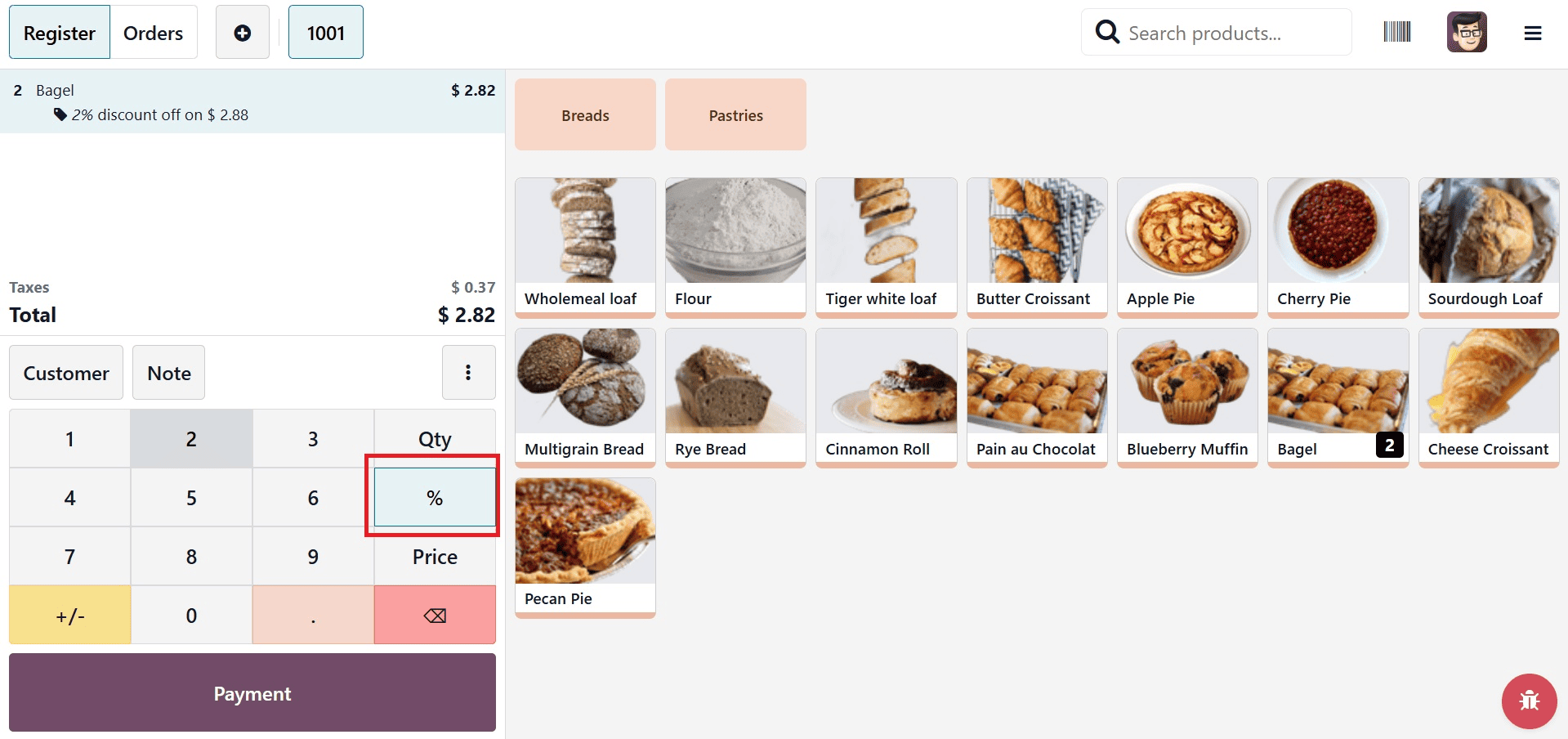
The sales price was reduced to $2.82 after a 2% discount was applied to the order line. In this case, the sales price is reduced by 2%. Thus, $2.82 is subtracted from the final sales price.
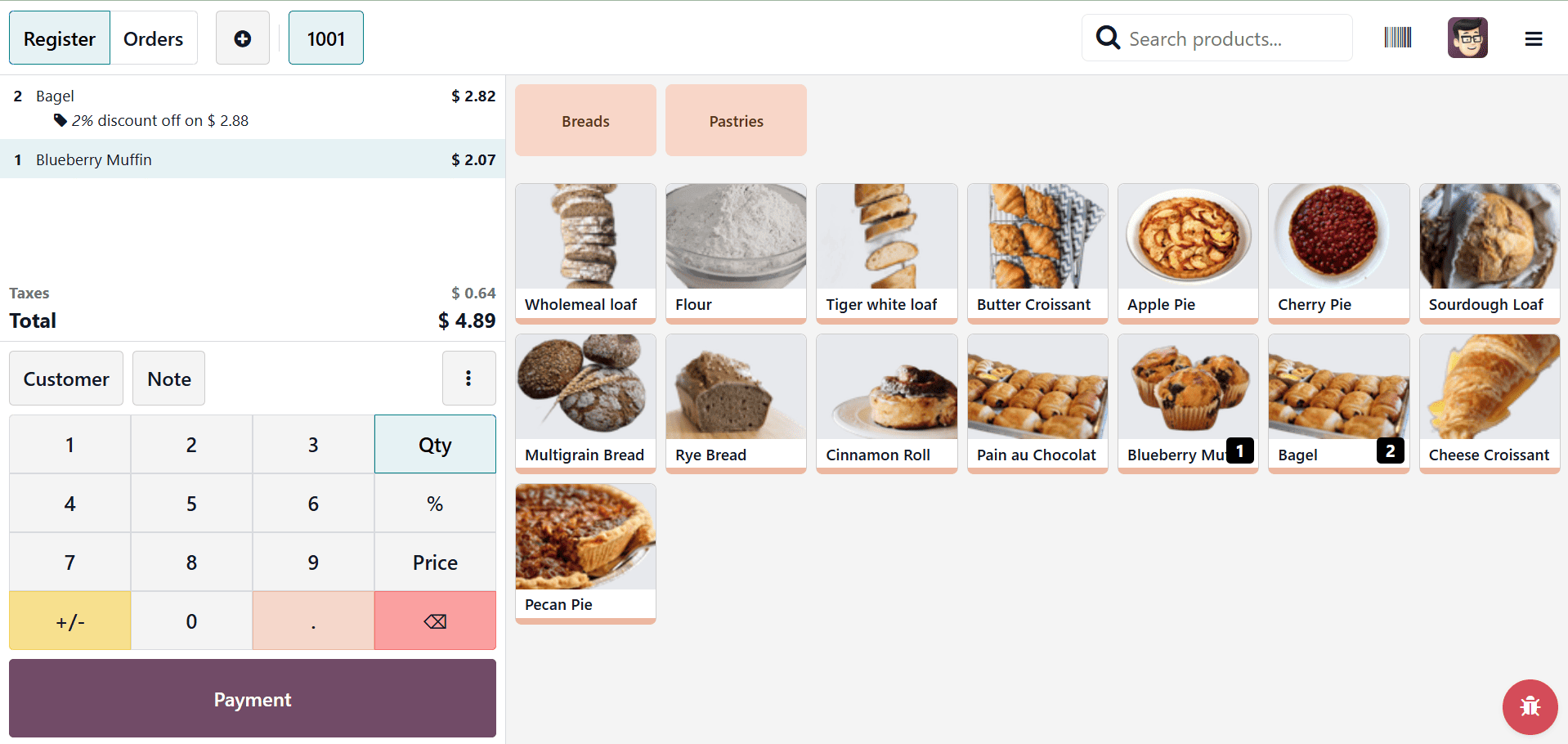
One quantity of blueberry muffins was selected as the second product. With a 15% tax, the sales price is $2.07. Thus, the sum is $4.89. To add a discount to the order line, click the "%" button once again.
This time, the product is discounted by 25%. As a result, the price was adjusted to $4.37. This indicates that the product's sales price has been reduced by 25%.
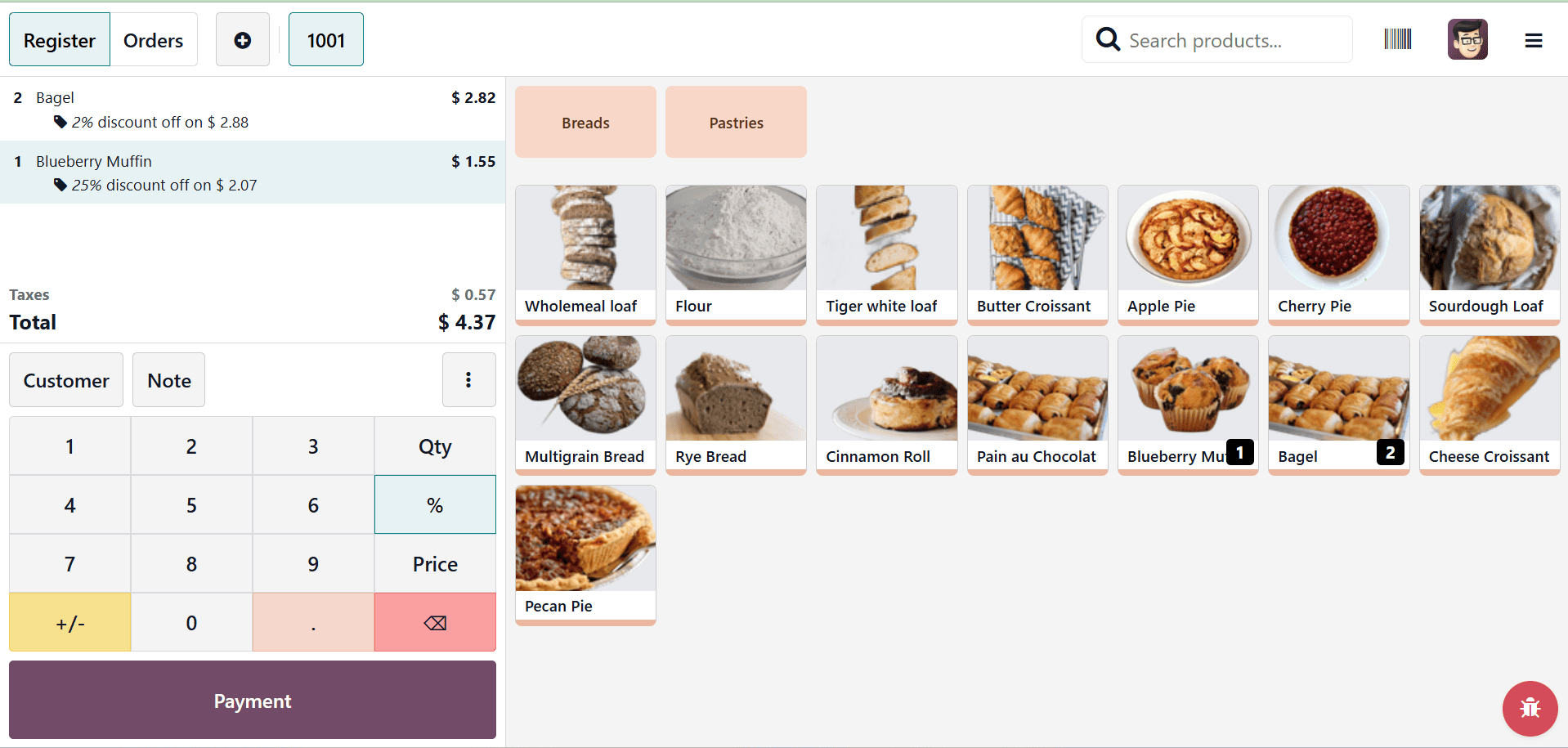
This is how line discounts are added. Discounts can be applied to each order line by the cashier. The discount can also be altered. The cashier can accomplish this by selecting the required order, clicking the discount symbol, and then clicking the discount numbers. Click the Payment button to finish the order. Next, select the appropriate payment option and confirm the transaction.
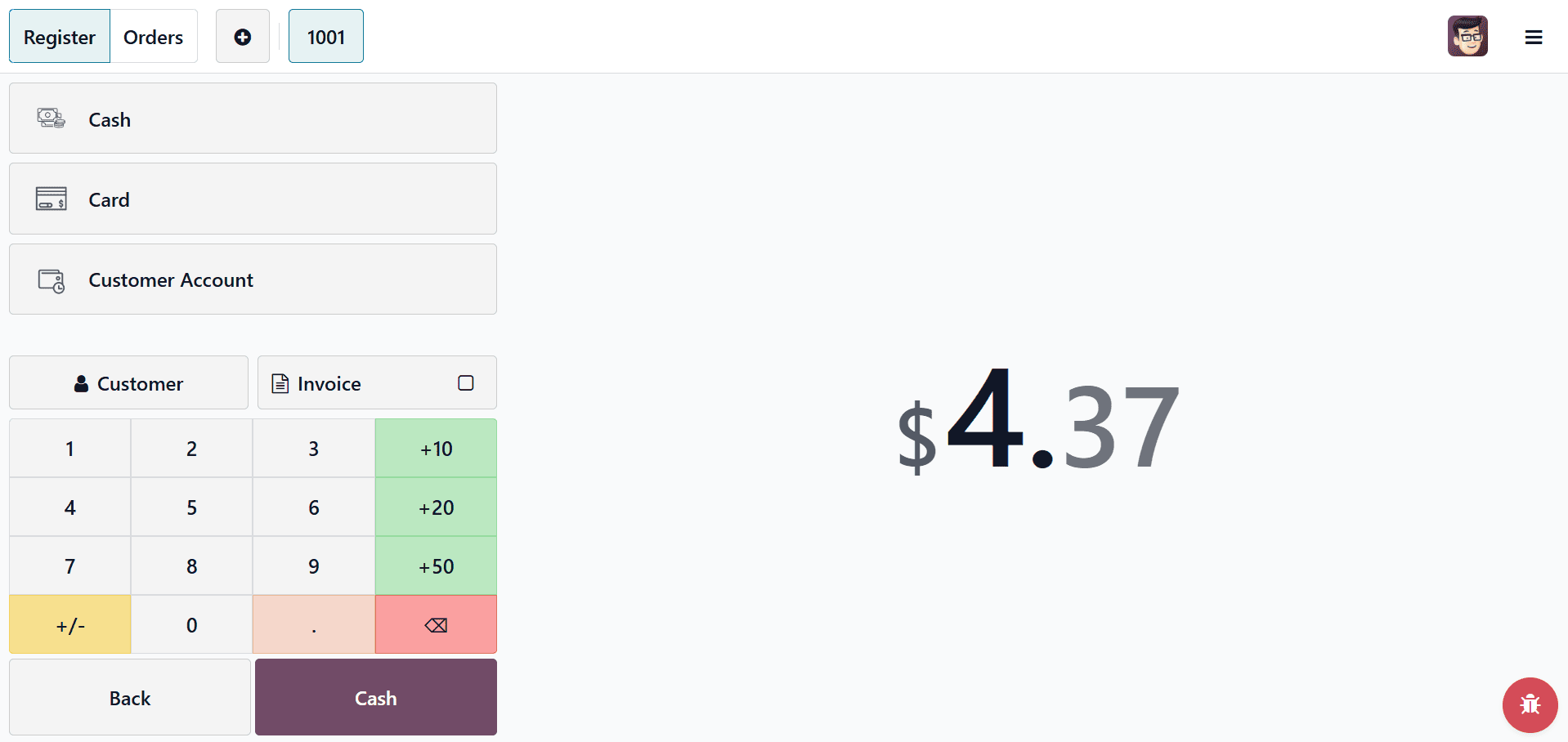
From the session's backend, the order is visible. Close the session for that first. Go to the Orders menu after it has closed. Click the Orders option in the dropdown list. Open the order after that. The order reference, order date and time, session, and salesperson's name are displayed here.
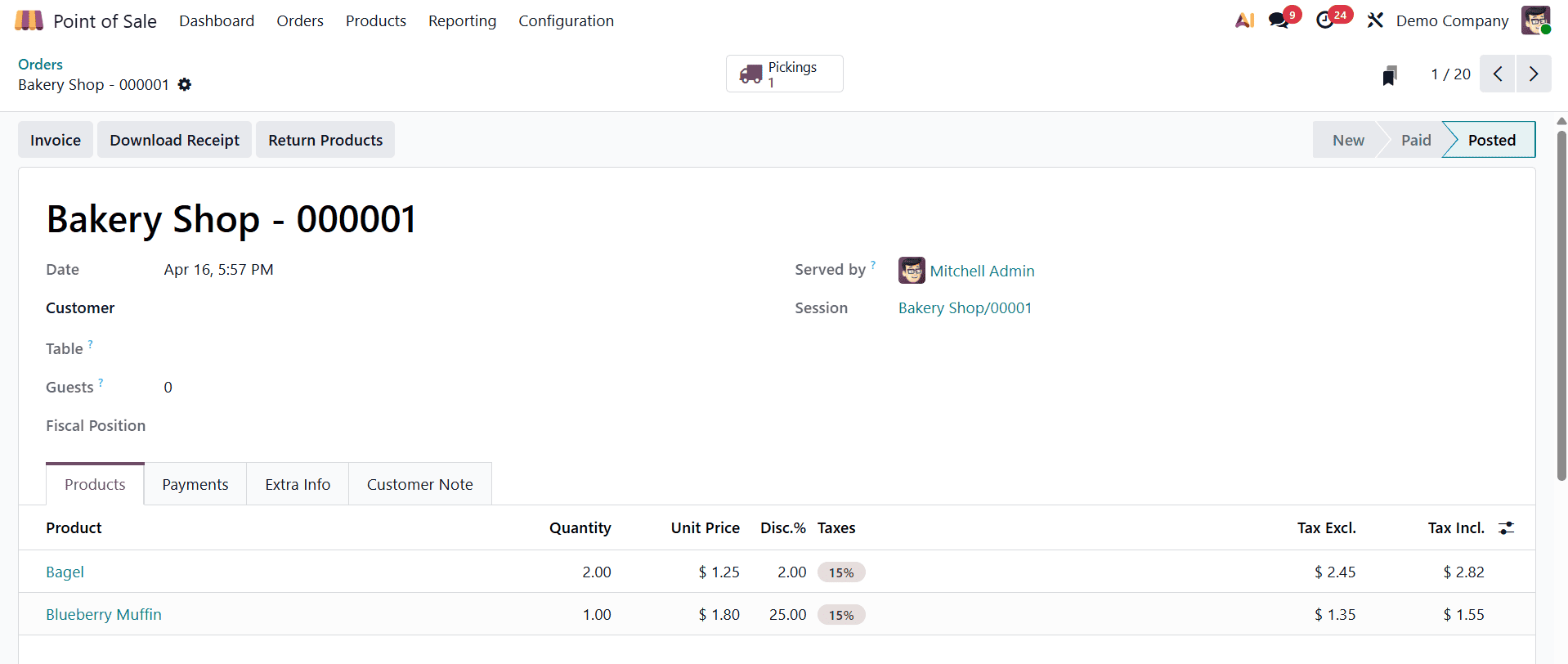
The list of products, along with their number and price, is displayed on the order line. The first product is discounted by 2%, while the second product is discounted by 25%. This implies that the discounts are applied to each item individually.
Global Discount
Global discounts simplify the process and make managing large transactions with a single discount quicker and easier by applying a uniform discount to the entire order. Return to the Bakery point of sale's Settings. Under the Pricing section, there is a second discount option called "Global Discount."
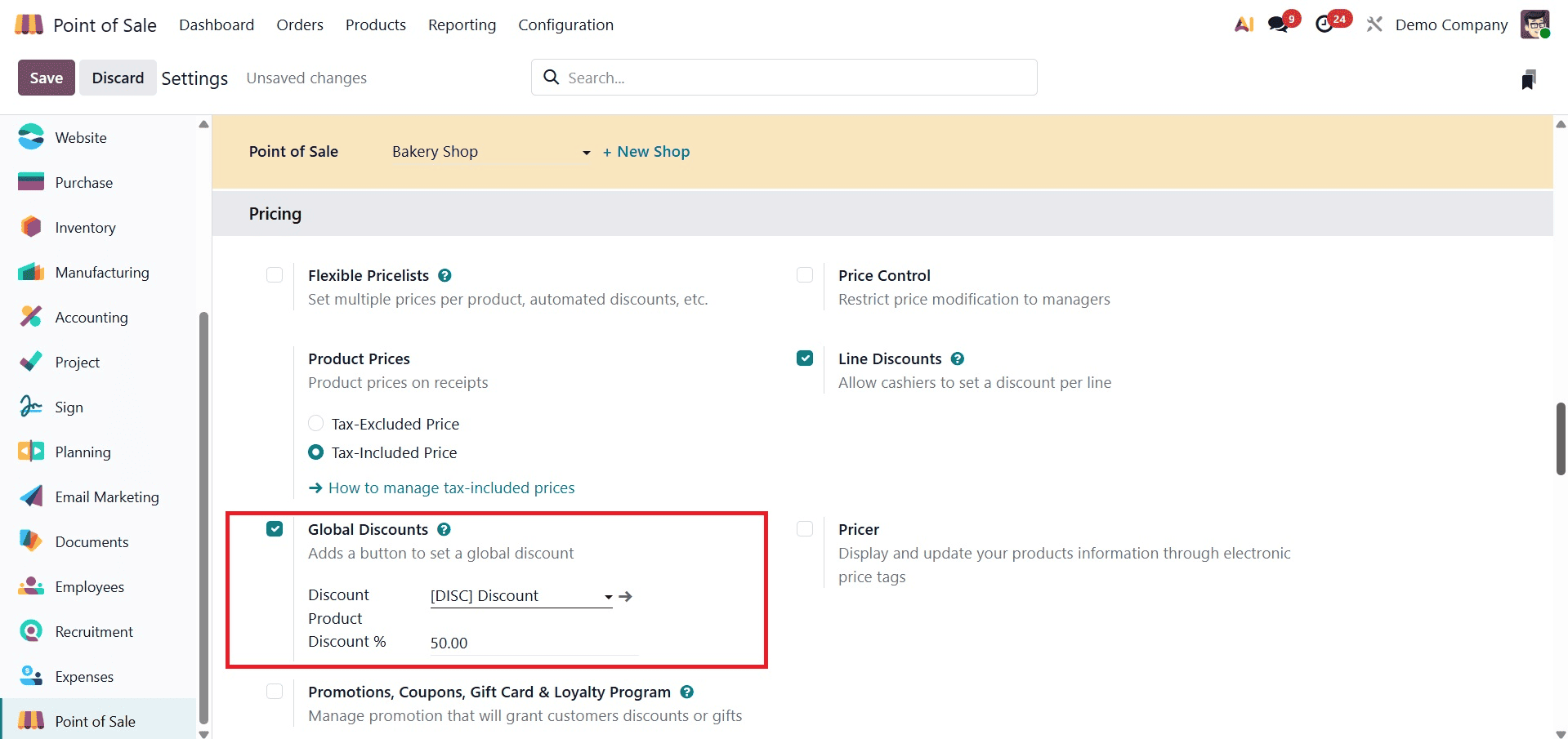
Add a discounted product after turning on the global discount. The discount % needs to be specified in the settings because the global discount is applied to the entire order. Here, a 50% discount is applied, thus the buyer receives a 50% discount on every order. Proceed to the dashboard after saving it.
The same bakery, which is presently closed, is displayed on the dashboard. There, the closing balance and closure date are updated. Click the Open Register button once more to begin a new session.
The session might begin by adding the closing balance from the preceding section as the opening balance. The clients request two quantities of cherry pie and three quantities of apple pie. Thus, the products are added to the order line in the necessary quantity.
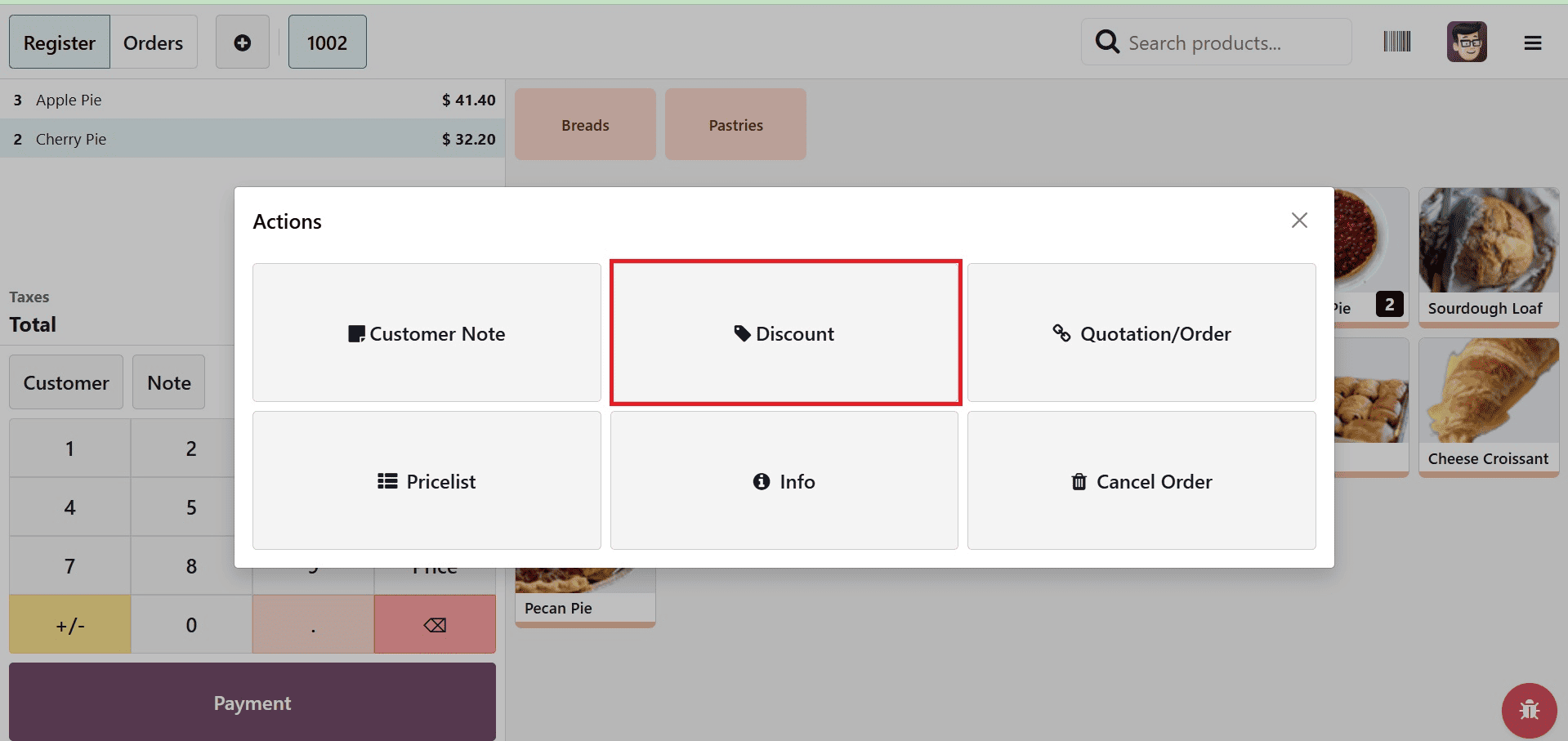
Click the Actions button to apply the worldwide discount. Then, as seen below, a new popup will show up there. Options such as General Note, Discount, Quotation/Order, Customer Note, Pricelist, Refund, Tax, and Cancel Order are shown in the popup.
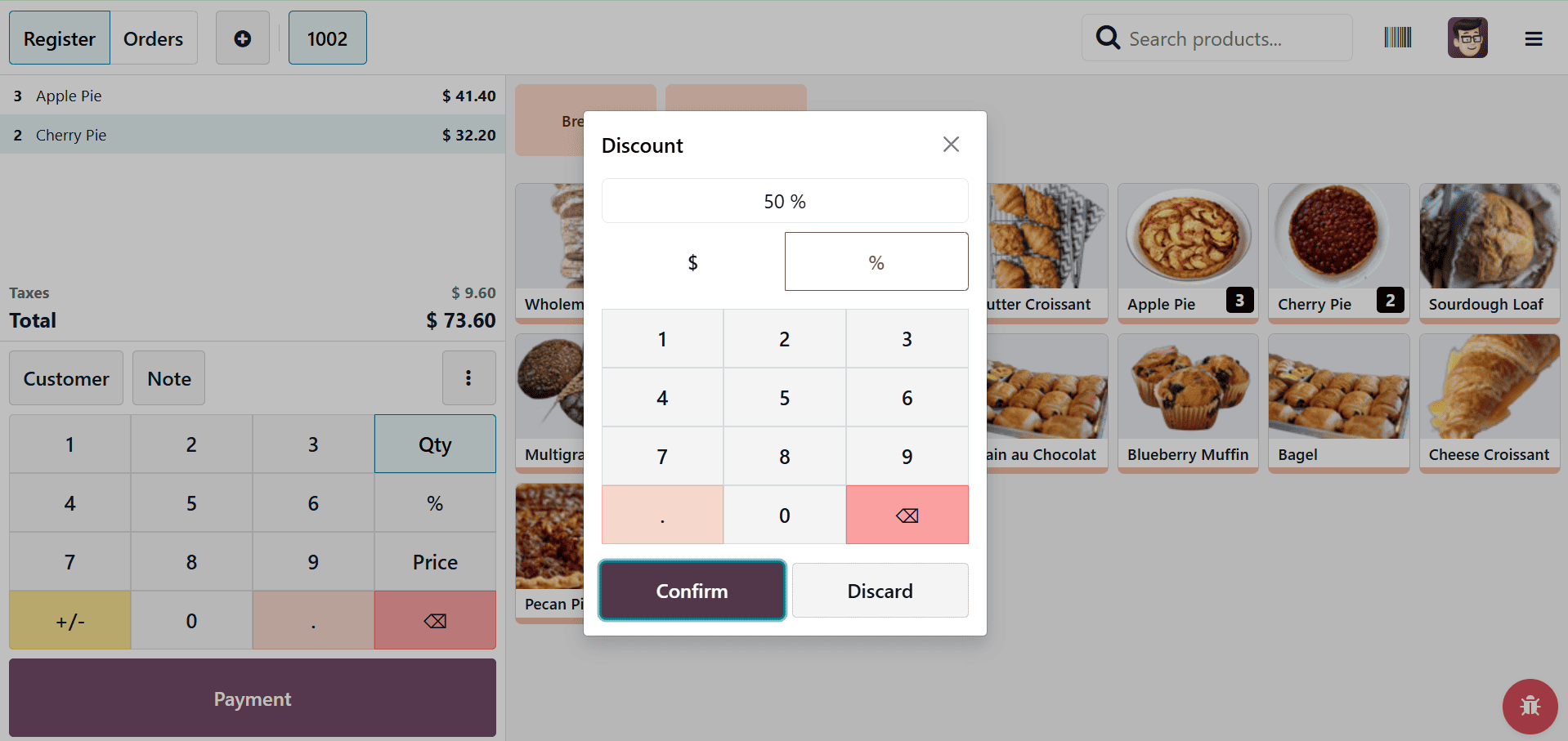
The worldwide discount will be applied to the order using the Discount button. When you click on it, the Discount Percentage popup box will show up. The window shows an amount of 50%. Press the "Confirm" button.
The order line now includes the same discounted product that was added in the settings. 50% of the total sales order amount will be subtracted by the product. In this case, the two products' combined sales price is $73.60. Additionally, 36.80 USD represents 50% of the total. and the sum subtracted from the total.
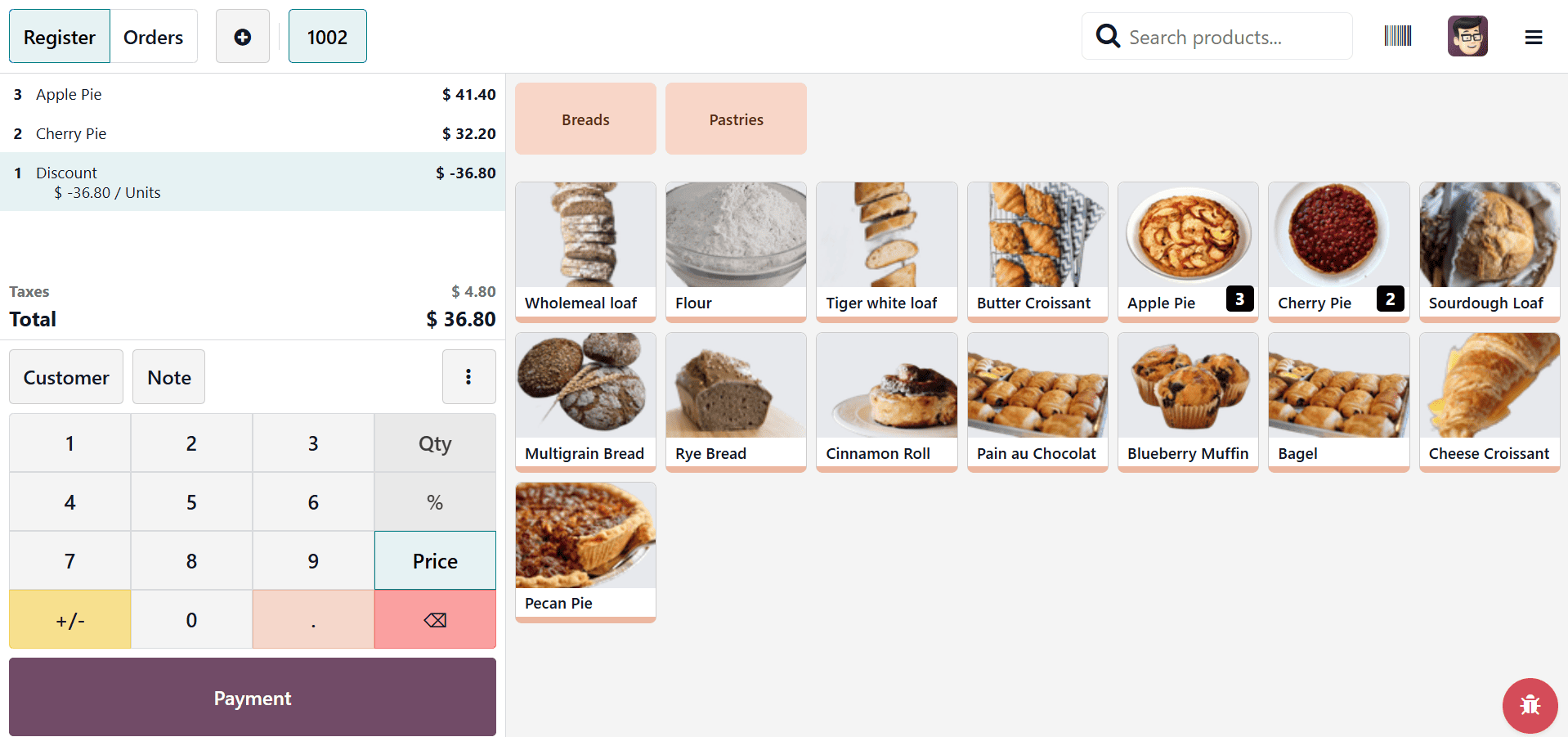
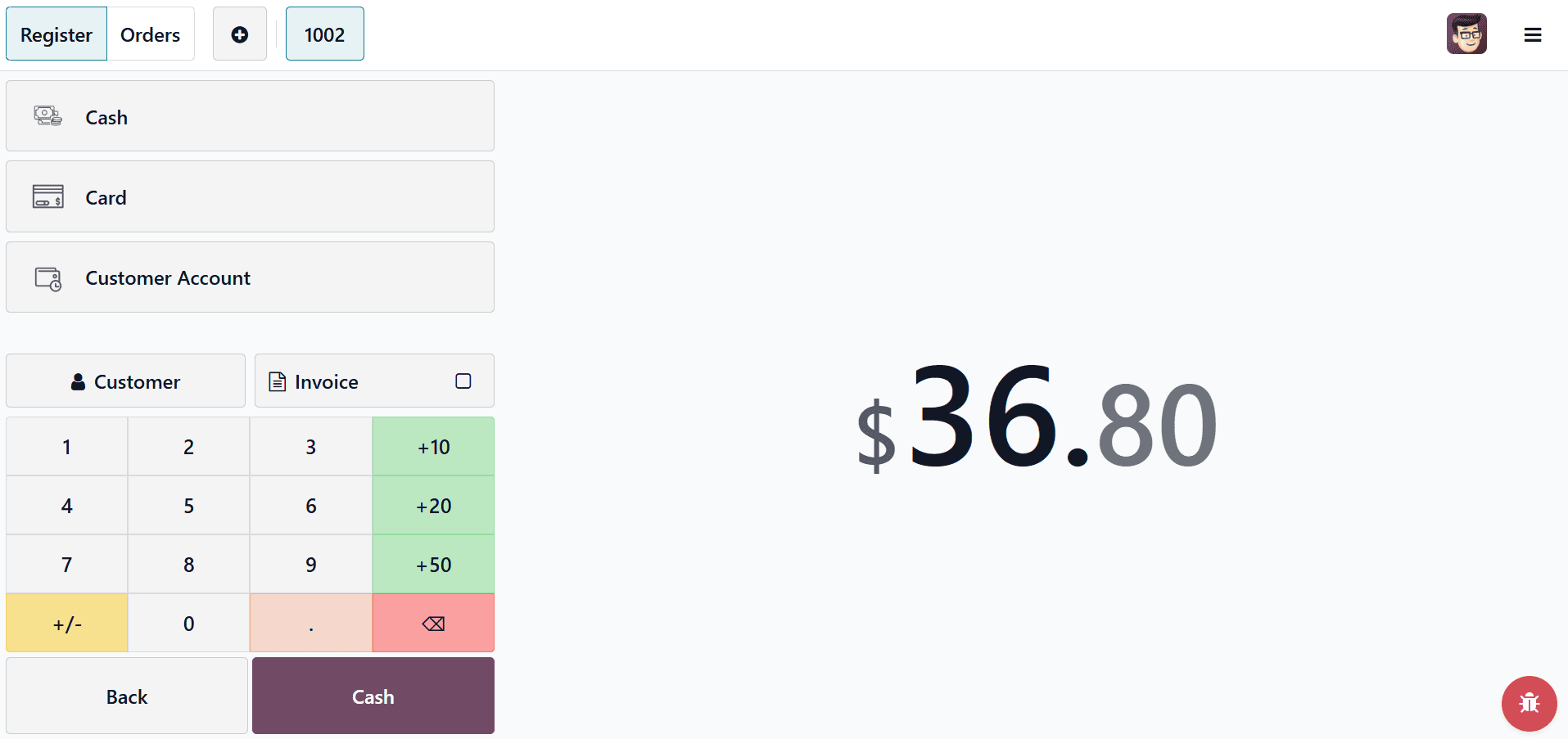
To add the payment, click the Payment button. Select the mode of payment. Click the Validate button once the payment method has been selected.
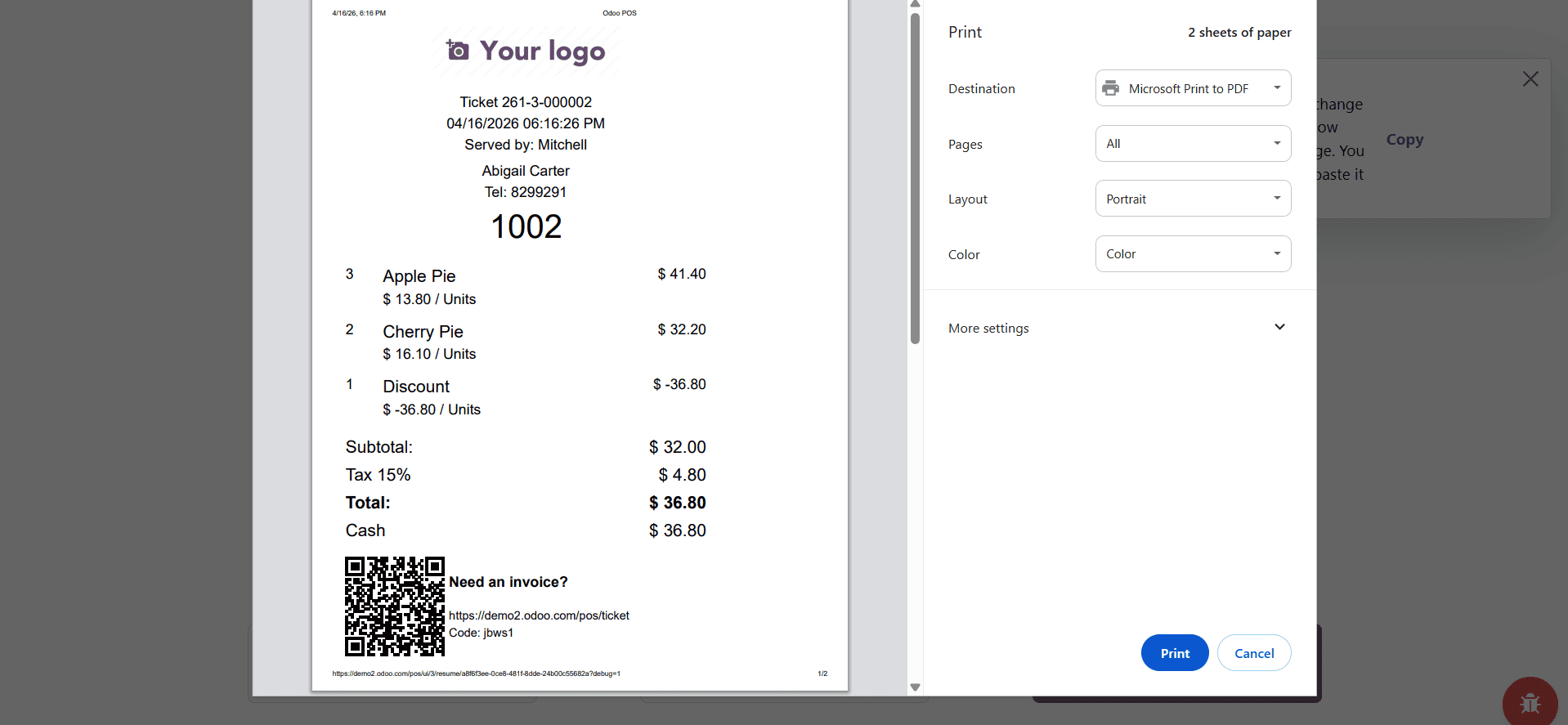
Three distinct products are listed on the receipt, one of which is a discounted item.
Click the Close Register button, which is located in the upper right corner, to end the session. The dashboard then updated once more once the session was closed.
Select the Orders menu. After selecting the orders, a list of orders appears. Thus, select the most current order. There, the date, session, and order reference are displayed.
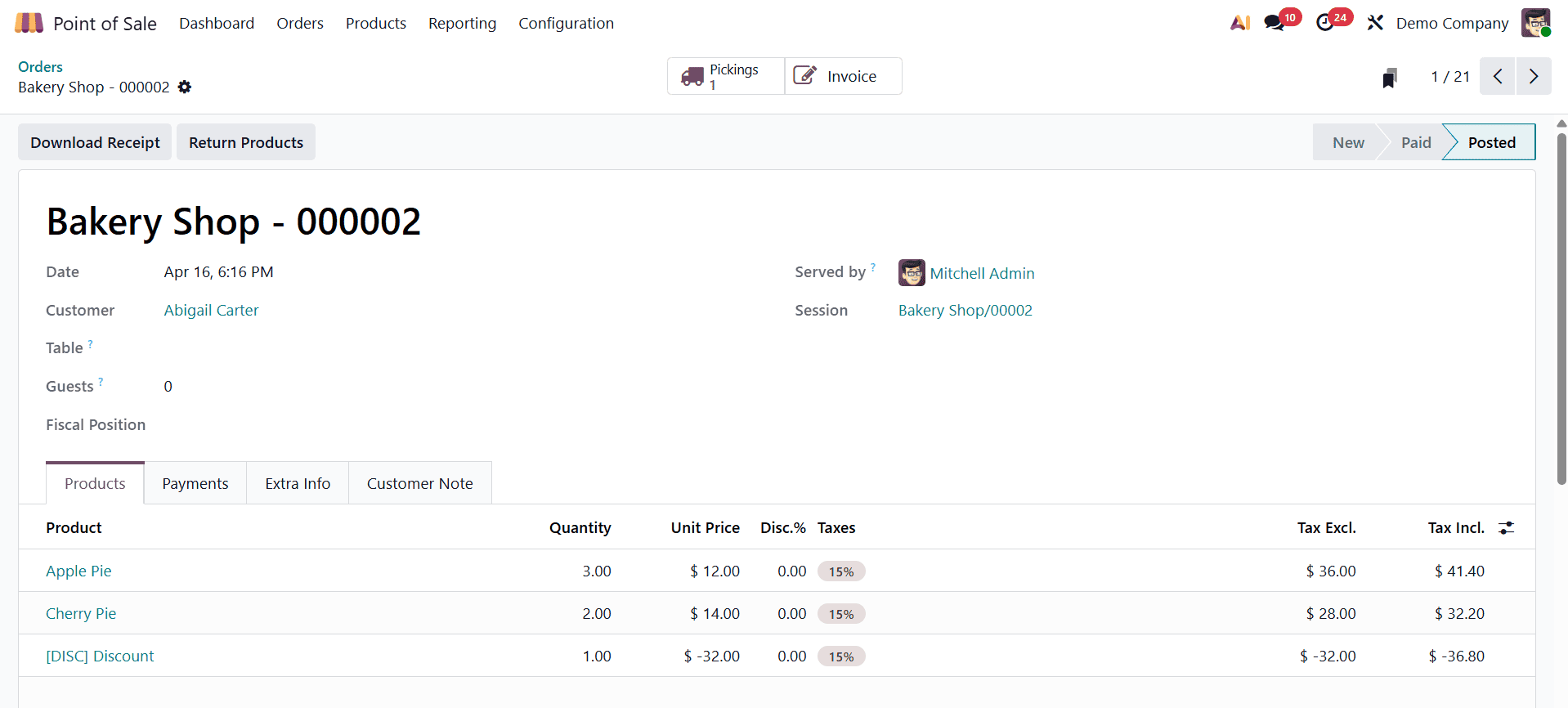
The order line shows the chosen products, and a discounted product has been added. Instead of merely discounting each line, the complete product is discounted here.
Businesses may offer variable pricing adjustments by using line and global discount management in Odoo 19 Point of Sale, which improves customer satisfaction and sales efficiency. Simplifying these promotional elements increases operational effectiveness and enables more precise control over sales promotions.
To read more about How to Manage Line Discounts & Global Discounts in Odoo 18 POS, refer to our blog How to Manage Line Discounts & Global Discounts in Odoo 18 POS.