Accruals are a key component of month-end closing in Odoo. When the items have been received but not invoiced yet, the expense needs to be booked in the appropriate accounting period. Accruals also apply to sales in the event that products have been shipped but will not receive invoices until another period.
The absence of these accruals means that the results of that month will not show a complete view of the transactions done in that month.
Odoo 20 Enterprise does all this work for you. In the Accounting application, there are four lists to find order lines that require an accrual. From there, you will just need one click to create the accrual journal entry and its reverse journal entry for the following day. These lists are found only in the Odoo Enterprise version and not in the Community version.
The Four Lists YouTube video
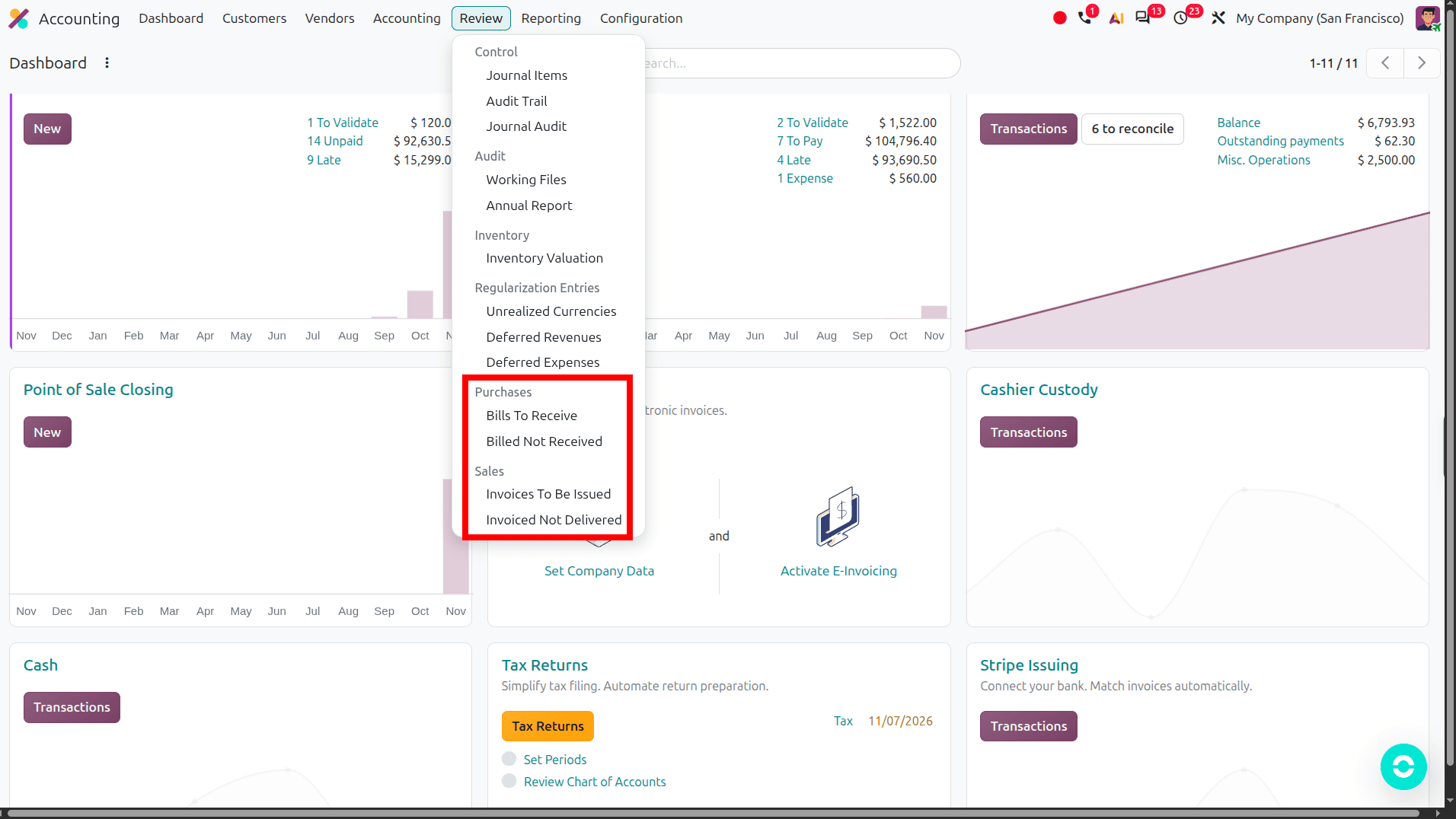
There are two lists for purchases and two for sales. You can find all four under Accounting > Review.
| List | A line shows up when... | Entry booked |
| Bills To Receive (Purchases) | More was received than billed | Expense debited, Bills to Receive account credited |
| Billed Not Received (Purchases) | More was billed than received | Billed Not Received account debited, expense credited |
| Invoices To Be Issued (Sales) | More was delivered than invoiced | Invoices to be Issued account debited, income credited |
| Invoiced Not Delivered (Sales) | More was invoiced than delivered | Income debited, Invoiced Not Delivered account credited |
Each accrual also gets a reversal dated for the following day. This means that when the actual bill or invoice is recorded in the next month, the amount is not counted twice.
Set the Accounts First
Before setting the accruals, Odoo must first determine what the accounts for these entries would be.
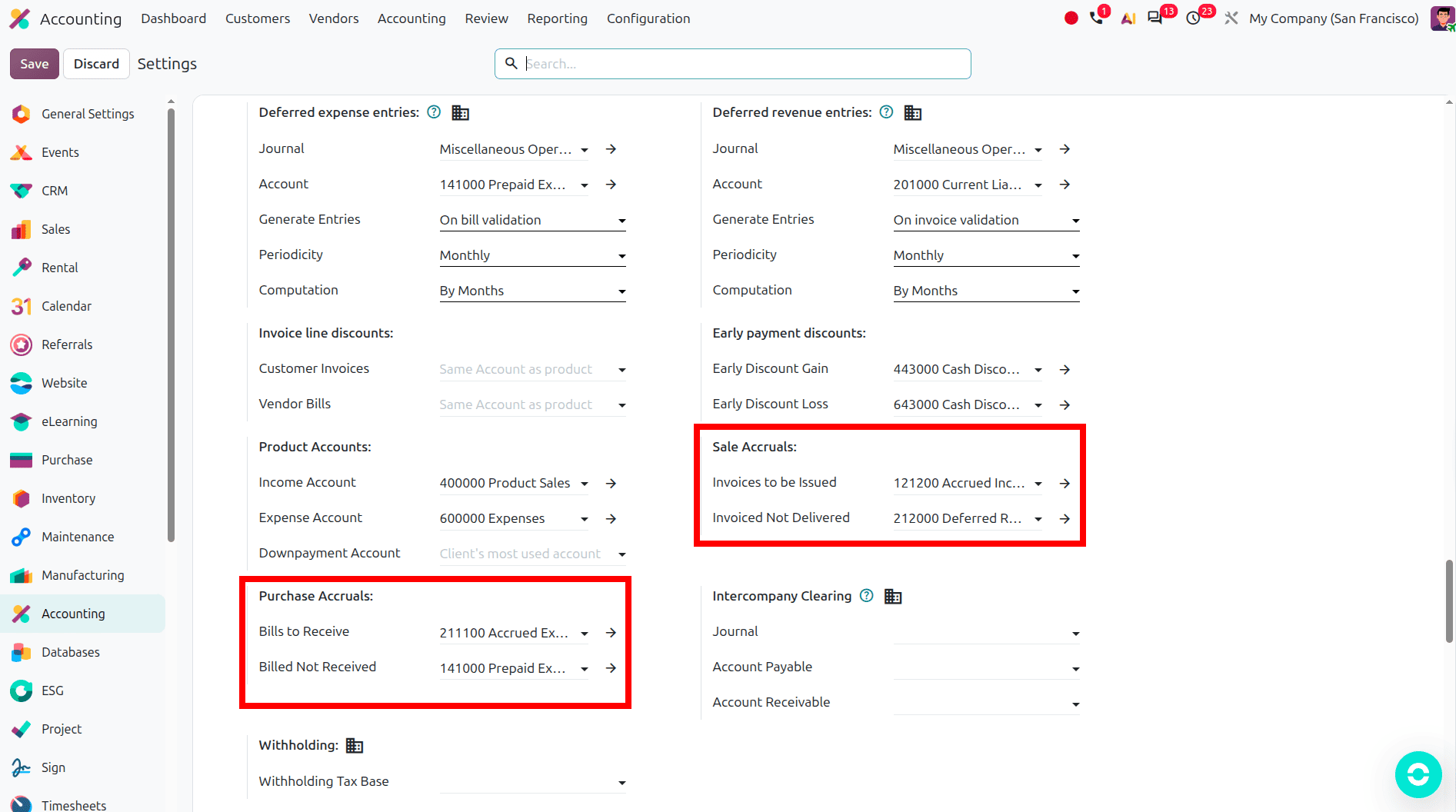
From Accounting > Configuration > Settings, just under Default Accounts, you will see the Purchase Accruals and Sale Accruals settings.
The accounts for Purchases are:
- Bills to Receive
- Billed Not Received
And for Sales:
- Invoices to be Issued
- Invoiced Not Delivered
These accounts serve as default accounts for the company. However, if some product categories have their own accounts, you can change the setting from the product category.
In case you do not have access to the Settings menu, please contact your Odoo administrator. You may also consider contacting the person who manages your chart of accounts.
In order to post an accrual entry, you will need to have either the Bookkeeper or Administrator accounting access level. In case you can open up the lists, yet you cannot find the Create Accrual Entries button, it means that you have only the read-only access rights. In this case, you should contact your administrator and request an update of your access rights.
Posting Bills to Receive
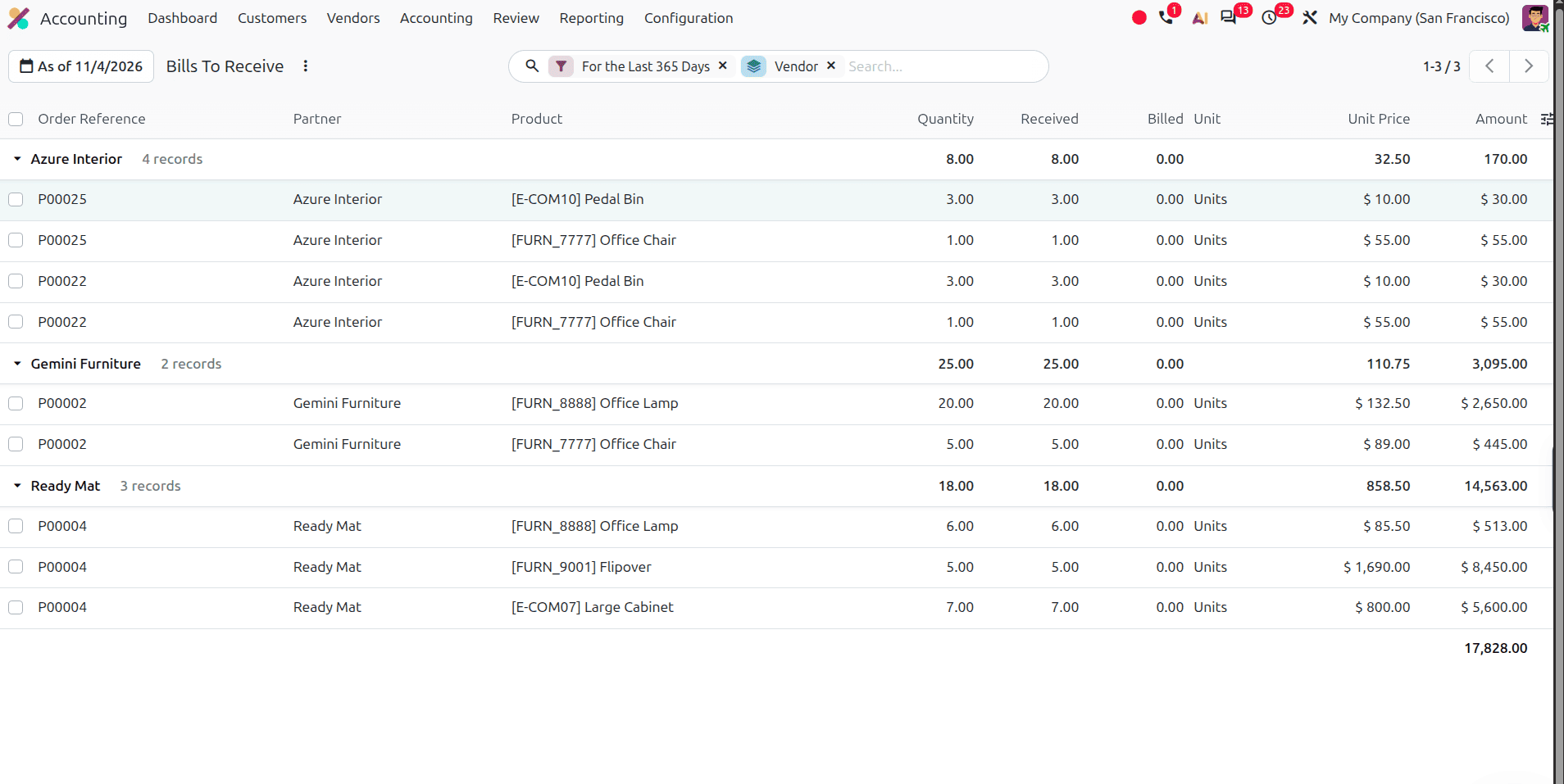
Navigate to Accounting > Review > Purchases > Bills To Receive.
Odoo shows purchase order lines of the past year and organizes them by vendor. The list contains columns like Received, Billed, and Amount to help identify received lines without vendor invoices.
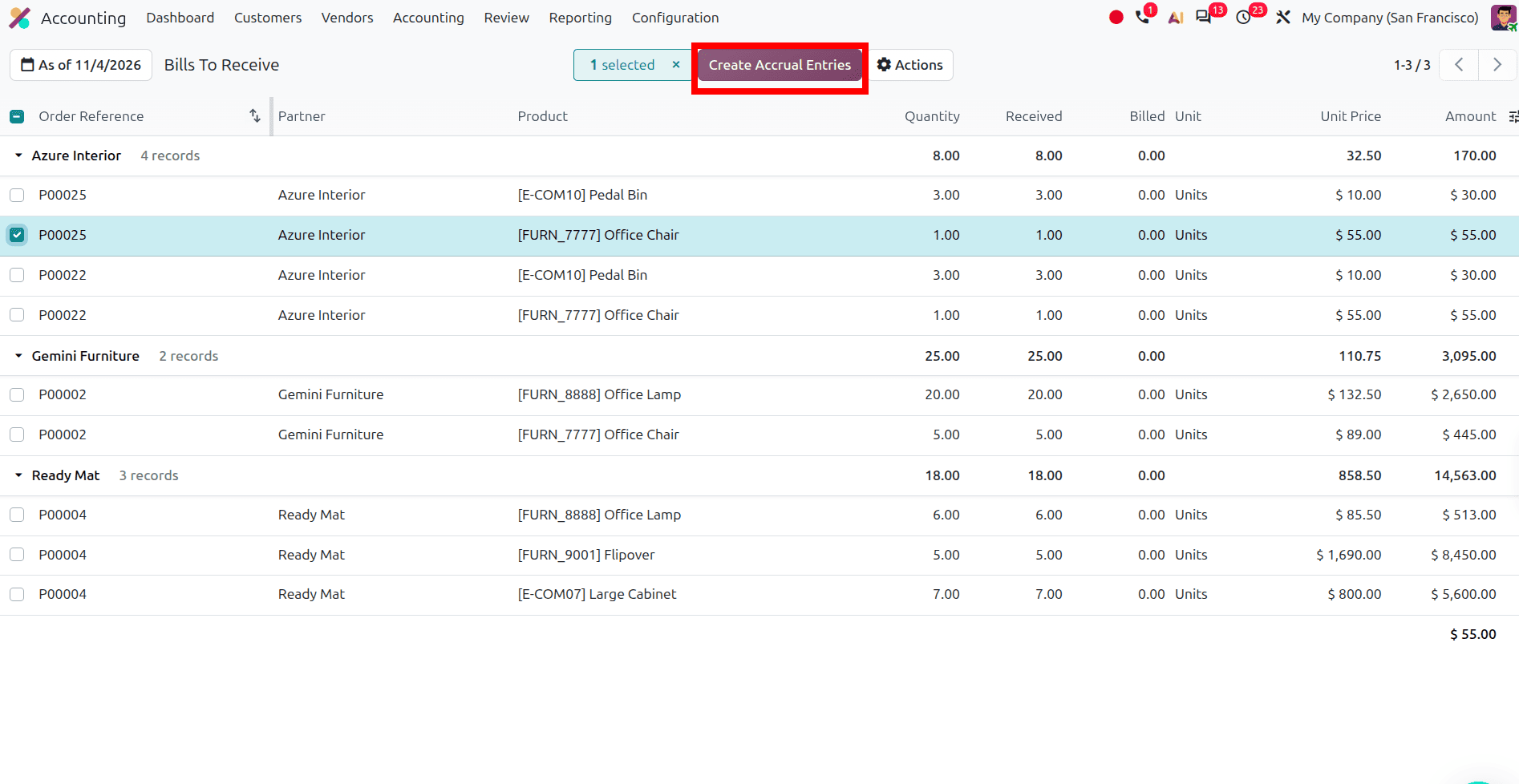
Choose the entries you want to accrue, generally all entries, and click on “Create Accrual Entries.” This will open the wizard showing the suggested miscellaneous journal, the accrual date, and the reversal date. At the bottom, you will get a preview of the journal entry as well. If you leave the “Accrual Account” field blank, then Odoo will pick the account from the settings. You have to fill it in if you want to use any other account.
The accrual posting occurs right away. However, the reversal is entered as a draft using the reversal date. The reversal will automatically post on the set date through a scheduled job. This makes it possible for the accrual to stay in the account until month-end reporting. Posting of the reversal right away would result in the cancellation of the accrual before month-end reporting.
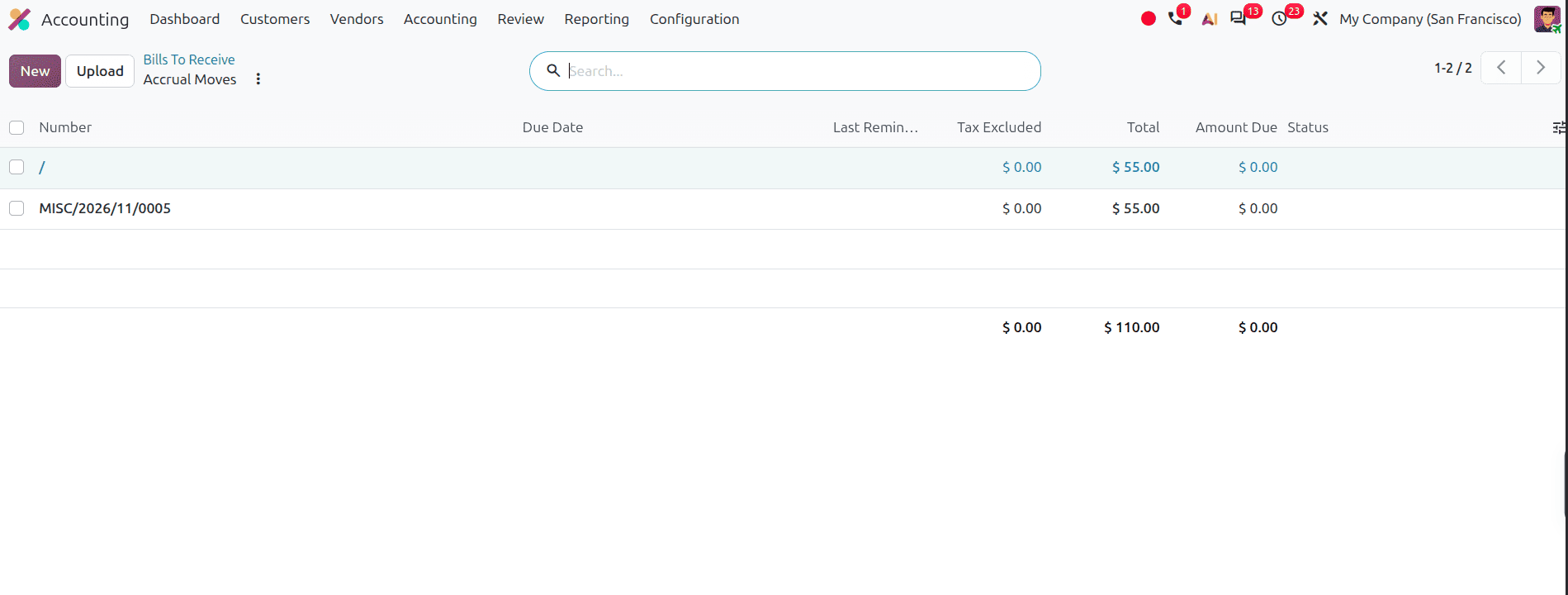
Same for Sales
The exact same technique can be used with sales accruals.
- Invoices to be Issued – when the goods were delivered to the customer but have not yet been invoiced.
- Invoiced Not Delivered – when the goods have been invoiced but not delivered yet. Both reports use the same wizard to create accrual entries.
The journal entry lines provide nice descriptions like the following:
"S00042 - Laptop; 0 Invoiced, 5 Delivered at 1,200.00 each"
Such descriptions make it much easier to know which accrual entry originated from.
Don’t Forget About the Date
Another key point is that Odoo takes into account quantities as of the accrual date, not the current date.
The default value of the accrual date is the last day of the previous month.
For example, if you post accruals for September on October 3rd, and your accrual date is set to September 30th, Odoo will take into account only goods received, delivered, billed or invoiced before September 30th. All the items posted after this date will not be considered. The reversal date should be greater than the accrual date. Usually, the next day is suitable.
Booked It Twice?
This can happen if there is a late receipt that is verified after the accruals are posted and it becomes necessary to recreate the accruals.
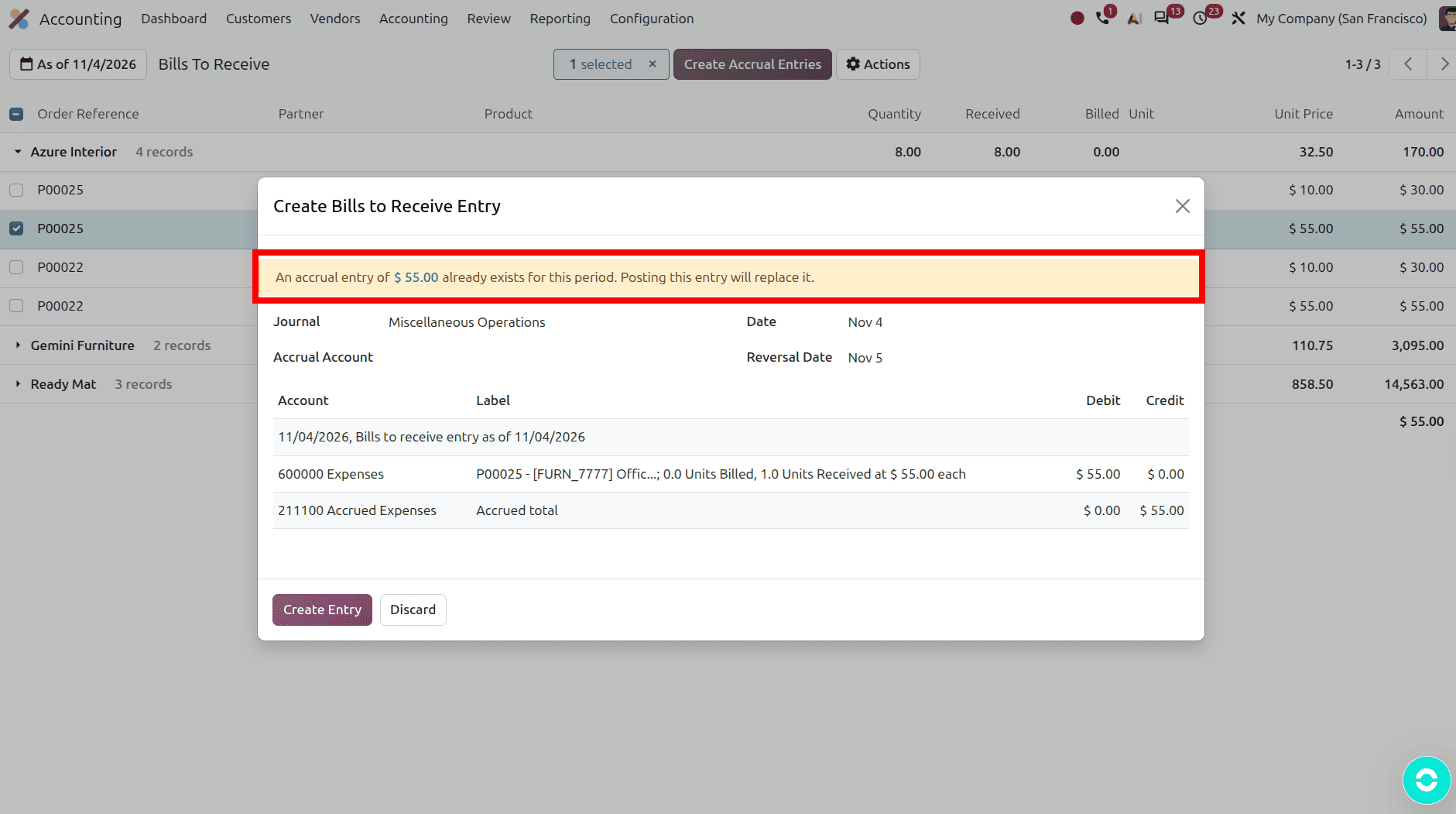
Odoo searches for an accrual having the same date, journal, and reference number. If Odoo finds an accrual that matches these criteria, Odoo shows a warning that is similar to:
"An accrual entry of … already exists for this period. Posting this entry will replace it."
You can click on the amount that is mentioned in the warning to view the existing accrual. Odoo then deletes the existing accrual and its reversal. If it is not possible to delete them, Odoo reverses them and creates a new accrual.
Two Things You May Encounter
There are two scenarios that might prove useful when dealing with accruals.
1. Nothing Left to Accrue
In case you select a particular order in which there is nothing left to accrue, the wizard will show you a notification together with an Amount field.
You can take advantage of this field to manually accrue that order and book it into the Accrual Account you choose.
This may be helpful in case you are dealing with some costs that have already been verified by the vendor but have not been accrued yet.
2. Real-Time Inventory Valuation
In case you have real-time (perpetual) valuation of your storable items, you may include cost of goods lines in your accrual entry as well.
Those lines will be labeled as follows:
"Goods Delivered, Not Invoiced (perpetual valuation)"
Periodic valuation does not include these additional lines.
A Month-End Checklist
A month-end process that is as simple as the following will allow ensuring that no detail is overlooked:
- Validate all invoices and deliveries within the month.
- Post your bills and invoices.
- Verify the four accrual lists and post necessary accruals using the last day of the month as an accrual date.
- Verify the balances in the accrual accounts.
Let the reversals be posted automatically at the beginning of the next month.
After the configuration of the four accounts, the lists will be reviewed by the end of each month to create the necessary accruals without keeping a separate spreadsheet. It will simplify the month-end closing process and also provide better visibility on which expenses and revenues belong to which accounting period.
If you require assistance for optimizing the month-end close process in Odoo 20, then Cybrosys Accounting can assist you.
To read more about How to Manage Bill to Receive and Billed Not Received in Odoo 19, refer to our blog, How to Manage Bill to Receive and Billed Not Received in Odoo 19.