The Website module in Odoo 19 has its own default theme, which works if there are no other themes present on the system. But users have the option to develop their own theme modules that they can deploy to their websites.
This article will take you through the process of developing a theme module for your website.
Start by installing the Website module.
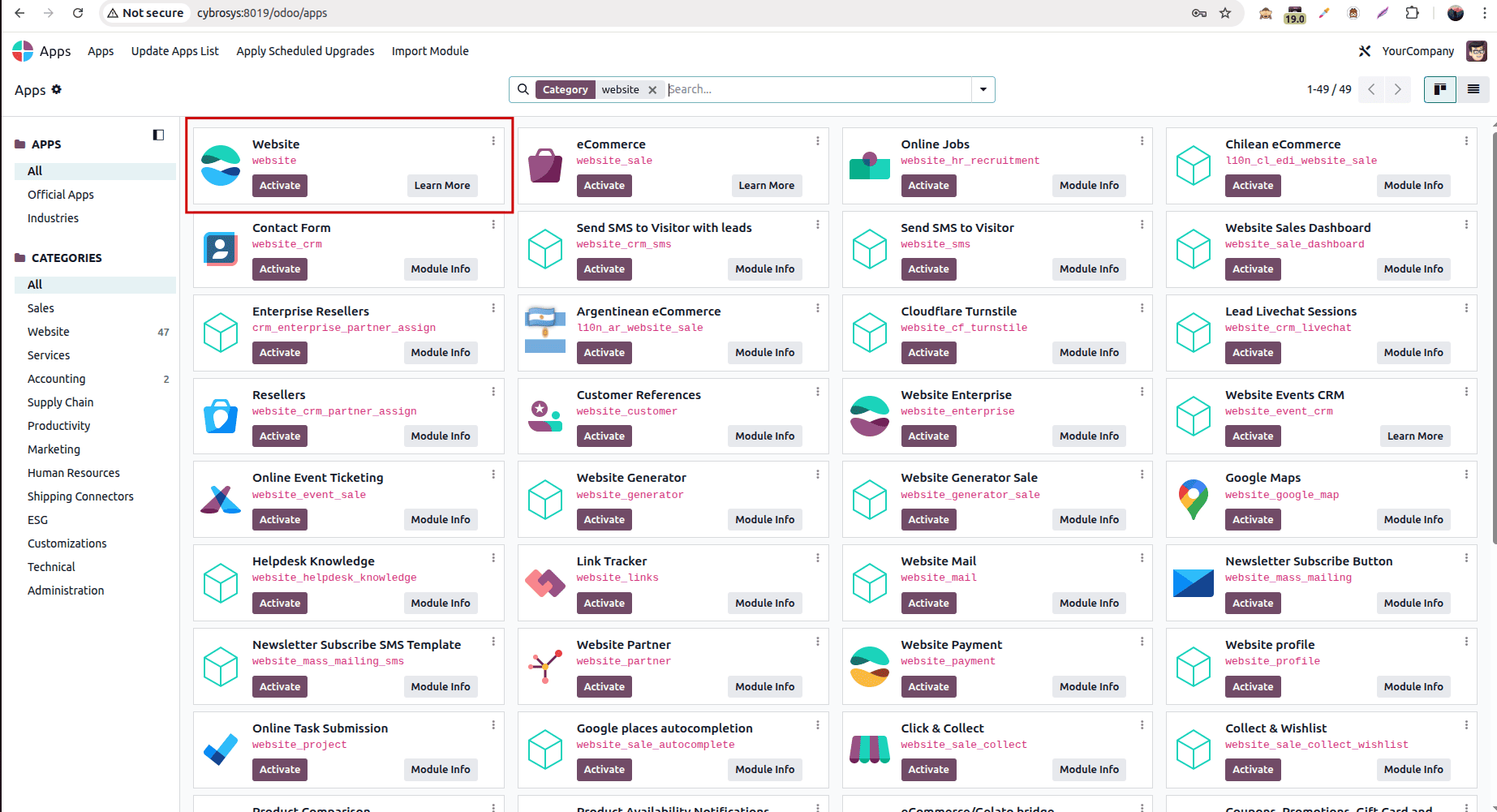
After clicking the Activate button, you will be directed to a new page, from where you will be able to activate or change the theme.
In order to activate the theme, go to the website editor and then select the “Edit” option. Thereafter, select “Theme” and click on the Switch Theme button.
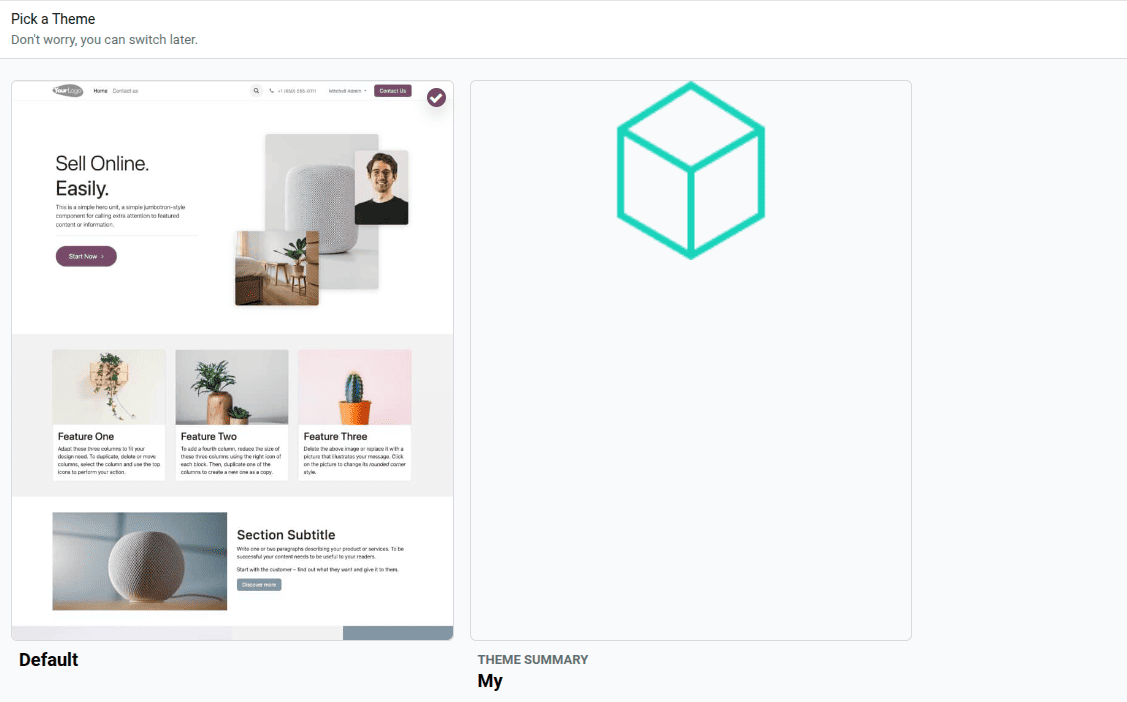
Now that we've talked about how to add and use a theme on the Odoo 19 website, let's move on to making a custom theme module in Odoo.
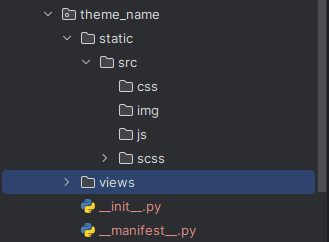
The picture above shows the files you need to make your own theme. The technical name of the theme should begin with "theme_" and then have a unique number for the theme.
The code snippets above show what is in the manifest file.
# -*- coding: utf-8 -*-
{
   'name': 'My Theme',
   'version': '19.0.1.0.0',
   'category': 'Theme/Sub Category',
   'summary': 'Theme summary',
   'depends': ['website'],
   'data': [
       'views/theme_views.xml',
      ],
   'assets': {
      'web.assets_frontend': [],
    },
}
Version: This tells you what version of the theme it is.
You need to fill in this field with "Theme" and then the name of its sub-category.
Summary: This gives a short overview of the theme.
Description: This gives details about the theme.
Depends: This gives the names of the list of modules on which the theme depends.
Data: This is the theme's data file.
Assets: These are assets of the theme.
Folders:
Static: This folder contains the src folder that has CSS files, img, js, and SCSS files.
Views: This contains website views including snippet templates, etc.
Structure of web pages:
There are three main elements that constitute the structure of a web page. These include header, body, and footer. Odoo provides these elements through its website.layout. If no customization is done on the template, then these elements would appear on their own. But these elements can be customized through inheritance of website.layout template.
Creating page layout:
In order to develop page layout in Odoo 19, one should create an XML file within the views folder.
<?xml version="1.0" encoding="utf-8"?>
<odoo>
<template id="reflect_homepage" inherit_id="website.homepage" name="Reflect Home" priority="100">
<xpath expr="//div[@id='wrap']" position="replace">
<div id="wrap" class="oe_structure" style="background:#f7f7f7;">
<div class="container oe_structure">
<h1 class="test-heading"> This Is The Test Page </h1>
<ul class="test">
<li>The first feature of the Reflect Home is Feature 1</li>
<li>The second feature of the Reflect Home is Feature 2</li>
<li>The third feature of the Reflect Home is Feature 3</li>
</ul>
</div>
</div>
</xpath>
</template>
</odoo>
The screenshot below illustrates the page that has been modified according to the above description.
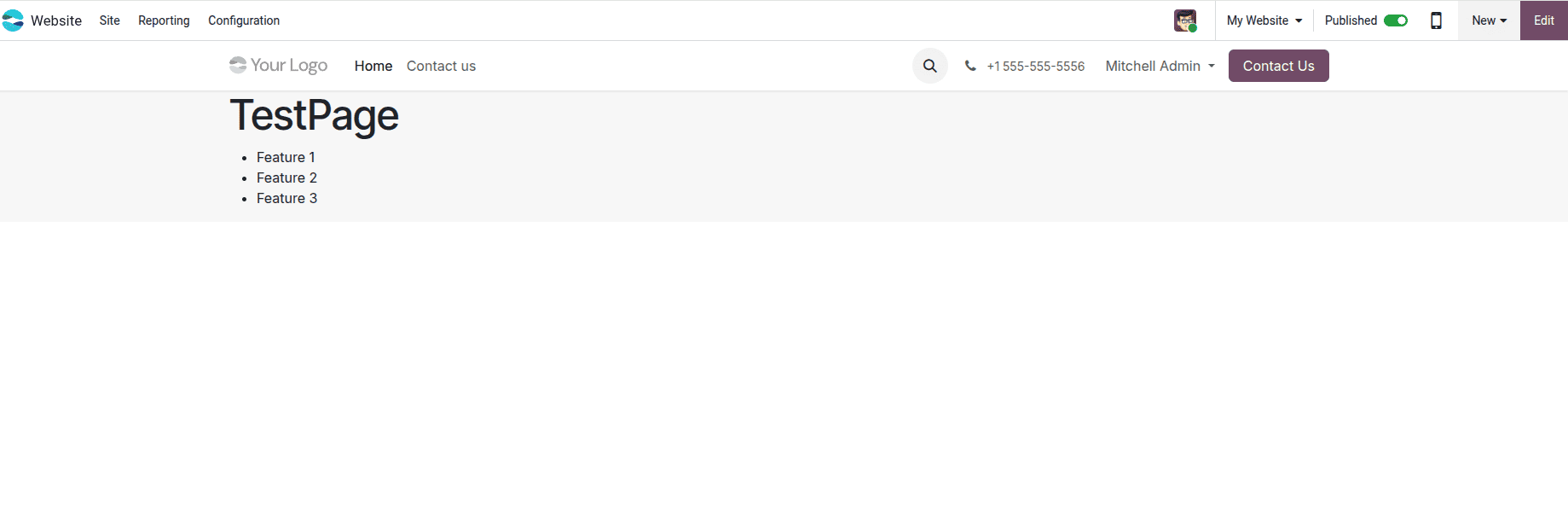
In order to reach the test page, a menu is needed. The menu will be created by inserting the following code into the test page item.
Now that we have our view and menu all set, we can beautify the test page by loading some CSS/SCSS files.
The content of style.scss is:
.test-heading {
  color: black;
}
.test {
  background: bisque;
  border-radius: 8px;
  padding: 0.8em;
  margin: 2em 0 3em;
  li {
     display: block;
     position: relative;
     padding: 2em;
     color: #FFF;
     text-align: center;
     margin-bottom: 1em;
     background-color: cadetblue;
     font-size: 1.0em;
  }
}
For the application of style.scss file to the newly created page, it needs to be integrated into the module’s manifest file as follows:
'assets': {
   'web.assets_frontend': [
       'theme_name/static/src/scss/style.scss',
   ],
},
Once done with the changes, the next step would be to update the theme for the changes to appear. This can be achieved by clicking on the Editor link in the website, and then selecting Theme under the Edit tab, followed by switching the theme and finally updating the theme.
Once the upgrade is completed, you will see the theme as depicted in the picture below:
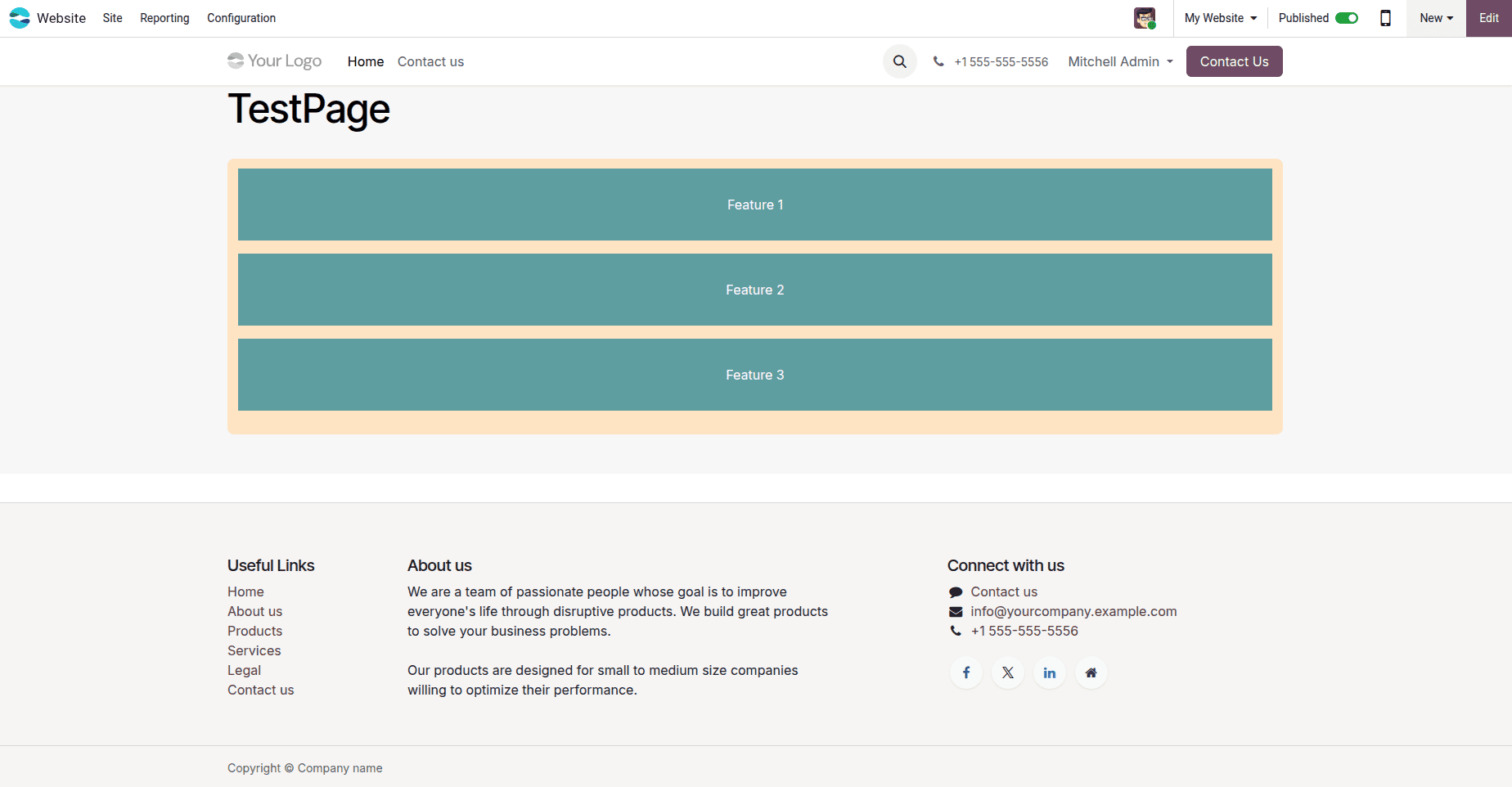
One of the key aspects of Odoo is that we can integrate snippets within the website. Through this process, we can drag and drop the views that we require.
Then, let us proceed to look at the steps for creating an Odoo snippet.
<template id="test_template" name="Test Snippet">
 <section class="container oe_structure">
   <h1 class="test-heading">Test Snippet</h1>
   <ul class="test">
     <li>Snippet Feature 1</li>
     <li>Snippet Feature 2</li>
     <li>Snippet Feature 3</li>
   </ul>
 </section>
</template>
- Add the created snippet to the building blocks.
<template, id="test_template_snippet" inherit_id="website.snippets"
name="Category Highlight Snippet">
<xpath expr="//snippets[@id='snippet_groups]" position="inside">
<t t-snippet="theme_name.test_template"
t-thumbnail="/theme_name/static/src/images.jpeg"/>
</xpath>
<xpath expr="//snippets[@id='snippet_structure']" position="inside">
<t t-snippet="theme_name.test_template"/>
</xpath>
</template>
In the given case, the use of t-snippet makes it possible to link the snippet template to its corresponding block using the attribute theme_name.snippet_id. Likewise, the t-template attribute can be used to embed a template within a snippet block.
- Incorporate the style files (CSS or SCSS) as previously indicated.
- Include the test_snippet in the manifest file.
'data': [
   'views/theme_views.xml',
   'views/snippets.xml',
],
- Complete the theme update according to the previous instructions.
- Move to 'Edit' under the website settings and click on 'Blocks.' Within 'Structure,' find the newly created block.
The creation of a custom theme module in Odoo 19 enables developers to tailor the website appearance according to their requirements. The installation, activation, and customization of themes can be accomplished using a systematic methodology. This involves arranging the theme module files, defining the page layout design, applying style sheets using CSS or SCSS, and incorporating custom snippets to create additional functionality on the website. Through diligent effort and thorough testing, companies can create an appealing and functional website that aligns with their branding objectives.
To read more about How to Create a Module in Odoo 18, refer to our blog How to Create a Module in Odoo 18.