You can count and adjust goods on hand using Odoo's Inventory Adjustments panel (Inventory > Operations > Physical Inventory). One of the most popular operating screens in the Inventory app, it is purposefully conservative by default when it comes to where you may count: the Location field only provides internal and transit physical locations when you add a line. No matter how your process is set up, you will soon see that it just does not show up in the option if it has to record a count at another kind of place, like a customer location.
This is intentional on Odoo's part. In order to prevent users from recording adjustments in the incorrect position, the basic screen conceals everything else because counting stock typically only makes sense at locations that you can physically handle. However, there are legitimate exceptions in actual projects where you actually need to choose one of those other locations, such as reconciling consignment stock housed at a client site, inspecting products that have left your warehouse, or rectifying balances following a data migration.
Instead of the model or access rights, the restriction originates from a domain that is directly set on the location_id field within the inventory list view. The good news is that we can raise it with a minor adjustment of the surgical perspective. In this article, we will inherit that view and expand the field so that customer locations are also accepted in the Location dropdown. This is a simple, one-record update that doesn't require any Python or new models.
How the default works
The editable Inventory Adjustments list is the view stock.view_stock_quant_tree_inventory_editable. Inside it, the location column is defined like this in standard Odoo 19:
Xml code snippet:
<field name="location_id"
       domain="[('usage', 'in', ['internal', 'transit'])]"
       column_invisible="context.get('hide_location', False)"
       readonly="id"
       options="{'no_create': True}"/>
The domain attribute [('use', 'in', ['internal', 'transit'])] is crucial. The option is restricted to physical and transit locations because of this. Keep in mind that this is a field domain, which determines which records you can choose. It is distinct from the action domain, which determines which current queries are displayed. We simply need to expand this one attribute in order to allow users to select a customer location when counting.
Since the terminology is important, let's quickly review the location types: each stock. Internal (physical), transportation, customer/supplier (partner locations), inventory/production/view (virtual locations), and other locations all have utilization values. The first two are permitted by default; customer and view type will be added.
Extending the view (XML)
Xml code:
<?xml version="1.0" encoding="utf-8"?>
<odoo>
    <!-- Extends stock.quant list view to allow customer usage locations -->
    <record id="view_stock_quant_tree_inherit_customer_usage" model="ir.ui.view">
        <field name="name">stock.quant.tree.inherit.customer.usage</field>
        <field name="model">stock.quant</field>
        <field name="inherit_id" ref="stock.view_stock_quant_tree_inventory_editable"/>
        <field name="arch" type="xml">
            <xpath expr="//field[@name='location_id']" position="attributes">
                <attribute name="domain">
                    [('usage', 'in', ['internal', 'transit', 'customer', 'view'])]
                </attribute>
            </xpath>
        </field>
    </record>
</odoo>
This record was inherited from the view. By pointing to the stock.view_stock_quant_tree_inventory_editable standard editable inventory view, the inherit_id field informs Odoo that we wish to make changes to it, rather than construct a new one. The user sees both the ordinary screen and our modification since Odoo inserts our changes into that view on top of the original definition when the module begins.
The specific element we want to change the Location column within the arch is found using the xpath expression //field[@name='location_id']. The position ("attributes") mode is an important choice in this situation. In contrast to replace, which replaces the entire element, and inside/before/after, which adds new content, attributes mode simply modifies the particular attributes we provide, leaving the rest of the field unaltered. This is important since column_invisible, readonly, and options{'no_create': True} are also included in the regular location_id field; by using attributes mode, we maintain all of these and change only the one important value.
The new domain retains the two default usages, [('usage', 'in', ['internal', 'transit', 'customer', 'view']], while adding customer. As a result, the Location dropdown now displays client locations, and the rest of the field performs just as Odoo intended. Simply expand the list within the same domain to allow extra location categories, such as ['internal', 'transit', 'customer', 'supply', 'inventory', 'production'] to incorporate virtual and vendor locations. When you add this XML to your custom module and install or upgrade it, the following will happen.
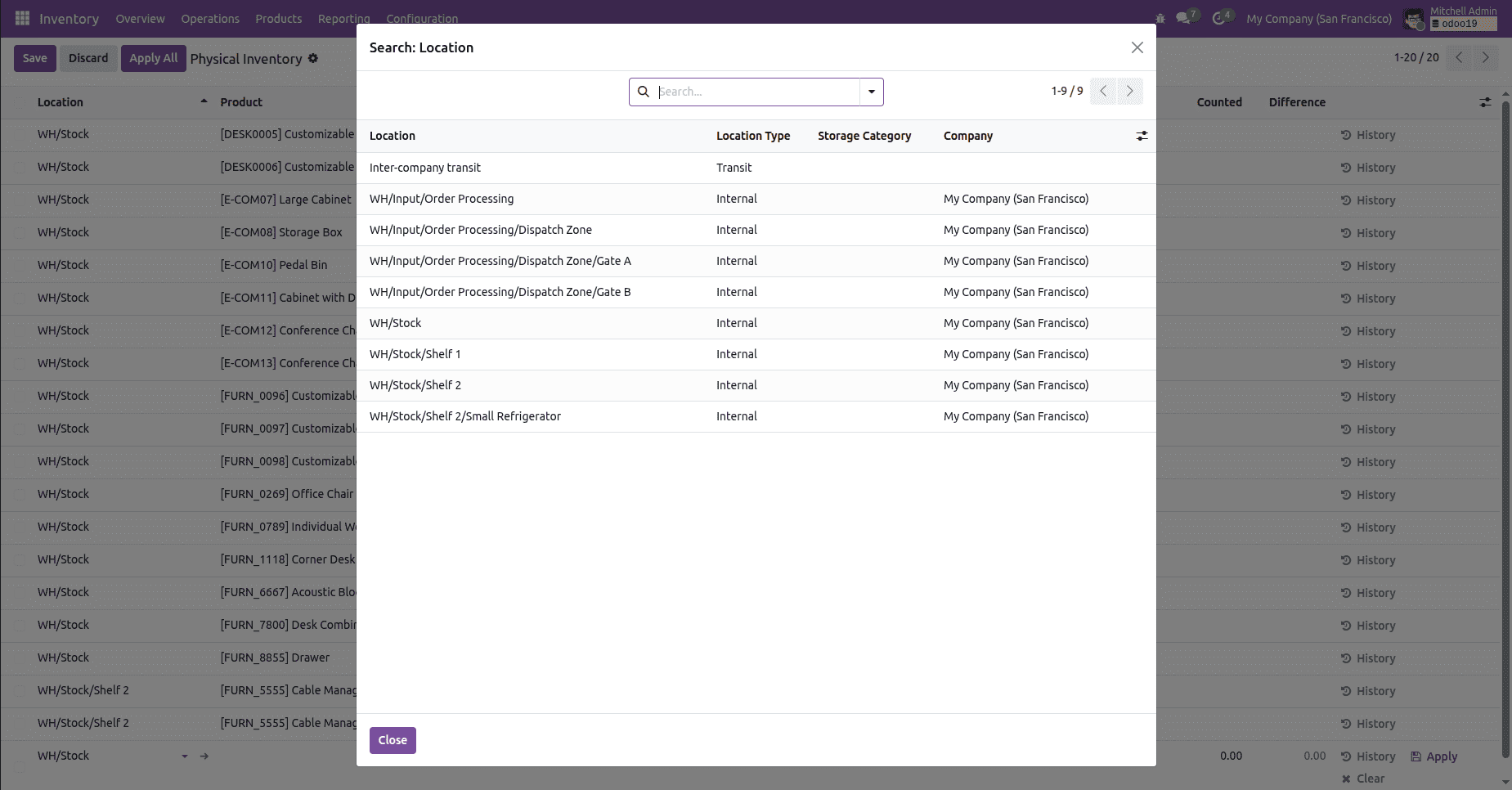
Physical Inventory View without Customisation:
Physical Inventory View with Virtual Location Added Customisation:
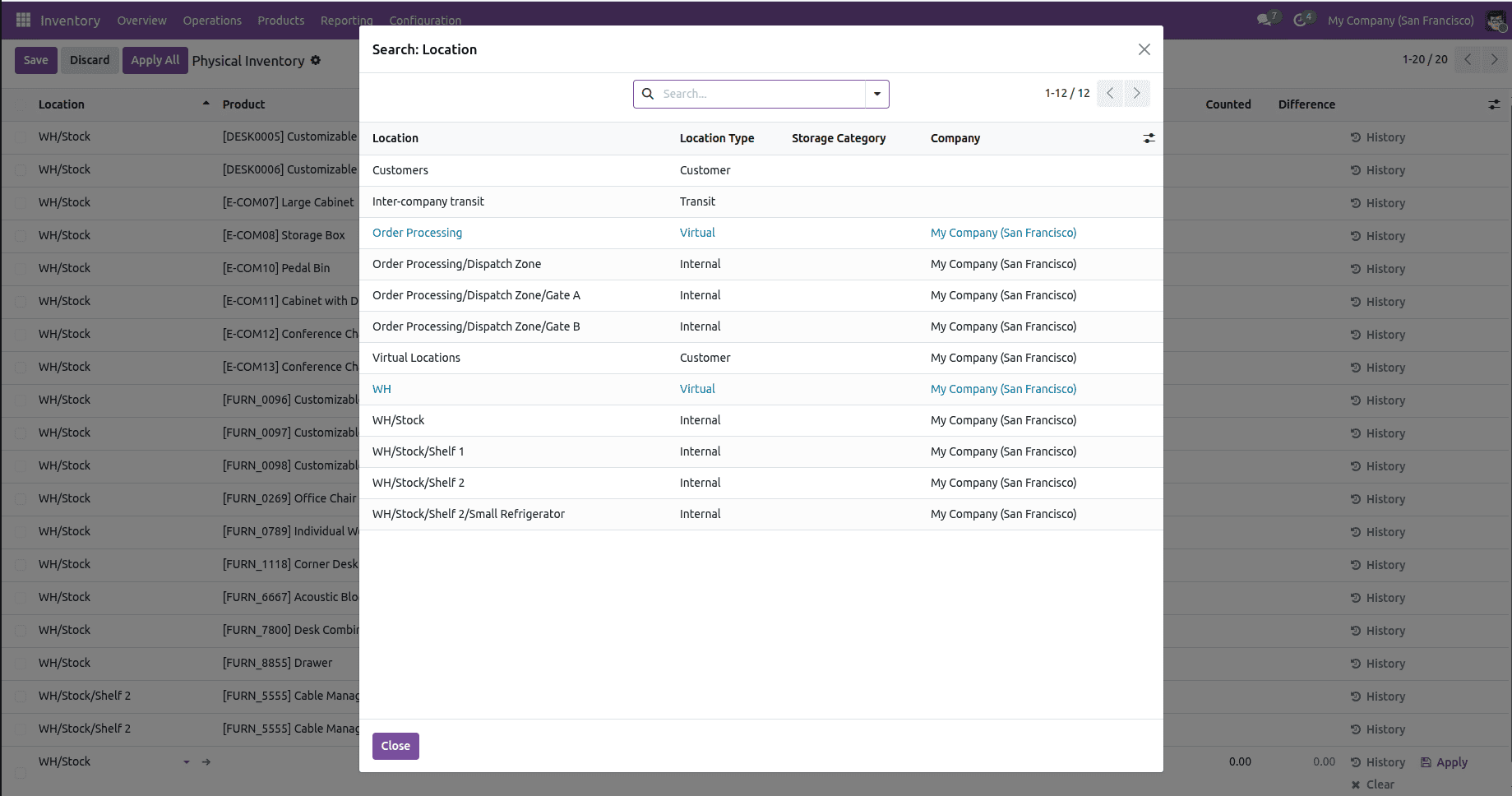
Your team will have far greater control over inventory that resides outside the four walls of the warehouse when customers and other non-physical places are included in inventory adjustments. Instead of using manual transfers or direct database adjustments, you may use the same familiar page to reconcile consignment products stored at a client site, audit quantities that have already gone on deliveries, and fix balances at virtual sites following a migration or a data error. This will result in more precise stock records, fewer workarounds, and a single, regulated location to address inconsistencies wherever they arise.
You obtain this increased reach without interfering with regular users' workflow or running the danger of duplicating or disrupting Odoo's main view because the change is modest and opt-in by module. It is a low-effort adjustment that subtly expands the capabilities of your inventory team. If a new business need arises, you can apply the same strategy to production or vendor locations.
To read more about Complete Guide to Inventory Locations in Odoo 19, refer to our blog Complete Guide to Inventory Locations in Odoo 19.