Pricelists are a useful tool for managing your rates, attracting customers, and tracking your prices over time. If you understand the purpose of price lists in Odoo, you can utilize them to enhance sales and profitability. To help you implement your company's pricing strategy, Odoo provides a variety of pricing solutions. You need a precise answer if you want to cope with different product costs. The Odoo 19 pricing list method on the Odoo 19 website provides a simple way to handle this.
Using a price list in Odoo 19, you may automatically change the customer's currency to reflect their country. As a result, customers will always see prices in their native currency. Customers are grateful to see prices in their local currency. Customers can easily recognize the value of your products, making it easier for them to make informed purchasing decisions. It helps ensure that purchasers see the correct price. If a customer's currency is not recognized immediately, they may see product prices displayed in an unfamiliar currency, leading to confusion and a less seamless shopping experience. To avoid this, the pricelist can automatically convert prices based on the customer's country.
First, verify that the Price List option is enabled in the eCommerce settings before exploring how automated currency conversion works.
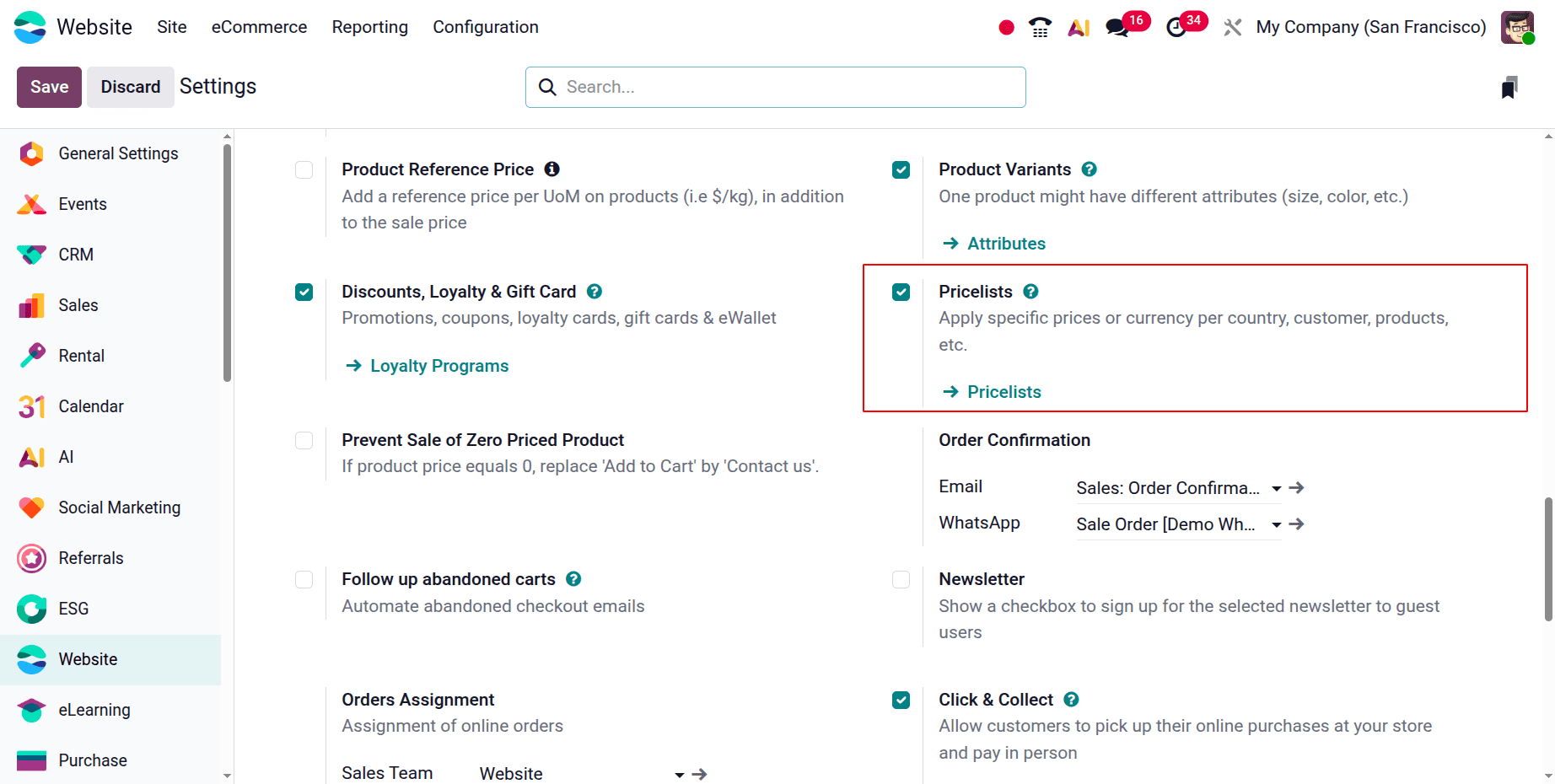
The eCommerce tab now displays the price list menu. You can create new price lists here.
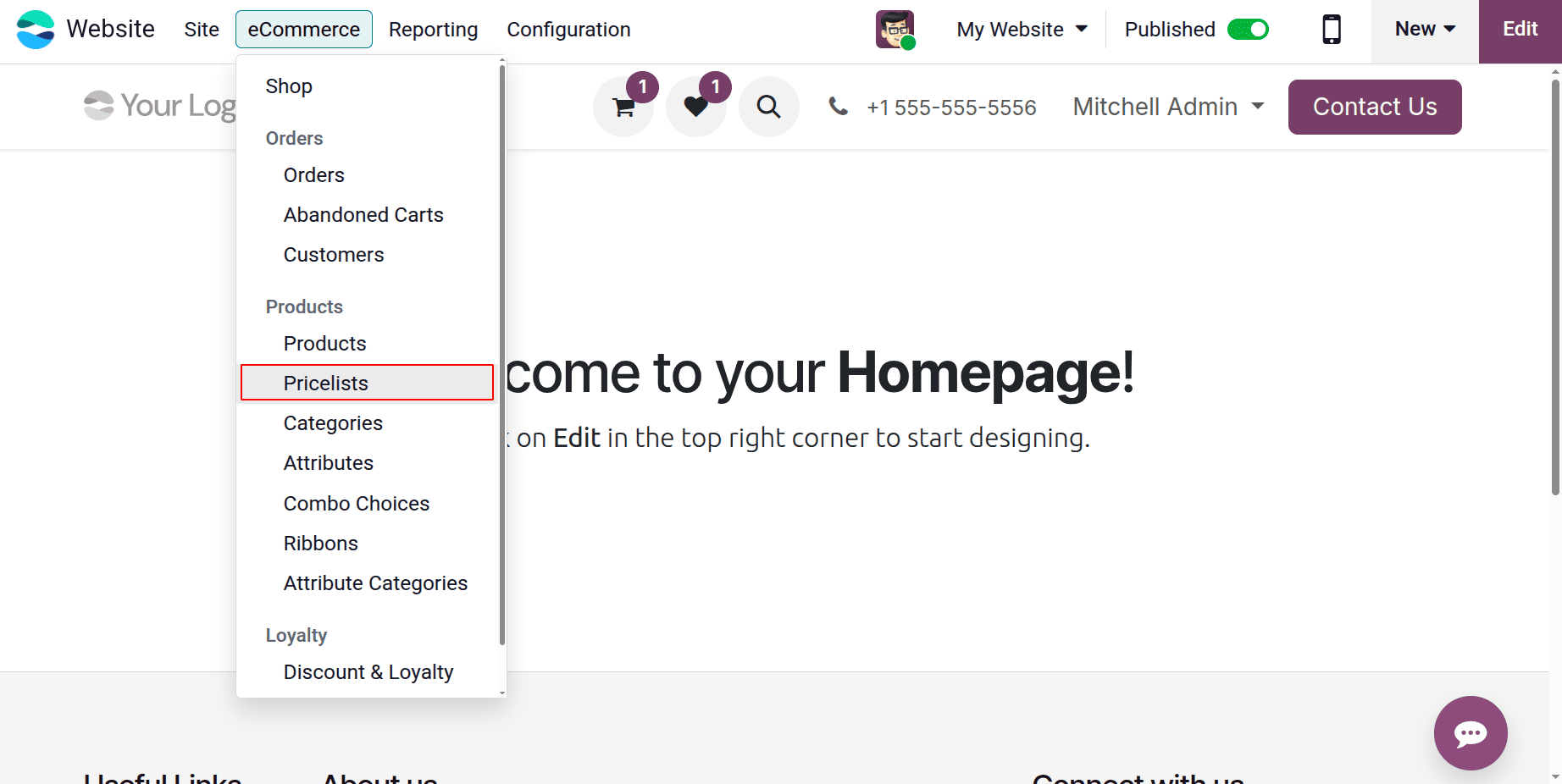
Details such as Pricelist Name, Country Group, Currency, Selectable, Website, and Company are included in the list of pricelists.
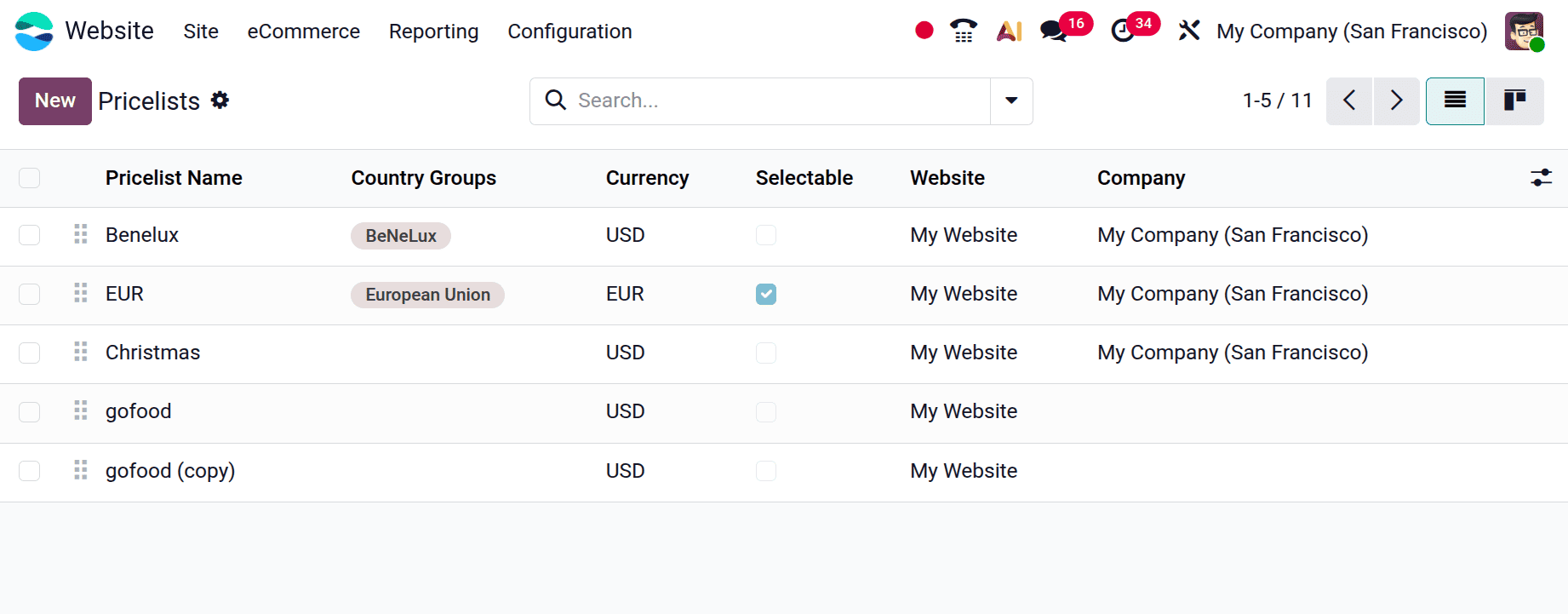
First, mention the pricelist name. While the price list is being prepared, you can select the currency that will be used when it is applied to your website. In the accounting settings, don't forget to enable the currencies you want to utilise. Then the users can select the country groups.
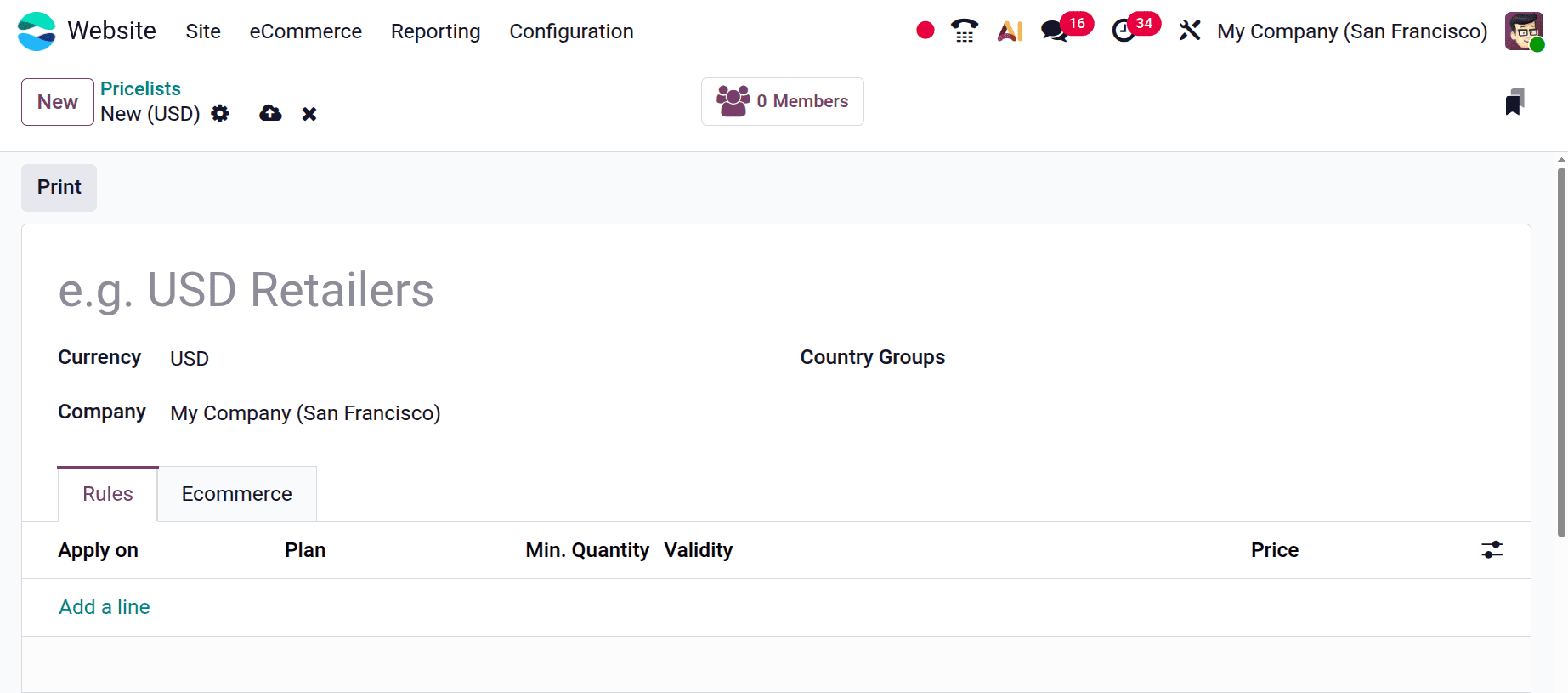
Additionally, you can define which nations will be allowed to use this price list, and it helps automatically determine the client's currency based on the nation supplied in the customer data. If there are numerous websites in your database, you can choose which one uses this price list. You can leave this price list open if you want it to show up on all of your websites. Customers can decide the price straight from the website thanks to Odoo's selectable option. Additionally, buyers can access this price list by applying promotional codes created in the E-commerce Promotional Codes section. The price list's discount policy can also be set. If you choose to use it to reduce the price. This shows that the discount is reflected in the product's pricing. If you choose to display the public price and discount to the customer, both the product's original price and the discounted price the customer receives through this price list will be displayed.
First, let's form a Country group. Users can create Country Groups using the Contacts module. Select the nations and add the group name. After that, save it.
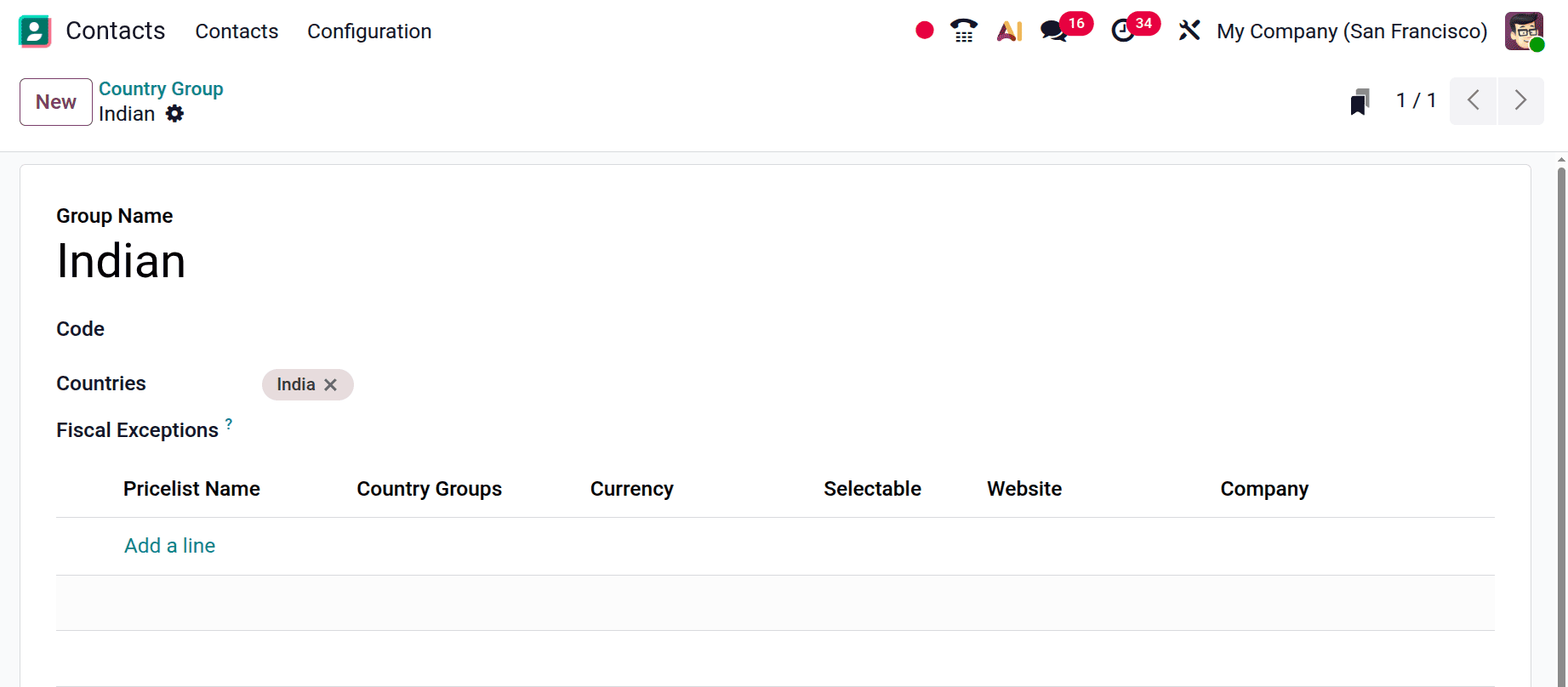
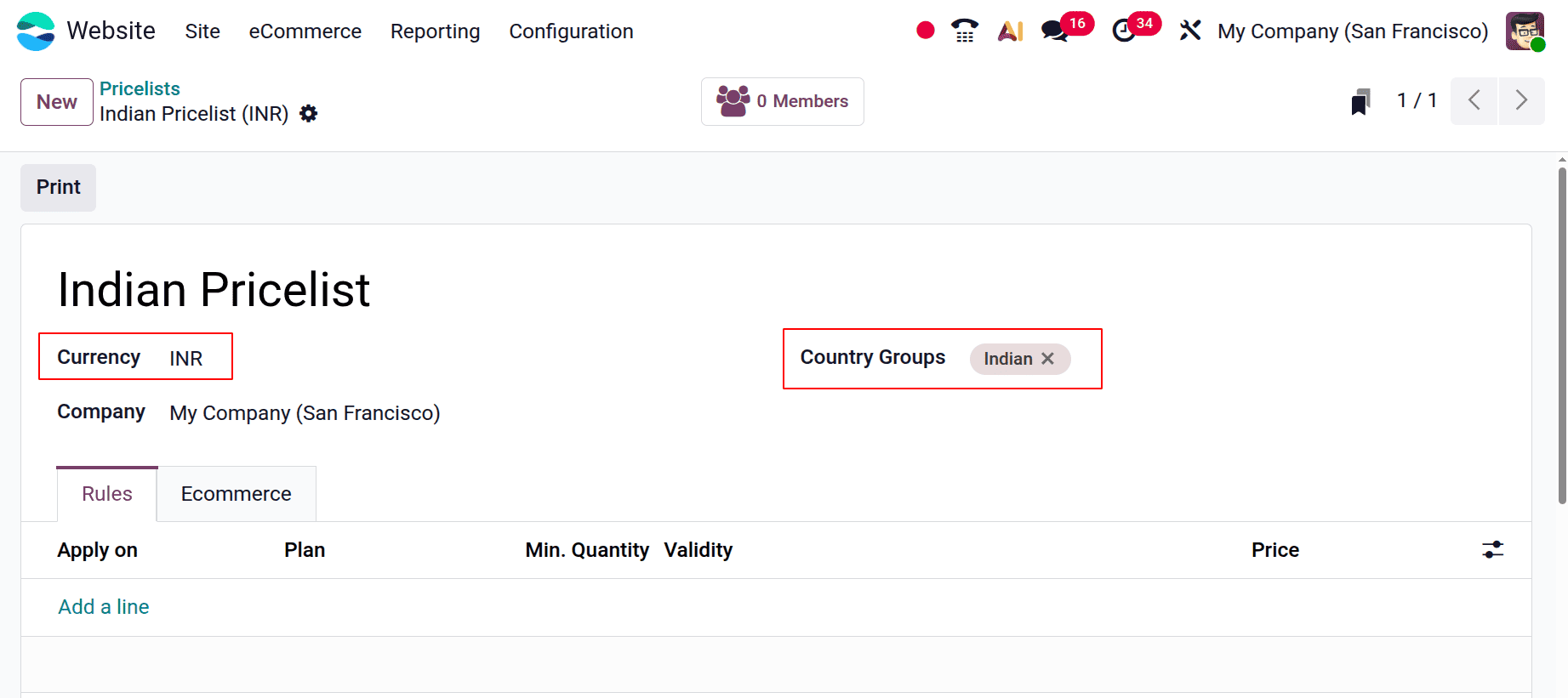
Next, establish a new pricelist by returning to the pricelist. In this case, the currency is set to INR, and the pricelist is called Indian Pricelist. Next, include the Indian Country Group.
As can be seen below, the generated pricelist was added to the list. For each pricing list, the selectable option is turned off.
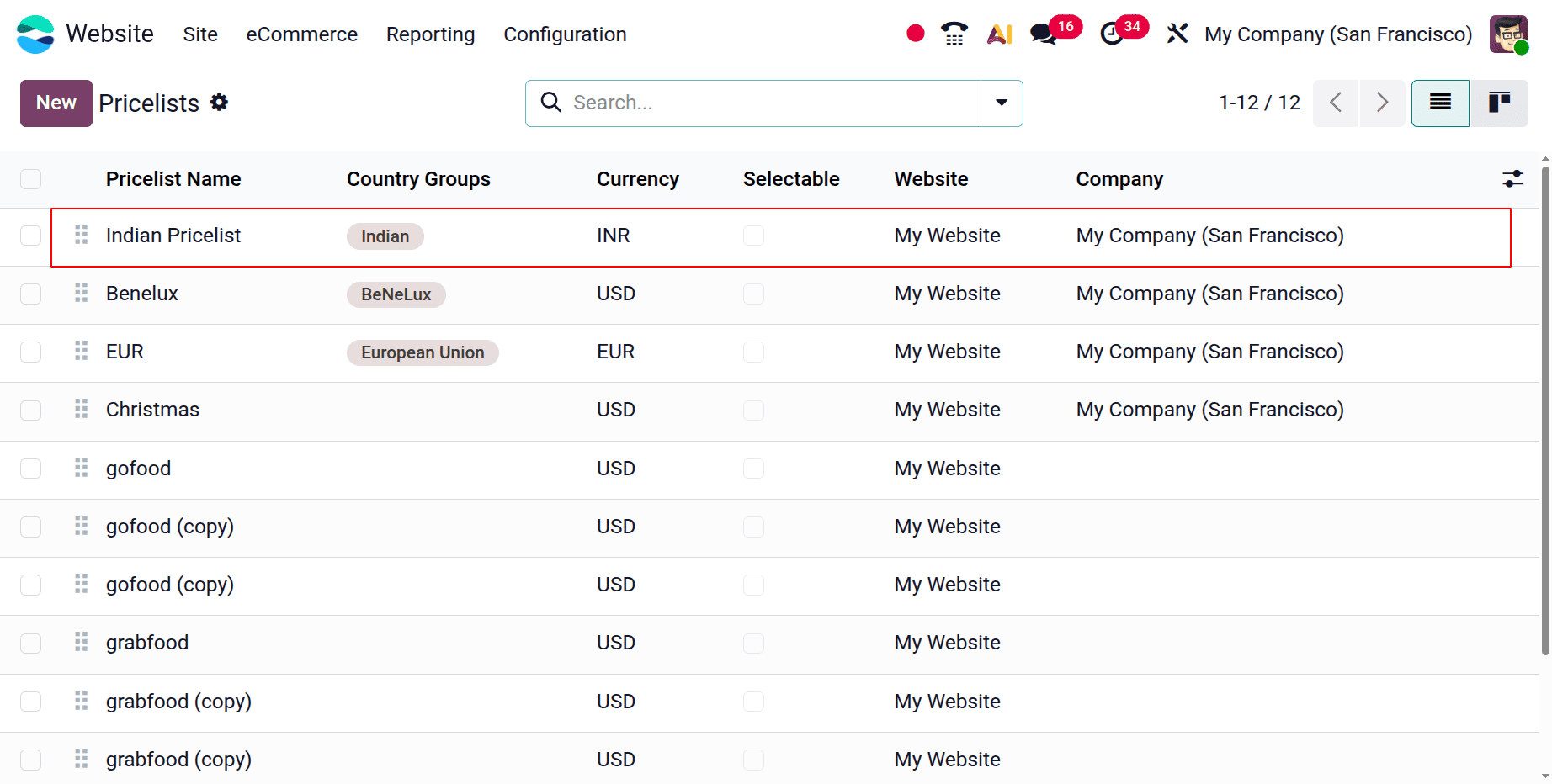
Here are the price lists that were created in compliance with our earlier conversation. Now, let's look at how price lists on websites help with currency conversion dependent on the customer's country.
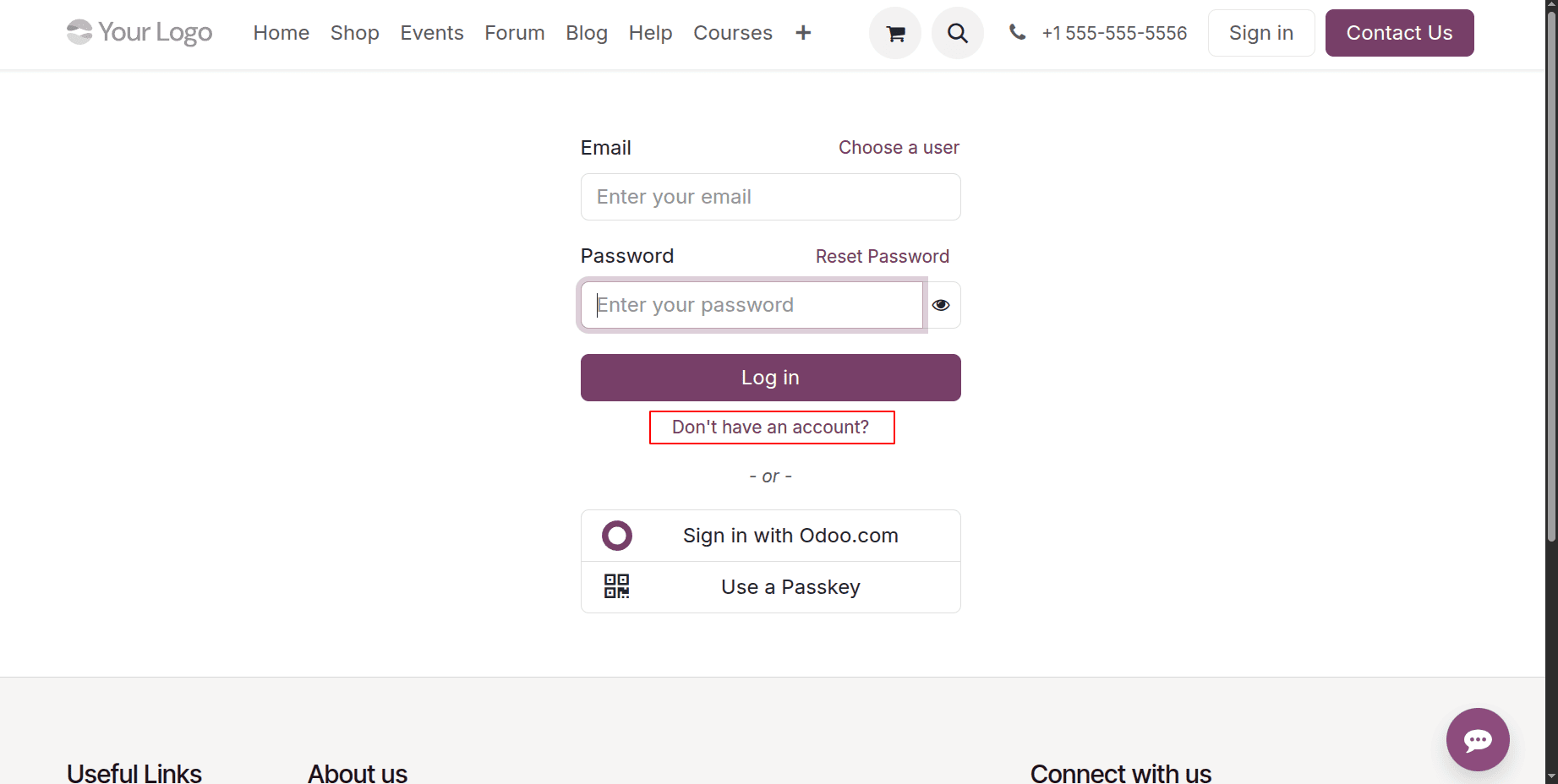
Assume a client creates an account on your website and provides their details. By clicking "Don't have an account?", users can create an account on your website.
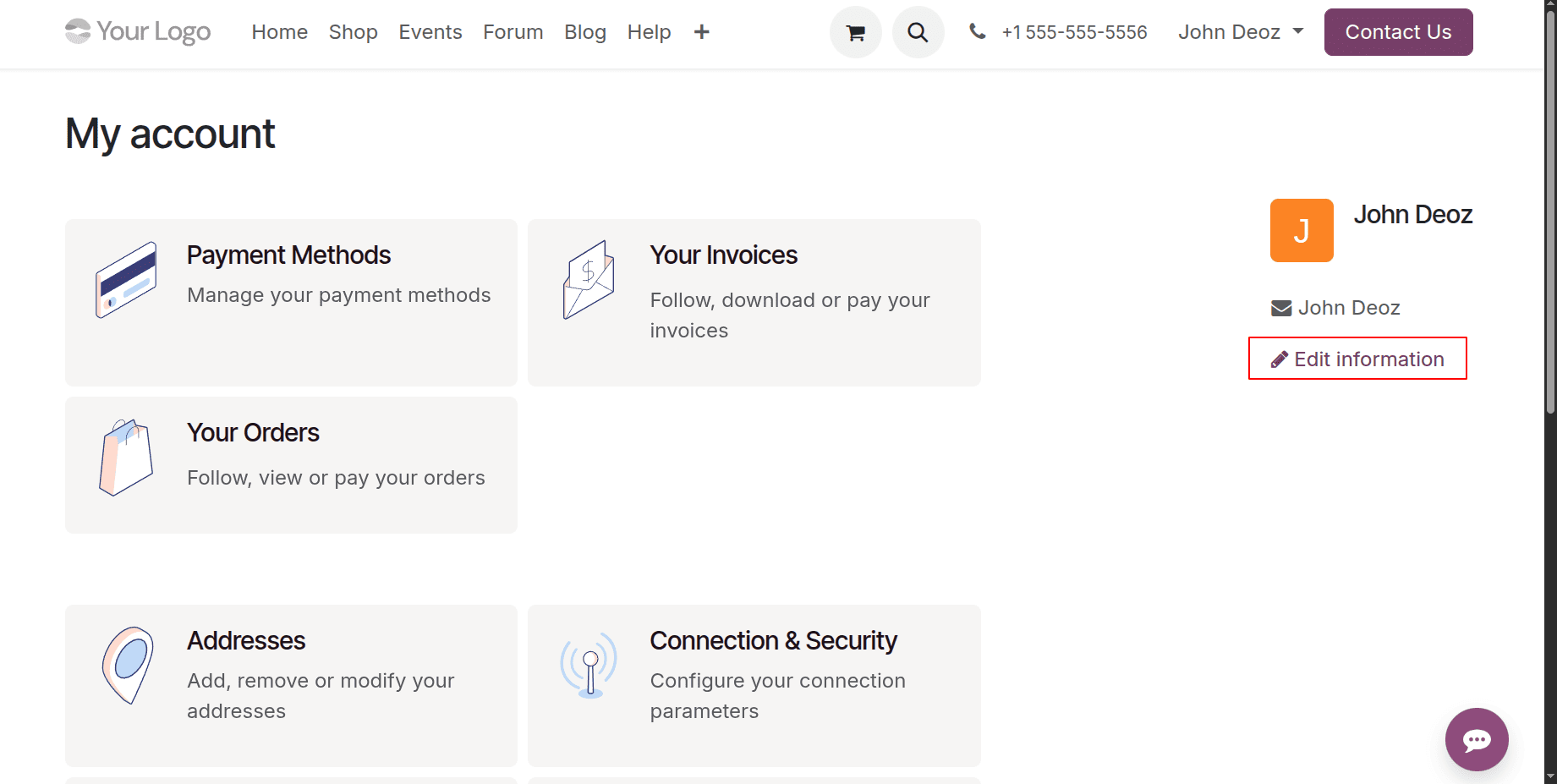
After creating an account, they can update their profile by clicking the Edit Information icon in the gateway.
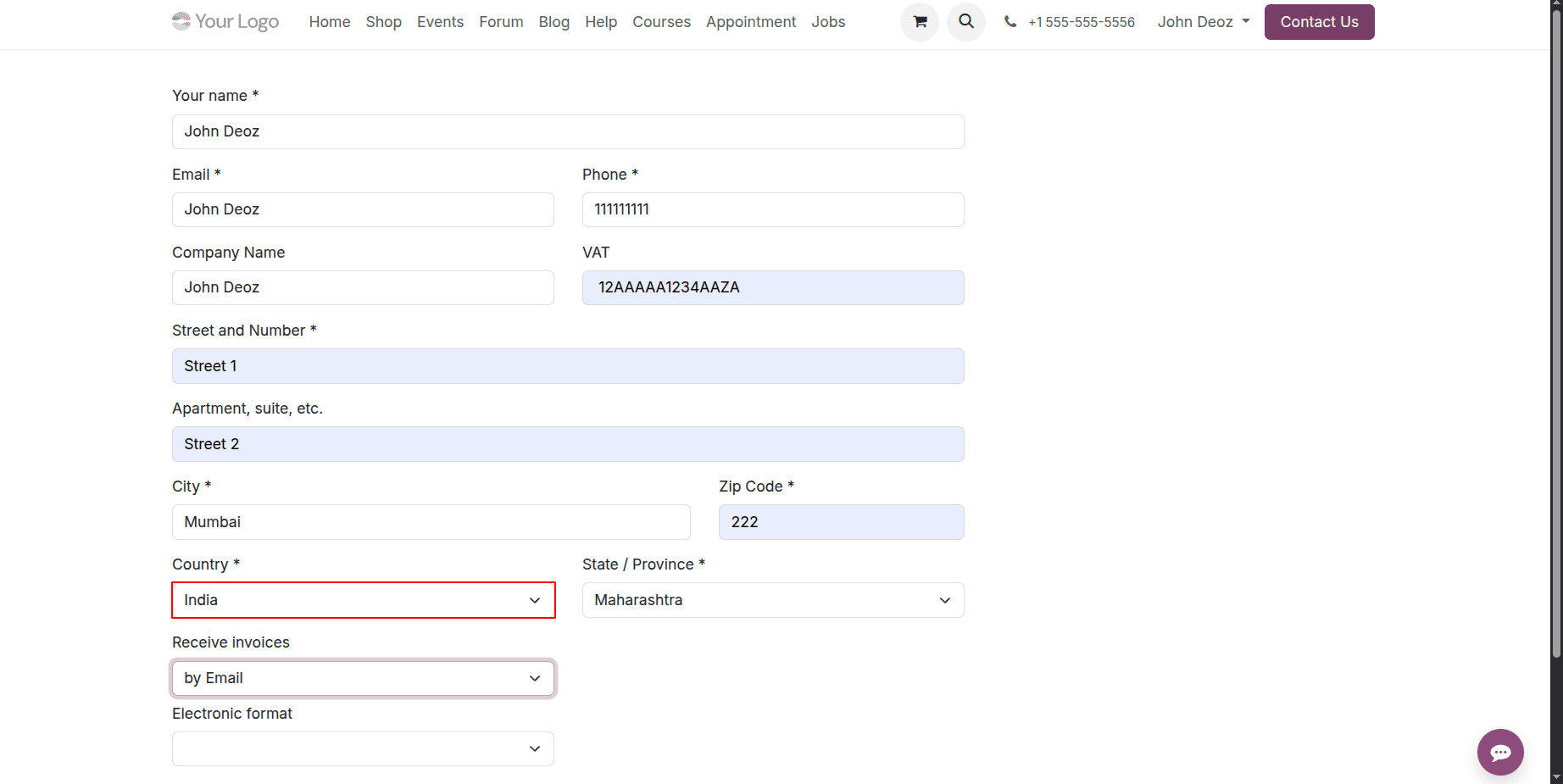
Users can edit details such as their name, company name, email address, country, state, street address, and other contact information. Next, press the "Save" button. Here, the country of the customer is set as India.
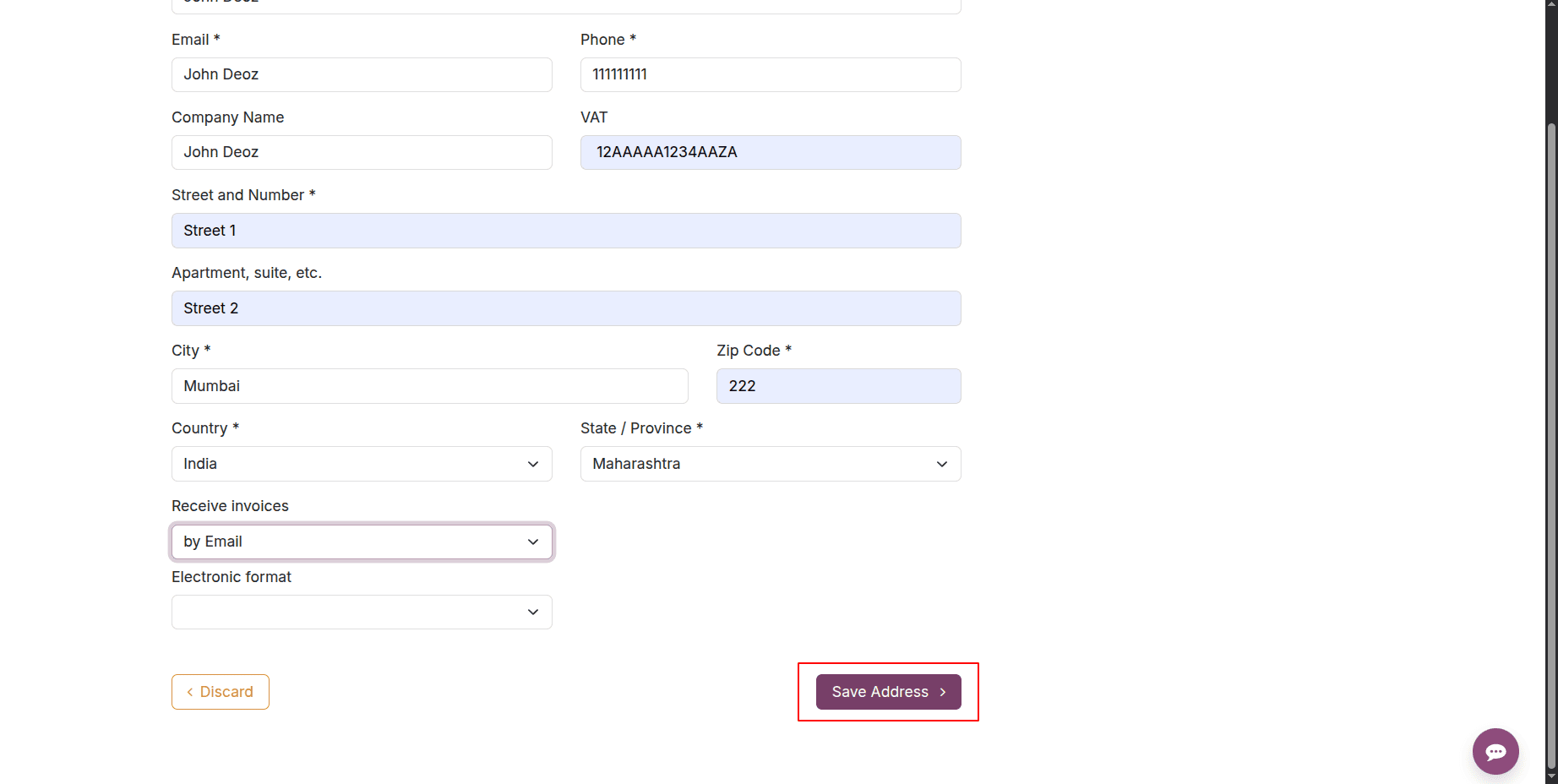
After entering all the required information, click Save Address to save the address.
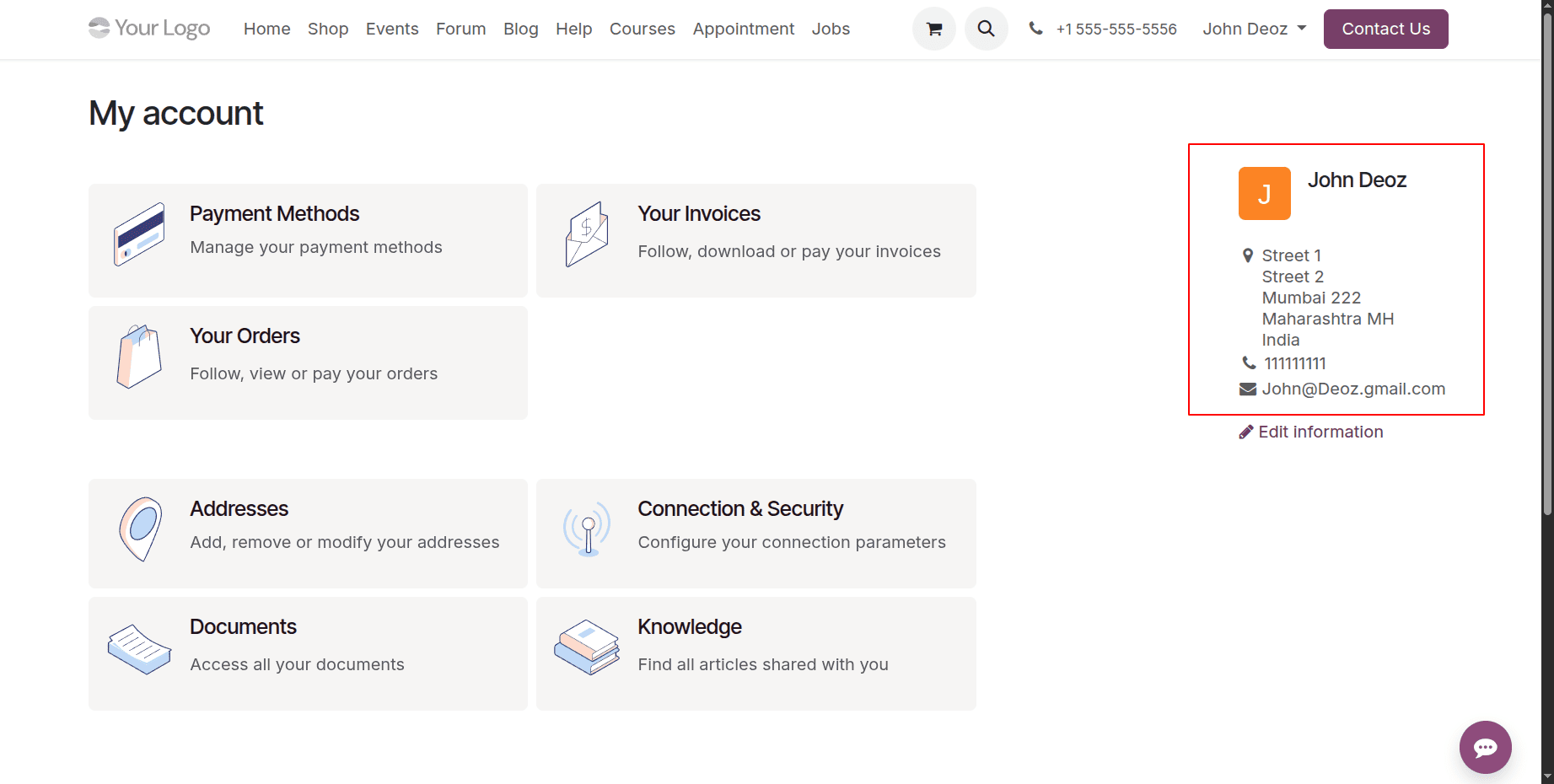
After that, they can complete and confirm the data. Now let's look at how it affects the shop page. Select "Shop".
As you can see, the price is shown here in Indian rupees. because the client is Indian. By using automatic currency conversion, you can save significant time and effort. Prices don't always need to be manually converted. Customers will be grateful to see prices in their local currency. As a result, customers may feel more comfortable doing business with you. However, once the price list has been created, it cannot be changed.
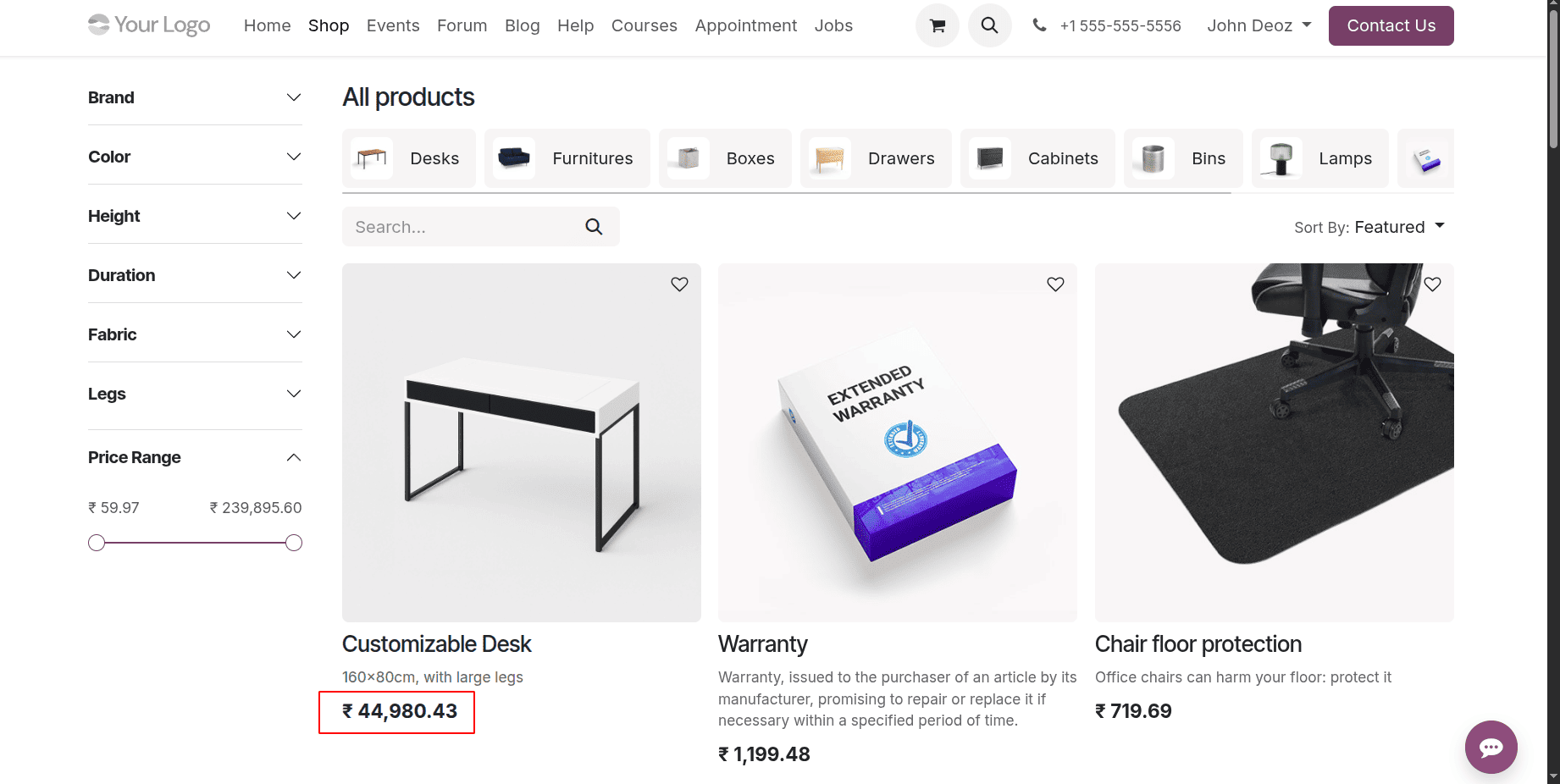
Selecting the Pricelist inside the Website
The Pricelist option isn't accessible here right now. Now, let's return to eCommerce Pricelists. Next, make the Selectable option active.
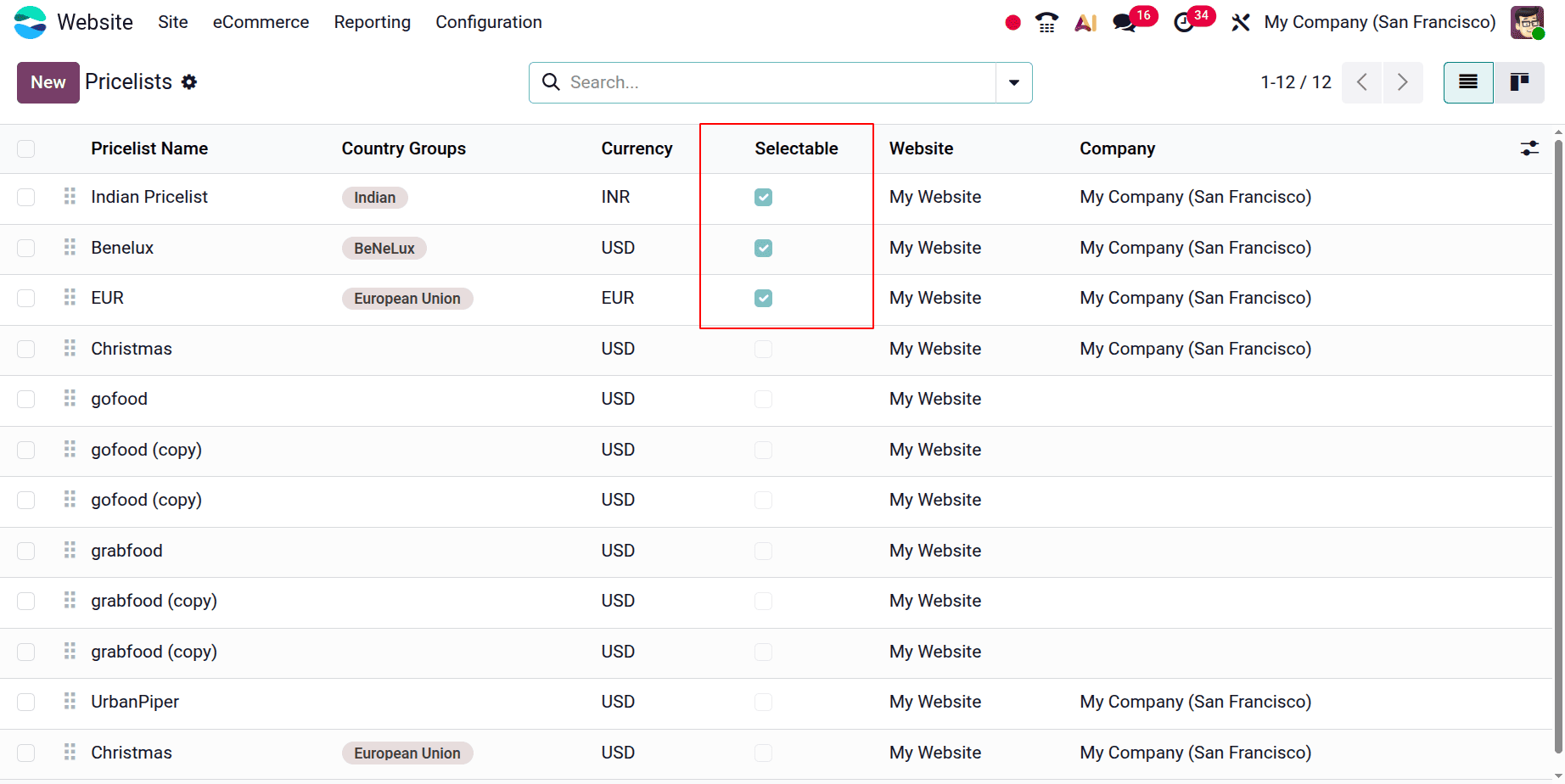
After that, return to the eCommerce Shop so the customer can see the price list option. The top bar displays the pricing list button.
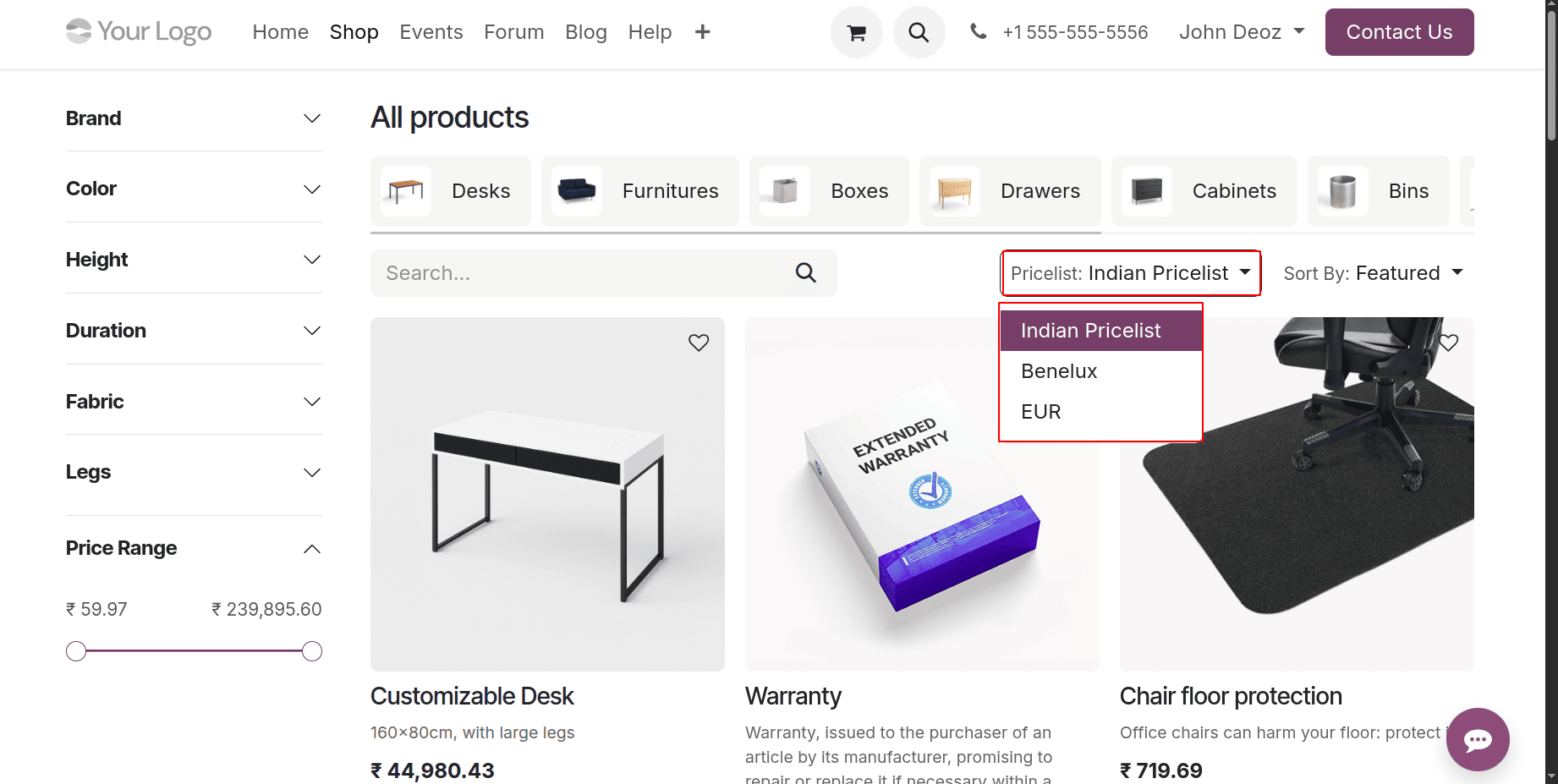
The price will be updated according to the selected price list when you choose a pricing list from the available options.
Using an eCommerce Promotional code on the website
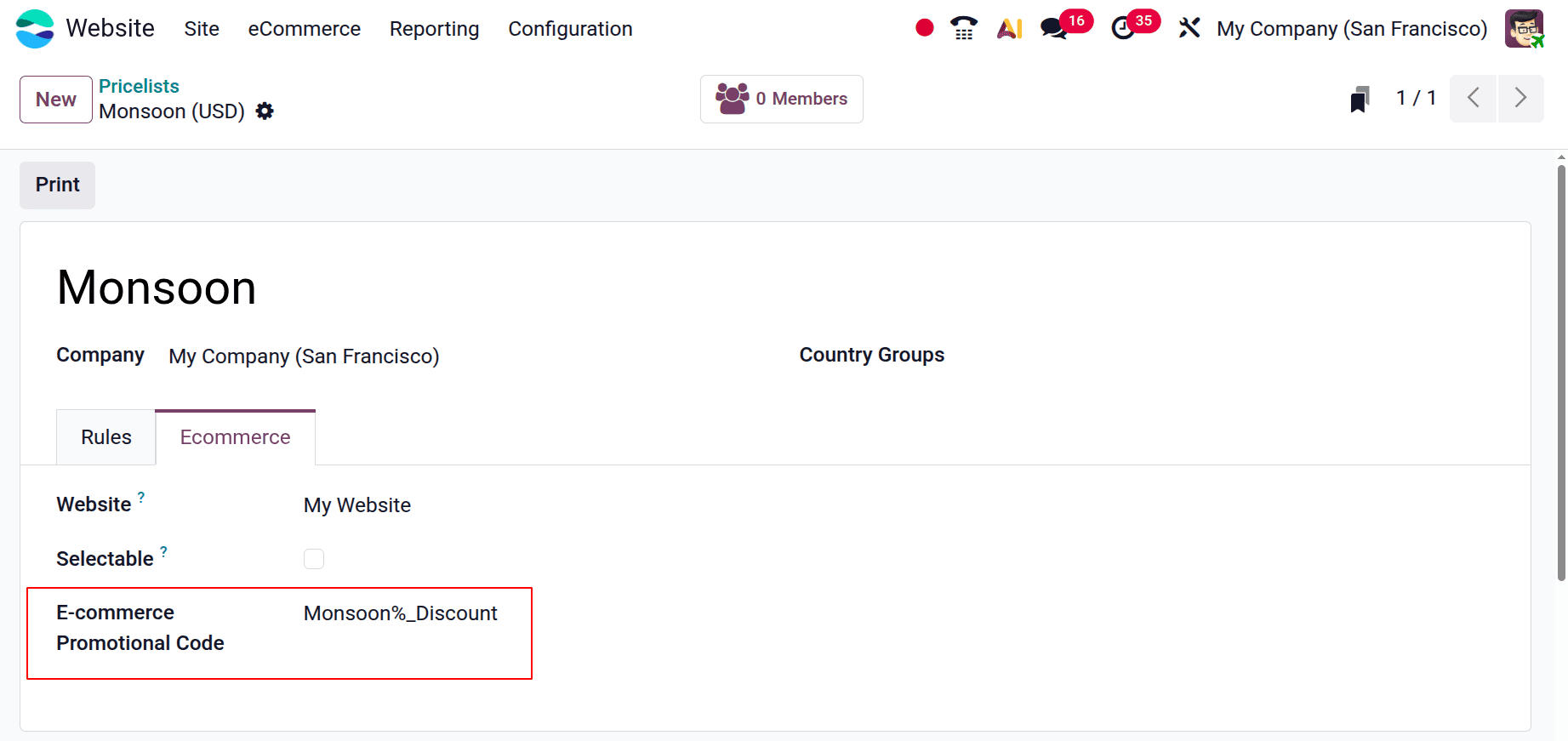
The pricelist can also be applied via codes. To do that, enter an eCommerce promo code into the price list. To make changes, you must create a new price list. Here, the rule was set up, and the pricelist called it Monsoon. All products included in this price list are eligible for a 50% discount.
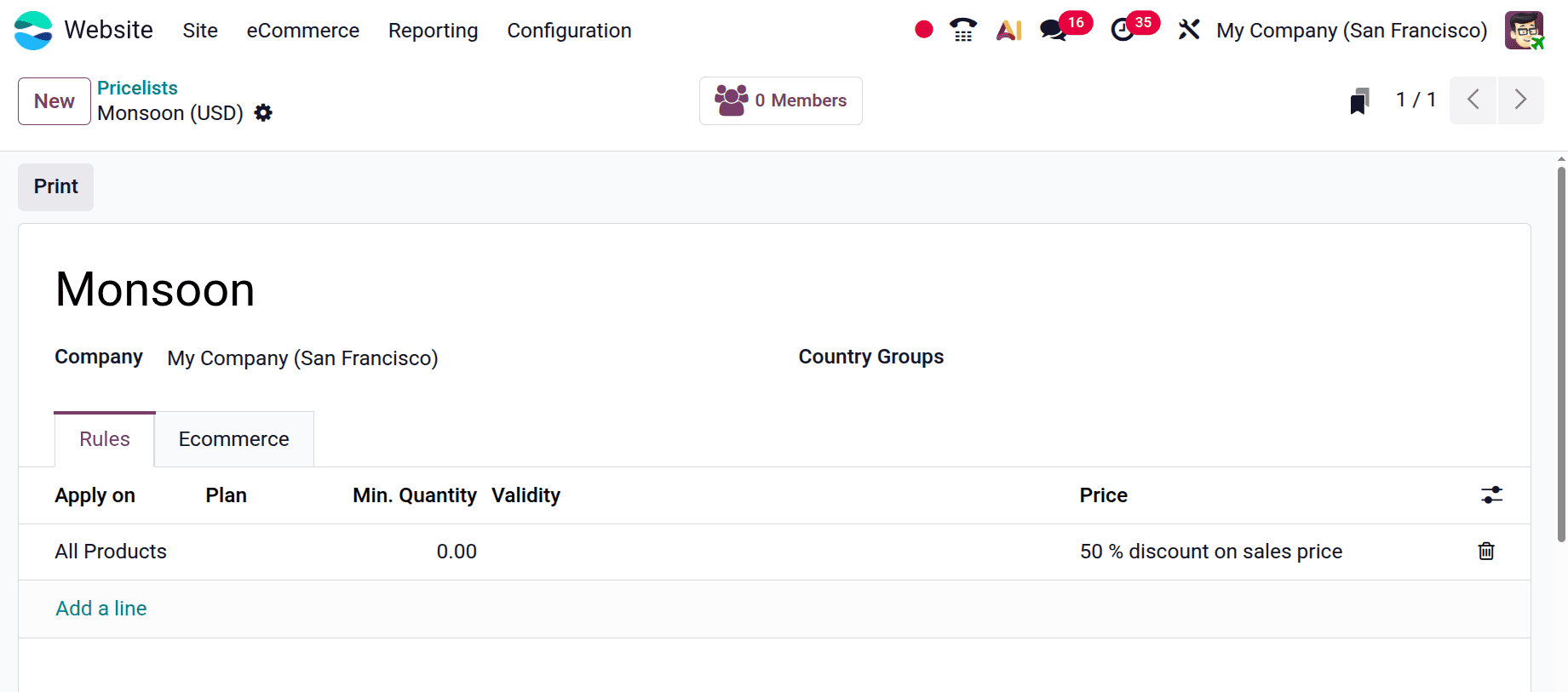
The E-commerce Promotional Code under the E-commerce tab is "Monsoon%_Discount." Keep the list of prices.
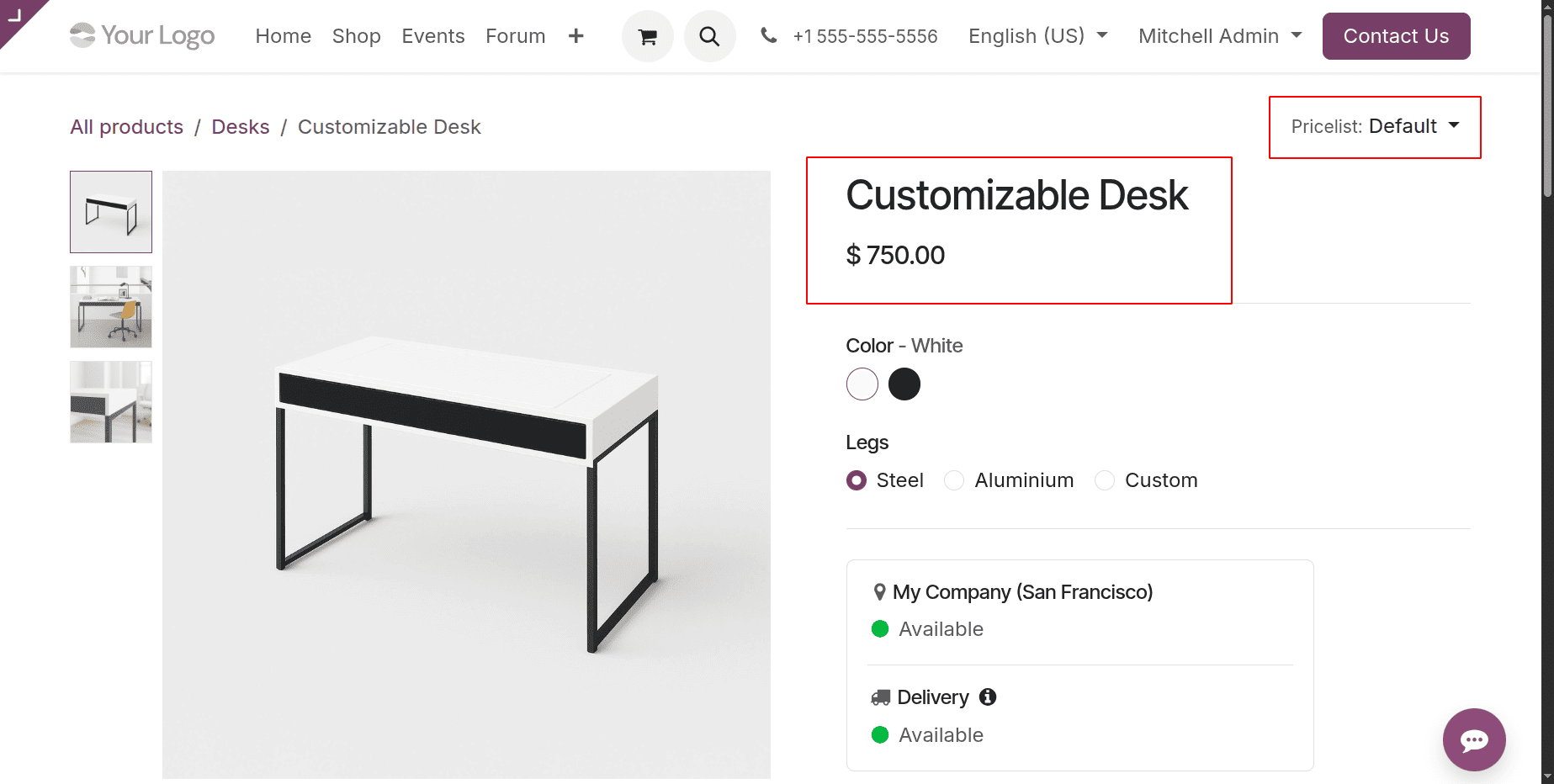
Now, let's look at how to use a promo code to access a website's price list. Launch the online store for it. The actual retail prices of the products are shown here together with the default price list. Let's choose a few things. Here, the Customisable Desk is offered for $750. Choose the item.
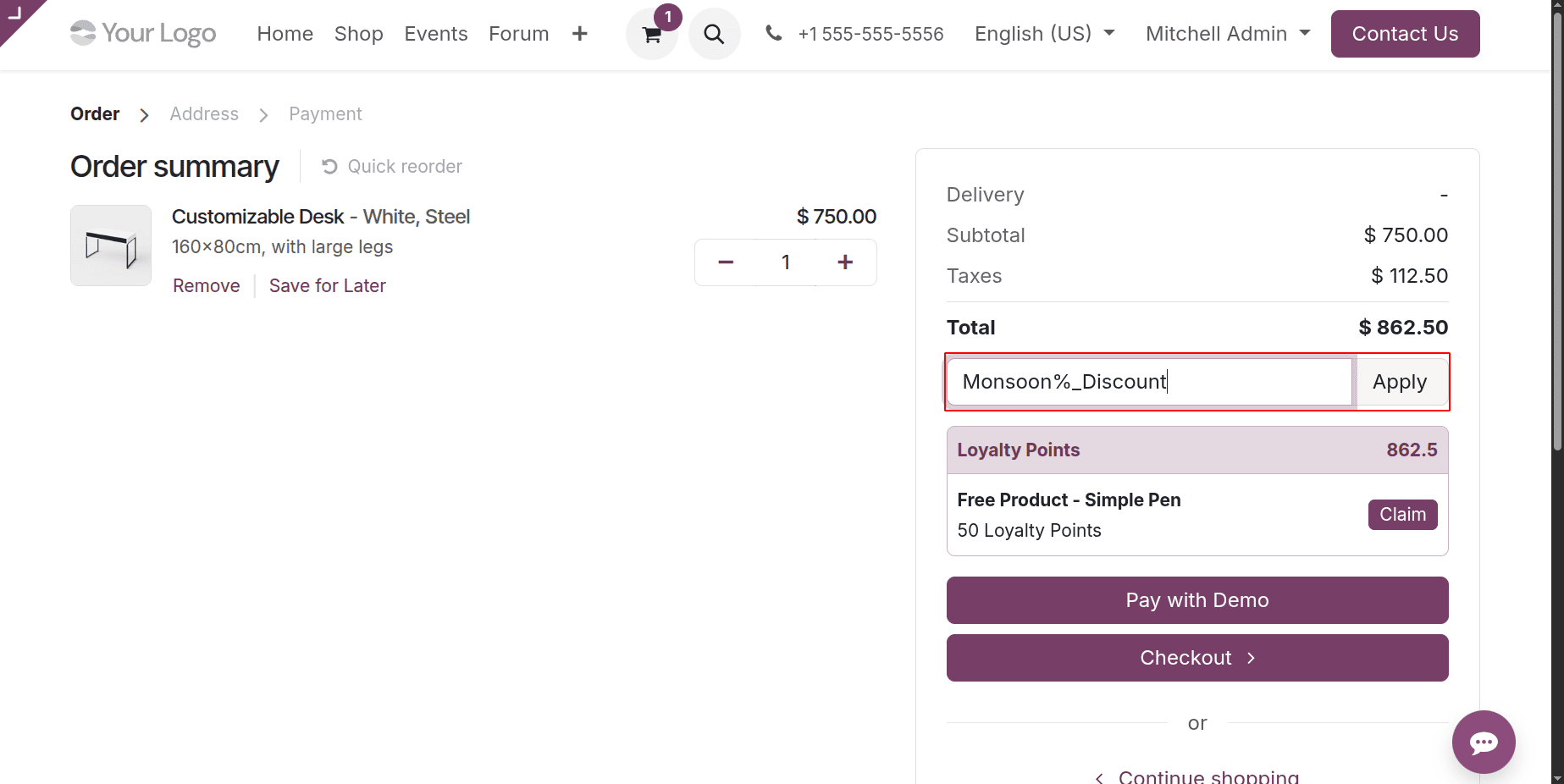
During checkout, enter the coupon code in the provided section to apply the discount. Enter the same deal code there and click Apply.
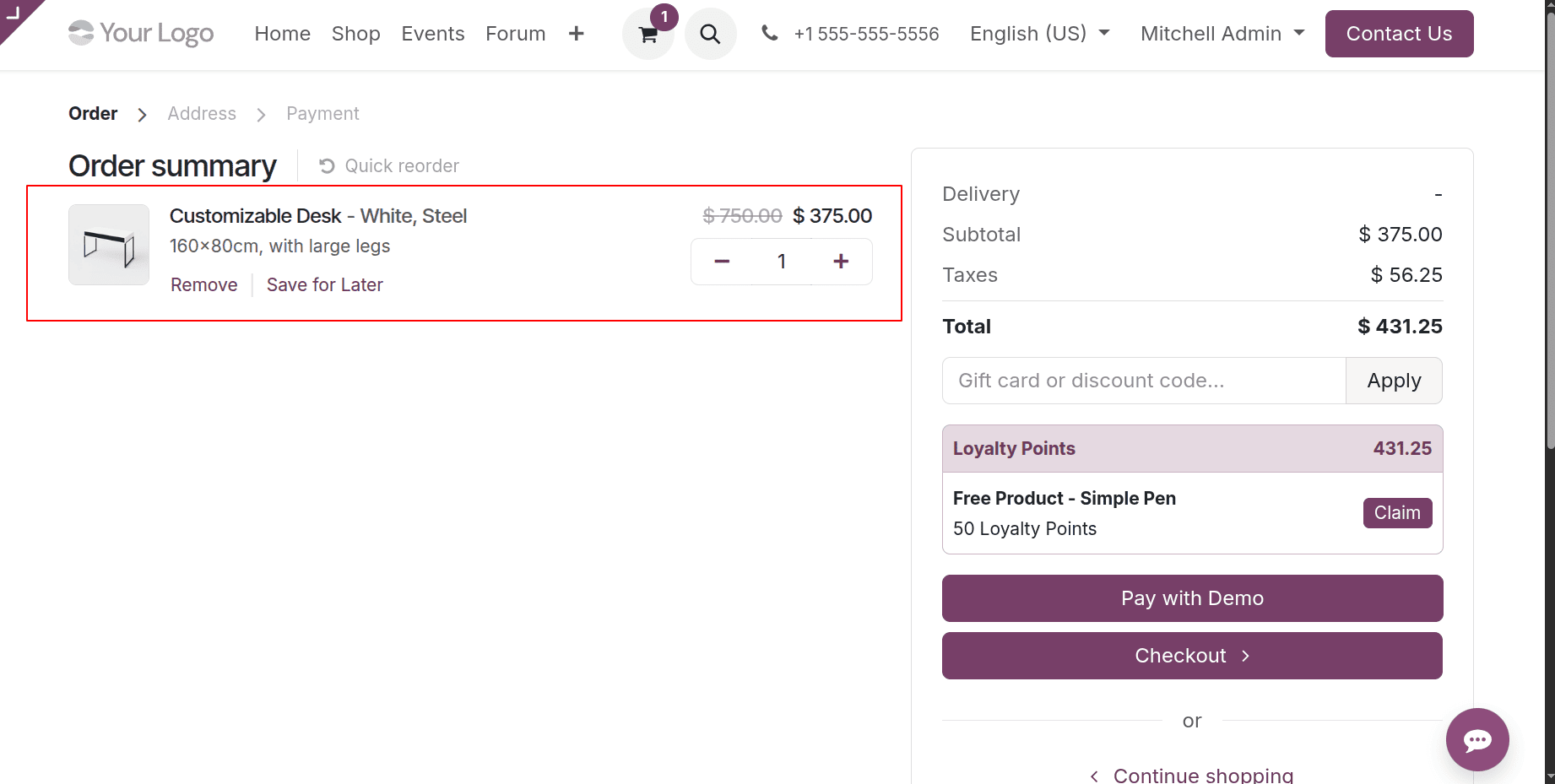
Once the promo code is applied, the order total will automatically update to show the discounted amount according to the price list. Here, half of the $750 is deducted.
All things considered, price lists are an adaptable instrument that may be used in a variety of pricing control situations. Understanding the different uses for pricelists can help you improve your pricing strategy and sales.
To read more about How to Configure & Optimize Pricelists in Odoo 19, refer to our blog How to Configure & Optimize Pricelists in Odoo 19.