Have you ever thought about executing a server action from the Odoo website, thinking about running your custom created server action with a single click instead of worrying about controller and backend logic to be implemented, making it more frustrating? In this blog, let’s see how we can execute a server action from a button click on the website.
Let's create a server action to confirm all the draft sale orders.
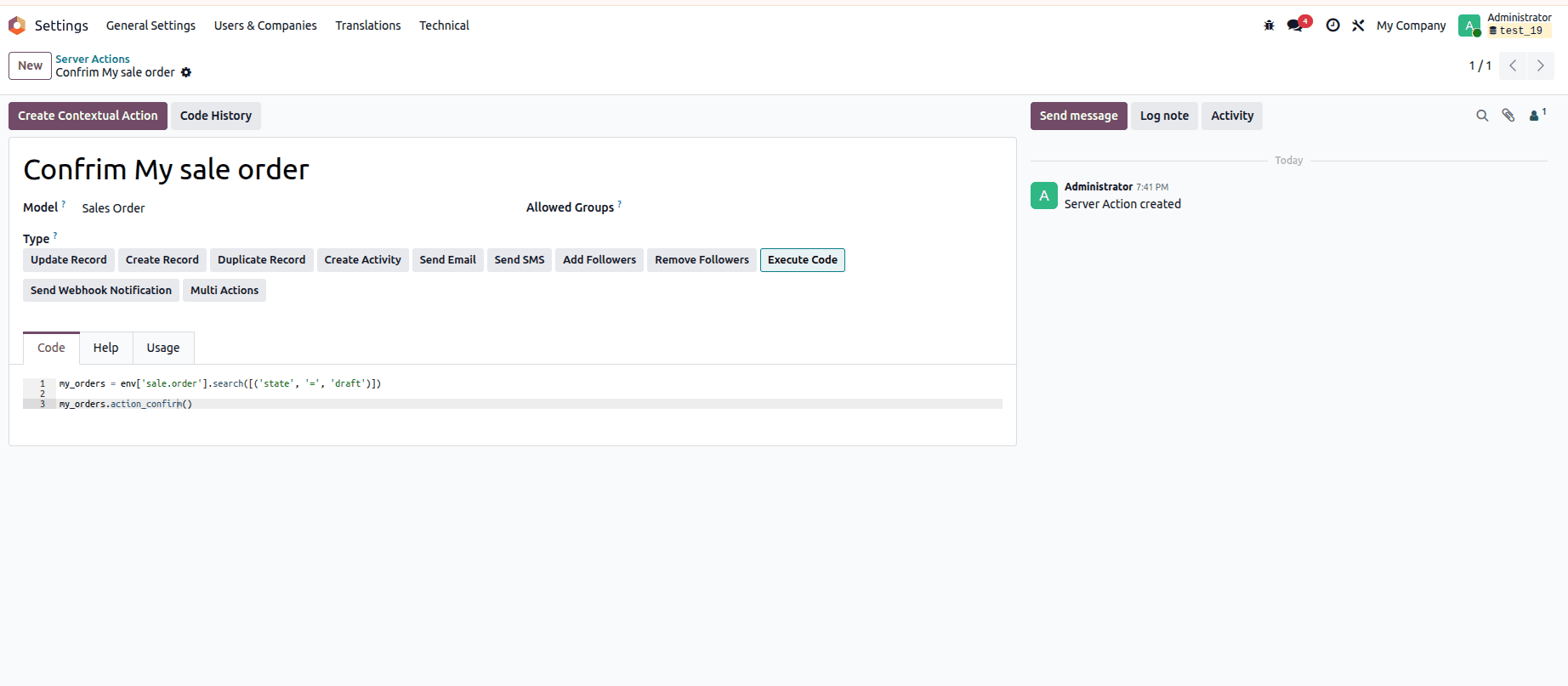
From the type section, choose "Execute code," and in the code editor, paste the Python code below to search all the sale orders in the draft state and perform the action "confirm."
my_orders = env['sale.order'].search([('state', '=', 'draft')])
my_orders.action_confirm()
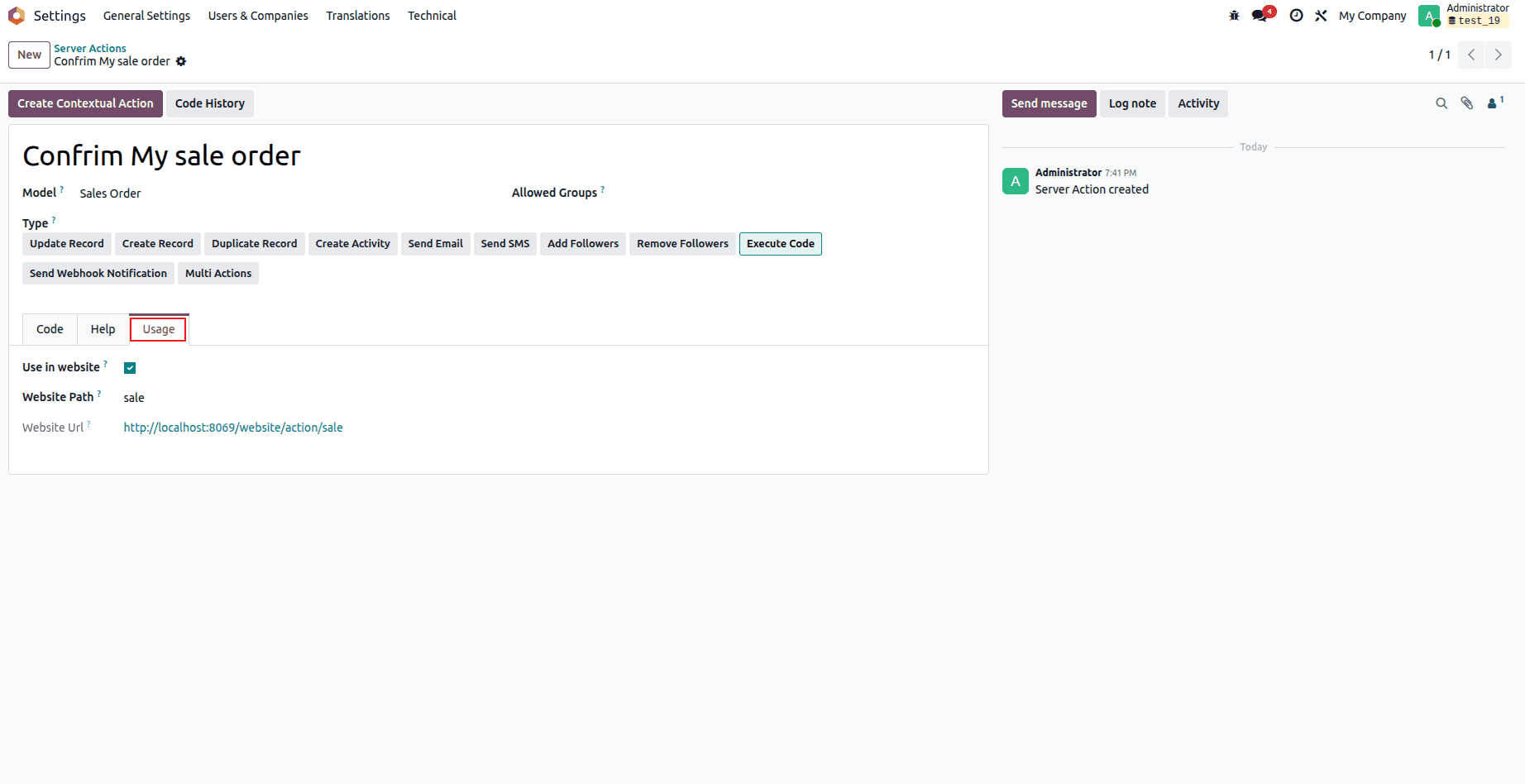
From the usage tab, enable the use in the website field to perform the action from the website. The website path is the keyword to be specified in the URL. If the website path is not provided by default, it uses the ID of the created server action.
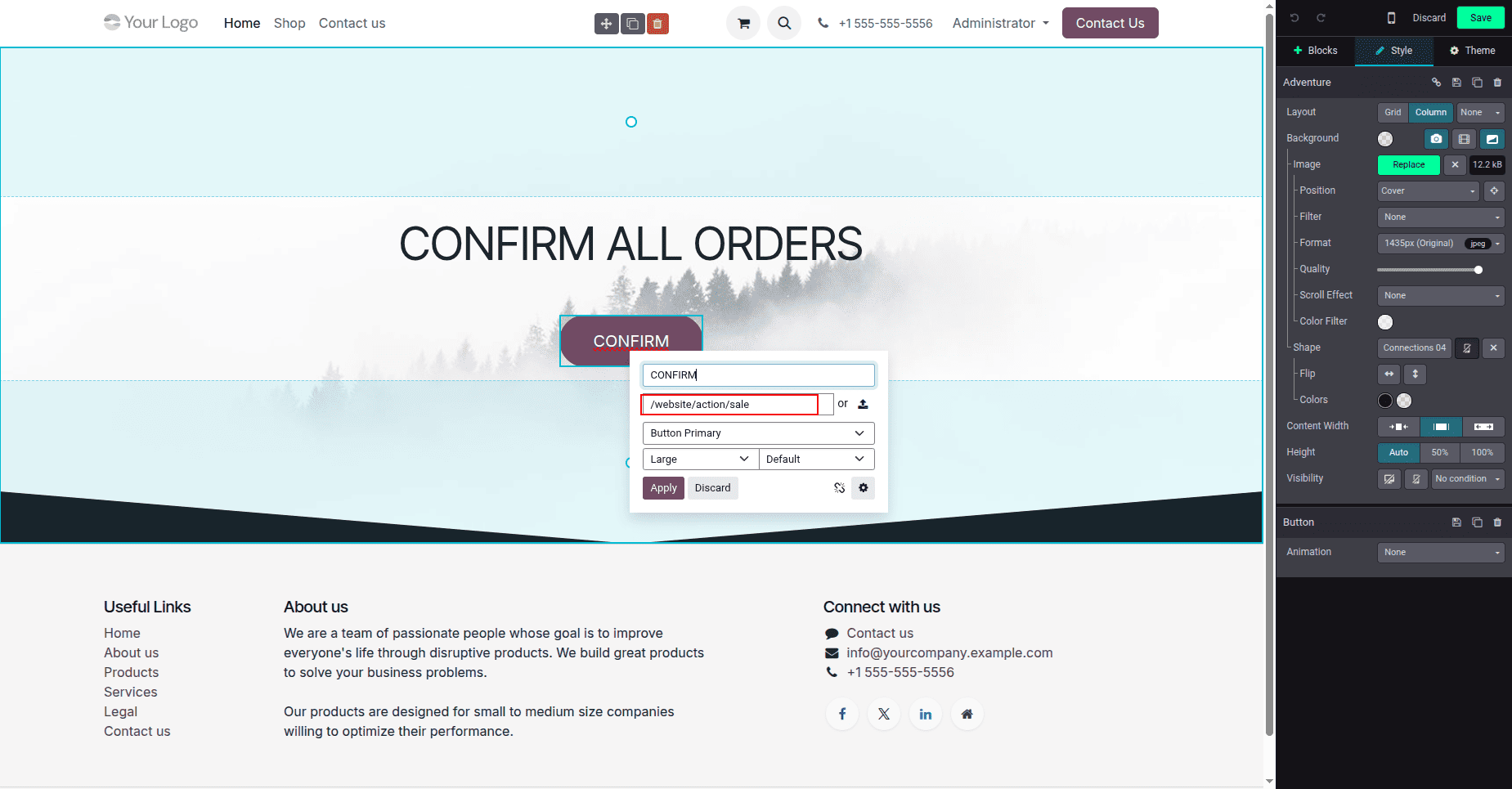
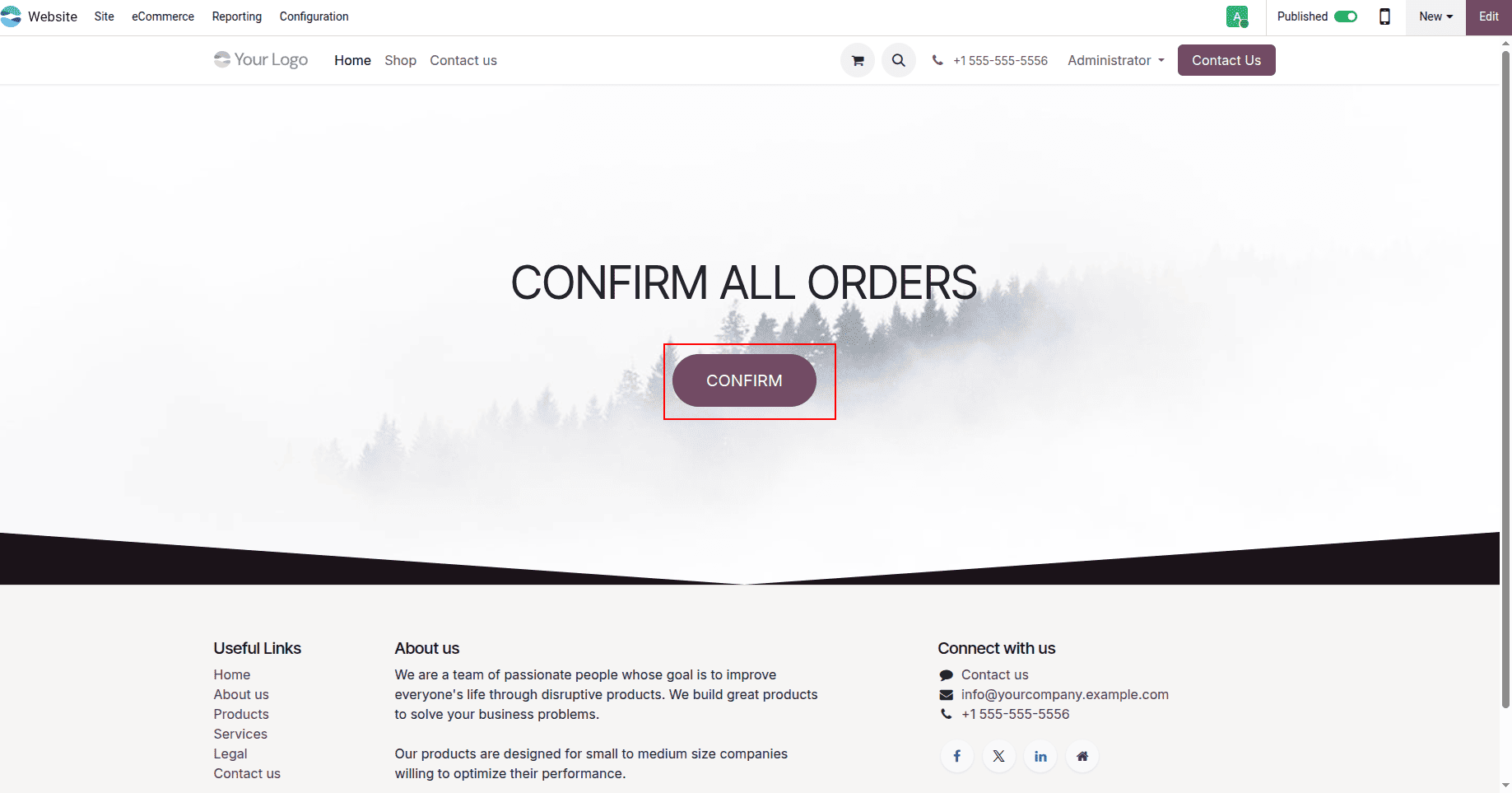
Now let’s create a page in the website or drag a snippet from the editor with a button in it, and let’s change the href of the button to the created server action’s website URL, like below.
After that, let's check our quotation in the draft state in the Odoo sales module.
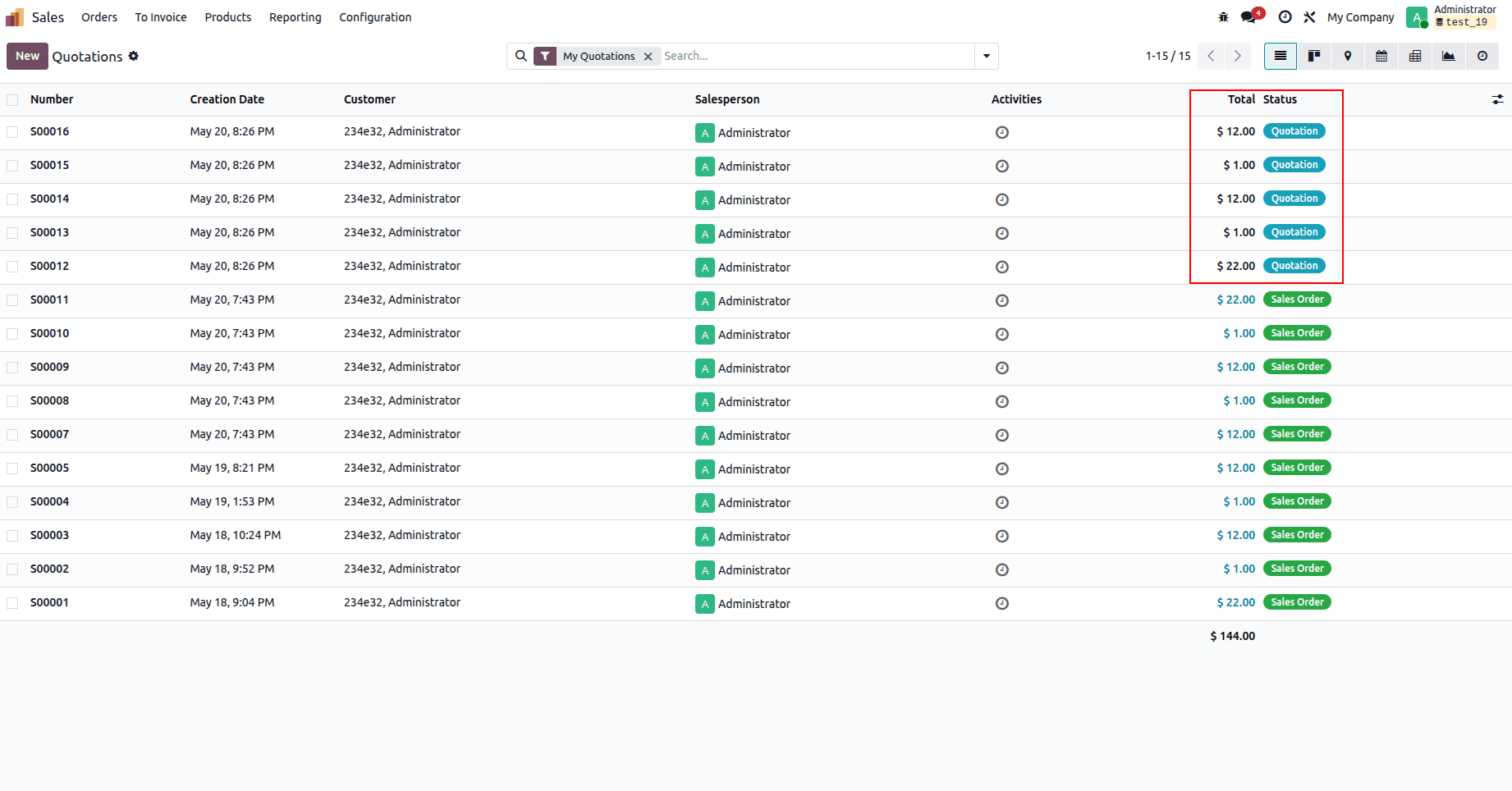
Check the above sale order after clicking the button on the website created page.
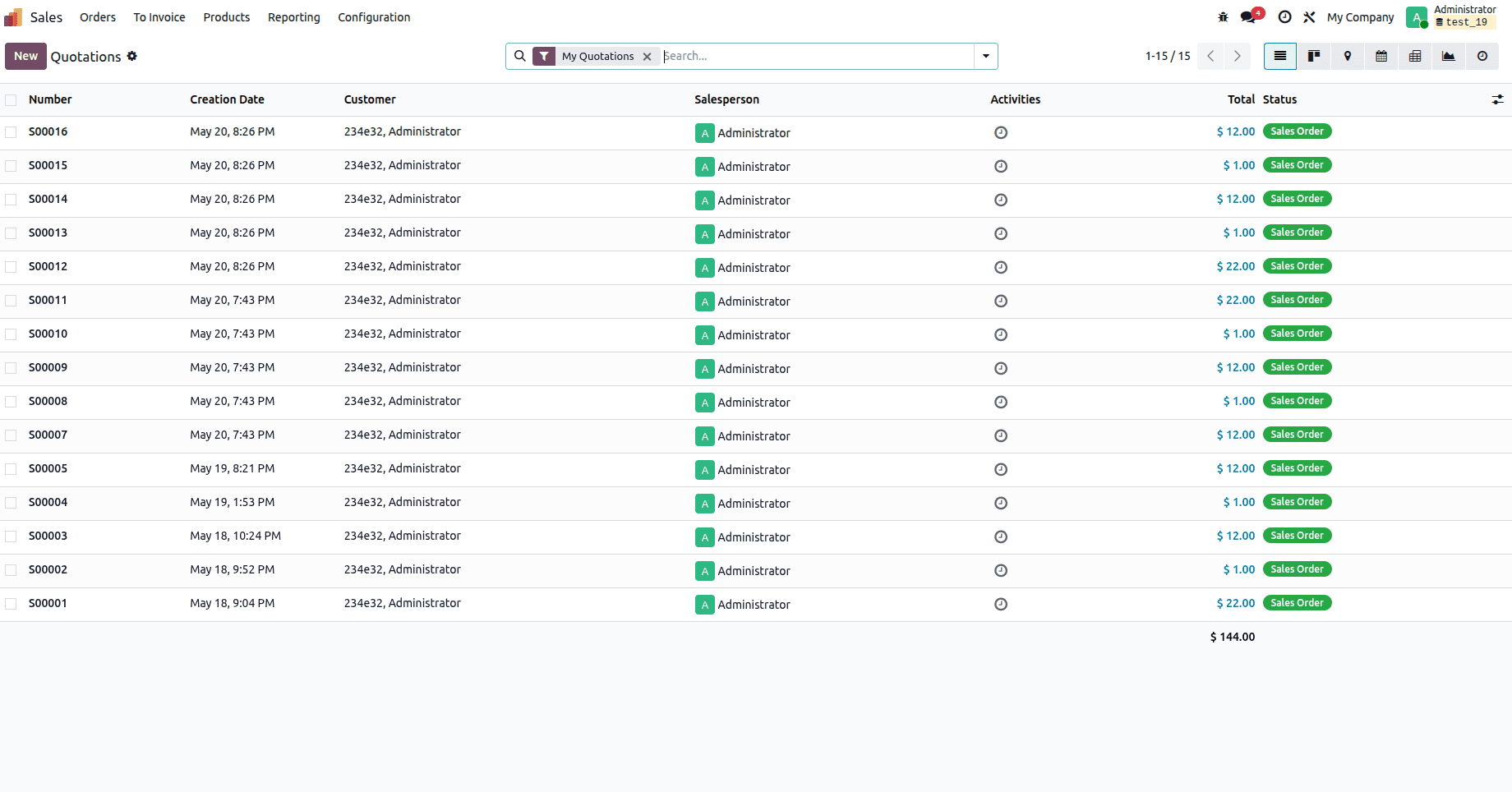
You can see all the draft sale orders are now in the confirmed state.
In this blog, we have discussed how to execute the server action from the Odoo website, a perfect way to minimize your custom module creation, making use of the Odoo behavior at its best. This is the best solution to minimize the custom module creation and make your business workflow smooth and effective. You can use the server action path as an href in either a button or an anchor tag.
To read more about How to Create & Configure Server Actions in Odoo 19, refer to our blog How to Create & Configure Server Actions in Odoo 19.