Feedback from customers is essential for efficient project management. It is possible for companies to assess service quality, track project performance, and guarantee that client expectations are continuously fulfilled over the course of the project.
Through project tasks and task phases, Odoo 19's enhanced and more adaptable client Rating mechanism within the Project module enables businesses to directly gather client feedback. Businesses can set up automated rating requests at particular phases or regularly with Odoo 19's improved workflow, assisting teams in maintaining constant customer communication and transparency.
This blog describes how to set up and utilize Odoo 19's Customer Rating functionality to effectively collect project progress comments.
Enable Customer Rating for Task Stages
In Odoo 19, customer feedback configuration is managed directly from the task stages instead of the Project settings menu.
To configure this feature, navigate to:
Project Module > Configuration > Task Stages
Depending on the needs of the project process, either open an existing task stage or start a new one.
There is a specific Customer Rating section within the stage form.
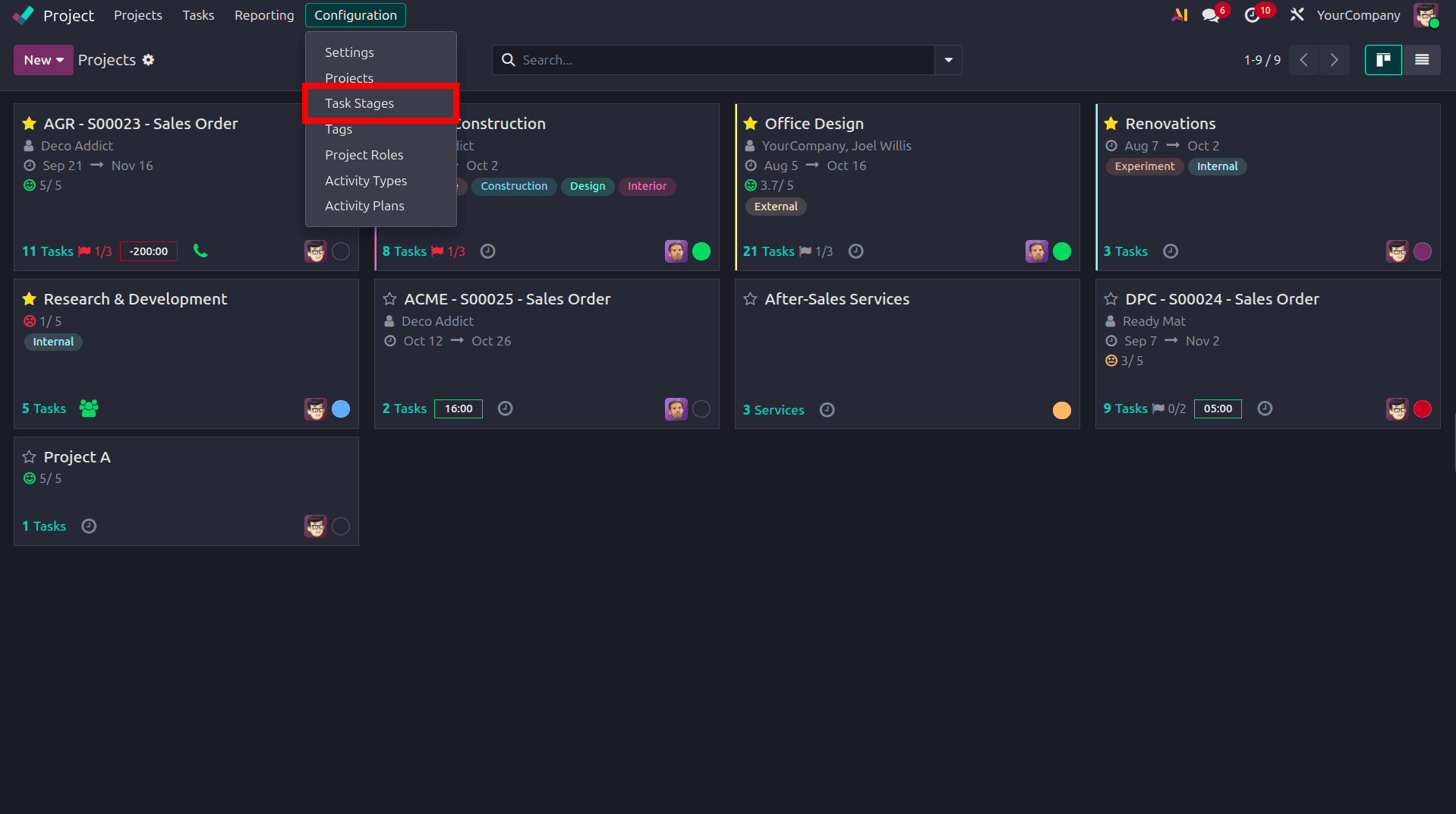
To initiate client feedback requests for the chosen stage, turn on the Send a customer rating request option.
Additional configuration options pertaining to customer rating requests become visible once they are enabled.
Configure the Rating Request Method
There are two ways that Odoo 19 can automatically deliver requests for customer feedback.
If you want the rating request to be initiated as soon as the job reaches the configured stage, choose the When reaching this stage option.
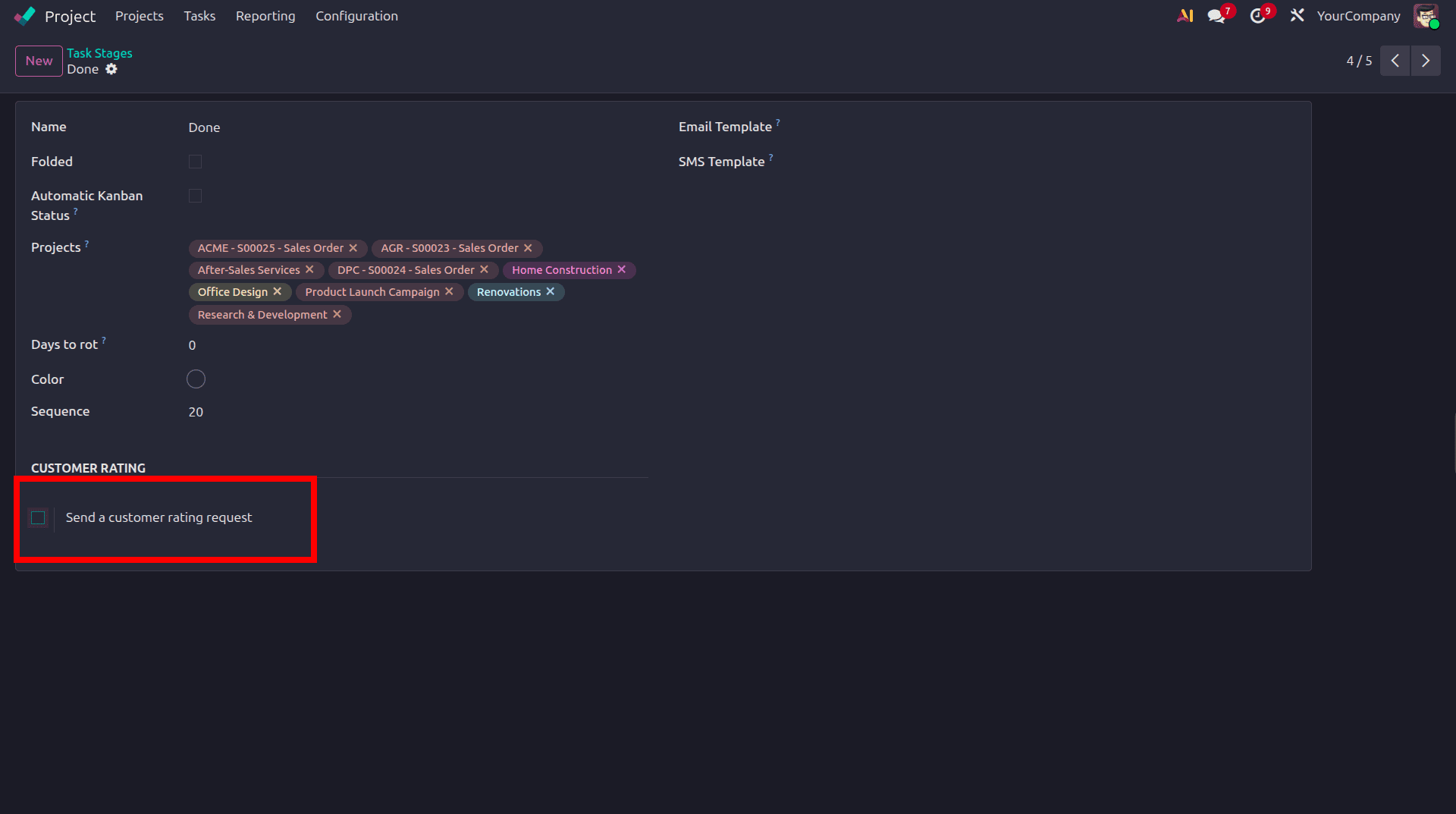
For instance, Odoo will automatically send a customer feedback request email as soon as the job is moved to the Done stage if this option is applied.
This approach is very helpful for:
- Task completion approvals
- Milestone validations
- Delivery confirmations
- Final project reviews
- On a Periodic Basis
Additionally, Odoo 19 adds a new workflow for periodic customer feedback.
An additional field called Rating Frequency is made available by choosing On a periodic basis option.
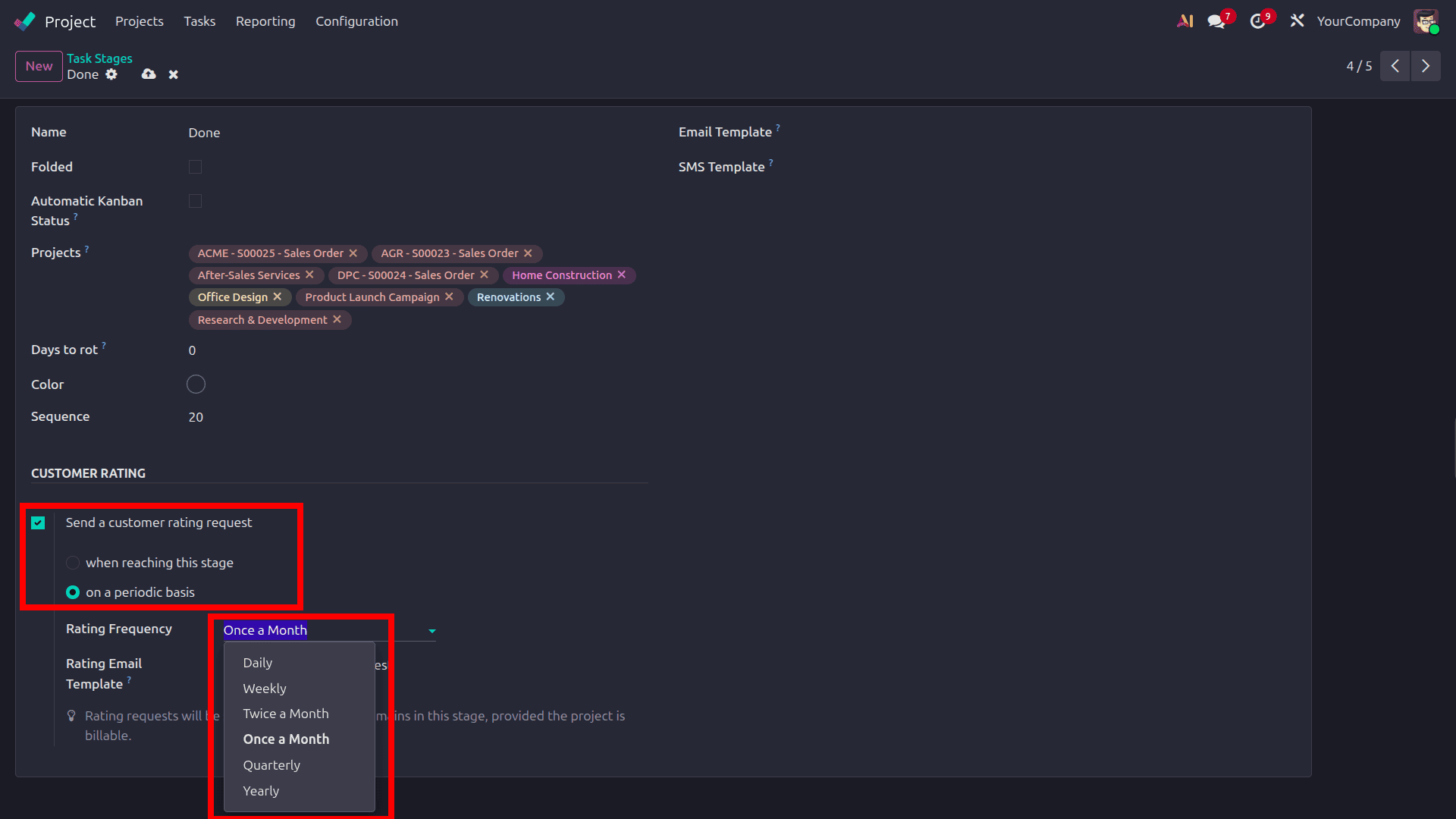
The available frequency options include:
- Daily
- Weekly
- Twice a Month
- Monthly
- Quarterly
- Yearly
While the task is still in the setup stage, Odoo automatically sends requests for client feedback based on the chosen frequency.
This feature is quite helpful for:
- Long-term implementation projects
- Ongoing maintenance services
- Subscription-based projects
- Continuous support operations
For example, if a task is still in the In Progress stage and the frequency is set to Monthly, the customer will receive a feedback request each month until the task moves on to a different stage.
Configure the Rating Email Template
Under the same Customer Rating section, Odoo 19 provides the Rating Email Template field.
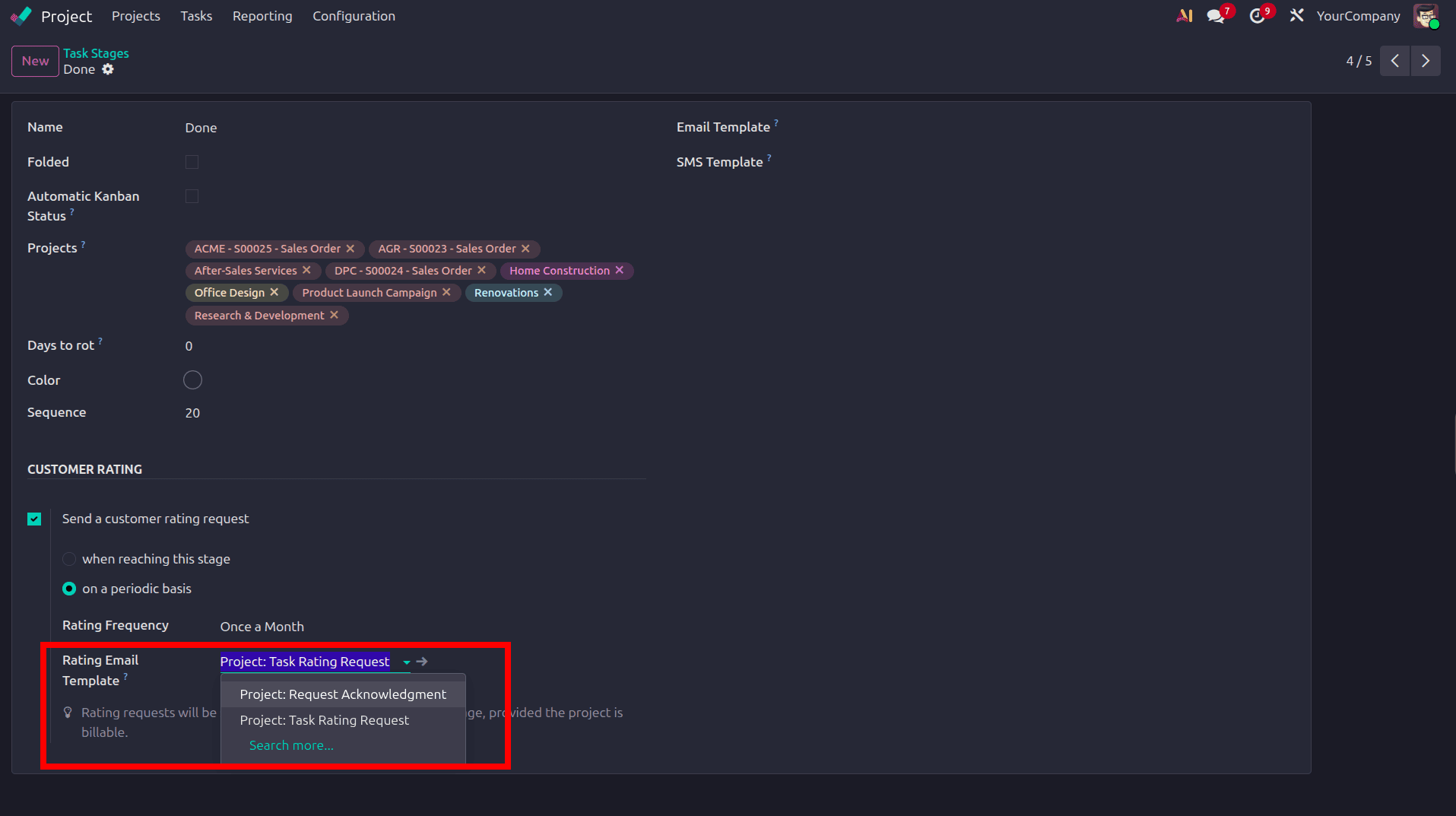
Using this field, users can:
- Select an existing rating email template
- Customize a predefined template
- Create a completely new email template according to business requirements
Because of this flexibility, businesses may continue to communicate with customers in a professional manner that is consistent with their branding and operating standards.
Create a Project
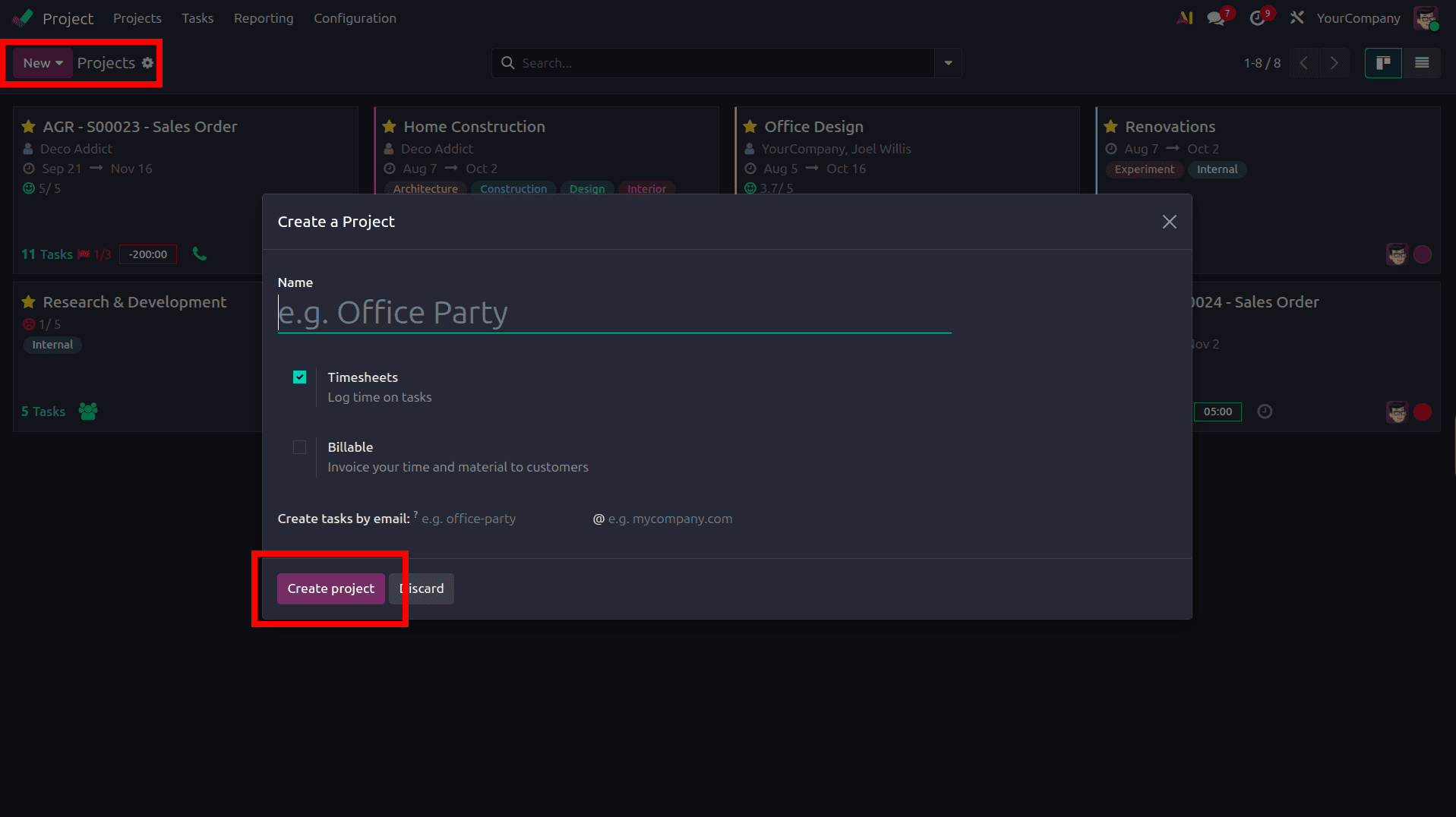
To test the customer feedback workflow, create a new project.
Navigate to:
Project Module > New
In the project creation form:
- Enter the project name
- Enable Billable if the project services need to be invoiced to customers
Then, click Create Project.
Configure Task Stages
Configure the necessary task stages in accordance with the project workflow when the project has been created.
Typical stages may include:
- New
- In Progress
- Review
- Done
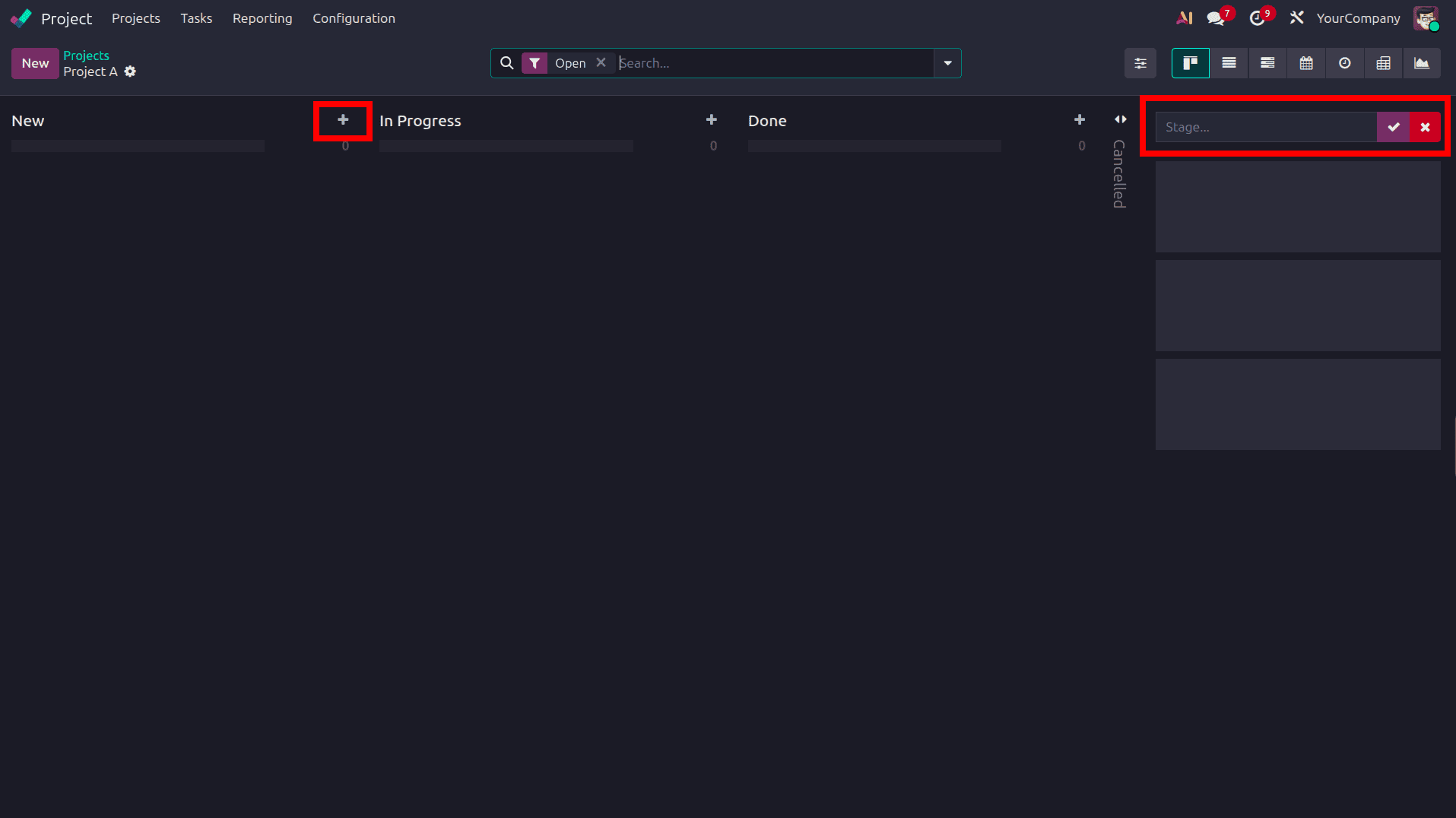
Organizations can better handle feedback requests at various stages of the project by allowing each stage to have its own unique customer rating setting.
Create Tasks
To create tasks within the project:
- Click the + icon available inside a stage
- Enter the task title
- Assign users to the task
Then, click Add.
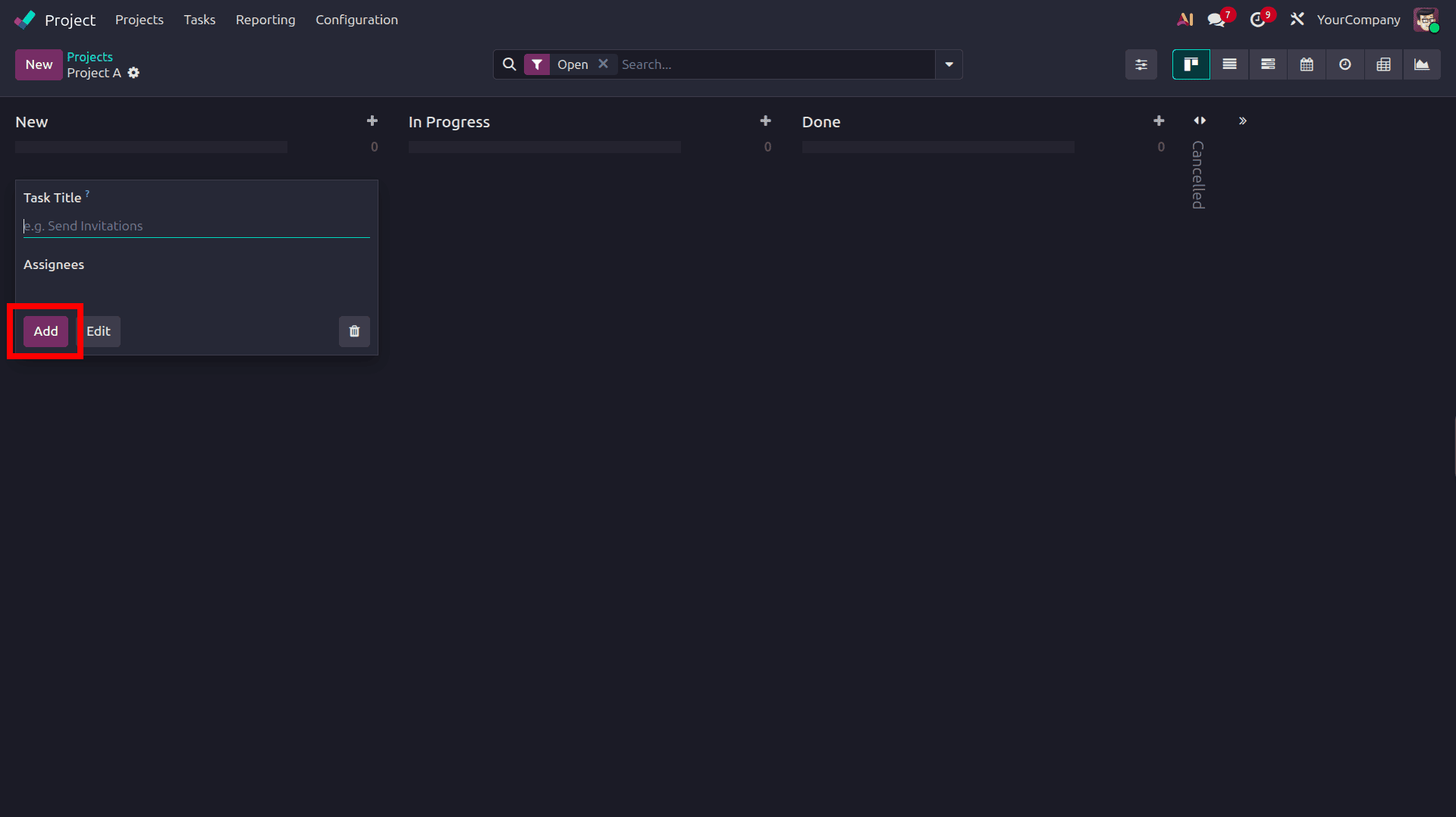
Repeat the process to create all necessary tasks for the project.
Add Customer Information to the Task
Open the task form and configure the customer-related information.
The following details can be added:
- Customer
- Sales Order Item (if applicable)
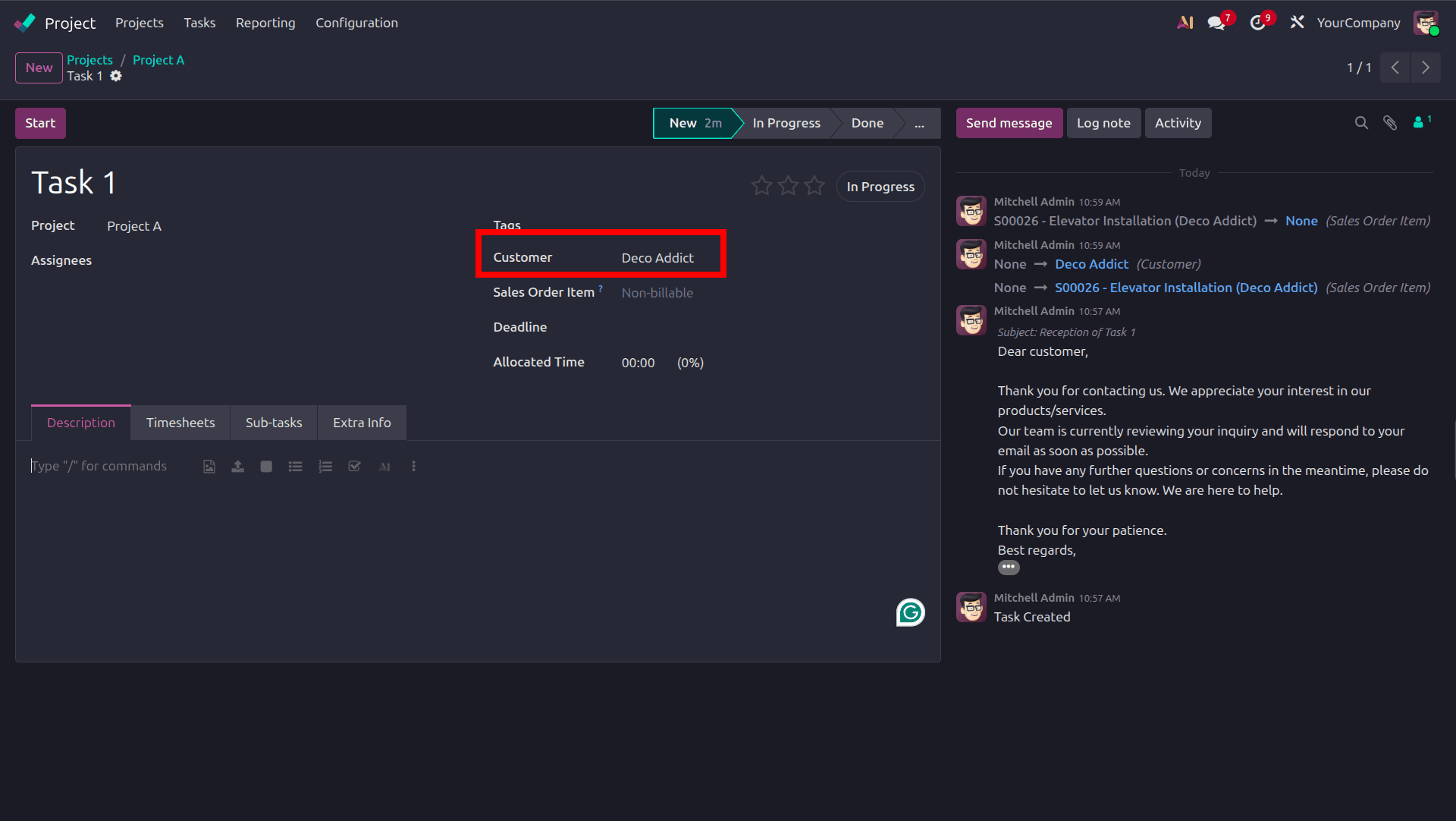
Since the rating request email will be sent to the customer's chosen email address, the customer information is necessary.
Verify the Customer Email Address
It's crucial to confirm that the customer's email address has been set up appropriately after assigning them to the task at hand.
Using the internal link found in the Customer field, open the customer form and verify the Email field.
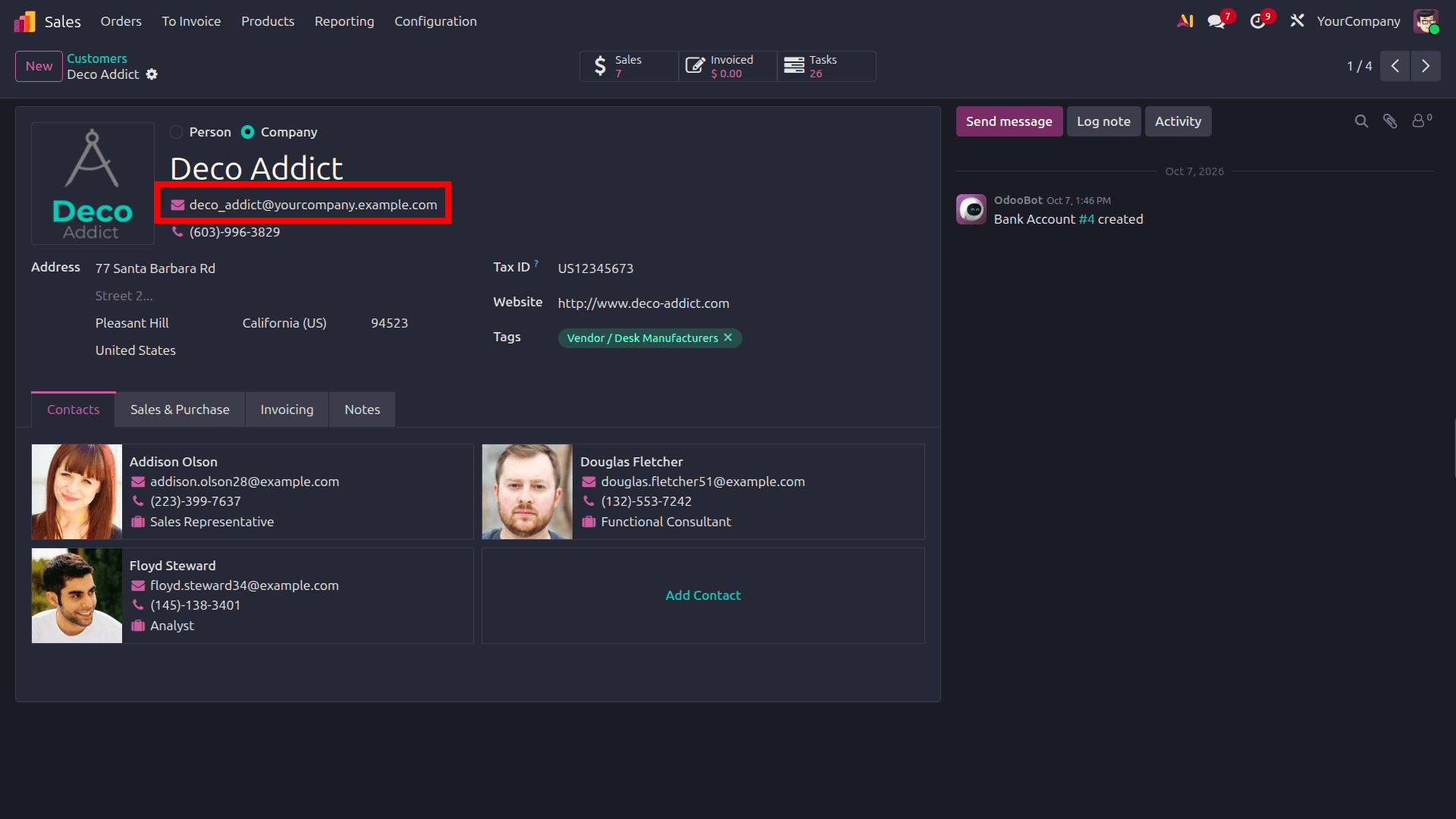
The customer feedback request email will be sent to the selected email address, so be sure it is valid. The rating request email cannot be sent successfully if the email address is not set up correctly.
Configure the Outgoing Email Server
Odoo uses email to send customer rating requests, so an outgoing mail server needs to be set up correctly.
To configure the outgoing email server, navigate to:
Settings > Emails Section
Enable the Use Custom Email Servers option and open the Outgoing Email Servers link.
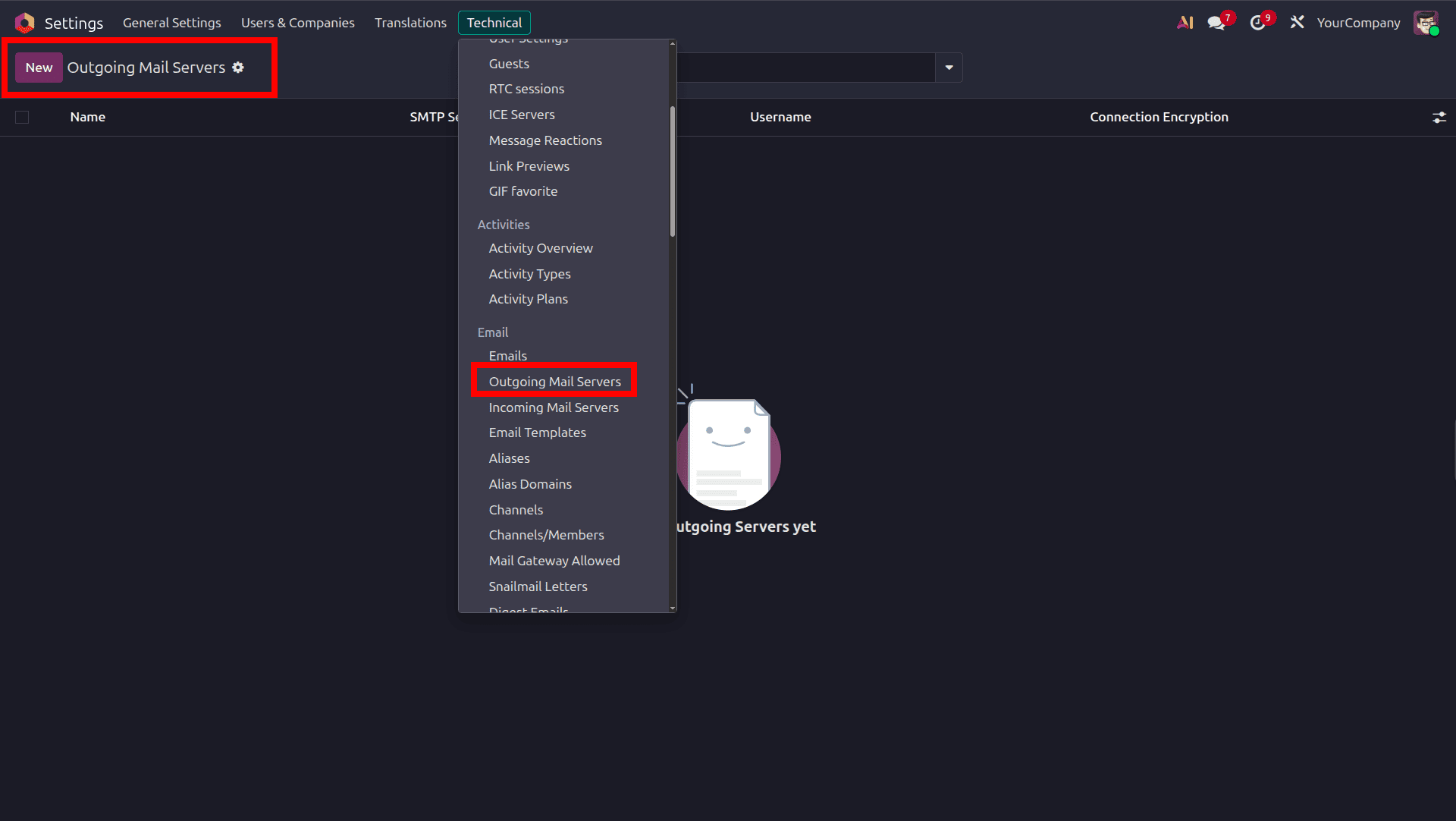
The configured outgoing mail servers will be shown on a new page.
To establish a new outgoing mail server, click the New button.
Enter the necessary information in the outgoing mail server configuration form, including:
- Name
- Server Type
- SSL/TLS Configuration
- Username
- Password
After entering the details, click Test & Confirm to verify the server connection.
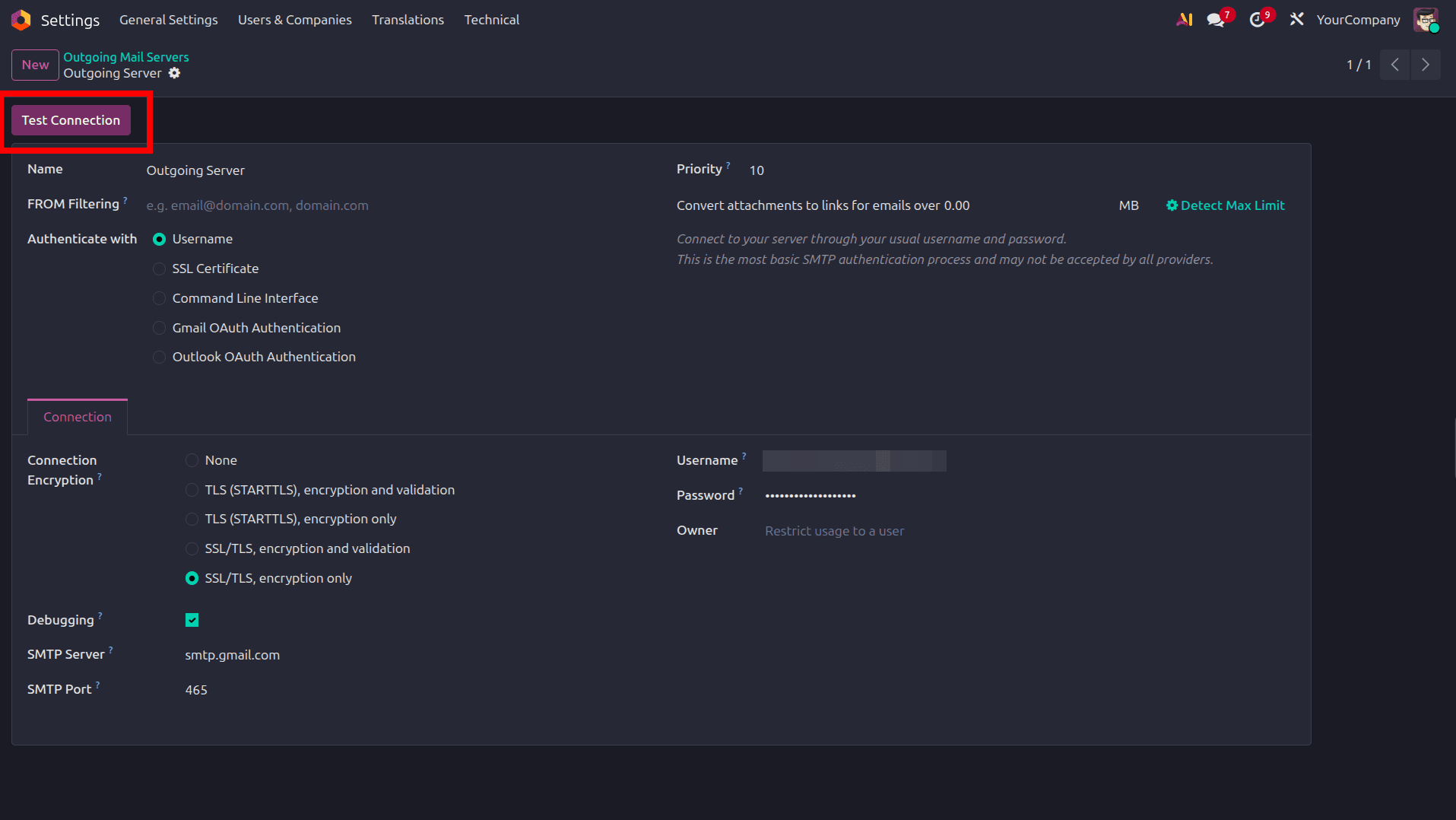
If the configuration is correct, Odoo displays the message:
Connection Test Successful
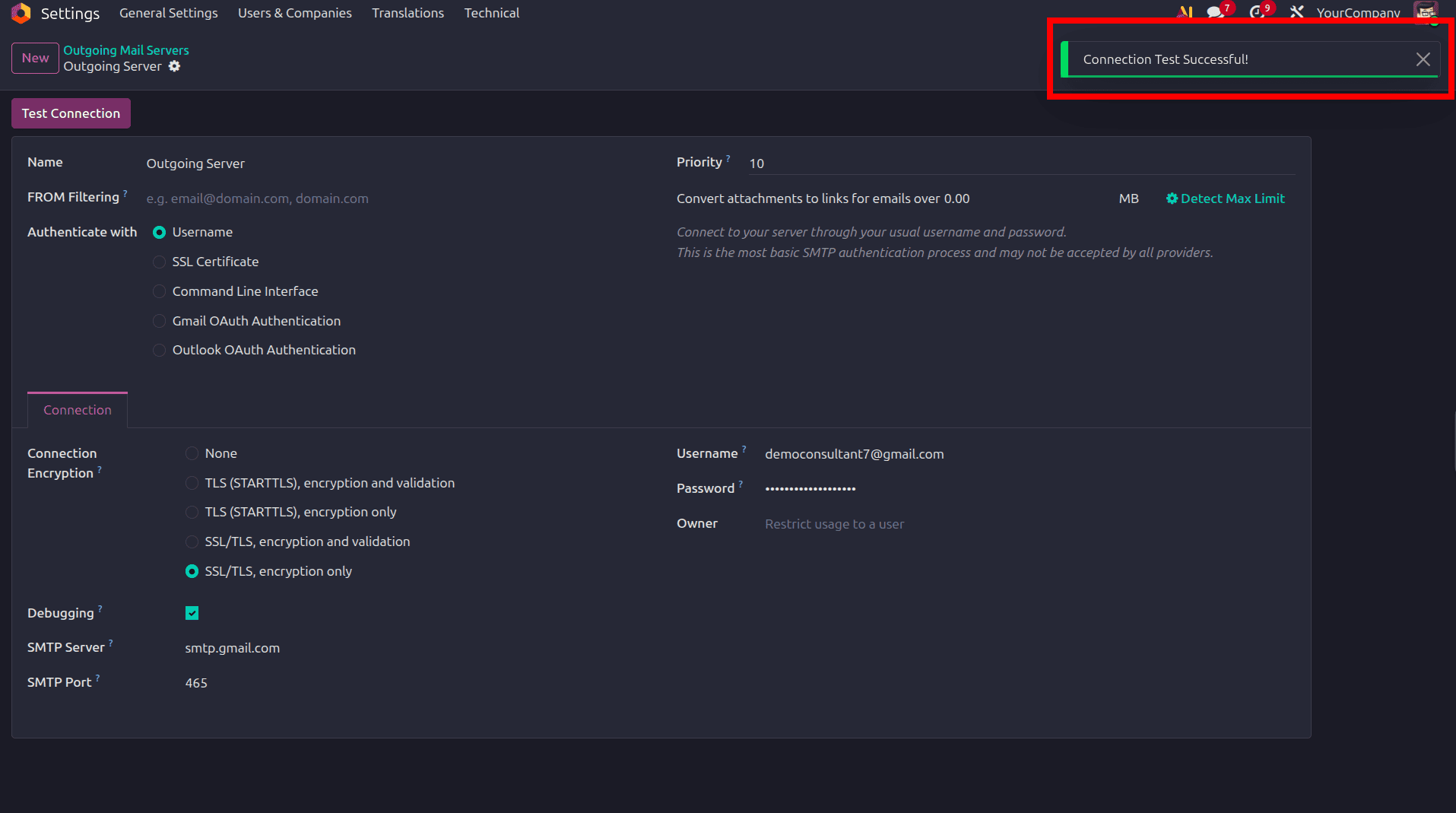
This confirms that Odoo can successfully send outgoing emails.
Move the Task to the Configured Stage
Return to the project task and move it to the stage set up for customer rating requests after the configuration is finished.
For instance, if the rating email template has been set up for that stage, then move the job to the Done stage.
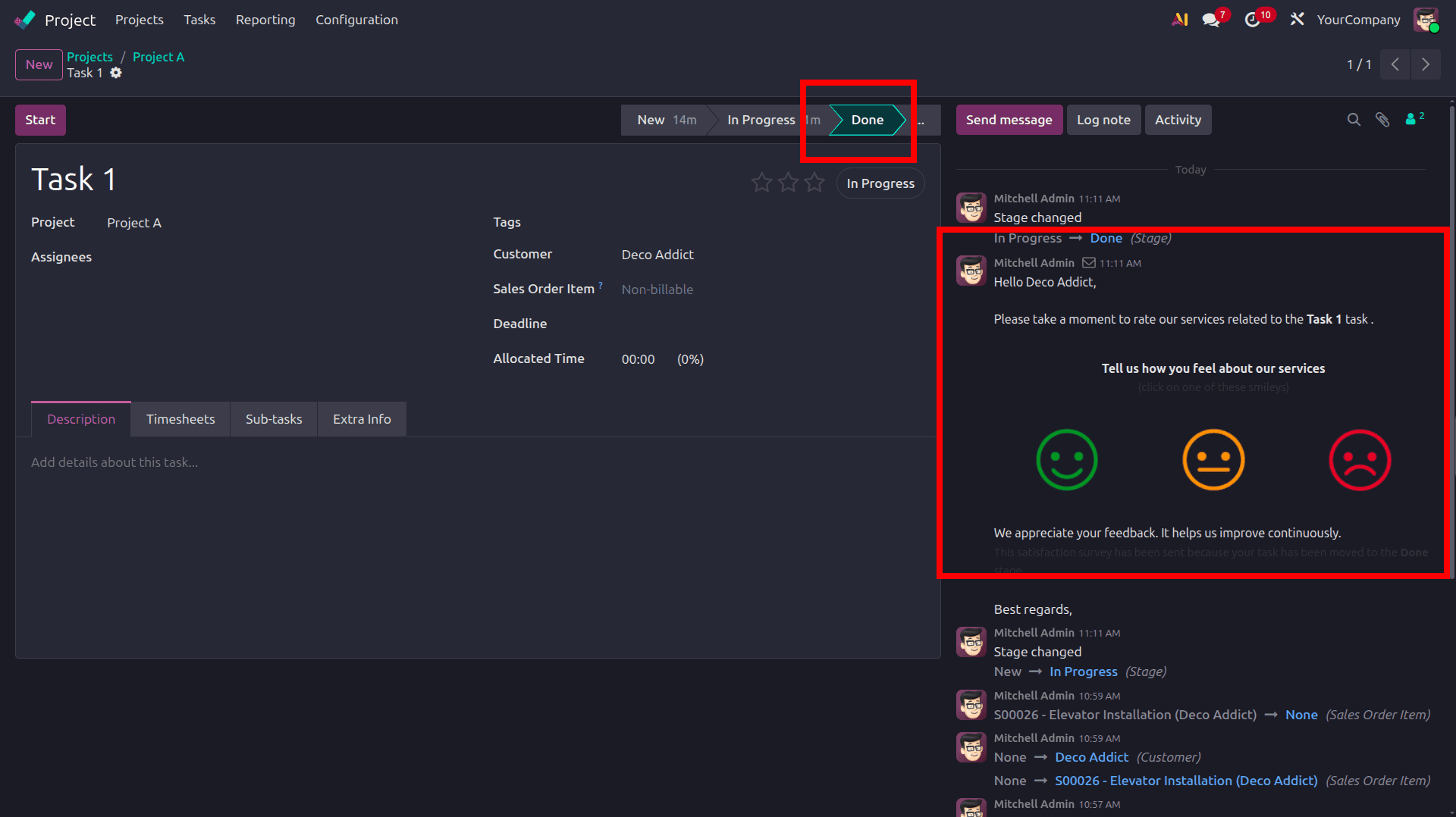
Odoo automatically sends the customer rating request email as soon as the task reaches the set stage.
Customer Receives the Rating Request Email
The customer automatically receives the email requesting input as the task reaches the configured stage.
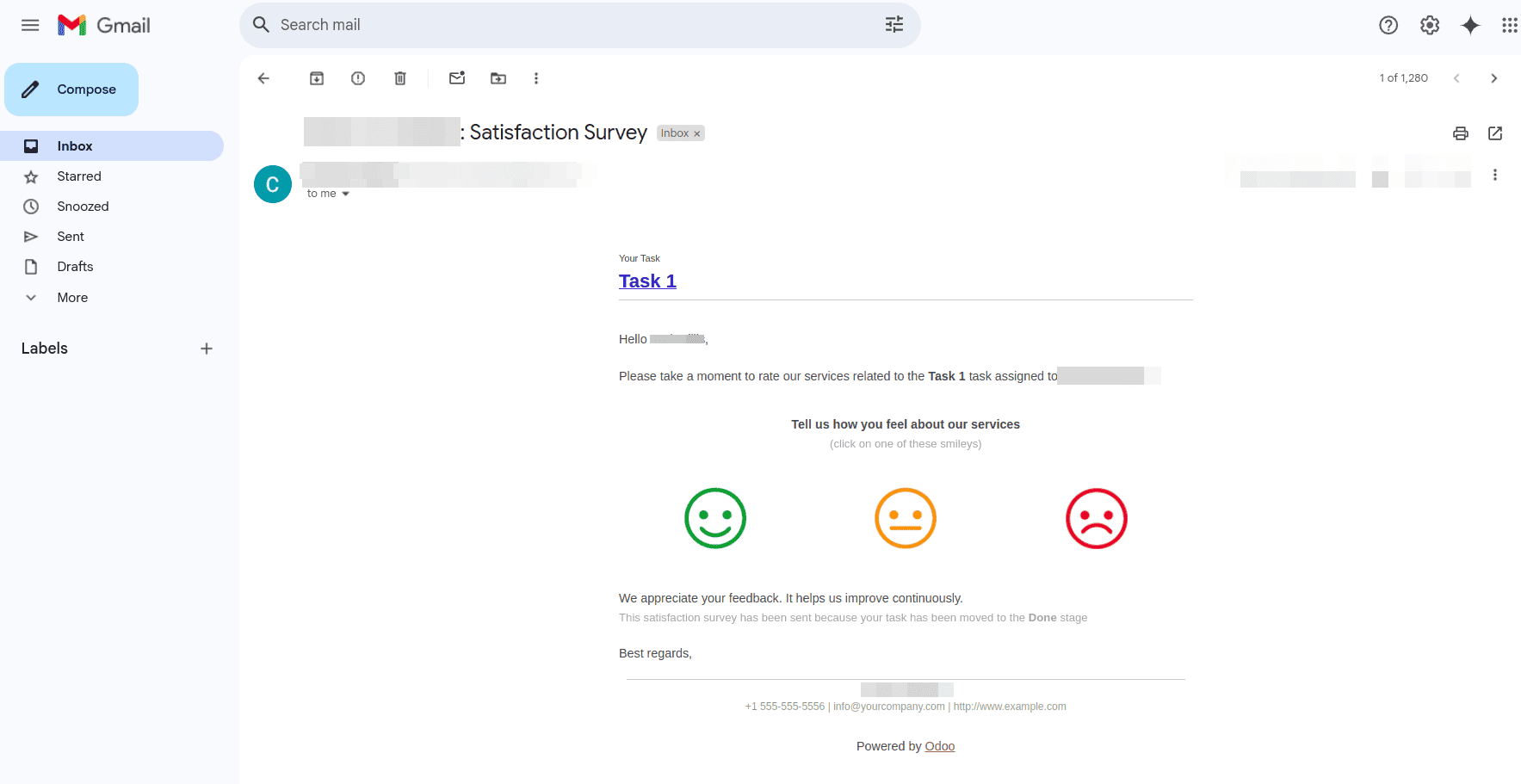
The customer can immediately assess the project's progress or finished work by using the rating choices included in the email.
Customer Submits Feedback
The customer is taken to a feedback page where they can leave more remarks after choosing a rating.
The client can click Send input after providing thorough input in the text field.
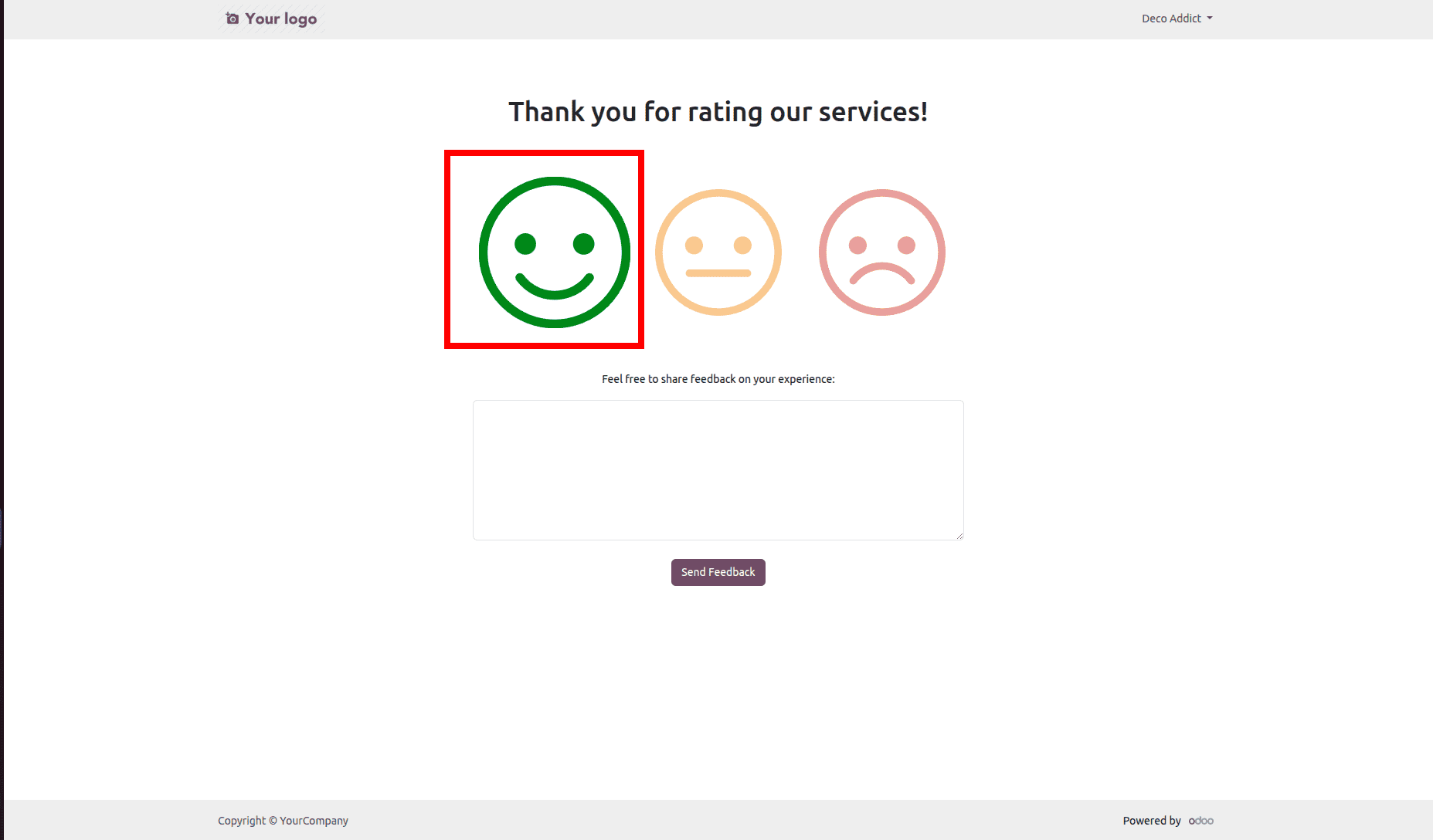
This makes it possible for companies to get written feedback from customers as well as rating scores.
View Customer Rating in the Task
To see the customer rating that was submitted, go back to the project task.
A green smiley signal shows on the task if the customer gives good feedback.
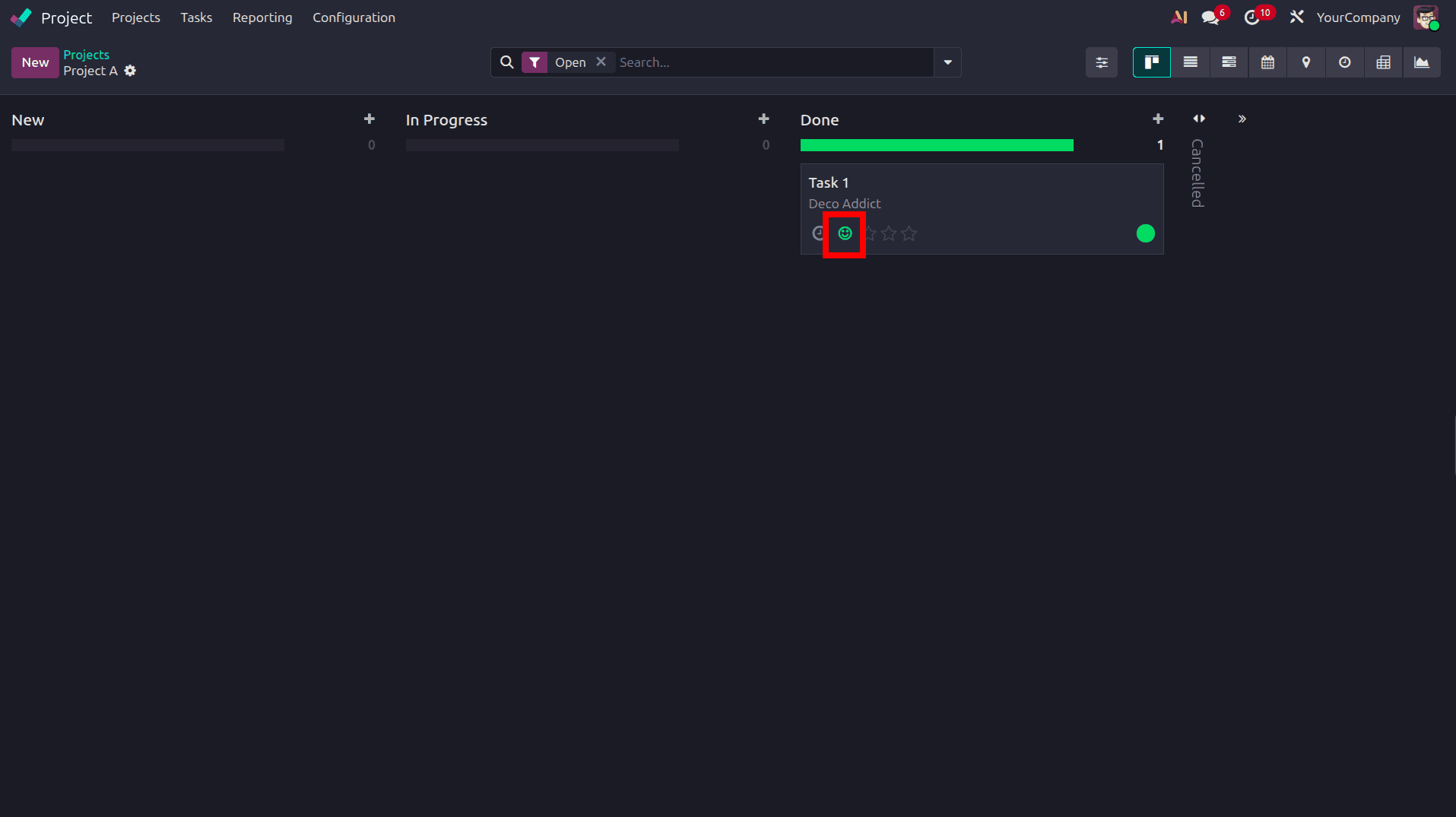
Project teams may easily determine customer satisfaction levels with the use of this visual indication.
Automatic Kanban Status Update
Odoo automatically updates the task status depending on client feedback when the Automatic Kanban Status option is enabled in the task stage setup.
For positive feedback:
- The Kanban status changes to Approved
- A green status indicator becomes visible
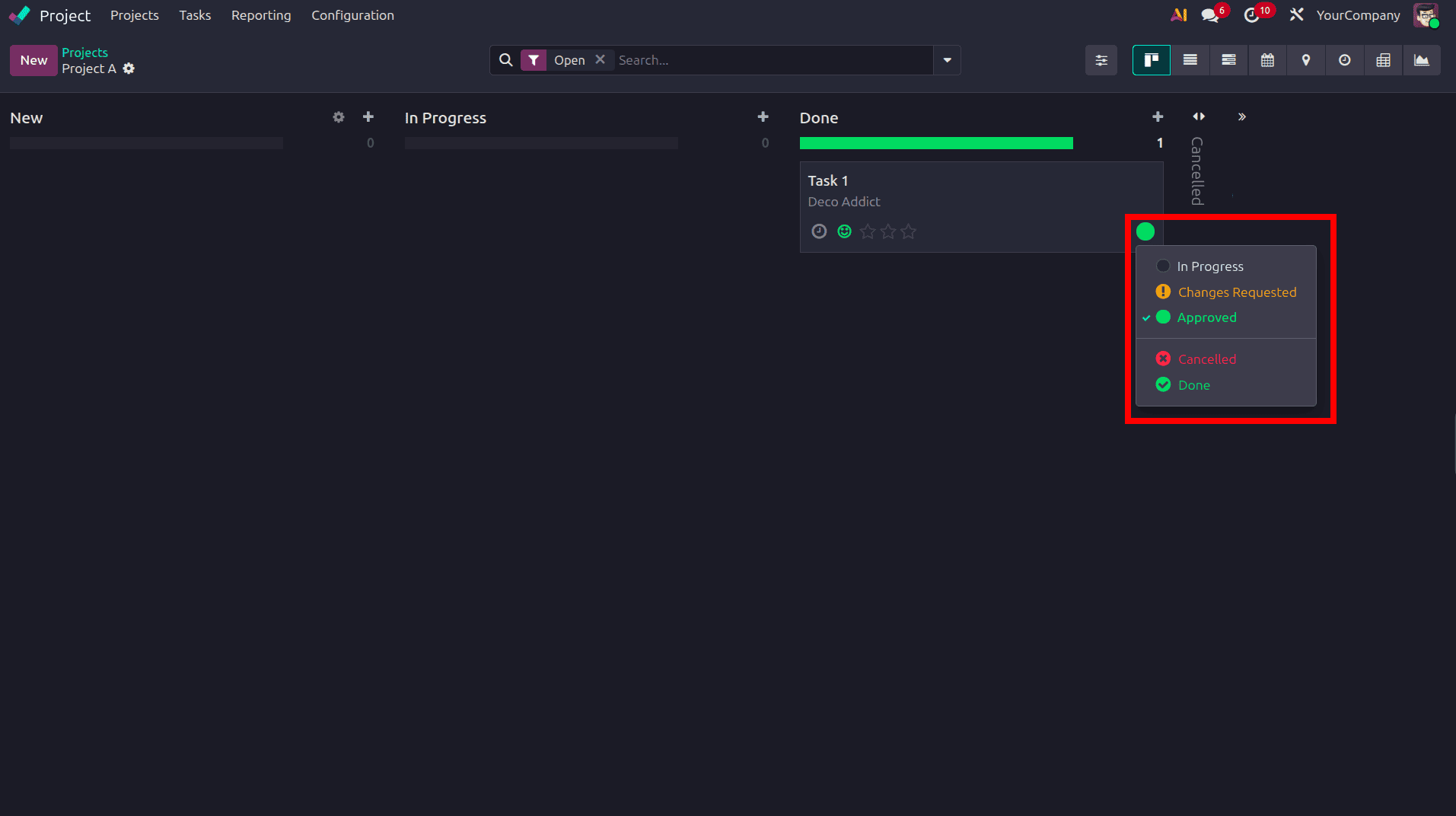
For neutral or negative feedback:
- The status changes to Changes Requested
Project managers can use this technology to find activities that need additional action or customer clarification.
View Feedback in the Chatter
The task chatter also contains the textual comments that the customer has provided.
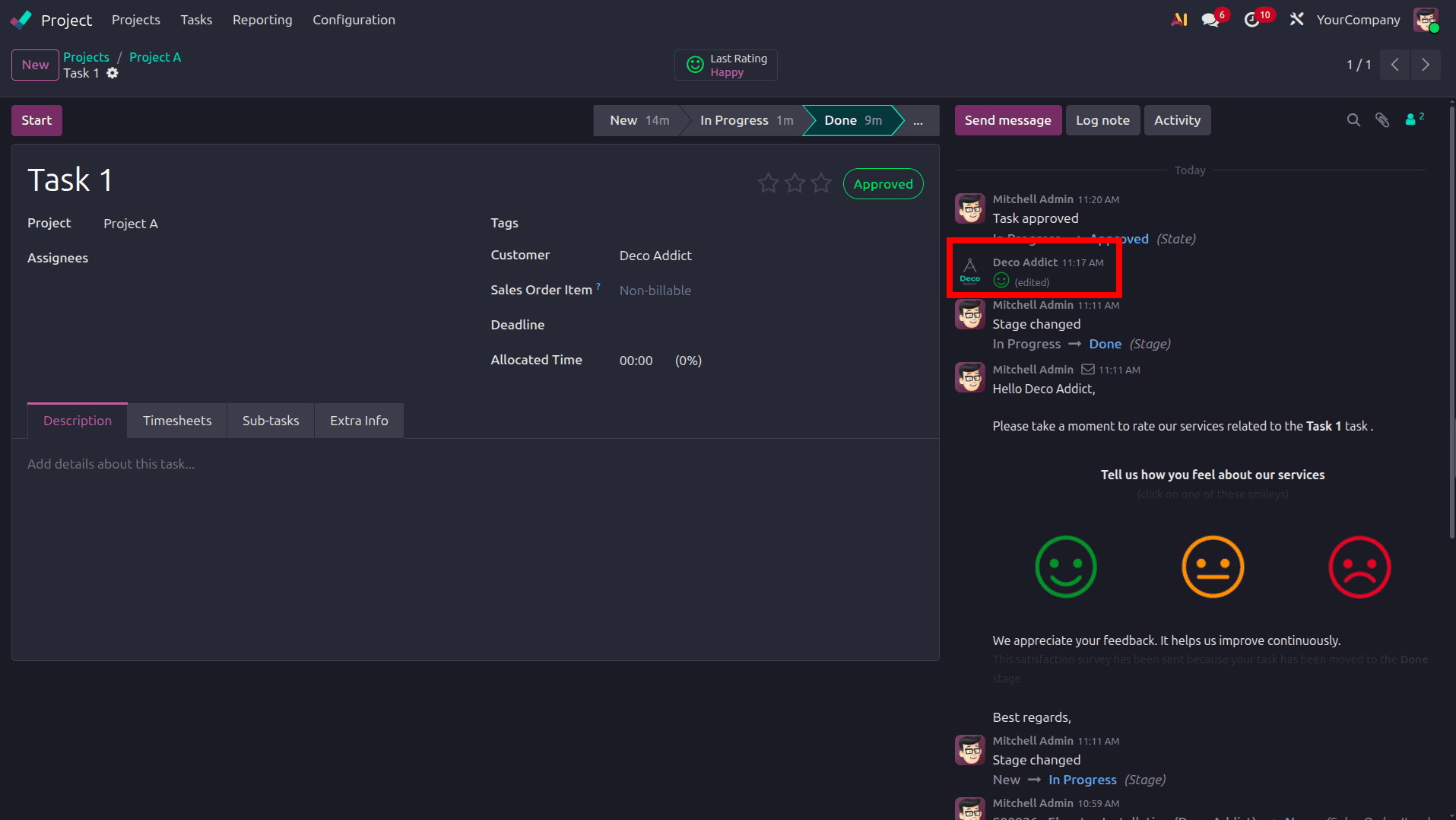
This eliminates the need for project teams to navigate between menus in order to review client comments directly from the task.
Access the Last Rating Smart Button
Odoo 19 also provides a Last Rating smart button within the task form.
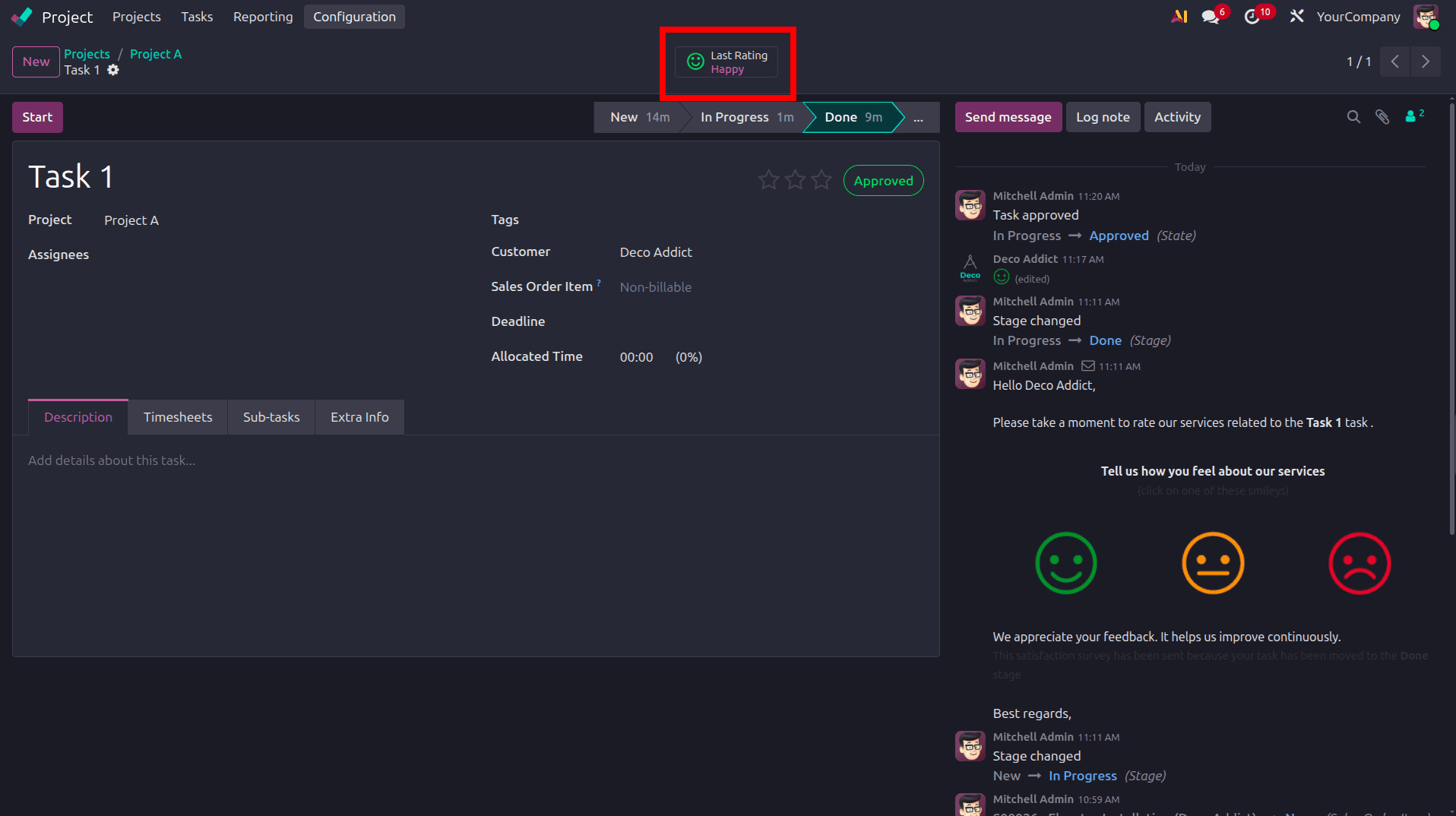
Clicking this smart button opens the detailed customer rating record.
View Detailed Rating Information
Inside the rating record, users can view complete feedback details, including:
- Customer Name
- Assigned Employee
- Project
- Task
- Submitted Rating
- Customer Comments
- Submission Date
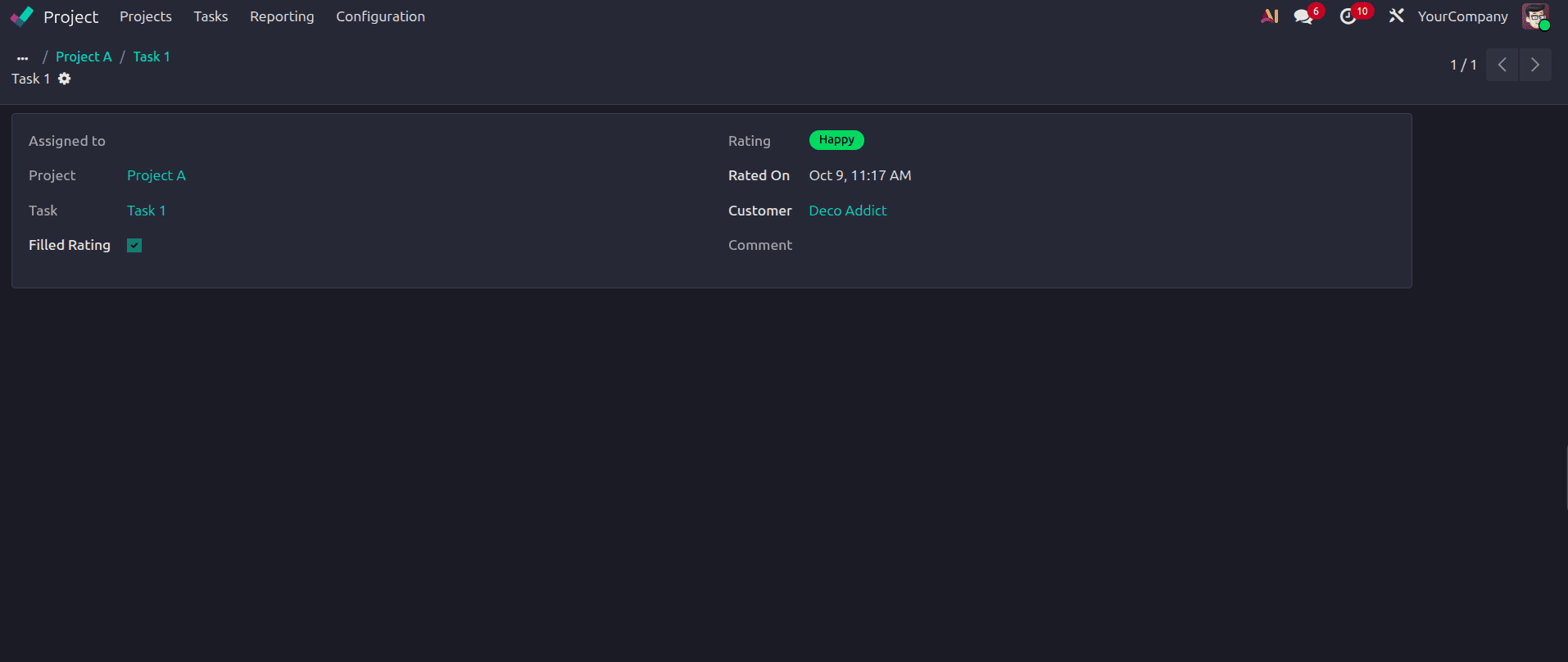
Project managers and consultants may better analyze customer satisfaction and maintain accurate project tracking with this centralized perspective.
Through the Project module, Odoo 19 offers a more sophisticated and adaptable method for gathering customer feedback on project progress.
Businesses may maintain improved communication and transparency throughout the project lifetime with the help of stage-based rating settings, periodic feedback scheduling, customized email templates, automatic Kanban updates, and centralized rating administration.
In the end, these characteristics lead to better project outcomes and healthier customer connections by assisting businesses in regularly monitoring customer happiness, enhancing service quality, and proactively addressing customer problems.
To read more about How to Gather Customer Feedback on Project Progress in Odoo 18, refer to our blog, How to Gather Customer Feedback on Project Progress in Odoo 18.