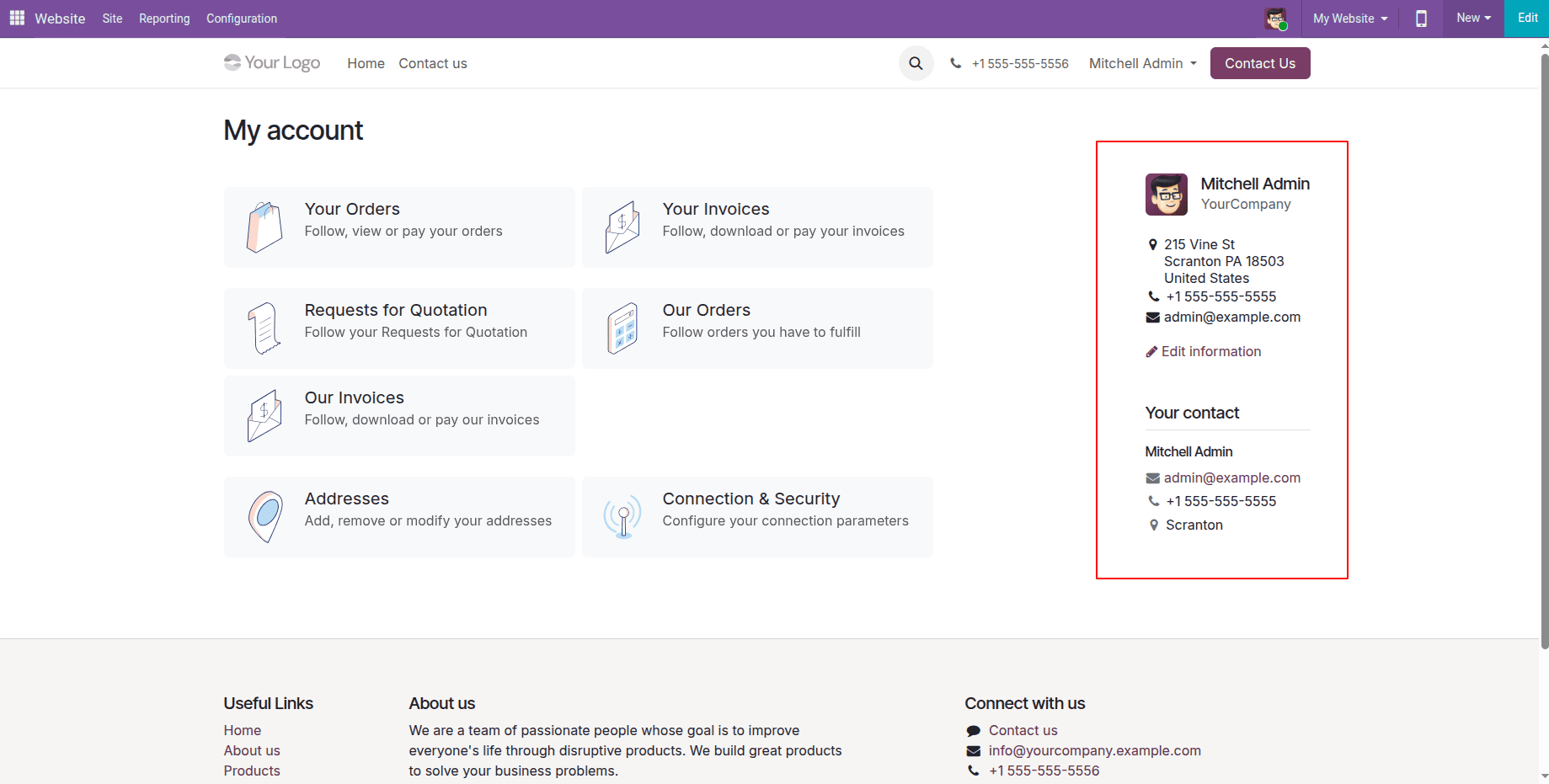
The customer portal serves as the principal channel for communication between an enterprise and its clientele outside of the company’s internal processes. When a user of the portal logs in and navigates over to the My Account option, the screen displays cards with documents on the left side of the screen and a side menu that contains user image, name, company, contact information, edit information option, and salesperson assigned on the right side of the screen. In most cases, this side menu is the only means by which clients know how the company has registered them.
In reality, default information is not sufficient enough. A distributor would want the customers to know their reference number to be able to provide it while calling or sending emails. A service provider may want customers to know their website or quickly access their address book. Lots of clients would also prefer to have a fast opportunity for checking their debts without the need to go through all their invoices one by one. Moreover, whenever new information is shown, clients have expectations of being able to update it manually.
The sidebar lacks a backend form view, meaning that these modifications cannot be conducted using the backend view editor. The sidebar has a QWeb template created by the website itself, and in Odoo 19 it is specified as an independent template called portal.side_content, which gets referenced by portal.portal_layout every time a page activates the my_details flag, like in the case of the My Account main page. The template is utilized twice on the same page: the first time for the desktop sidebar and the second time for the offcanvas panel that is displayed on mobile. As a result, any alterations of portal.side_content incorporates changes in both of these places at the same time.
In this post, we are going to perform progressive extension of the sidebar using standard fields and safe modification methods. In the end, we will make one of these fields editable through the Edit information form.
Understanding the Sidebar Template
The portal.side_content base template consists of 4 components that can be conveniently targeted. The first one is the header containing the avatar, username, and company’s name. The second one is the div with o_portal_my_details class that displays the partners’ email, phone, and address through the contact widget. The third one is the link Edit information leading to the page /my/account. The last one is the div portal_contact class that calls portal.portal_contact to render the assigned salesperson, if any exists. All parts have a unique and stable class name or href through which we can write xpath expressions independently from element’s location.
Example 1: Displaying Additional Partner Details
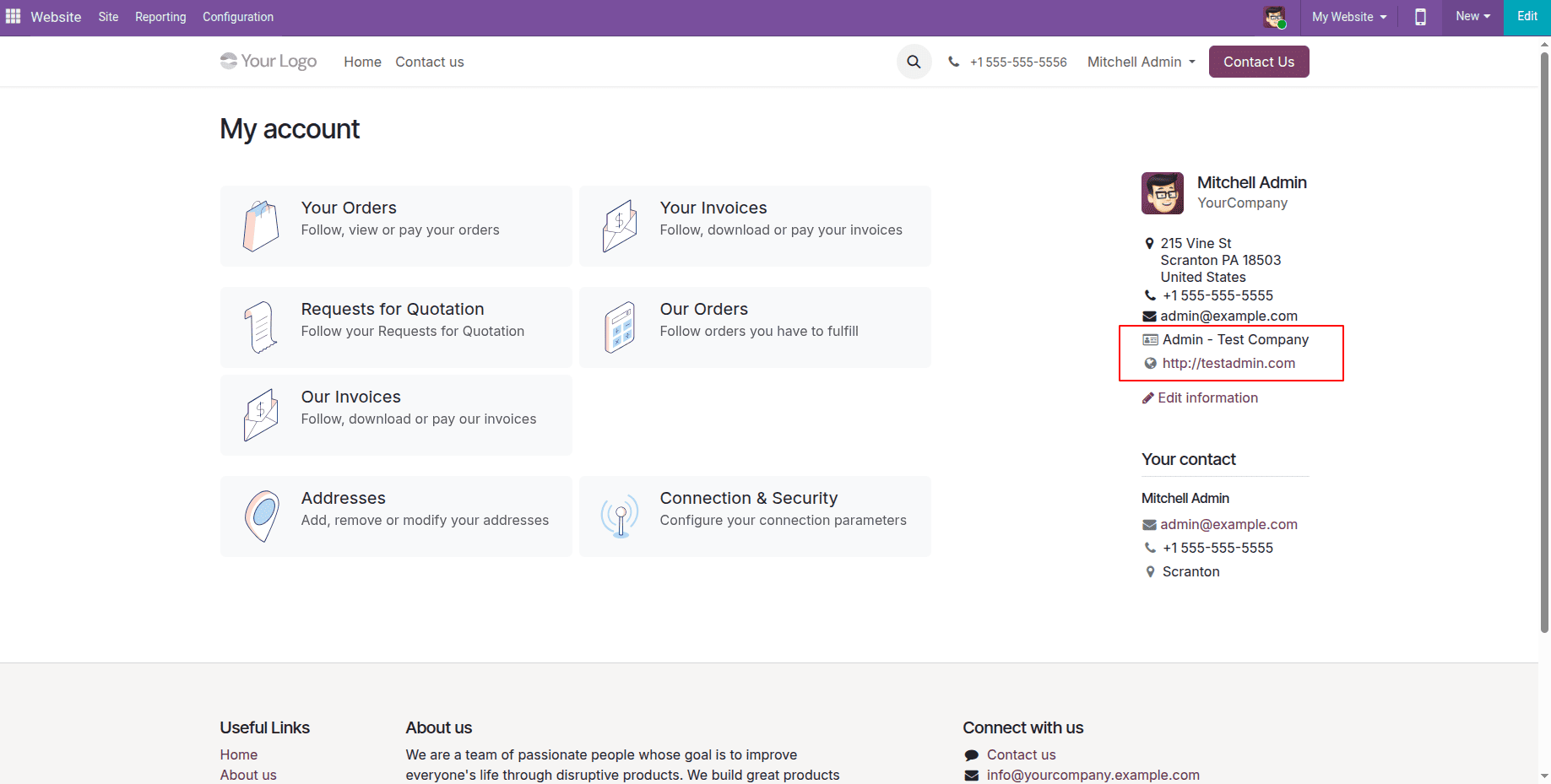
The first customisation of the template displays the customer reference and the website below the existing contact details.
Xml Code:
<?xml version="1.0" encoding="utf-8"?>
<odoo>
    <template id="side_content_extra_details"
              inherit_id="portal.side_content"
              name="Portal Sidebar: Extra Details">
        <xpath expr="//div[hasclass('o_portal_my_details')]" position="inside">
            <div t-if="user_id.partner_id.ref"
                 class="d-flex align-items-center gap-1 mt-1">
                <i class="fa fa-id-card-o fa-fw text-600" title="Customer Reference"/>
                <span t-out="user_id.partner_id.ref"/>
            </div>
            <div t-if="user_id.partner_id.website"
                 class="d-flex align-items-center gap-1 mt-1">
                <i class="fa fa-globe fa-fw text-600" title="Website"/>
                <a t-att-href="user_id.partner_id.website"
                   target="_blank"
                   class="text-break"
                   t-out="user_id.partner_id.website"/>
            </div>
        </xpath>
    </template>
</odoo>
The modification makes use of the portal.side_content and targets the container o_portal_my_details using the hasclass function to identify the element by its class without being affected by any additional classes that may be appended by Odoo. The use of position="inside" function ensures that the newly added rows are placed after the output of the contact widget, which results in the reference and website being displayed just below the lines for the telephone number and the email address. The availability of the variable user_id means that it is not necessary to change the controller to be able to retrieve the related partner record. In addition, as the two rows are wrapped in the t-if condition, neither row will be displayed if there is no customer reference or website set. The Font Awesome icons in use with the classes fa-fw and text-600 follow the design style applied in the contact widget and guarantee a proper visual alignment of the new rows with the old ones.
Portal My Account Sidebar without any customisation:
Sidebar with customer reference and website:
Example 2: Adding a Custom Link Below Edit Information
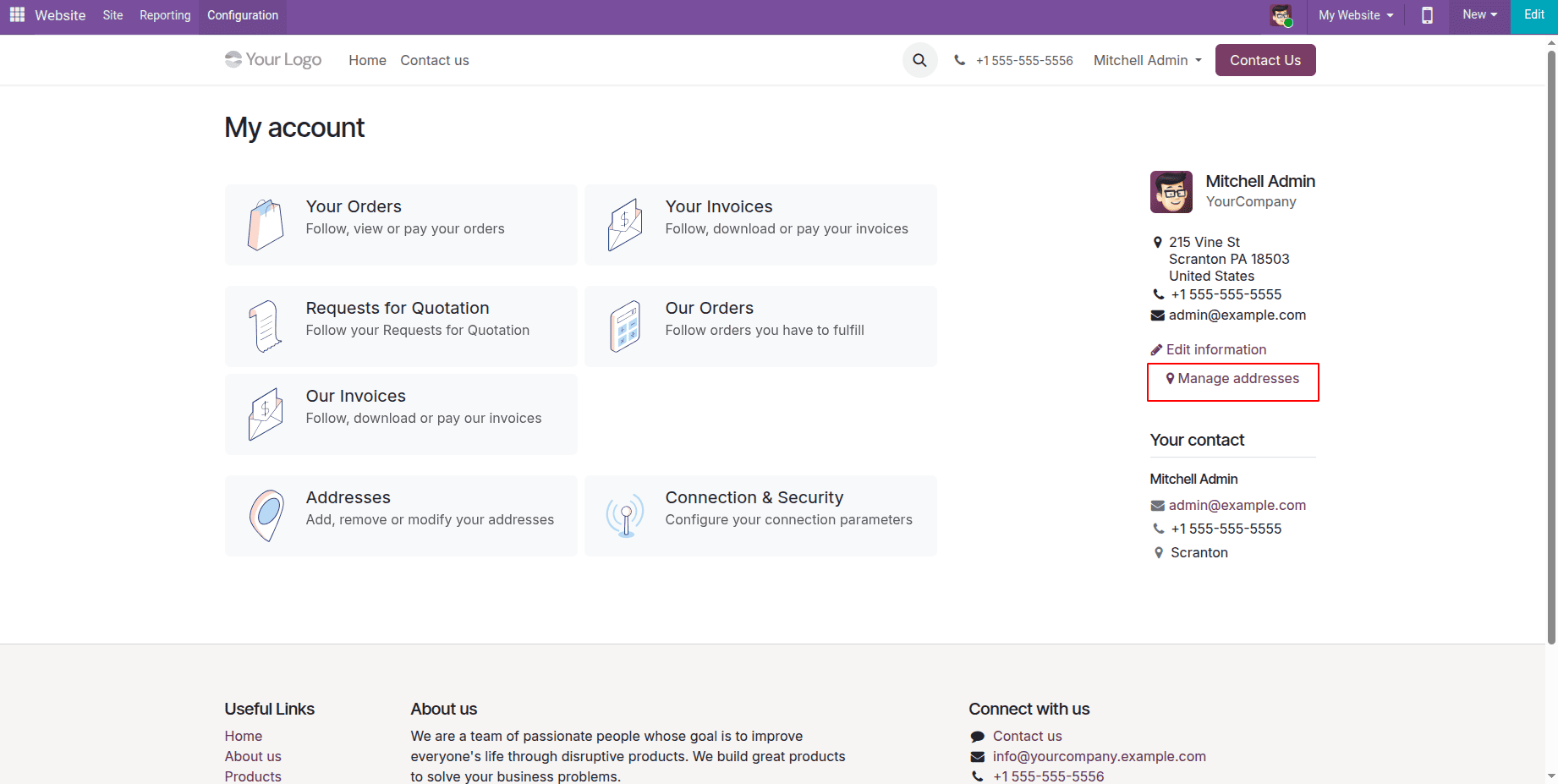
The setup of Manage Addresses shows how easy it is for people to access their address books from the side of the webpage.
Xml code:
<?xml version="1.0" encoding="utf-8"?>
<odoo>
    <template id="side_content_addresses_link"
              inherit_id="portal.side_content"
              name="Portal Sidebar: Addresses Link">
        <xpath expr="//a[@href='/my/account']" position="after">
            <a role="button" href="/my/addresses" class="btn btn-link p-0 mt-2 d-block">
                <i class="fa fa-map-marker"/> Manage addresses
            </a>
        </xpath>
    </template>
</odoo>
The xpath here looks for the Edit information link through its href and not its text so that it can still apply when the website is available in another language. The new anchor also uses the same classes as the current one, which creates a facade of unity; it is just that the d-block gives it a new line and mt-2 adds a small distance.
Sidebar with the Manage addresses link:
Example 3: Adding a Downloadable Customer Statement
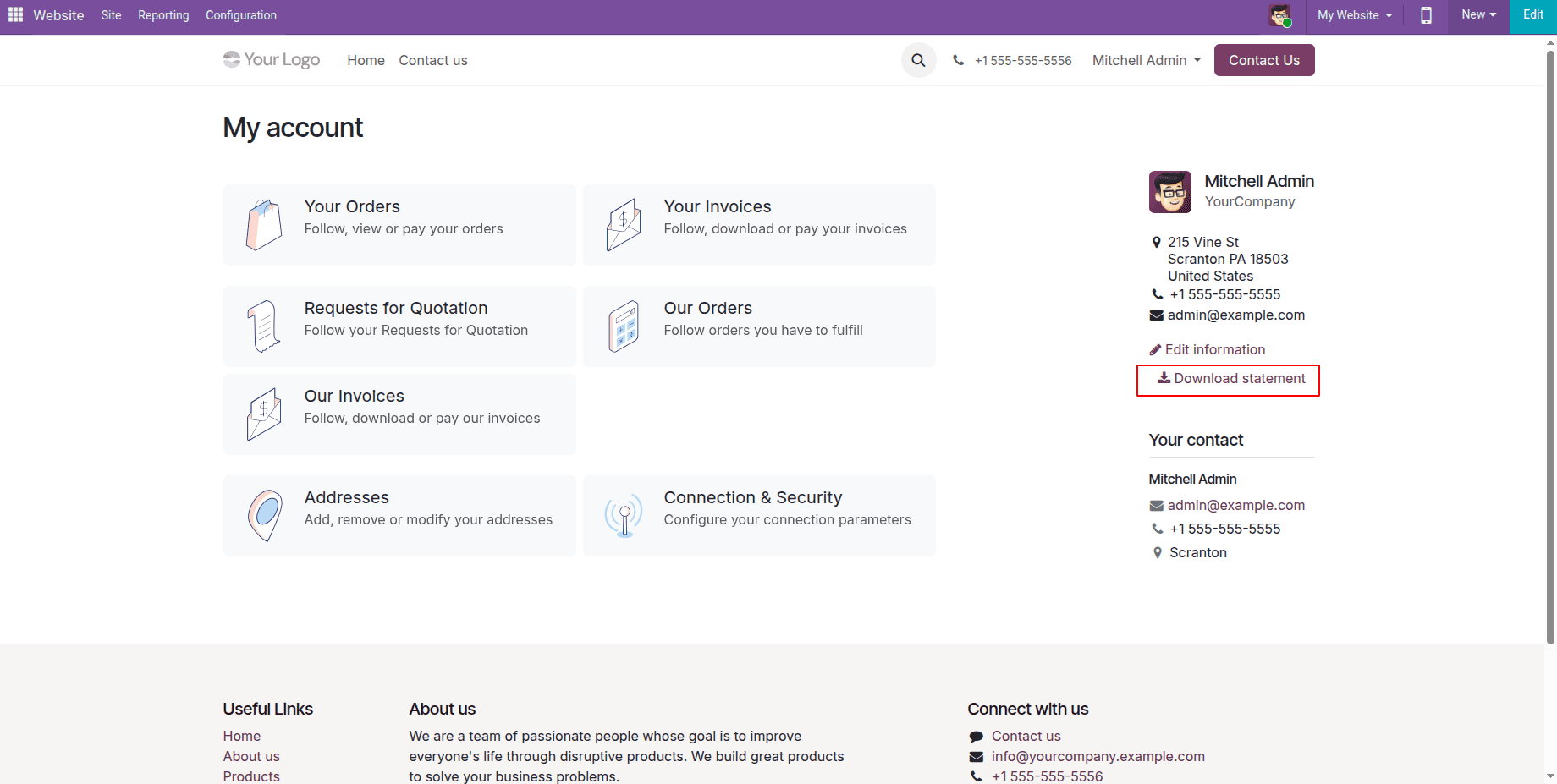
Customers frequently ask if it is possible to quickly see what they owe without opening every last invoice. In this case, we have added a Download Statement link on the sidebar that generates a PDF showing all open invoices and credit notes, as well as the total amount due. It consists of three parts: a report action with a template, a controller route to render the PDF, and the link in the sidebar.
Report action and template (XML code):
<?xml version="1.0" encoding="utf-8"?>
<odoo>
    <record id="action_report_portal_statement" model="ir.actions.report">
        <field name="name">Customer Statement</field>
        <field name="model">res.partner</field>
        <field name="report_type">qweb-pdf</field>
        <field name="report_name">portal_sidebar_extend.report_portal_statement</field>
        <field name="report_file">portal_sidebar_extend.report_portal_statement</field>
        <field name="print_report_name">'Statement - %s' % object.name</field>
    </record>
    <template id="report_portal_statement">
        <t t-call="web.html_container">
            <t t-foreach="docs" t-as="partner">
                <t t-set="o" t-value="partner"/>
                <t t-call="web.external_layout">
                    <t t-set="invoices" t-value="partner.env['account.move'].search([
                        ('commercial_partner_id', '=', partner.id),
                        ('move_type', 'in', ('out_invoice', 'out_refund')),
                        ('state', '=', 'posted'),
                        ('payment_state', 'not in', ('paid', 'in_payment', 'reversed')),
                    ], order='invoice_date asc, id asc')"/>
                    <div class="page">
                        <h2>Customer Statement</h2>
                        <p>
                            <strong t-field="partner.name"/><br/>
                            Statement Date: <span t-out="context_timestamp(datetime.datetime.now()).strftime('%d/%m/%Y')"/>
                        </p>
                        <table class="table table-sm o_main_table mt-4">
                            <thead>
                                <tr>
                                    <th>Number</th>
                                    <th>Invoice Date</th>
                                    <th>Due Date</th>
                                    <th class="text-end">Total</th>
                                    <th class="text-end">Amount Due</th>
                                </tr>
                            </thead>
                            <tbody>
                                <tr t-foreach="invoices" t-as="inv">
                                    <td><span t-field="inv.name"/></td>
                                    <td><span t-field="inv.invoice_date"/></td>
                                    <td><span t-field="inv.invoice_date_due"/></td>
                                    <td class="text-end">
                                        <span t-field="inv.amount_total_signed"
                                              t-options="{'widget': 'monetary', 'display_currency': inv.company_currency_id}"/>
                                    </td>
                                    <td class="text-end">
                                        <span t-field="inv.amount_residual_signed"
                                              t-options="{'widget': 'monetary', 'display_currency': inv.company_currency_id}"/>
                                    </td>
                                </tr>
                                <tr t-if="not invoices">
                                    <td colspan="5" class="text-center">No outstanding invoices.</td>
                                </tr>
                            </tbody>
                        </table>
                        <div t-if="invoices" class="row justify-content-end">
                            <div class="col-5">
                                <table class="table table-sm">
                                    <tr class="border-black fw-bold">
                                        <td>Total Due</td>
                                        <td class="text-end">
                                            <span t-out="sum(invoices.mapped('amount_residual_signed'))"
                                                  t-options="{'widget': 'monetary', 'display_currency': partner.env.company.currency_id}"/>
                                        </td>
                                    </tr>
                                </table>
                            </div>
                        </div>
                    </div>
                </t>
            </t>
        </t>
    </template>
</odoo>
The report action is defined on the res.partner model with the qweb-pdf type, and as binding_model_id is not defined, it is not shown in the print menu of the backend and can only be accessed from the portal route. The template is created in accordance with the standard report layout, calling web.html_container and web.external_layout, which makes the PDF include the header, footer and branding configured in the company. The ‘o’ variable is assigned to the current partner object as external_layout checks it in order to define which letterhead to be used. Invoices are searched using commercial_partner_id so that the person who logs into the system on behalf of the company gets the documents of the whole company but not only invoices meant for them. The domain will include only posted invoices and credit notes that are not paid, in payment or reversed. This way the documents with open balances are remaining.
Controller (Python code):
from odoo import http
from odoo.http import content_disposition, request
from odoo.addons.portal.controllers.portal import CustomerPortal

class PortalStatement(CustomerPortal):
    @http.route('/my/statement/pdf', type='http', auth='user', website=True)
    def portal_statement_pdf(self, **kw):
        """Render the open items statement of the logged-in customer as a PDF."""
        partner = request.env.user.partner_id.commercial_partner_id
        pdf, _ = request.env['ir.actions.report'].sudo()._render_qweb_pdf(
            'portal_sidebar_extend.action_report_portal_statement',
            res_ids=partner.ids,
        )
        filename = 'Statement - %s.pdf' % partner.name
        return request.make_response(pdf, headers=[
            ('Content-Type', 'application/pdf'),
            ('Content-Length', len(pdf)),
            ('Content-Disposition', content_disposition(filename)),
        ])
The controller inherits CustomerPortal and maps the route /my/statement/pdf with auth='user', which permits only the users logged in to enter it. The partner is sourced from request.env.user instead of deriving from a URL parameter, indicating that the customer cannot access the statement of another customer just by changing the link to it. The report is rendered with sudo since the portal users cannot read the report operations or accounting information outside their documents. This is safe, though, as the record is strictly limited to the commercial partner of the current user. The method _render_qweb_pdf returns the content and the format of the PDF, while the response is built with the correct content type and a content-disposition header. The browser prompts to download the file as Statement-Customer Name.pdf.
Sidebar link (XML code):
<?xml version="1.0" encoding="utf-8"?>
<odoo>
    <template id="side_content_statement_link"
              inherit_id="portal.side_content"
              name="Portal Sidebar: Download Statement">
        <xpath expr="//a[@href='/my/account']" position="after">
            <a role="button" href="/my/statement/pdf" target="_blank"
               class="btn btn-link p-0 mt-2 d-block">
                <i class="fa fa-download"/> Download statement
            </a>
        </xpath>
    </template>
</odoo>
The link is found after Edit information is implemented via the same href-based xpath as Example 2 plus using the same button style so that consistency in the sidebar is maintained. The attribute target="_blank" ensures that the PDF is opened in a new tab, which helps in retaining the place in the portal. As this instance reads data related to the invoice, the custom module needs to have an account in its dependencies list in addition to the portal.
Sidebar with the Download statement link:
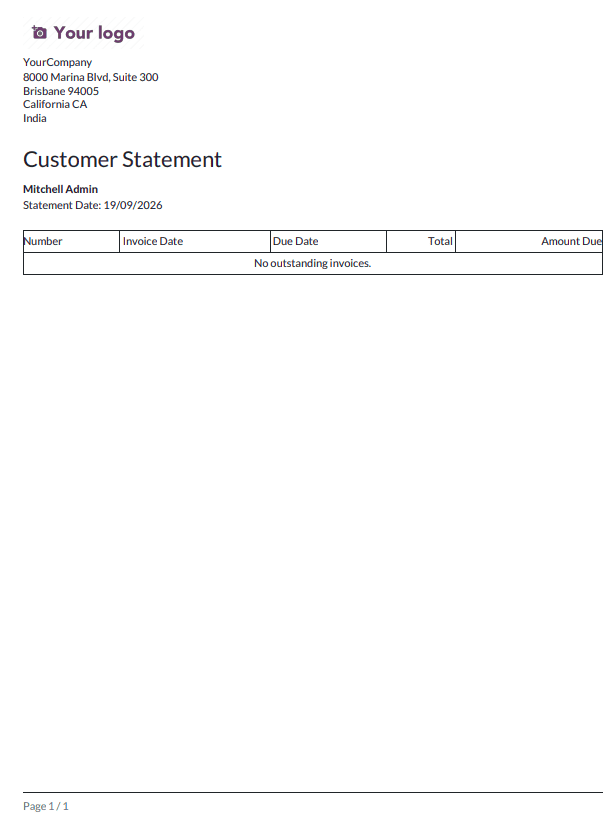
Generated customer statement PDF:
The aim of this article is to demonstrate the inheritance and the extension of the "My Account" sidebar in the Odoo 19 customer portal. Firstly, we identified the portal side content template, which is what serves the sidebar as being responsible for rendering the sidebar's contents in both the desktop layout and the mobile off canvas. Secondly, we expanded the sidebar content to include additional partner information, such as the customer’s reference and website. We also added a customized link below “Edit Information” in the sidebar, along with a downloadable customer statement generated from a QWeb report through a secure controller route. In making these changes, we applied xpath expressions based on class names, attributes, and names instead of positions, which made our customization stable through updates, while core has maintained control of the overall sidelines structure. The same applies to any other detail or document you want your clients to have access to through the sidebar.
To read more about Overview of Different Types of Inheritance in Odoo 19, refer to our blog Overview of Different Types of Inheritance in Odoo 19.