Odoo provides a flexible business platform for commodity sales online. Odoo's user-friendly Website module streamlines online commerce. The website module and the eCommerce module are combined in the Odoo instance. Business owners can quickly set up and manage their online store with Odoo's built-in website shop tool. The Odoo website app's further interaction with other Odoo apps, such as Inventory, Accounting, and others, offers a complete solution for successful online sales.
A corporate website provides a variety of goods and services. Every business can set up its online store in a unique way. Some online retailers merely provide product images and prices. Nevertheless, some websites also include extra product details, like client testimonials, etc.
Online merchants, however, always show the actual price. In addition to the actual sales price, a client must pay tax while purchasing a product. The price that consumers pay to buy a product from an online merchant is known as the product selling price. The product's price, any relevant taxes, and any additional fees or charges are all included in this pricing.
Whether a business-to-business (B2B) or business-to-consumer (B2C) client is being served has a significant impact on the choice between tax-included and tax-excluded pricing in Odoo E-Commerce.
B2B Sales: Prices are usually shown tax-excluded because companies are often eligible to collect VAT or other taxes. Odoo makes this possible by allowing user-specific pricing lists and displaying tax amounts separately at checkout, in accordance with standard B2B invoicing and accounting procedures.
B2C Sales: Prices are usually shown with taxes included because end customers don't care about tax claims. By allowing e-commerce sites to show final prices that include all taxes, Odoo guarantees transparency and a smooth shopping experience for retail customers.
Some websites list the goods' sales price as the real selling price. This demonstrates that the displayed selling price includes both the sales price and the tax amount. The tax-inclusive pricing is known as the "Tax Included Price." In these cases, the customer just has to cover the cost of the display. There is no additional amount for tax when paying for the order.
However, the online shop may occasionally just display the product's discounted price. That pricing does not include tax. As a result, the consumer must pay the tax on an individual basis. Therefore, the actual payment amount does not appear until the product has been added to the cart. Therefore, in order to complete the transaction, the buyer must also pay the applicable tax amount. The "Tax Excluded Price" refers to this arrangement.
Tax Configuration
Taxes are added to the goods in Odoo 19 based on a variety of factors, such as the product category, client location, and tax jurisdiction. The system allows users to specify tax rates and regulations.
The Accounting Module allows users to set up taxes. Let's look at the tax from the Configuration tab.
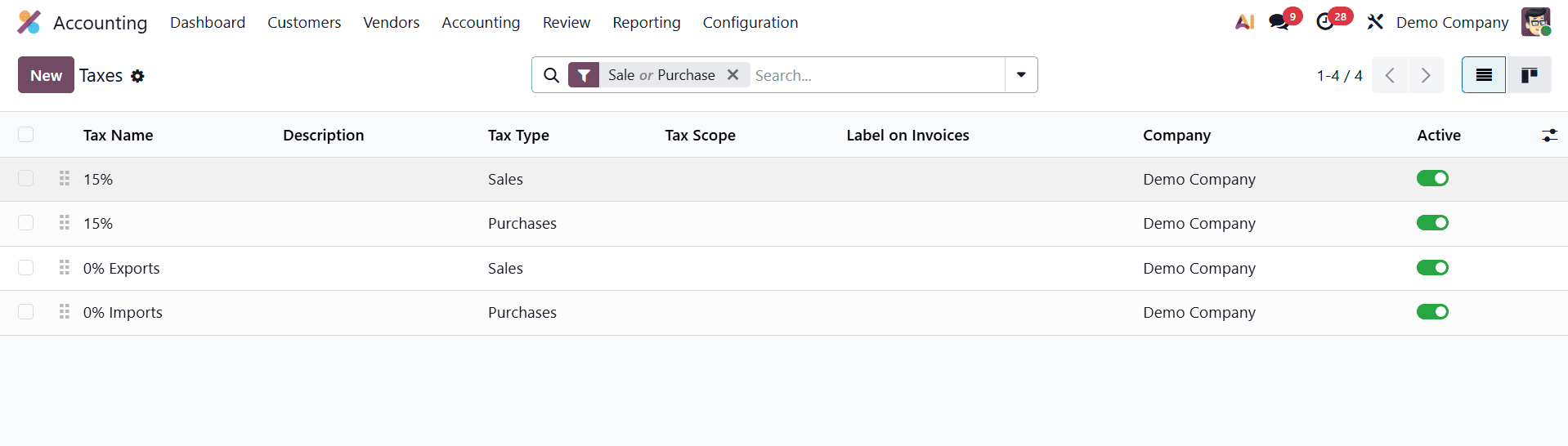
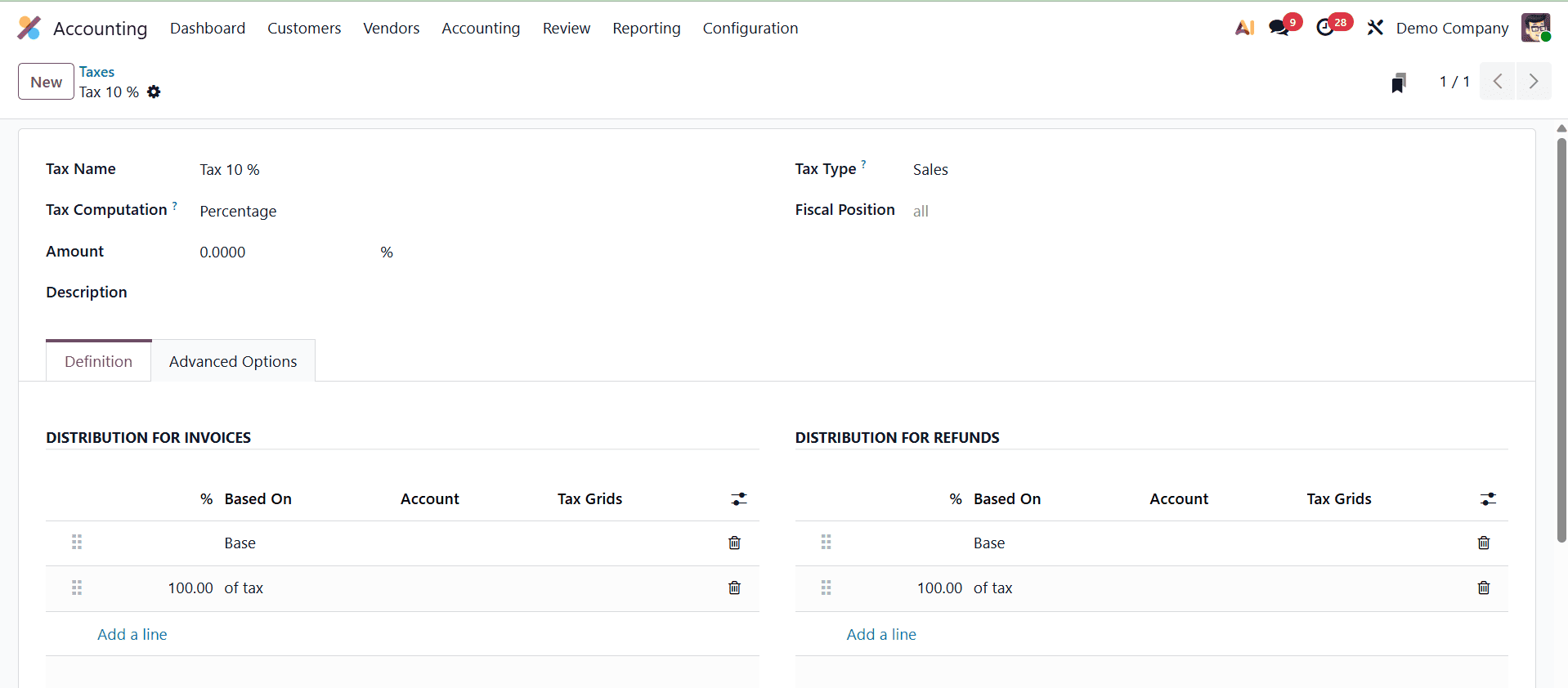
This tax, known as 'Tax 10%', was previously established. Tax setup can be done in a number of ways. Here, the tax is determined using the "percentage of the price" of the product's sales price.
Product Configuration
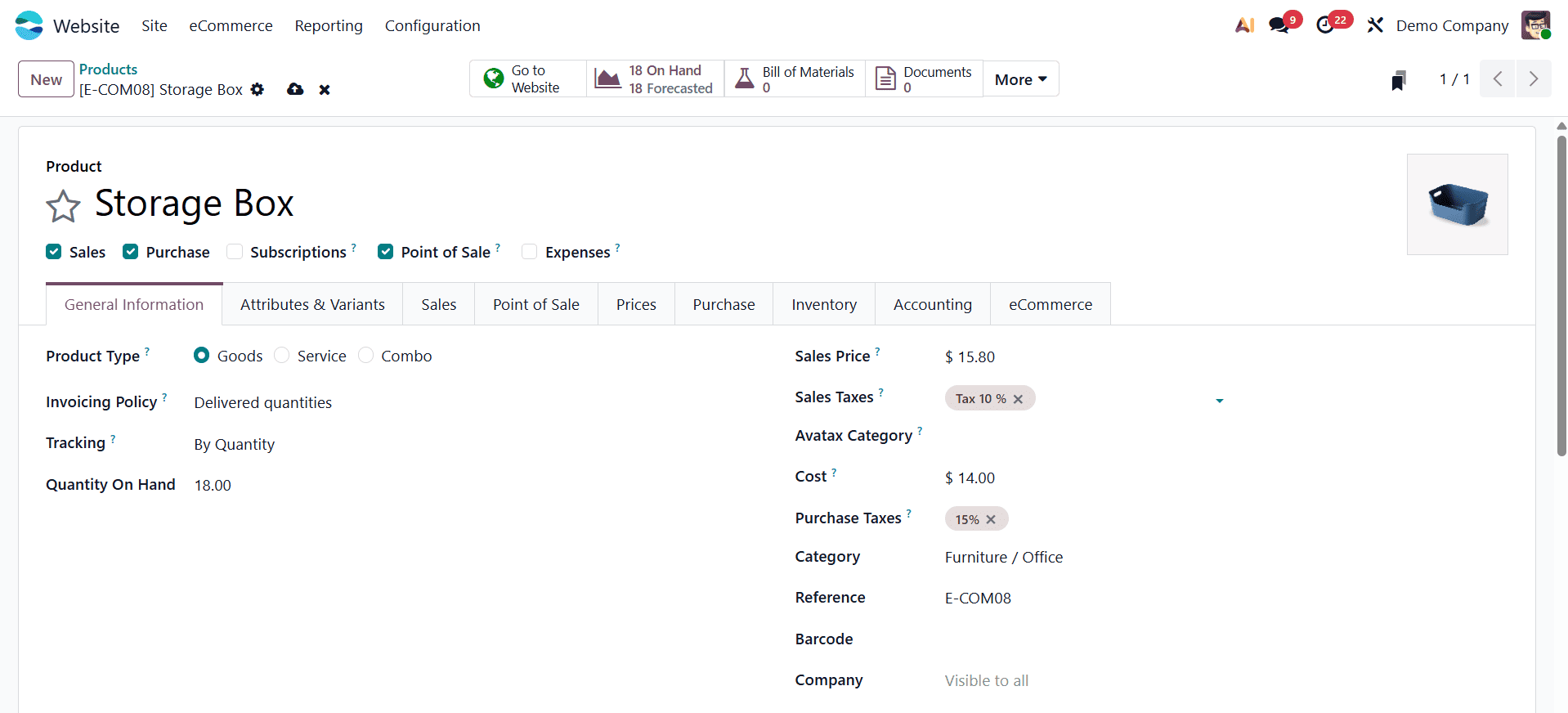
Now let's put up a product to be sold online. Choose the product from the internet retailer. Here, choose the Storage Box product. The sales price is $100. The configured tax can be added here.
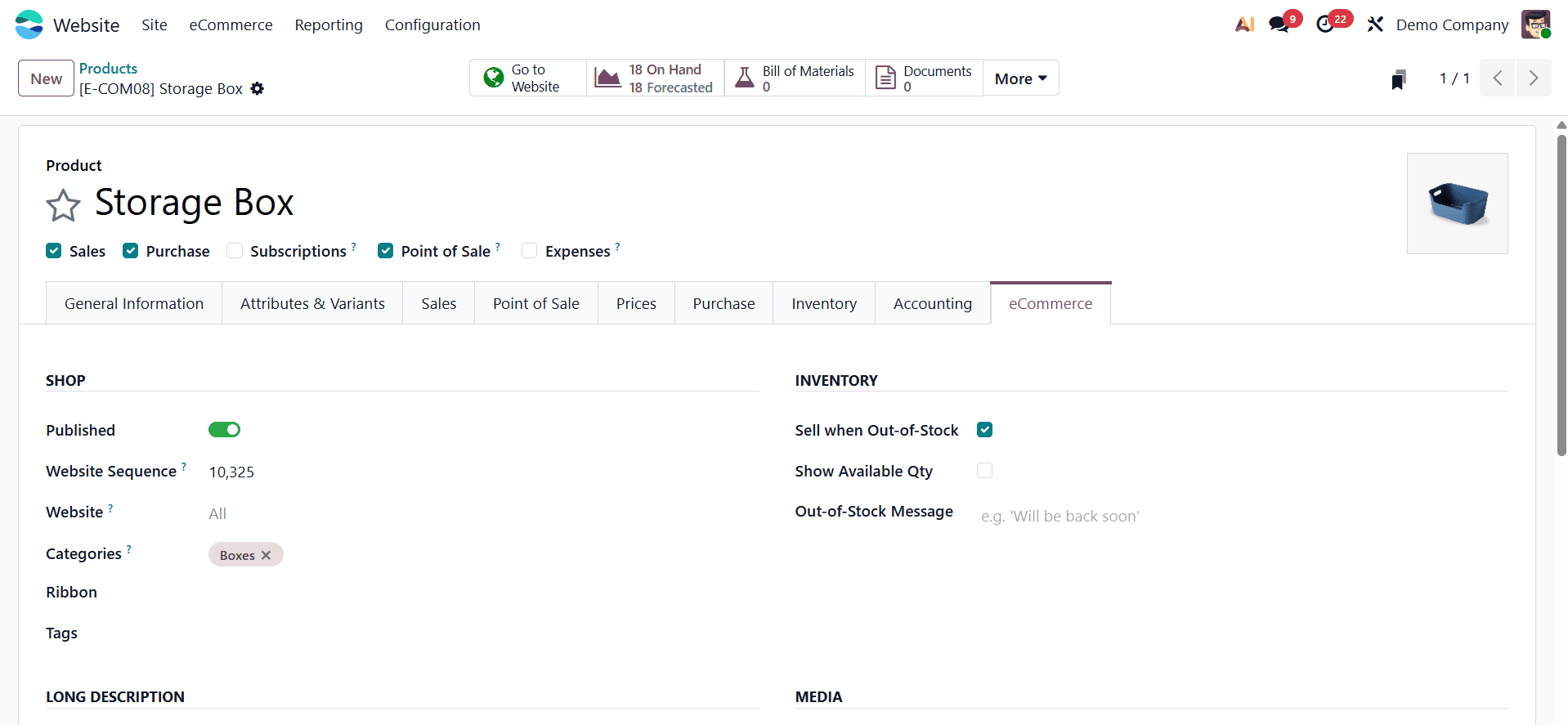
You can adjust the website's sales through the Sales tab. One of these is the ECOMMERCE SHOP section, where information can be set, including the product's category and website sequence, and make sure the product is published to the website. The configuration should be saved.
Tax Excluded
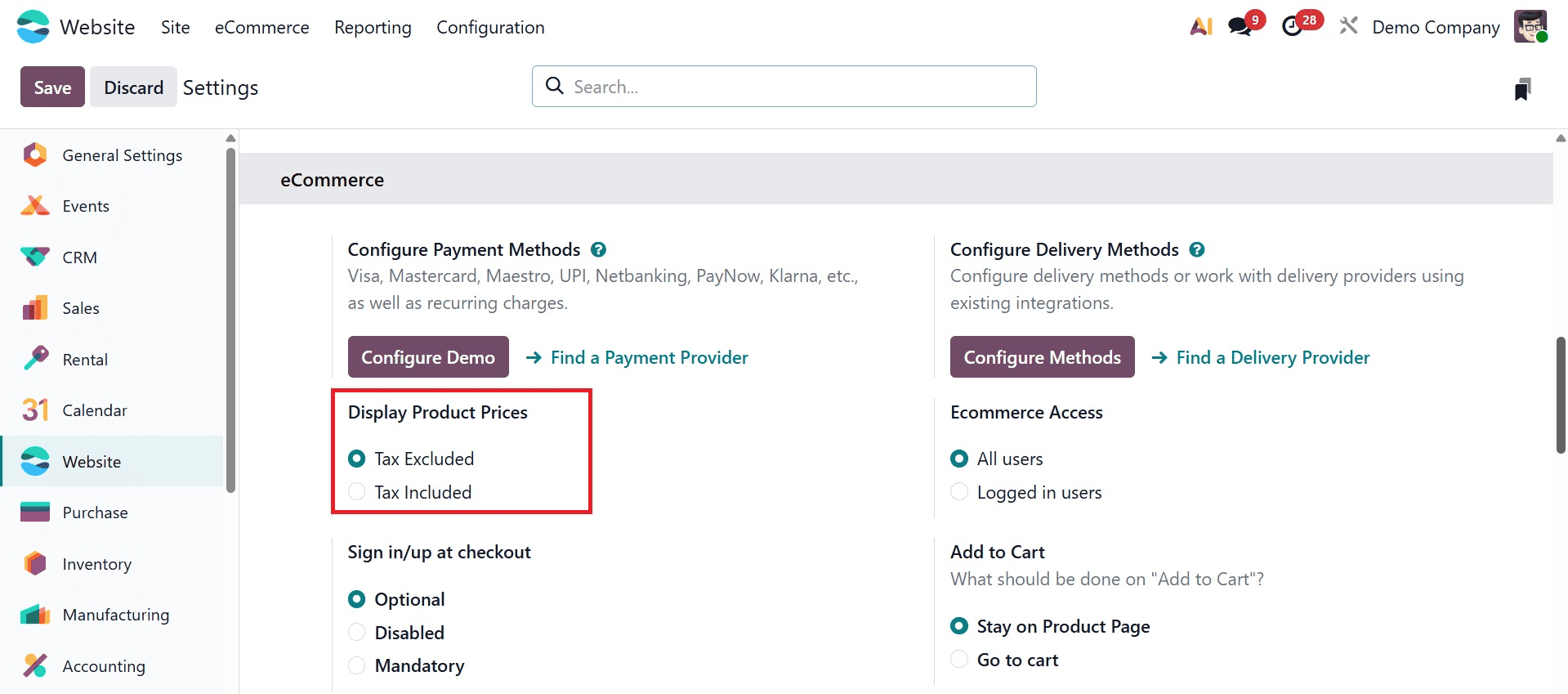
Let's set the tax-exempt price in the setup options. Once in the website module, select Settings from the Configuration menu.
Configuration > Settings > Display Product Prices > Tax Excluded
Go to the online store. Every item is on show at the store. The storage box that was constructed is also visible there. Open the product to view the price and VAT.
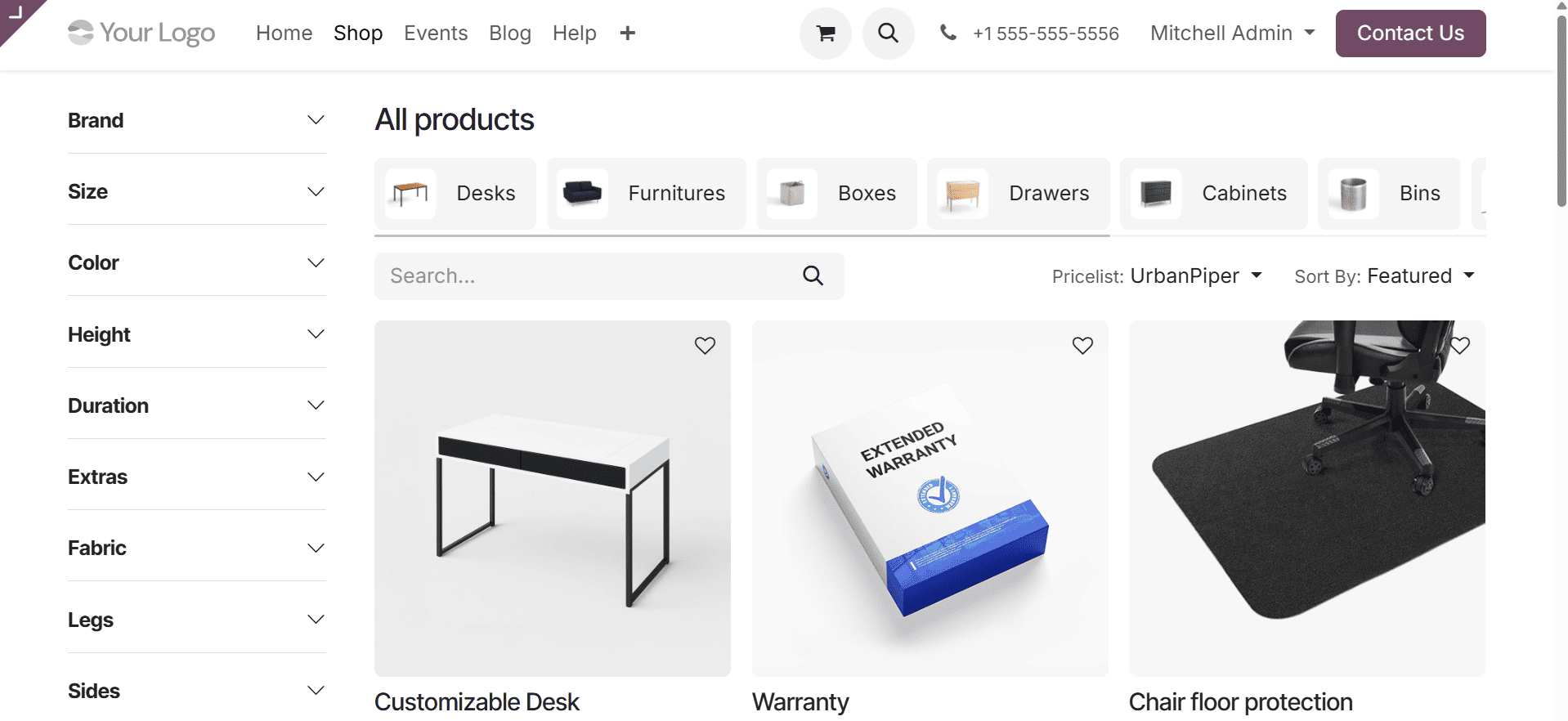
When the package is opened, the storage box costs $20.54. In the product catalogue, the user inputs $20 as the sales price along with a 15% tax. Therefore, $23.62 is the actual cost of the product, including tax. But in this case, the view shows the tax-excluded pricing.
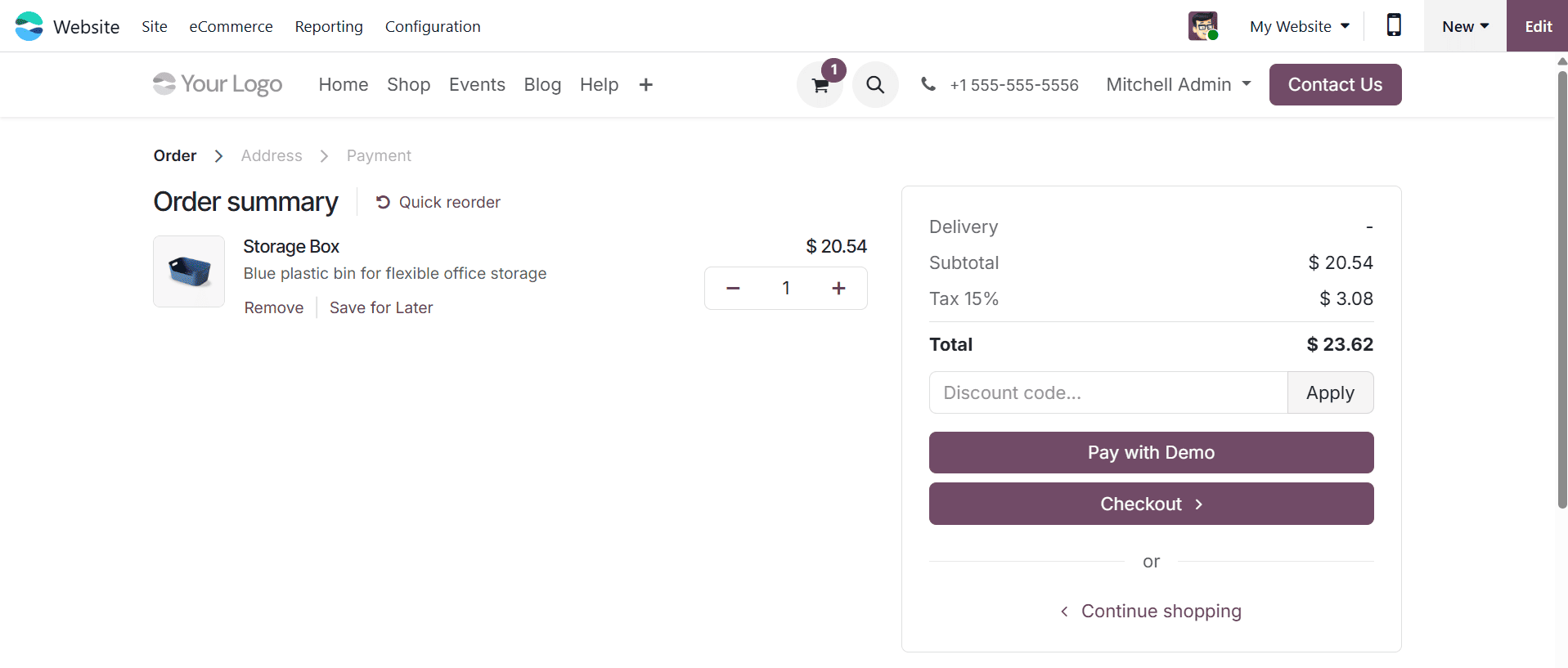
Put the item in your cart and go to the payment page to complete the transaction. When the customer evaluates their order, the product's true price seems to be $20.54, but 15% tax is also due.
To complete the transaction, click the Proceed to Checkout button. To complete the transaction, choose the payment choice after that.

The user can see the generated order. To do that, choose the Order option from the eCommerce menu. Choose the most recent order from the list, then open it.
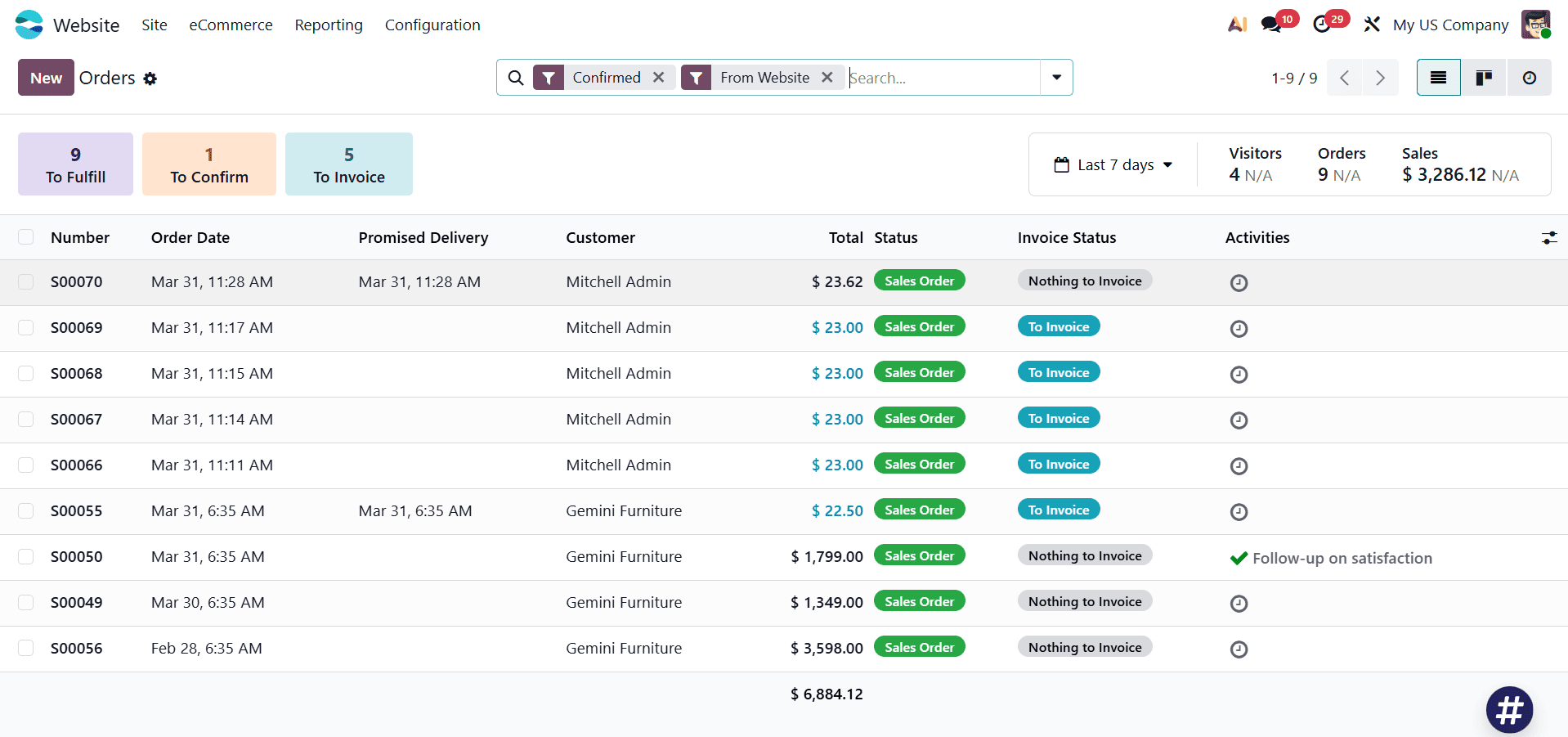
The order line shows the merchandise with a $20 sales price and a 10% tax. There is now a free shipping option. Here, the delivery was not completed.
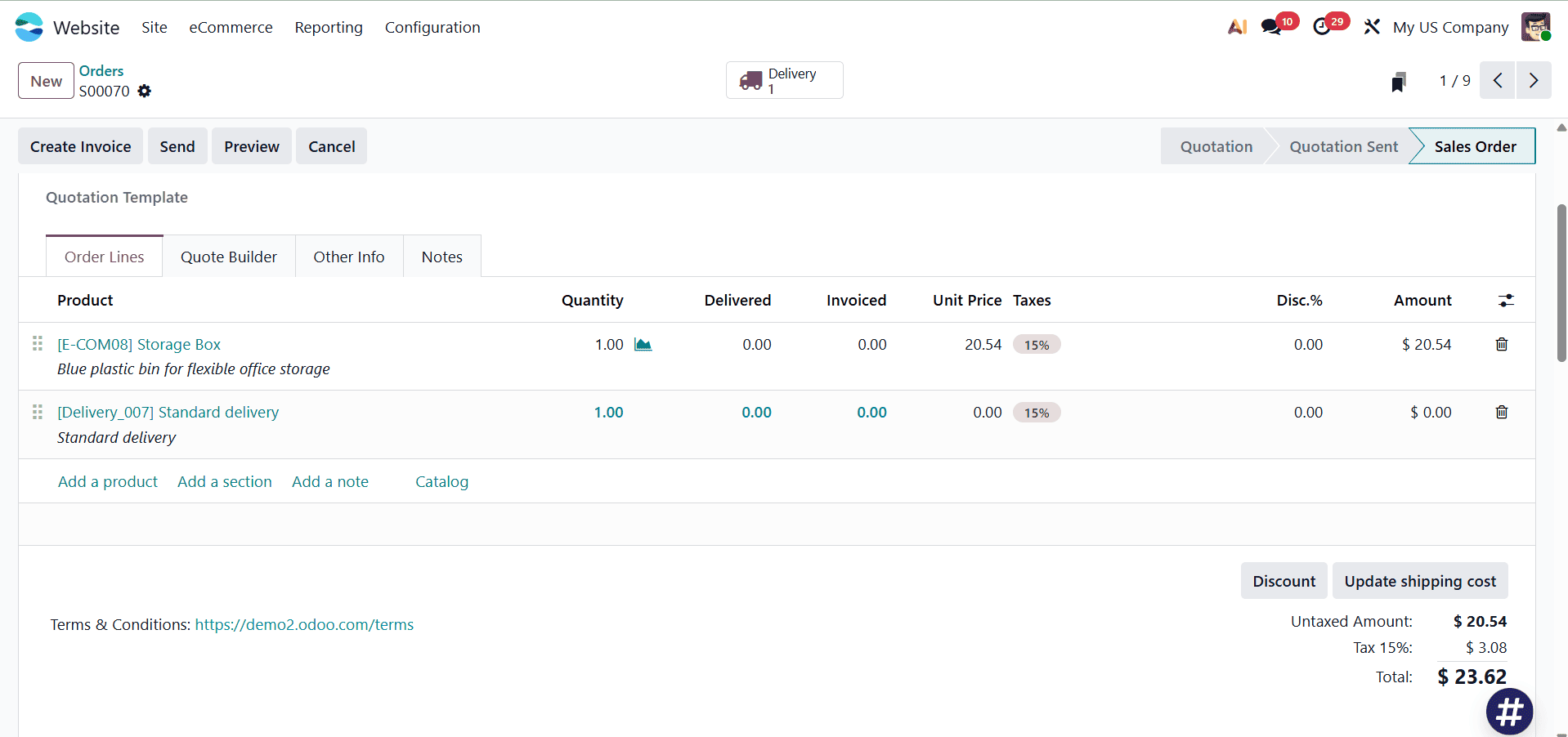
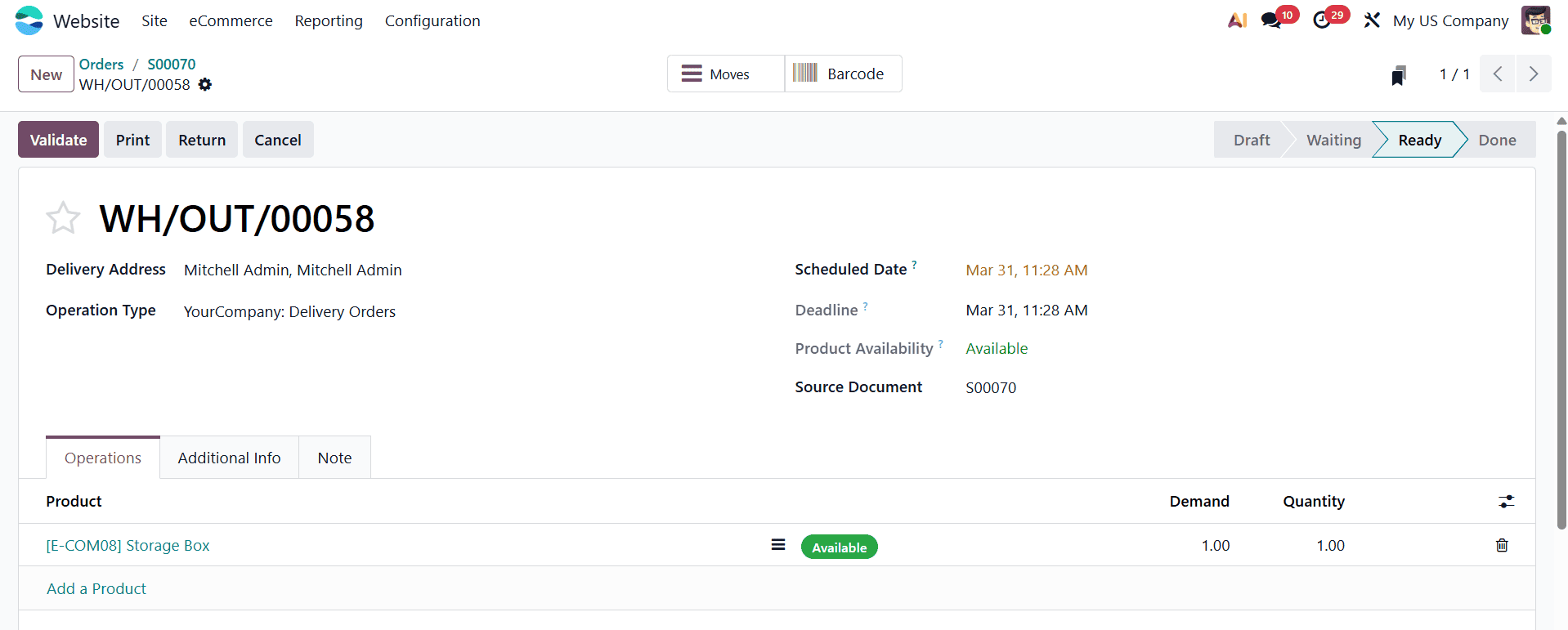
So, choose the Delivery tab. Right now, the delivery is in the "Ready" phase. To confirm the delivery, the user simply needs to click the Validate button.
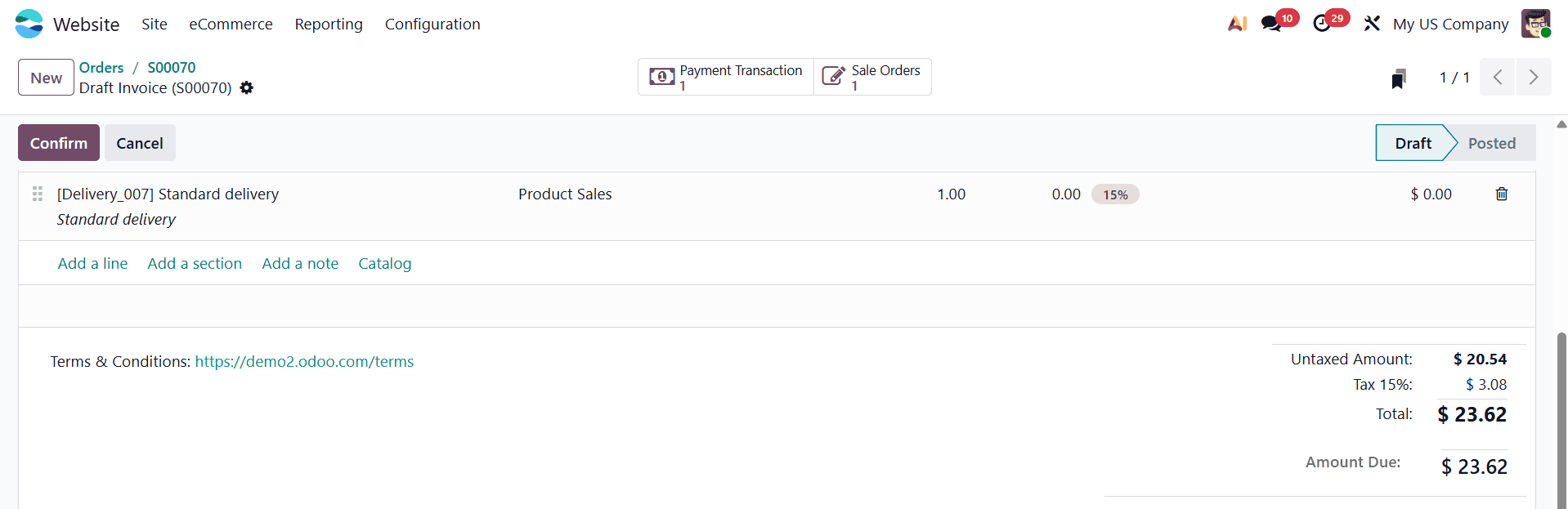
An invoice is generated. To view the invoice, select the smart tab. On the invoice, the tax and untaxed amounts are shown separately.
Tax Included
Let's choose the tax-included price from the setting options. Once in the website module, select Settings from the Configuration menu.
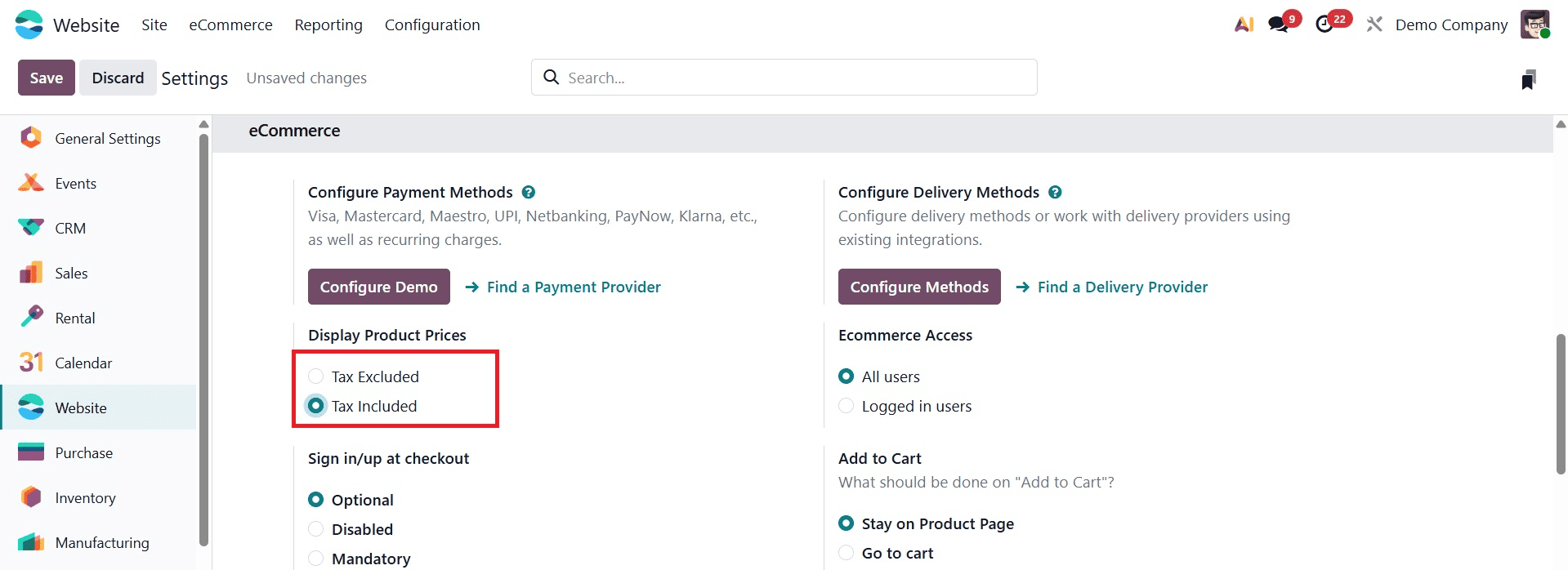
Once the configuration has been changed to Tax Included, save it. As mentioned earlier, just go to the store and take a look at the previous item.
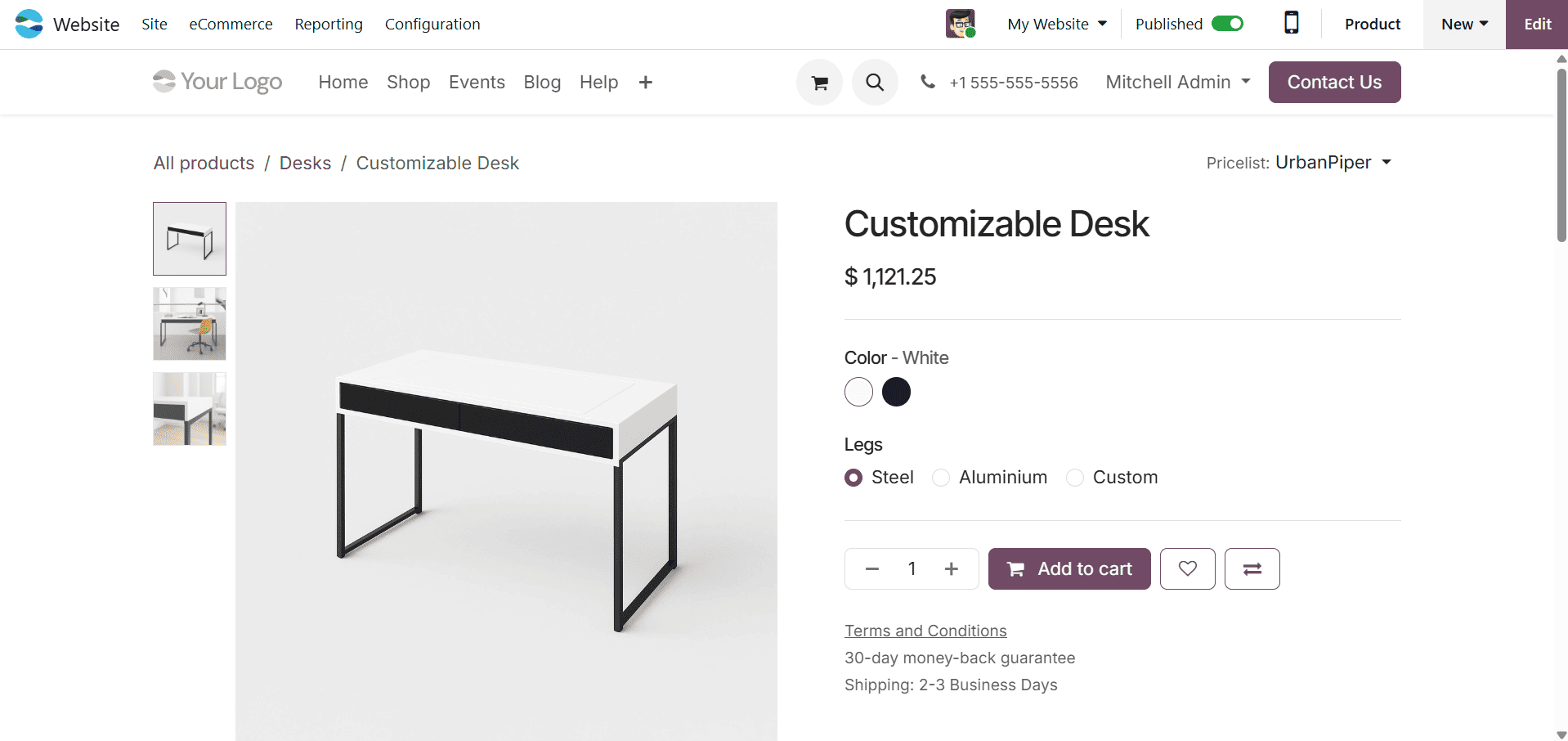
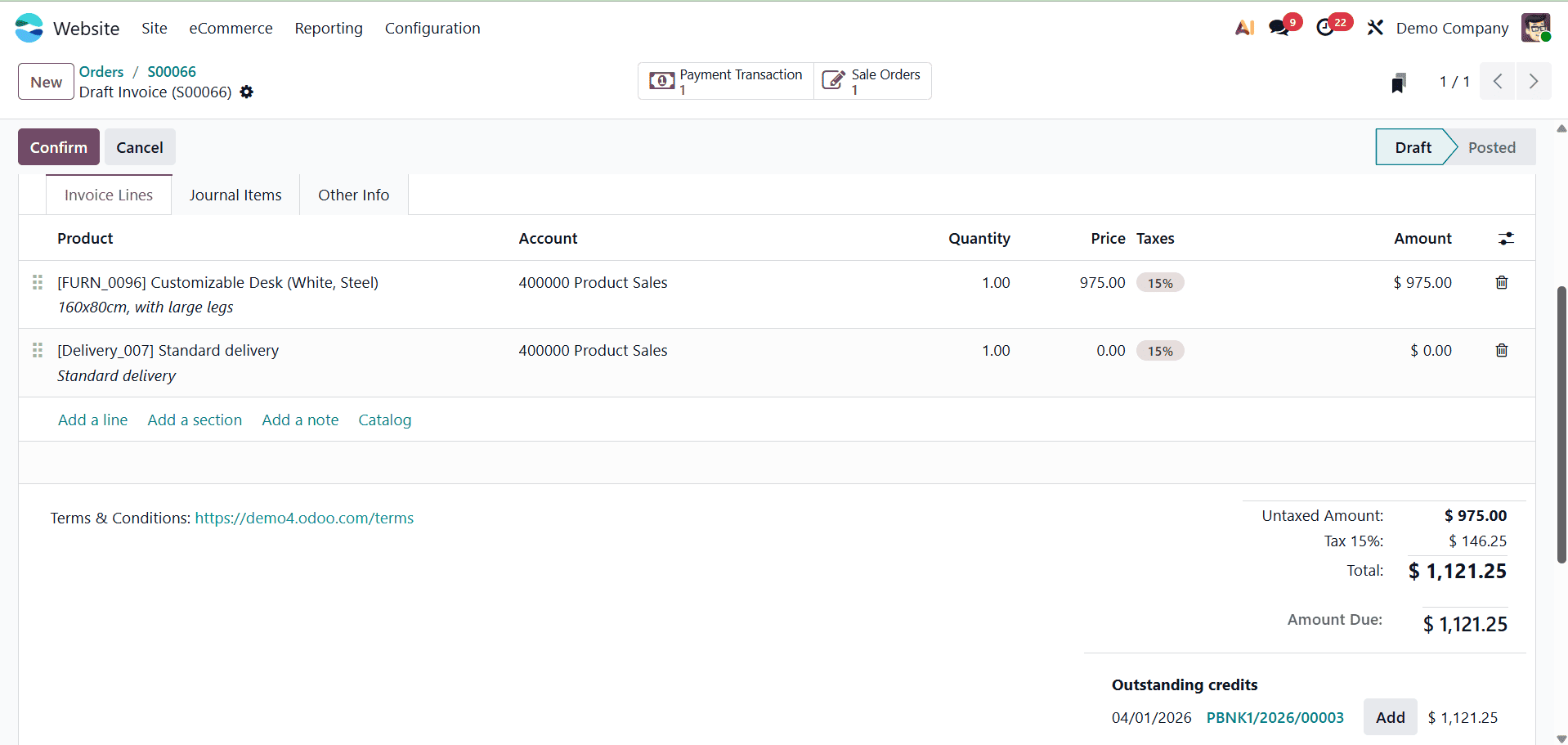
The sales price of the customisable desk product, which is shown above, has been adjusted to $1121.25. The customisable desk is offered for $975 because we don't change the sales price. Let's open the thing now. Once you've clicked "Add to cart", view the actual sales price by checking your order.
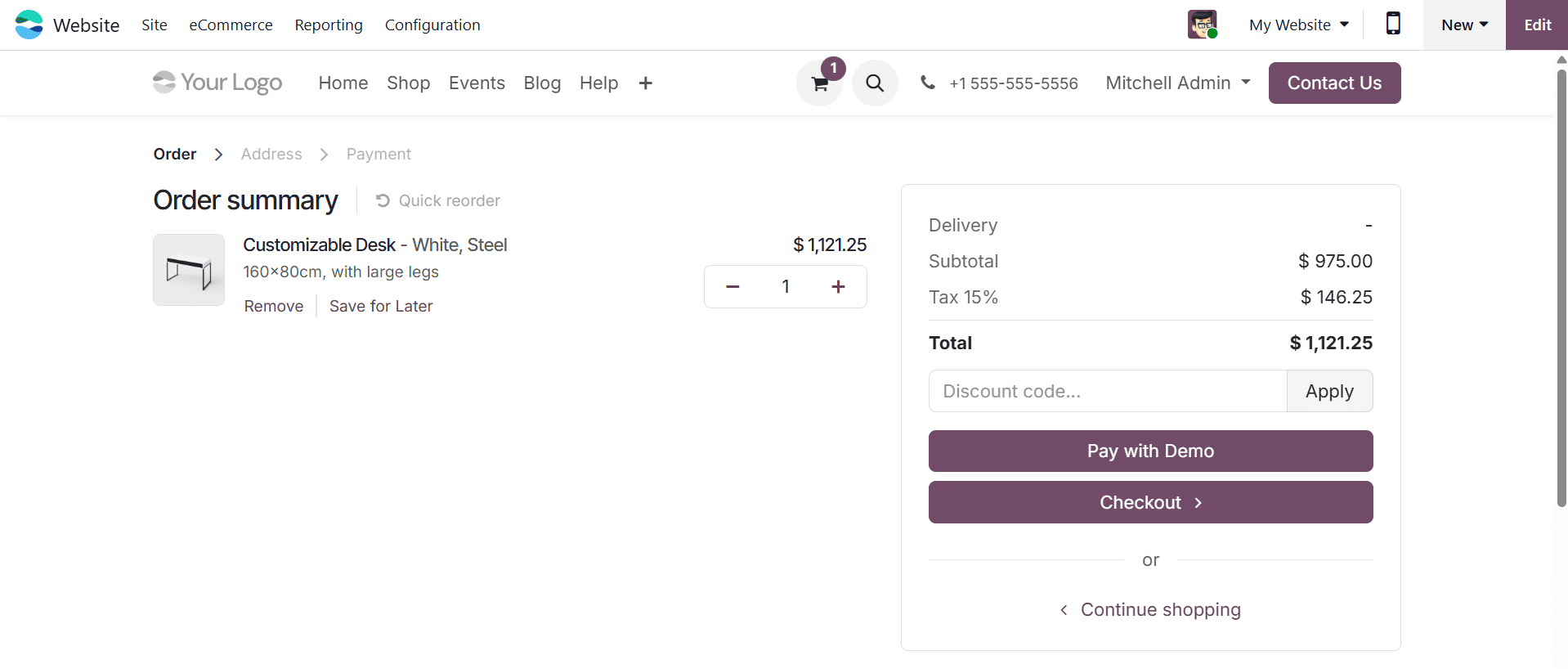
This shows that the customisable desk has been added to the cart in a single quantity. Consequently, the subtotal sales price is $975, the cost of one quantity. $15 is the outcome of 15% of $1121.25 because 15% is the additional tax. After adding the tax and the actual sales price, the total comes to $1121.25.
Click the "Pay Now" button after the customer has selected their preferred method of payment.
After the payment has been processed, let's review the order from the back end.
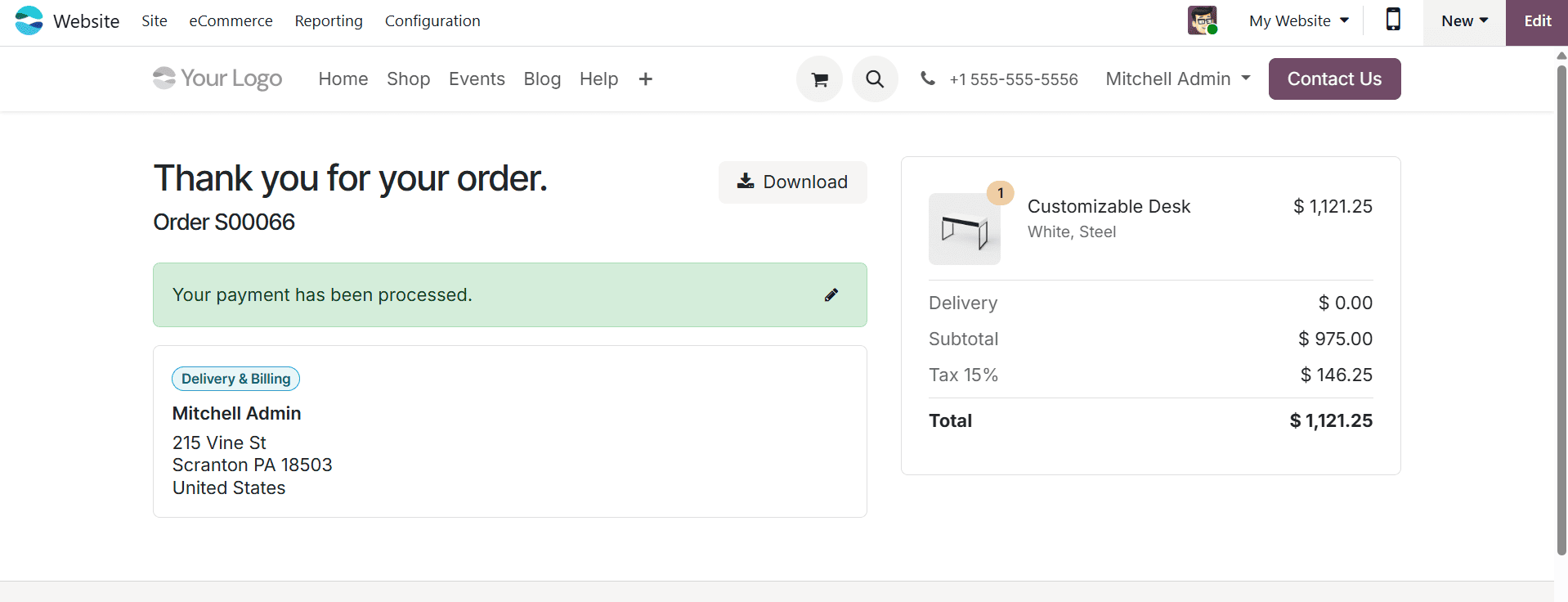
Choose orders from the list under the eCommerce menu to accomplish this. A number of orders from various states are included in this. Choose the order that is currently being built; the sequence number can be used to locate it. Open the order to see the details.
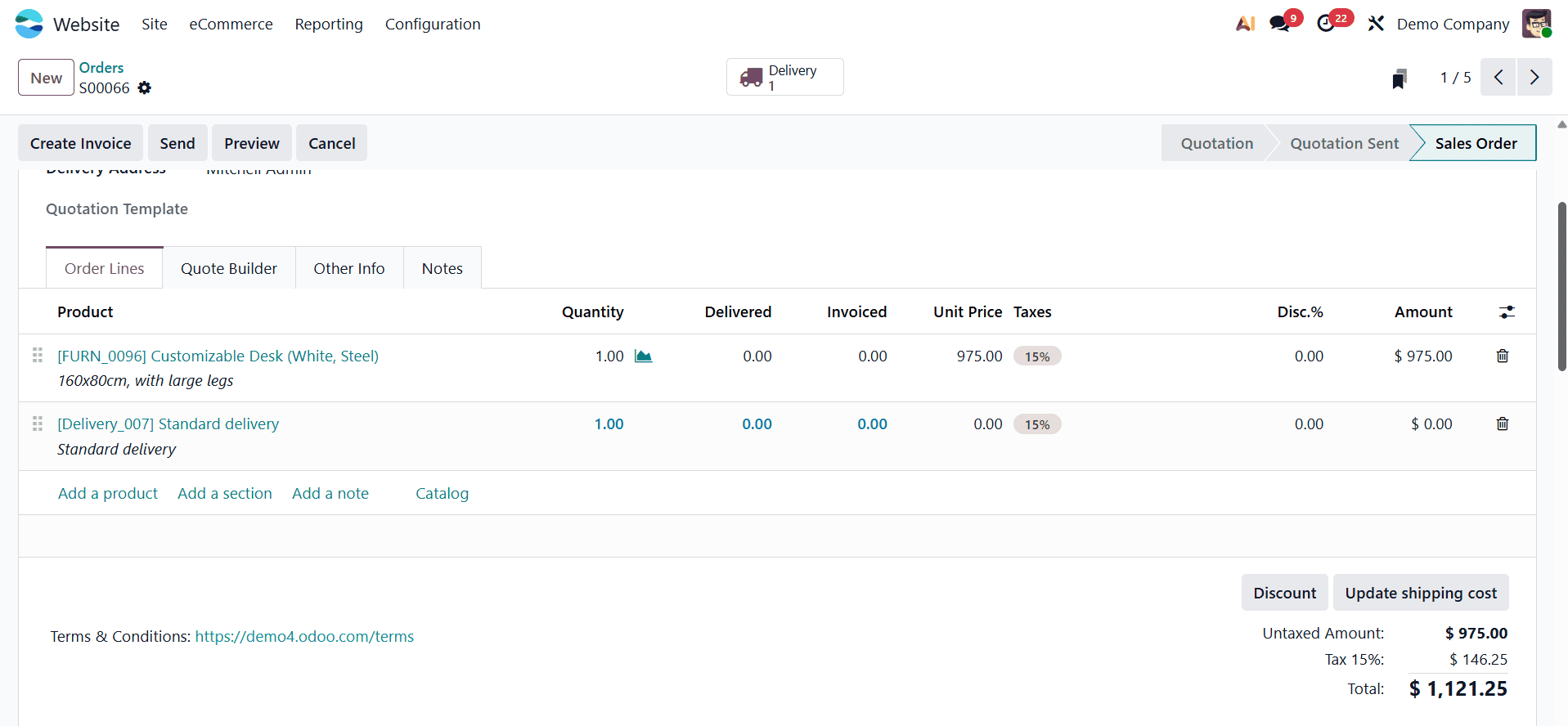
The goods' sales price is shown as including tax in this instance. The quantity has not yet been delivered, even though the order has been billed.
Open delivery since the order must be delivered by the user. Verify the delivery once the quality check is complete.
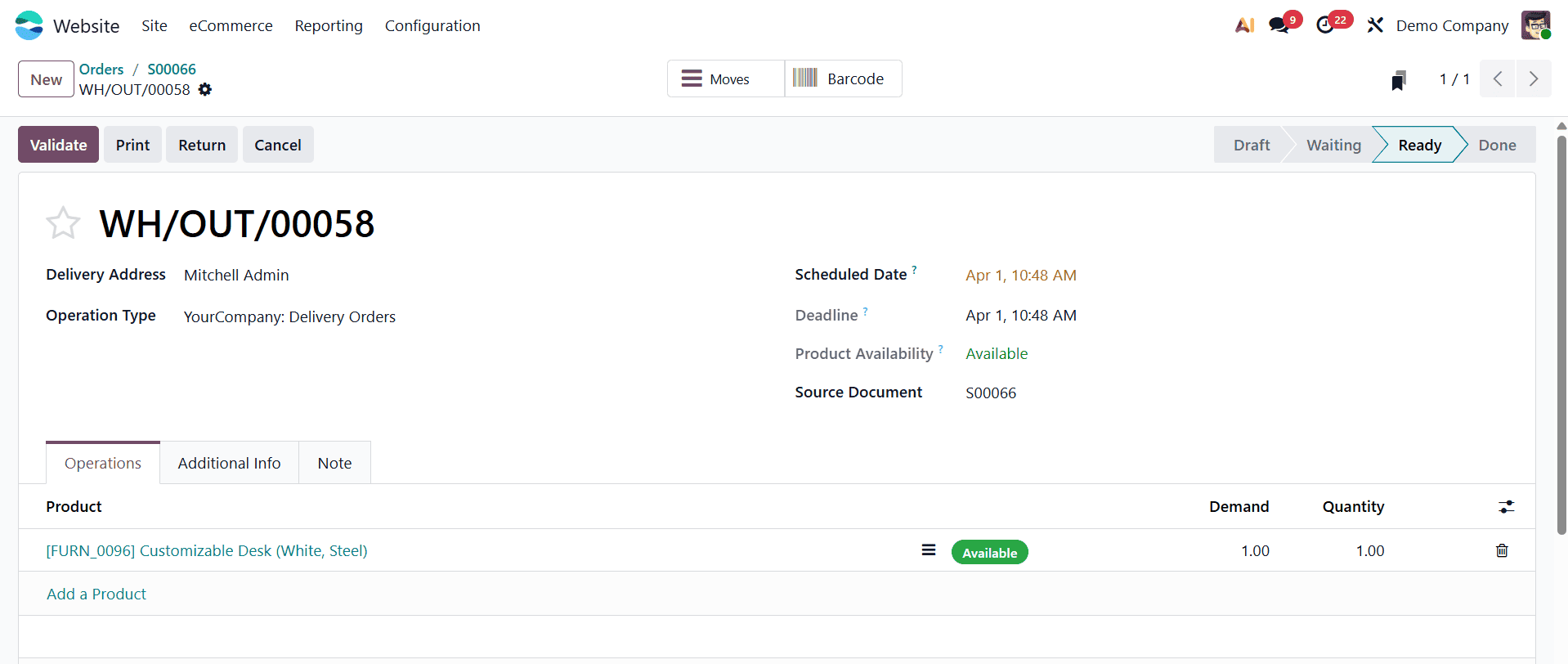
To view the invoice, open the smart tab 'Invoice'. The invoice is posted, and the amount is paid.
In conclusion, Odoo E-Commerce provides a robust and adaptable framework for handling B2B and B2C sales strategies. By offering features unique to each model—all within a single, integrated system—businesses may enhance client experiences, speed up procedures, and promote growth in a range of industries.
To read more about Overview of Navigating B2B and B2C Sales Strategies in Odoo 18 E-Commerce, refer to our blog Overview of Navigating B2B and B2C Sales Strategies in Odoo 18 E-Commerce.