The Odoo 19 Appointment module provides an automated solution that simplifies doctor scheduling while enhancing the overall patient experience. Efficient appointment scheduling is essential for clinics to deliver timely and organized patient care. By digitizing the booking process, clinics can allow patients to schedule appointments online based on real-time doctor availability. It helps healthcare professionals manage their time more effectively by reducing errors and improving coordination. The module also enables clinics to define scheduling rules and allocate time slots seamlessly. Built-in reminders and notifications help prevent missed appointments and strengthen patient engagement. With a user-friendly interface, staff can quickly access schedules, reschedule visits, or handle cancellations without confusion. As clinics aim to modernize operations, the Odoo 19 Appointment module plays a crucial role in improving efficiency, streamlining workflows, and ensuring a smooth, hassle-free scheduling process.
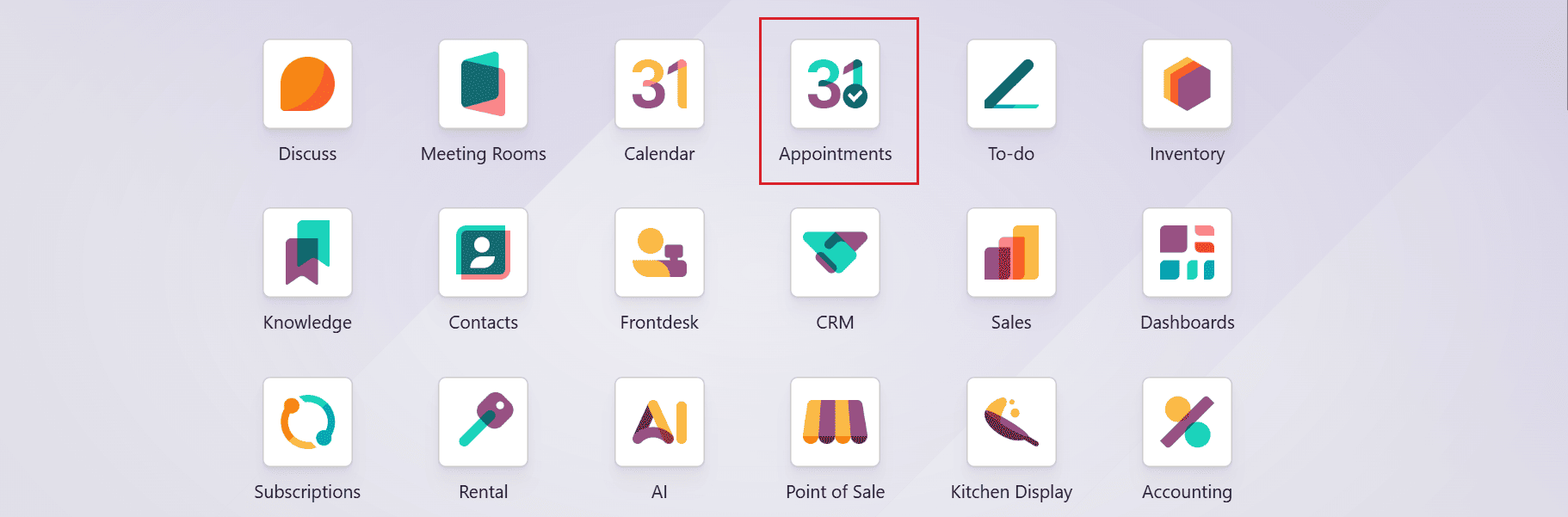
Firstly, open the Appointment module from the Odoo 19 dashboard.
Configure a New Appointment:
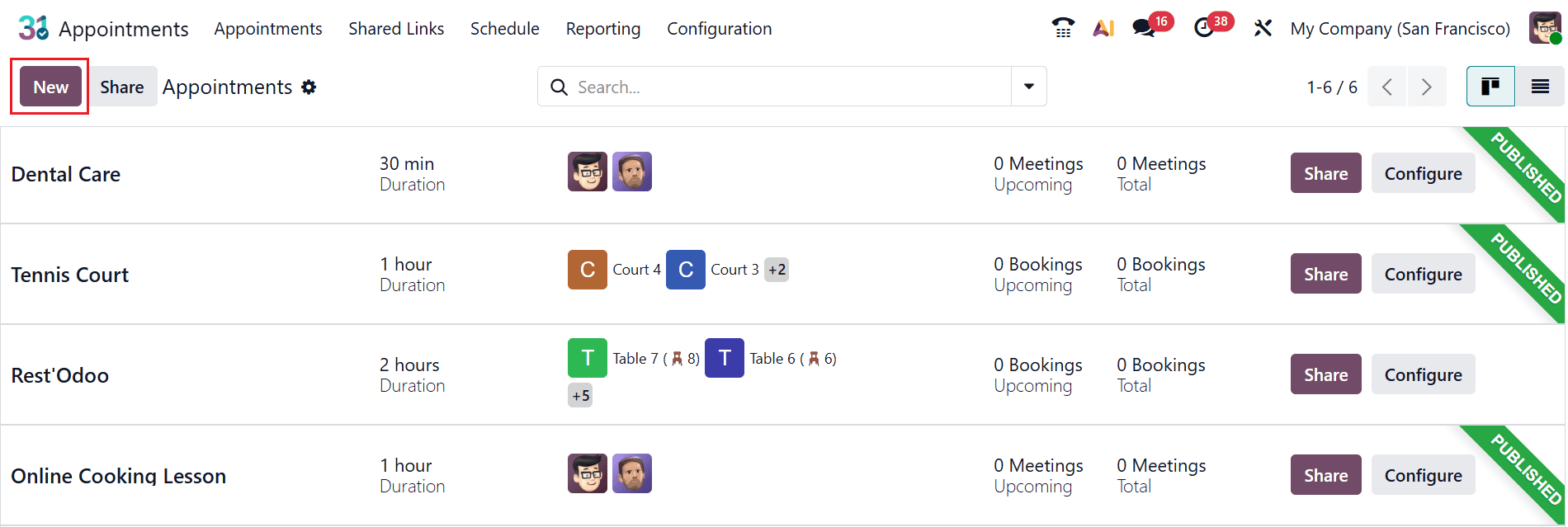
To start scheduling a doctor’s appointment, simply select the New button to create a new entry.
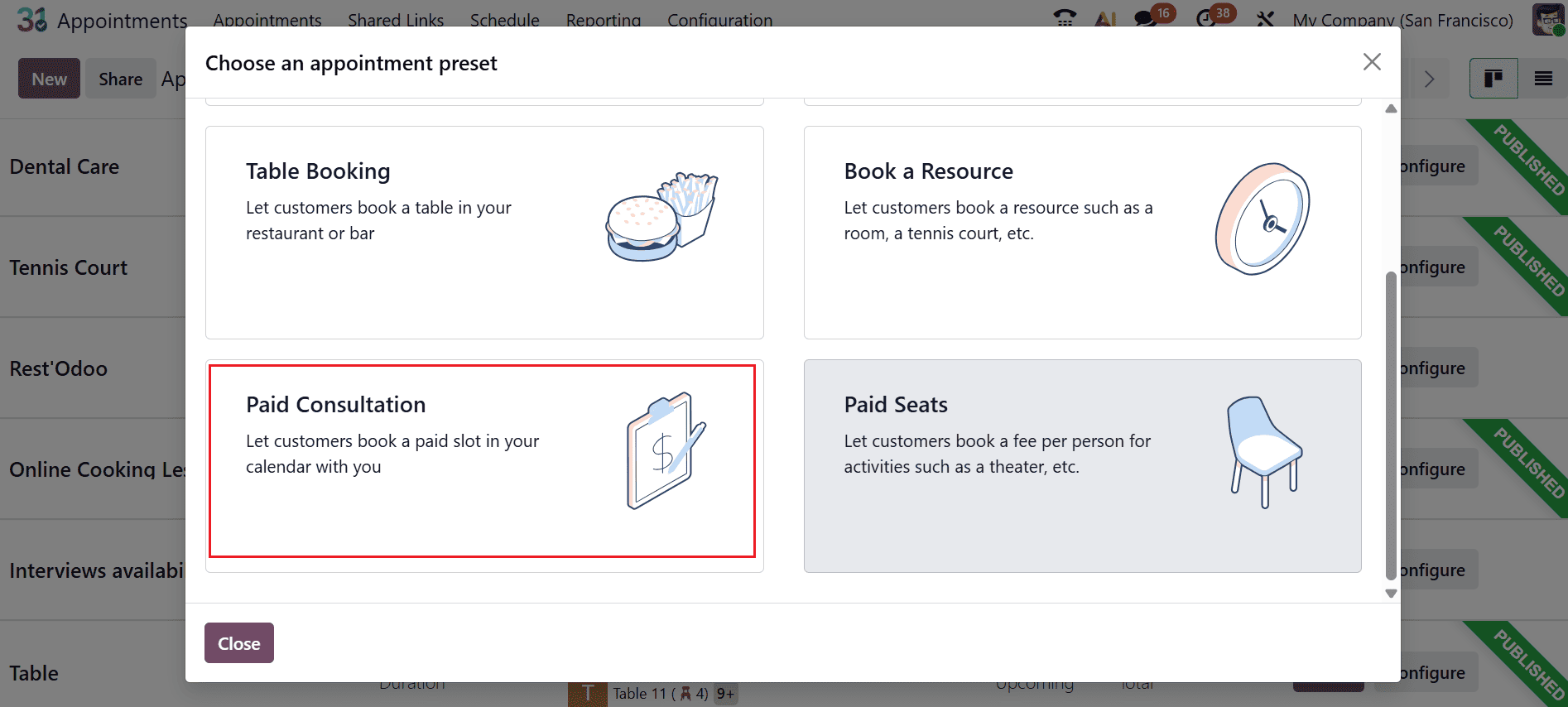
A new pop-up window will appear where you choose an appointment preset, which is a new feature in Odoo 19. Here, you can select Paid Consultation as the appointment preset.
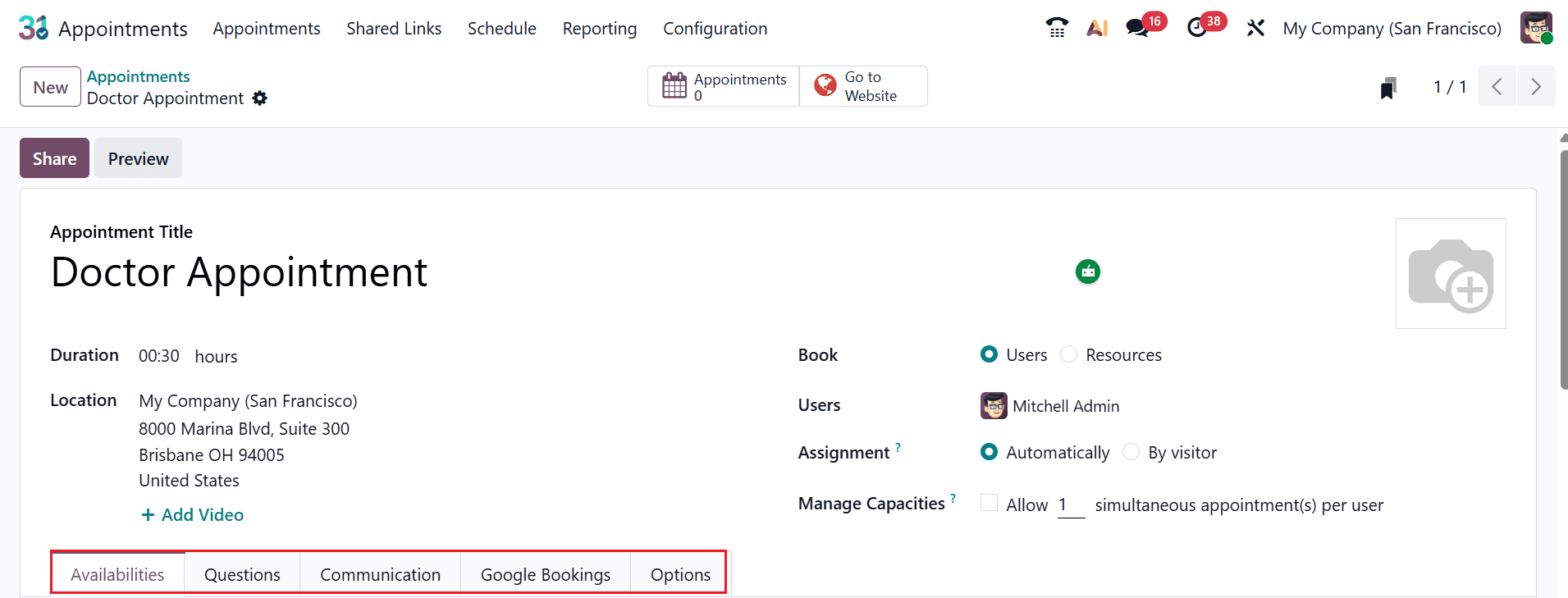
A new window will open where you can add the Appointment Title as Doctor Appointment and define how long the appointment will last in the Duration field. In the Book field, you can select the appointment type based on Users, because doctors are system users. In the Users field, you can have one or more users. In the Assignment field, select either Automatically (Odoo will assign the doctor automatically) or By visitor (the patient will choose the doctor manually). Enable the Manage Capacities option and add the maximum number of people a user can handle. Here, you can see five tabs: Availabilities, Questions, Communication, Google Bookings, and Options.
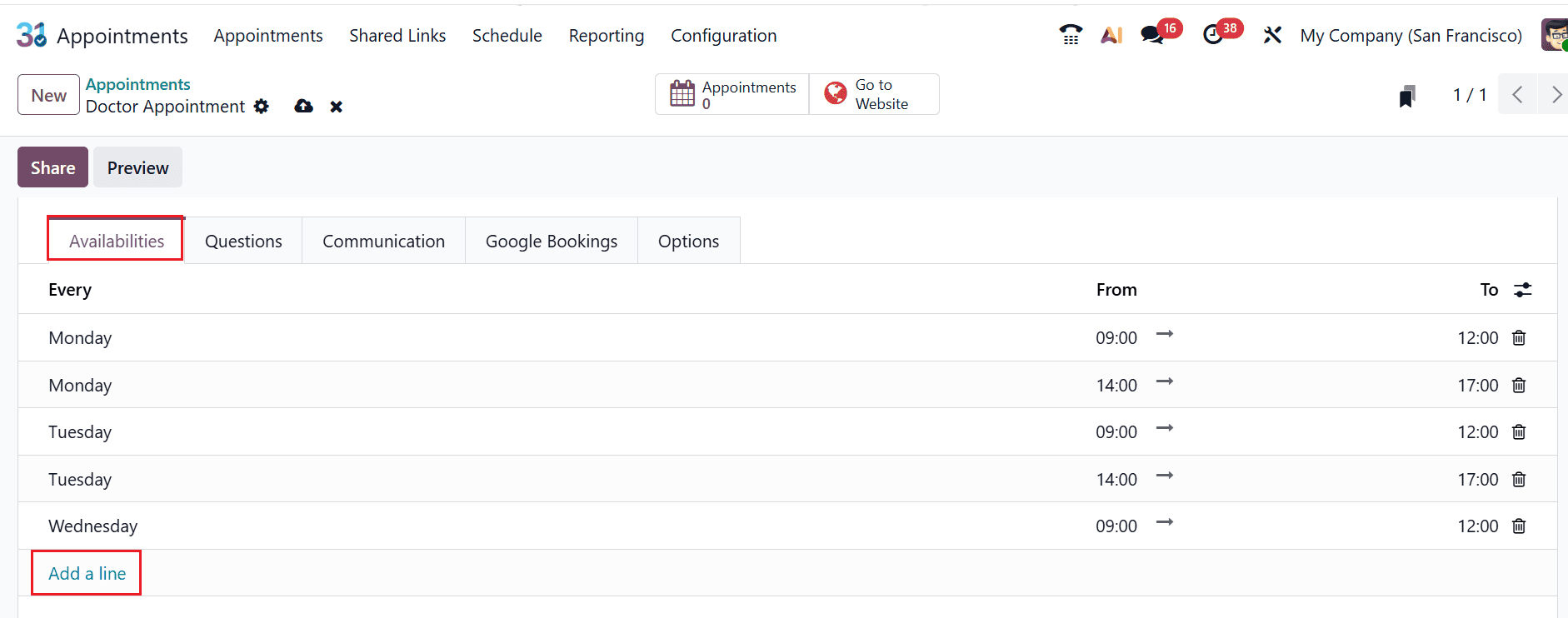
Under the Availabities tab, configure the doctor’s available days and working hours by clicking on the Add a line button.
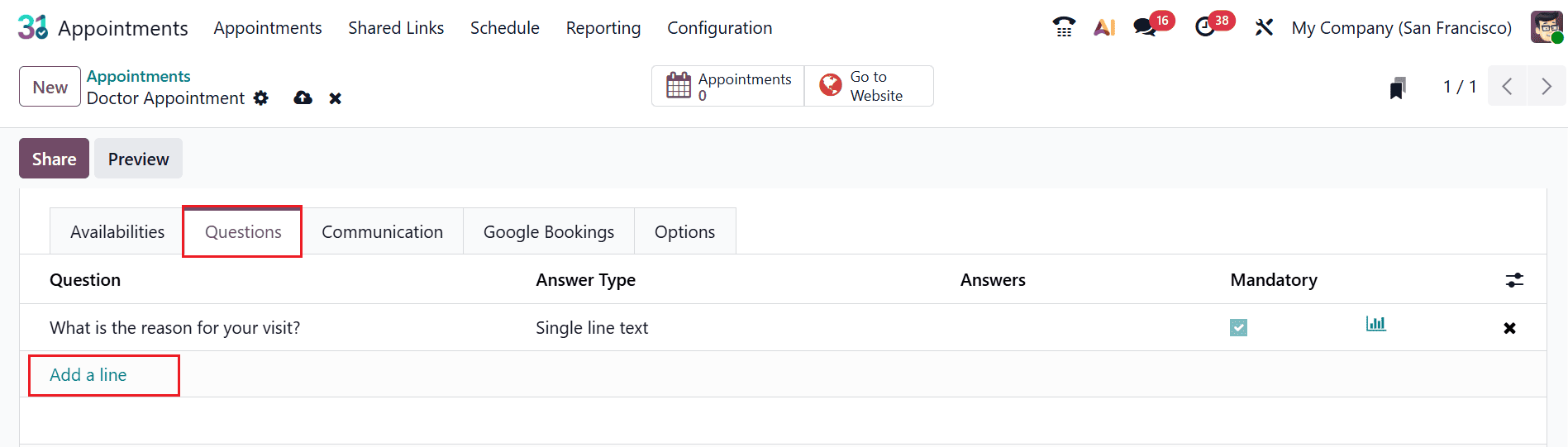
Under the Question tab, you can include questions for patients about their appointment by clicking the Add a line button, as shown below:
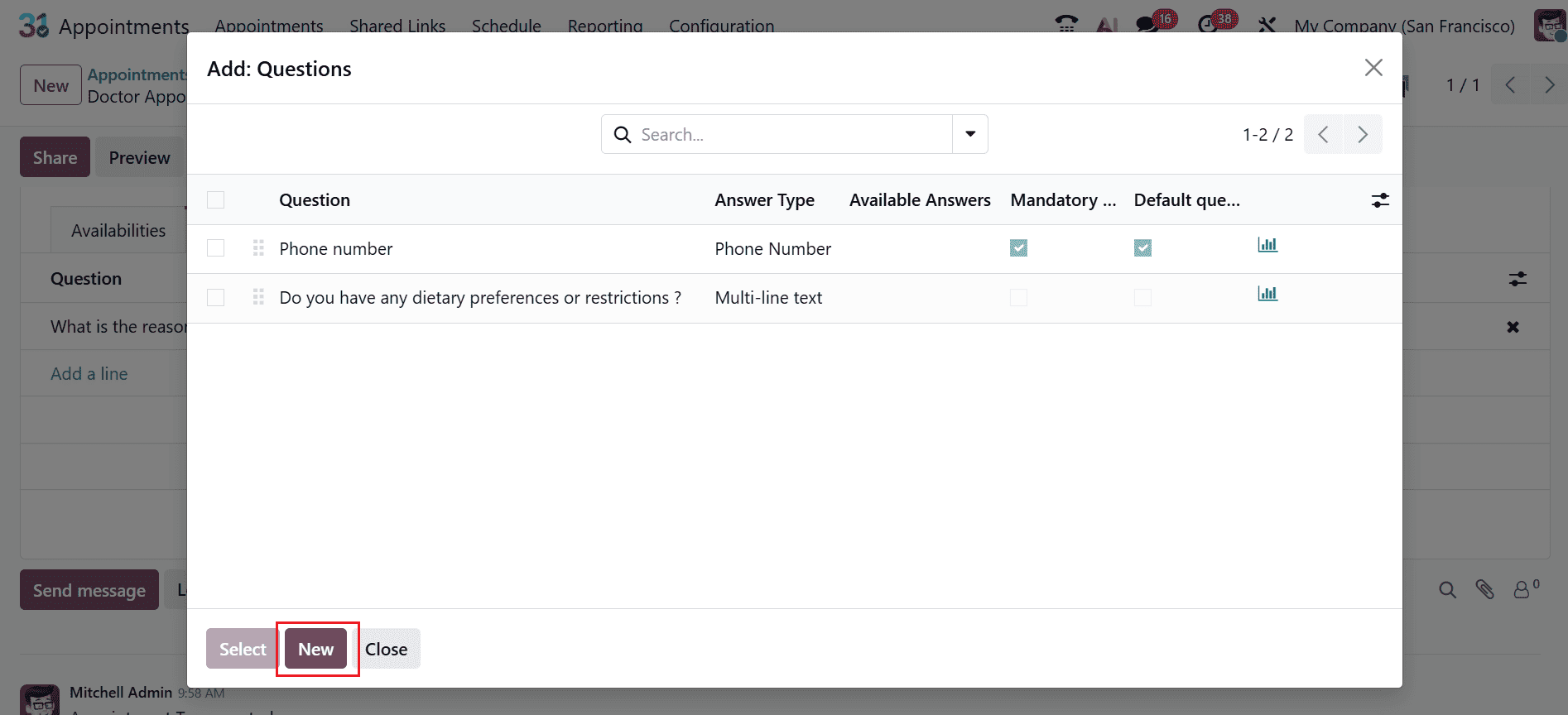
A new pop-up screen will appear where you can select the pre-configured question or click on the New button to add a new question.
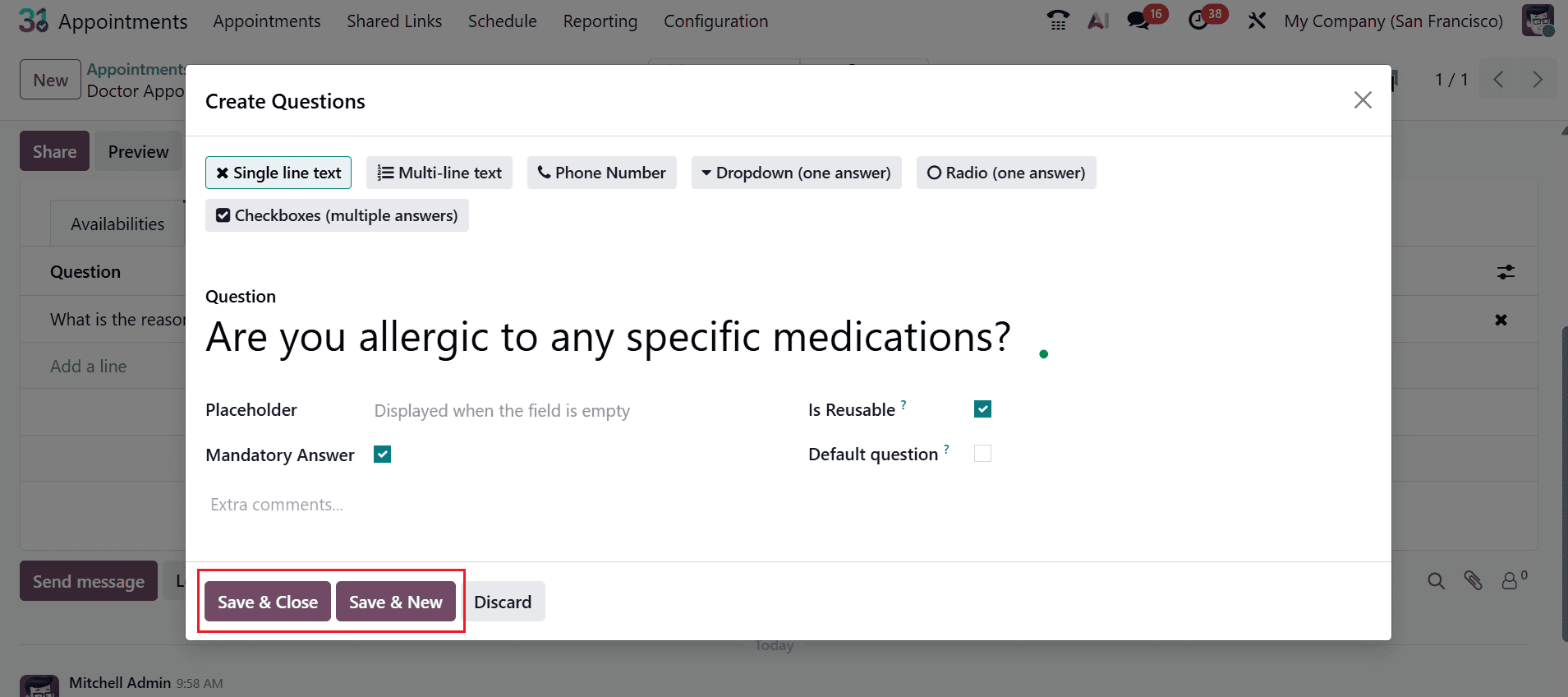
A pop-up window will appear, where you can enter the question and select the desired answer type. Check the Mandatory Answer box to ensure patients must respond to this question before booking an appointment. Enable the Is Reusable field to allow the questions to be reused in other forms. Enable the Default Question field to set the question as a default for future use. You can add placeholder text inside the input field that disappears when the user starts typing, and then save it.
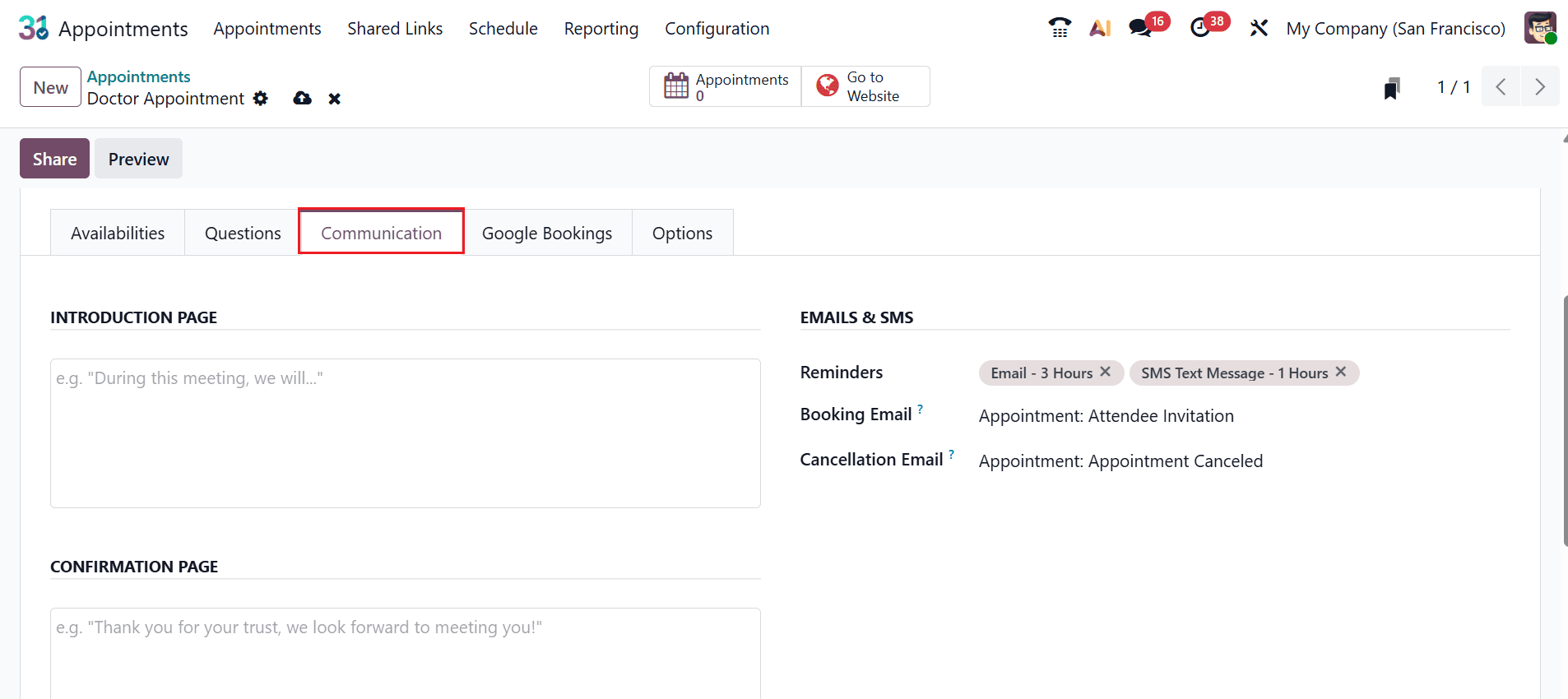
Under the Communication tab, provide a brief description of the appointment type to give patients an overview of the session in the Introduction Page field. Under the Confirmation Page field, add the details that will be shown to customers after they book the appointment. The Reminders field allows you to configure how and when customers will be notified before their appointment. In the Booking Email field, you can send customers confirmation of their appointment, and in the Cancellation Email field, you can send to customers when their appointment has been cancelled.
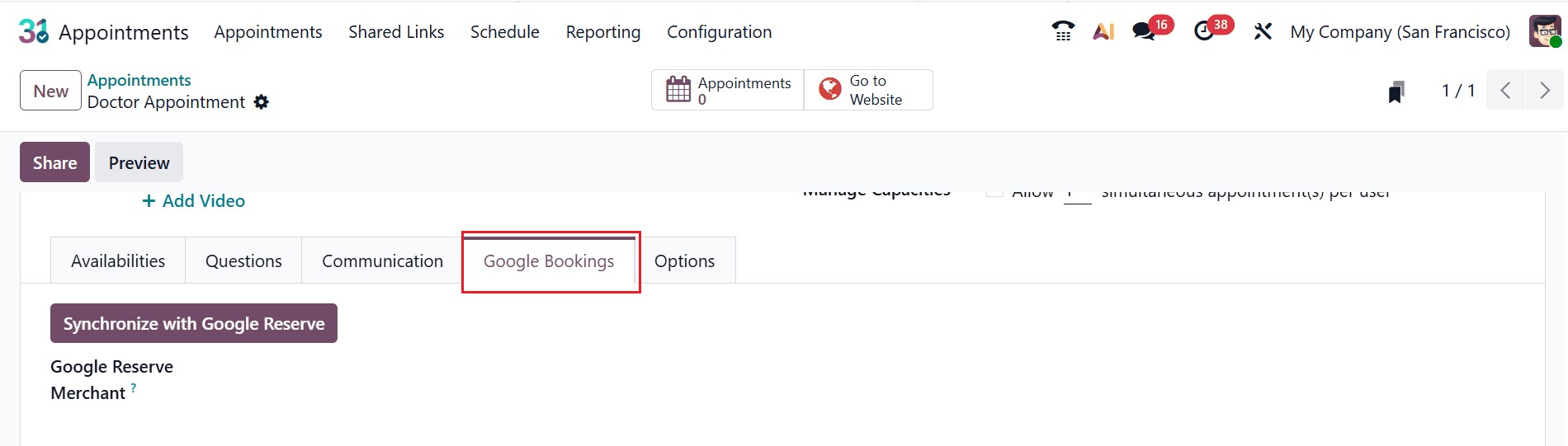
Under the Google Bookings tab, you can integrate your clinic’s appointment system with Google Business Profile, allowing customers to book appointments directly through Google Search or Google Maps.
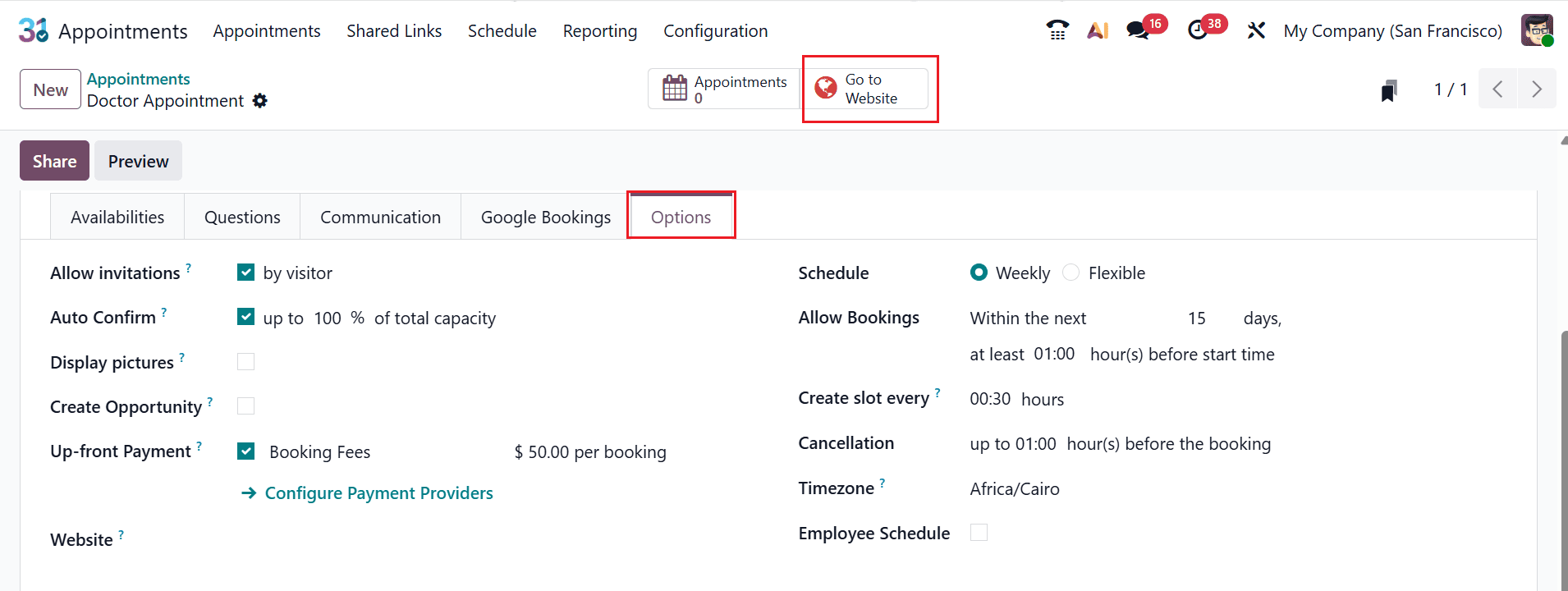
Under the Options tab, enable the Allow invitations option to let attendees invite guests when registering for a meeting. Enable the Auto Confirm option to automatically confirm the appointment, and you can add a percentage of the total capacity reserved. Enable the Display pictures field to show users images across the entire booking flow. Enable the Create Opportunity field to create a new opportunity when an appointment is booked. Enable the Up-front Payment field, where the customers need to pay a fee before confirming the booking. In the Website field, add which website the appointment is published on.
In the Schedule field, select either Weekly (available in a weekly pattern) or Fixed (available in a fixed schedule). In the Allow Bookings field, you can add how far in advance and how late users can book appointments. Set the time interval between available booking slots in the Create slot every field. In the Cancellation field, you can define how long before the appointment users can cancel. In the Timezone field, set the time zone for the appointment schedule. Links the appointment availability with the employee's working hours in the Employee Schedule field. Next, use the Go to Website smart tab to publish the appointment.
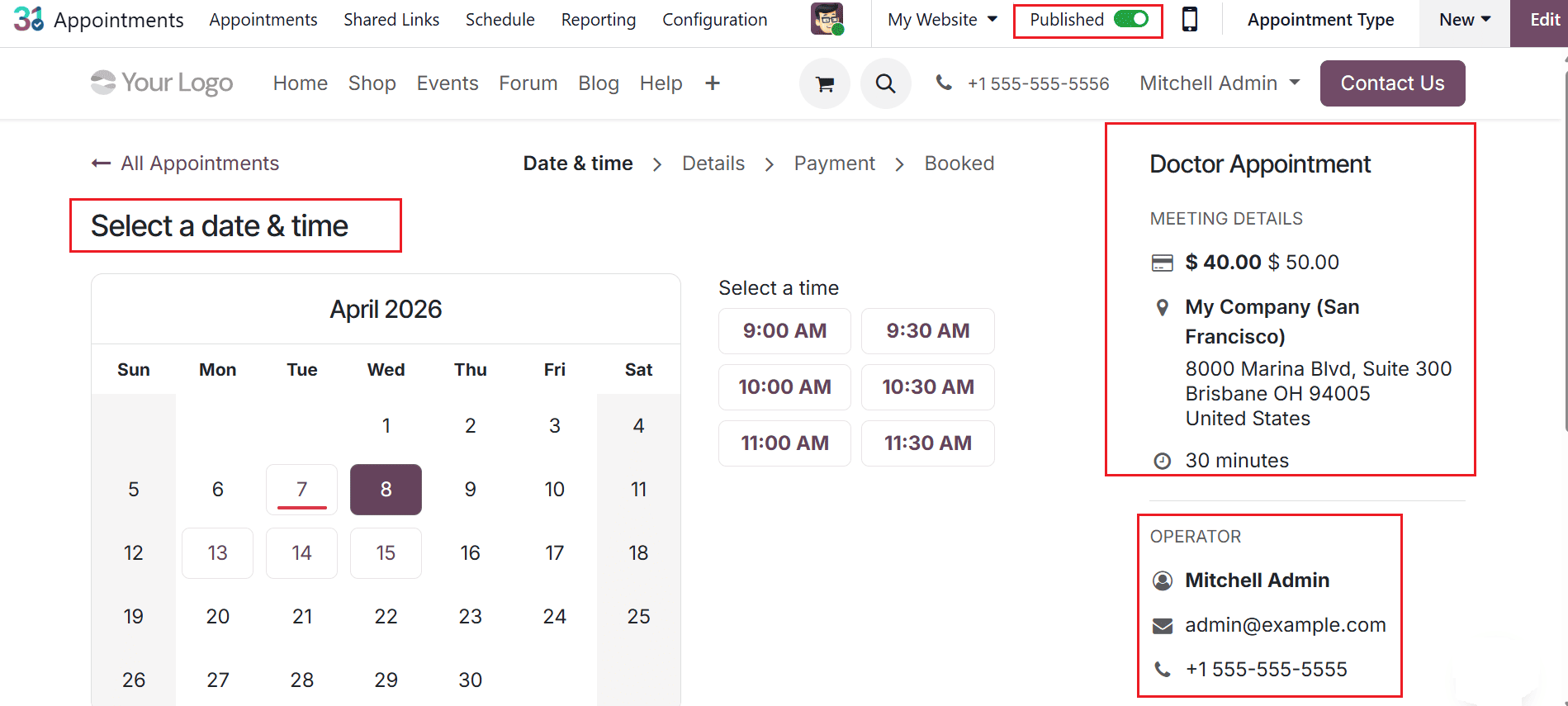
Enable Published to publish the appointment. On the right side of the screen, you can view the doctor’s details and consultation information, then choose your desired date and time as illustrated below:
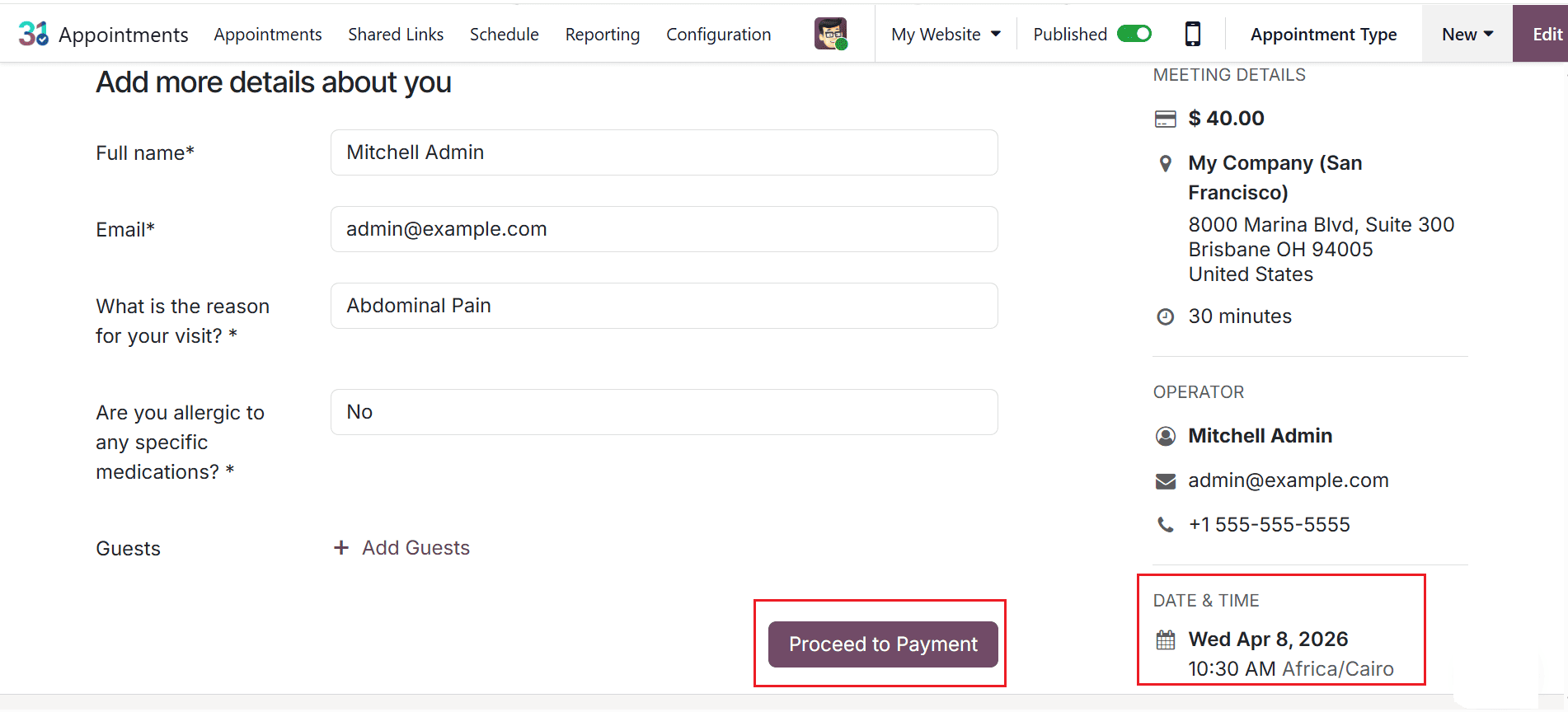
After reviewing the doctor’s details and answering the available questions, check the scheduled date and time on the right side of the screen, then click Proceed to Payment as shown below.
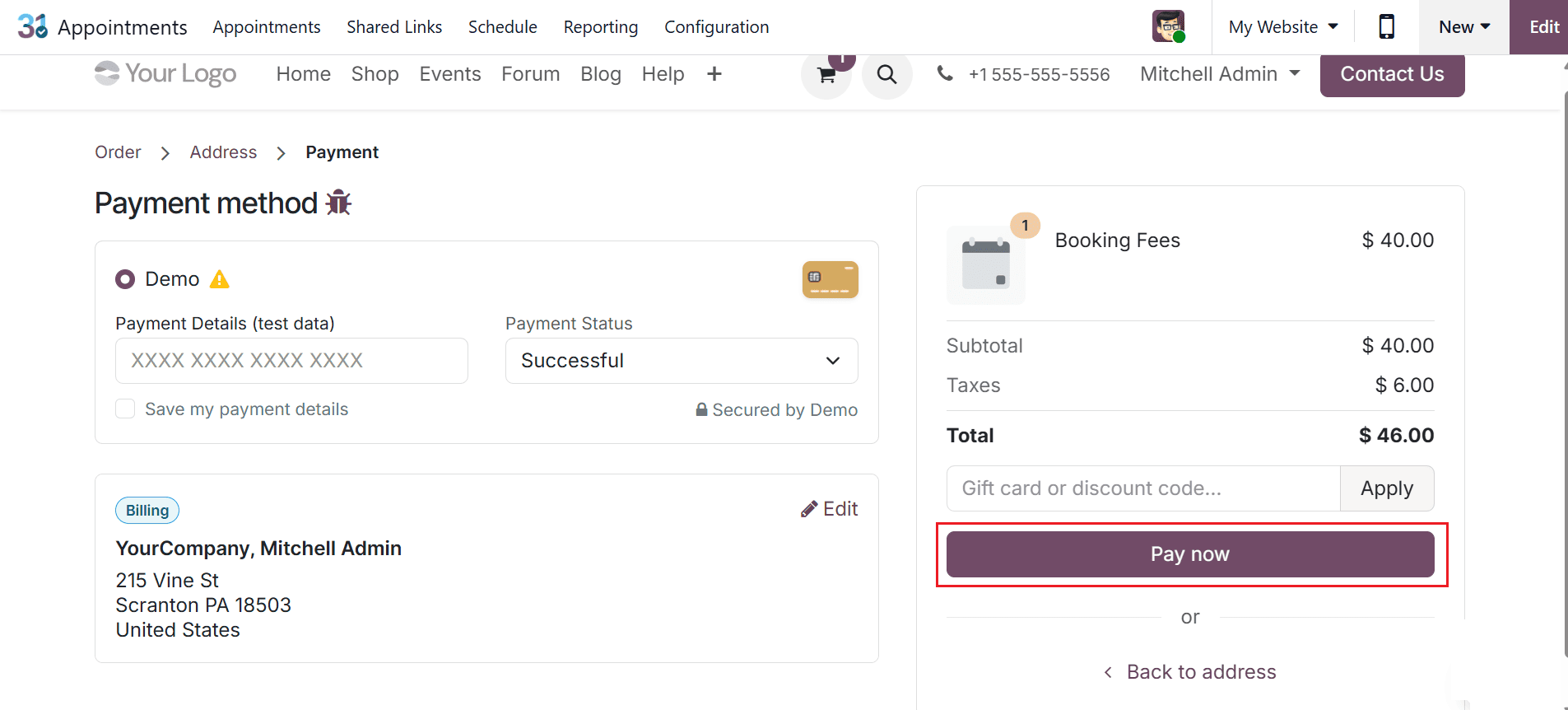
You can view the appointment overview on the screen. To make the payment, click Pay Now as illustrated below.
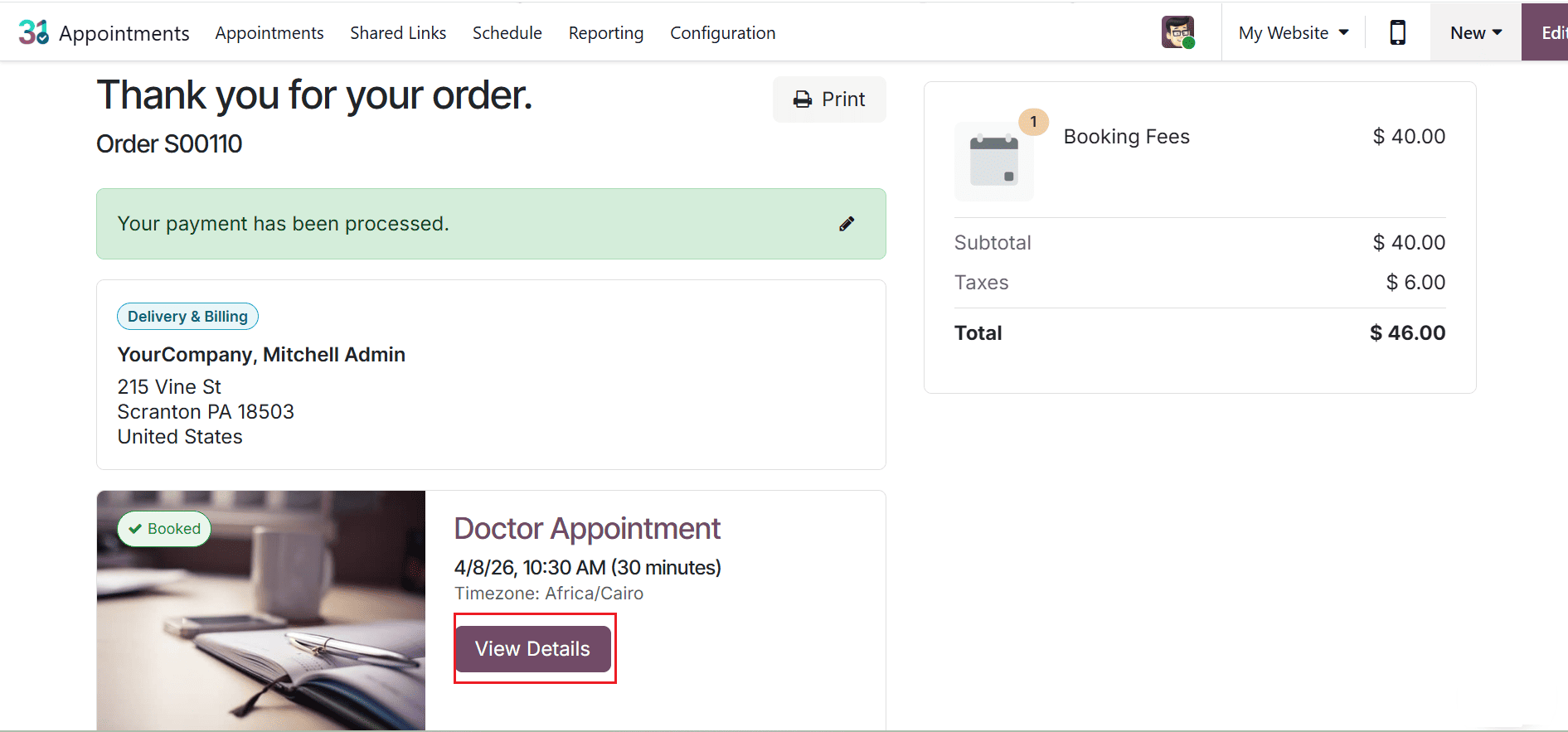
View the doctor appointment confirmation here, and click View Details to check the appointment information.
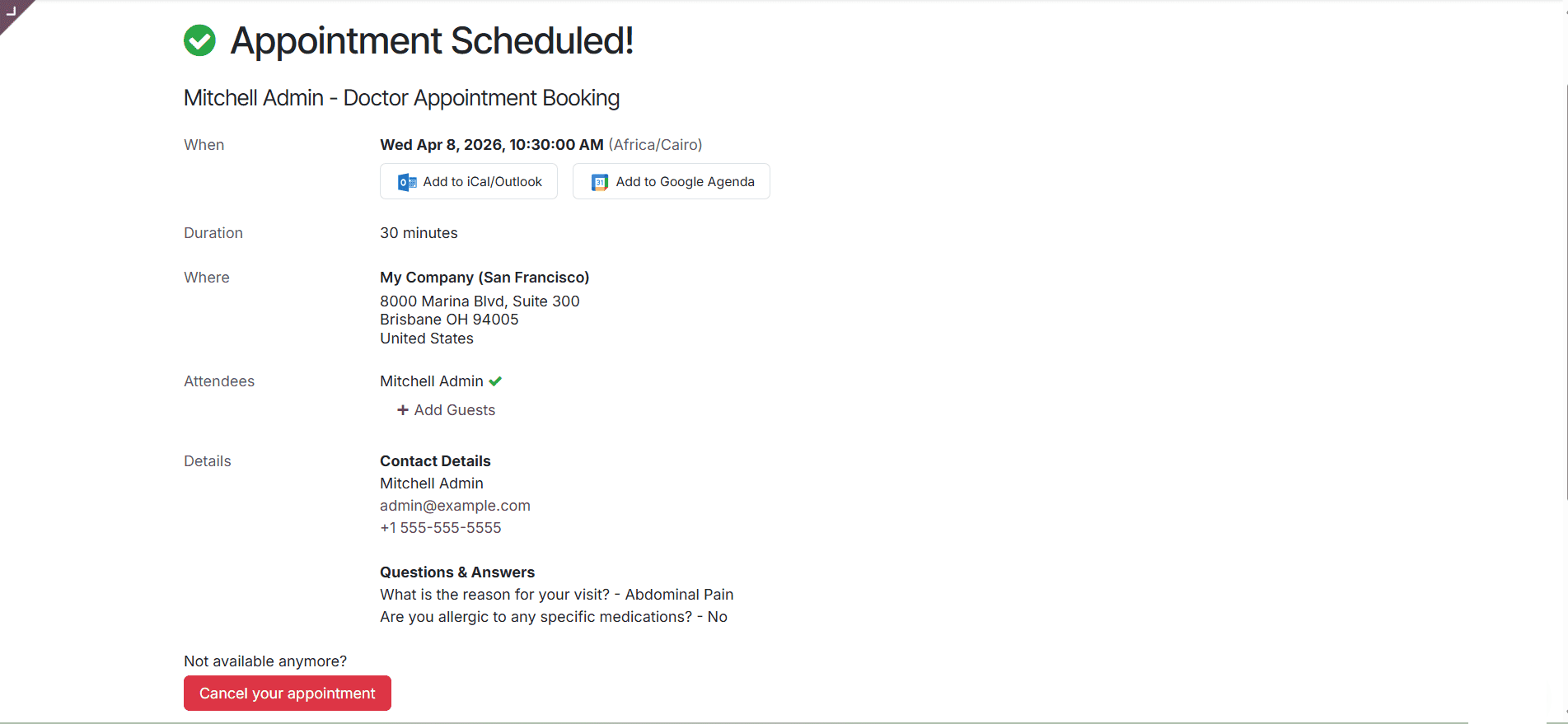
This section presents all the details of the appointment. If needed, you can cancel the appointment by clicking on the Cancel your appointment button.
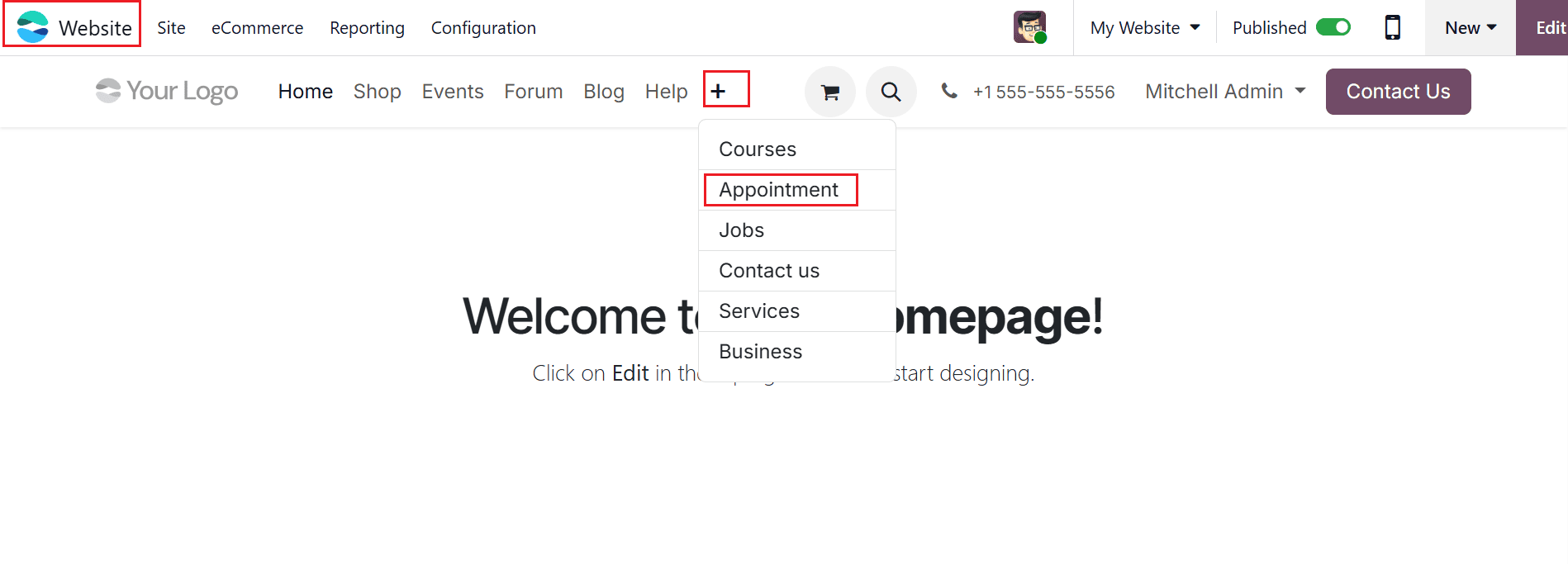
Once the payment is confirmed, navigate to the Website module, click '+', and choose Appointment as shown below.
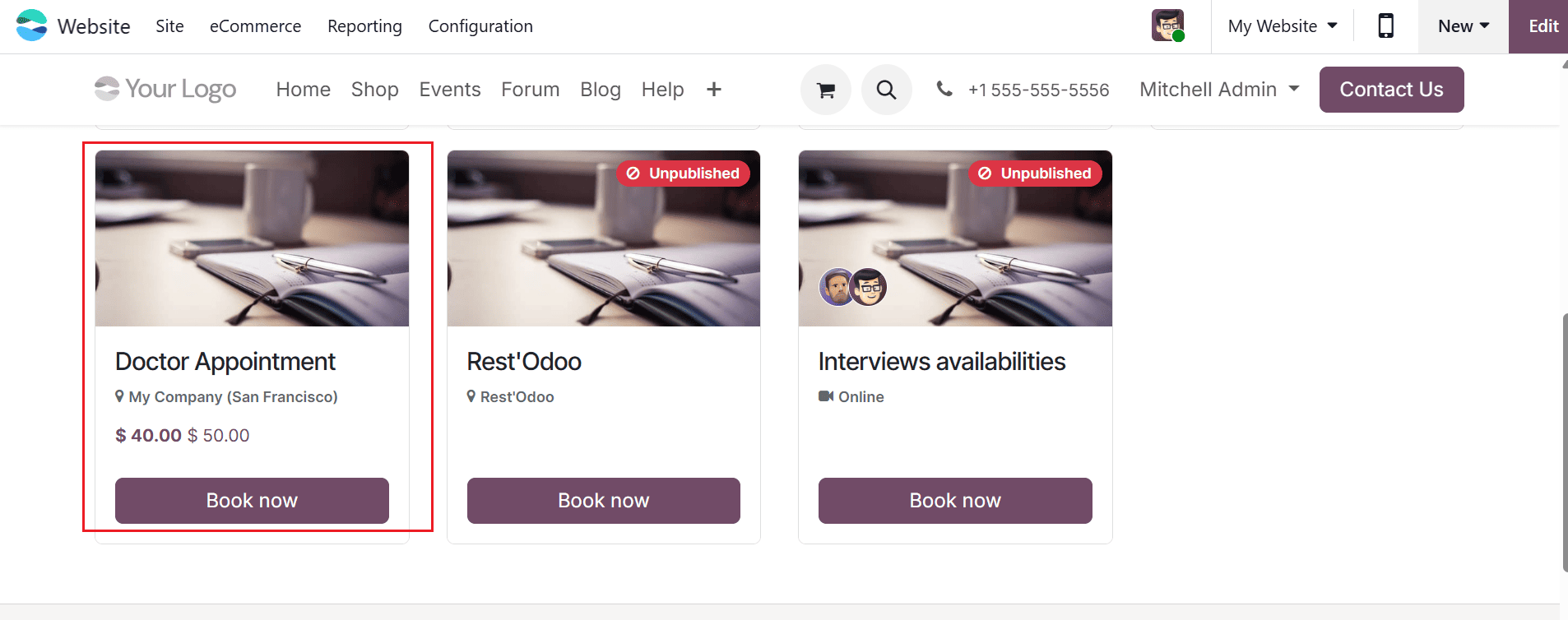
Choose the Doctor Appointment from the list of appointments as shown below:
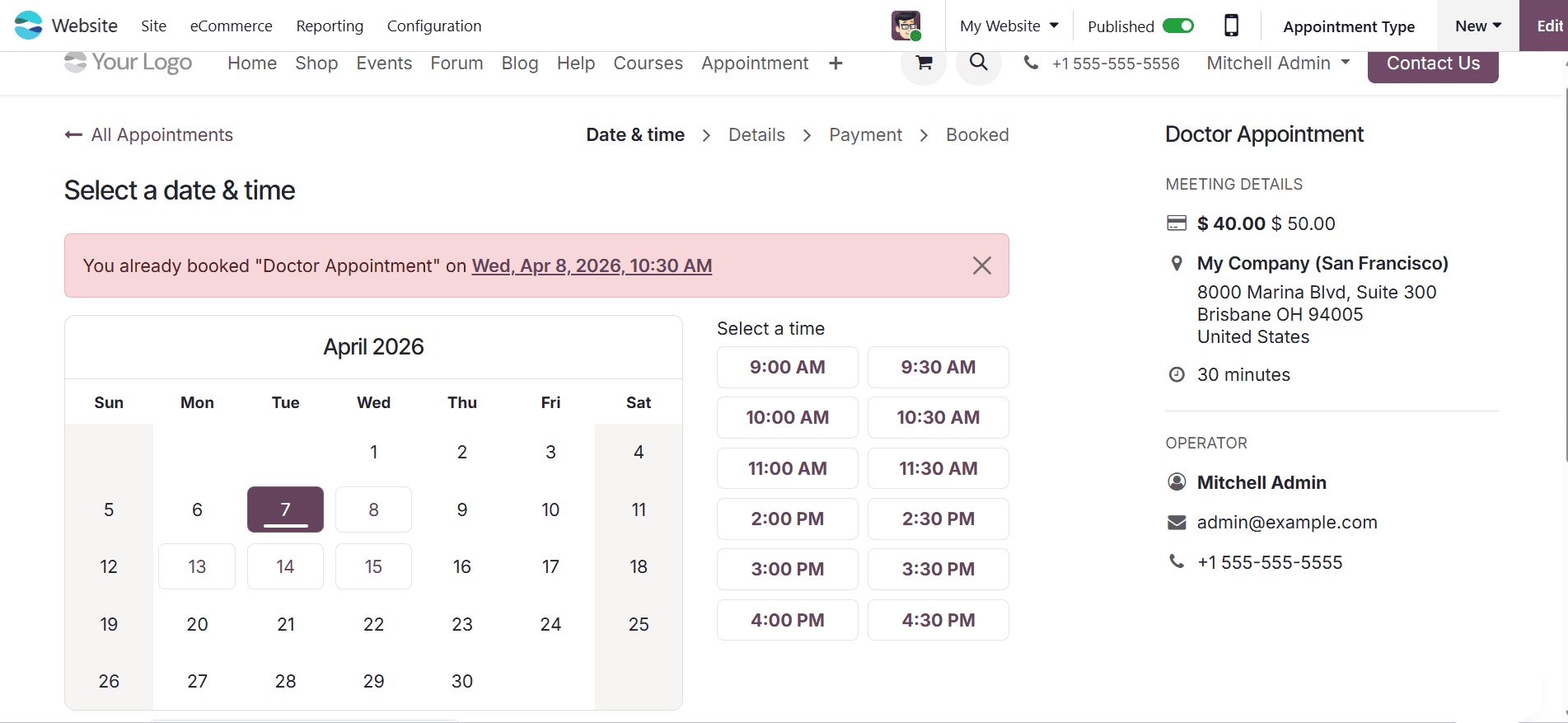
Here, you can view the date and time of your already booked appointment.
In conclusion, the Odoo 19 Appointment module offers clinics a reliable and efficient way to manage doctor scheduling. Its automation features eliminate the complexities of manual booking systems, allowing clinics to focus more on patient care. With real-time scheduling, flexible time slots, and seamless integration with other Odoo modules, it serves as an effective healthcare management tool. Clinics can significantly reduce scheduling conflicts, optimize doctors’ availability, and improve operational productivity. In addition, automated reminders and convenient rescheduling options help improve patient satisfaction while reducing no-show rates. By adopting the Odoo 19 Appointment module, clinics can ensure a well-structured scheduling system that supports both staff and patients. In an increasingly digital healthcare environment, leveraging such tools is essential for maintaining efficiency, accuracy, and high-quality service delivery in modern clinical practices.
To read more about How to Manage a Doctor’s Appointment in Odoo 18 Appointment, refer to our blog How to Manage a Doctor’s Appointment in Odoo 18 Appointment.