Managing multiple meetings in a busy work environment can make it difficult to know when someone is available or whether a meeting’s details should be visible to others. Odoo 20 Calendar provides privacy and availability options that help users manage their schedules more effectively. You can control who can view meeting details, show your time as busy, and check the availability of attendees before scheduling an event. These features are useful for protecting private meetings while reducing scheduling conflicts and avoiding unnecessary double bookings.
In this blog, we will explore different privacy options available in Odoo 20 Calendar, how to hide meeting details, and how to check attendees' availability before scheduling a meeting. We will also look at how working hours and meeting status can help users to manage their schedules and reduce the chance of double booking.
Understanding Calendar Privacy in Odoo 20
Not every meeting needs to be visible to everyone in an organization. The Odoo 20 Calendar module gives different privacy options that let users decide who can view the details of Calendar events.
When creating or editing a meeting, you can select a relevant option depending on who you want to share the meeting with. For example, a private meeting can keep its details hidden from other users, while a shared calendar can allow details to specific members to access the events.
Odoo 20 Calendar provides options such as Public, Private, Only internal users, and Calendar Members only. These settings help users share their schedules while keeping sensitive meeting details private when needed. The available options are shown below:
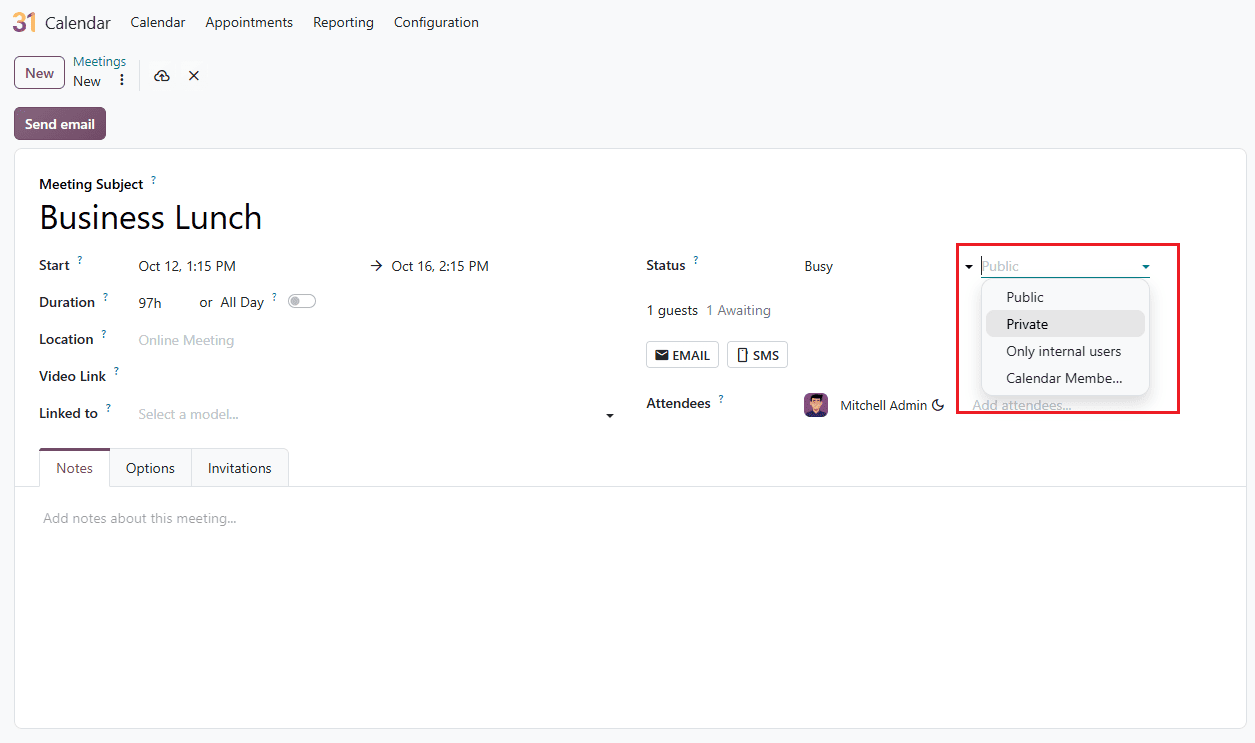
Public: Information about meetings or events, and time are fully viewable across the company or the team that has access to the Calendar.
Private: The meeting details are kept private from unauthorized users and ensure sensitive discussions only show up as occupied or restricted time slots.
Only internal users: The event can be viewed by users within the organization while restricting external users from viewing internal operations.
Calendar Members Only: The event details are only visible to the members with whom the Calendar is shared, and it also controls user visibility and access.
Hide Meeting Details
Easily hide sensitive meeting details from outside participants to maintain complete privacy and control over your data. You can hide your meetings and events from unauthorized users or even from your team members in Odoo 20 Calendar.
To hide your meeting, open a scheduled meeting or event from Calendar and select Private as shown below:
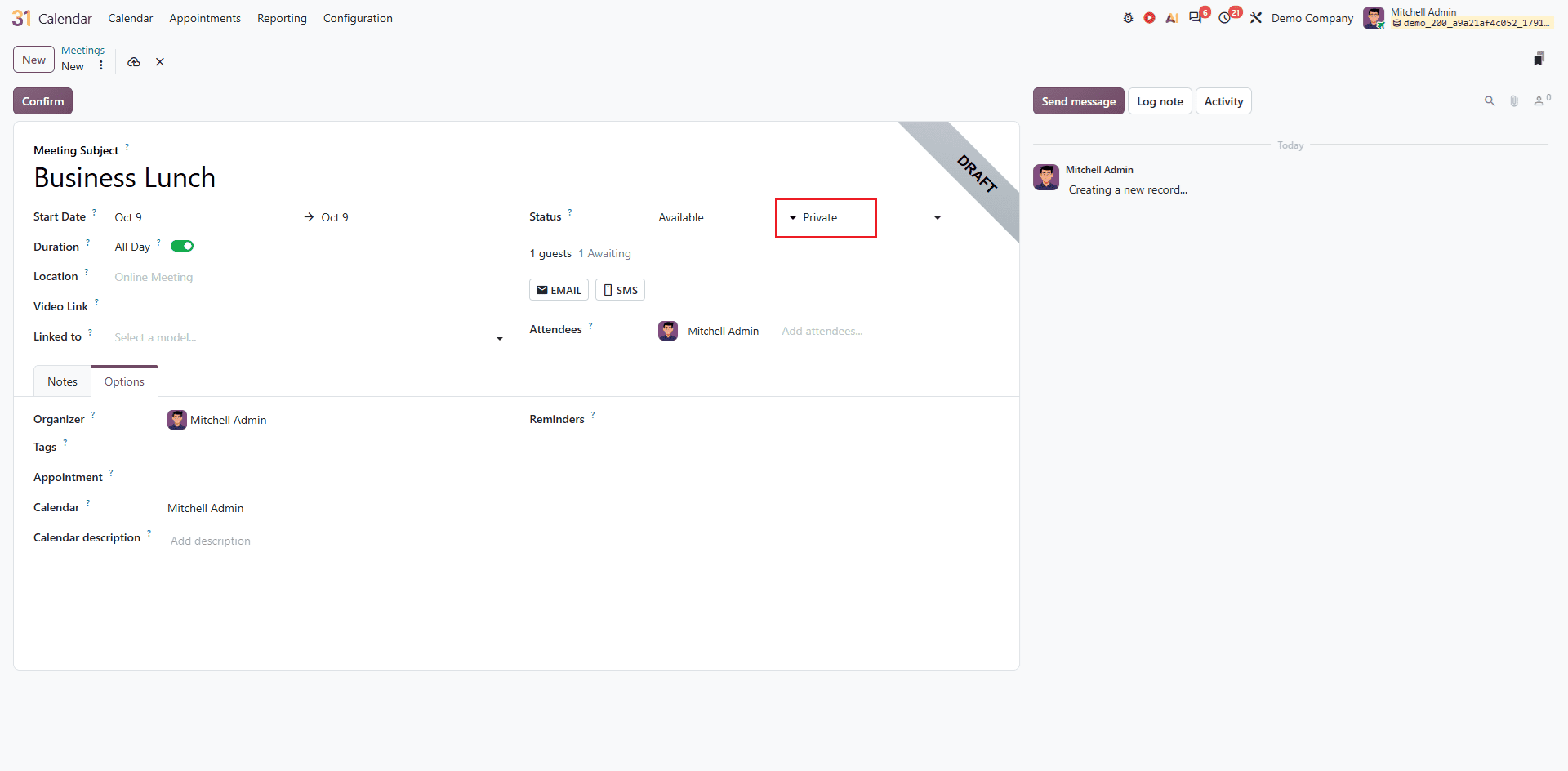
This keeps the meeting details hidden from users who do not have permission to view them. If the event is set to Busy, the time slot can still indicate that you are unavailable without revealing the meeting details. It is only visible to the user and attendees. Other internal users or coworkers will simply see the time slot blocked out as Busy or Available, so the specific title, description, and meeting notes will be entirely hidden to protect your privacy.
Set the Meeting Status
The Odoo 20 Calendar allows you to specify whether a meeting should be shown as Available or Busy. This Status can be used when you create or edit a meeting to display whether the scheduled time should be considered Busy or Available in the Calendar.
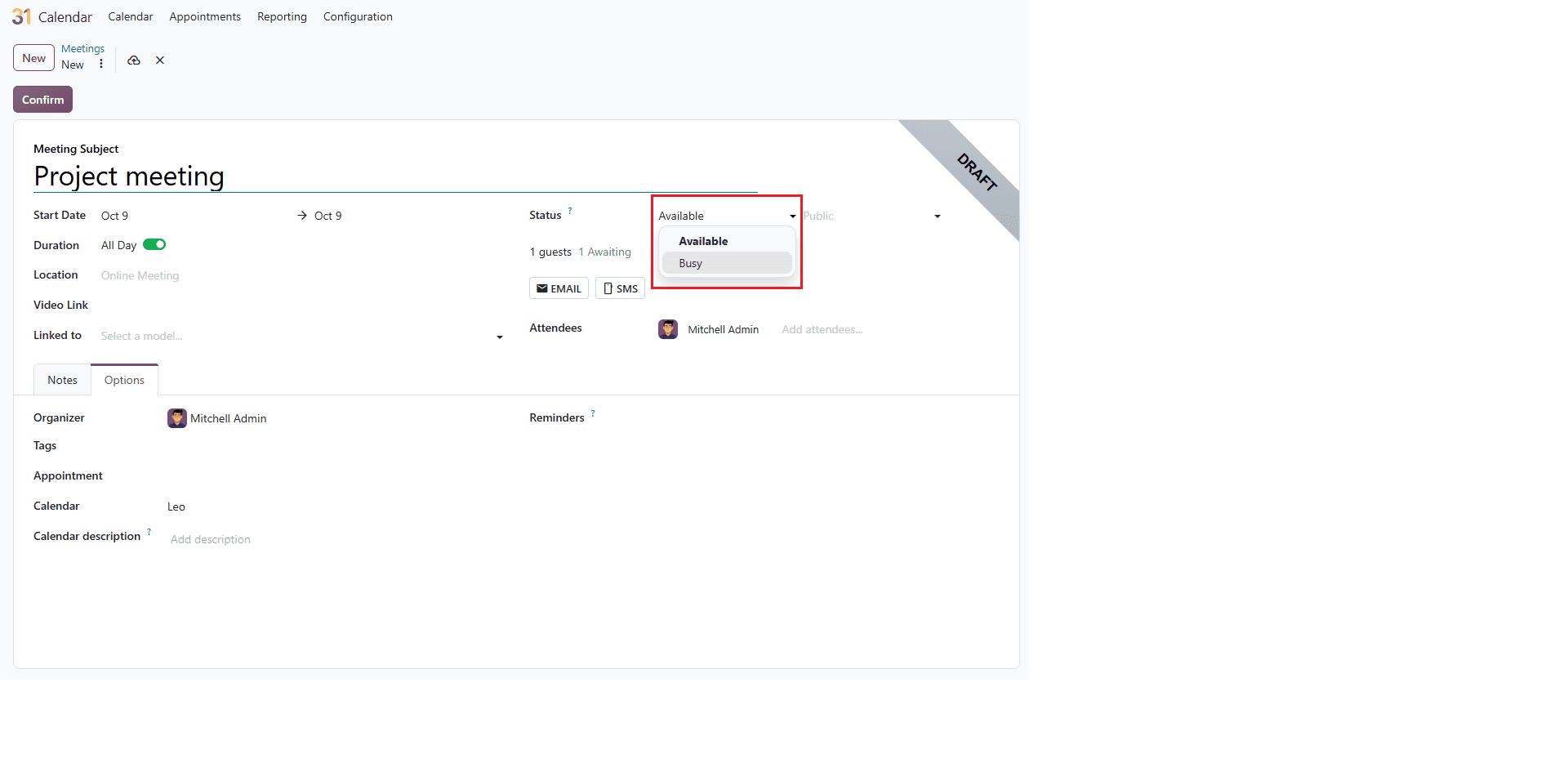
When Busy is selected, the meeting time will be occupied and can affect when other meetings are being scheduled. If it's selected as Available, it indicates that the meeting does not block time and allows the user to remain available for another meeting.
This option is useful when adding events that need to be recorded in the Calendar but should not necessarily prevent other meetings from being scheduled during the same period.
Checking Attendees Availability
When scheduling a meeting in Odoo 20 Calendar, checking the availability of attendees can help you choose a suitable time. The Calendar view shows existing meetings and events to make it easier to identify availability.
If attendees have another meeting scheduled during the selected time, their time can appear as busy or unavailable.
The image below shows the Calendar view as Day. To check the availability of attendees in the Calendar view, you can see a Meet with section on the right sidebar (below the mini-calendar). Once you create a meeting and add attendees, you can check their availability by selecting them under Meet with.
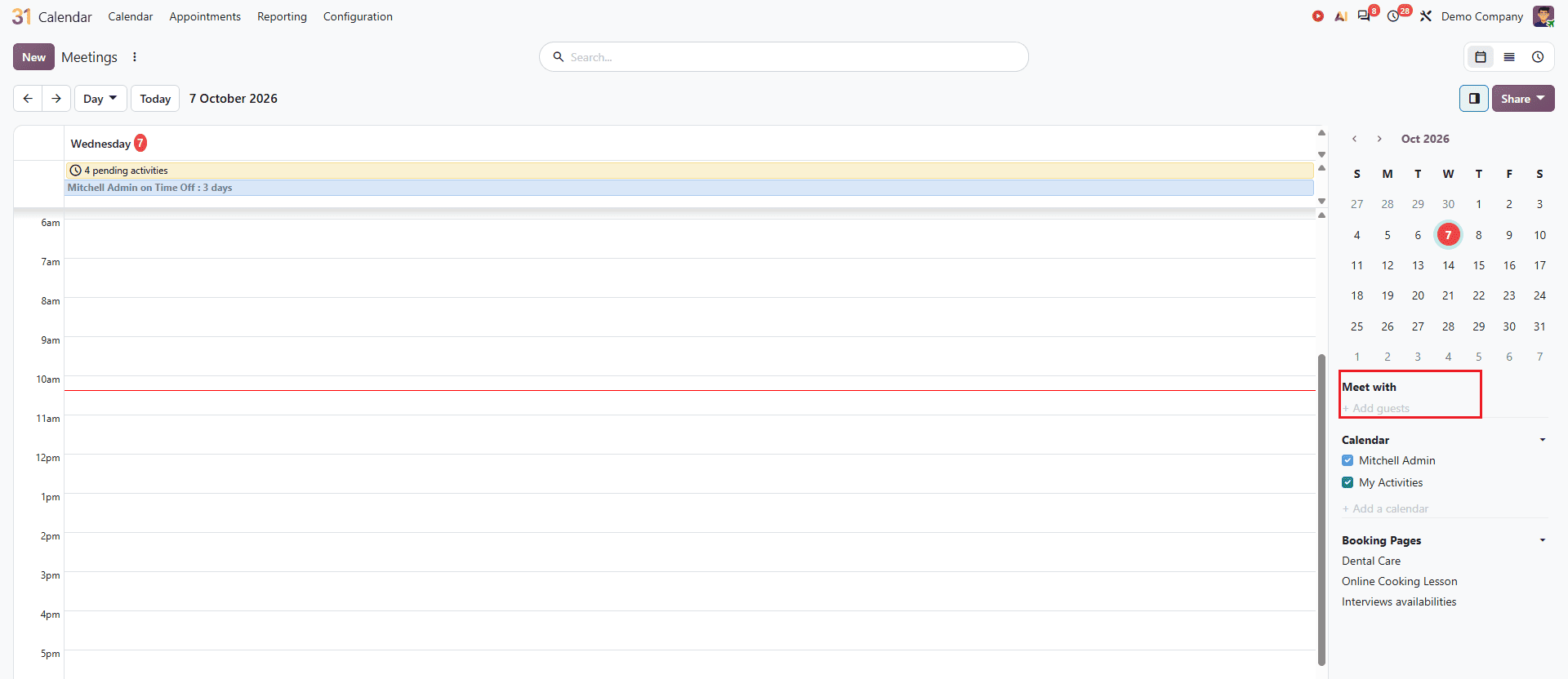
After selecting an attendee whose availability you want to check, it will appear on the Calendar view as the same color as the attendee. Here it is shown below.
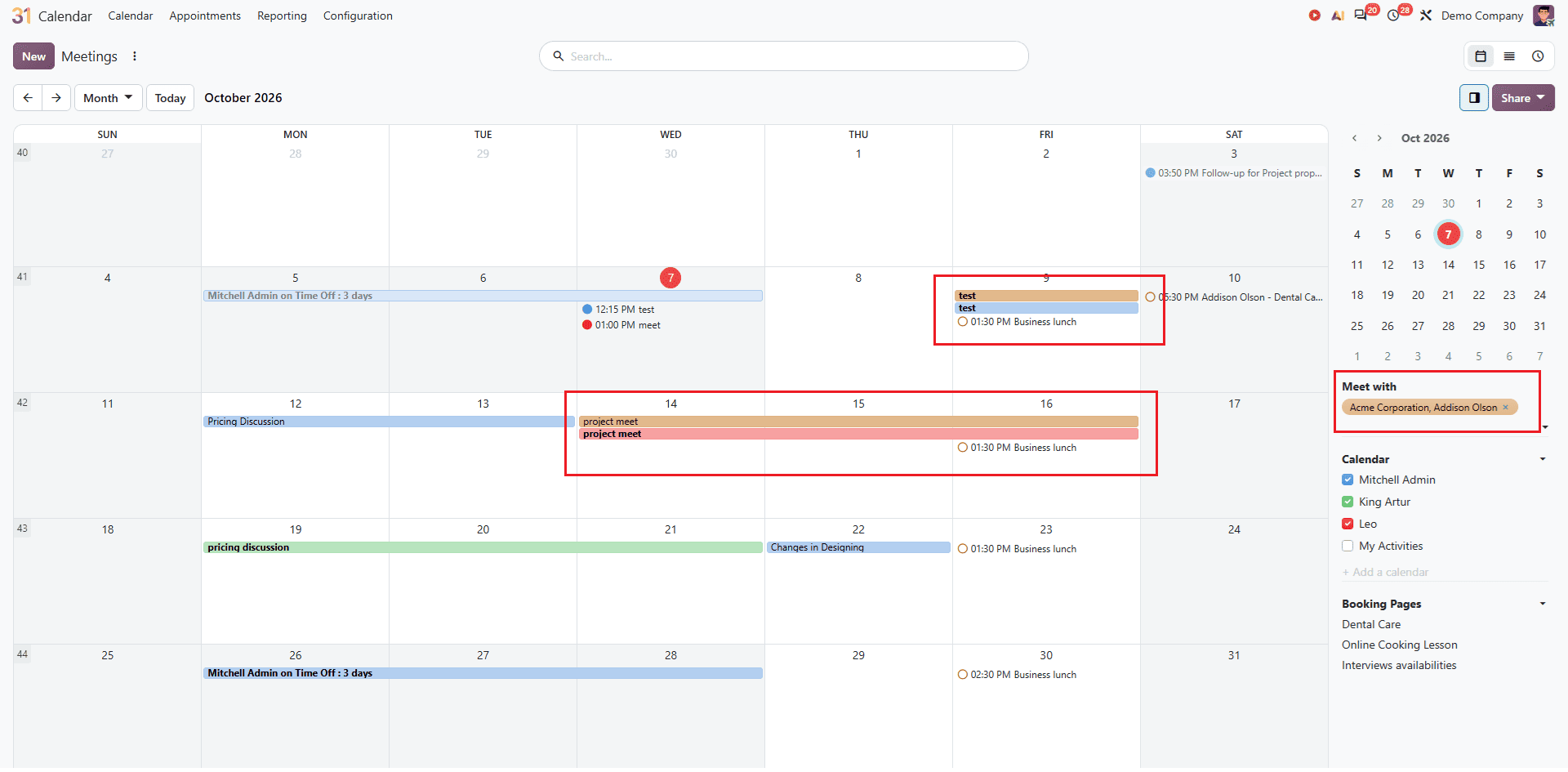
This is useful when scheduling meetings with multiple attendees, as you can check their available time before sending the invitation and reduce unnecessary scheduling conflicts. You can also check the availability of multiple attendees. It can be seen in the Calendar view as shown below:
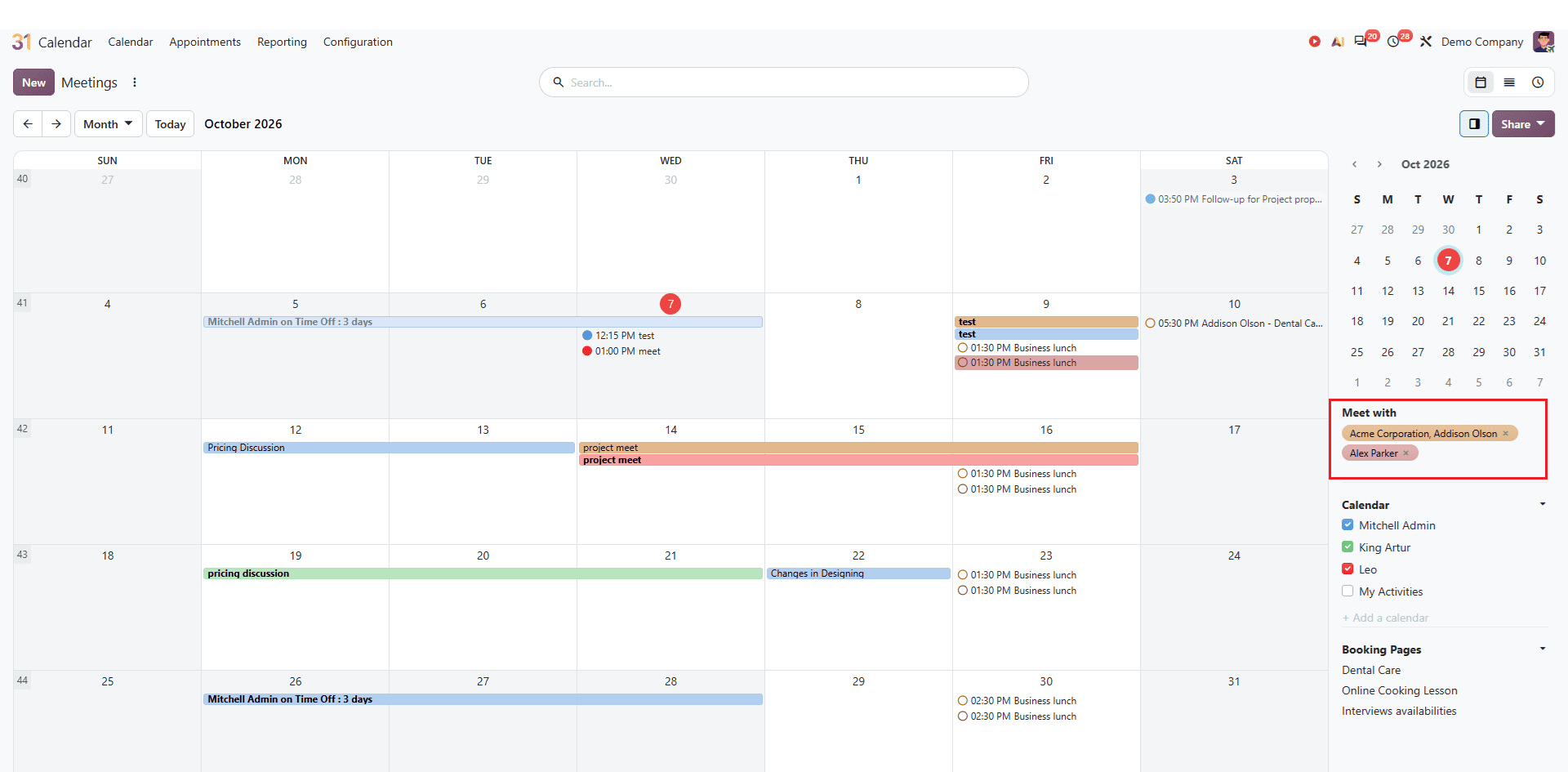
Odoo 20 also considers the working hours of the attendees when checking suitable meeting times. So, along with checking their existing meetings, you can also consider their working hours to choose a convenient time and avoid scheduling conflicts.
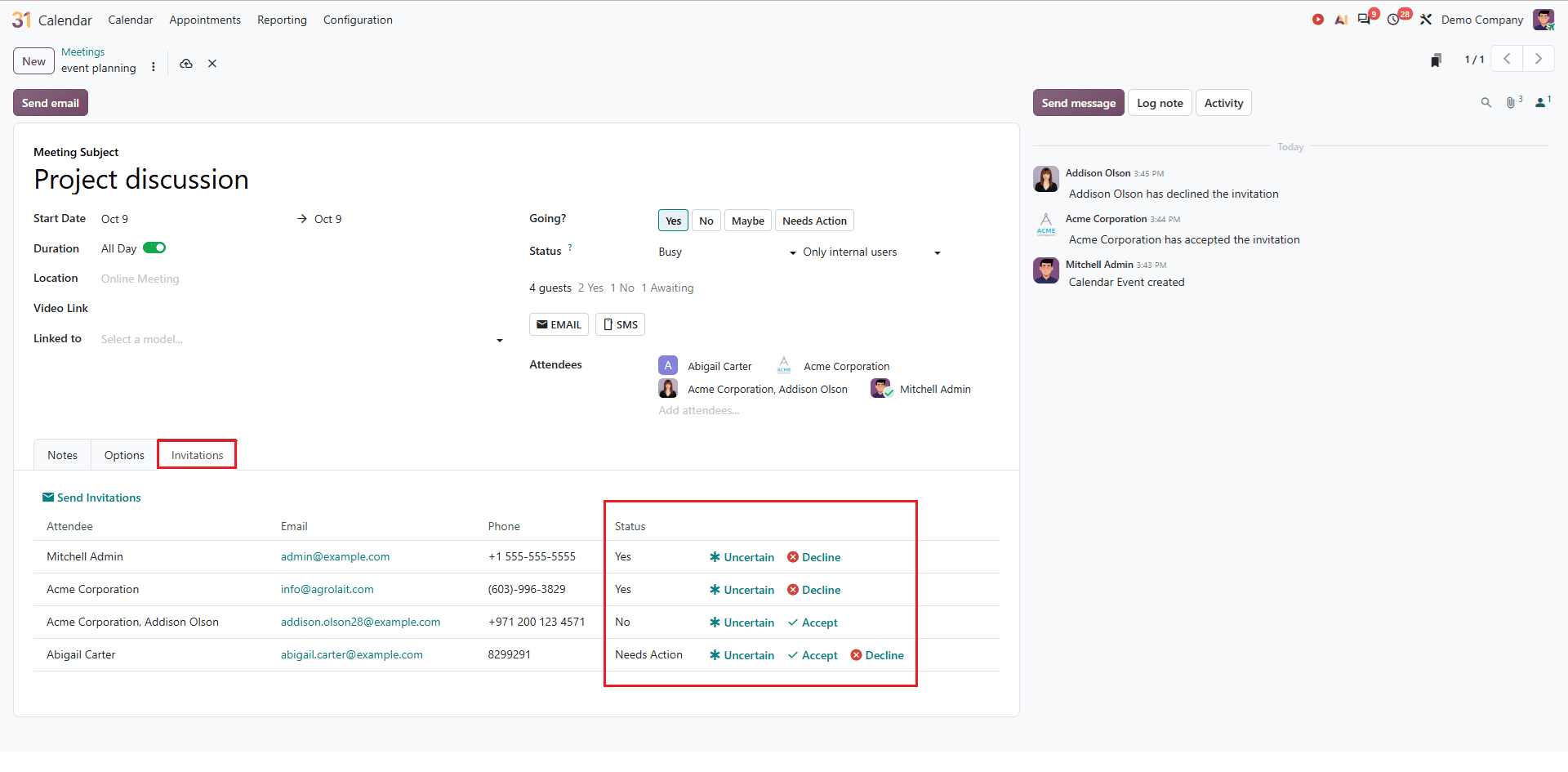
You can also check the status of attendees after adding them to a meeting. Their response to the invitation helps you to know whether they are Accepted, Declined, or Uncertain. To see the Status, create or edit a meeting and go to Invitations, and you can see the status as given below:
Avoid Double Booking in Odoo 20
Double booking happens when the same person schedules two meetings at the same time. Odoo 20 Calendar helps users identify occupied time slots when scheduling meetings. When a client or team member schedules an Appointment through Odoo’s online schedule or Appointment features, Odoo checks the user’s existing Calendar events to provide available time slots. This can reduce the possibility of overlapping meetings.
This is especially helpful when several attendees are invited to the same meeting. By checking their availability before committing to an event or meeting, you can identify unavailable attendees and select a time that works best for everyone.
The image below shows the attendee’s availability when they are added to a meeting schedule for the same time.
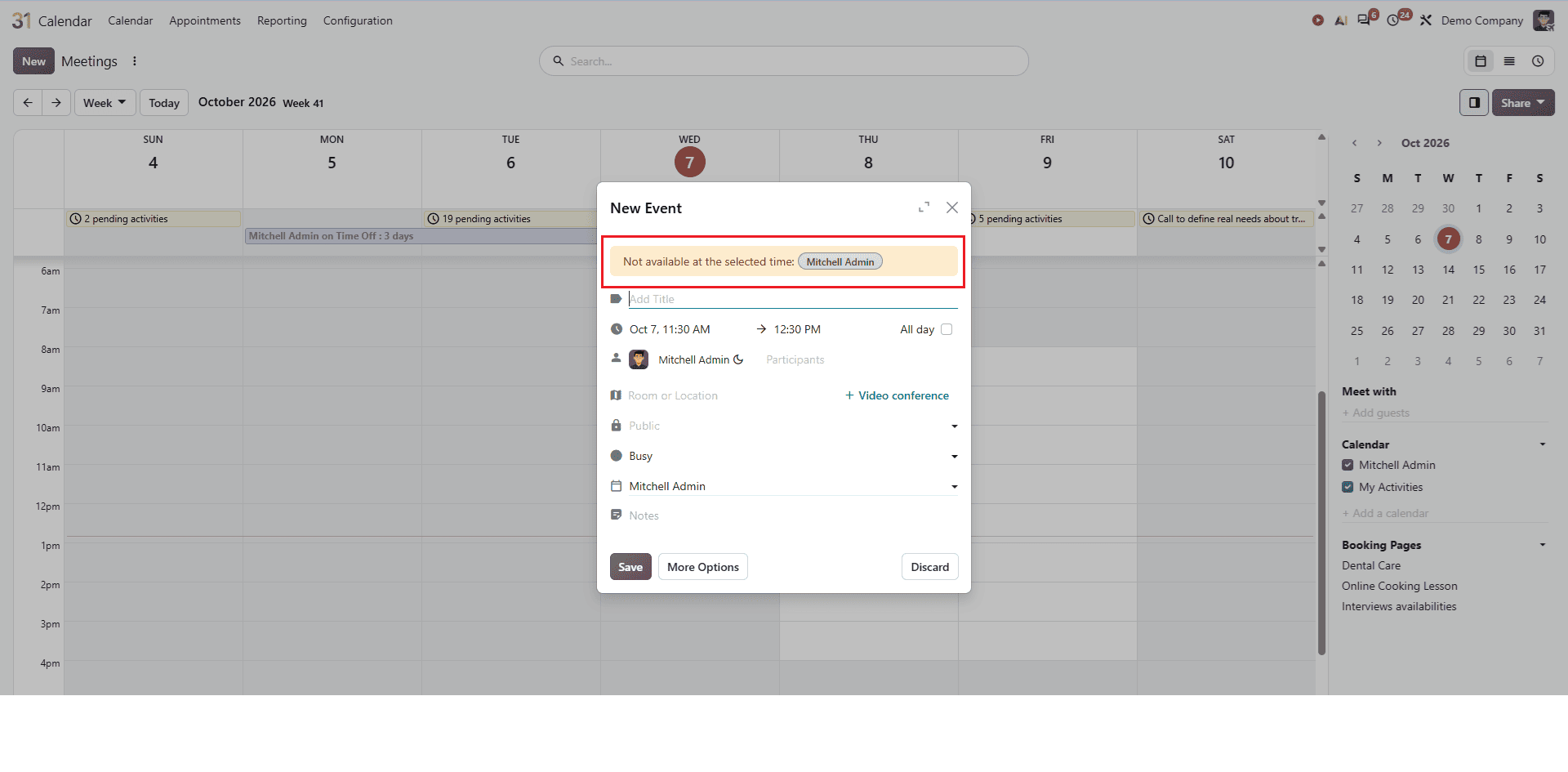
Odoo 20 Calendar provides useful privacy and availability features for managing meetings effectively. Privacy options help users control who can view their meeting details, while the availability view makes it easier to check attendee availability before scheduling a meeting. The Busy and Available status also helps to indicate whether the scheduled time should be considered occupied. By using these features, users can easily manage their schedule more efficiently and reduce the chance of scheduling conflicts and double booking.
To read more about How to Create and Share Calendars with Colleagues in Odoo 20, refer to our blog, How to Create and Share Calendars with Colleagues in Odoo 20.