The Rental module in Odoo 19 offers a comprehensive solution for managing rental businesses with improved efficiency and automation. It enables businesses to handle rental orders, monitor product availability, process returns, and generate invoices from a single platform. Whether you're renting equipment, vehicles, furniture, or event supplies, Odoo 19 provides the tools needed to simplify rental operations. This blog explains how to configure the Rental module and effectively manage the entire rental workflow in Odoo 19.
What is the Odoo Rental Module?
The Odoo Rental module in Odoo 19 helps businesses efficiently manage rental operations by handling rental orders, product availability, returns, and invoicing from a single platform. With seamless integration across Odoo applications, it simplifies the entire rental workflow and improves operational efficiency.
Initial Setup Before Creating Rental Orders
Install the Rental Module
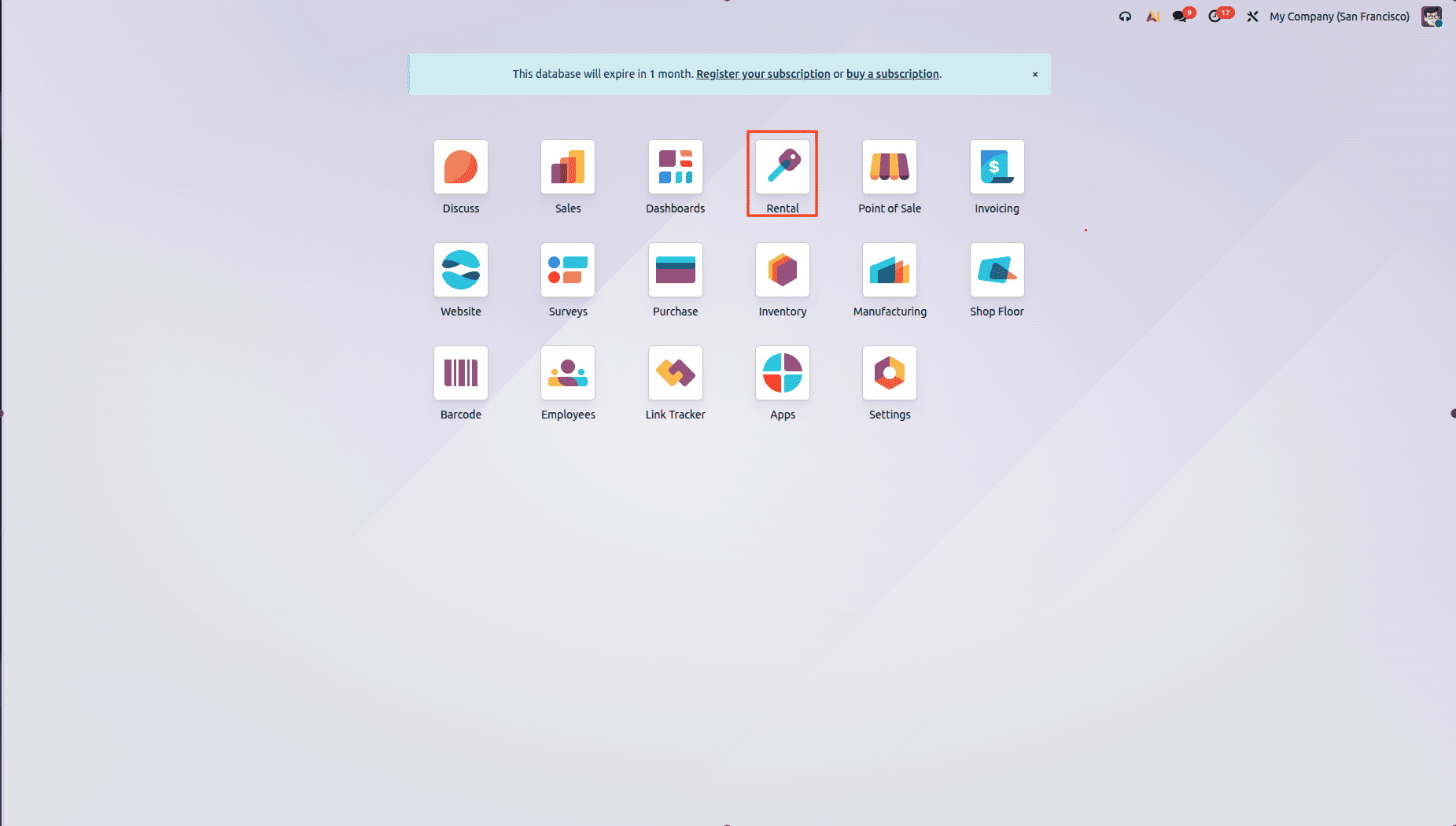
Before diving into the rental process, ensure your system is properly configured. Navigate to Apps, search for Rental, and install it. Once installed, a dedicated Rental menu appears in your Odoo interface.
Configure Rental Products
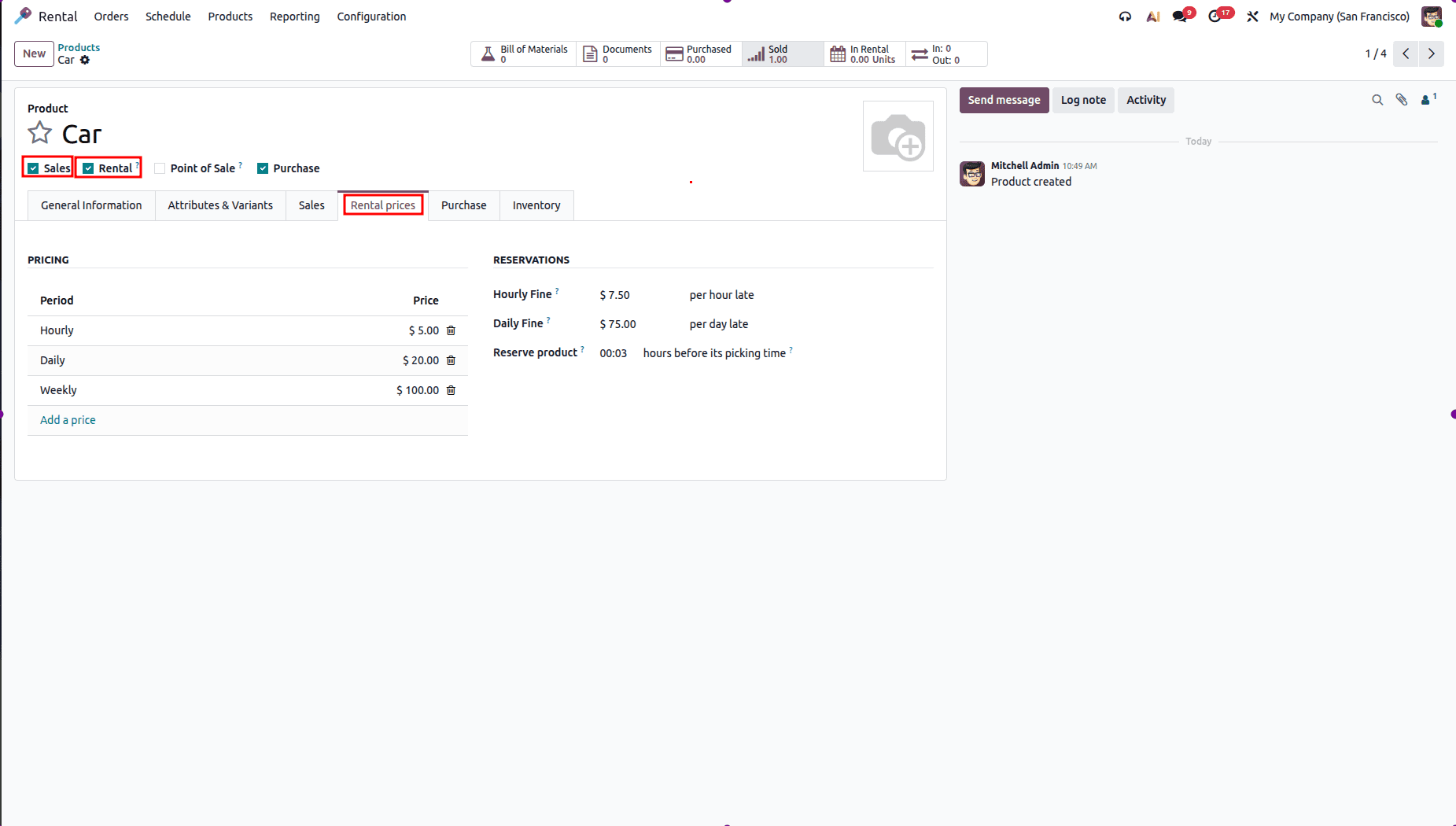
In Odoo 19, rental and sales product configurations are more distinctly separated, reducing conflicts and improving overall clarity.
To configure a rental product, go to Rental > Products, then either create a new product or edit an existing one. Ensure the Rental option is enabled on the product form. Under the Rental Prices tab, you can define pricing rules based on time units such as Hour, Day, Week, or Month. You can also define a Security Time to keep the product unavailable between rental orders for cleaning, maintenance, or transportation.
Rental Workflow in Odoo 18
Now that your rental products are configured, let's walk through how Odoo 19 handles the complete rental order lifecycle.
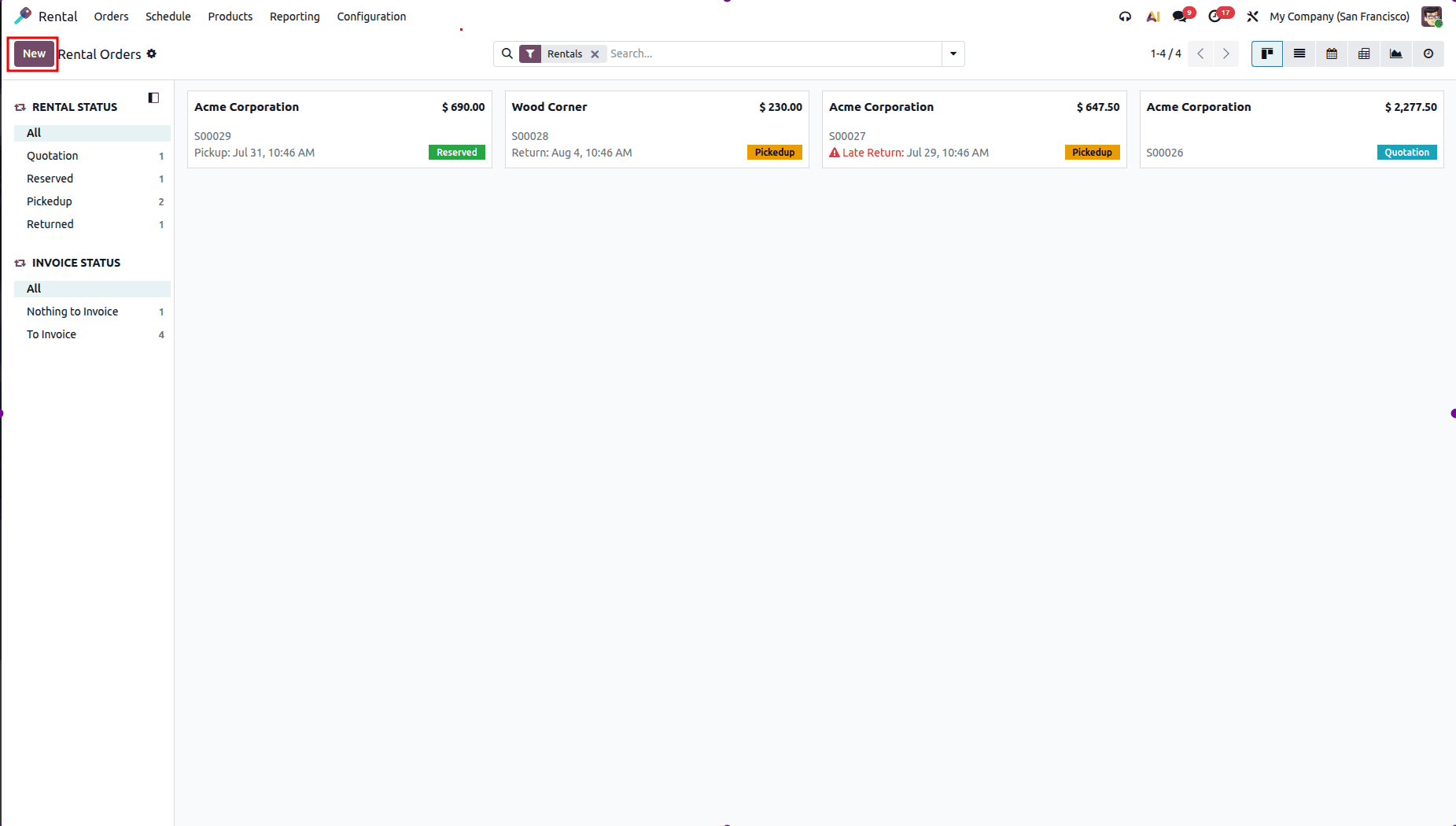
To create a new rental order, go to Rental > Orders and select New.
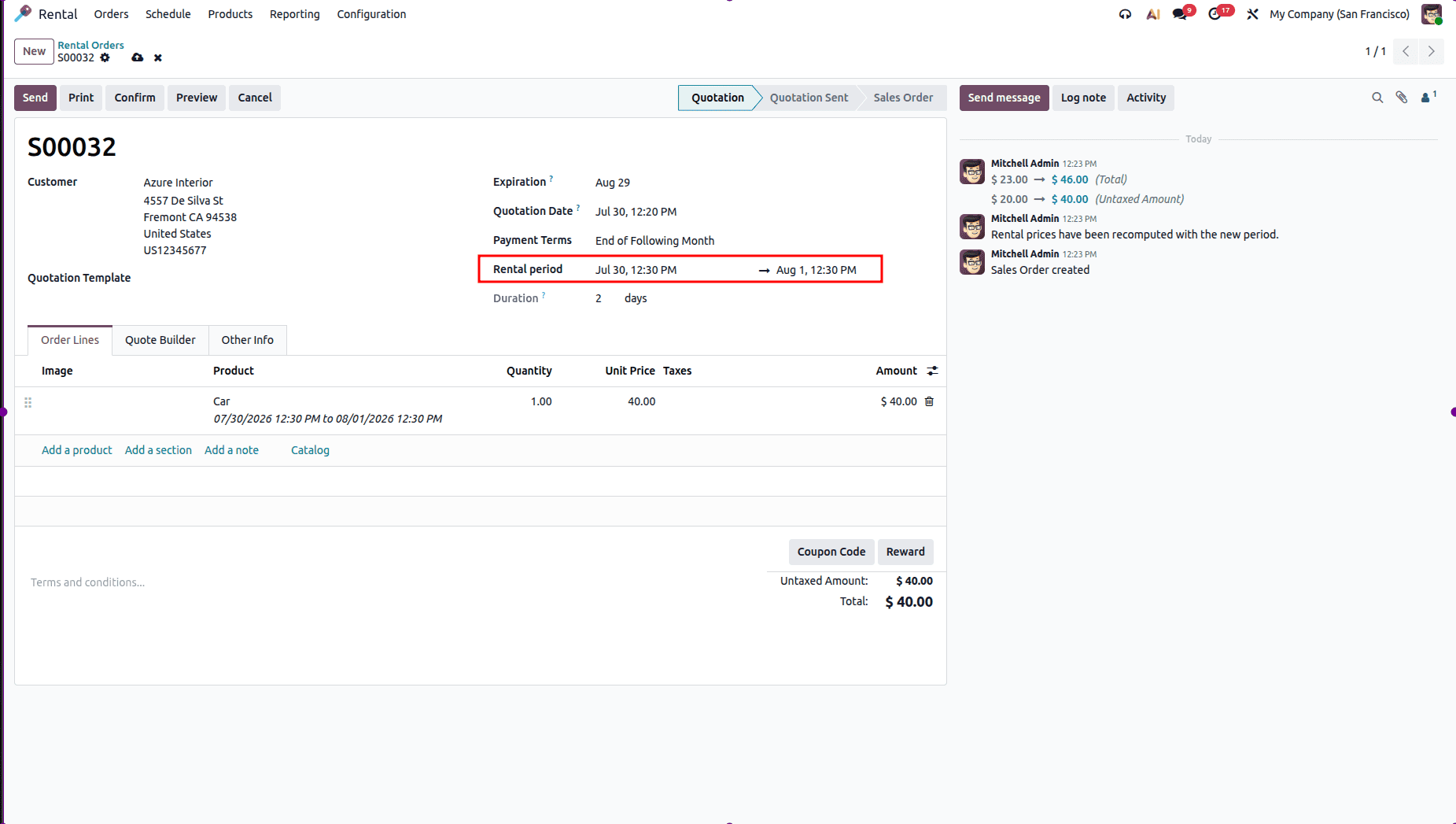
In the rental quotation, choose the Customer and set the Rental Period start and return dates. Add the required rental products with their quantities. Odoo 19 automatically verifies product availability for the selected period, ensuring there are no scheduling conflicts or overbookings.
Tip: The Calendar View helps you monitor all active and upcoming rentals through an organized visual schedule.
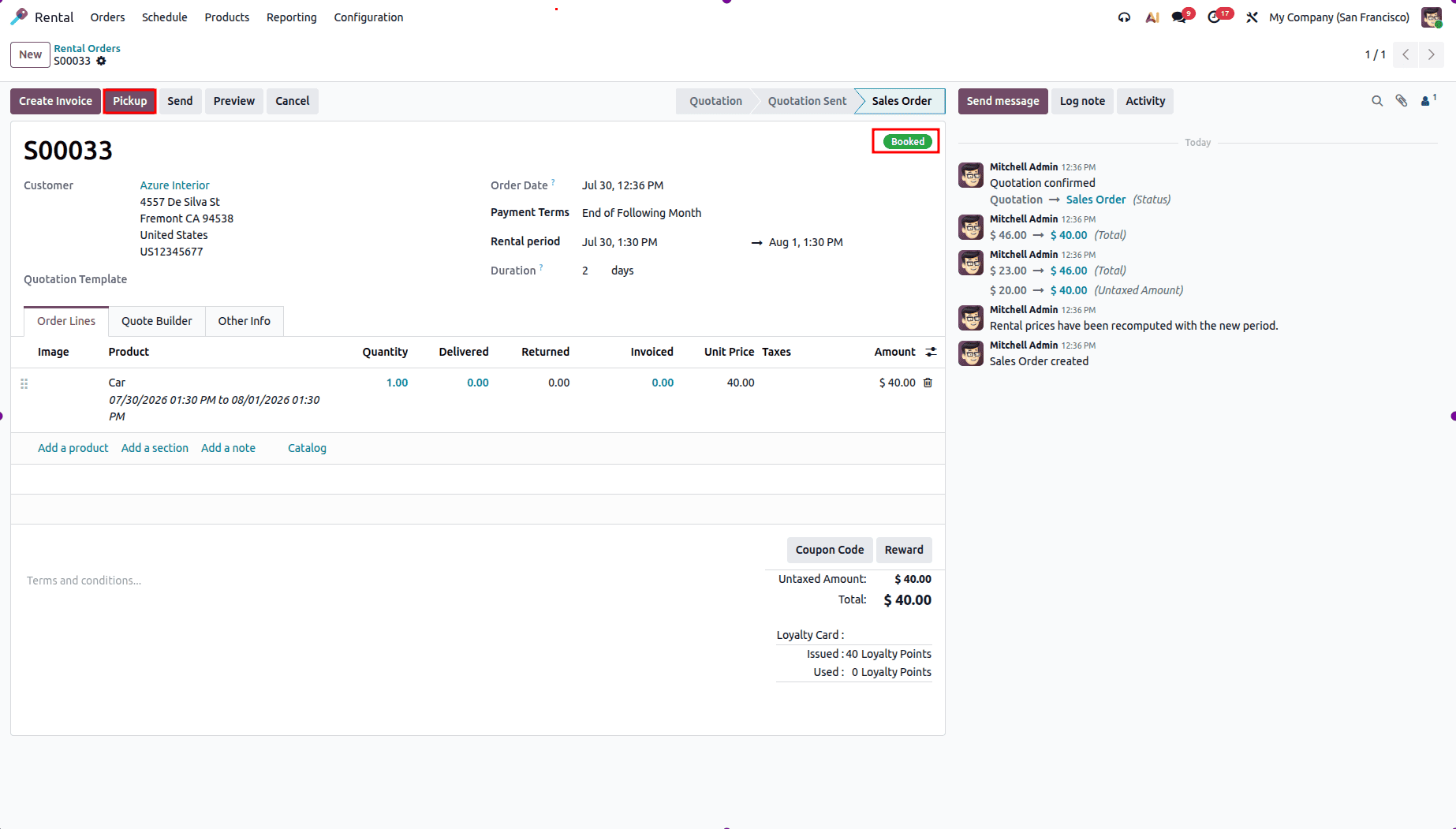
Once the rental quotation is complete, click Confirm to convert it into a rental order. The order status changes to Booked, indicating that the rental has been confirmed. You can then prepare the rental items for pickup or arrange their delivery to the customer.
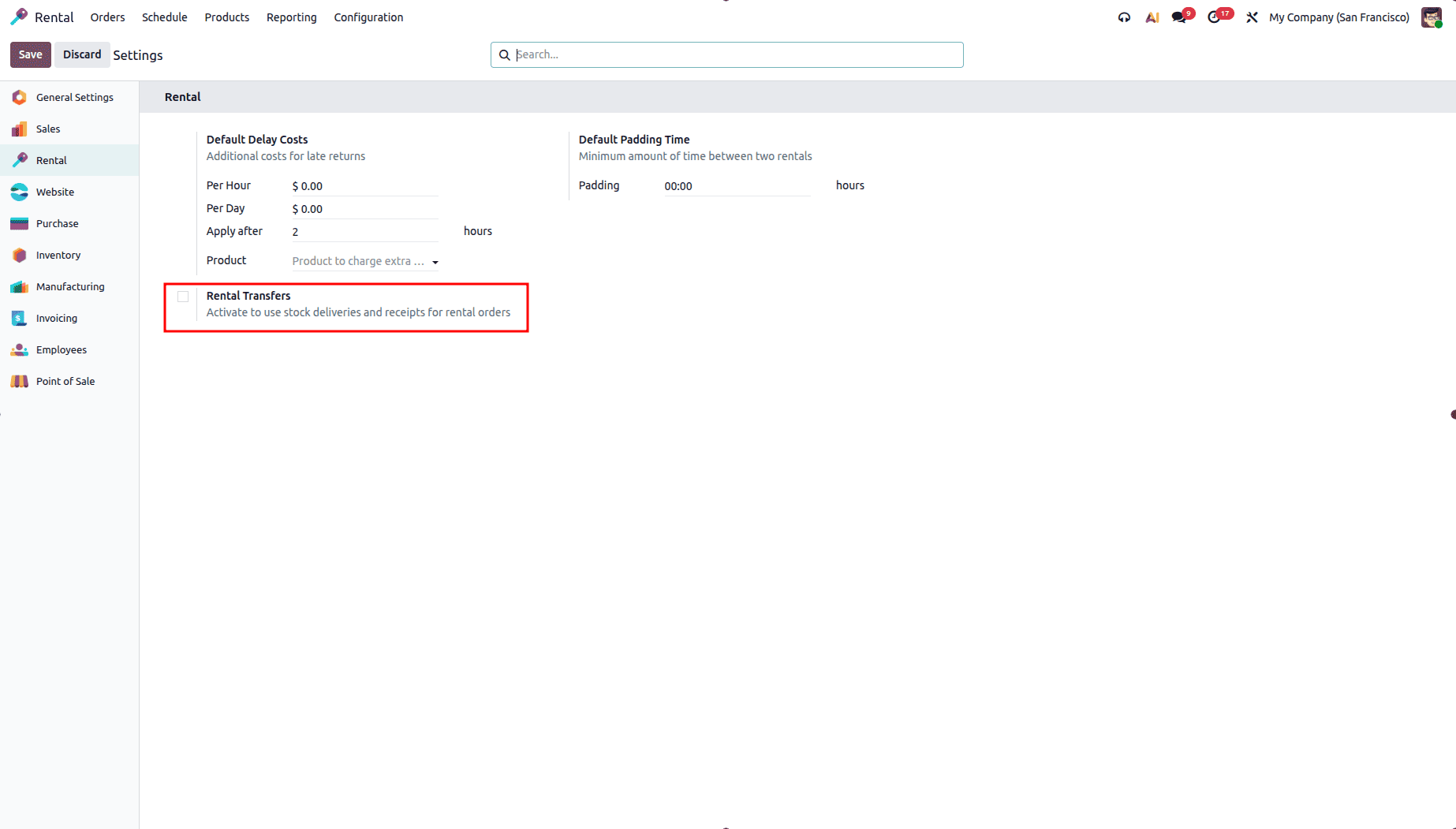
To generate delivery orders for rental products, go to Rental > Configuration > Settings and enable the Rental Transfers option.
Once the customer is ready to collect the rented products, select the rental order and click Pickup to confirm the handover.
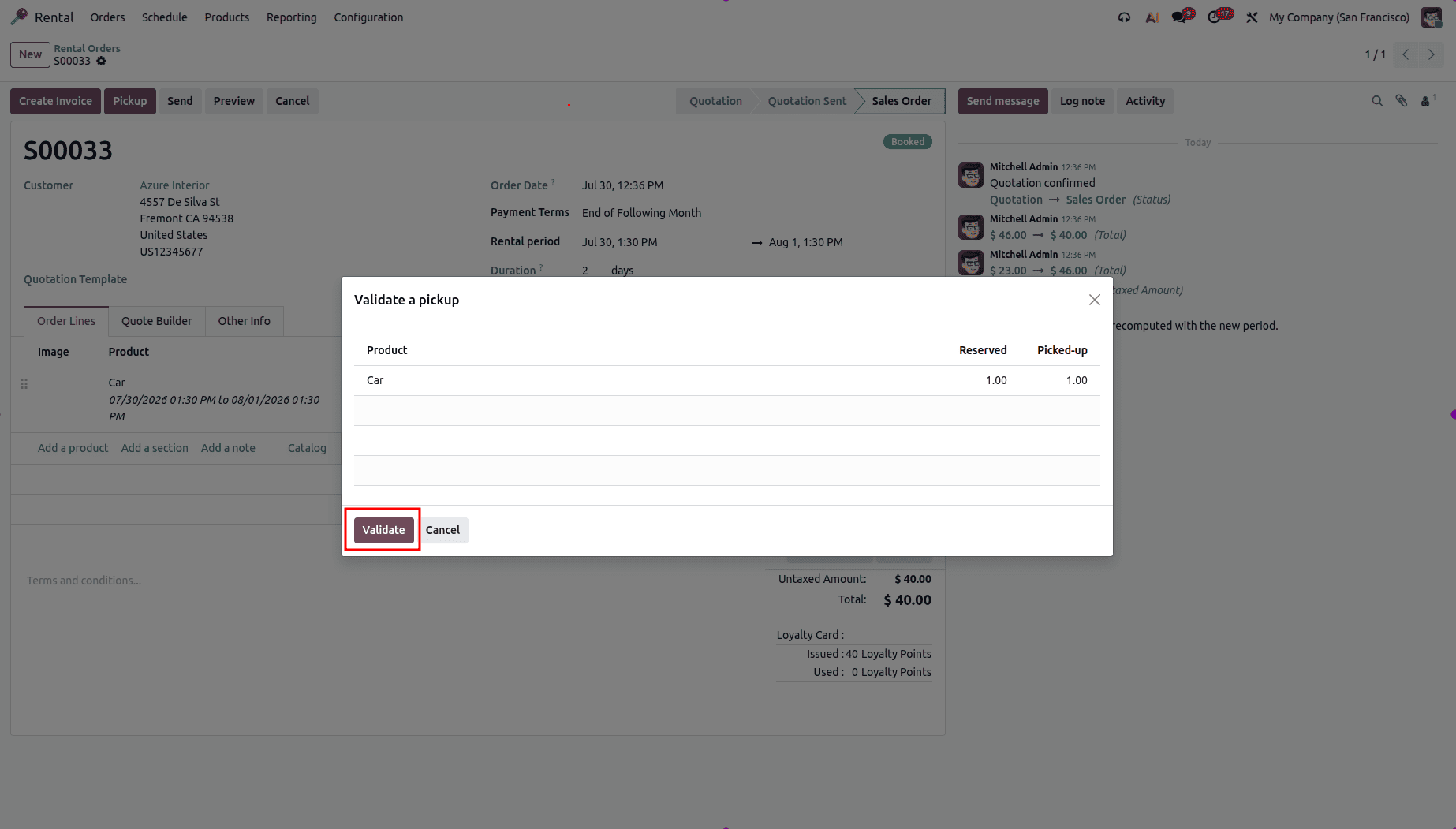
After clicking Validate in the pop-up, the pickup is confirmed, and the rental order status changes to Picked Up.
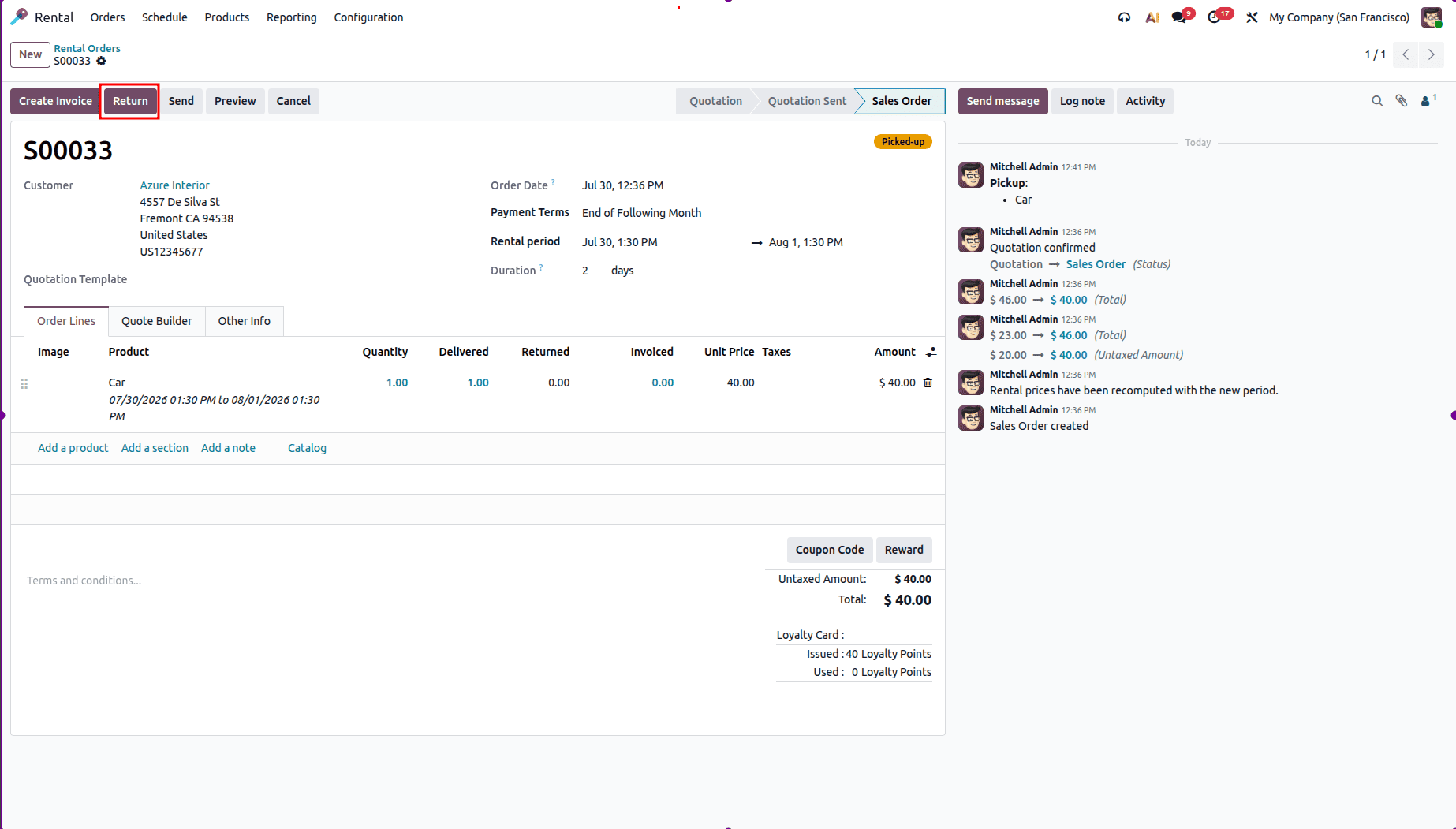
To process a return, open the rental order, click Return, and validate the return through the confirmation pop-up.
After validating the return, the rental order is marked as Returned.
Odoo 19 provides flexible invoicing options for rental orders. You can generate invoices before the rental starts, during the rental period, or after the items are returned, depending on your business requirements. To create an invoice, open the rental order, click Create Invoice , and confirm the draft invoice.
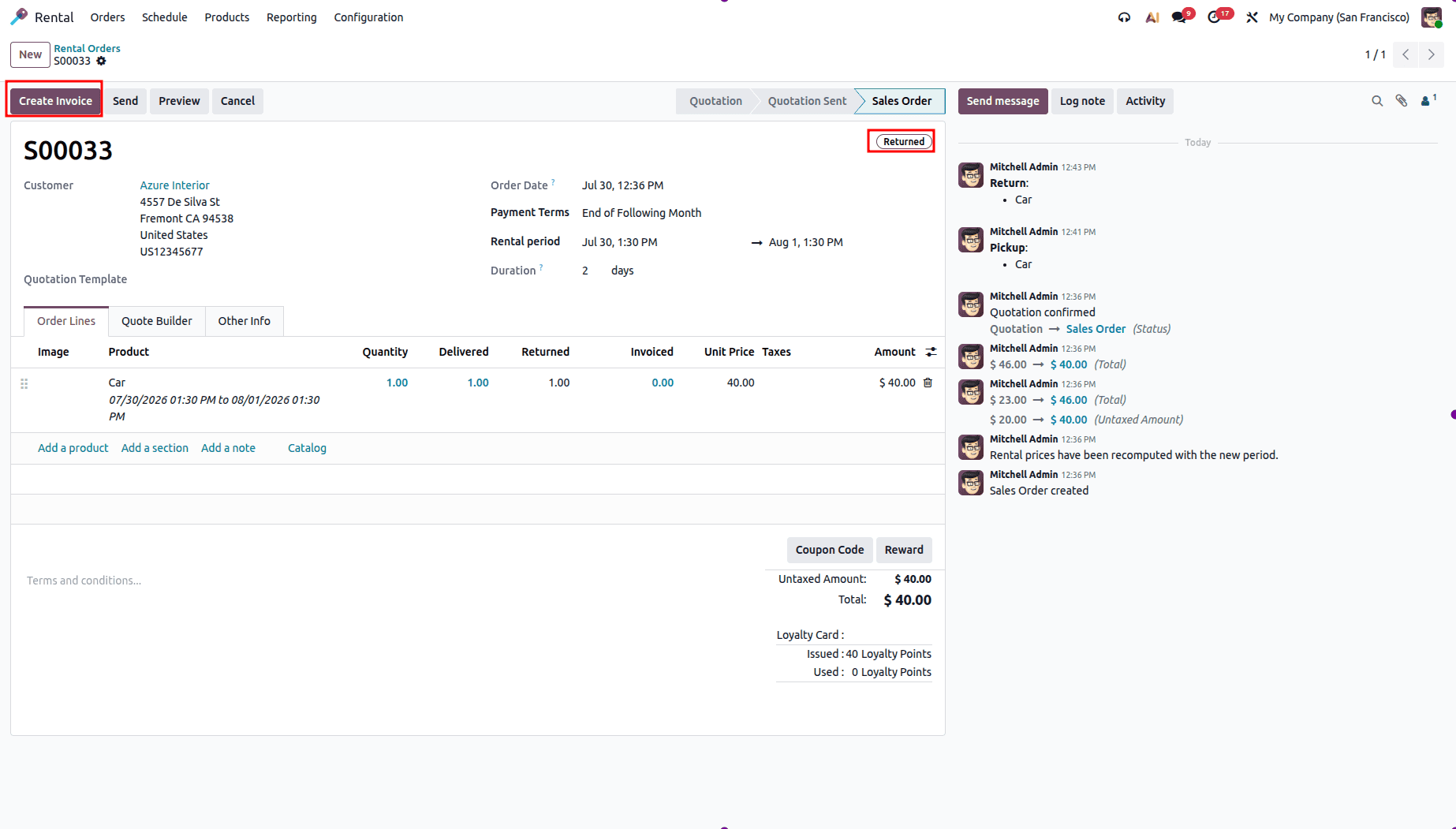
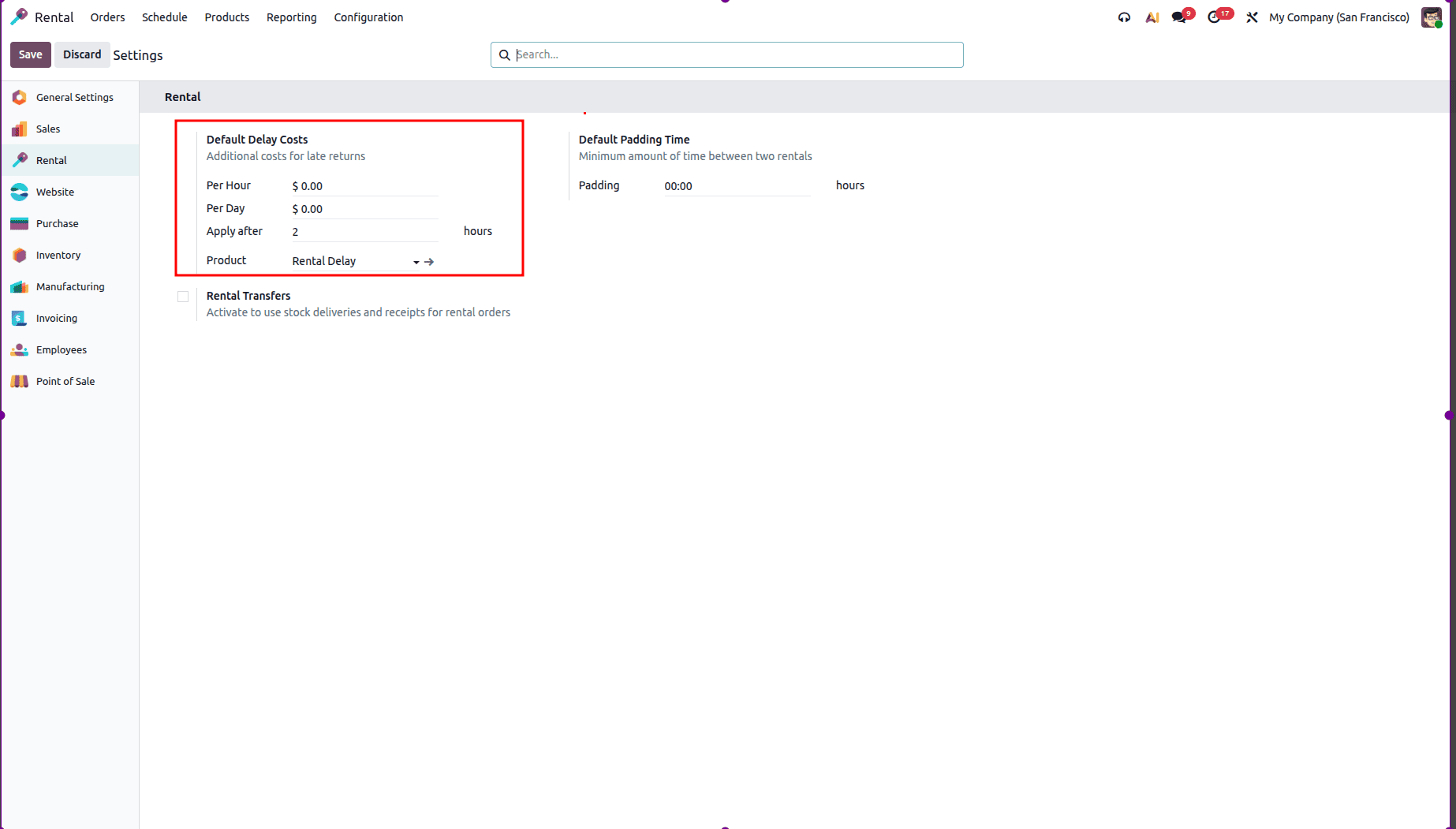
Odoo 19 helps manage late returns by tracking the scheduled return date and automatically applying late fees when rental items are returned after the expected time. You can configure late return settings by navigating to Rental > Configuration > Settings.
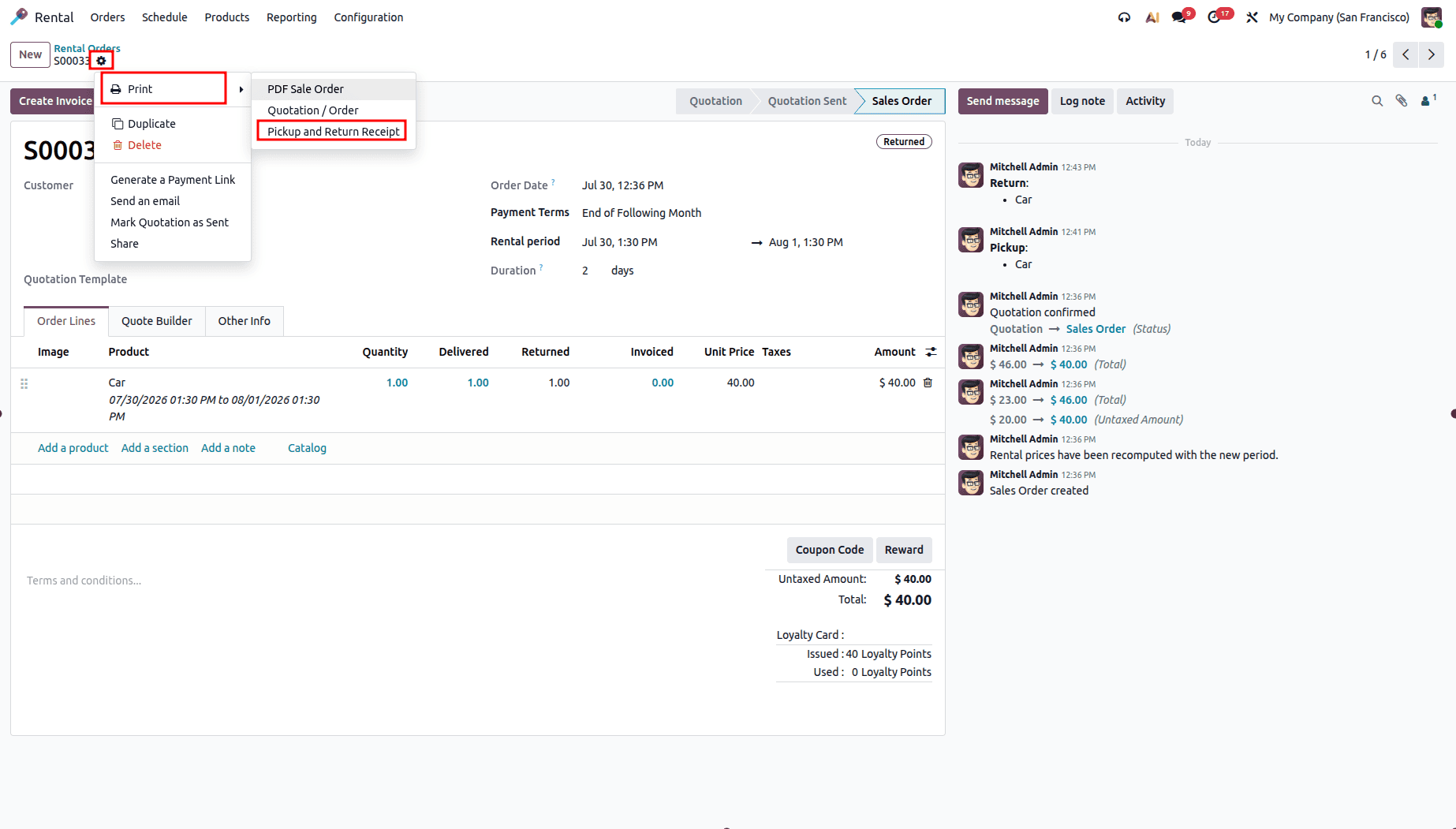
Odoo 19 allows you to generate pickup and return receipts for customers during the rental process. To print a receipt, open the rental order, click the gear icon, and select Pickup and Return Receipt from the drop-down menu. The receipt can then be generated and printed for the customer.
The Odoo 19 Rental module provides a simple and efficient way to manage the entire rental lifecycle, from booking and pickup to returns and invoicing. With its intuitive interface, automation features, and seamless integration with other Odoo applications, it helps businesses streamline rental operations and improve customer service. Whether you manage a small rental business or a large rental enterprise, Odoo 19 offers the tools needed to handle your rental process with ease.
To read more about How to Manage Rental Orders in Odoo 18, refer to our blog How to Manage Rental Orders in Odoo 18.