In the current digital landscape, e-commerce has grown to be an economic powerhouse that makes it simple for businesses to reach a worldwide audience. However, ensuring customer satisfaction and corporate success still depends on efficient product transportation management. Companies now have a powerful tool at their disposal to optimize and streamline the distribution of their e-commerce products, thanks to the release of Odoo 19, a complete suite of business management software. In this article, we'll look at strategies and tactics for effectively managing e-commerce product shipping on Odoo 19 websites.
Shipping is crucial to the success of any e-commerce company. Providing customers with a seamless and satisfying experience is just as important as delivering things from point A to point B. The many ways that clients can receive their products are referred to as "shipping methods" in Odoo 19 eCommerce. These could include regular shipping, expedited shipment, in-store pickup, or any other delivery options you offer. Setting up shipping methods is simple because of Odoo 19's powerful capabilities and user-friendly interface.
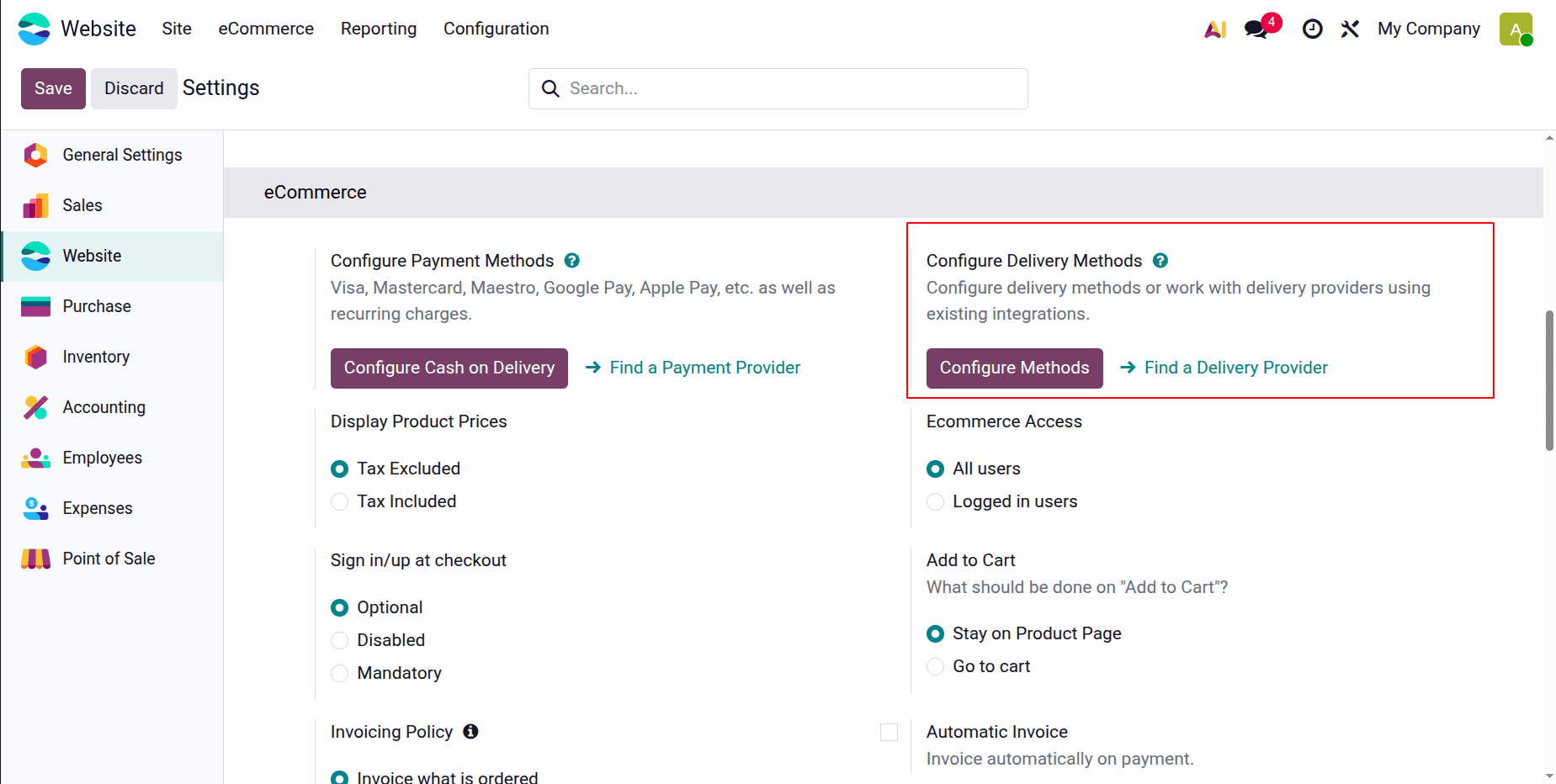
Users can select Settings from the configuration menu. To set up delivery for eCommerce, go to the Delivery section under Settings.
Configuration > Settings > Shipping Address
You can change the website's shipping address settings in Odoo 18 by activating the Configure Delivery Methods option under Website > Configuration > Settings.
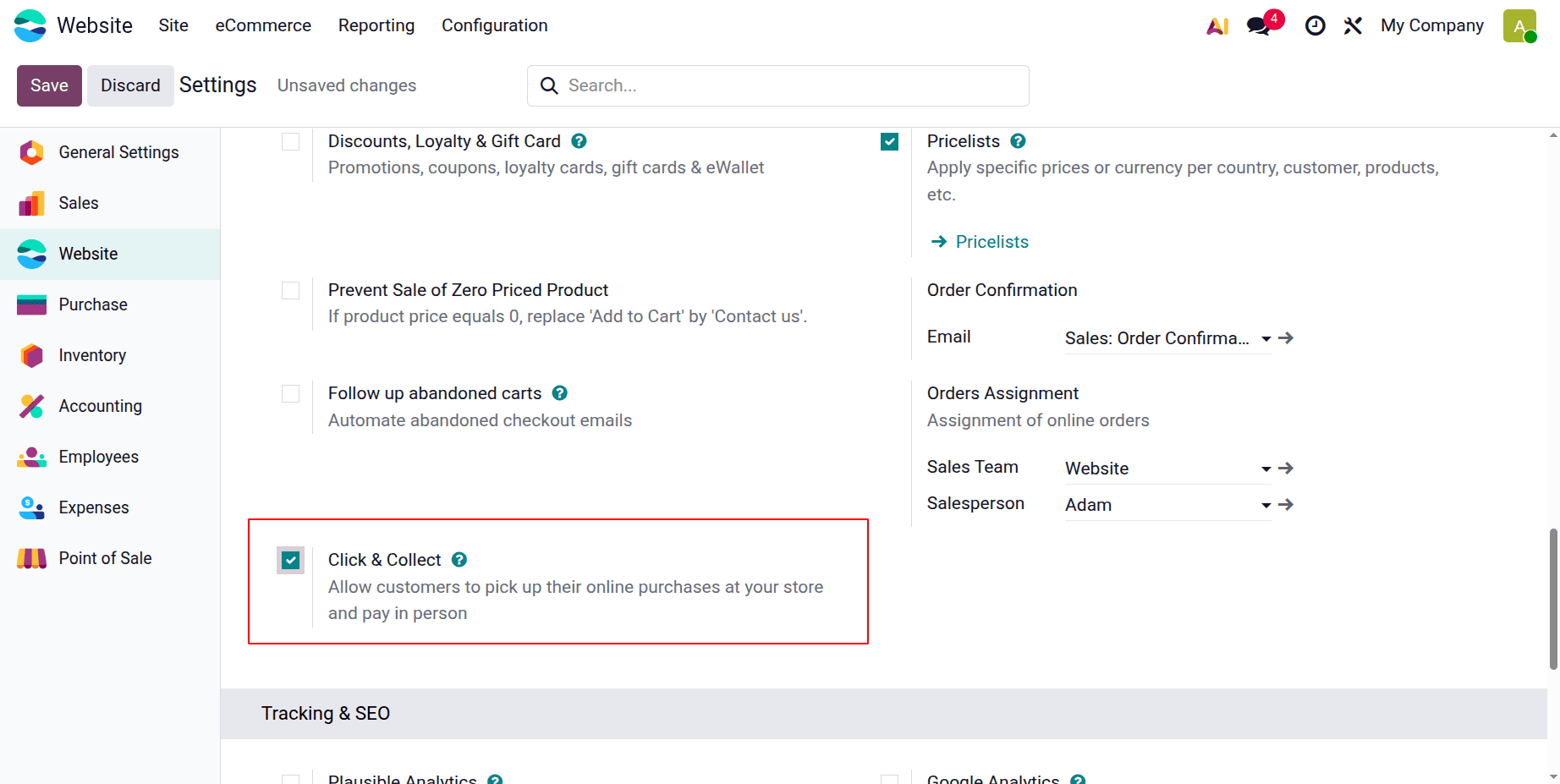
Click & Collect may be enabled in Odoo 19 by selecting Website > Configuration > Settings and activating the Store Pickup option. Instead of home delivery, customers can select a shop pickup location during checkout. Under Inventory > Configuration > Warehouses, where pickup locations are kept, you can specify specific retailers as collecting sites. Each product's availability can be specified, various collection locations can be established, and the pickup process can be altered to meet the needs of your business. Additionally, store pickup options may be displayed on the checkout page, and customers may receive automated notifications when their product is ready for pickup.
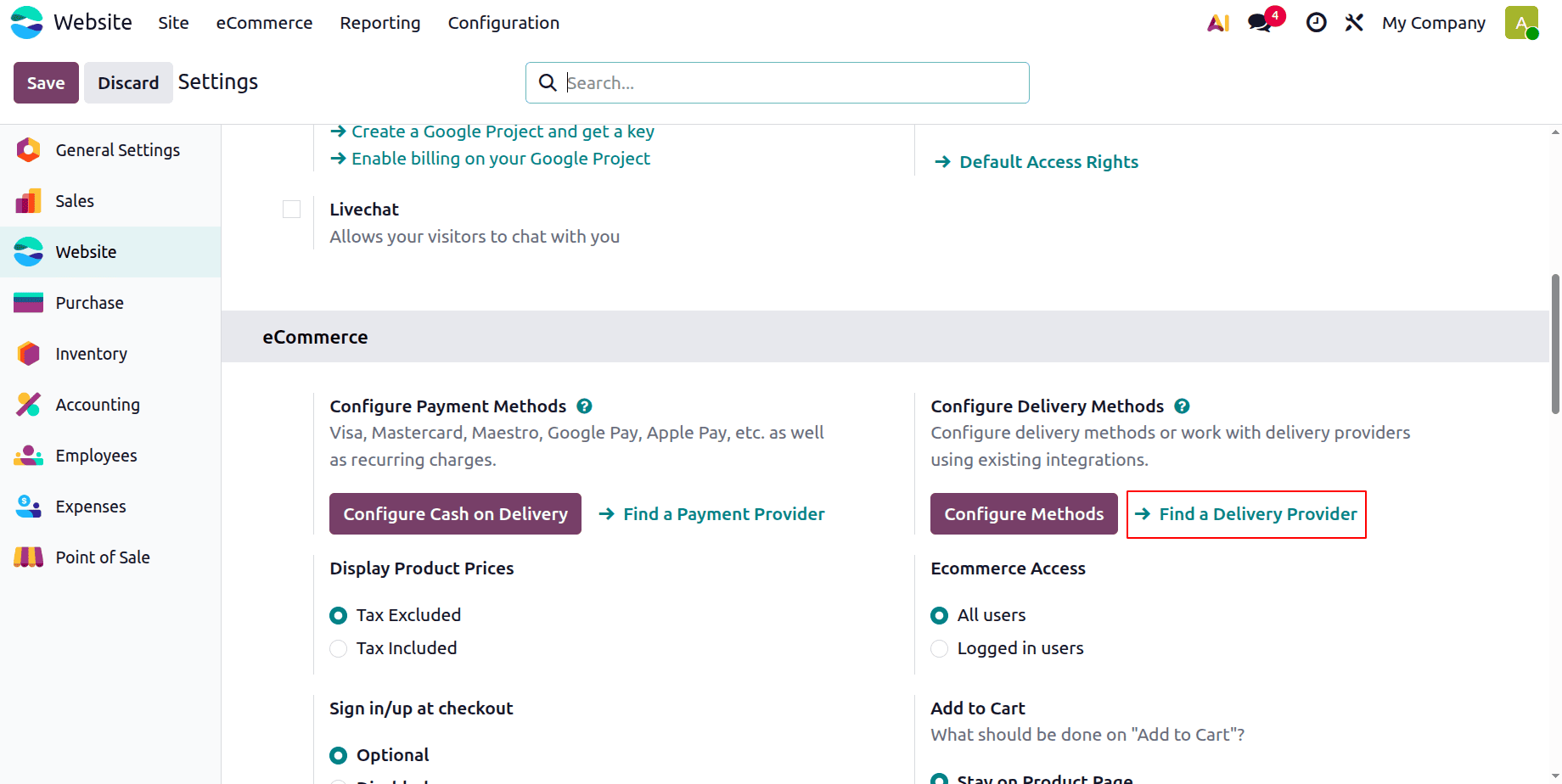
Carrier-specific modules, such as DHL, UPS, FedEx, or Mondial Relay, can be added in the website of Odoo 19. Click "Find a Delivery Provider" to do that. This will display every shipping company and make it simple for users to activate the provider. These interfaces provide tracking integration, real-time shipping rate computation, and automatic label preparation for efficient order fulfillment.
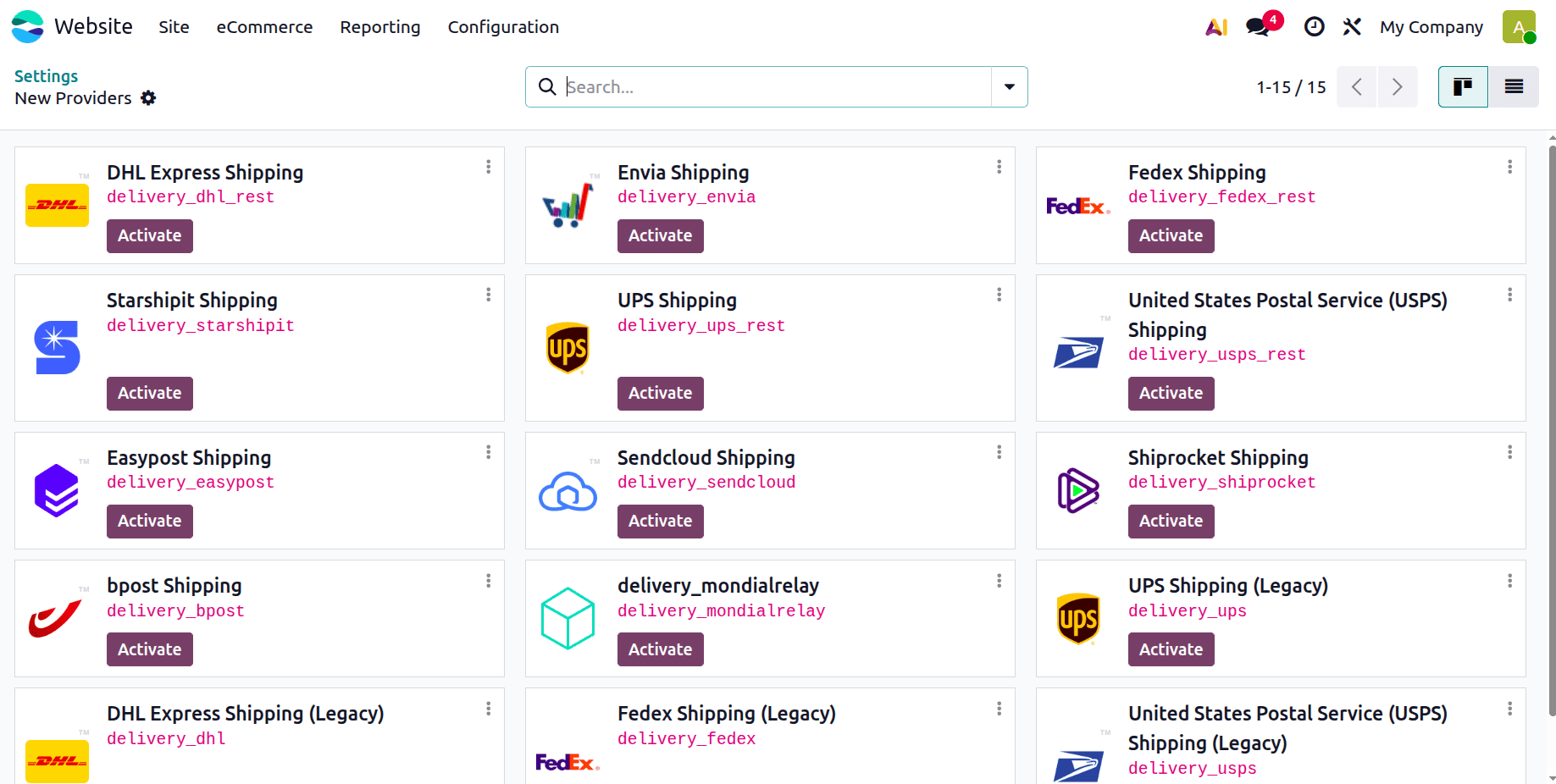
From the settings menu, select "Find a Delivery Provider". Here is a list of shipping connections that Odoo 19 supports. Click the Activate button next to the names of the shipping carriers to select the ones you wish to integrate with.
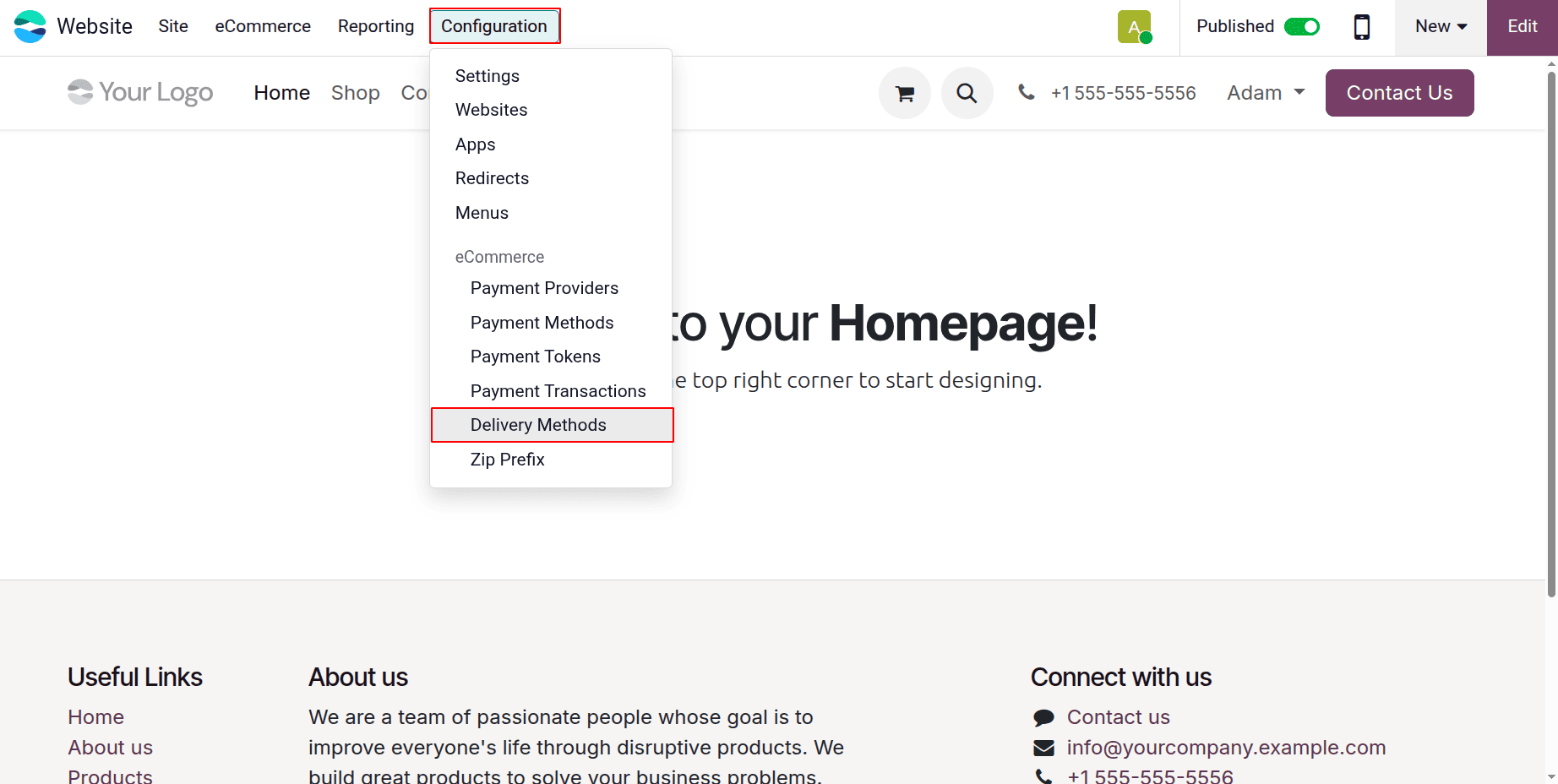
Let's set up the shipping options and see how it functions. The Configuration menu allows you to choose the Delivery methods: Configuration > Delivery methods
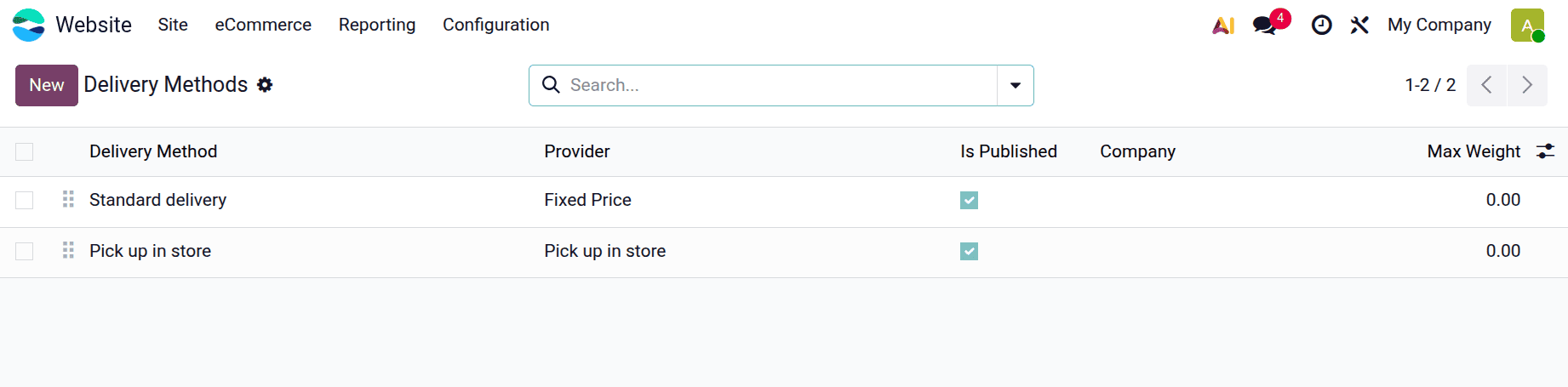
A list of configured delivery methods will appear when you open the Delivery Methods. It displays information such as Delivery Method name, Provider, Is published, Website, Company, Countries, and Max Weight. By selecting the New button, users can set up a new one.
Fixed Price
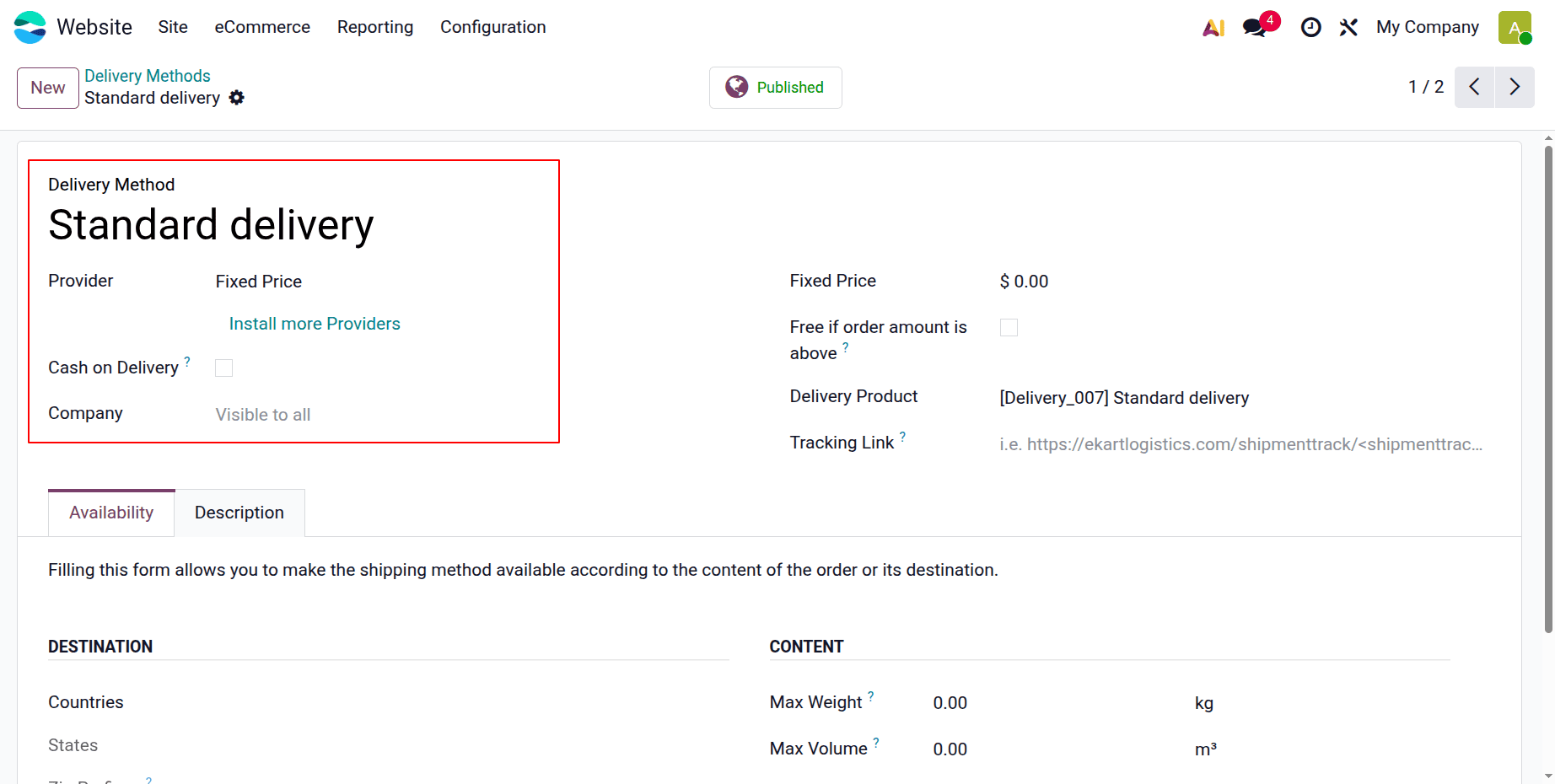
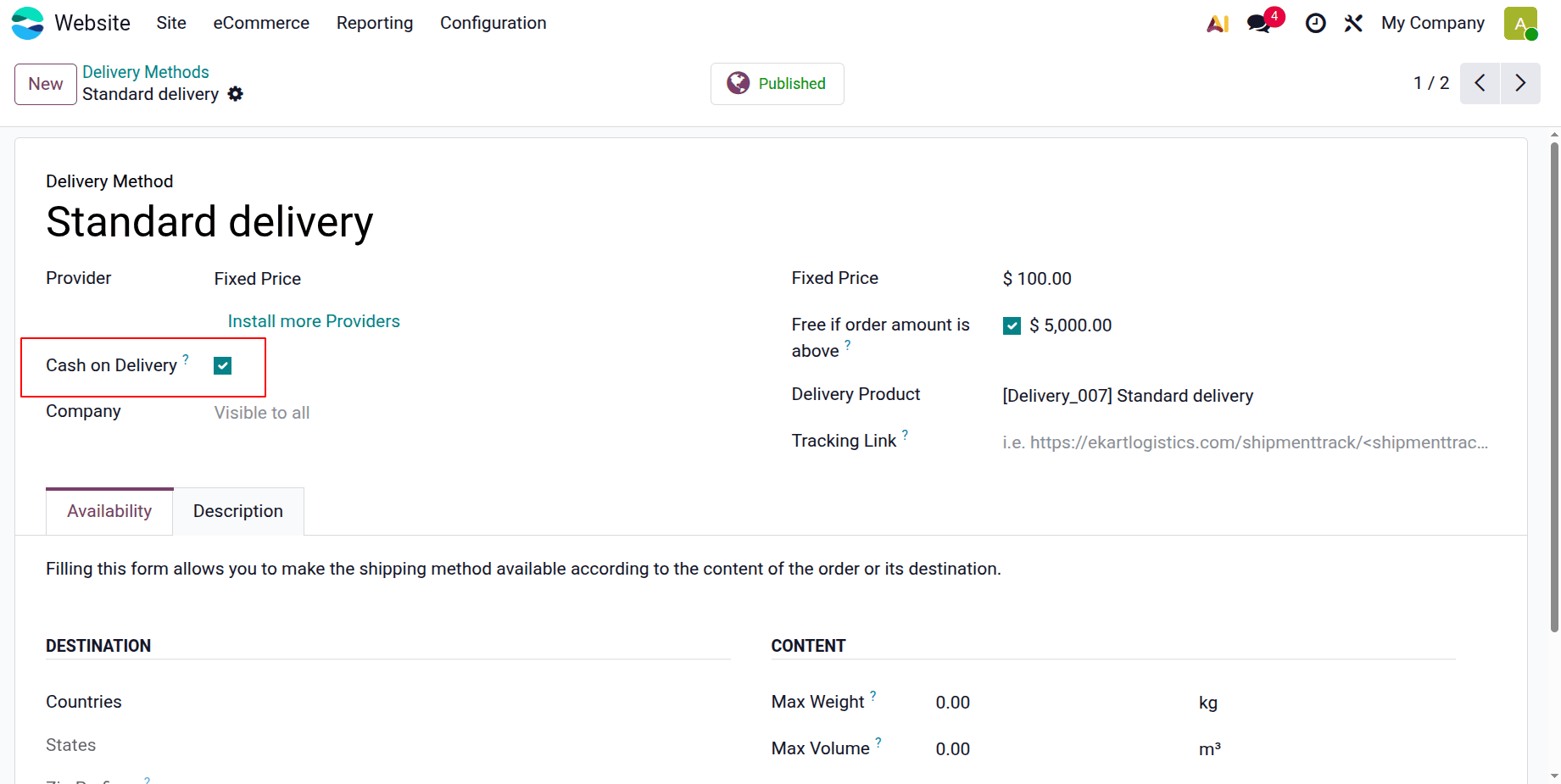
Click to open Standard Delivery, which is the first delivery option. The delivery method is called Standard Delivery, as seen in the screenshot below. Fixed Price is the provider selected for this approach. This implies that the delivery fee will only be a predetermined fixed amount.
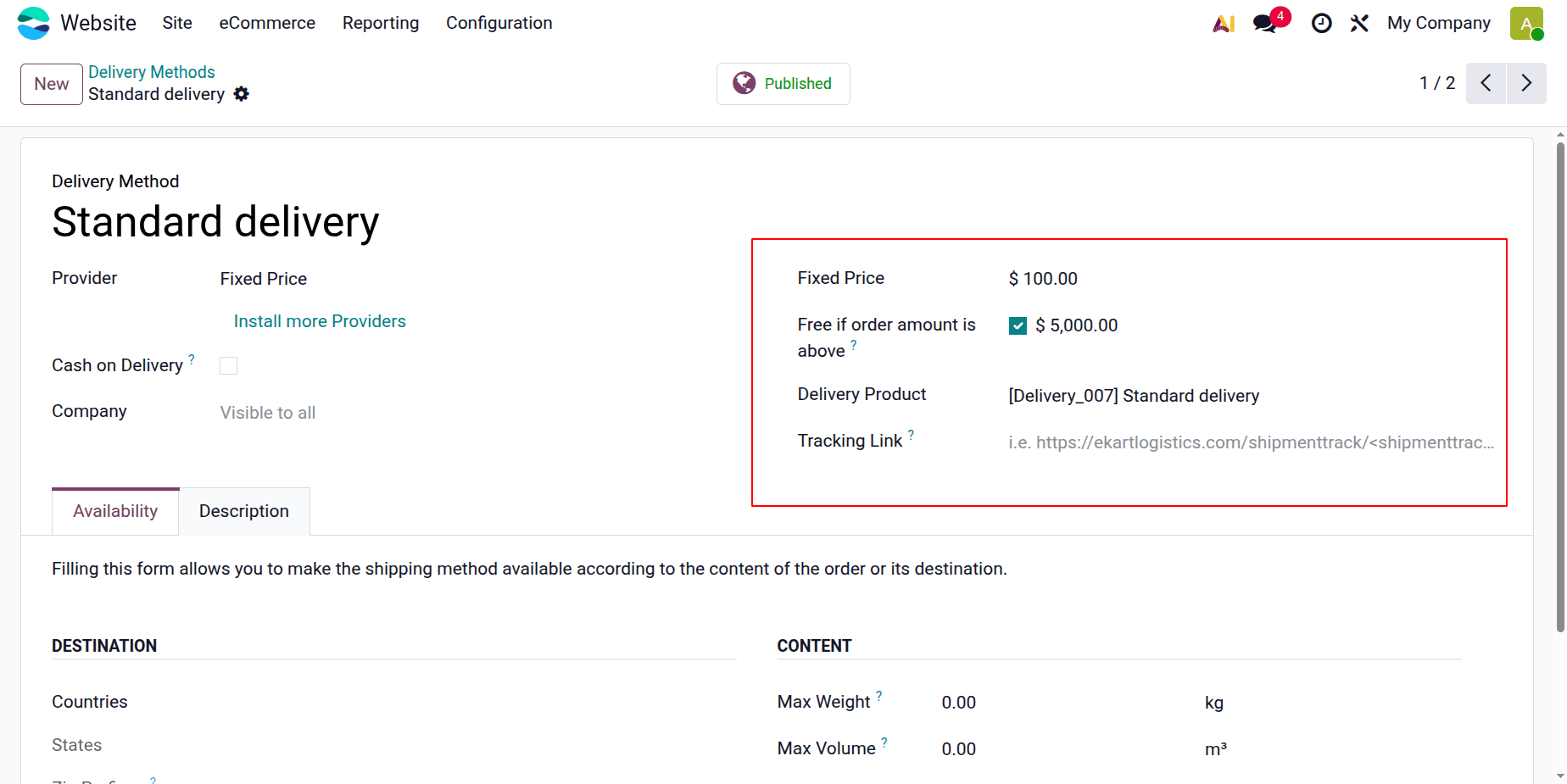
$100 is specified as the Fixed price. If the entire order value is more than $5,000, there will be no shipping charge. This suggests that free shipping is available for orders over $1,000. Delivery products are crucial services for delivery management. Using the Tracking Link option, which adds a link, customers may easily track their deliveries on the website.
If the Cash on Delivery is enabled, it allows users to choose cash on delivery as their payment method.
You can select a shipping option based on the contents or destination of the order by filling out the Availability tab. Under DESTINATION, users can add the zip prefix, country, and state. By adding these values, users can quickly restrict the shipping method to specific nations.
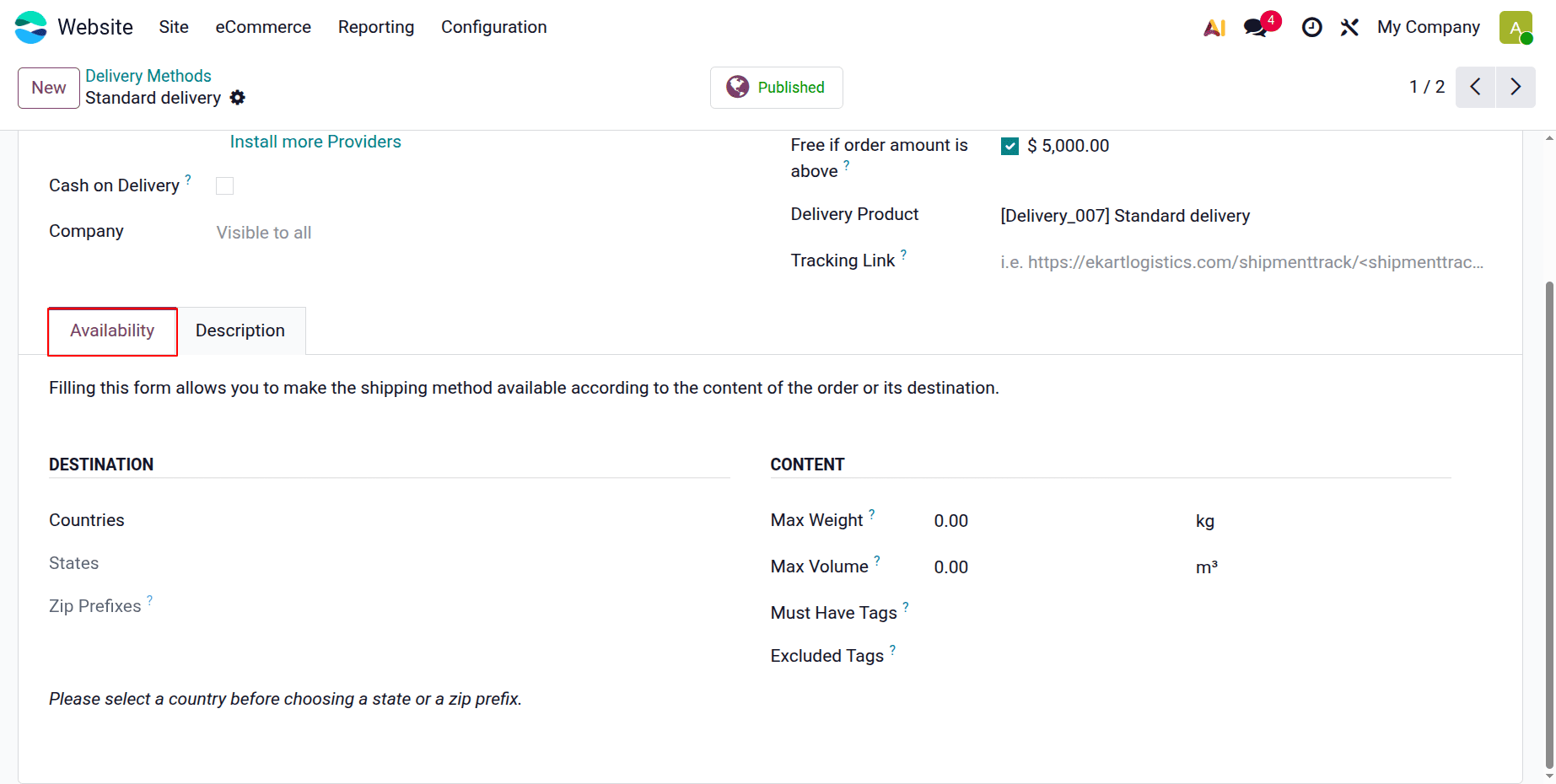
The CONTENT section has spaces for Max Weight and Max Volume. If the total weight or volume is more than this, the shipping option will not be available.
Must-Have Tags: The method can only be used if the order contains at least one product with one of these tags.
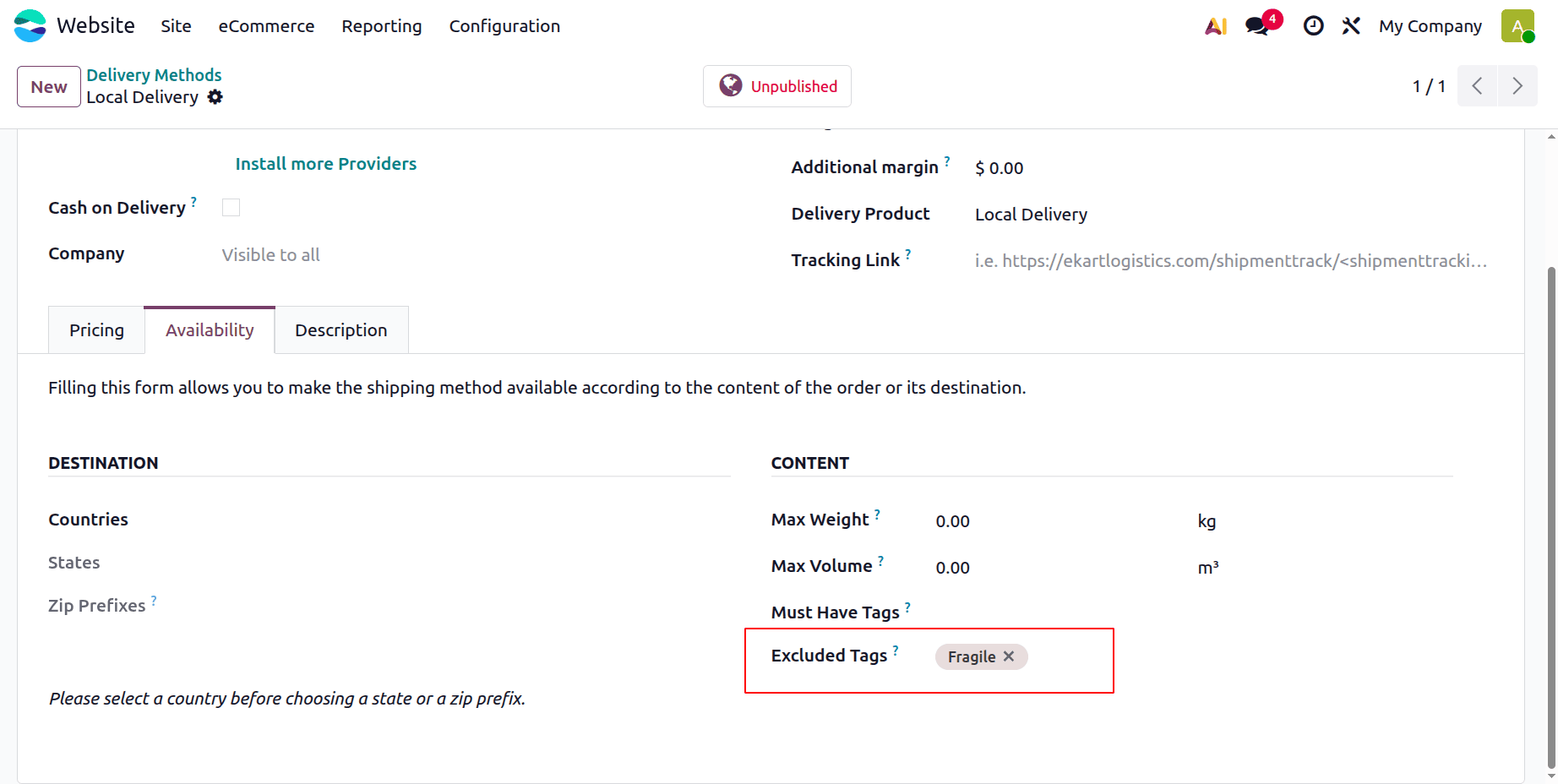
Excluded Tags: If at least one product in the order has one of these tags, the technique is not available.
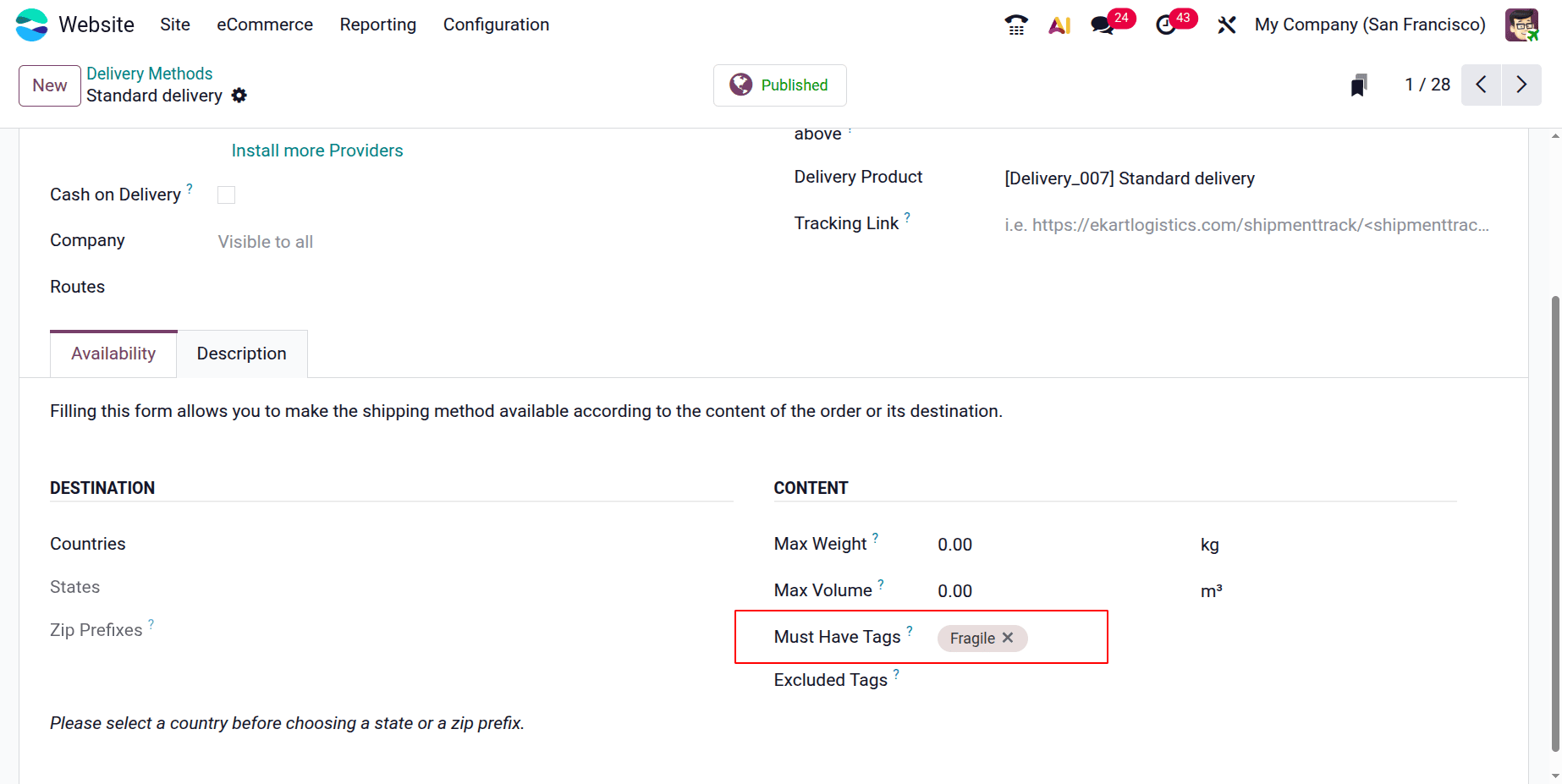
Here, the Standard delivery is only used for some Fragile items, so the Must Have Tags are added here as "Fragile."
Based on Rules
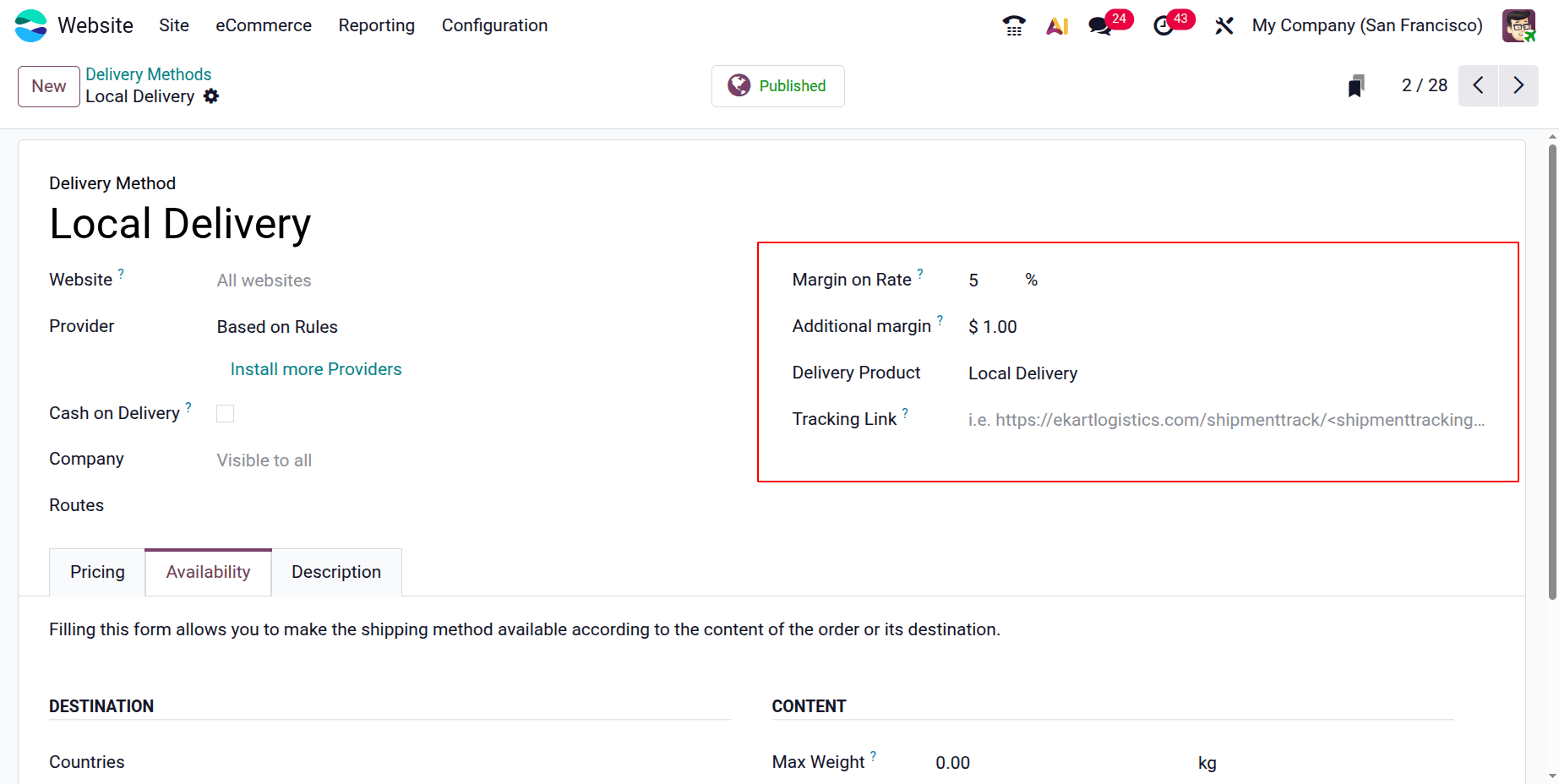
Based on Rules is the name of another provider. Users can simply add a shipping cost by following specific guidelines while doing this. Thus, select "Based on Rules" as the provider.
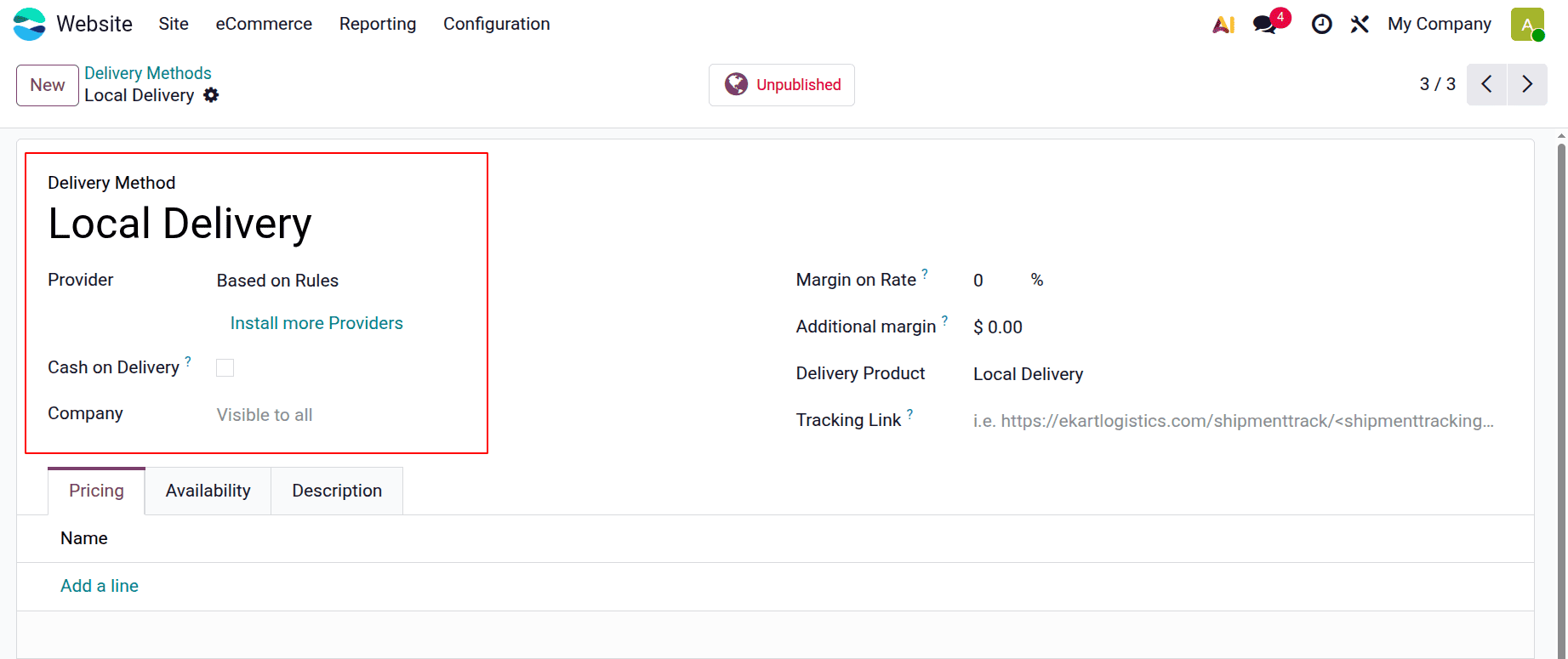
The percentage that will be added to the shipping cost can be entered by the user in the Margin on Rate box. Users can enter a fixed amount in the additional margin section, which will be added to the purchase price. Next, include the Delivery Product.
Here, the Megrin on Rate is added as 5% and the Additional margin is set as $1.
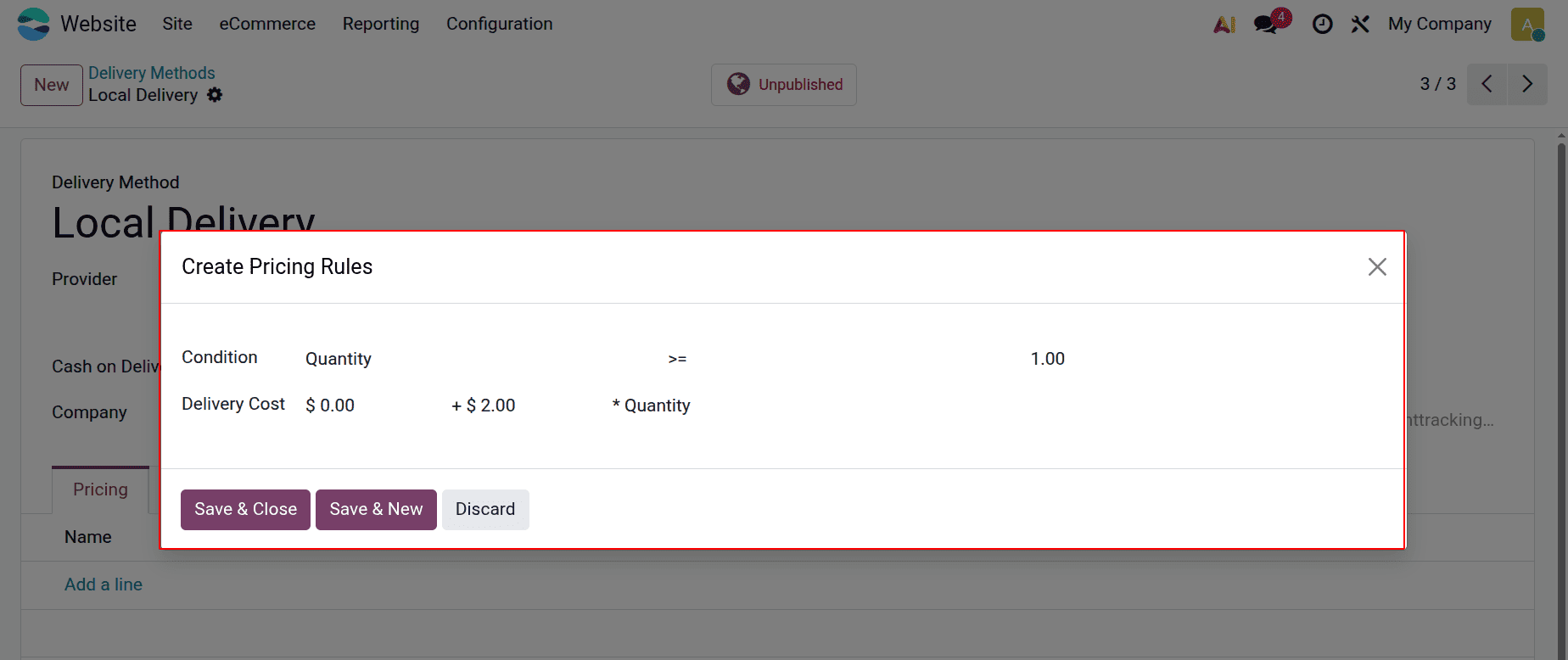
To create a new shipping pricing rule, click the create a line button on the Pricing tab. In this case, the shipping cost will be 2* Quantity if the pricing rule is set to Quantity >= 1.
As previously mentioned, the Excluded Tags are added as "Fragile" under the Availability tab. Therefore, only products without a "Fragile" designation are eligible for this shipping option.
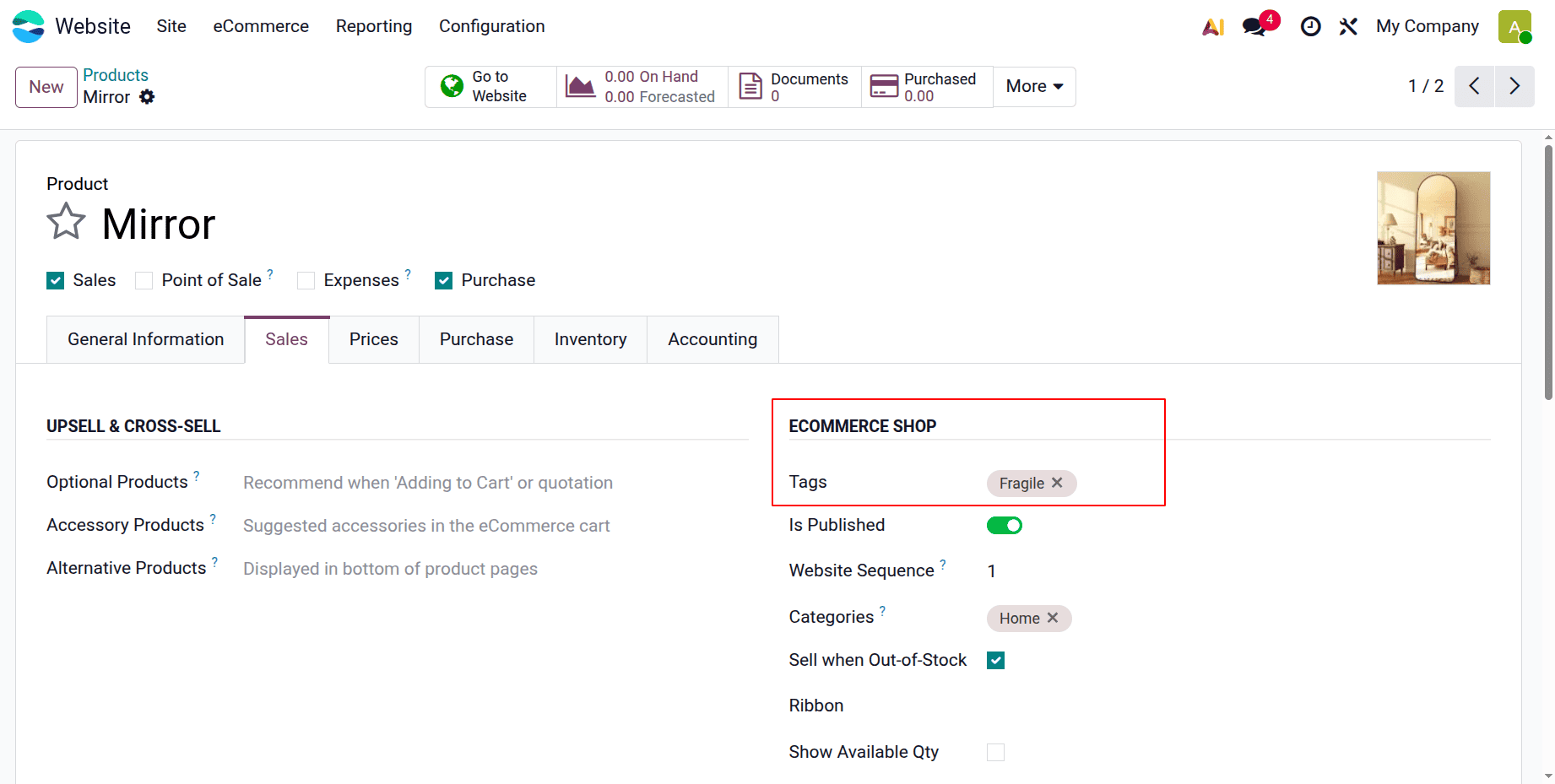
Let's examine these shipping options. Check out two products, then. Mirror has been selected as the product. The added tag is displayed under the Sales tab.
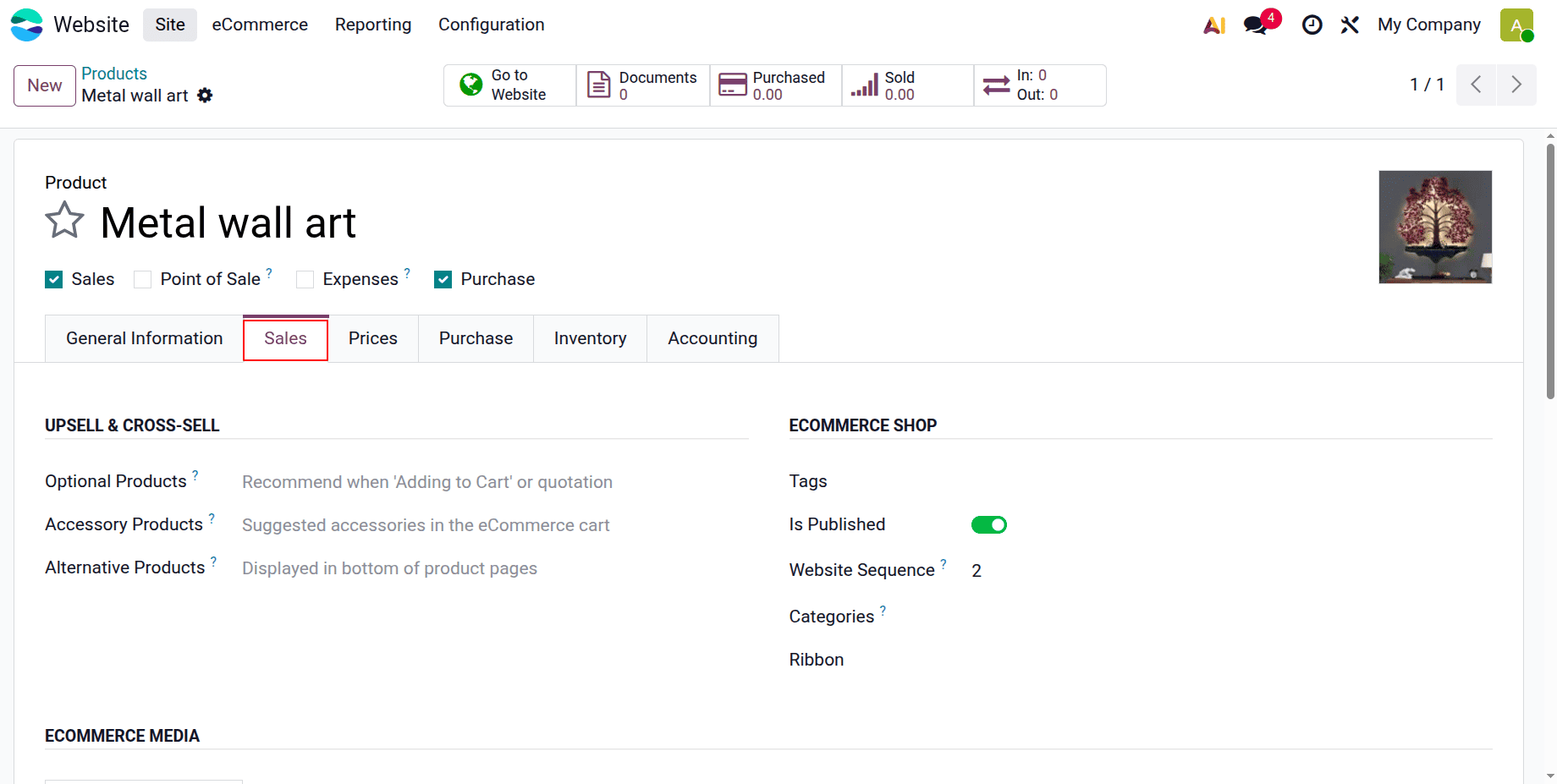
“Metal Wall art” is the next product in this lineup. No tag has been added to the sales tab.
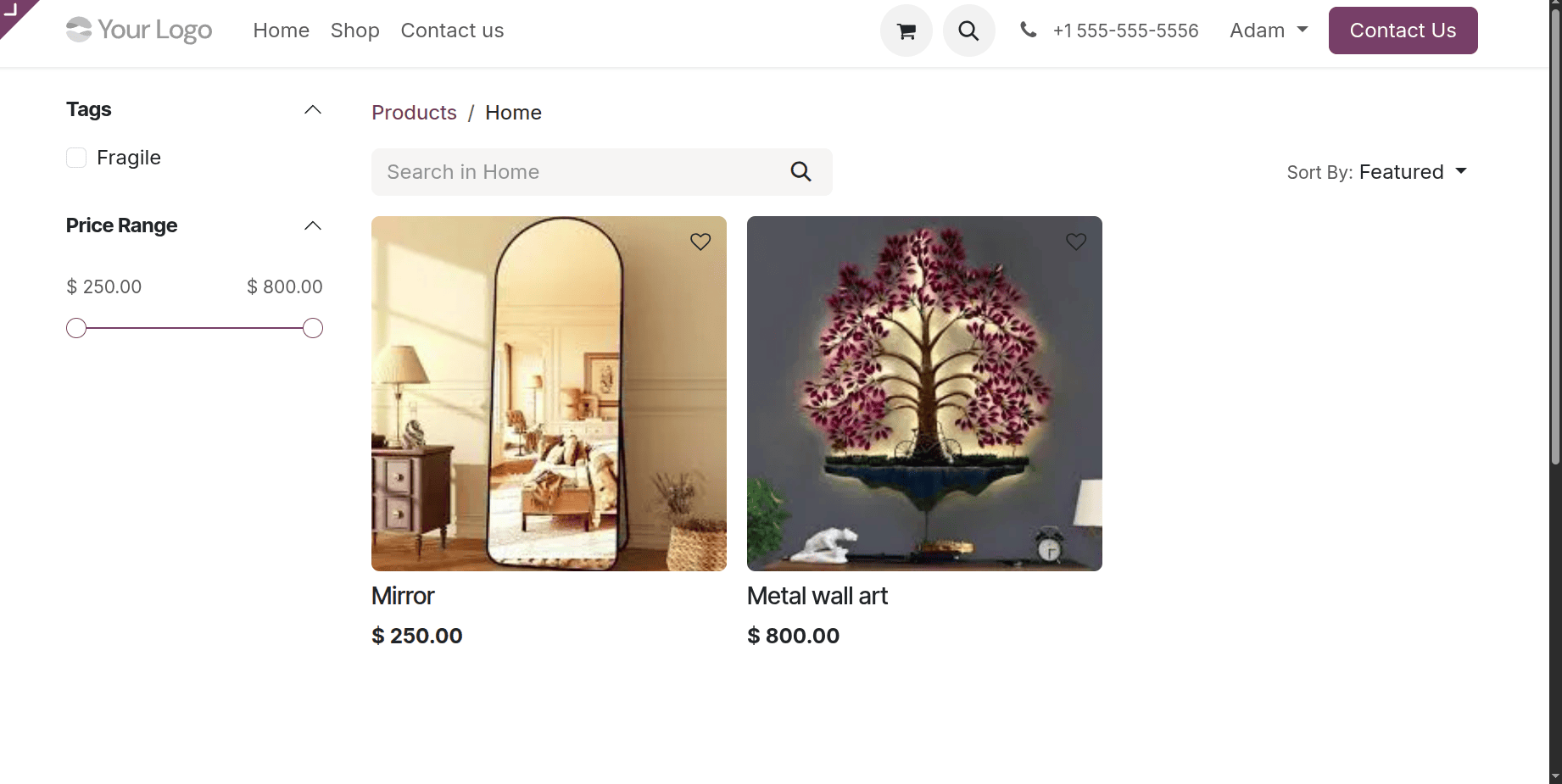
First, visit the Website Shop. The product list can then be seen within the store. The two produced goods are displayed here.
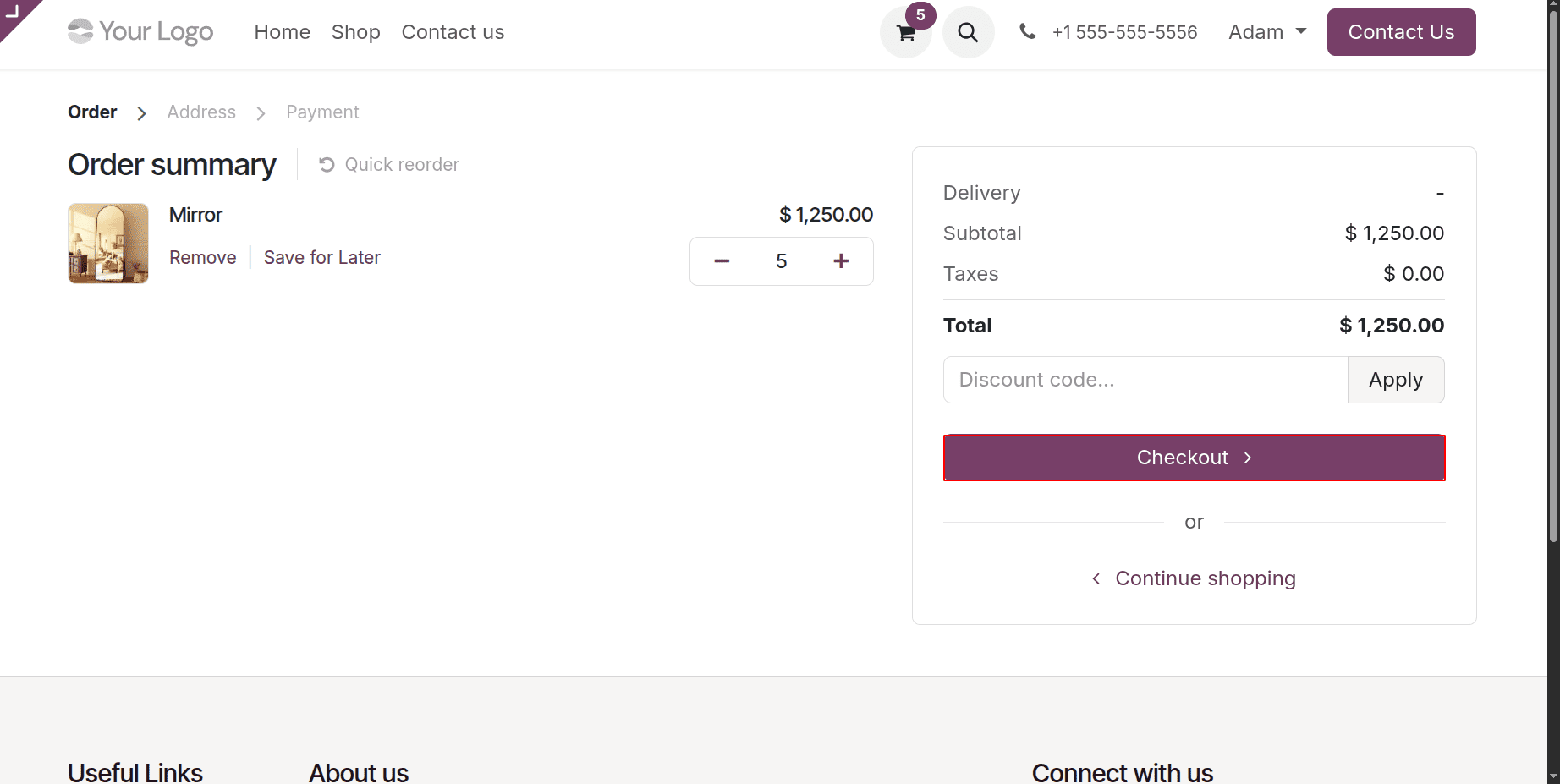
The Mirror is the item that has been added to the cart. The customer added 5 quantities of the product Mirror, according to the shopping page. Next, press the "Checkout" button.
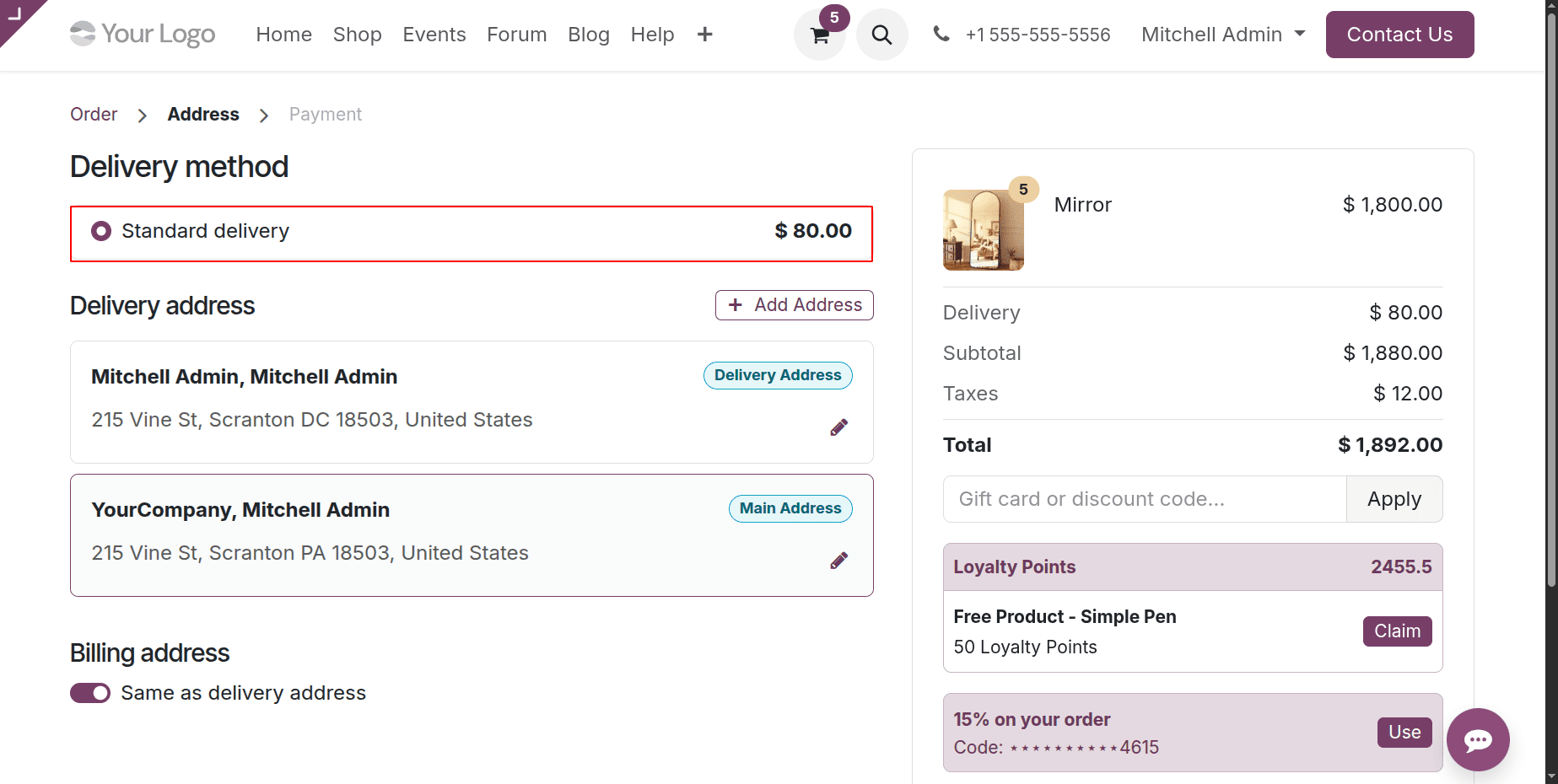
The shipment information, including the shipping address and shipping options, is displayed on the checkout page as you enter it. Standard delivery is the mode of shipping. The cost of shipping is $80.
Let's put a Metal art wall, the second item, in the cart. As seen here, 5 items are added to the cart. Next, to view the delivery cost, click the Checkout button.
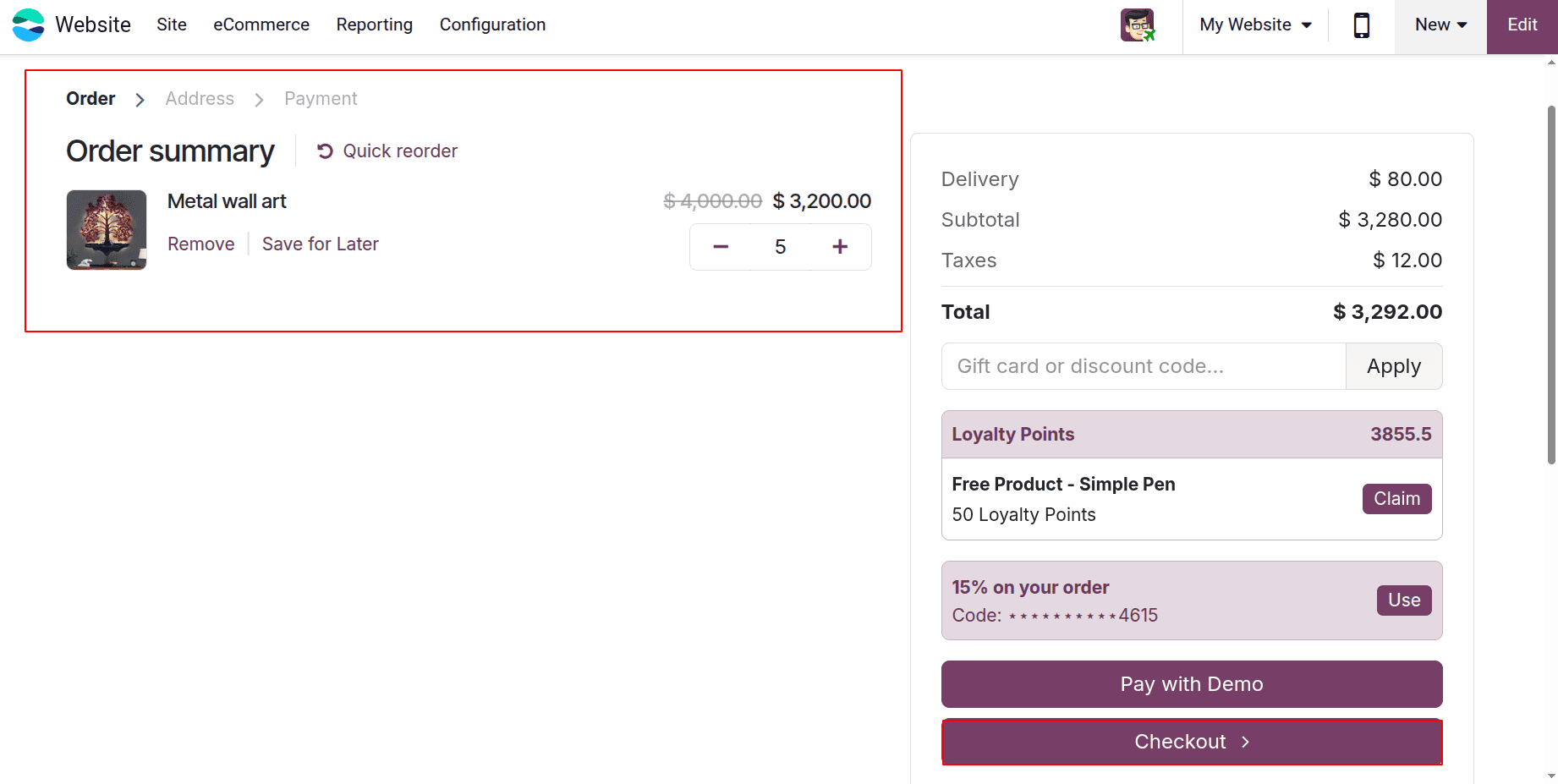
Thus, local delivery is the mode of delivery used here. Simply because there is no fragile ingredient in the product.
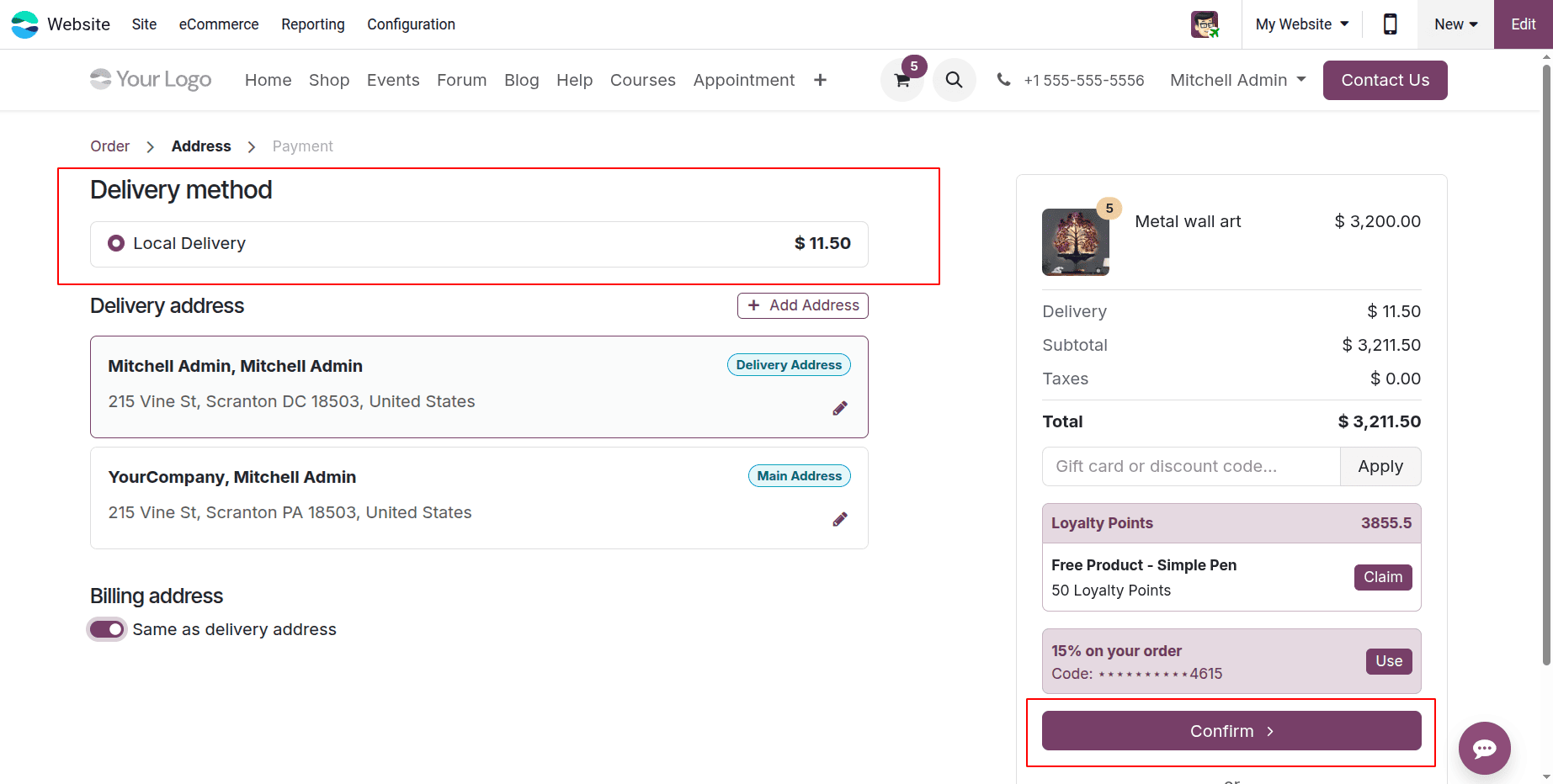
Therefore, we set the rule to 2* quantity for this delivery mode. Next, a $1 additional margin is added, and the margin rate is set at 5%. Five quantities are added here.
Thus, the delivery fee is equal to (5*2)*5%+1 = $11.5
Pick up in-store
Additionally, customers can pick up their items directly from the store. The shipping option that is set up for that is listed below. Pickup in-store is the selected provider. Another tab is called Stores. Users can add the company warehouses there. The product will be picked up from the designated warehouse.
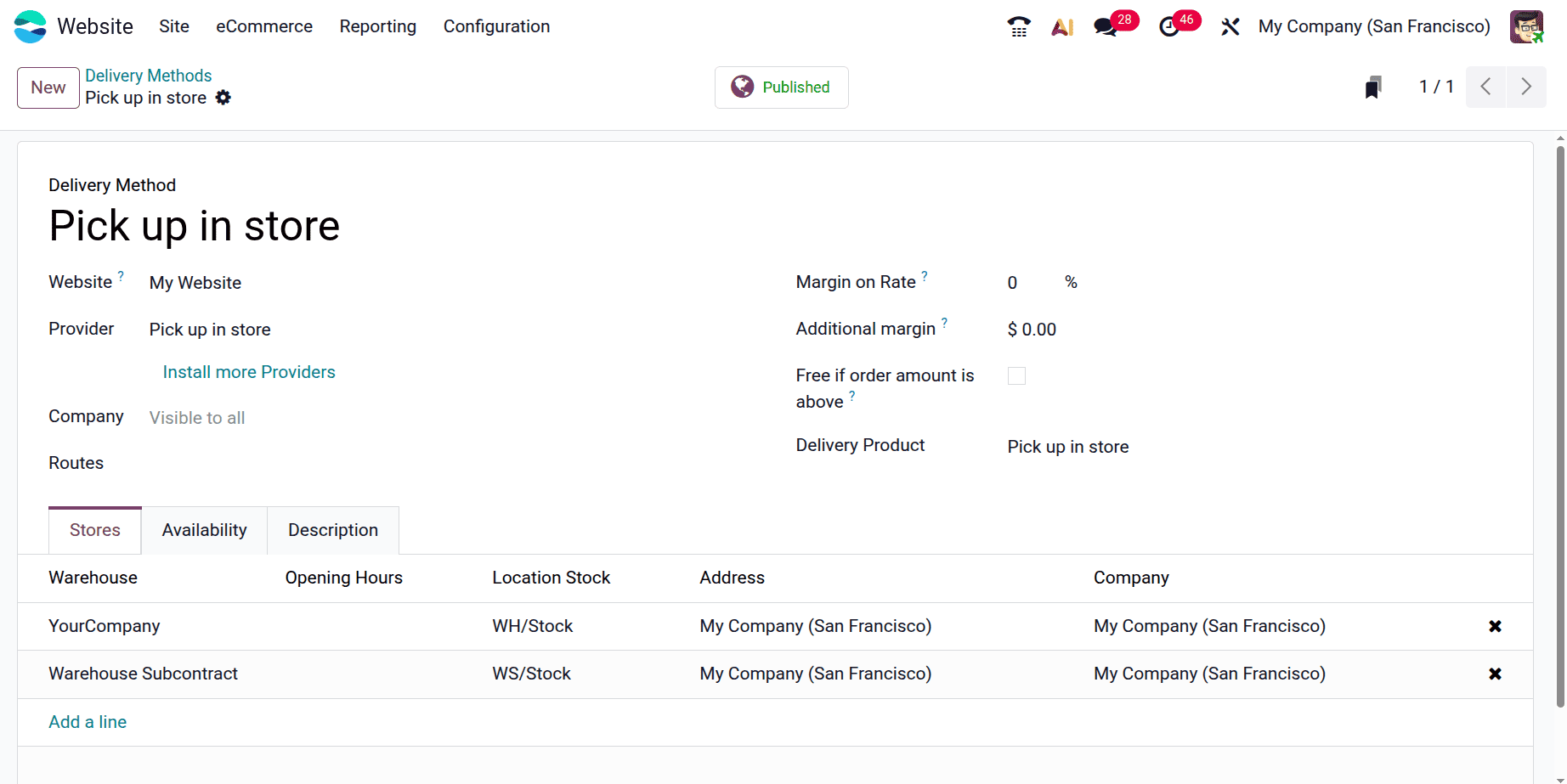
Visit the online store. Select the product that has the required amounts.
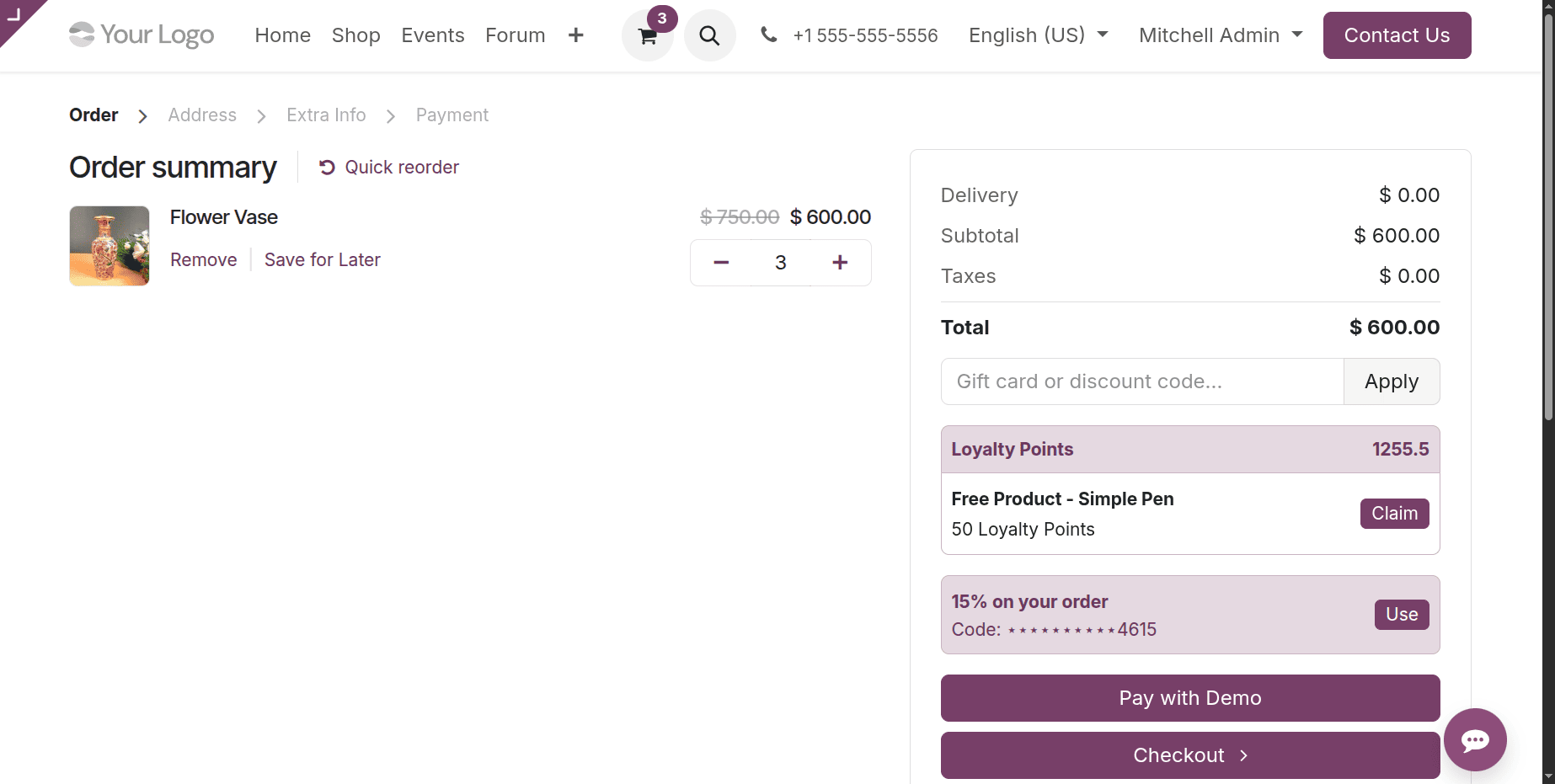
The selected delivery option is displayed as "pick up in store". The checkout page also displays the details of the selected store. Pay the payment to complete the order.
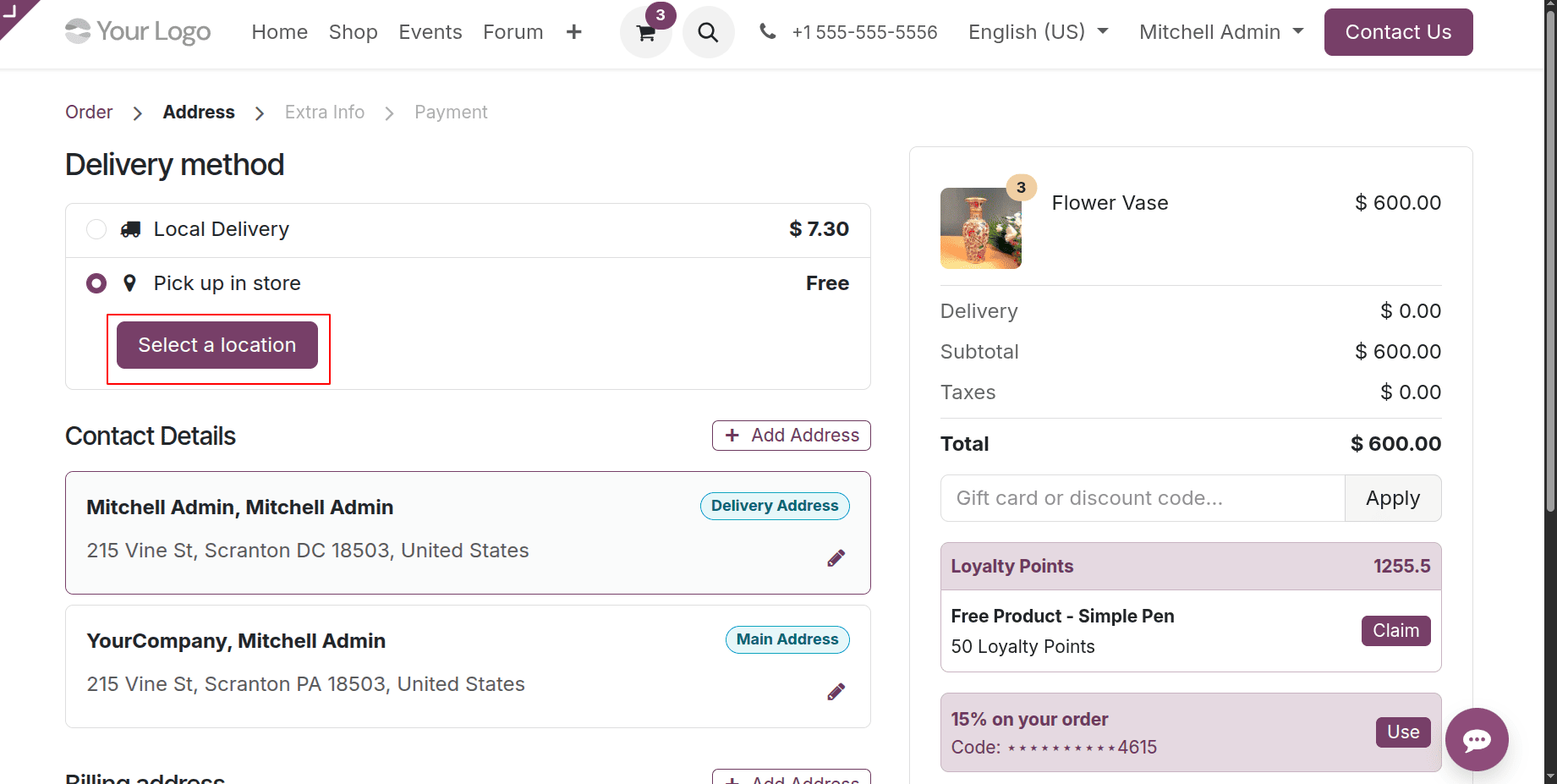
Click on the Select Location button to choose the pickup location. This will display a window as shown below, from where the user can choose the location.
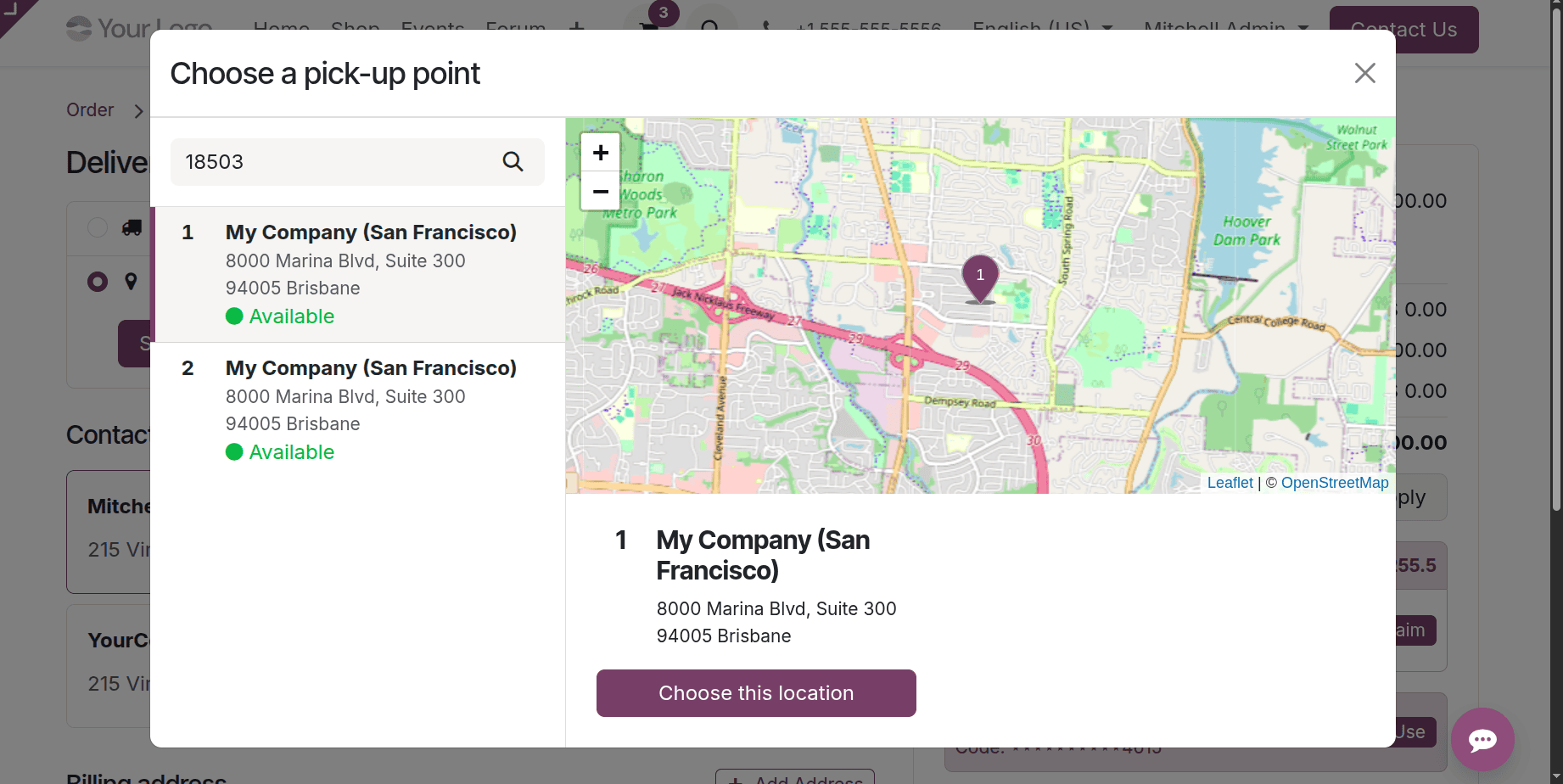
Odoo 19's Delivery Methods feature in the Website and eCommerce module enhances the customer experience by offering a variety of delivery options. Businesses can set pricing guidelines, schedule several carriers, and include real-time shipping rates to streamline logistics. This ensures increased customer satisfaction, faster shipping, and efficient order fulfillment.
To read more about How to Handle the Shipping of e-Commerce Products on Odoo 18 Websites, refer to our blog How to Handle the Shipping of e-Commerce Products on Odoo 18 Websites.