Most customers now prefer messaging over email or phone calls. Connecting WhatsApp with Odoo lets your team respond faster and manage conversations without leaving the ERP. Odoo 19 is continuously improving its communication capabilities, making it simpler to communicate with customers right from the interface.
This article will guide you on how to technically integrate WhatsApp into Odoo 19 using WhatsApp Business API.
Why Integrate WhatsApp with Odoo 19?
Integrating WhatsApp with Odoo enables:
- Real-time customer communication
- Automated notifications (invoices, orders, reminders)
- Centralized message tracking within Odoo
- Improved customer engagement and response time
Configuring WhatsApp Integration via Meta
Before connecting WhatsApp to Odoo, you need to set up a Meta Developer account and create a WhatsApp Business app. The connection uses the WhatsApp Business API, so you'll first complete the setup in Meta and then enter those details in Odoo.
- Meta Business Account Registration
- Enable a Meta Developer Account
- Creation of an App and Adding the WhatsApp Product
- Testing of API Connectivity
All these actions guarantee secure access to the WhatsApp messaging.
Register a Meta Business Account
Prior to adding WhatsApp to Odoo 19, it is important that you create a business profile that will be verified on Meta. The tool that will help you achieve this is called Meta Business Manager, and it serves as the central tool for your business assets management.
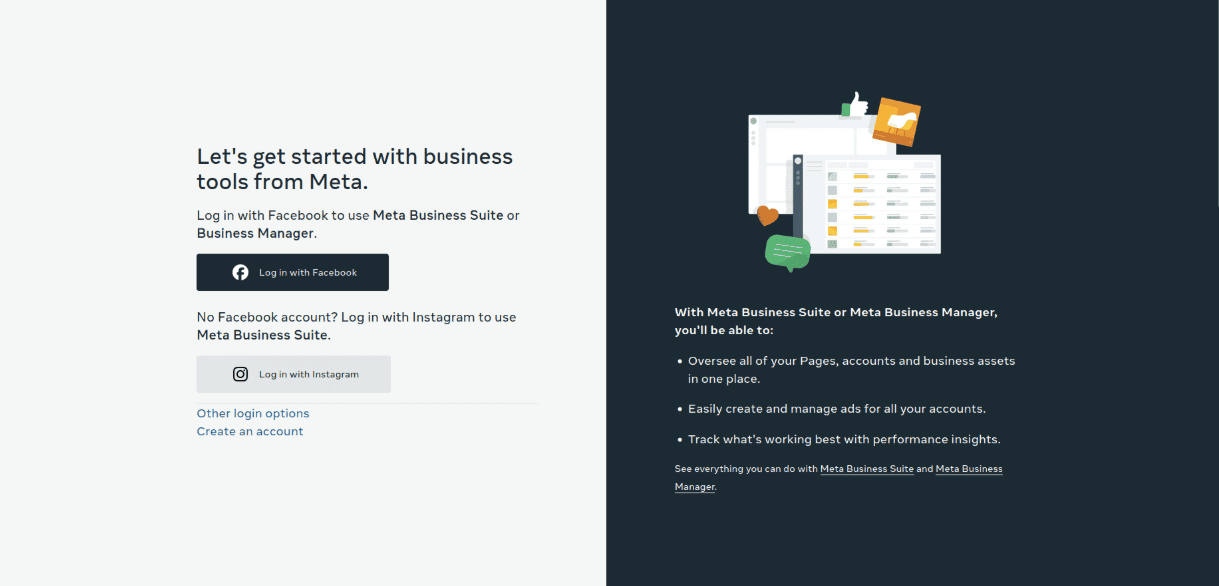
Setting up a Meta Business Account is the first step towards integrating WhatsApp with Odoo 19. This account will act as an umbrella under which you can control all business-related applications, user management, and communications channels. While setting up the account, you need to enter your company’s basic information, such as the name of the business, contact details of the administrator, and a validated email address. This information helps in verifying your business at Meta.
After entering this initial data, email confirmation will be necessary to make the account active. Subsequently, Meta can help you set up other configurations, like the business details, security settings, and permissions for accessing your account.
The Meta Business Account set up correctly will form the basis of any further actions in WhatsApp integration. With its help, you can set up a WhatsApp Business Account (WABA), get API credentials, and approve message templates. Without such an account set up correctly, it is impossible to integrate Odoo with WhatsApp in a safe way.
Thus, let’s configure the business account at Meta: https://business.facebook.com/overview
Enabling a Meta Developer Account
To be able to use the features and APIs for connecting WhatsApp to Odoo 19, you will need to have a Meta Developer Account. Although your Meta Business Account represents your company, the developer account is what gives you the technical setting up of apps and configuring them to the services such as the WhatsApp Business API.
In order to get access to a developer account, you generally have to login with your already created Meta credentials and register yourself as a developer. This step involves agreeing to platform terms as well as verification of your identity. Upon activation, you will be able to access the Meta Developer Dashboard, where you will be able to create applications, create API keys, set up webhooks, etc. This is also the place from where you add WhatsApp as a product in your application.
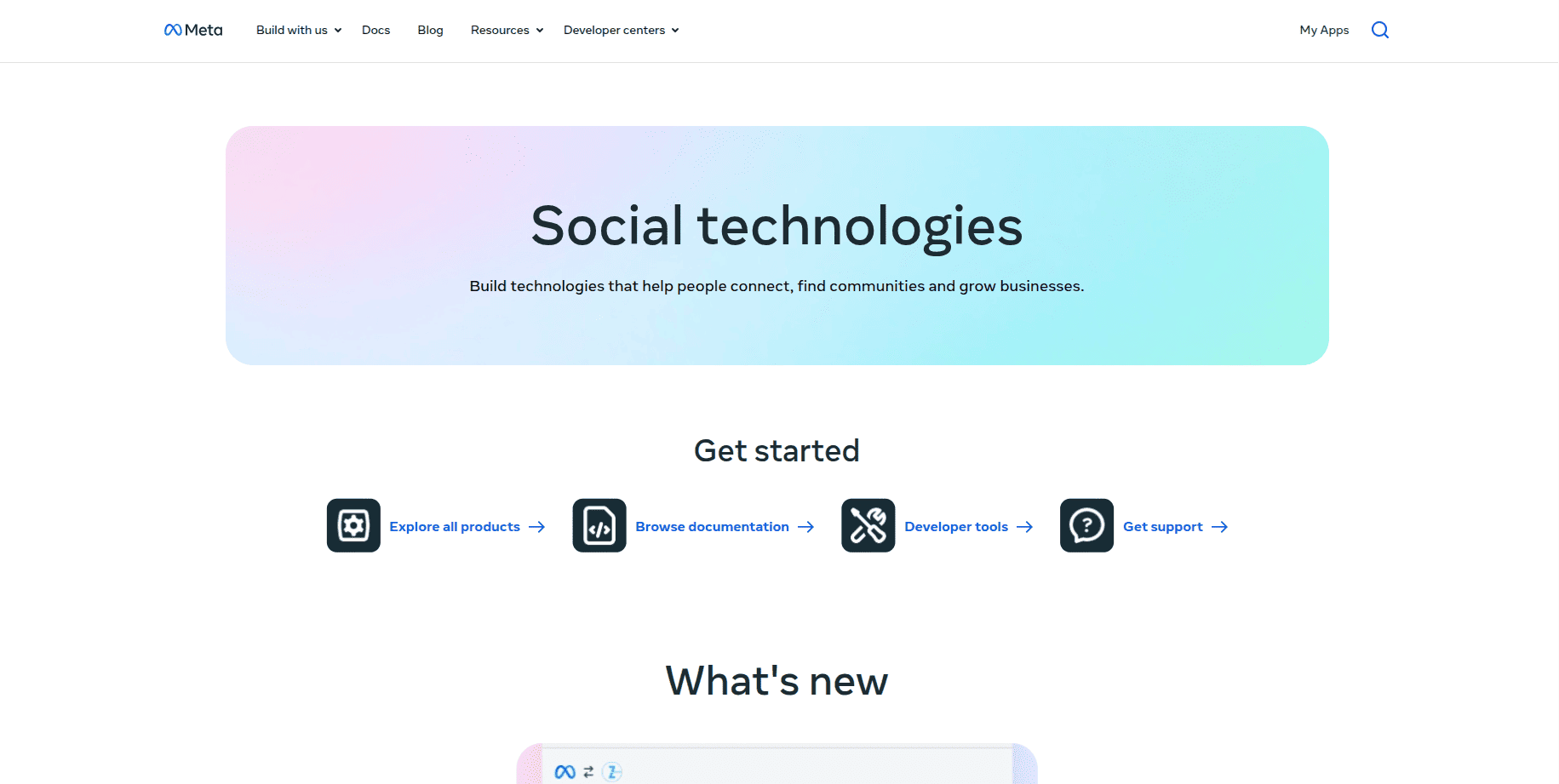
The existence of a properly set up developer account is highly important since it will help ensure that you can safely communicate with the Meta APIs. You will have the ability to control access tokens, keep track of your API utilization, and troubleshoot any problems related to the integration process. This part is extremely essential to enable integration with Odoo and WhatsApp since all communications depend on it.
For developer tools and APIs access you can create a Meta Developer Account here https://developers.facebook.com
Create an App and Add the WhatsApp Product
After you have activated your account as a Meta Developer, it is time to create an app to be used for integrating WhatsApp with Odoo.
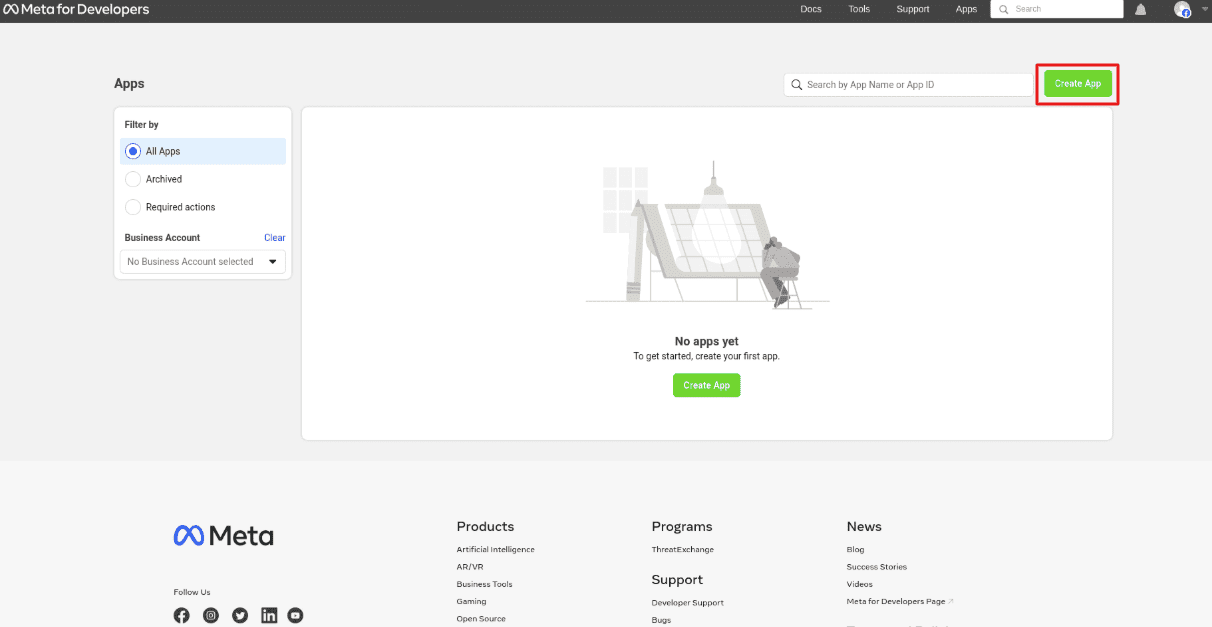
On the Create App screen, under the category asking What you would like to build, select the option "Other" and proceed to the next step. On this screen, you will be allowed to determine the application type that you wish to create. Select "Business" from the list of applications.
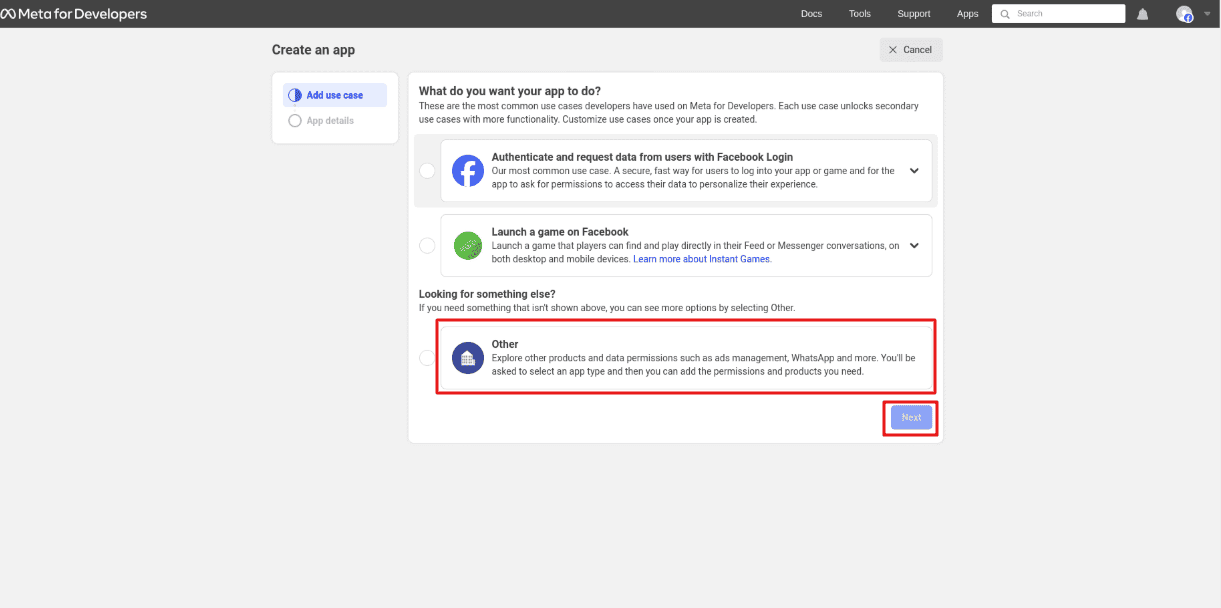
Choose Business as the app type. This app type supports the WhatsApp Business API features required by Odoo and is designed for business and organizational use. It provides the foundation needed to configure messaging services and integrate WhatsApp with your Odoo instance.
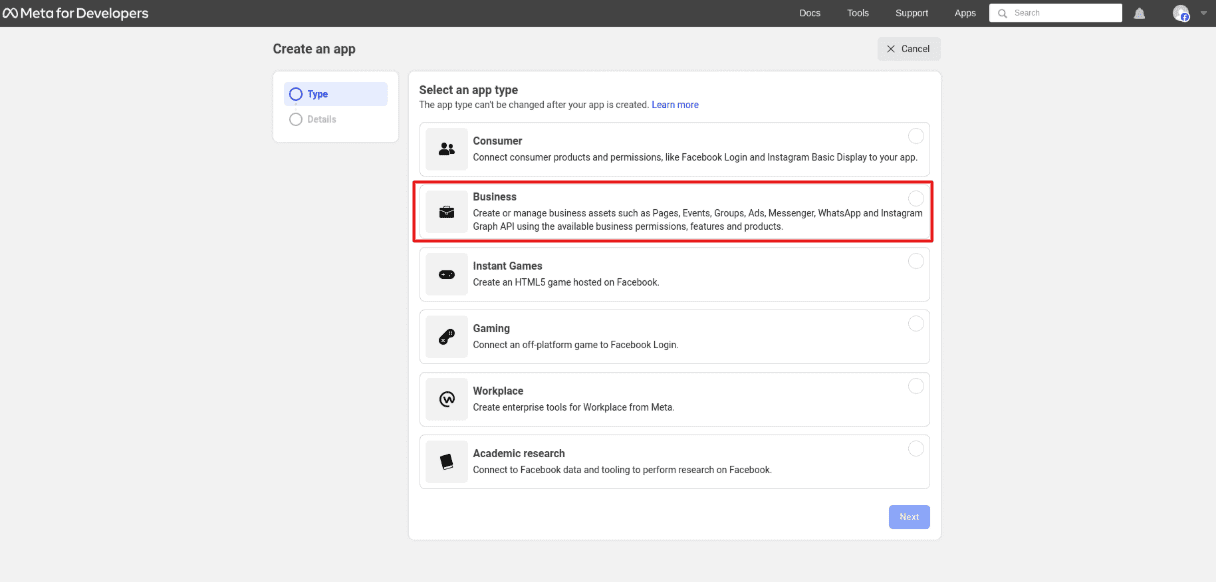
Then the application serves as a container for all configurations related to APIs, permissions, and integrations. It allows you to manage how your system communicates with Meta services, including authentication and data exchange.
In the App Details stage of the app creation process, you need to provide some basic information to define your application within the Meta Developer platform. Start by entering a suitable name for your app, this can be something like Odoo Integration or any identifier that helps you recognize its purpose.
Meta Developer Dashboard
Having created an app, you would find that it serves as a main place where services and permissions configuration related to WhatsApp integration will be performed. In other words, you will be able to set up the authentication settings, webhooks, as well as control the way in which any third-party systems including Odoo will use Meta's platform.
When the app is created, it is time to create a WhatsApp product. This will make it possible to gain access to the WhatsApp Business API that will allow you to work with messages programmatically.
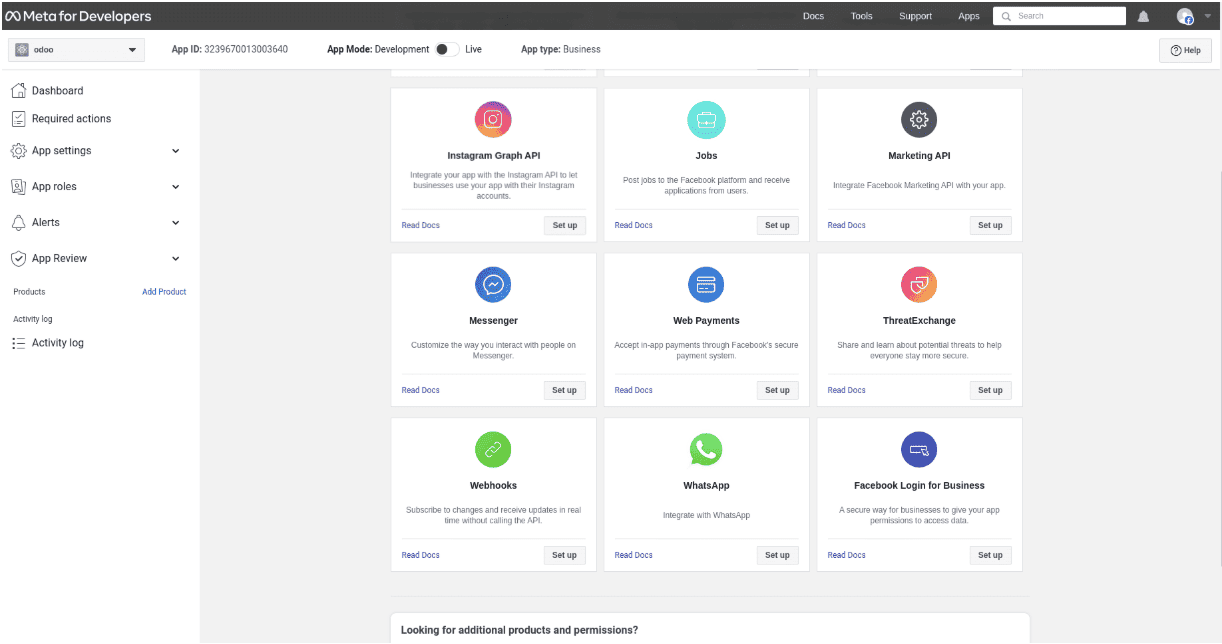
Once you have completed setting up the WhatsApp product and click on “Continue,” you will be taken to the WhatsApp Quickstart page on the Meta Developer portal. The WhatsApp Quickstart page is where all the configuration related to the WhatsApp Business API is done.
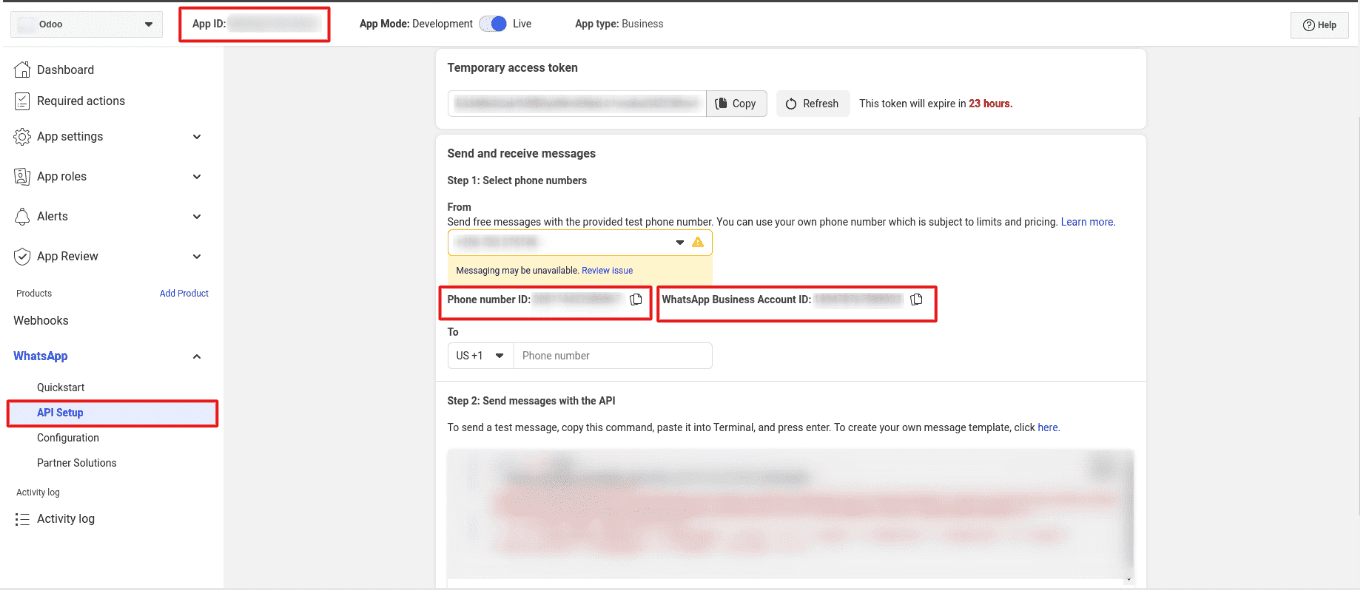
The Quickstart page contains important details necessary for integration, which include Phone Number ID, WhatsApp Business Account ID, and access token. The credentials enable authentication of API calls and facilitate communication between external systems, such as Odoo, and the WhatsApp platform.
This information from the page would be needed in further configuration steps, therefore it is advisable to have this information handy when creating the connection between Meta and Odoo.
1. To obtain App Secret Key
- Navigate to App Settings > Basic.
- Locate the App Secret field.
- Click Show and authenticate if prompted.
The App Secret is used by Odoo to validate webhook requests and ensure secure communication with Meta's services.
2. Assign Assets and Generate Access Token
To generate a permanent access token, you must first assign the required assets to a System User.
- Open Meta Business Settings.
- Go to Users > System Users.
- Create a new System User or select an existing one.
- Click Assign Assets.
- Select your WhatsApp Business Account.
- Assign the required permissions and save.
After assigning the assets:
- Select the System User.
- Click Generate New Token.
- Choose the app created for the WhatsApp integration.
- Select the following permissions:
- whatsapp_business_management
- whatsapp_business_messaging
- Click Generate Token.
Copy and save the generated access token. This token will be required when configuring WhatsApp in Odoo 19.
3. Configure Webhook
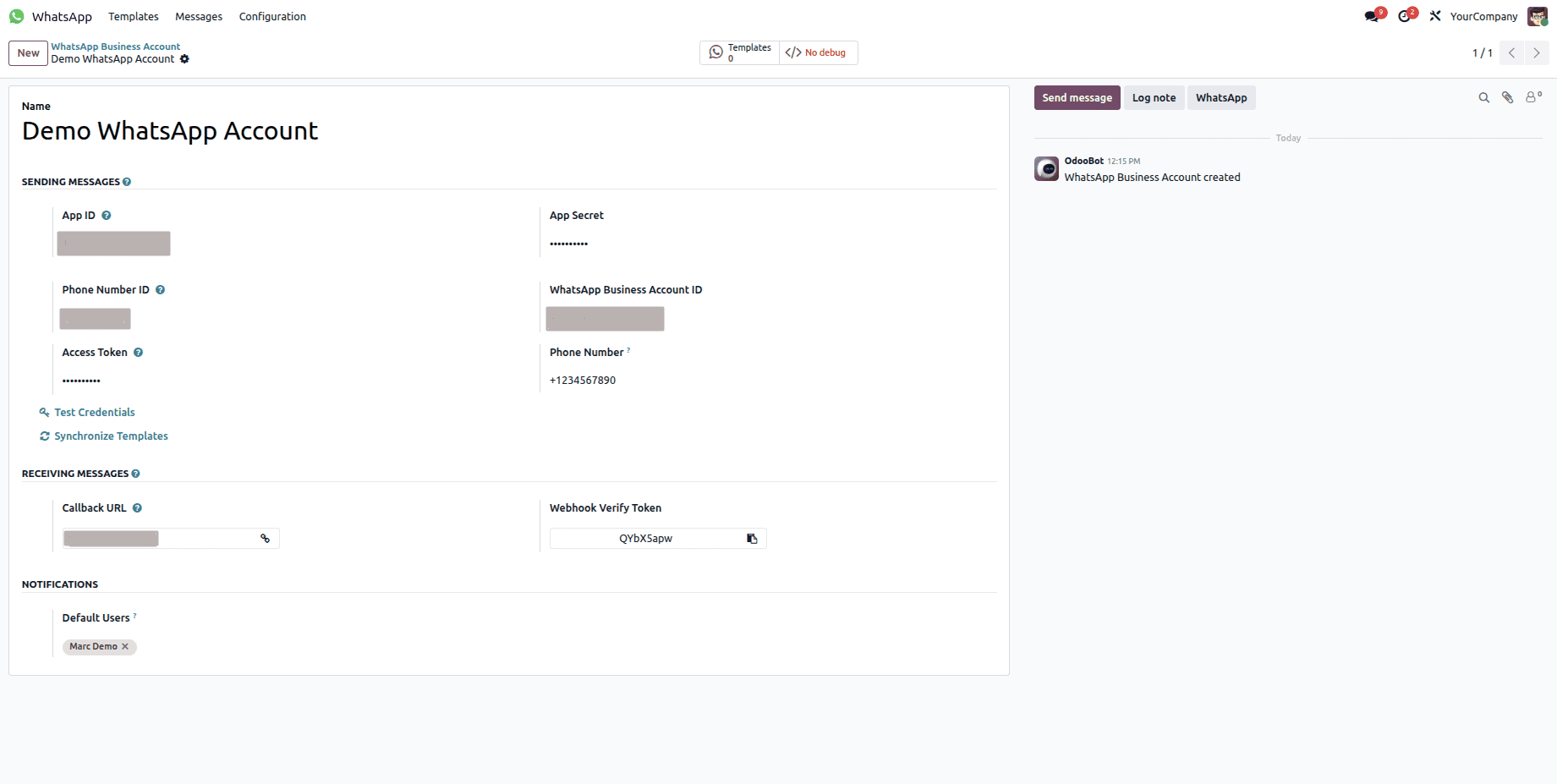
To enable Odoo 19 to receive incoming WhatsApp messages and status updates, configure a webhook in the Meta Developer Dashboard.
- Open your app in the Meta Developer Dashboard.
- Go to WhatsApp > Configuration.
- Under Webhooks, click Edit.
- Enter the following details:
- Callback URL: The webhook URL generated by Odoo.
- Verify Token: The verification token configured in Odoo.
- Click Verify and Save.
After the webhook is verified:
- Click Manage under webhook fields.
- Subscribe to the required fields:
- message_template_status_update
- message_template_quality_update
- Save the changes.
Once the webhook is active, Odoo automatically receives incoming messages, delivery updates, read receipts, and template status changes.
After completing the setup in both Meta and Odoo, your WhatsApp Business account is ready to send and receive messages directly from Odoo. After you create a Meta business account, configure the developer application, get the appropriate credentials, access token, and webhook setup, you will have successfully connected your WhatsApp business account to Odoo. This means that Odoo can send and receive messages using the WhatsApp Business API.
To read more about How to Integrate WhatsApp & Email for Odoo 18 Community, refer to our blog How to Integrate WhatsApp & Email for Odoo 18 Community.