Odoo 19 Payroll provides a range of reporting and analytics tools that help businesses review payroll information and manage employee-related expenses more effectively. After processing payroll, HR and finance teams can use the Reporting menu to analyze key information, including work entries, employee headcount, payslip lines, worked days, and other payroll inputs. These reports provide a structured view of payroll data and can support monthly, quarterly, or yearly payroll reviews. The Work Entry Analysis report helps users examine attendance, sick days, unpaid time off, and other work-entry categories. The Headcount report provides an overview of the number of employees during a selected period. Other reports, including Payslip Line, Payslip Work Days Lines, and Payslip Other Inputs, provide more detailed information about salary rules, worked days, leave, bonuses, allowances, commissions, and deductions. Odoo 19 also provides country-specific payroll reporting options, such as United States payroll reports, helping businesses review relevant tax and statutory information.
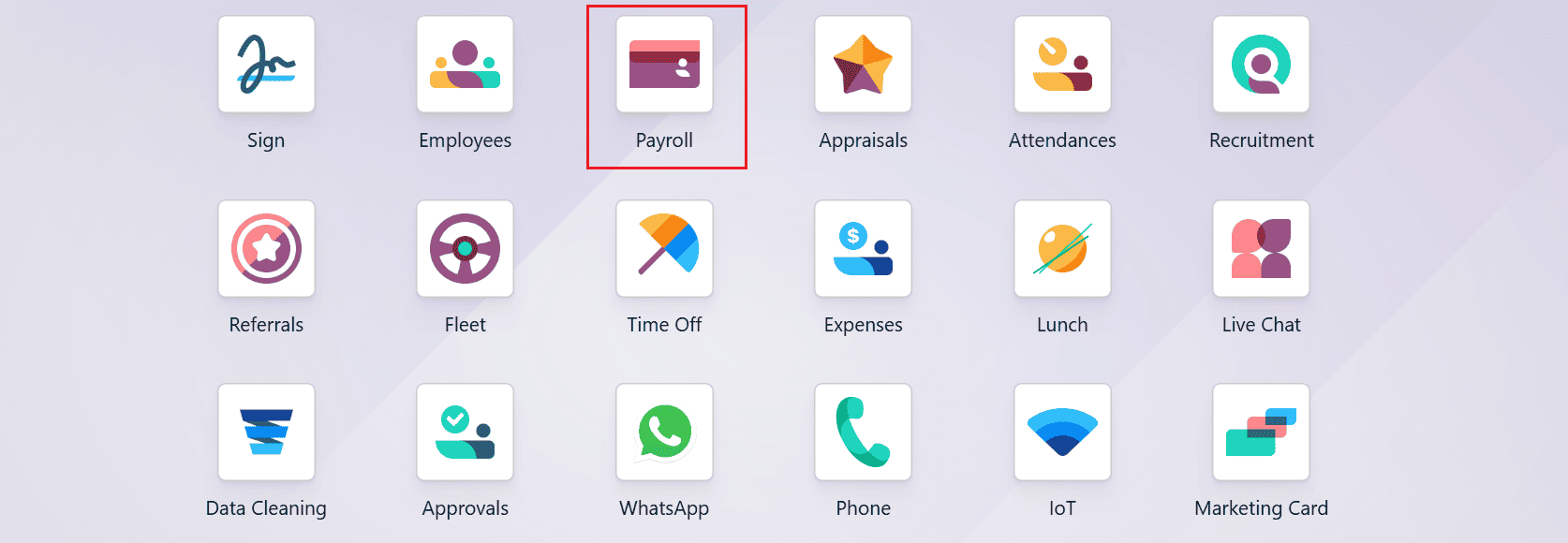
Firstly, open the Payroll module from the Odoo 19 dashboard as shown below:
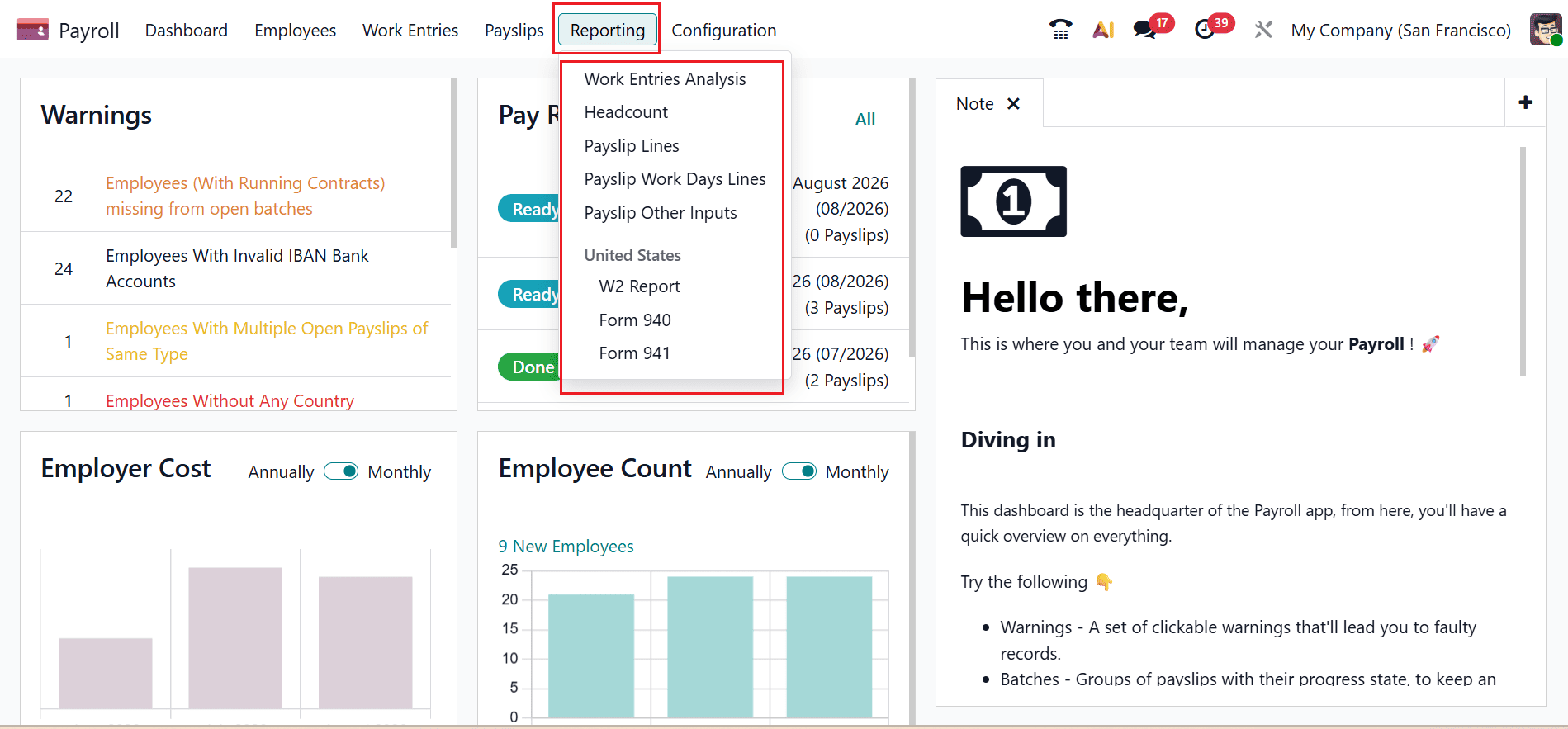
Go to Payroll > Reporting, where you can view the main reporting sections:
- Work Entries Analysis
- Headcount
- Payslip Lines
- Payslip Work Days Lines
- Payslip Other Inputs
For businesses operating in the United States, Odoo also provides payroll reporting options:
- W2 Report
- Form 940
- Form 941
The Payroll Settings section allows companies to configure payroll-related options according to their specific business requirements.
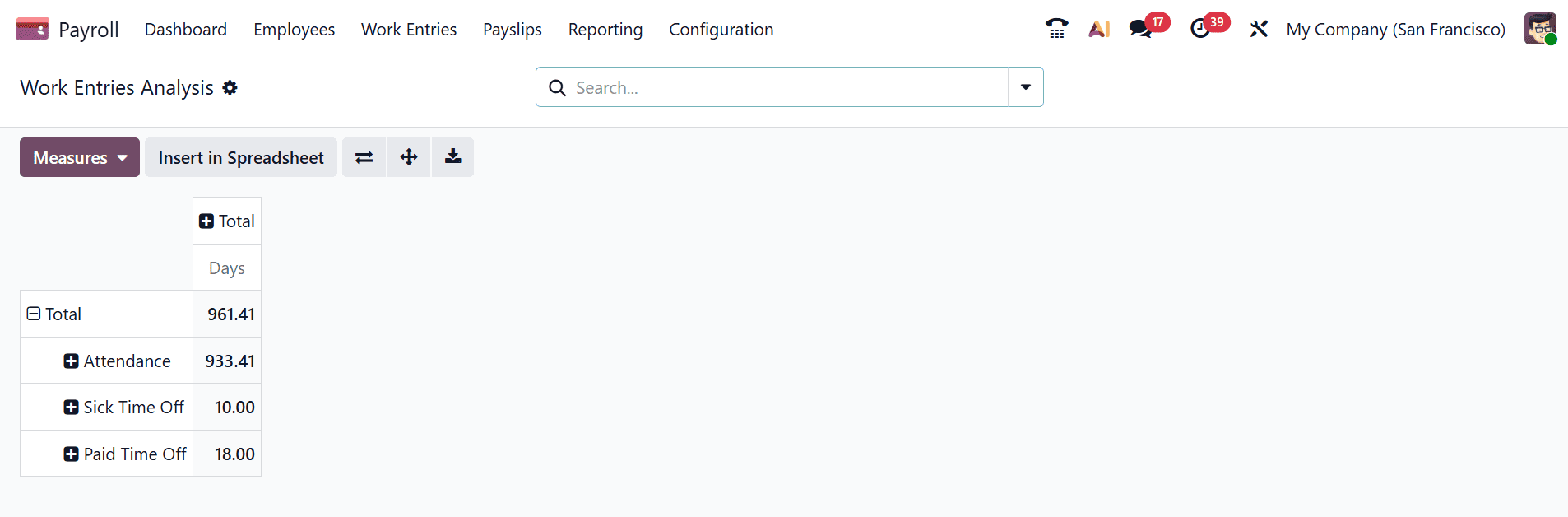
1. Work Entries Analysis:
Under the Reporting tab, choosing Work Entries Analysis generates a comprehensive report of work entries of employees in the form of a table. The pivot table enables users to analyze work entries in relation to parameters such as attendance, sick leave, paid leave, unpaid leave, and other types of work entries. These work entries are generated from the approved time-off requests in the Time Off module and are converted into corresponding work entries. Through the Measures feature, the user is able to analyze the information using various measures, including days/count.
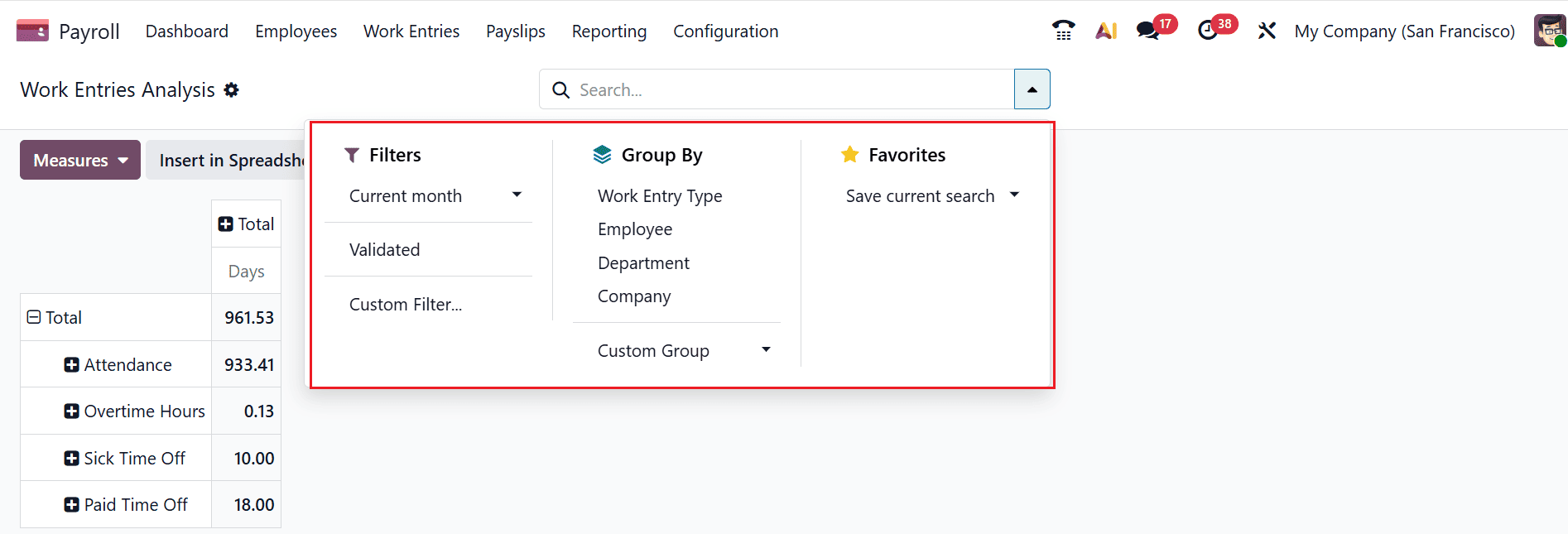
The drop-down menu in the search bar offers options such as Filters, Group By, and Favorites. Filters allow you to filter payroll information according to pre-defined parameters like month and validated, or create a custom filter according to specific needs. Group By option enables you to group the information according to criteria like work entry type, employee, department, or company. You can also save the report as Favorites.
2. Headcount:
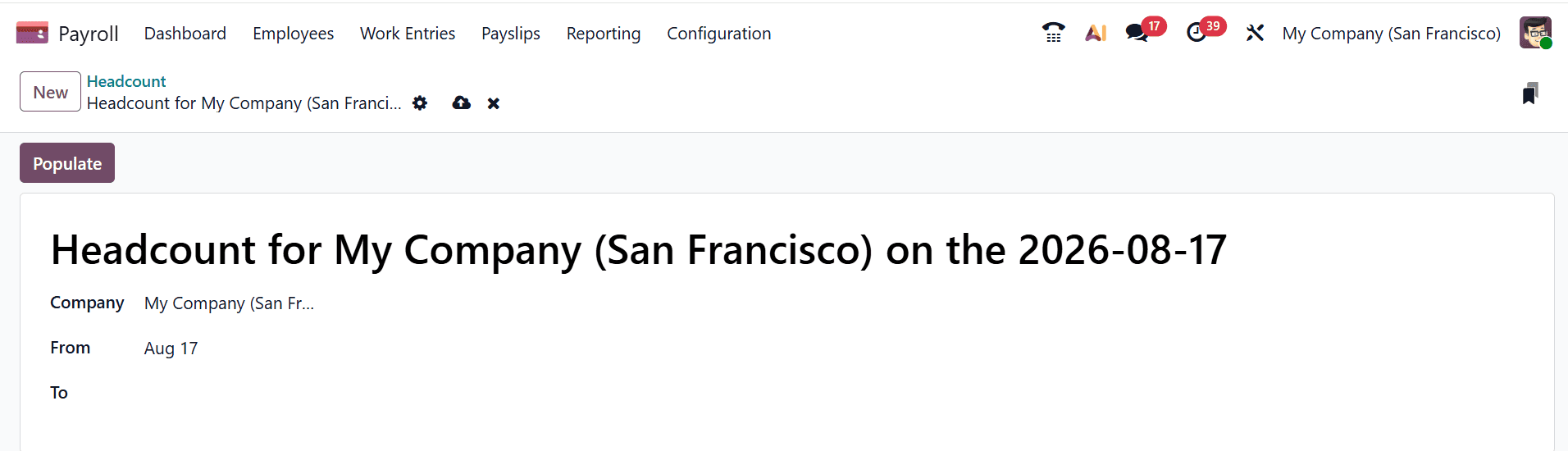
Under the Reporting tab, choosing the Headcount report gives the total number of employees in the company for the selected period of time. Click on the New button to add a new headcount.

Here, you can specify a name of the Headcount report and the necessary date range can be entered. After defining the period, clicking on the Populate button will produce the report, which will display the number of employees in the date range specified.
3. Payslip Lines:
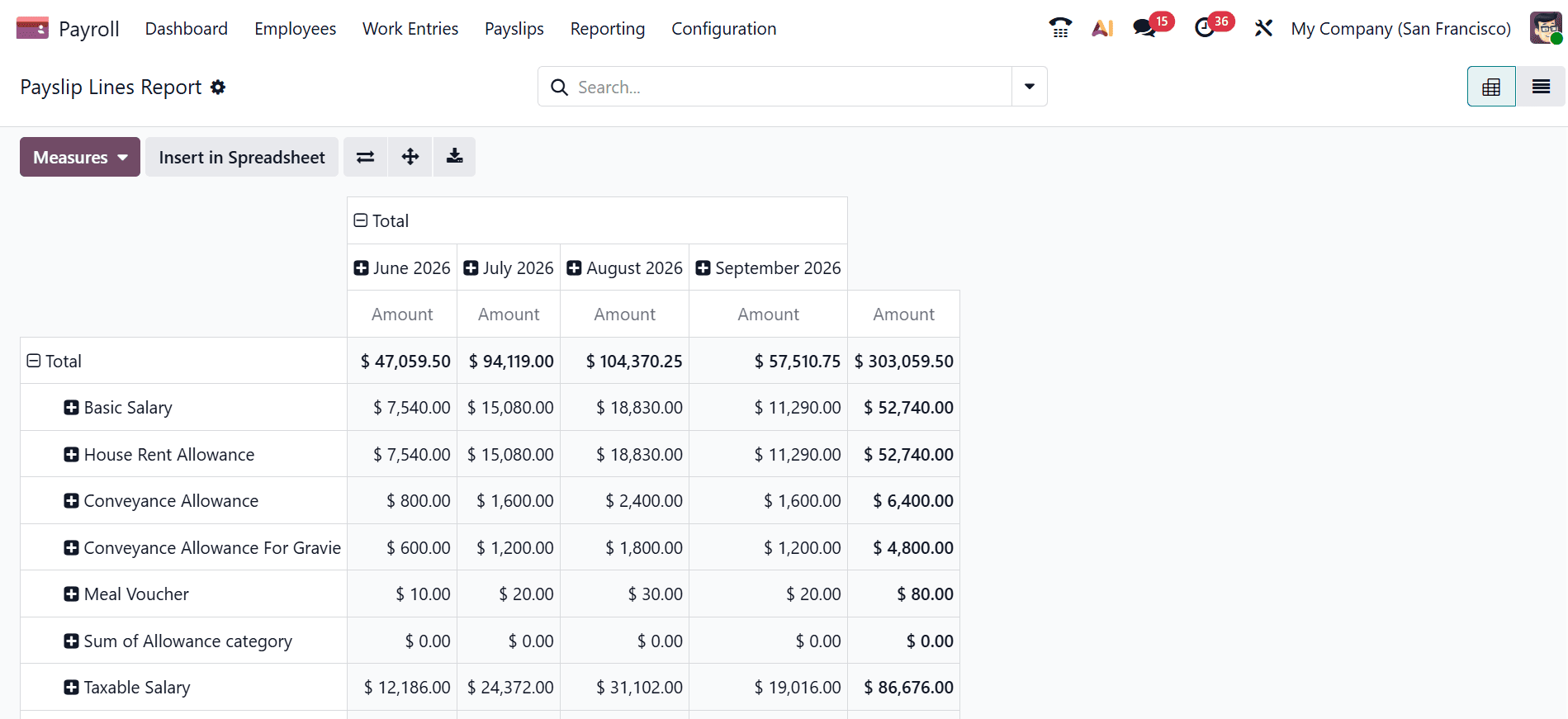
The Payslip Lines report under the Reporting menu provides a pivot view of the salary components recorded on generated payslips. It helps HR and finance teams analyze earnings, deductions, and contributions across employees and different pay periods.
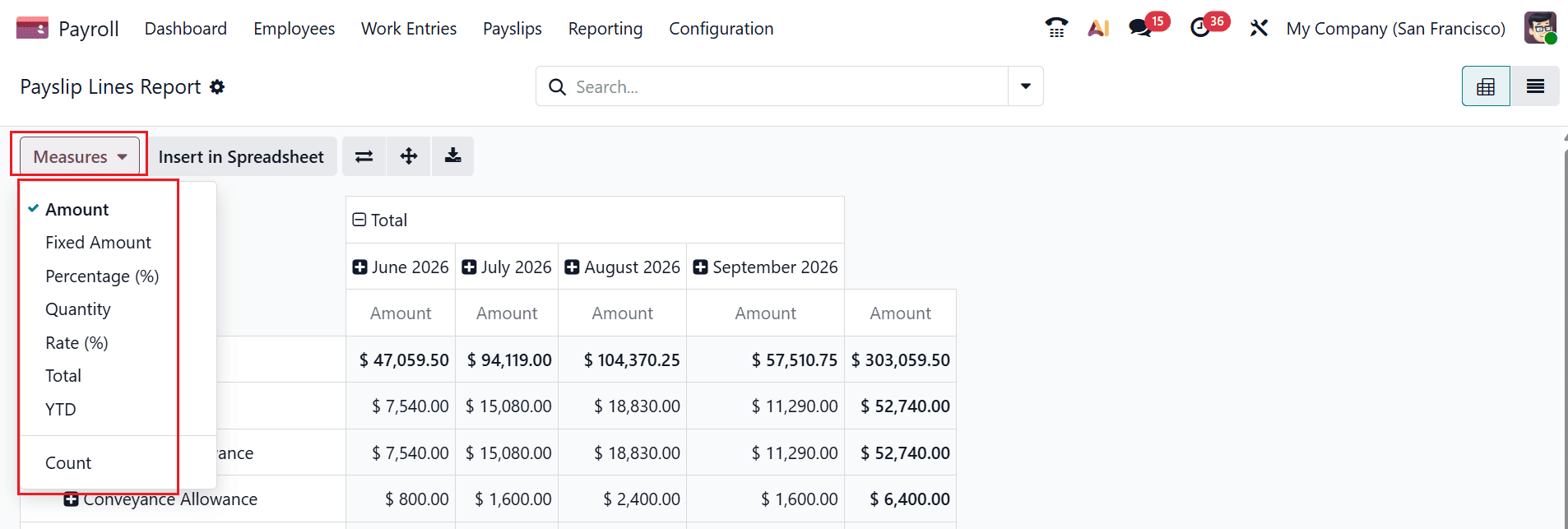
The Measures option allows users to analyze payslip data using different metrics, such as Amount, Fixed Amount, Percentage(%), Quantity, Rate(%), Total, YTD, and Count.
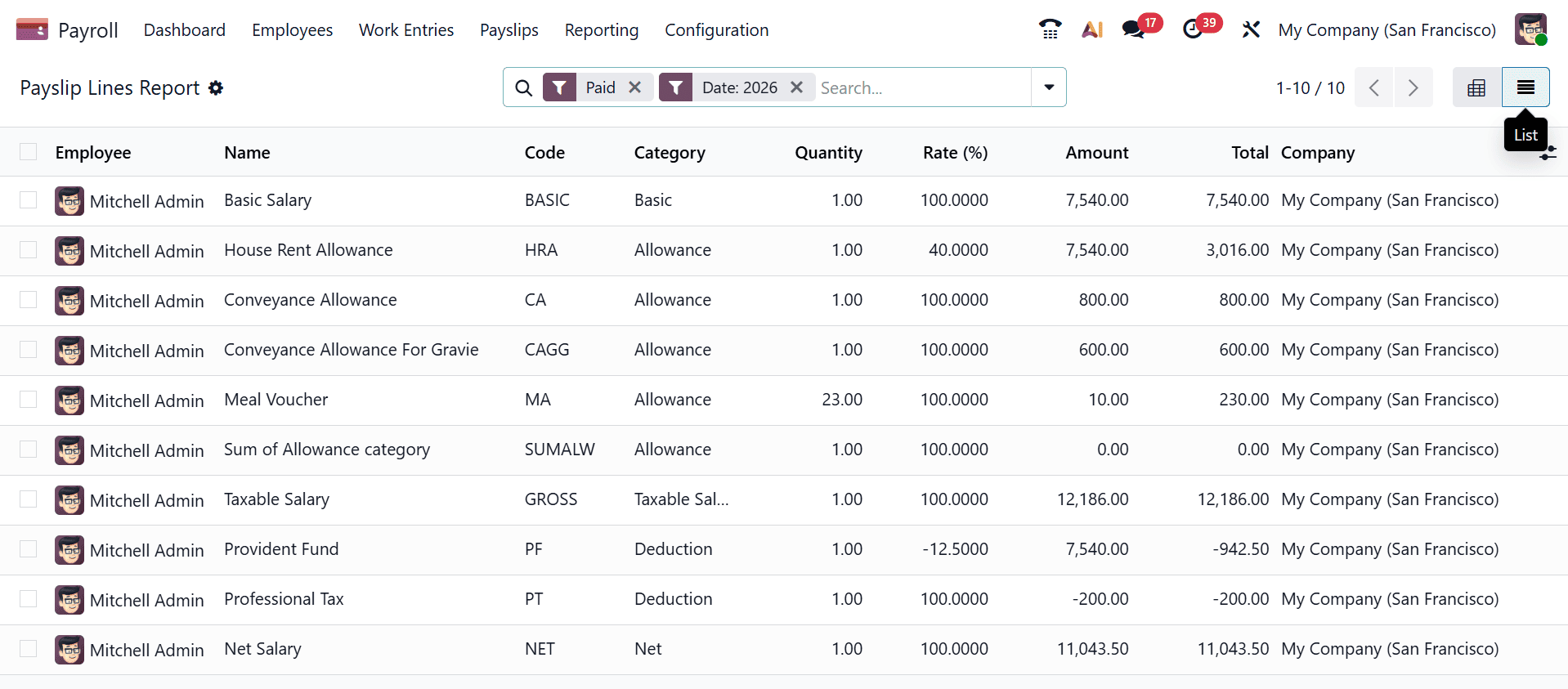
You can also change the view into List view where you can view the details of the Payslip Lines report such as Employee, Name, Code, Category, Quantity, Rate(%), Amount, Total and Company as shown below:
4. Payslip Work Days Lines:
The Payslip Work Days Lines report shows the workdays, leaves, absences, and other time entries used to calculate employee payslips, helping users review how working time and time off affect payroll.
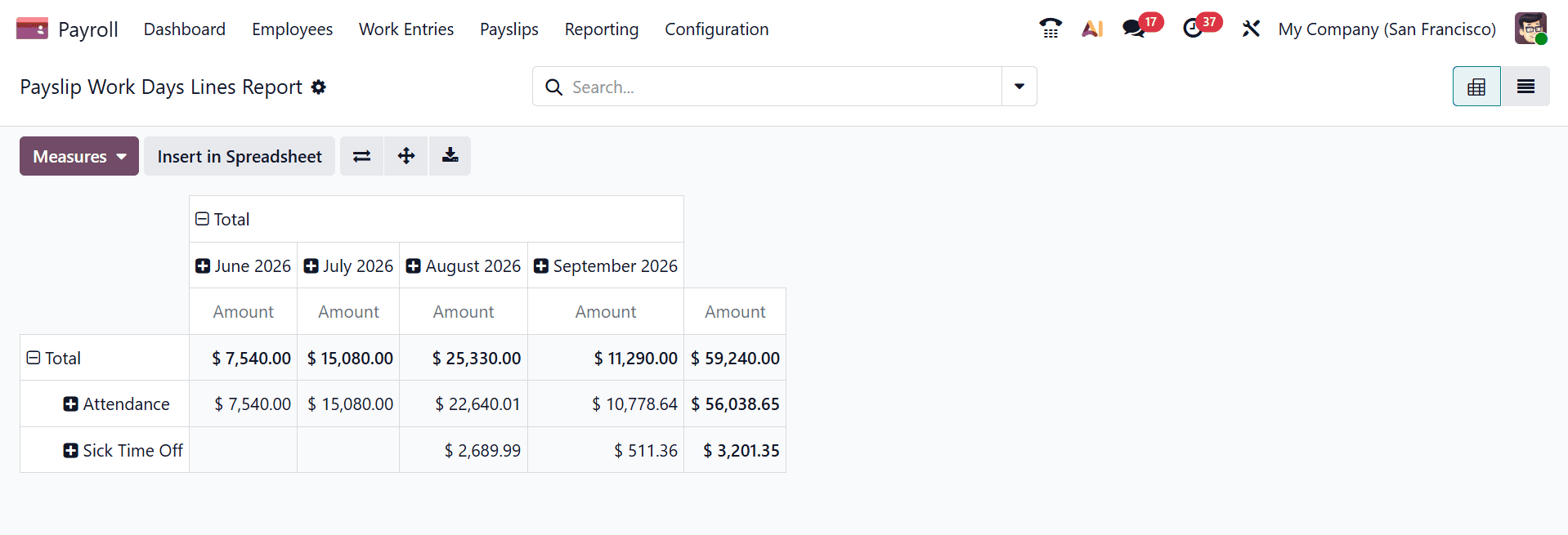
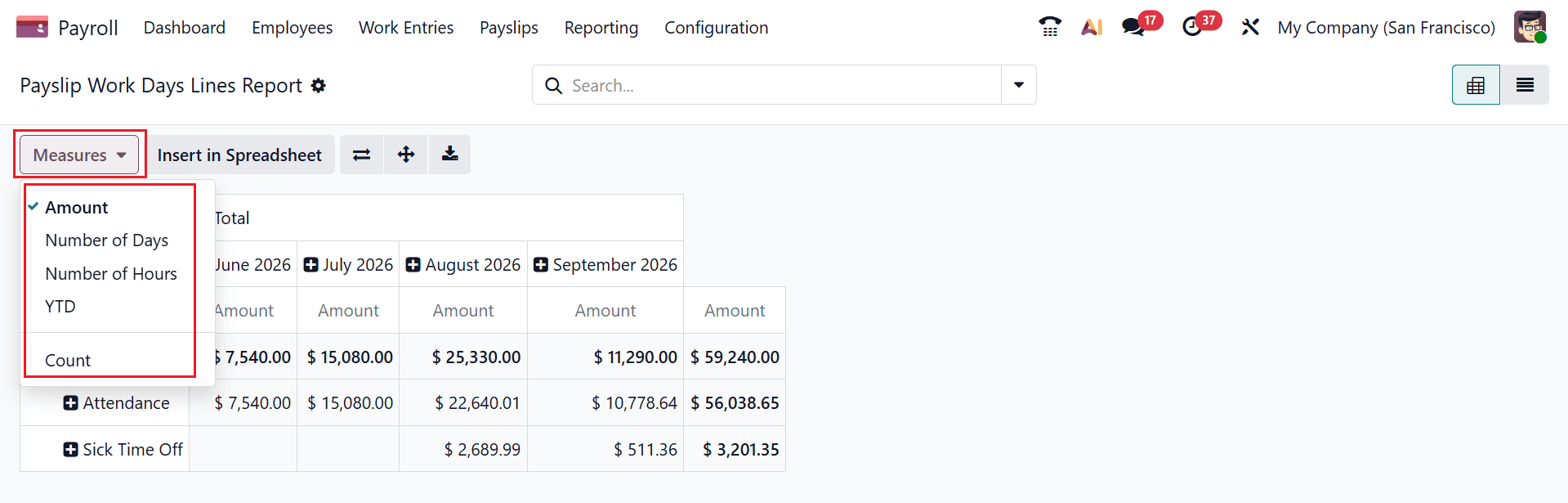
The Measures option allows users to analyze payslip data using different metrics, such as Amount, Number of Days, Number of Hours, YTD, and Count.
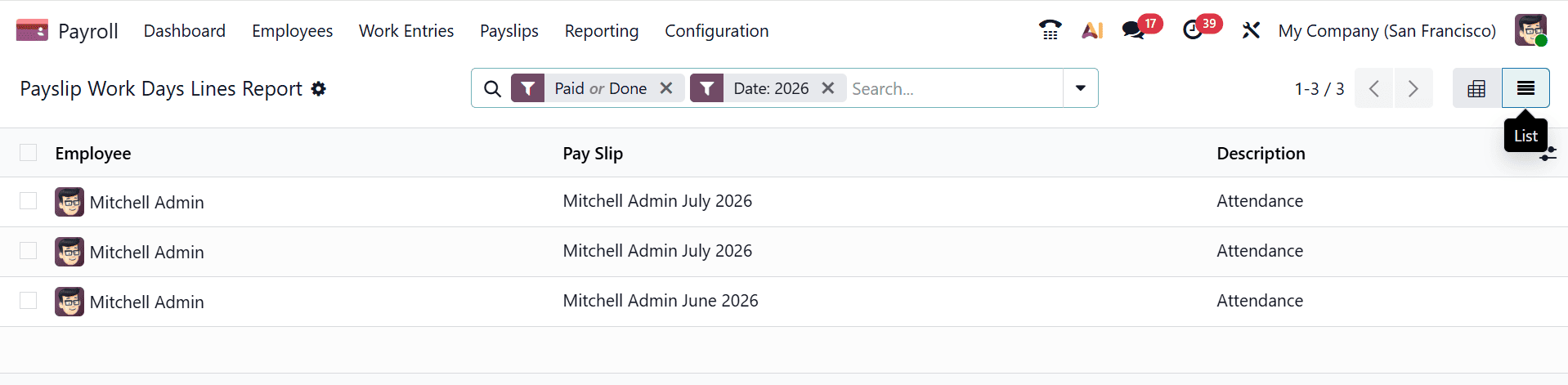
You can also change the view into List view, where you can view the details of the Payslip Work Days Lines report such as Employee, Pay Slip, and Description, as shown below:
5. Payslip Other Inputs
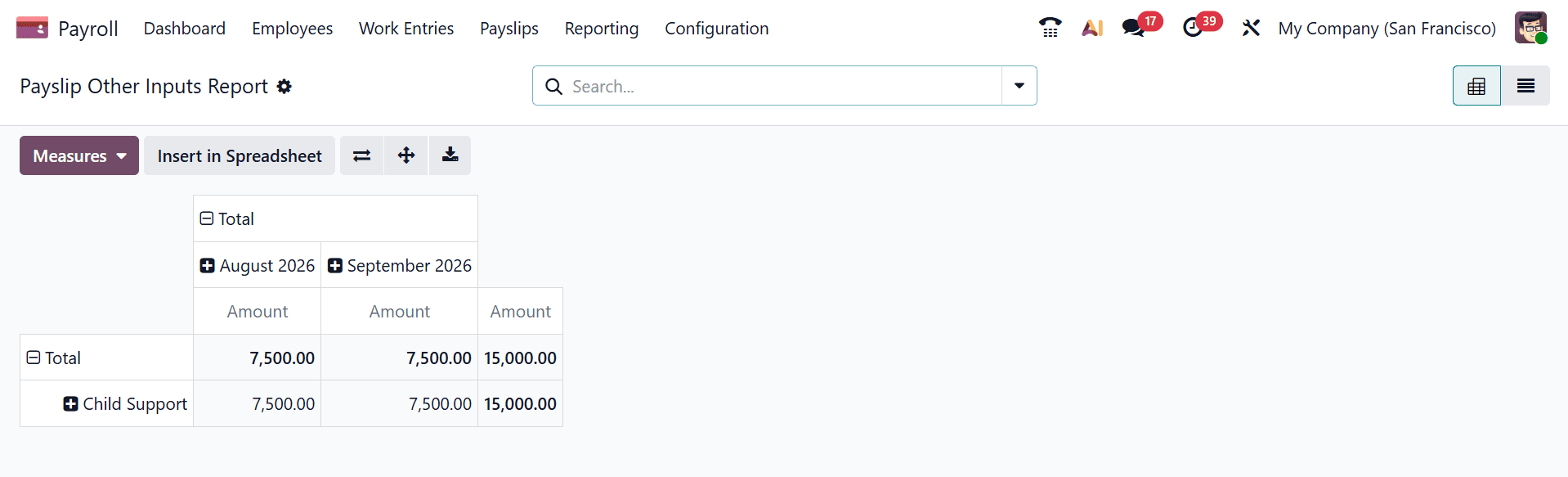
The Payslip Other Inputs report provides a summary of other payroll inputs that are entered into the employee's payslip apart from the basic salary inputs. Some of the other payroll inputs include bonuses, commissions, allowances, and deductions.
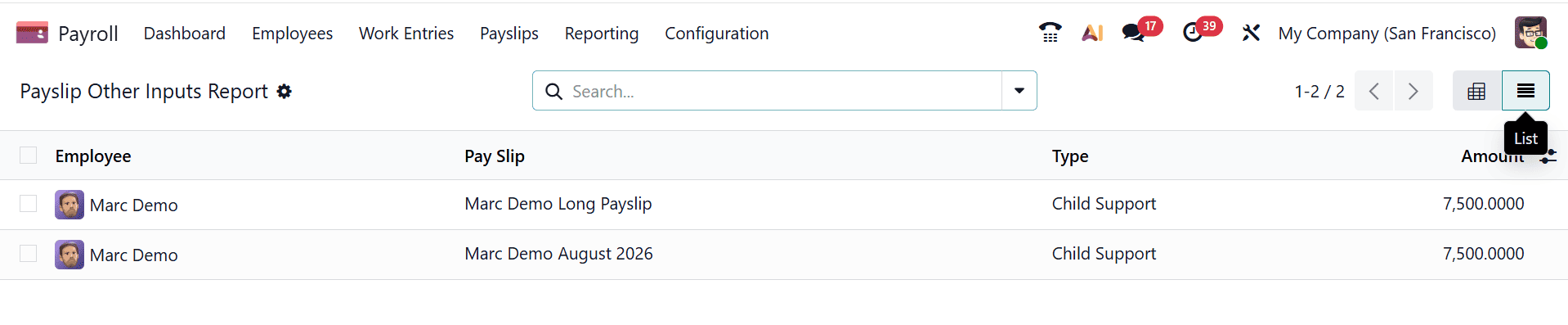
You can also change the view to List view, where you can view the details of the Payslip Other Input report, such as Employee, Payslip, Type, and Amount, as shown below:
Odoo 19 Payroll reporting tools give HR and finance teams a clear view of payroll data and employee-related costs. Reports such as Work Entry Analysis, Headcount, Payslip Line, Payslip Work Days Lines, and Payslip Other Inputs help users examine attendance, employee numbers, salary components, worked days, leaves, and additional payroll inputs. These reports simplify payroll analysis and make it easier to review information regularly. By using these reporting features, businesses can maintain organized payroll records and make better-informed workforce and financial decisions.
To read more about Overview of Payroll Reporting in Odoo 18, refer to our blog Overview of Payroll Reporting in Odoo 18.