In any business application, the reports part is an integral part where the data has to be represented in an easy manner. Although there are many built-in reports in Odoo, such as invoices, sales orders, and purchase orders, in a real-time business scenario, there might be a requirement for customization. In such cases, the concept of custom report templates in Odoo comes into the picture.
In the following blog, the concept and importance of implementing the custom report templates in Odoo are discussed.
What is a Custom Report Template in Odoo?
Custom report template in Odoo: A custom report template in Odoo is a template developed by the user to generate a PDF or HTML-based report. The template is usually developed using QWeb, which is a templating engine in Odoo. QWeb helps in developing structured reports.
With custom templates, businesses can:
- Modify layouts (headers, footers, branding)
- Add or remove fields
- Format data presentation
- Apply business-specific logic in reports
Why Customize Reports?
Although Odoo’s default reports are functional, they may not fully align with a company’s branding or operational requirements.
Custom reports help to:
- Reflect company branding (logo, colors, fonts)
- Include additional business-specific data
- Improve readability and structure
- Meet legal or compliance requirements
- Automate complex reporting formats
How a Custom Report Appears in Odoo
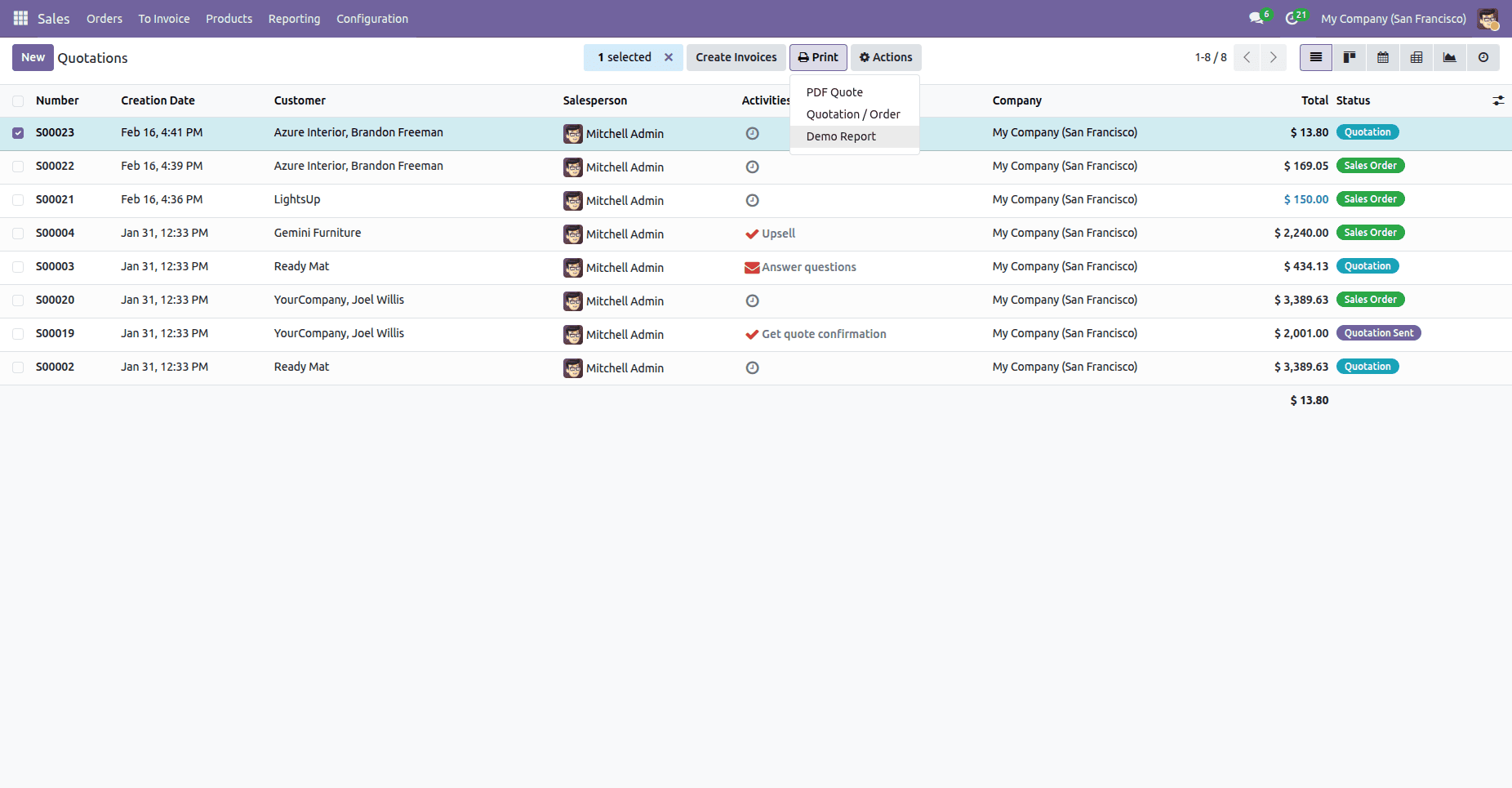
Once installed, a custom report is automatically available under the Print button in the relevant model's list or form view. The screenshot below shows a custom report registered to the Sale Order model appearing alongside the default options in the Print dropdown:
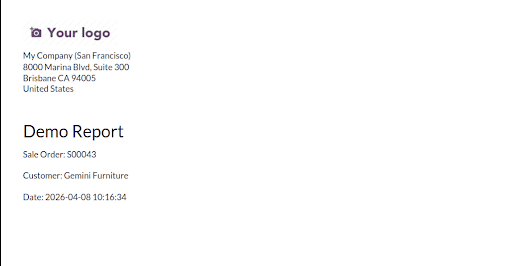
Upon selecting the custom report from the Print menu, the system generates and displays the report in a printable format with all relevant information
Key Components of Odoo Reports
Before creating a custom report, it's important to understand the core components:
1. Report Action
The report action defines how the report is triggered and linked to a model. In modern Odoo versions, it is recommended to use ir.actions.report instead of the older <report> tag.
<record id="action_demo_sale_report" model="ir.actions.report">
   <field name="name">Demo Report</field>
   <field name="model">sale.order</field>
   <field name="report_type">qweb-pdf</field>
   <field name="report_name">demo_report.demo_sale_report_template</field>
   <field name="report_file">demo_report.demo_sale_report_template</field>
   <field name="binding_model_id" ref="sale.model_sale_order"/>
</record>
This configuration:
- Connects the report to the sale.order model
- Ensures the report appears under the Print menu
- Specifies the QWeb template to be used
2. QWeb Template
The QWeb template defines the structure and content of the report. It uses XML along with QWeb directives.
<template id="demo_sale_report_template">
   <t t-call="web.html_container">
       <t t-foreach="docs" t-as="doc">
           <t t-call="web.external_layout">
               <div class="page">
                   <h2>Demo Report</h2>
                   <p>Sale Order: <t t-esc="doc.name"/></p>
                   <p>Customer: <t t-esc="doc.partner_id.name"/></p>
                   <p>Date: <t t-esc="doc.date_order"/></p>
               </div>
           </t>
       </t>
   </t>
</template>
Key elements:
- web.html_container: Wraps the full report
- web.external_layout: Adds header, footer, and branding
- t-foreach: Iterates over records
- t-esc: Safely displays dynamic values
3. Report Python File (Optional)
A Python file is optional and used when additional logic or data processing is needed.
from odoo import models
class ReportCustom(models.AbstractModel):
   _name = 'report.demo_report.demo_sale_report_template'
   def _get_report_values(self, docids, data=None):
       docs = self.env['sale.order'].browse(docids)
       return {
           'docs': docs,
       }
Steps to Create a Custom Report
- Module Setup
The report definition and template are added inside a custom module or an existing addon under a reports directory.
- Report Configuration
The report is defined using ir.actions.report, linking it to the sale.order model. This binding ensures that the report is automatically available under the Print menu.
- Template Design
A QWeb template is used to structure the report layout. It dynamically renders sale order details such as order name, customer, and date using directives like t-esc and t-foreach, while web.external_layout provides the standard header and footer.
- Register in the manifest
Add the XML file path to the 'data' list in __manifest__.py.
- Integration with Odoo UI
Once the module is installed, the report is seamlessly integrated into the Odoo interface without any additional configuration.
Common QWeb Directives
- t-esc="value" > Escaped output
- t-raw="value" > Raw HTML output
- t-if="condition"> Conditional rendering
- t-foreach="records" > Loop
- t-call="template_name" > Include another template
Example Use Cases
Custom report templates are commonly used for:
- Customized invoices
- Delivery slips with additional logistics data
- Sales summaries with analytics
- HR documents like payslips
- Inventory reports
The availability of custom report templates in Odoo helps meet the needs of businesses by allowing for the required level of flexibility. With the help of QWeb and Odoo’s reporting infrastructure, developers can create reports that are very dynamic, attractive, and functional.
Whether you are extending a report or creating one from scratch, becoming proficient in custom templates will help your business better communicate its data.
To read more about How to Customize Existing Reports in Odoo 19, refer to our blog How to Customize Existing Reports in Odoo 19.