The Hotel Management module provides a complete solution for managing hotel operations, such as room booking, food orders, guest check-in and check-out, hotel service, and maintenance. It also provides seasonal pricing and generates invoices. It reduces manual effort and also improves operational efficiency. It enhances the guest experience. This blog explores the key features and workflow of the hotel management module.
User Configuration
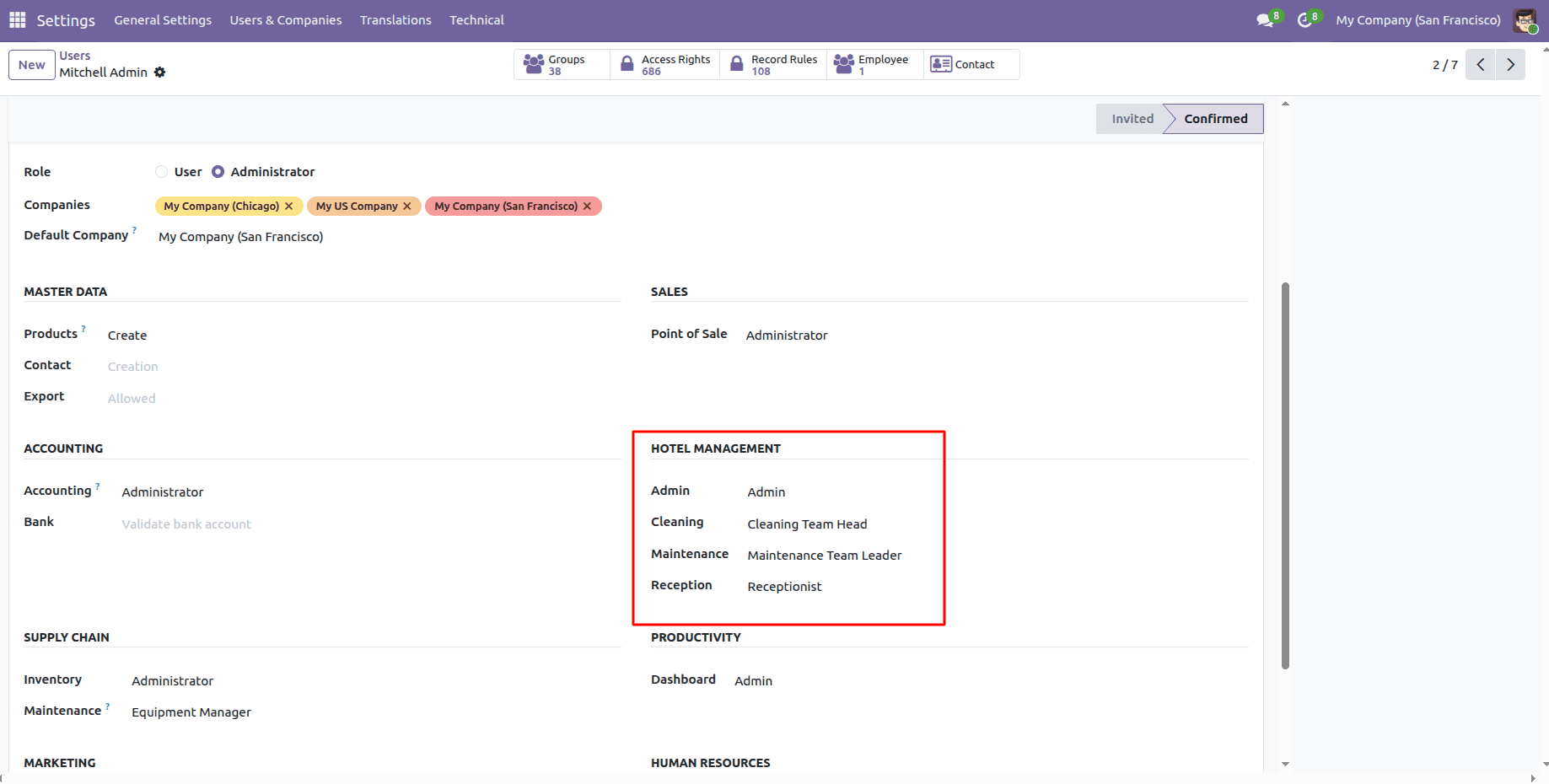
First, we need to set user access in the configuration settings.
Go to Settings > Users & Companies > Users. Select a user, then add the hotel management access to the user.
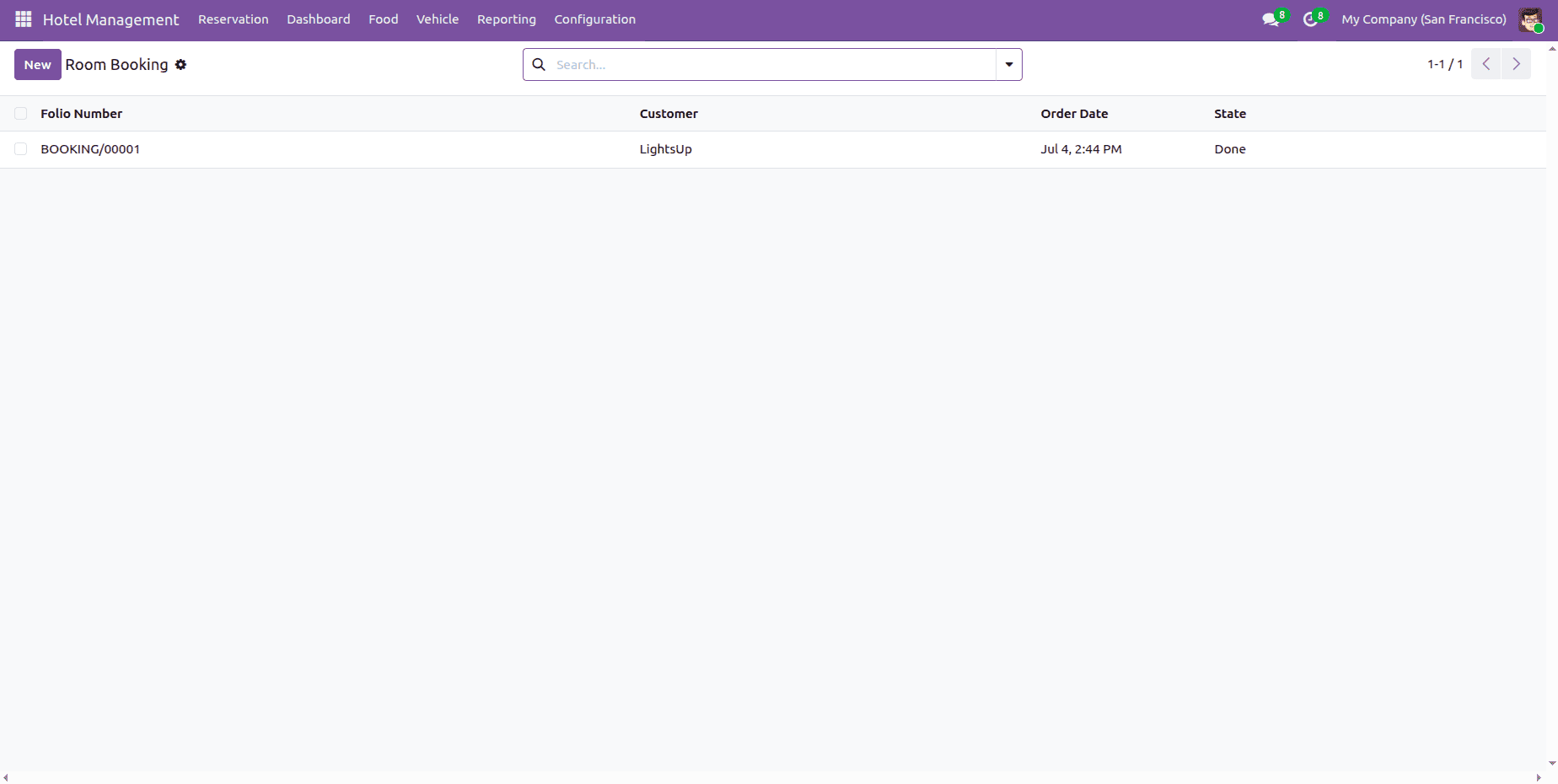
This is a booking list view.
Room Management
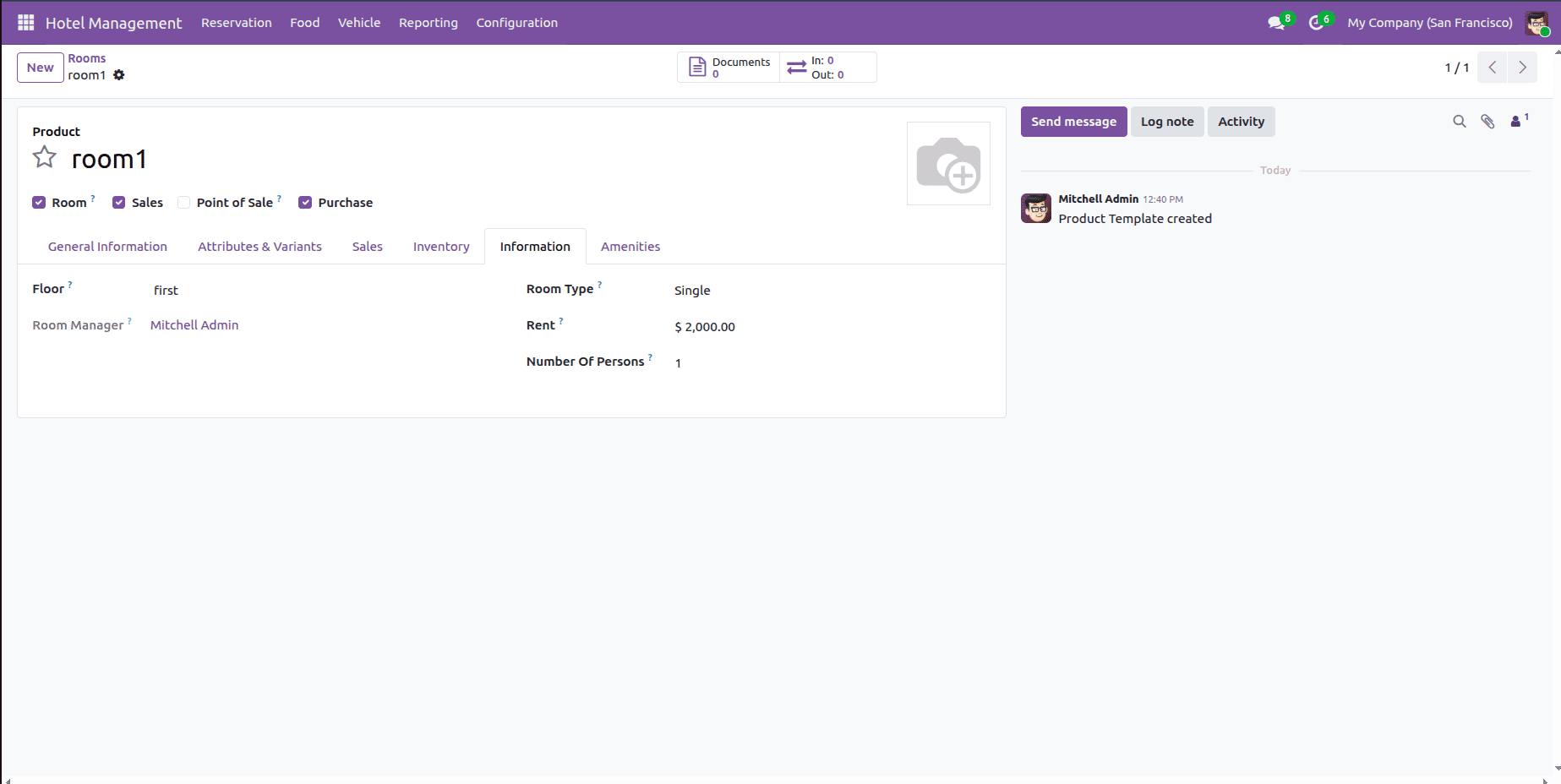
One of the core aspects of the hotel management module is a room reservation. It allows users to configure the room details, room name, room type, floor, rent, and guest count. Users can also add amenities and descriptions and manage the taxes.
Users need to tick the room boolean field to create rooms.
Go to Configuration > Room, and then the user can create rooms.
Maintenance Management
The Maintenance Management feature helps hotels handle the maintenance activities for rooms, vehicles, and hotels efficiently and simply. It allows administrators to create a maintenance team, assign technicians, and track maintenance requests. This helps hotels reduce downtime and improve service quality.
Maintenance Team
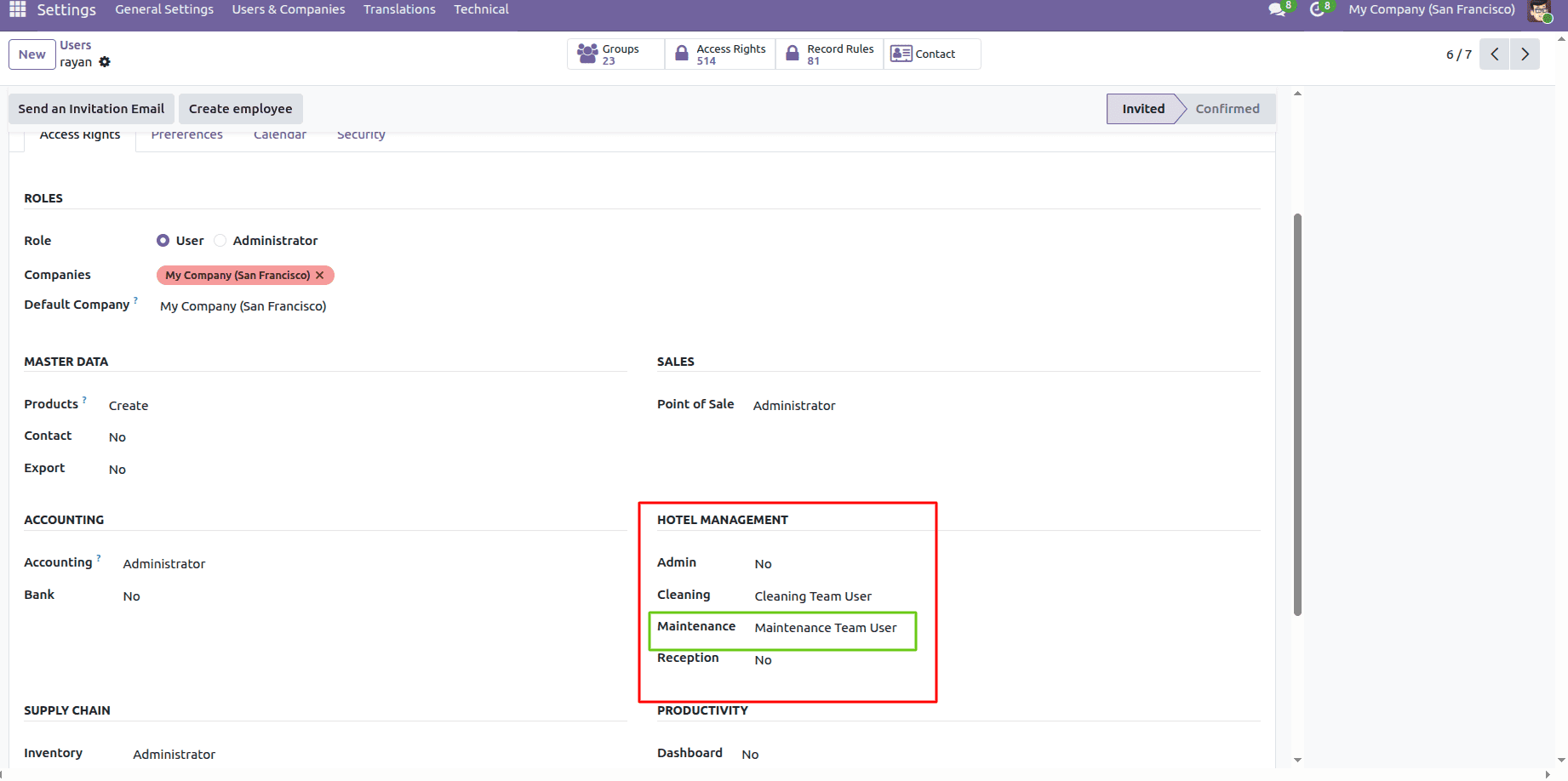
First, we need to configure the maintenance team user access.
After that, go to Configuration > Maintenance Team
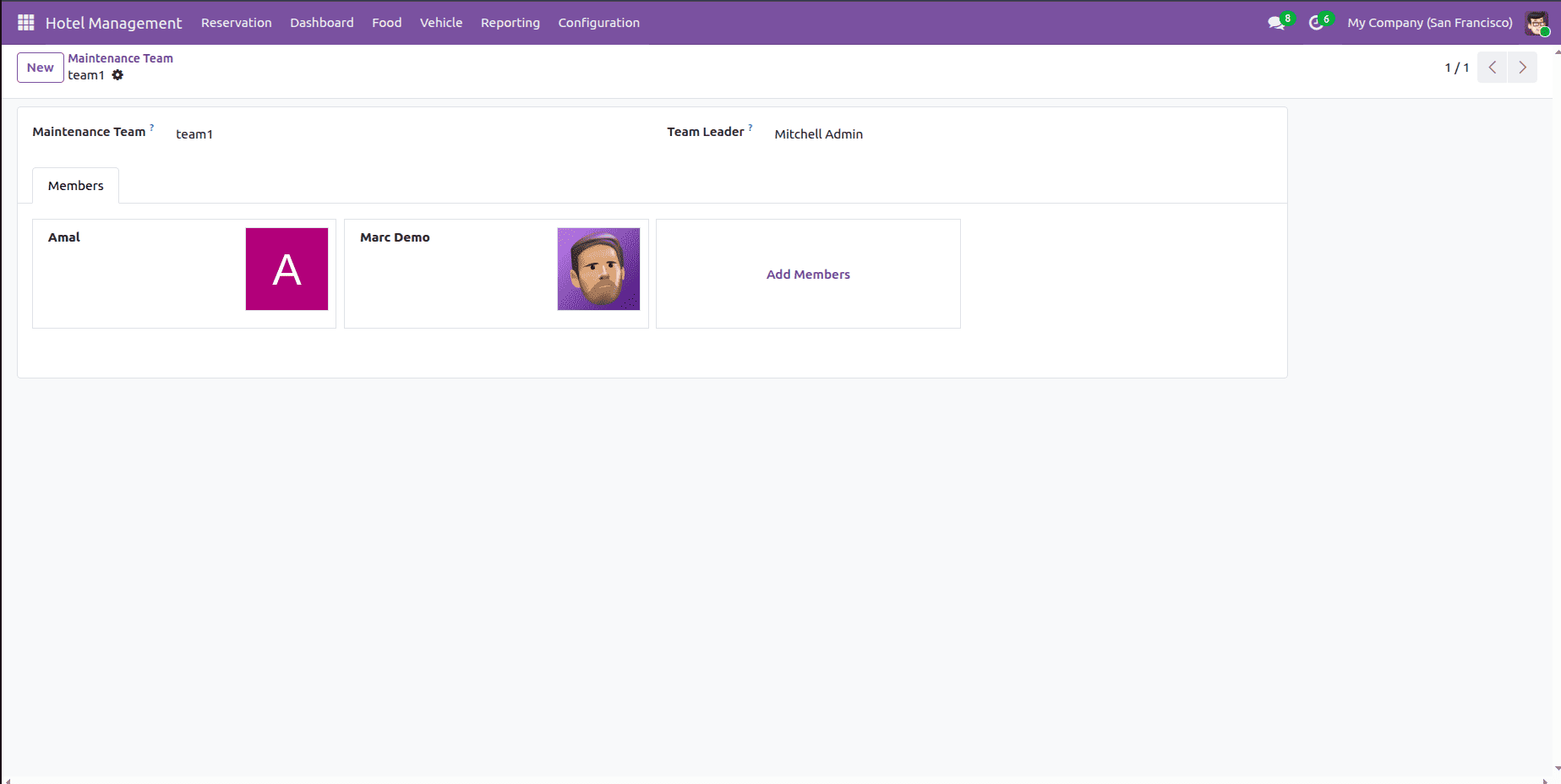
Then, the admin can create a maintenance team. First, add the team name, assign a leader, and then assign one or more team members.
Maintenance Request
The Maintenance Request feature helps users manage room, vehicle, and hotel maintenance efficiently. Each request includes details such as the request number, date, maintenance type, maintenance team, and team leader. The administrator must assign the appropriate maintenance team to handle the request. Based on the selected maintenance type, additional fields are displayed. If Room is selected, the user can choose the room that requires maintenance. If a vehicle is selected, the user can select the vehicle to be serviced. If Hotel is selected, the user can specify the hotel area or facility that requires maintenance.
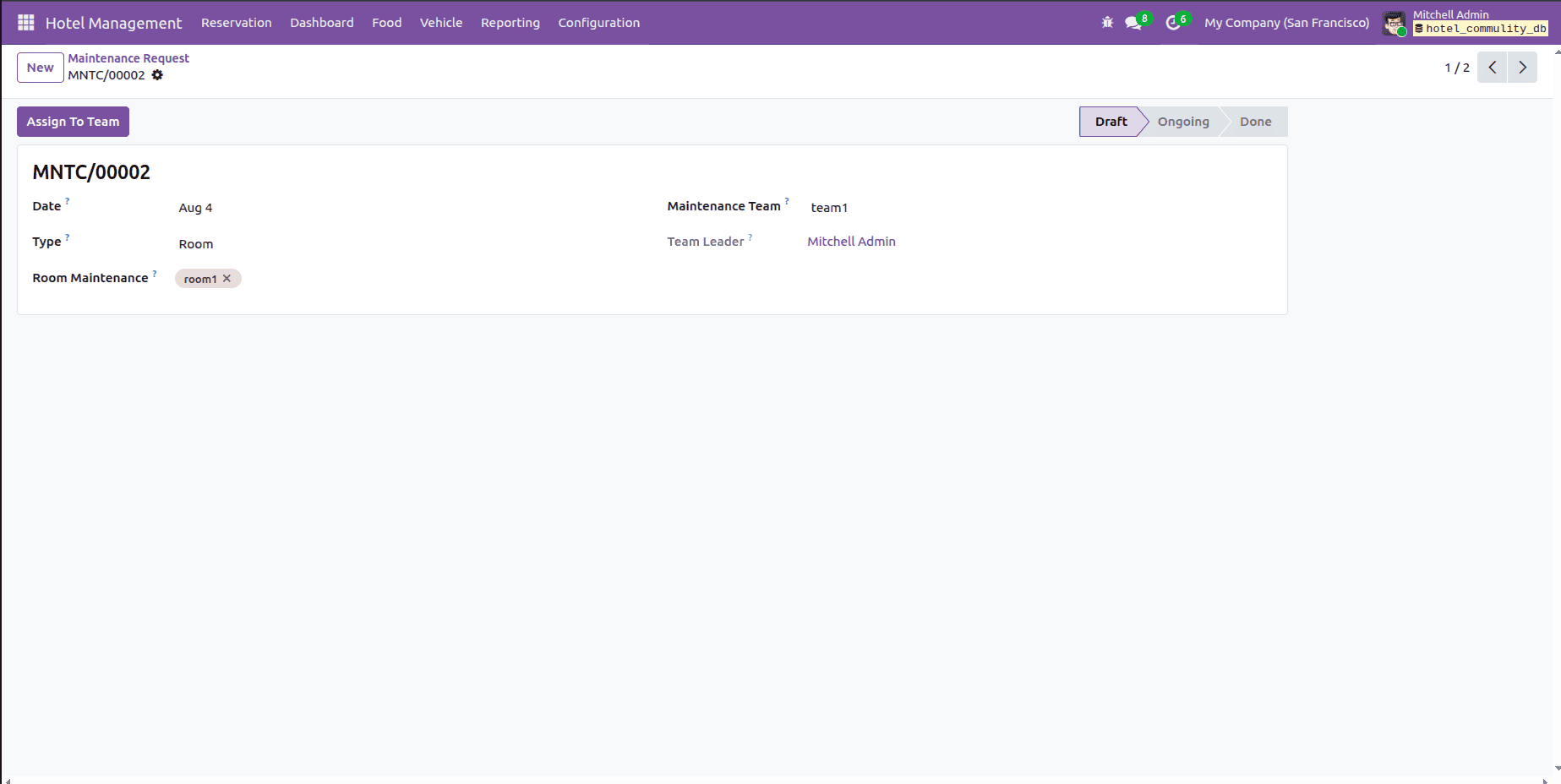
After that, click the Assign To Team button; it then changes the state to Waiting For User Assign. Here, the admin should add the Assigned User.
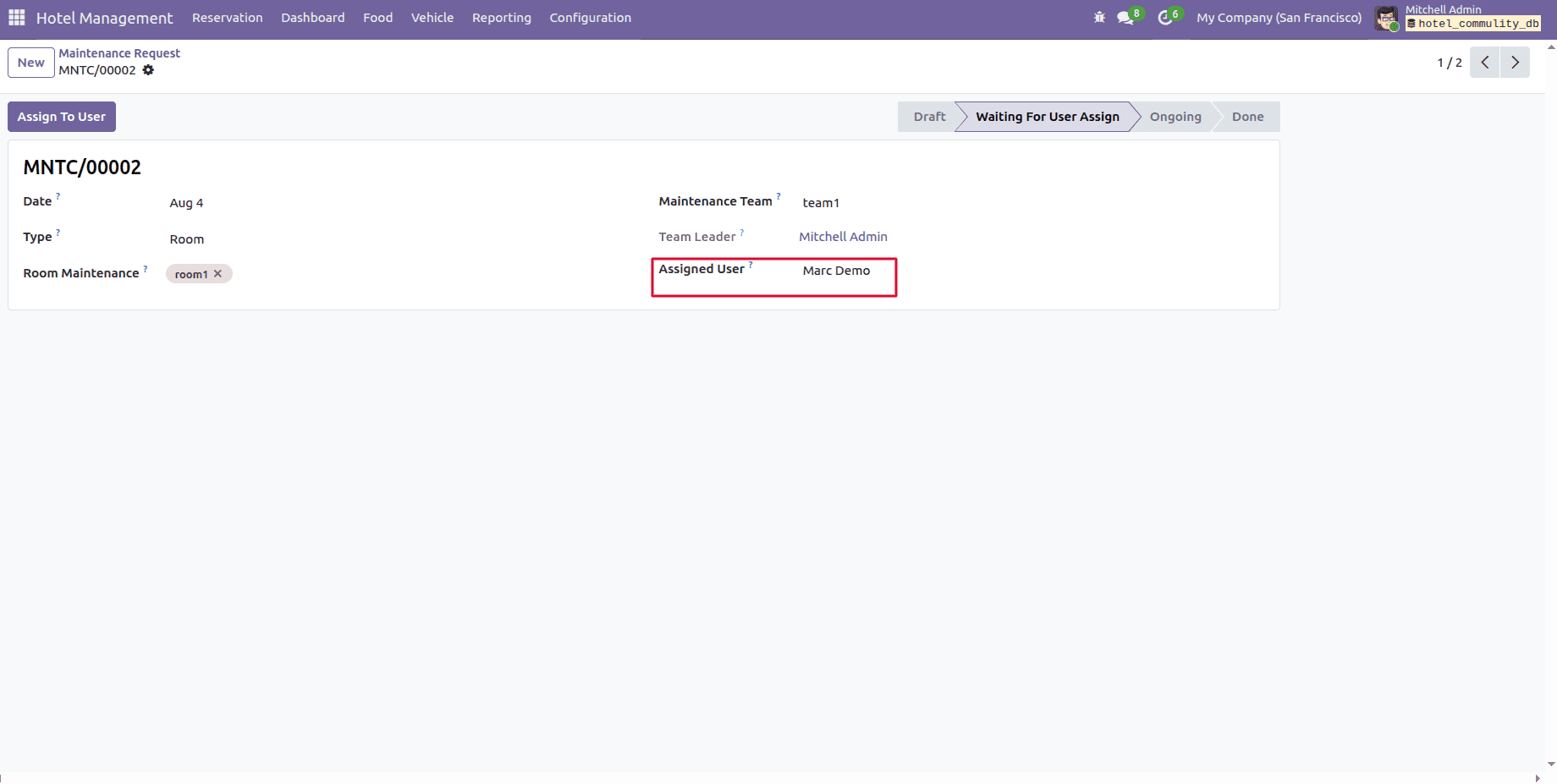
Then, click the Assign To User button; it changes the state to Waiting For User To Accept.
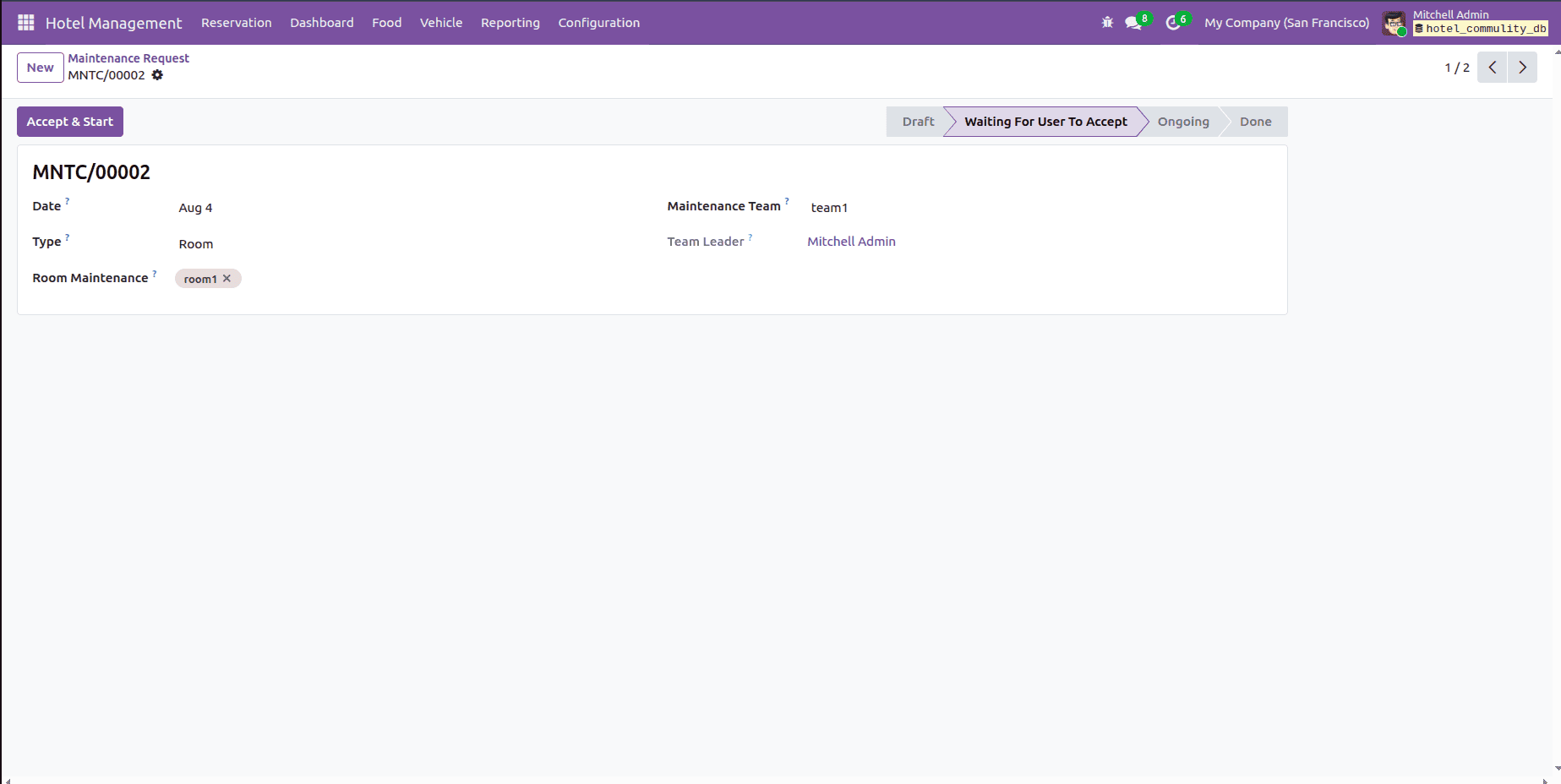
After that, click the Accept & Start button to change the state to Ongoing.
Here, we have two button options. If the process is completed, the admin can mark that by clicking the Completed button. If the process needs extra user support, then click the Request Support button and add the reason.
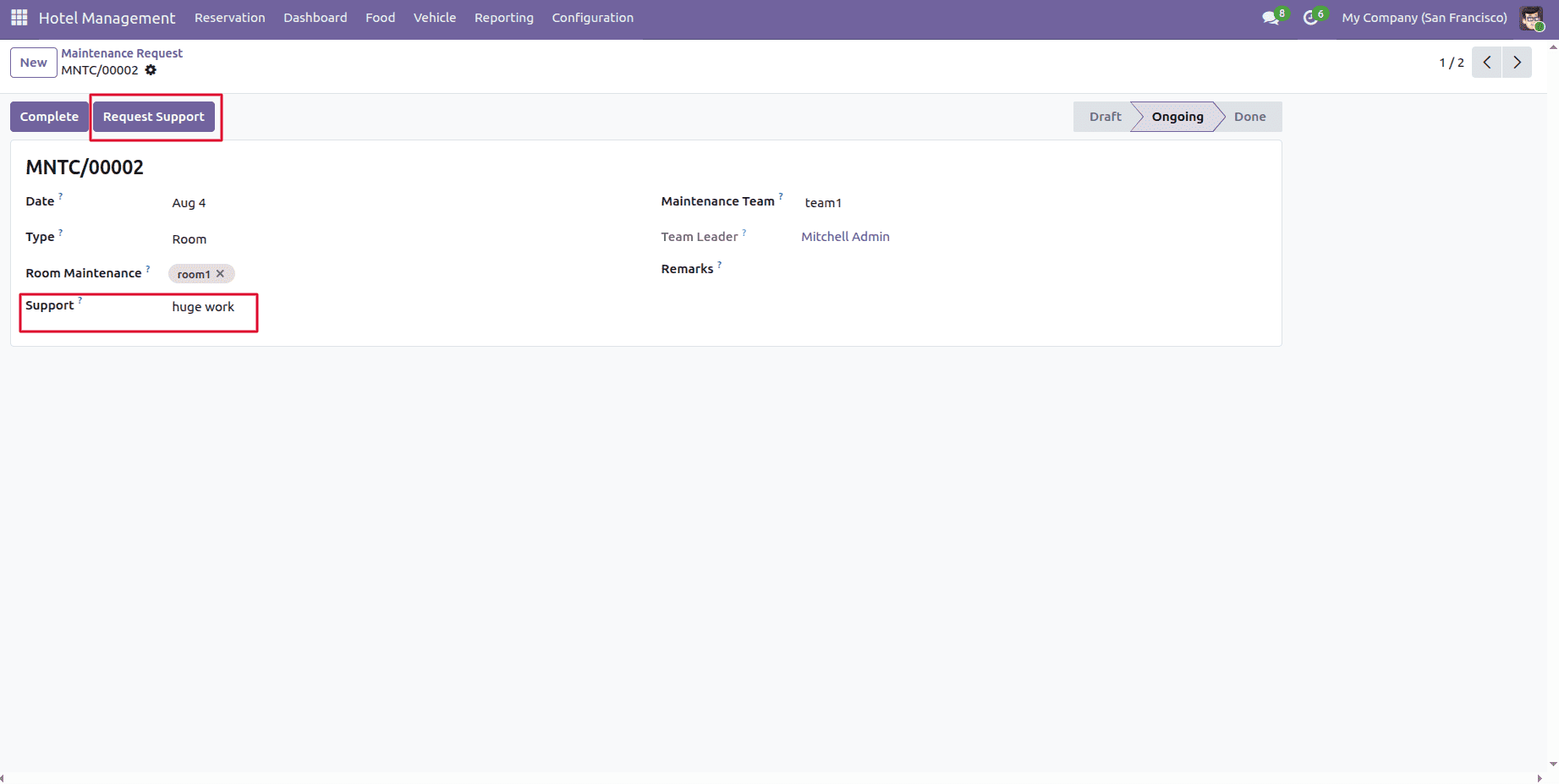
After that, it changes the state to the Waiting For Support state. Here, the admin should fill the Support Team field.
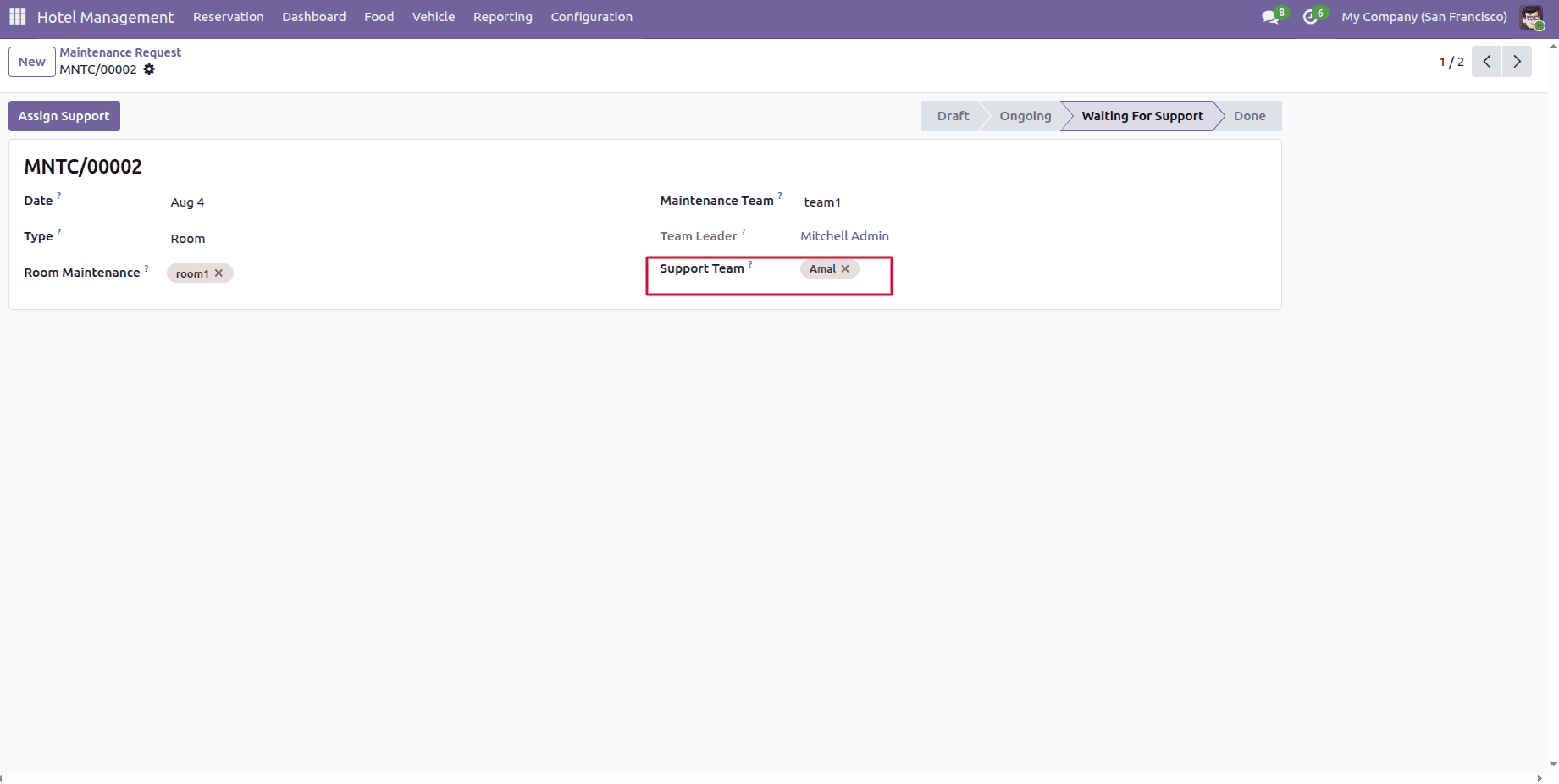
After that, click the Assign Support button to assign.
Cleaning Management
The Cleaning Management feature helps hotels to organize and track the cleaning activities efficiently. The administrators can create cleaning teams, assign cleaning staff, and track cleaning requests for rooms and other hotel areas. Through this workflow, hotels can maintain high hygiene standards and improve the overall guest experience.
Cleaning Team
First, we need to configure the cleaning team user access.
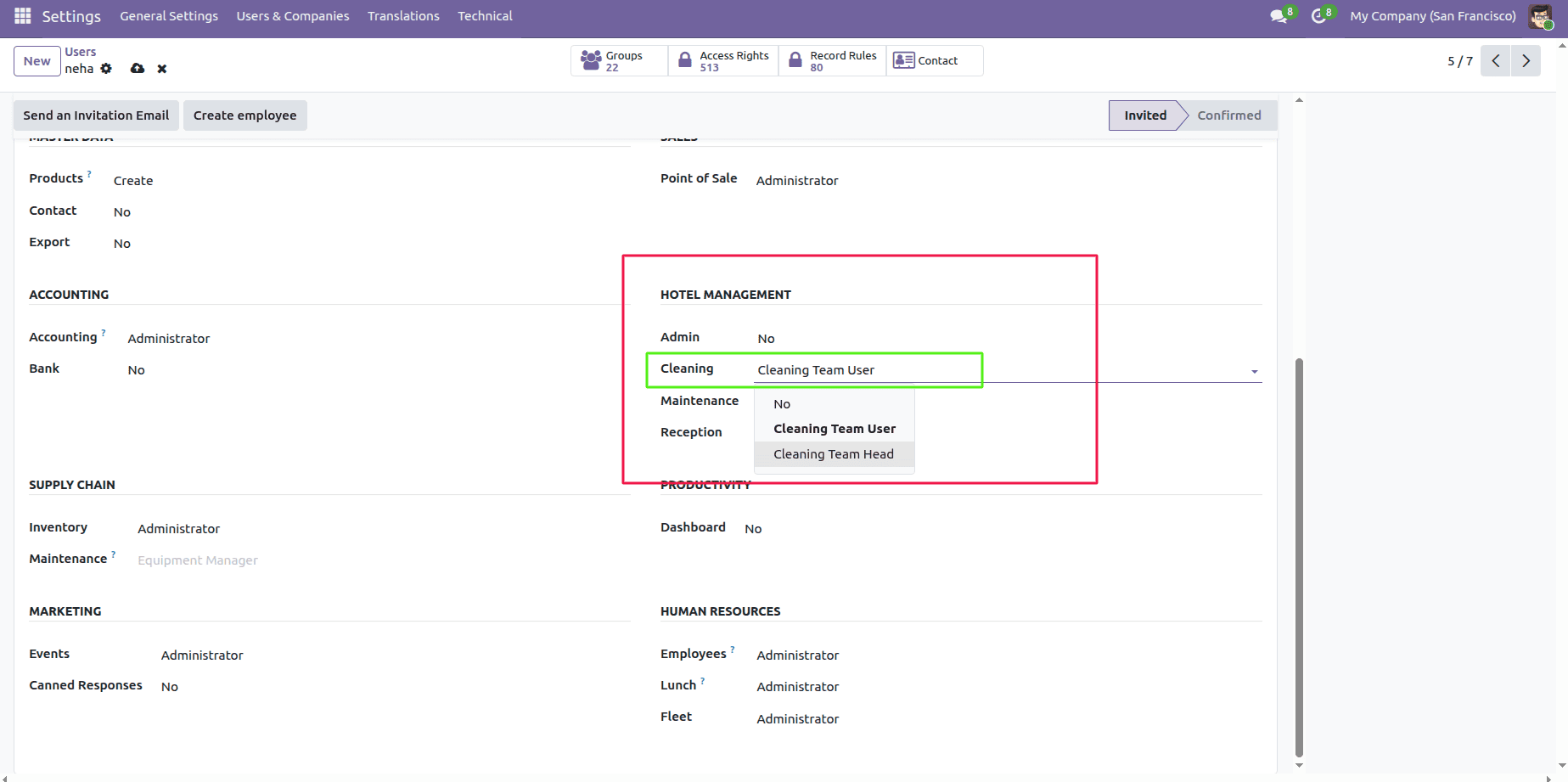
After that, go to Configuration > Cleaning Team
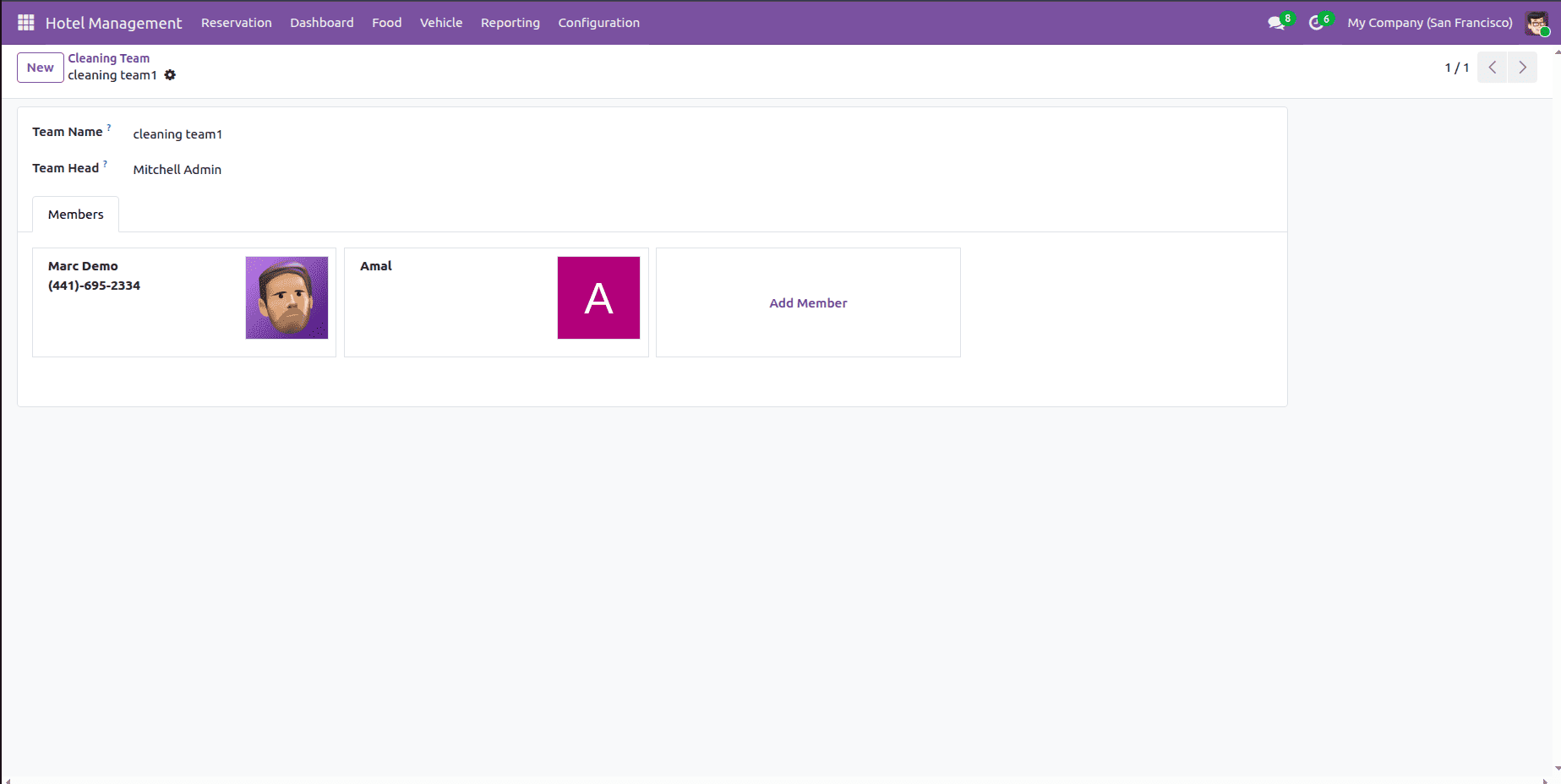
Then, the admin can create a cleaning team. First, add the team name, assign a leader, and then assign one or more team members.
Cleaning Request
The admin can create and track the cleaning process through the cleaning requests very simply. Each cleaning request contains a cleaning number, cleaning team, cleaning type(room, vehicle, hotel), assignee, and head.
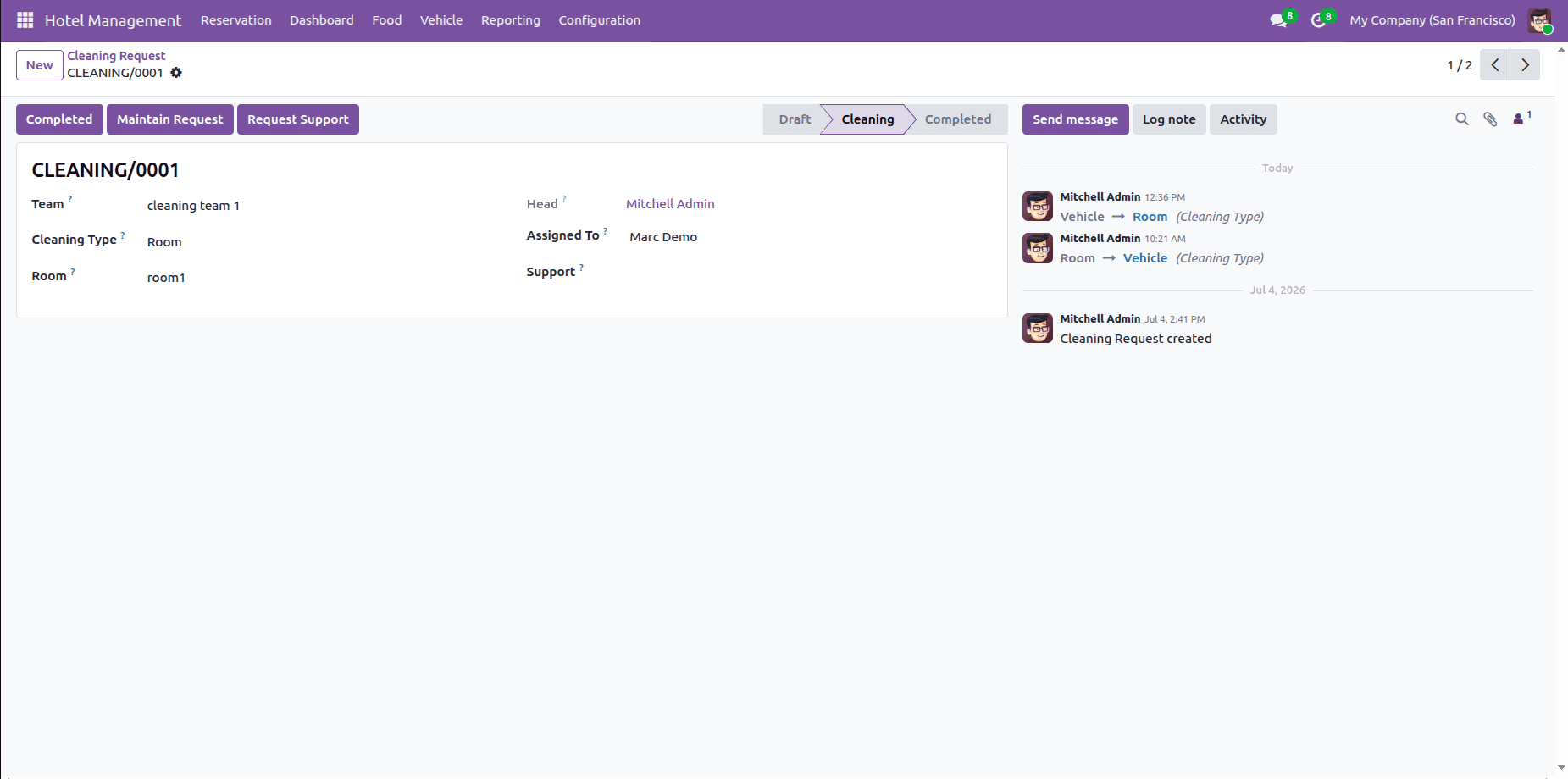
Here we can see three buttons: Complete, Maintain Request, and Request Support.
- If the cleaning process is completed, the admin can mark that by clicking the Completed button.
- The admin can convert this to a maintenance request by clicking the Maintain Request button.
- If the cleaning process needs extra support, then the admin can assign a user by filling in the reason in form view.
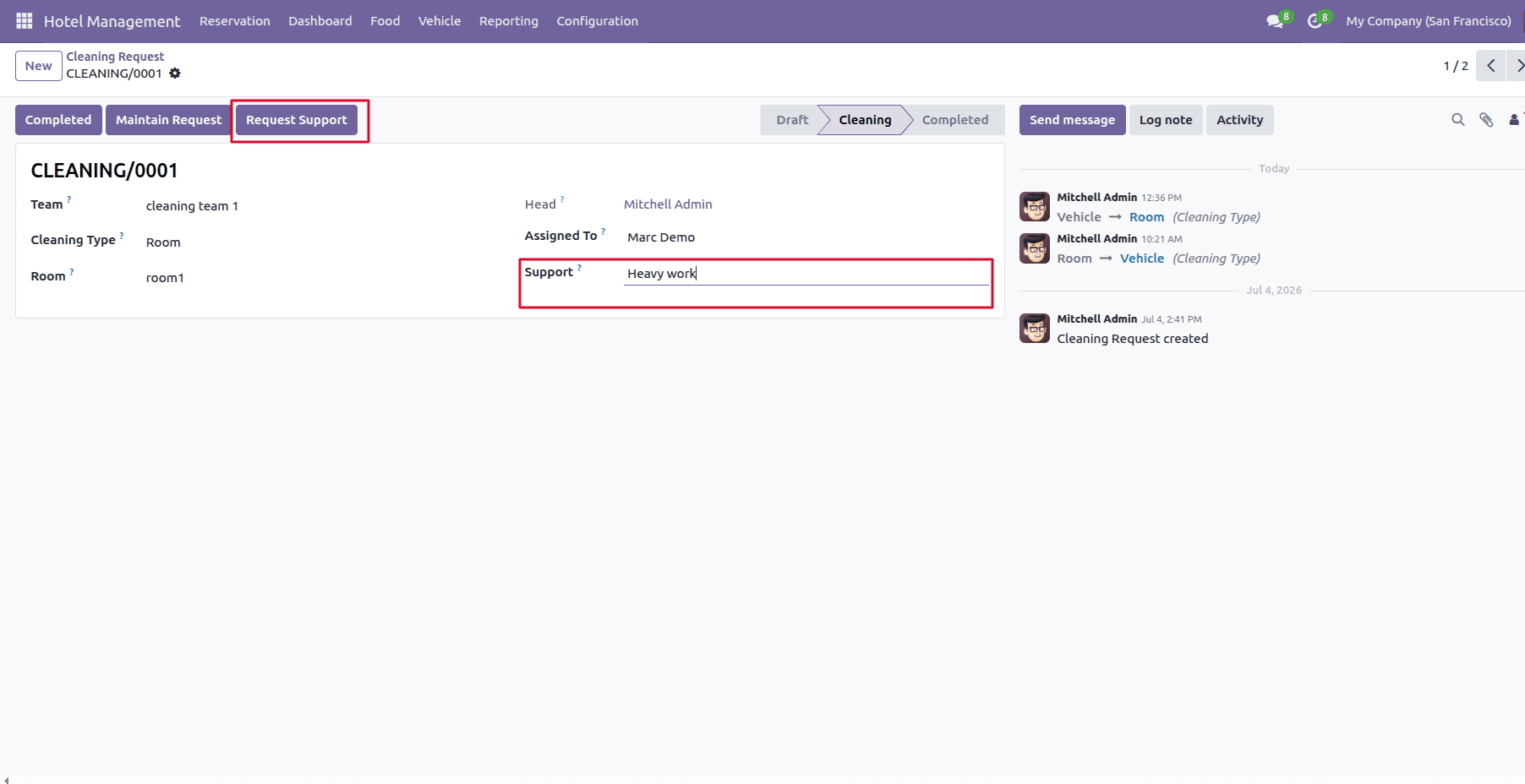
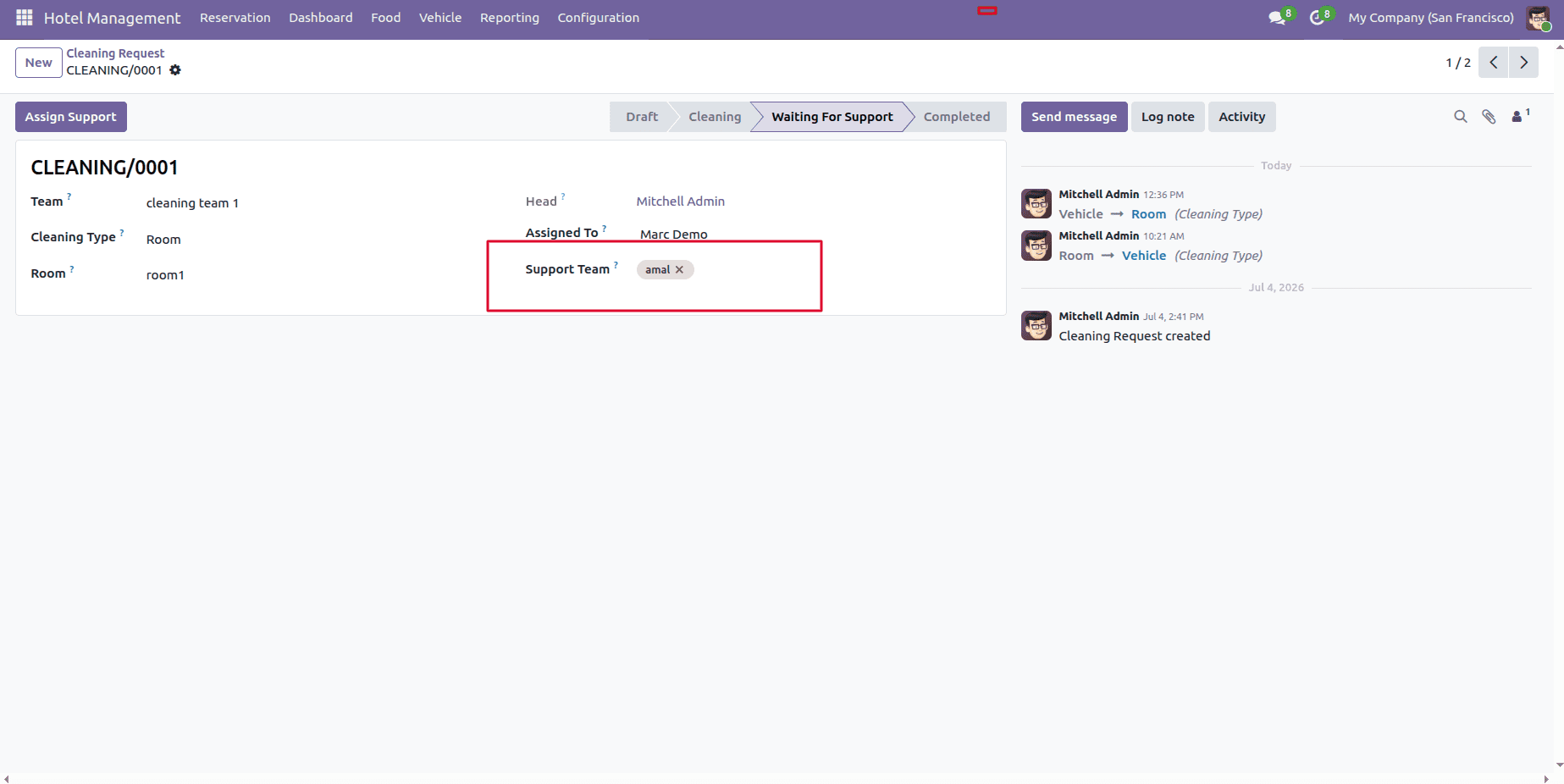
- After clicking the button, the admin can add an extra employee.
Food Management
The food menu in the Hotel Management helps hotels manage food items and their suppliers. Here, you can see the product and vendor as submenus.
Products: The Products submenu is used to create and manage all the food items available in the hotel, such as breakfast, lunch, and dinner. Admin can also create the products.
Vendors: The vendors submenu stores the supplier information for purchasing food items.
Dashboard
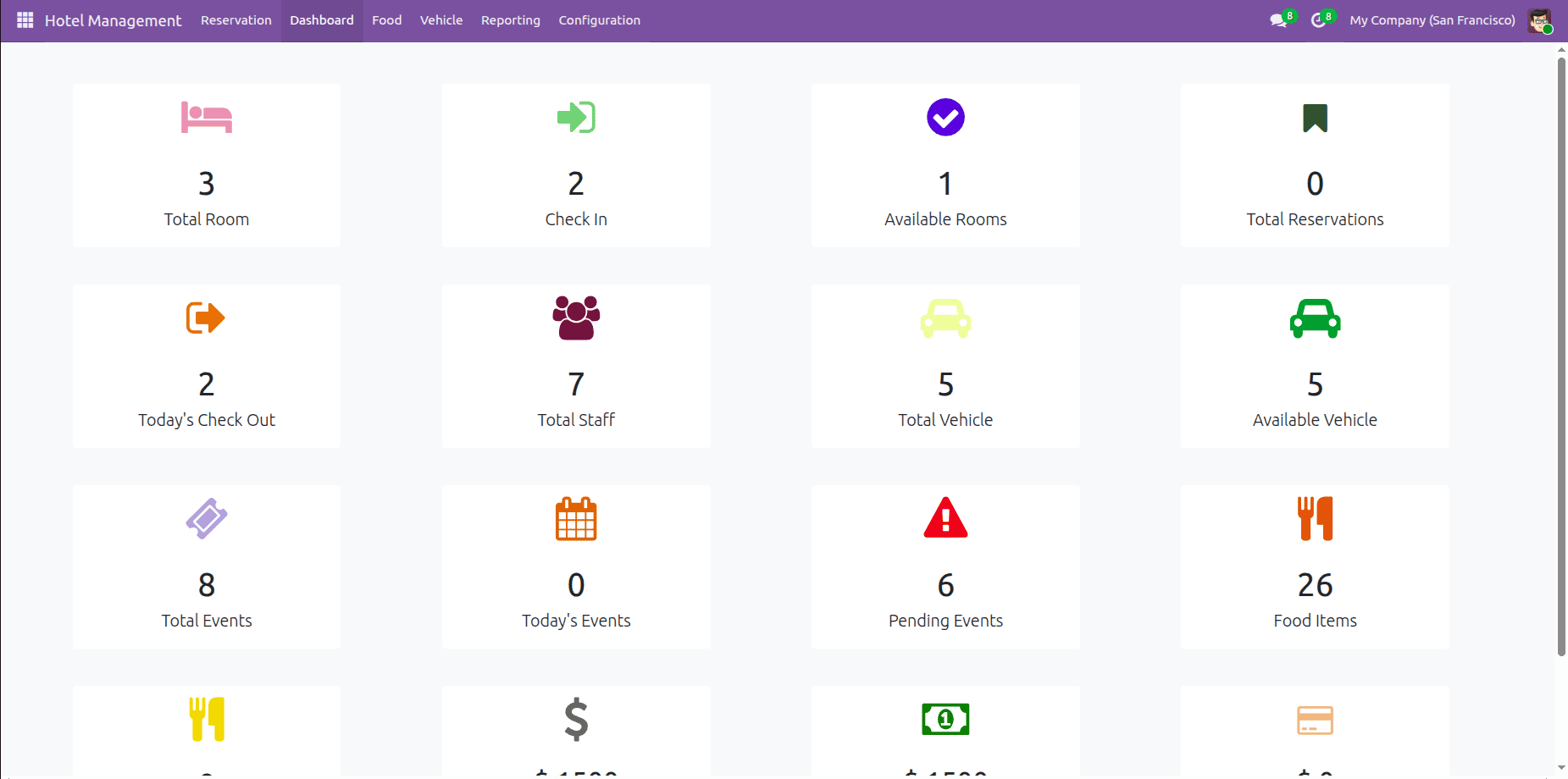
The dashboard view provides a complete overview of the hotel's daily operations. It displays records such as room availability, guest check-ins, vehicle availability, events, food items, and revenue. This helps hotel managers monitor operations in real time.
Vehicle Management
The vehicle management provides transportation support to the guest, like airport pickups, sightseeing tours, and other hotel services.
Vehicles: The vehicle submenu is used to create and manage all the vehicles.
Manufacturers: The manufacturers submenu is used to maintain the list of vehicle manufacturers.
Room Booking
Room Booking is the core feature in the Hotel Management module. It manages the complete guest reservation processes, food orders, services, events, and vehicles, from creating a booking to checking out.
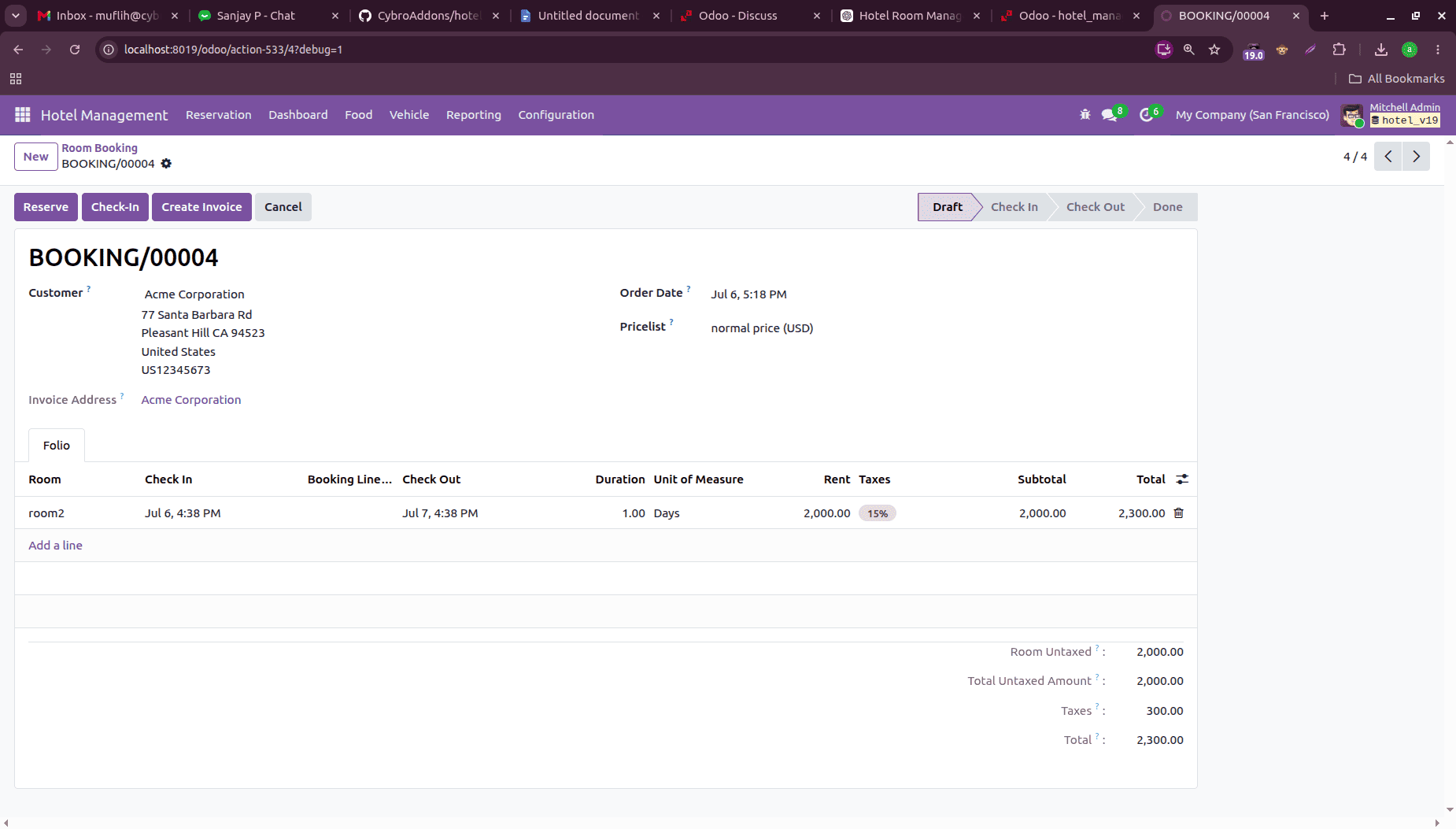
Go to the room booking view and click New, then open the form. Here, add the customer and the price list, and select the available room. It contains room details such as check-in, check-out, duration, rent, and tax. Admin can click the Reserve button to reserve the room. Or click the check-in button to check in.
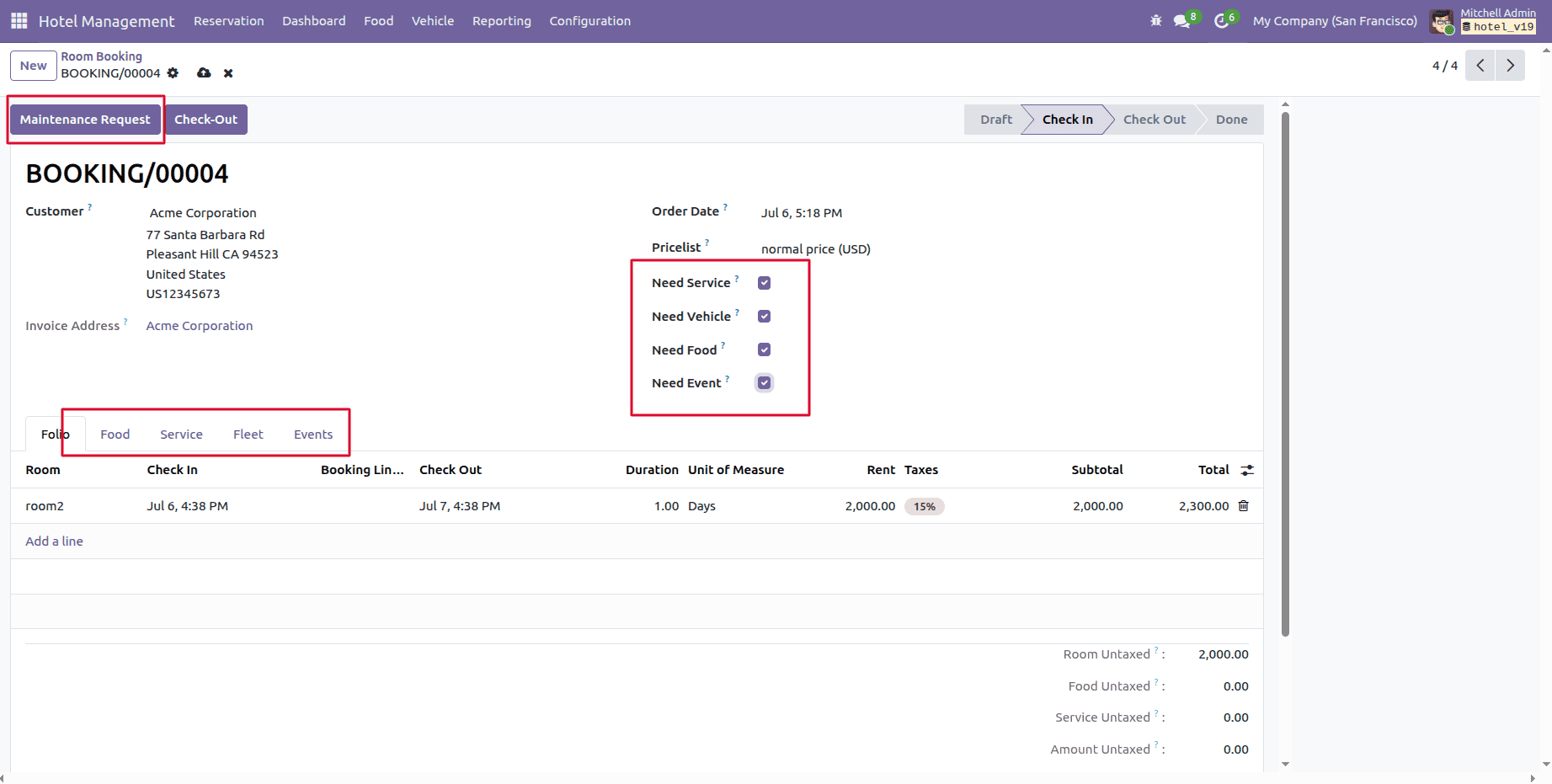
Here, the admin can send the maintenance request by clicking the button. If the customer wants the service, vehicle, food, or event, also add that by ticking the boolean fields.
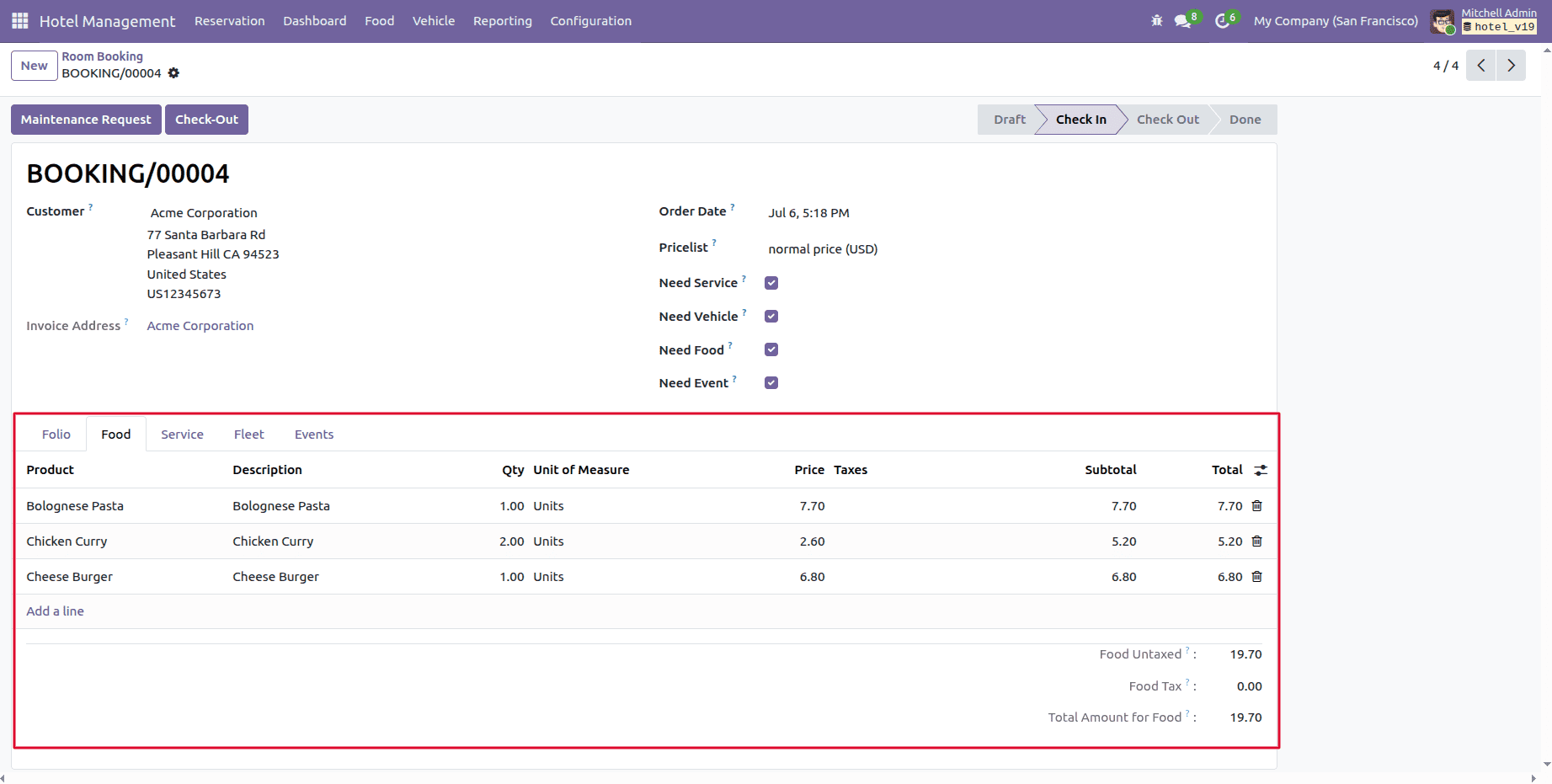
Food: Admin can add food items here.
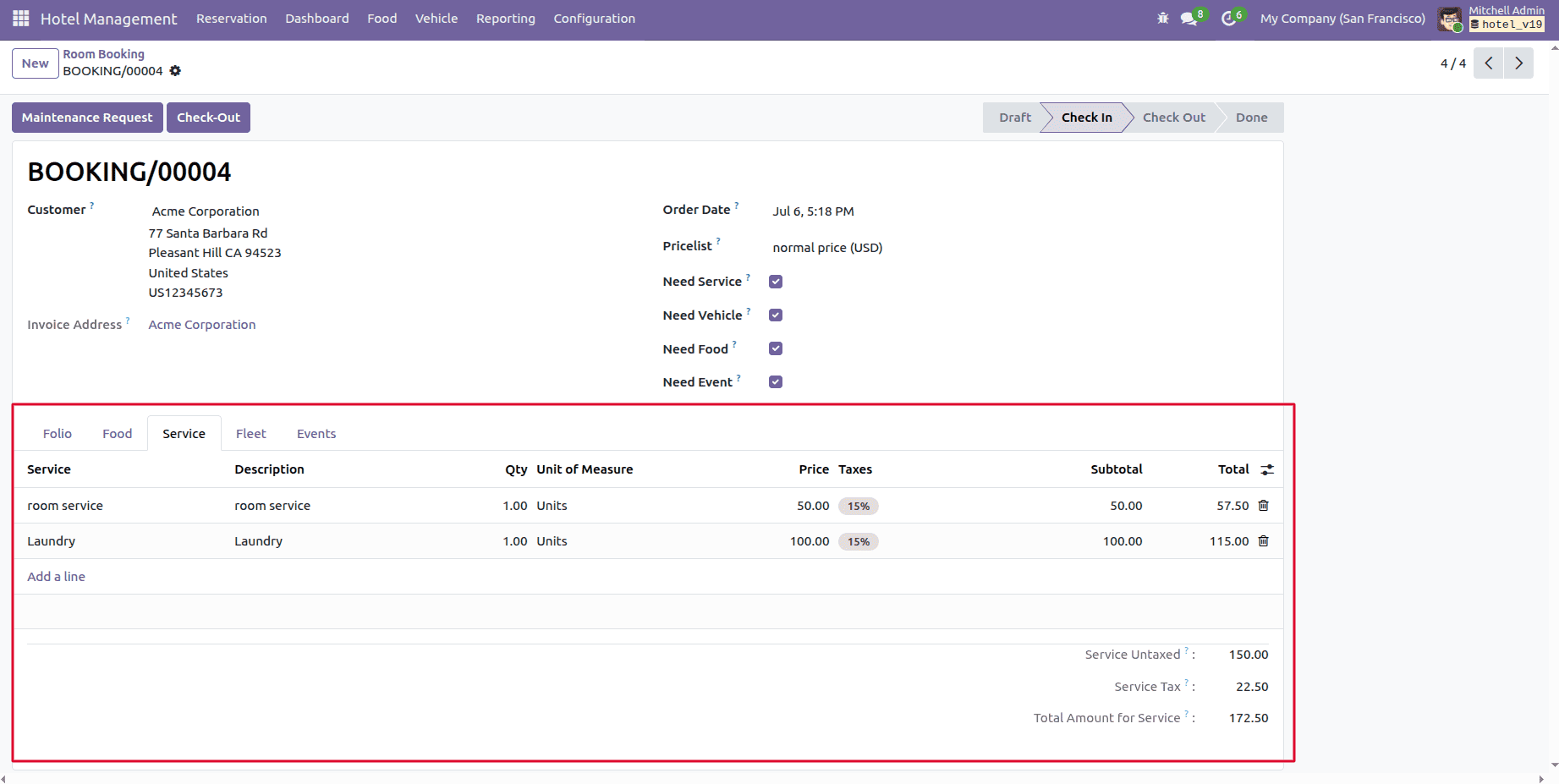
Service: If the customer wants room service or something, that's also managed here.
Vehicle: Also manage the vehicles here.
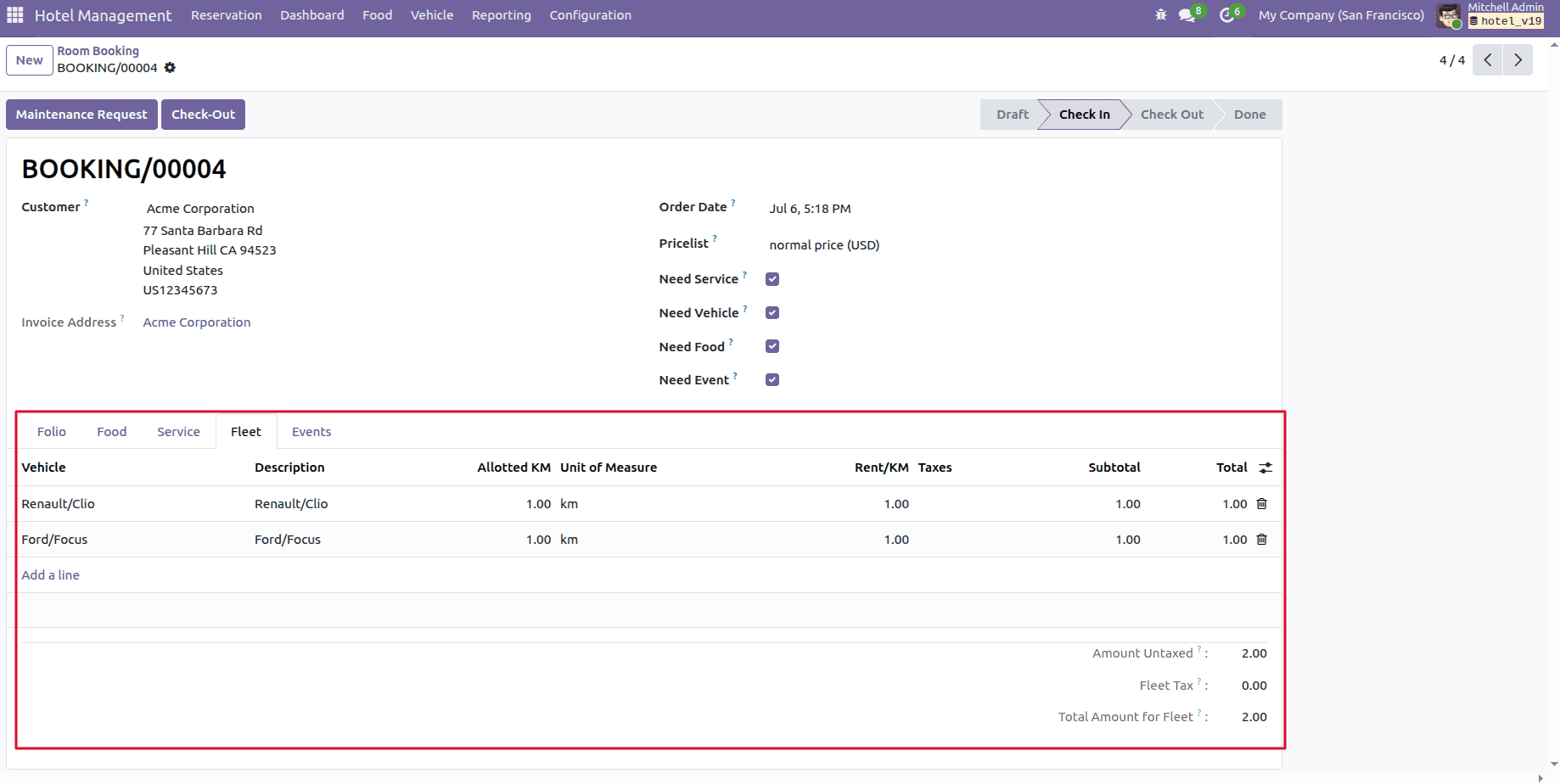
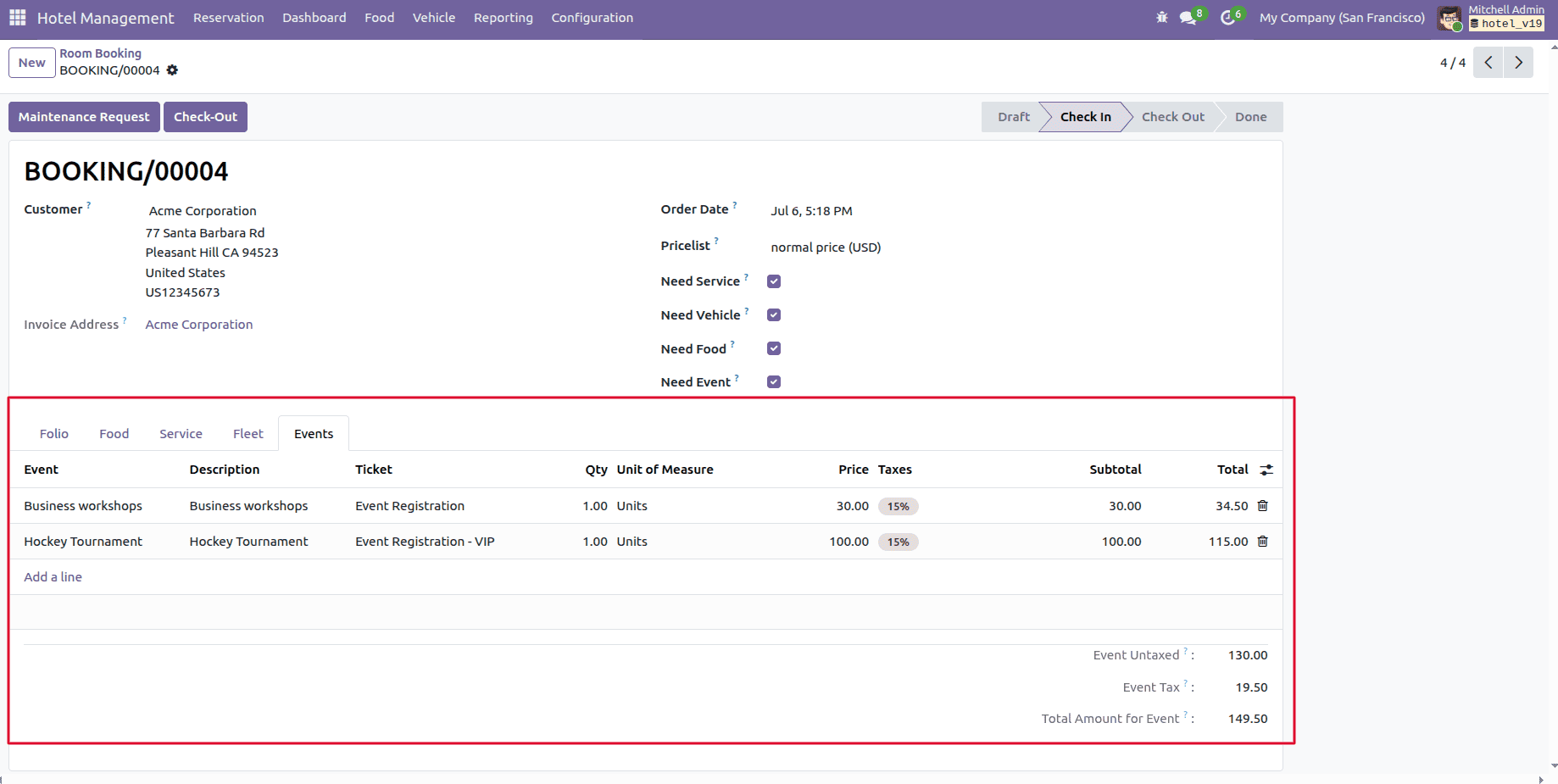
Events: Also manage the events.
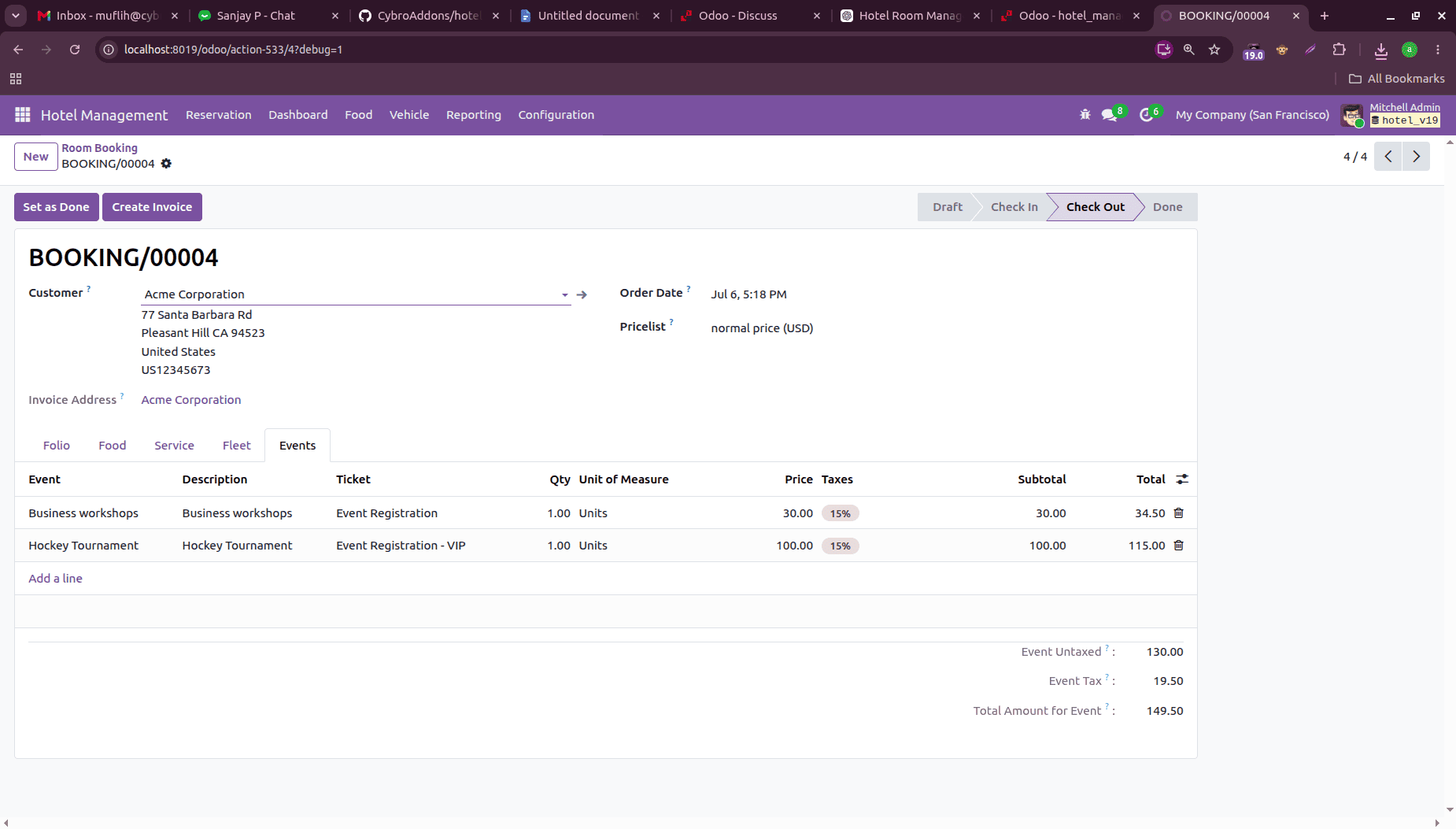
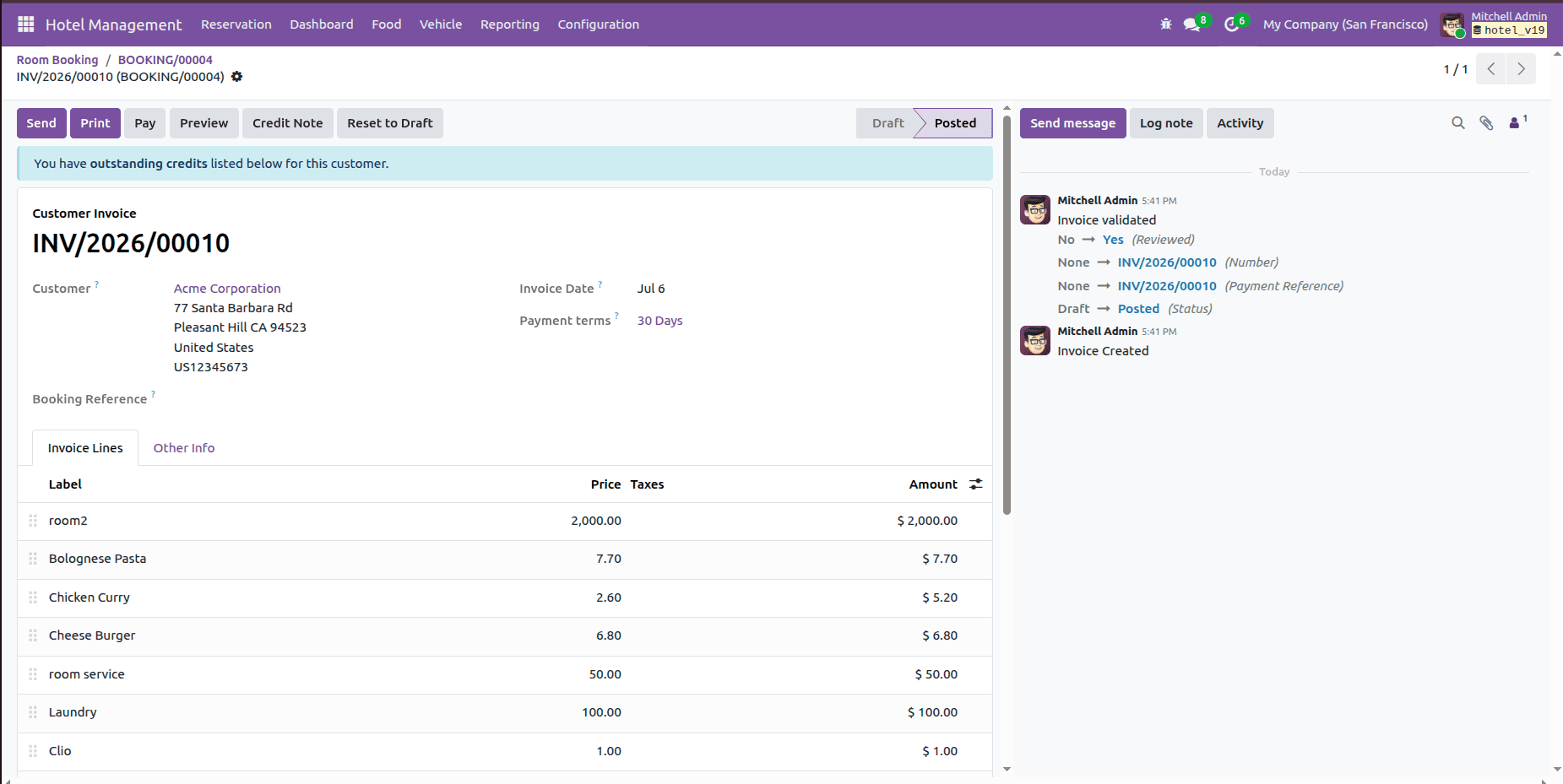
Then, click the check- out button to check out. Then the admin can create an invoice by clicking the Invoice button.
Here, list all the expenses.
Reporting
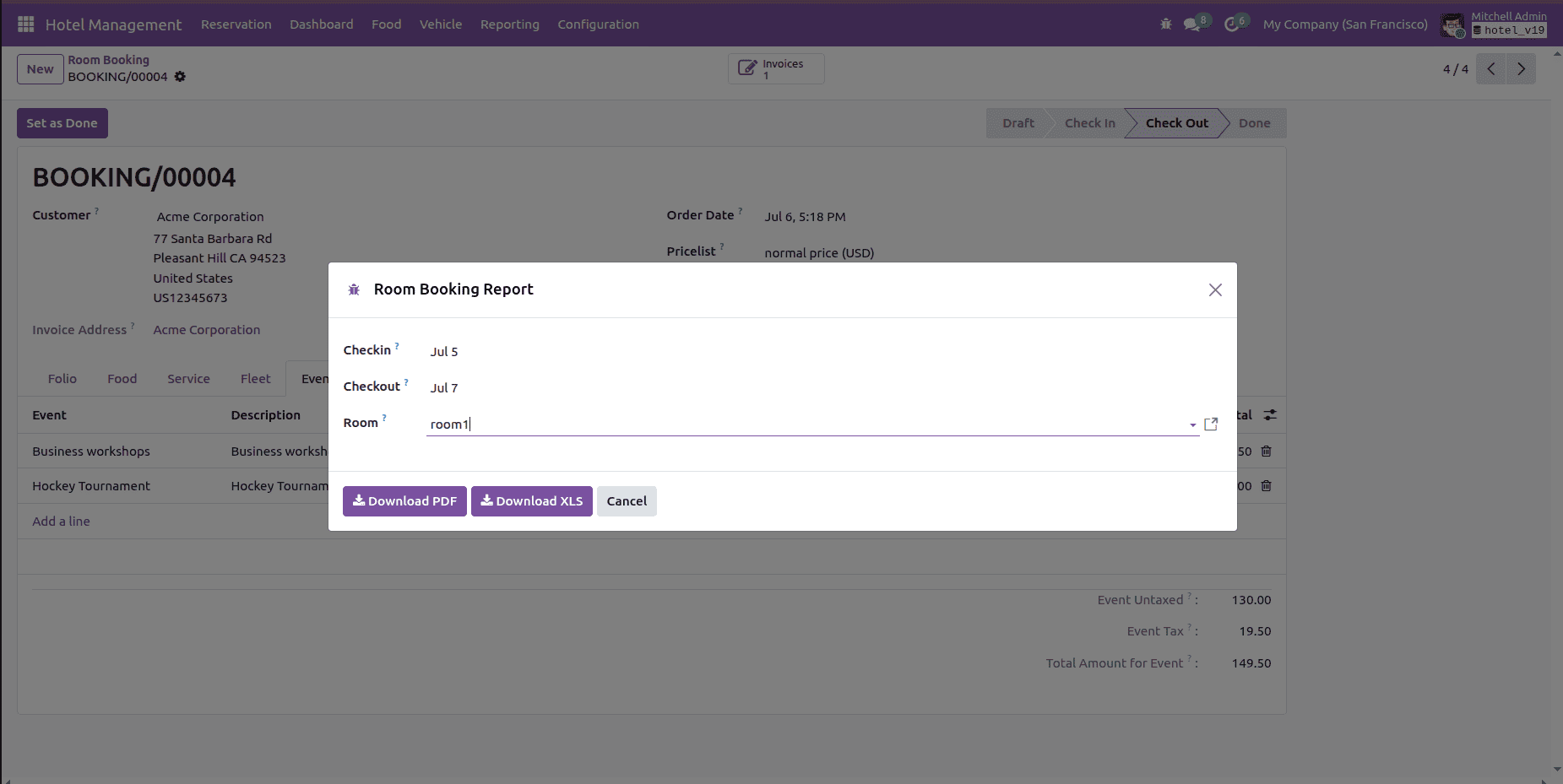
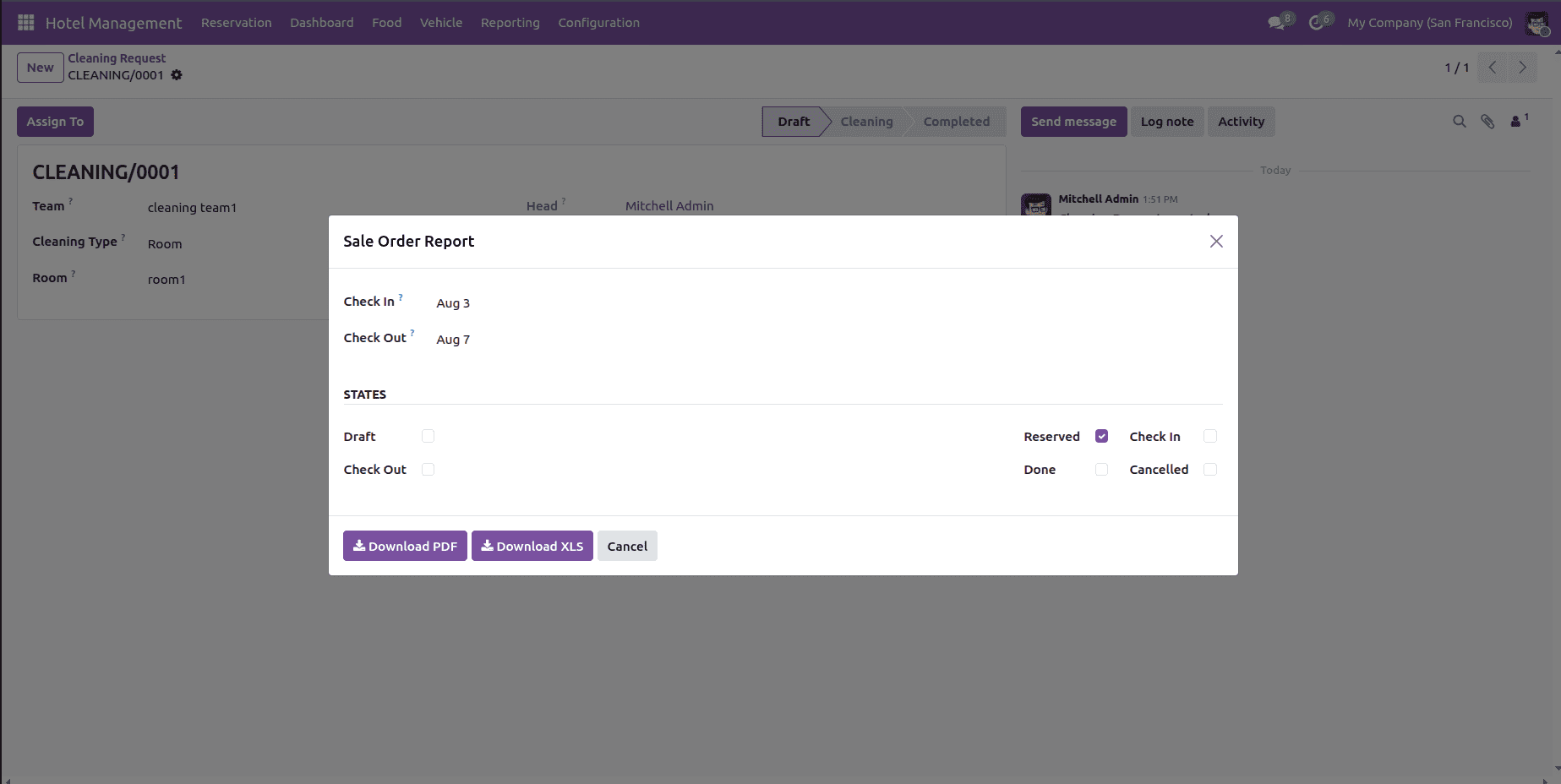
This module has two reports. Sales report and Room Booking report.
Room Booking Report
The Room Booking Report feature allows hotel staff to generate booking reports for a selected room within a specific check-in and check-out period. Users can choose the room and date range, then export the report in PDF or XLS format for documentation, analysis, or sharing.
Sale order report
The Sale Order Report feature allows hotel staff to generate reports for hotel bookings and the services associated with them. It provides a summary of booking details within the selected Check-In and Check-Out dates and states.
The Hotel Management module in Odoo 19 provides a complete solution for managing day-to-day hotel operations through a single, integrated platform. It simplifies room reservations, guest check-in and check-out, food and service management, vehicle bookings, housekeeping, maintenance, invoicing, and reporting. The module also supports role-based user access, enabling administrators to assign responsibilities efficiently.
To read more about How to Use Advanced Loan Management in Odoo 19, refer to our blog How to Use Advanced Loan Management in Odoo 19.