Optimizing Odoo 19 manufacturing can be accomplished with a double-stage warehouse structure, which will offer improved inventory management via the division of raw material selection from actual manufacturing.
The two-step approach creates a distinct operational difference between:
- Material Preparation (Picking): All raw materials/components are moved from the main warehouse (WH/Stock) to a pre-production site (WH/Pre-Production).
- Manufacturing Process (Production): Manufacturing is carried out only after it is verified that all of the necessary components are physically present and verified on the pre-production site.
This blog explains how to turn on the two-step manufacturing feature, create products and BOMs, transfer components, finish work orders, manage the shop floor, and check manufacturing costs using Odoo 19.
Stage 1: Activating Two-Step Manufacturing in the Configuration of the Warehouse
Before implementing your production business, it is essential to make changes in warehouse configuration.
1. Enabling Multi-Step Routes:
- Go to Inventory > Configuration > Settings.
- Look for the Warehouse section and tick Multi-Step Routes.
- Hit Save.
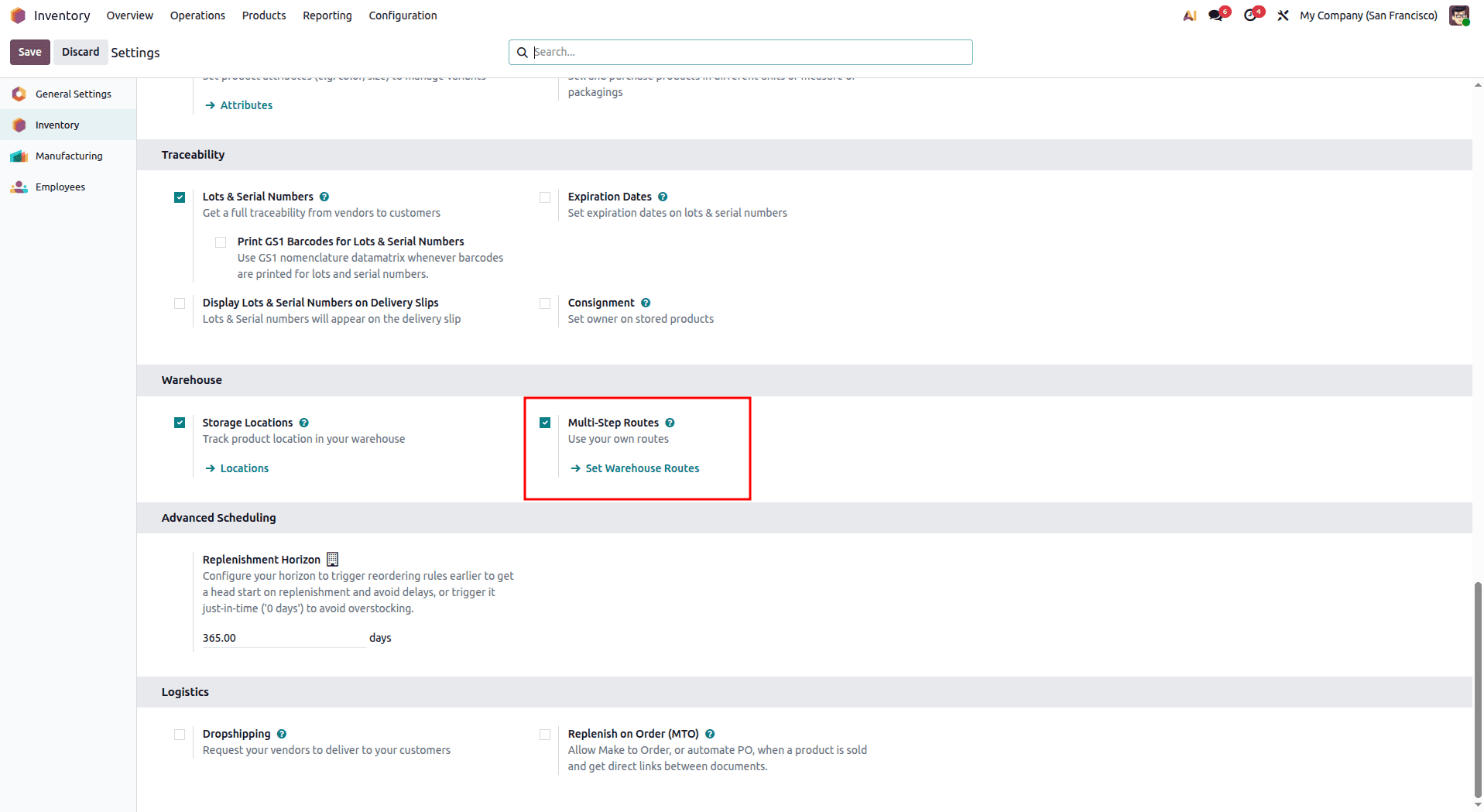
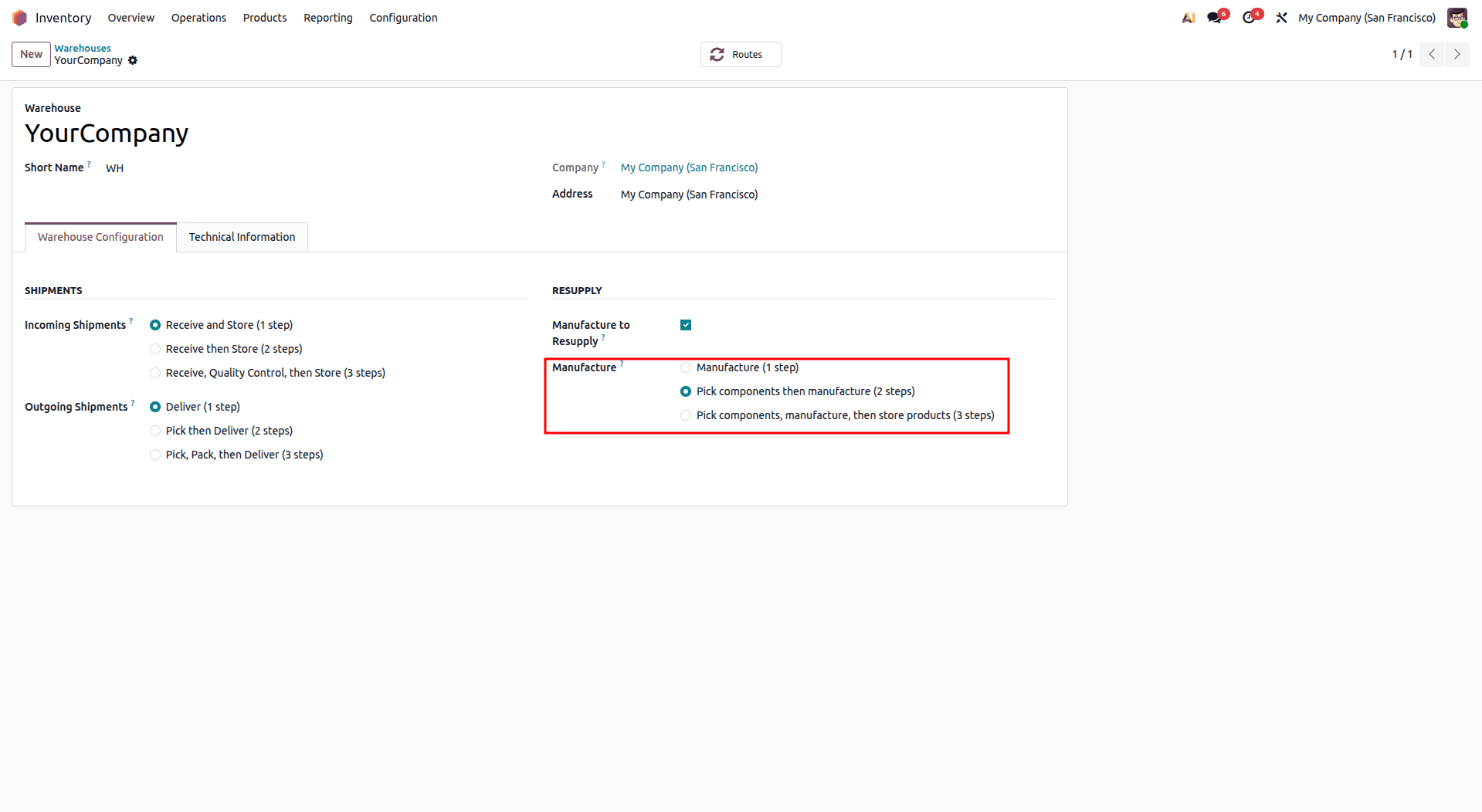
2. Setting up Two-Step Manufacturing in the Warehouse:
- Navigate to Inventory > Settings > Warehouses and choose the warehouse you want to work with (for example, YourCompany / WH).
- Find the Manufacture block.
- Choose the option: "Pick components first and manufacture afterward (2 steps)."
- Press Save.
The Automatically Generated Route in Odoo 19
When the two-step manufacturing feature is activated, Odoo 19 automatically generates and assigns a new manufacturing route named:
[Warehouse Name]: Pick components and then manufacture (e.g., YourCompany: Pick components and then manufacture).
To review this route:
- Click the Routes smart button at the top of the Warehouse form.
- Select Your Company: Pick components and then manufacture.
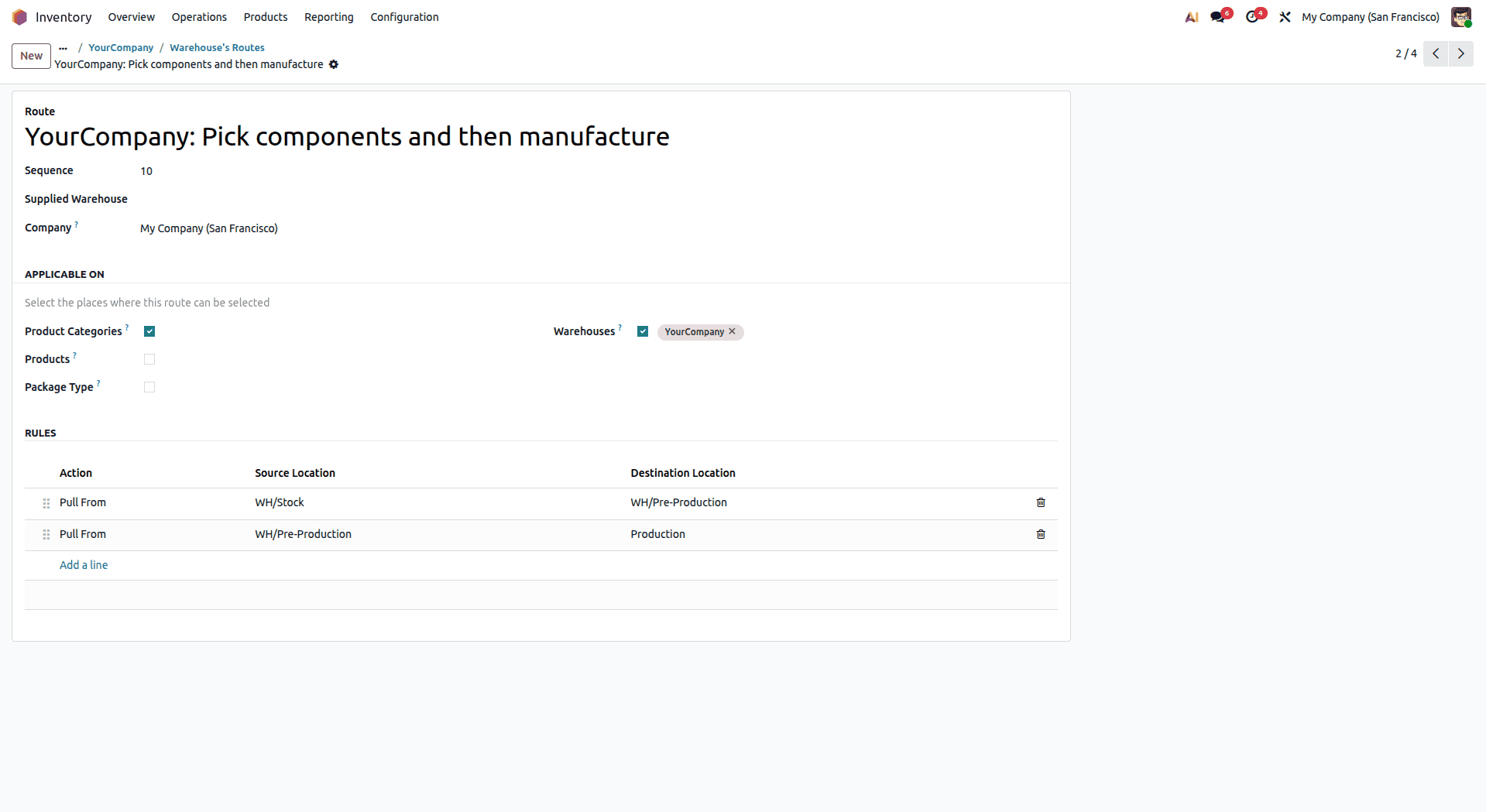
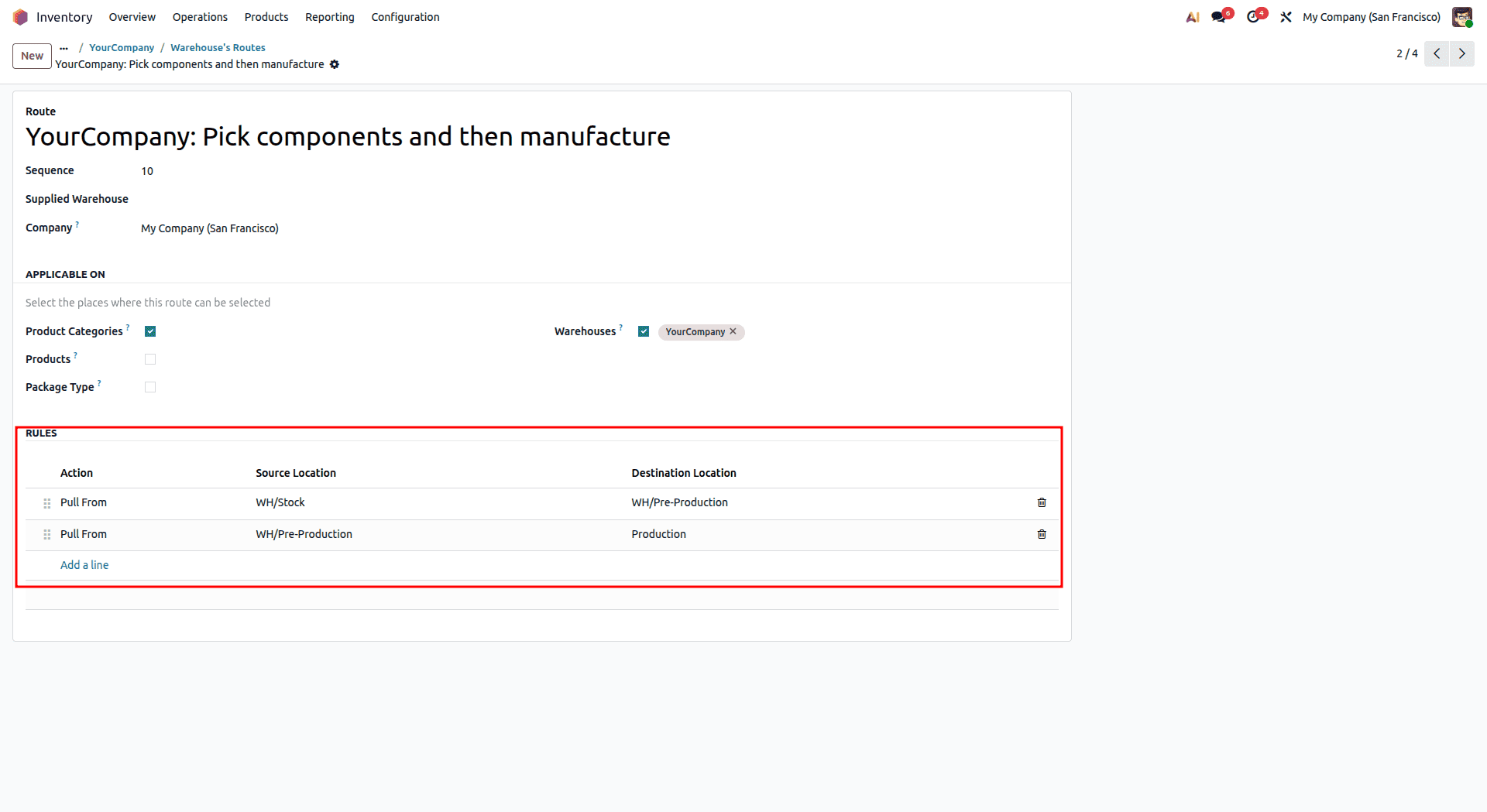
This route relies on two essential rules:
Rule 1 (Component Picking): Pulls raw materials from the main stock location (WH/Stock) to the intermediate processing location (WH/Pre-Production).
Rule 2 (Manufacturing Consumption): Pulls components from WH/Pre-Production into the virtual production location (Virtual Locations/Production) after receiving confirmation regarding the Manufacturing Order (MO).
Step 2: Selecting or Creating a Product for Manufacturing
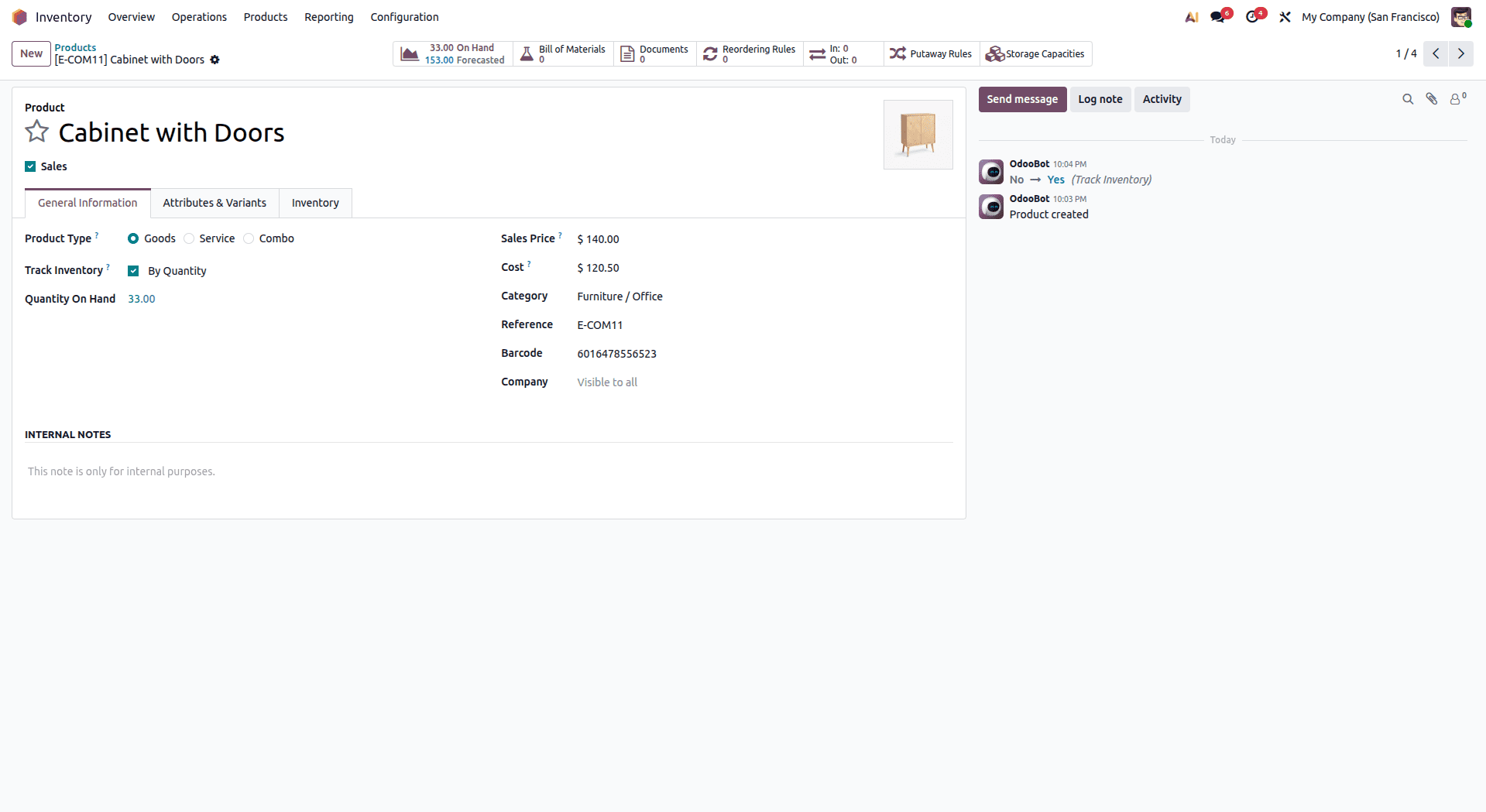
The following step is related to the ready-made product you would like to produce:
- Go to Manufacturing > Products > Products (go to Inventory > Products > Products).
- Click New (or use an already existing product, e.g., "Cabinet with Doors").
- Choose the Product Type as Goods.
- Enable Track Inventory (By Quantity).
- Define the Sales Price and Cost parameters as needed.
Step 3: Setting Up the Bill of Materials (BOM)
The very first thing to do is create a bill of materials for the finished product by explaining the use of raw materials and the operational process of manufacturing.
- In order to open the Create BOM window, go to the Manufacturing > Products > Bills of Materials and click New.
- Select the product you want to manufacture and specify the quantity you want (for example, one product).
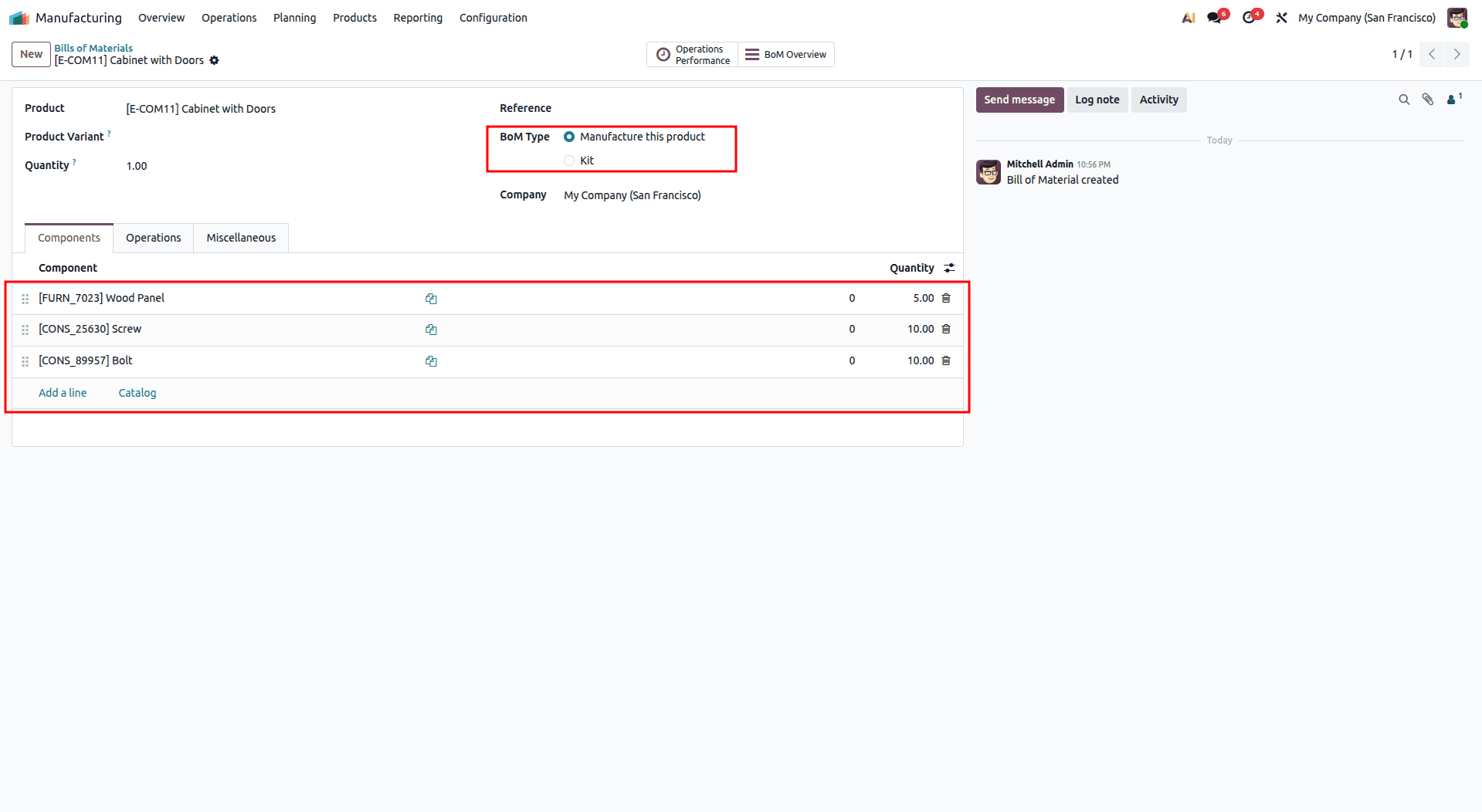
- Select “Manufacture this product” as the BoM Type.
- Open the Components tab and add all the materials required for manufacturing.
Adding Components
Under the Components tab, add all required materials:
- Wood Panel - Quantity: 5.00 Units
- Screw - Quantity: 10.00 Units
- Bolt - Quantity: 10.00 Units
Defining Operations & Work Centers
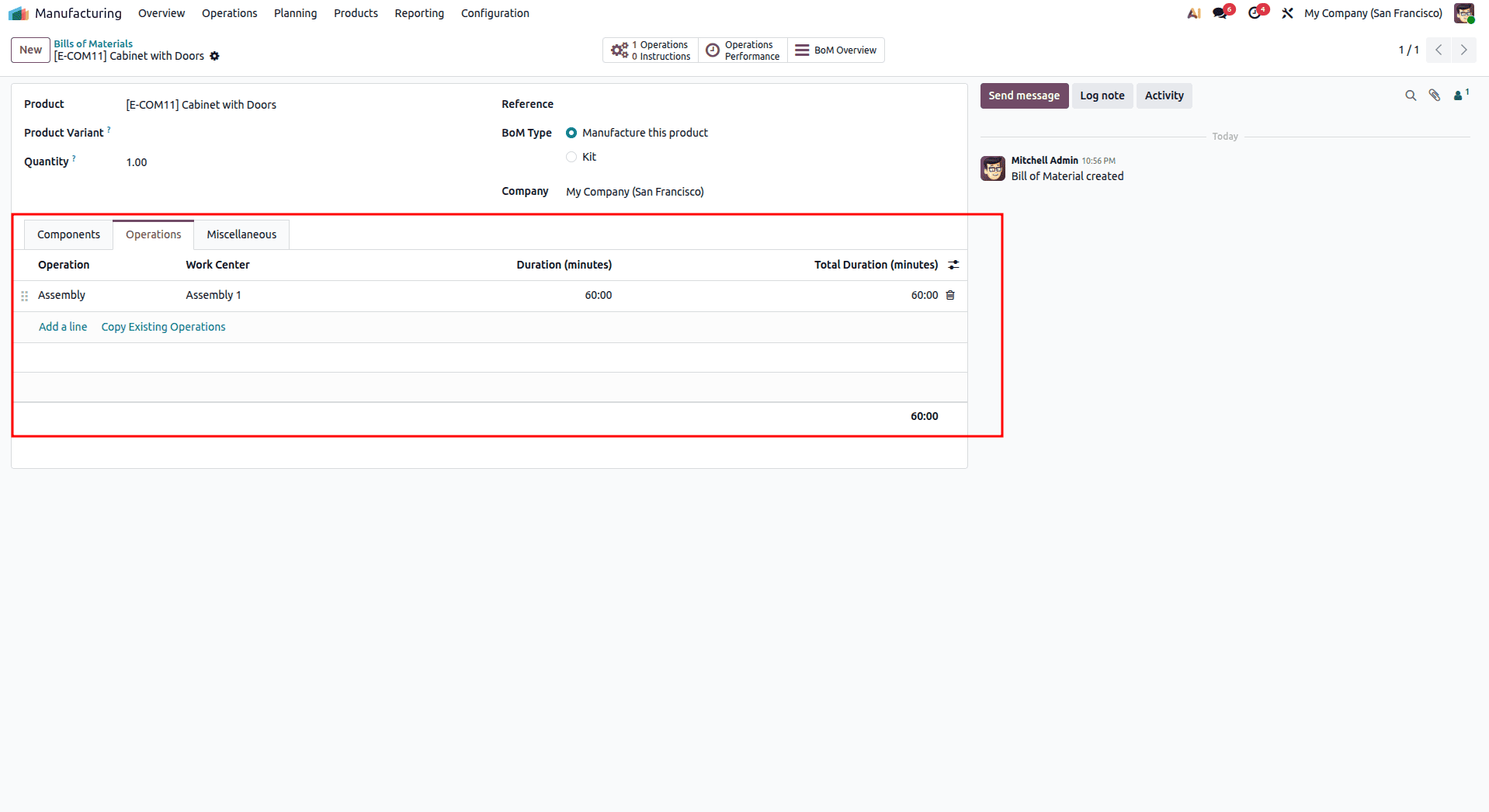
Under the Operations tab, specify the assembly steps:
- Click Add a line to add an operation (e.g., "Assembly").
- Select the designated Work Center (e.g., "Assembly 1").
- Set the Expected Duration (e.g., 60 minutes).
Step 4: Creating and Confirming the Manufacturing Order (MO)
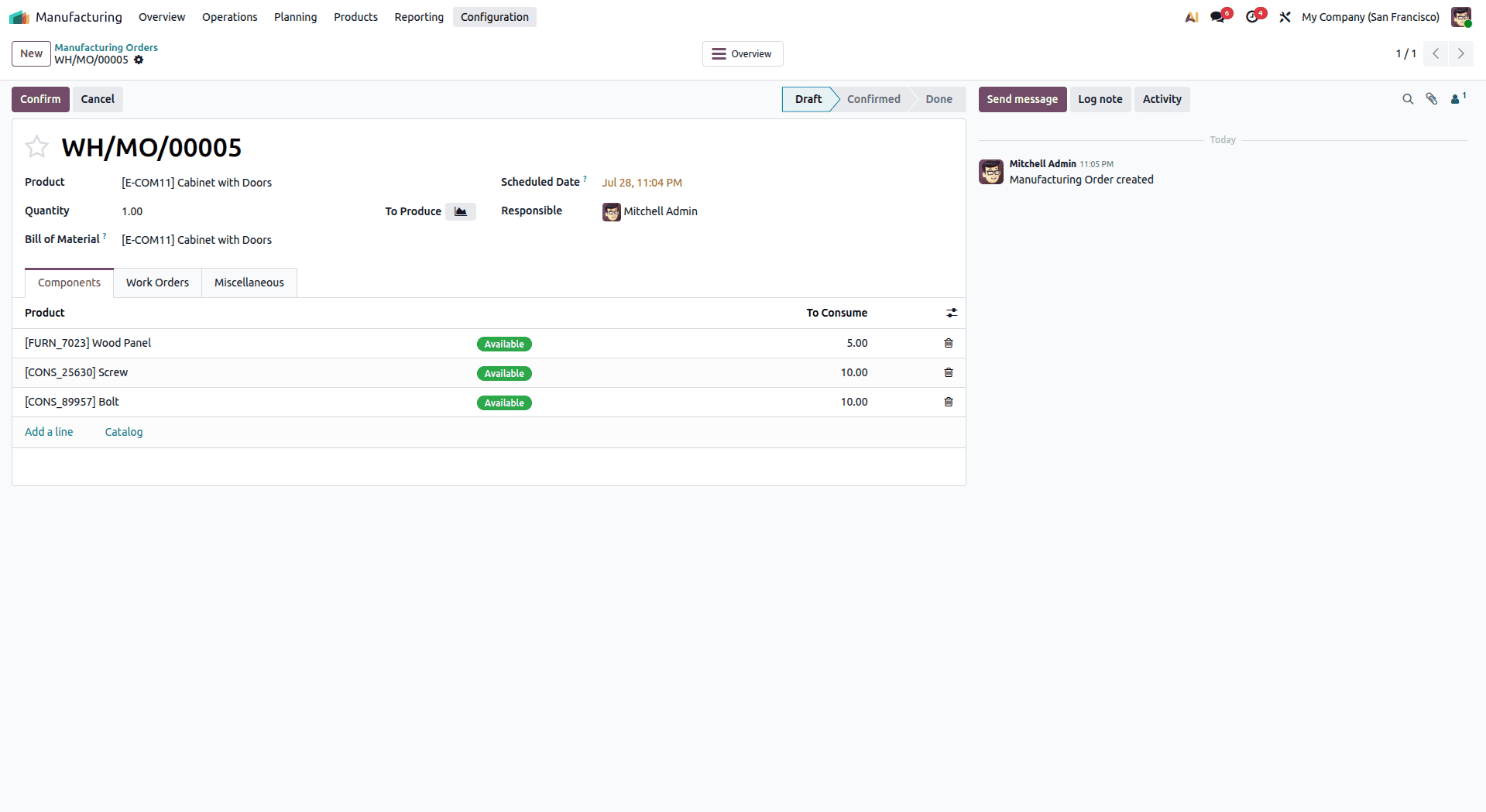
Since the product and BOM have been created, we can now create the manufacturing order for this product:
- Navigate to Manufacturing > Operations > Manufacturing Orders and click New.
- Choose the product (Cabinet with Doors). Odoo 19 automatically loads the components and work order operations from the BOM.
- Check the target quantity and scheduled date.
- Press Confirm.
Step 5: Two-Step Production Process
Step 5.1: Component Transfer (First Step – Material Preparation)
Once the MO is confirmed, Odoo 19 automatically generates a component picking transfer (WH/PC/xxxxx) to move required materials from WH/Stock to WH/Pre-Production.
- On the MO screen, click the Transfers smart button (showing 1 Transfer).
- Open the generated picking document (WH/PC/xxxxx).
- Source Location: WH/Stock
- Destination Location: WH/Pre-Production
- Verify component quantities and click Validate.
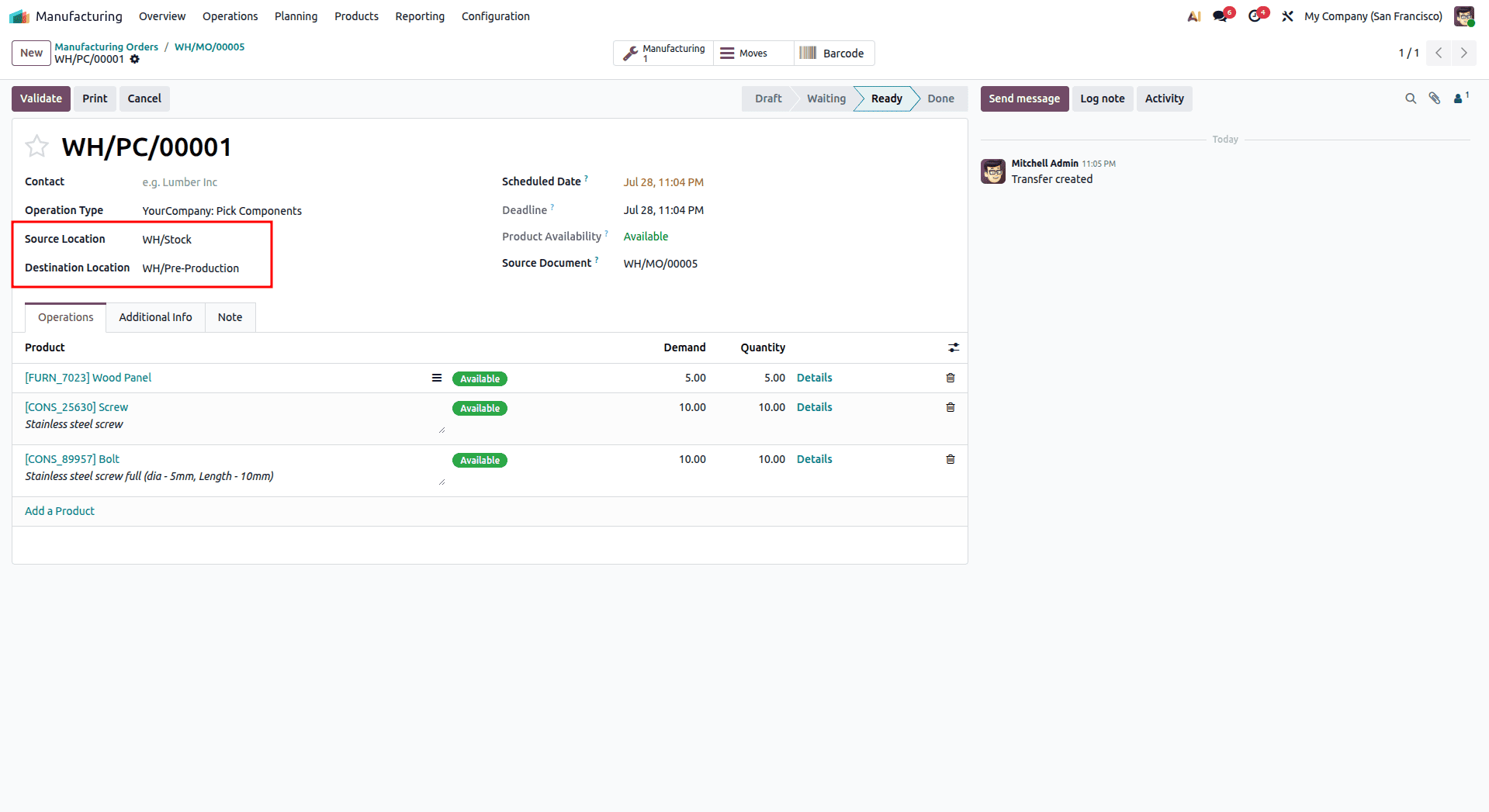
Result: The raw materials move to the staging area (WH/Pre-Production), and Component Status on the manufacturing order becomes available.
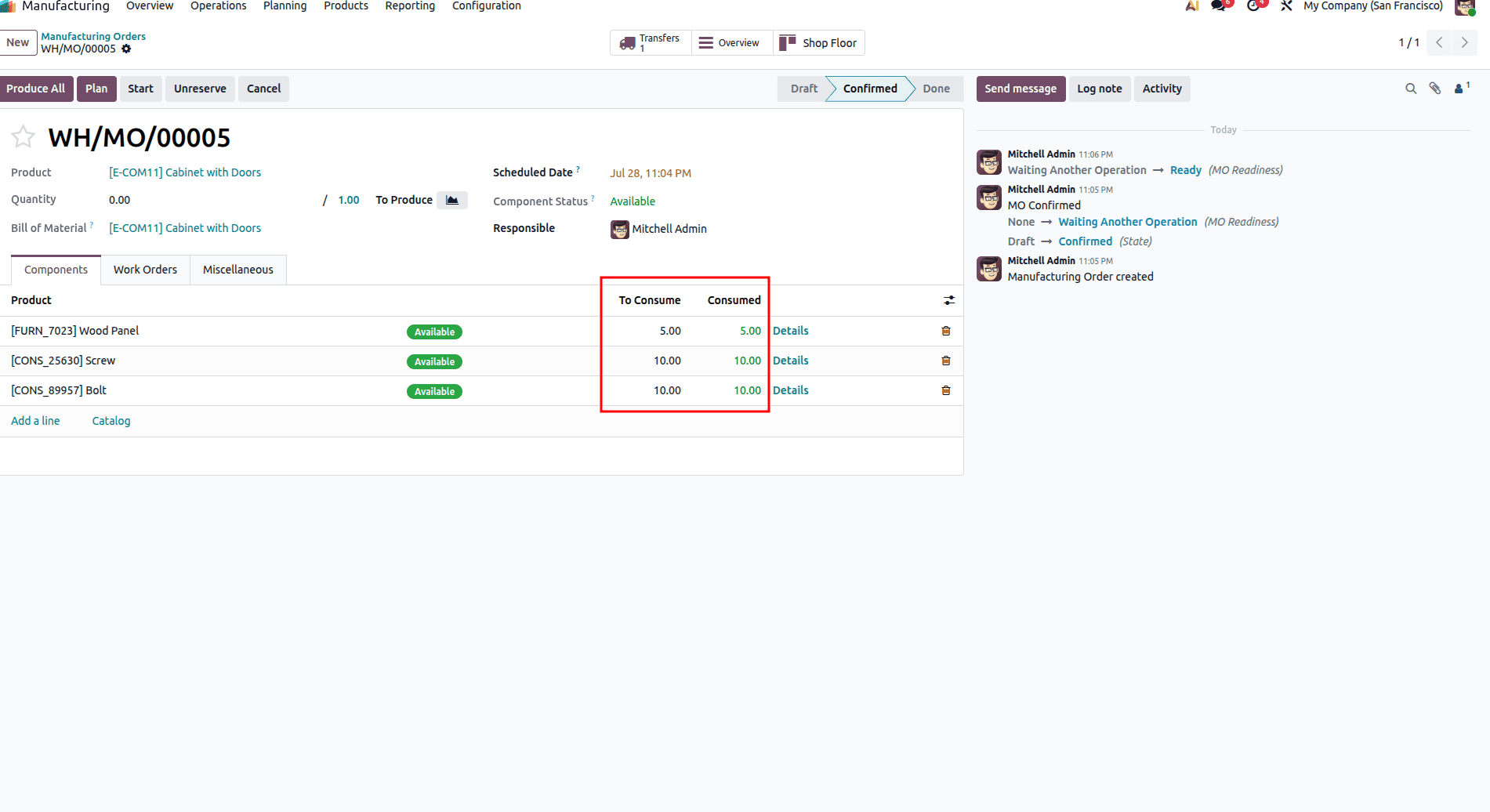
Step 5.2: Manufacturing Execution (Second Step – Production)
With materials staged in WH/Pre-Production, production execution can begin:
- Return to the Manufacturing Order (WH/MO/xxxxx).
- Navigate to the Work Orders tab.
- Click Start next to the operation to record labor time.
- Once work is completed, record the actual time and click Done.
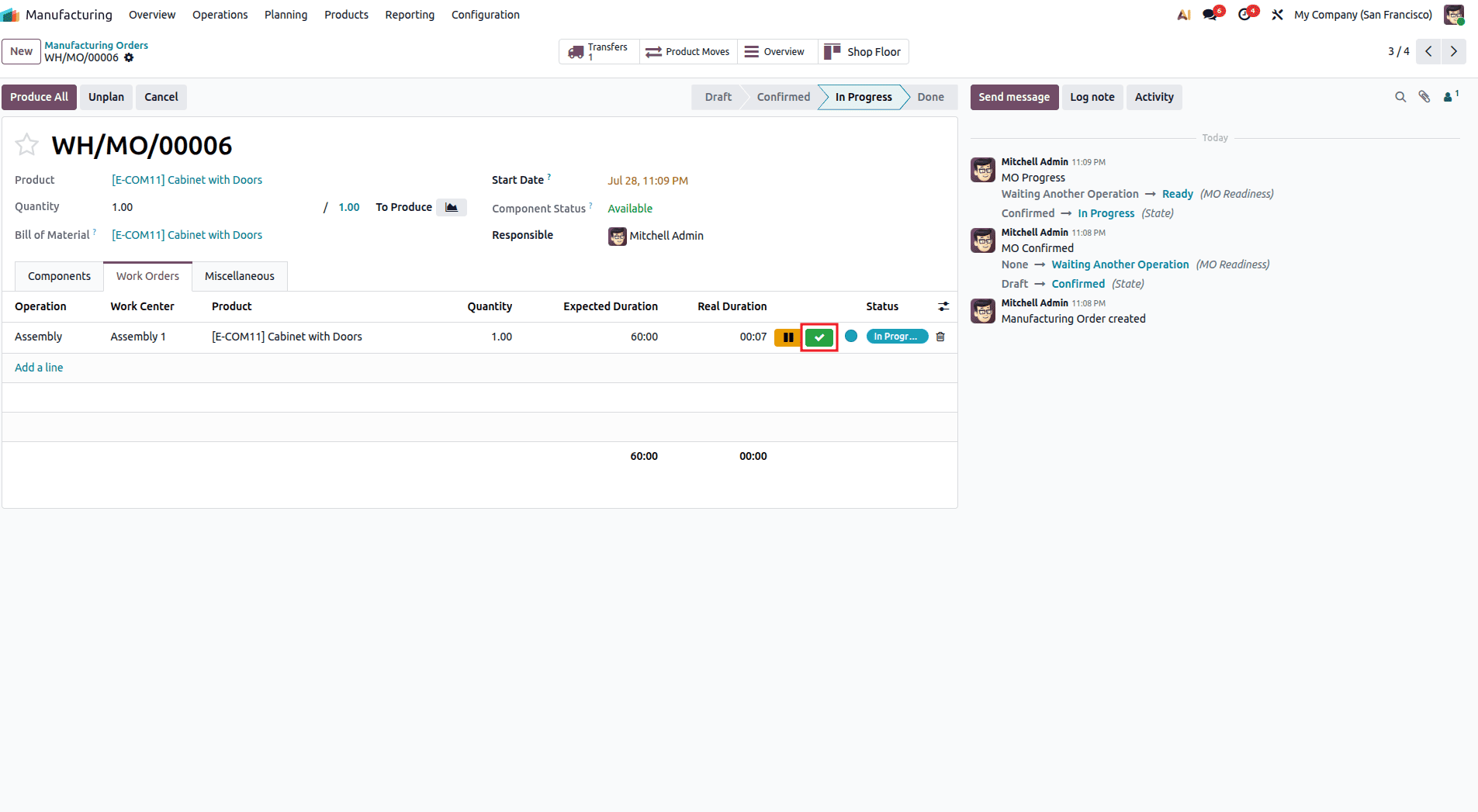
Closing the Production Run:
You can finalize the manufacturing process in one of two ways:
- Directly from the MO: Click the Shop Floor smart button or click Close Production / Produce All to finalize the order.
- Via the Shop Floor App: Open the Shop Floor module, select the Assembly 1 work center, locate the MO card, and click Close Production.
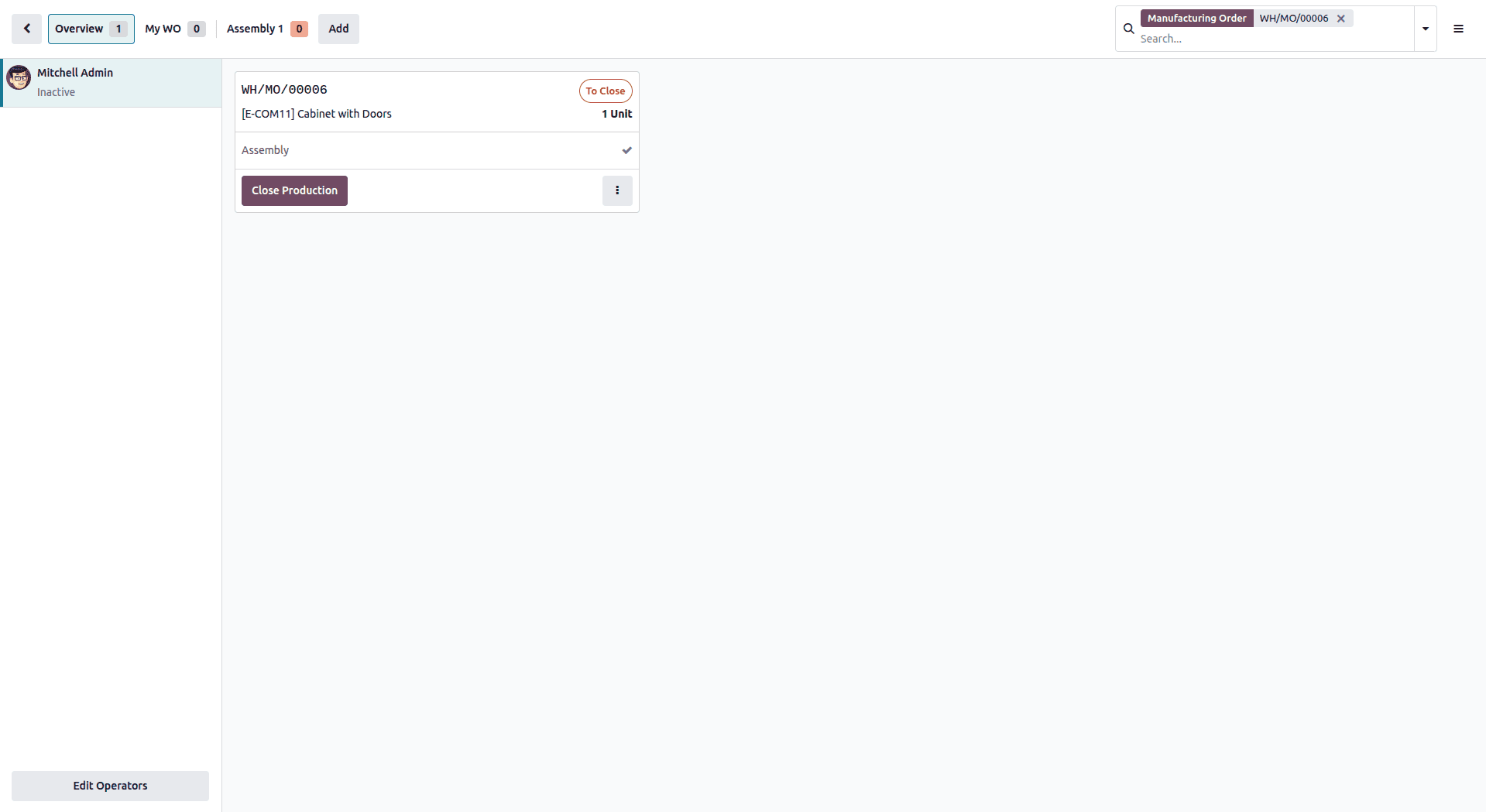
Step 6: Cost Calculation Breakdown & Overview in Odoo 19
Odoo 19 provides an integrated Overview report directly on the Manufacturing Order for real-time cost tracking:
- Open the completed MO (WH/MO/xxxxx).
- At the top of the order, click the Overview smart button.
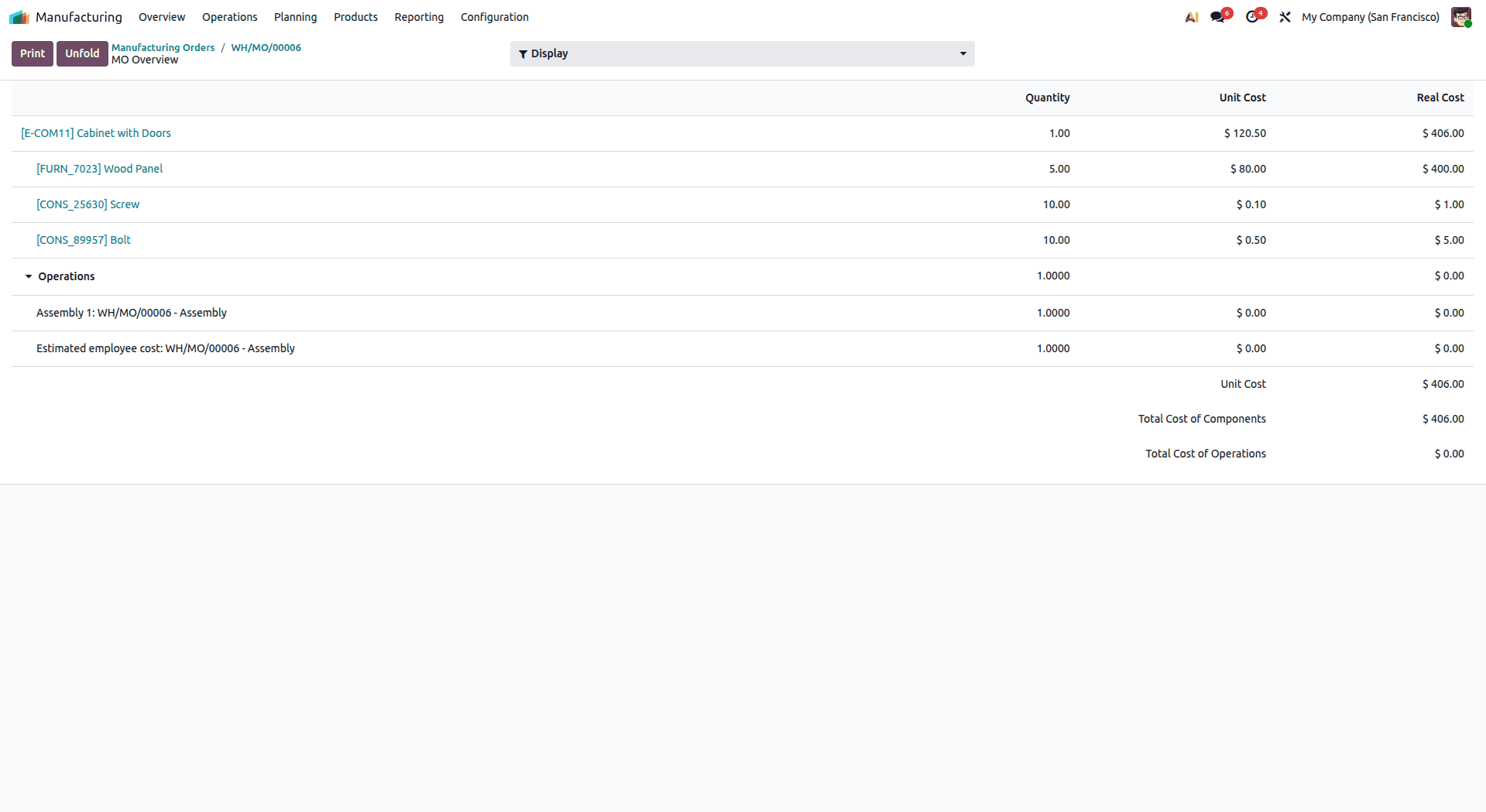
Example Cost Analysis Breakdown:
Raw Material Costs ($406.00 Total):
- 5 × Wood Panel @ $80.00 = $400.00
- 10 × Screw @ $0.10 = $1.00
- 10 × Bolt @ $0.50 = $5.00
Work Center / Operations Cost ($1.53 Total):
- 55 seconds of labor at $100.00/hour work center rate = $1.53
Total Real Production Cost: $407.53 (compared to the planned estimate of $406.00, representing a minor variance of +0.38%).
Advantages of Two-Step Manufacturing in Odoo 19
- Separation of Duties: Material handlers focus on component picking, while production teams focus solely on the assembly.
- Accurate Stock Location Tracking: Prevents shop-floor stock shortages by verifying raw material availability in WH/Pre-Production before production starts.
- Precise Cost & Labor Tracking: Real-time visibility into exact material consumption and work center operation costs via the Odoo 19 MO Overview report.
The two-step manufacturing process in Odoo 19 helps manufacturers separate the process of accumulating materials from the actual manufacturing process. It allows raw materials to be staged at a specific location before production begins, helping prevent material shortages and improve inventory accuracy. Manufacturing operations can then proceed only after all the necessary materials are available. This process also improves coordination between the warehouse and manufacturing departments and supports more accurate production cost analysis.
To read more about A Complete Guide to Three-Step Warehouse Operations for Manufacturing in Odoo 19, refer to our blog A Complete Guide to Three-Step Warehouse Operations for Manufacturing in Odoo 19.