Odoo 19 Point of Sale provides a Booking feature that allows restaurants to manage table reservations directly from the POS interface. The Booking feature uses the Appointments app to configure appointment types, resources, capacities, and availability, allowing restaurants to manage table reservations efficiently. As customer expectations continue to grow, restaurants are increasingly adopting online reservation systems to make table booking faster and more convenient. Odoo 19 Enterprise offers a flexible Appointments module that can be configured to manage restaurant table reservations. Although the module is mainly designed for scheduling consultations, services, and other appointments, it can also be adapted to suit the specific needs of restaurants.
By configuring the Appointments module, restaurants can allow customers to reserve tables online while also managing factors such as the number of guests, available booking slots, and overall reservation capacity. This makes the booking process more organized for the restaurant and more convenient for customers.
In this blog, we will walk through the complete process of configuring the Appointments module in Odoo 19 for managing restaurant table reservations.
Configuring Floors and Tables in POS:
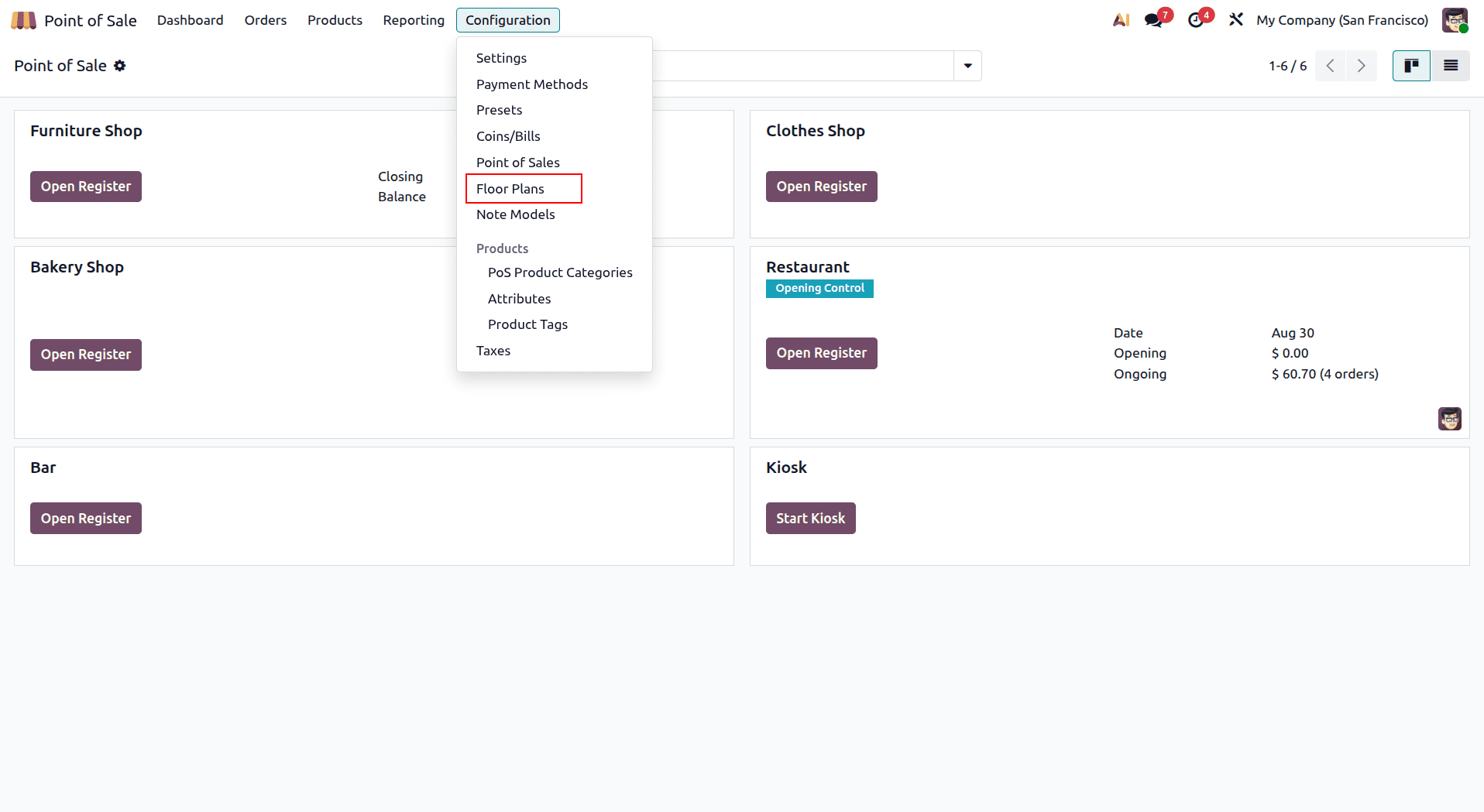
To begin setting up the restaurant floor plan, open the Point of Sale application in Odoo 19 Enterprise. From the POS dashboard, navigate to Configuration > Floor Plans. Click New to create a floor plan for your restaurant, as shown below.
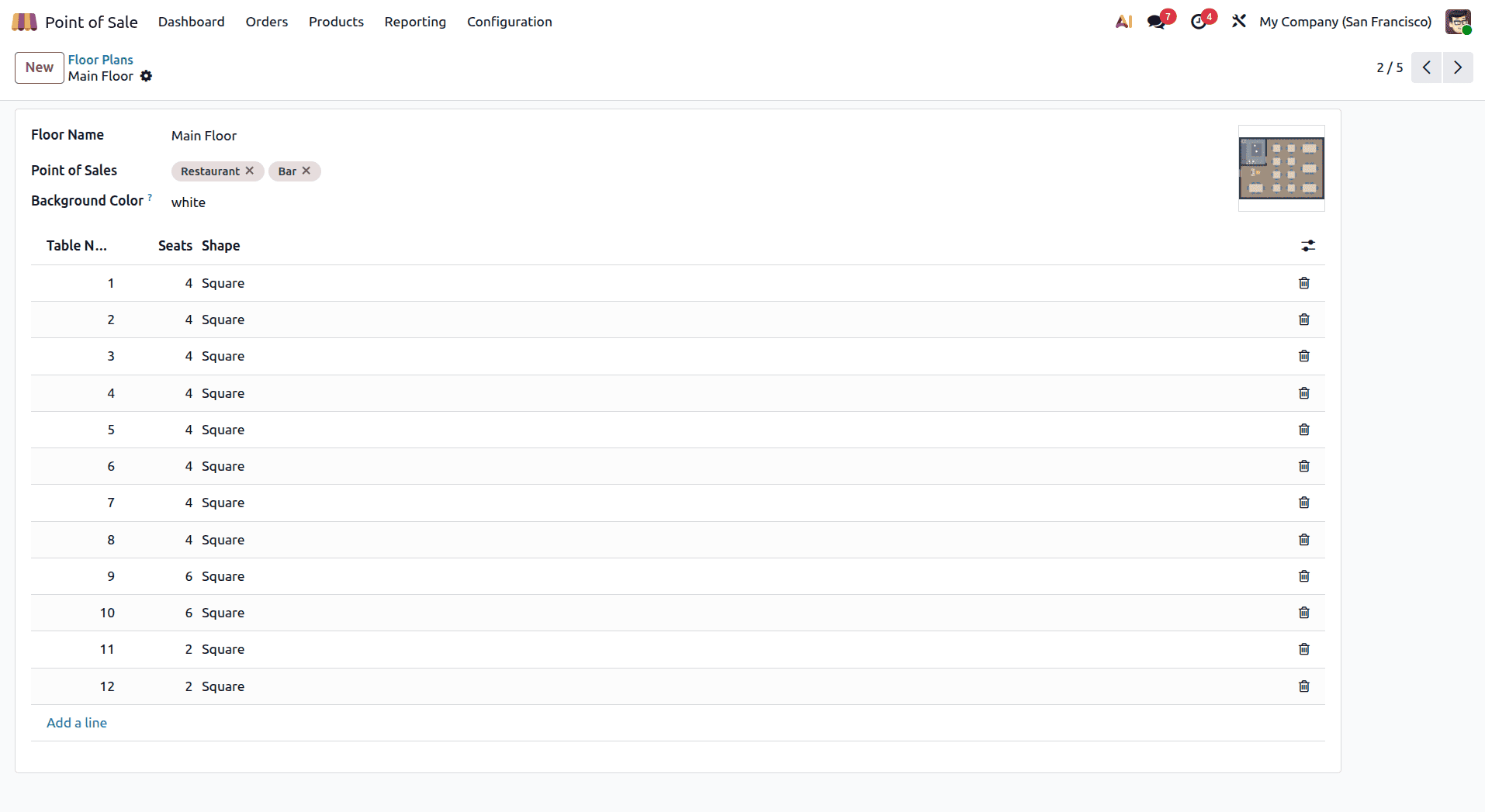
Enter the required details for the floor plan, including the Floor Name, Background Color, and the Point of Sale where the floor will be used.
Next, click Add a Line to configure the individual tables. For each table, specify the Table Name, the Number of Seats it can accommodate, and the Table Shape. These details help organize the floor plan and define the seating capacity of each table.
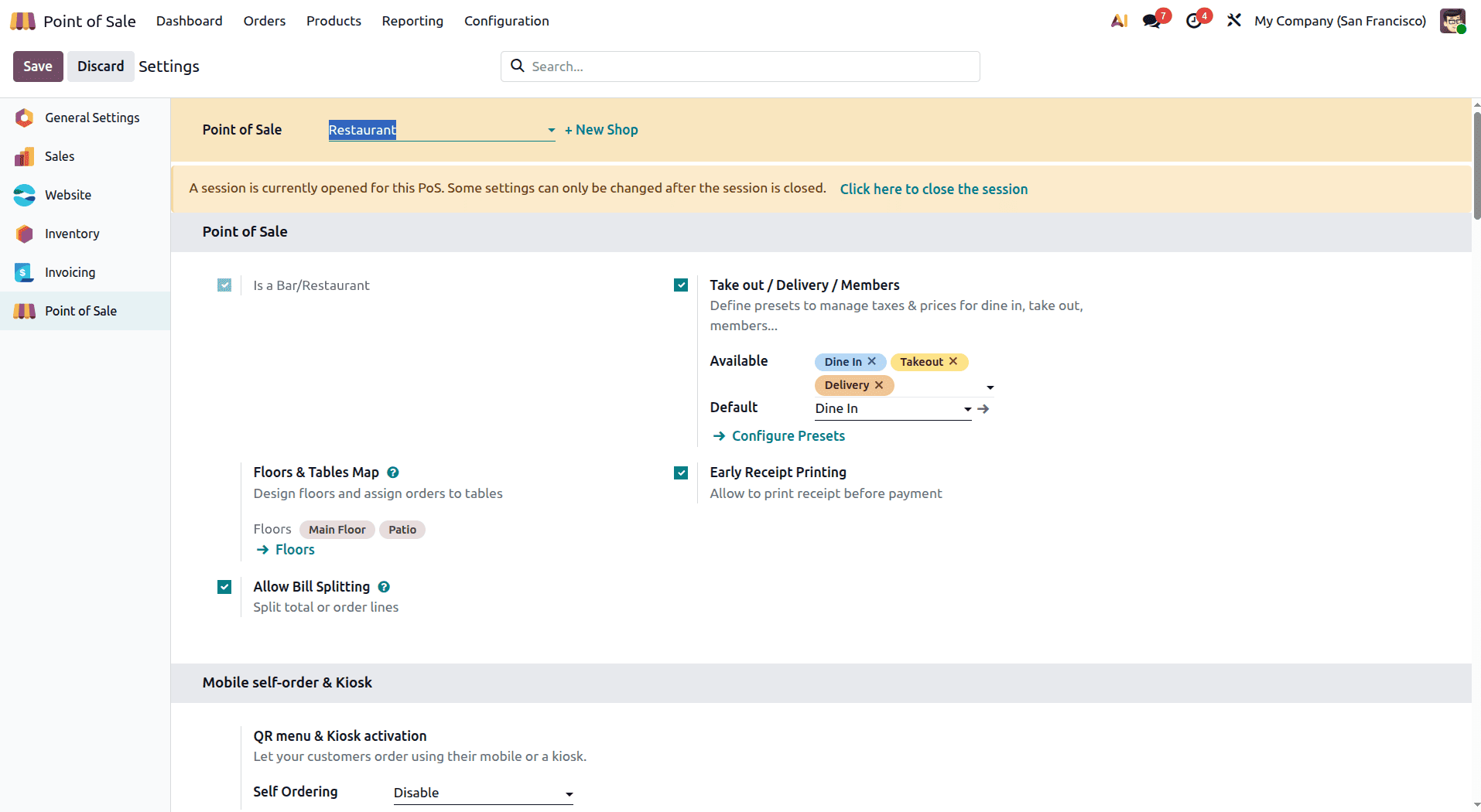
First, navigate to Point of Sale > Configuration > Settings. Under the Restaurant Mode section, locate the Floors & Tables Map option and enable it to use restaurant floor plans and assign customer orders to specific tables.
Once enabled, the floor plan you created will be available in the Floors & Tables Map, allowing you to manage tables and customer orders directly from the POS interface, as shown below.
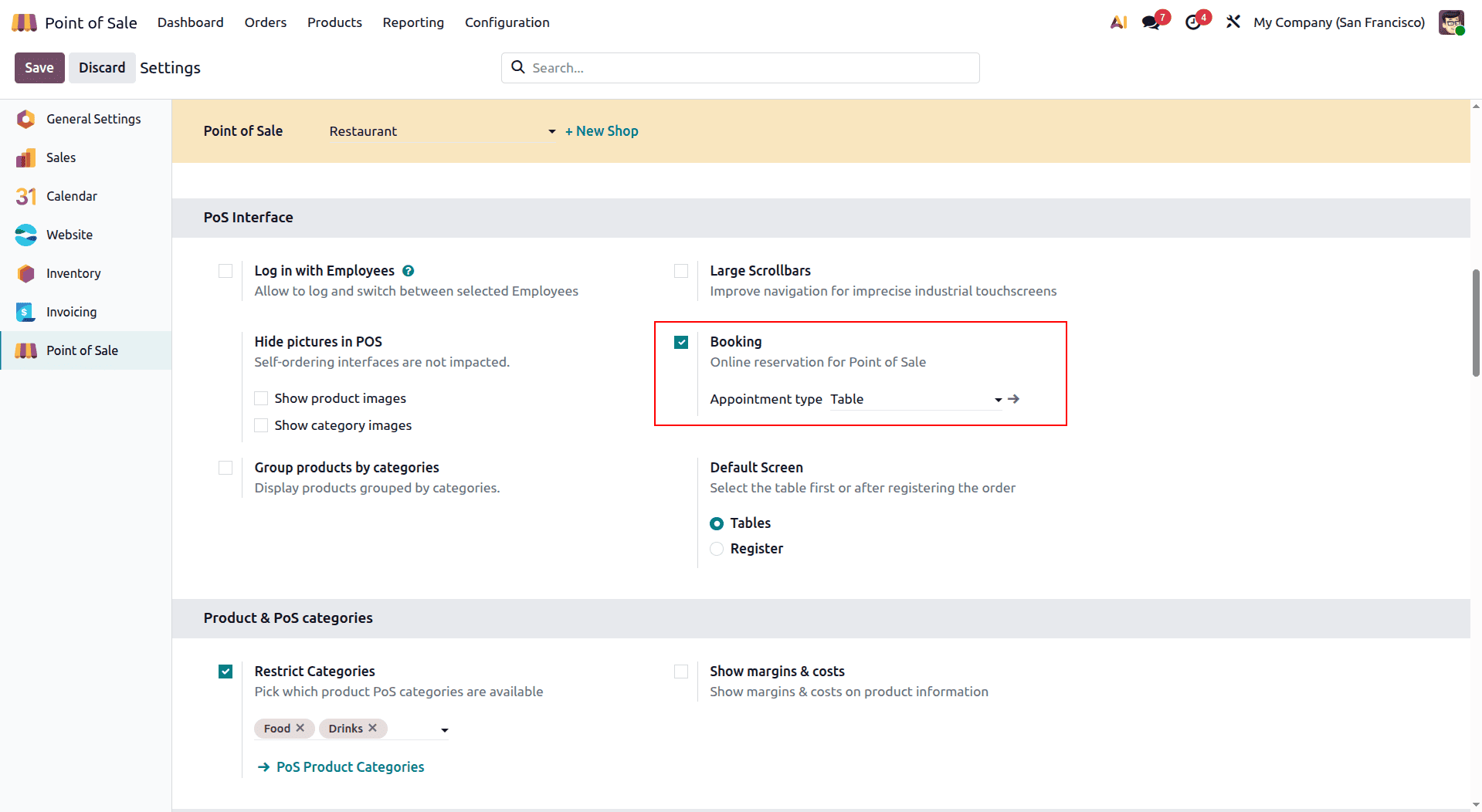
Enable the Booking option and set the Appointment Type to Table. This allows the system to use the appointment configuration for managing restaurant table reservations.
Configuring Restaurant Table Reservations in Appointments:
To configure restaurant table reservations using the Appointments module in Odoo 19, navigate to Appointments > Appointments. The Kanban view displays all the available appointment types along with key information, such as the appointment name, duration, and other relevant details.
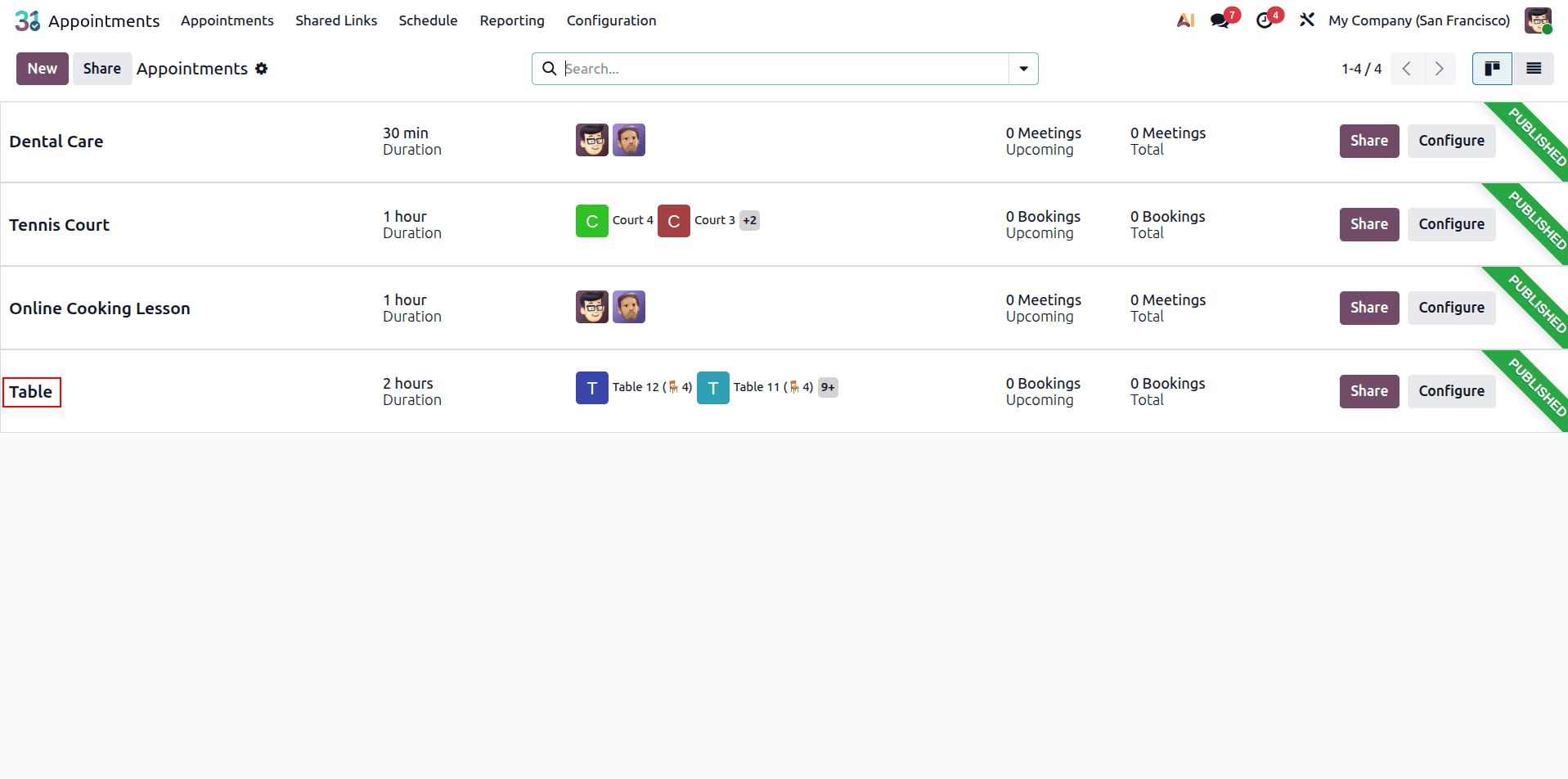
Click New to create a new appointment type. The Appointment Configuration form will open, allowing you to enter the required details. Once all necessary information has been provided, save the configuration to create the appointment type.
Start by entering an Appointment Title, such as Table Reservation, or choose any other name that suits your restaurant. You can then configure the reservation by filling in the necessary fields and settings.
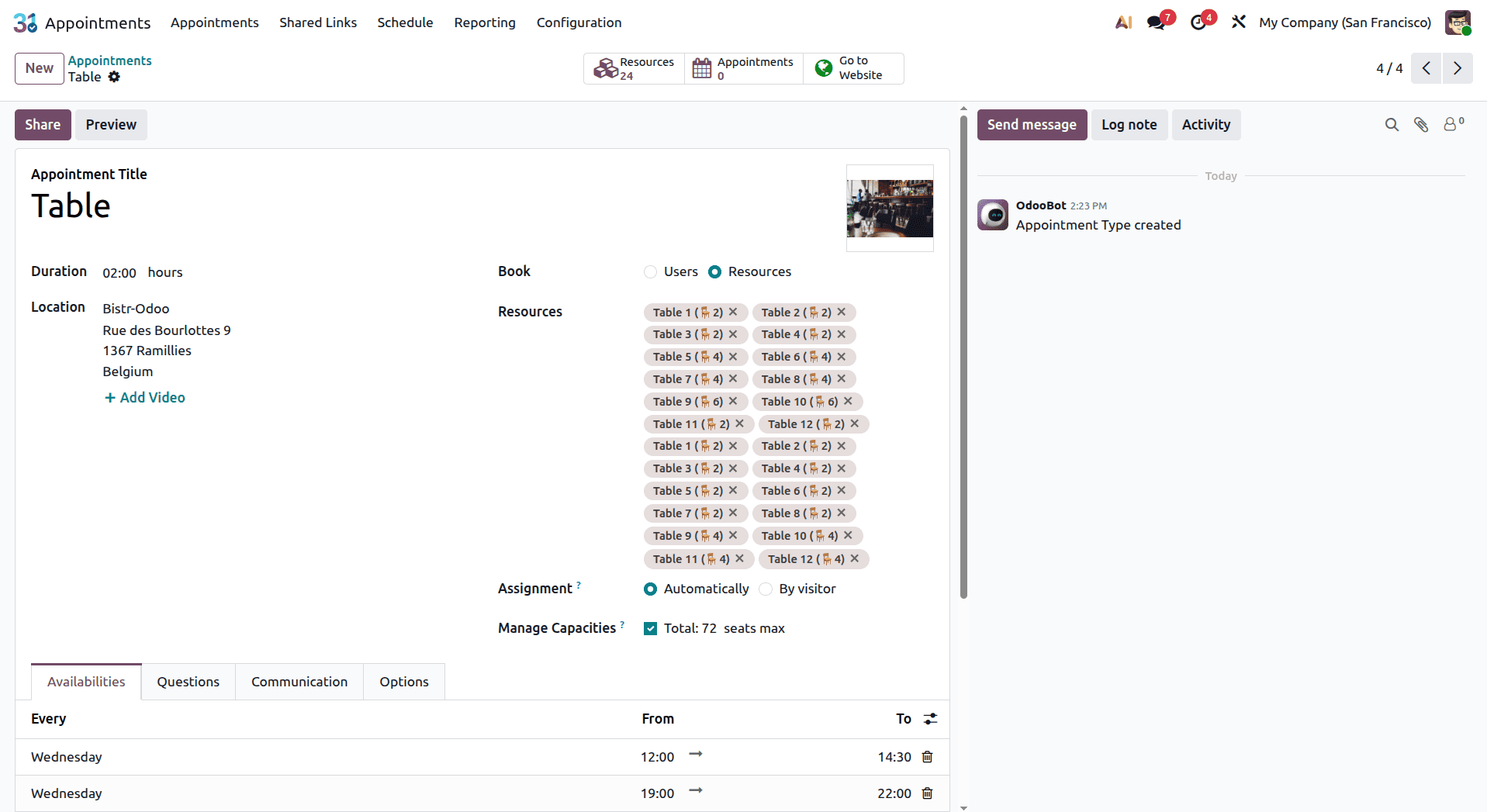
Appointment availability can be set up based on either Users or Resources When Resources is selected, you can specify the resources that will be available for booking in the Resources section. You can also specify the Duration of each reservation.
Since this appointment type is being used for restaurant table reservations, availability should be managed based on the available restaurant tables rather than individual users. The tables created earlier as resources for the Main Floor can be selected here, allowing customers to book them based on their availability.
Next, enable Manage Capacities to define how many people each table can accommodate. This ensures that reservations are made according to the seating capacity of each available resource.
Finally, configure the Assignment Method. In this case, select Time First, followed by Automatically/by Visitor, so that the system can assign available tables based on the selected time and visitor requirements.
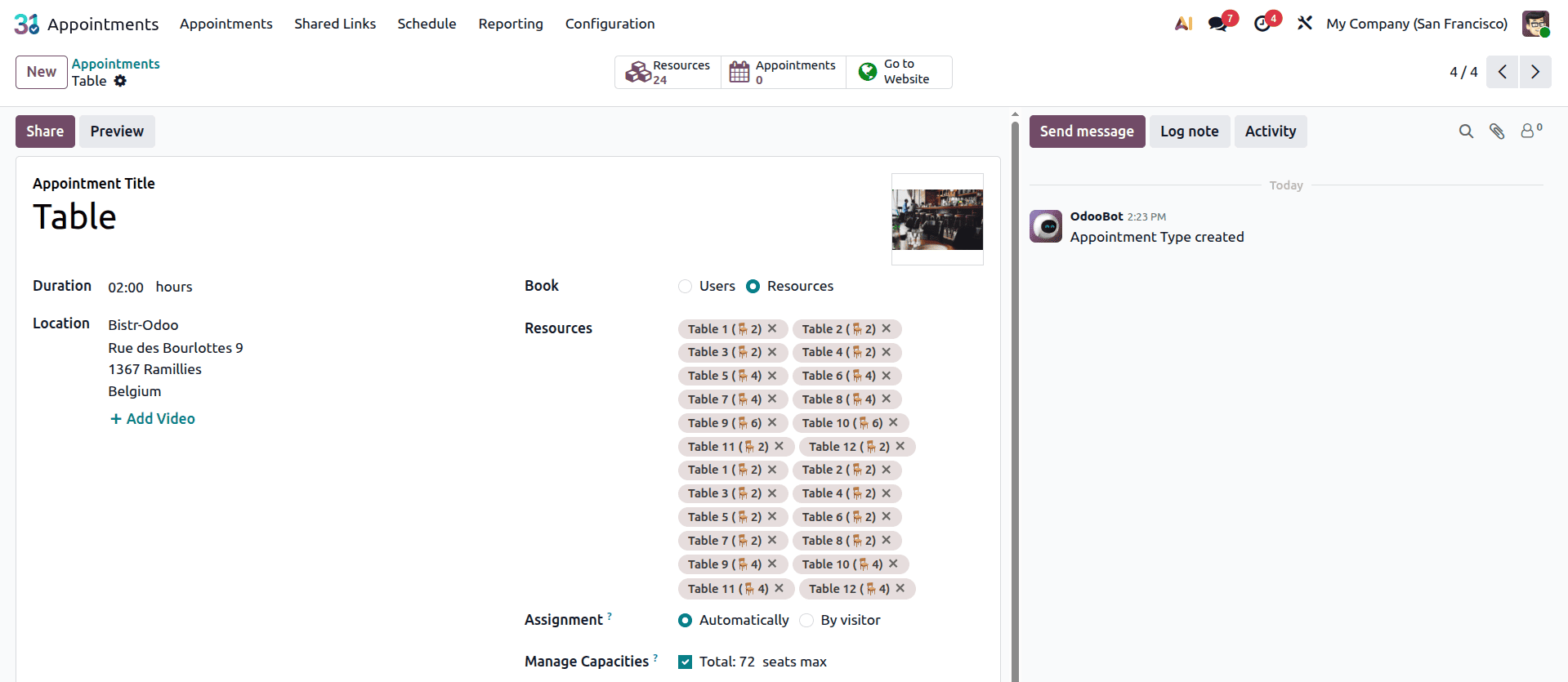
In the Availabilities tab, configure the days and time slots when customers can make table reservations. Configure the restaurant’s working days by specifying the appropriate Start Time and End Time for each day. Customers will only be able to select reservation time slots that fall within the defined availability schedule.
In the Options tab, you can configure how the appointment will be displayed to customers on the website. The Front-end Display option allows you to add an image for the assigned User/Resource, giving customers a clearer idea of the appointment they are booking.
If your Odoo database has multiple websites, you can also restrict the appointment type to specific websites as required.
Next, configure the Time Zone and Location to ensure that customers receive accurate scheduling information. If remote reservations or meetings are required, you can also enable the Video Conference option and include it in the appointment settings.
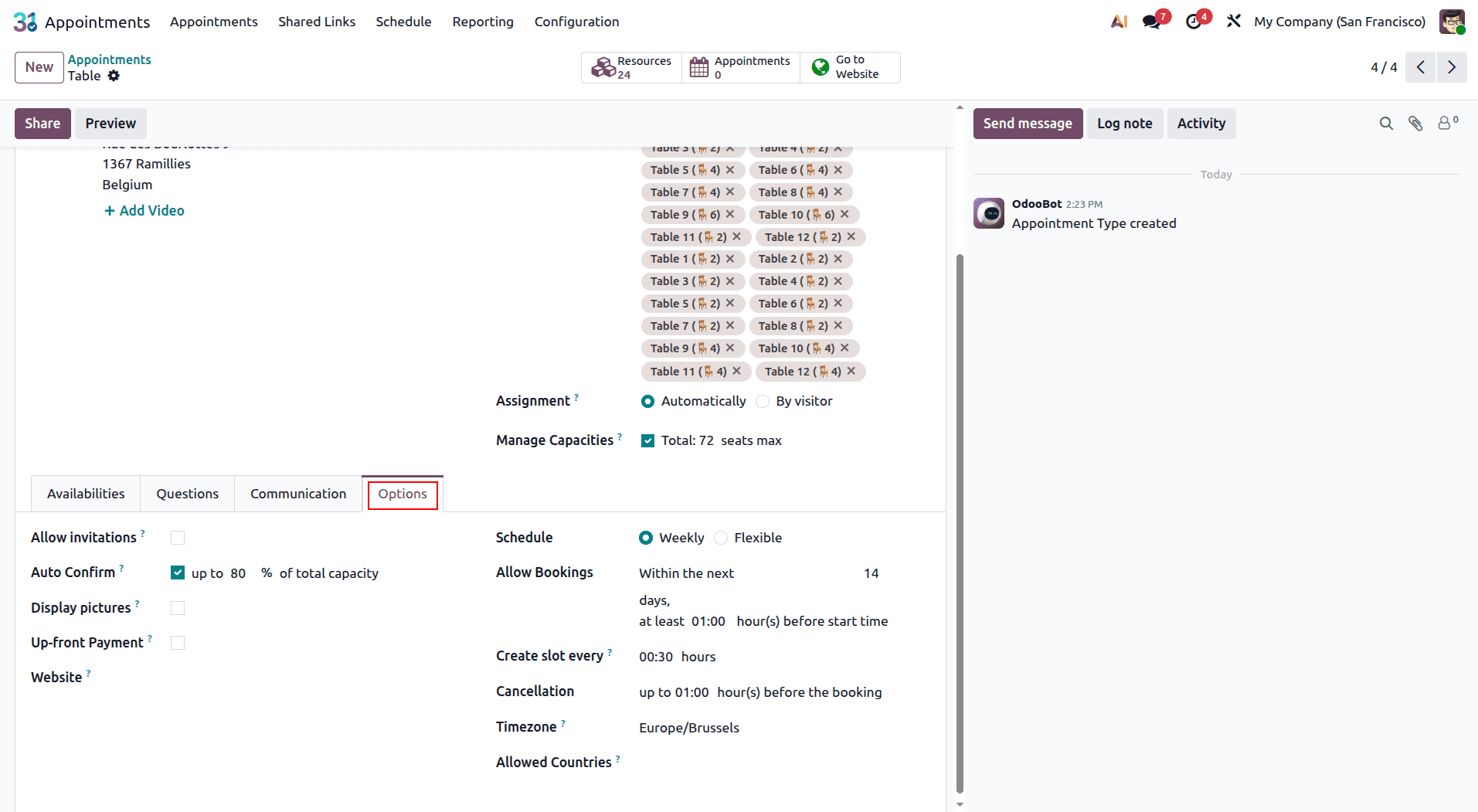
Enable the Create Opportunity option to automatically generate a CRM opportunity whenever a customer makes an appointment. This allows the sales team to track potential customers and manage any necessary follow-up activities directly from the CRM.
Automated email and SMS notifications can also be configured to keep customers informed about their reservations, including appointment reminders and cancellation updates.
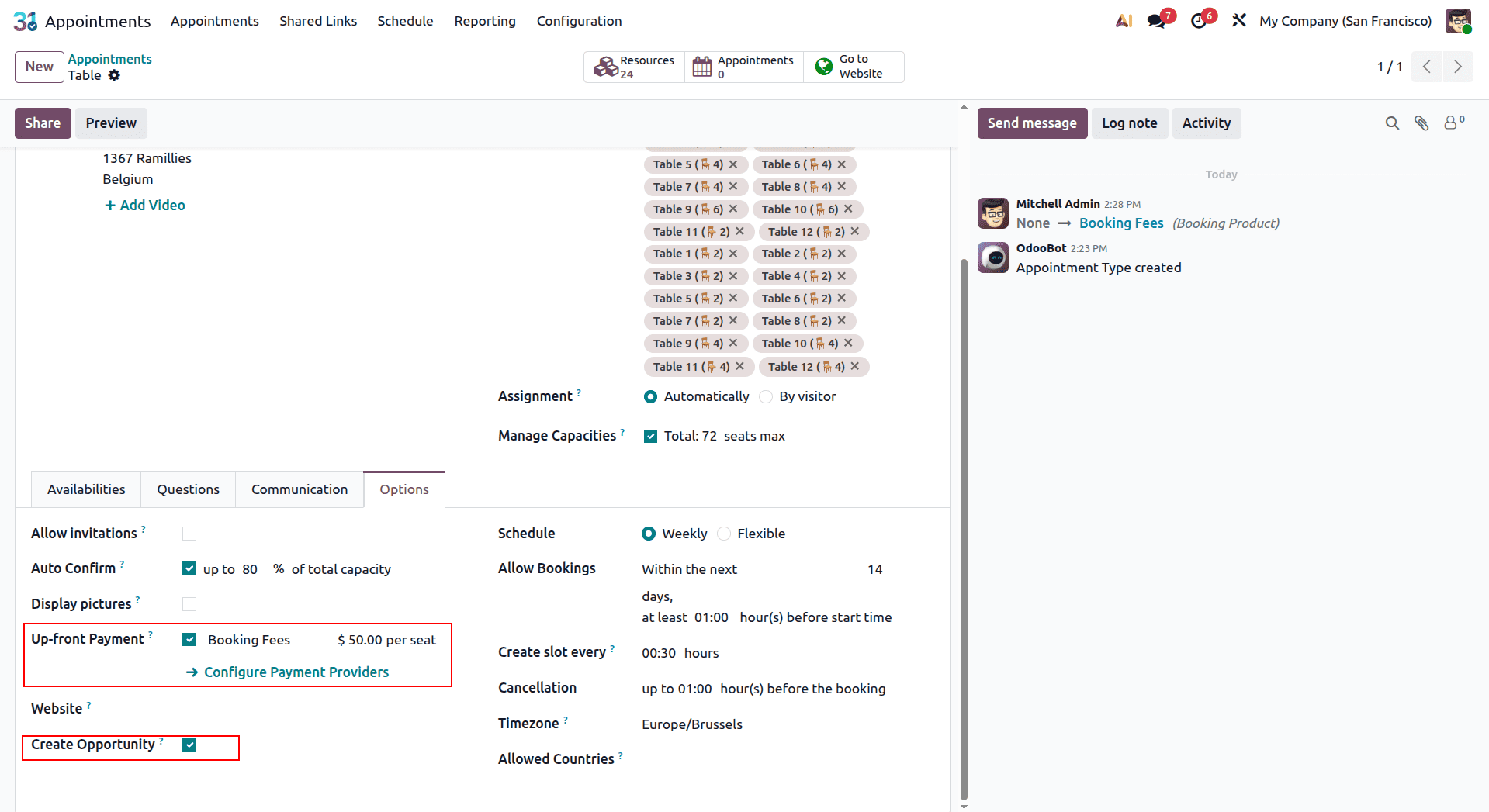
When you wish to receive payment from your customers before verifying the table reservation, then go for the "Up-front Payment" option. Once it is selected, the customer will first make the payment, and then the reservation will be verified. For this process, you would also have to choose a "Service Product."
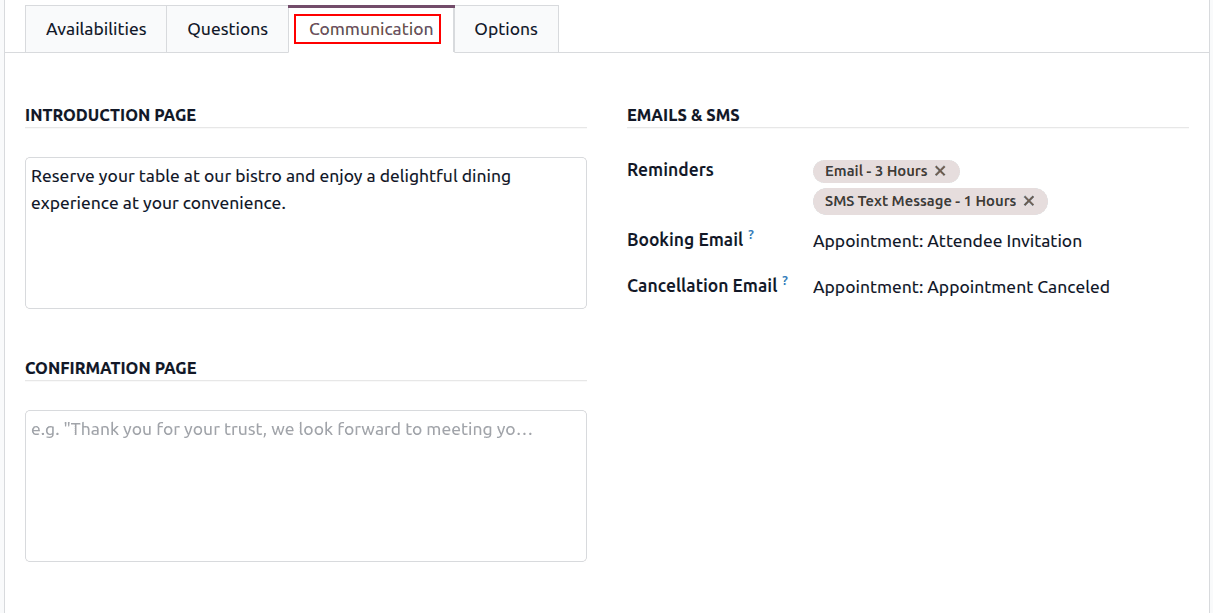
The Communication tab enables you to edit the customer messages they will get during the reservation procedure. You can create your own introduction message, which is going to be shown to your customers prior to their reservation form submission.
In addition, you can set up one or several confirmation messages that will be displayed to your customers after their successful reservation. These messages will help you to confirm their reservation and provide additional information they may need.
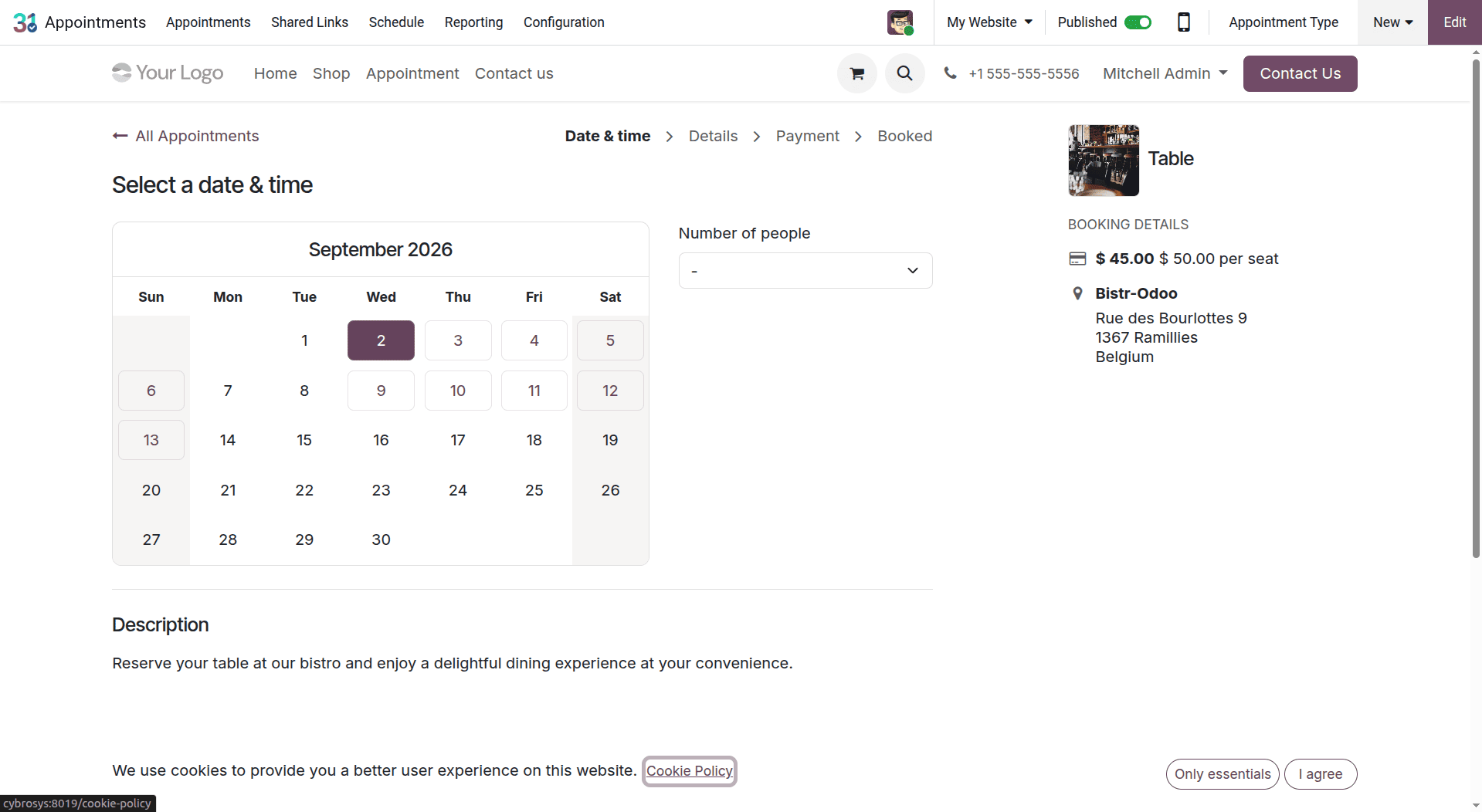
After configuring all the required settings, click Save to create the appointment type. You can then select Go to Website to view the corresponding booking page.
On the website, enable the Published option to make the appointment type visible to customers. Once published, customers can access the page and book restaurant tables online, as shown below.
Configure Appointments from the Website:
To manage the reservation appointment from the website, open the Website module and select Appointments, as shown below. This page lists all published appointment types that customers can book online. Customers can use this page to access the restaurant’s table reservation service and make a booking directly through the website.
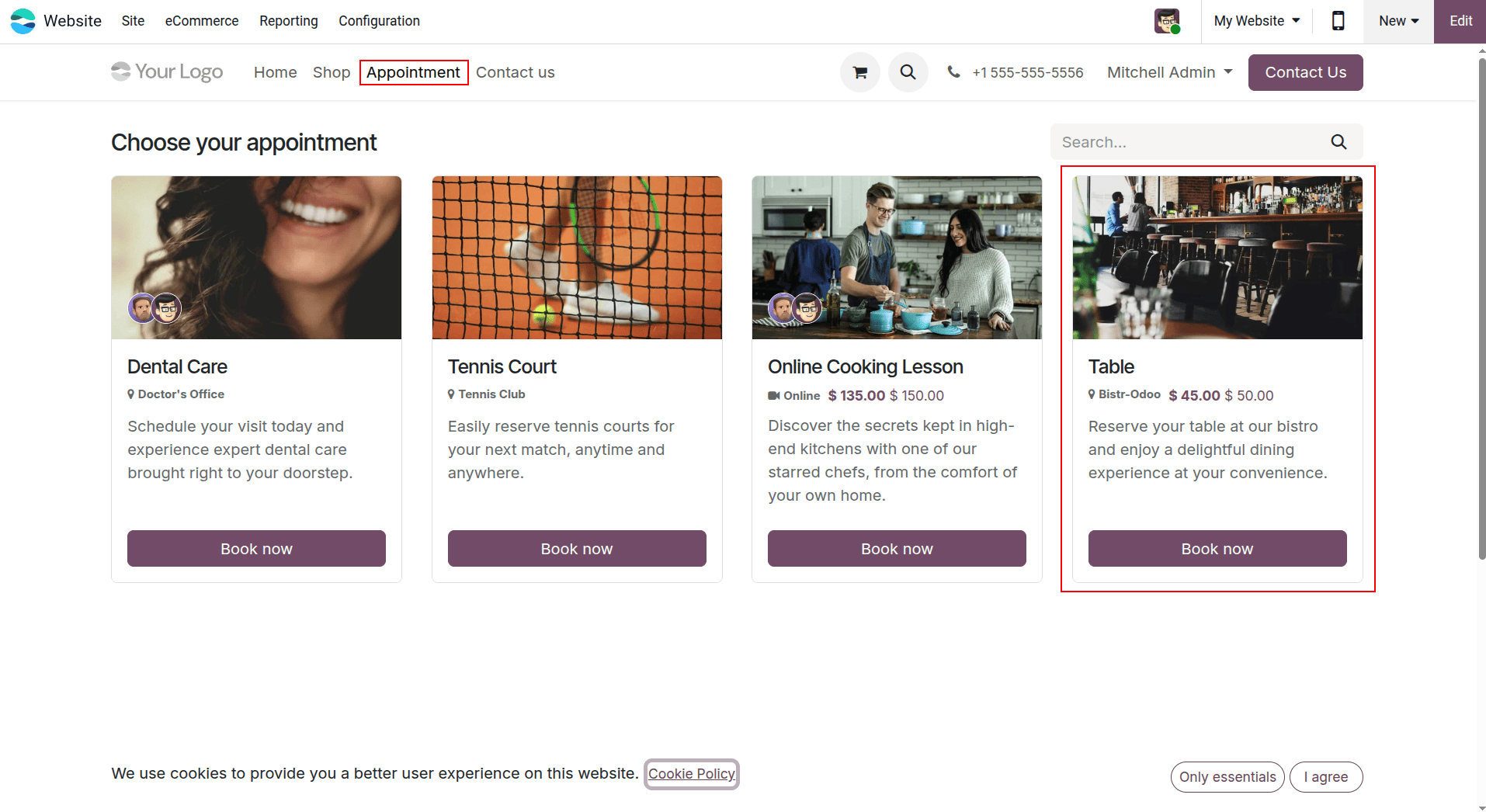
On the Appointments page, select the Table appointment type created earlier, as shown below. The online booking form will open, allowing customers to select their preferred date, time, and other reservation details.
The Table Reservation information is displayed on the right side of the page. Select the desired Date and Time, then choose an available table on the Main Floor based on the restaurant’s seating capacity. After reviewing the reservation details, click Confirm to complete the booking.
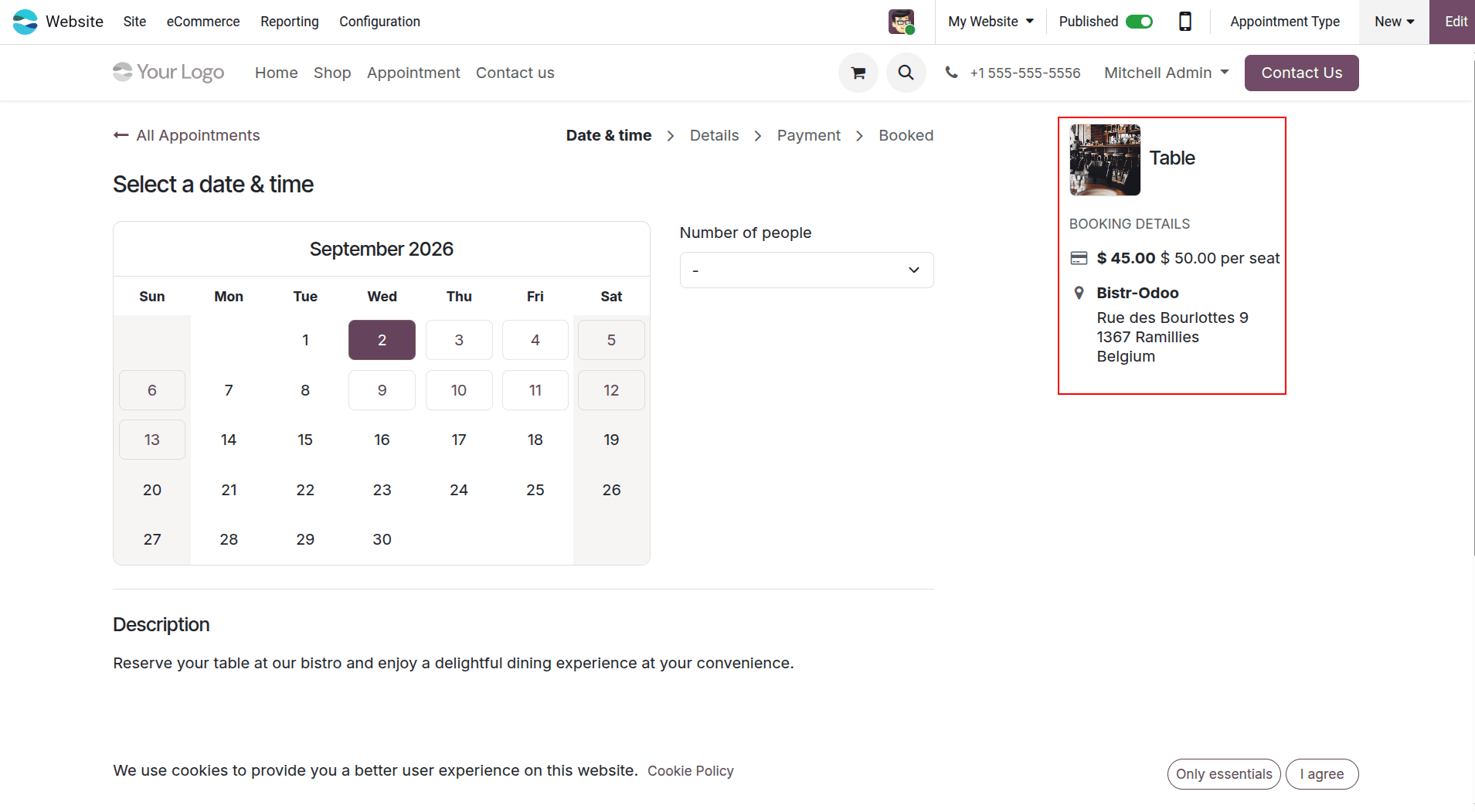
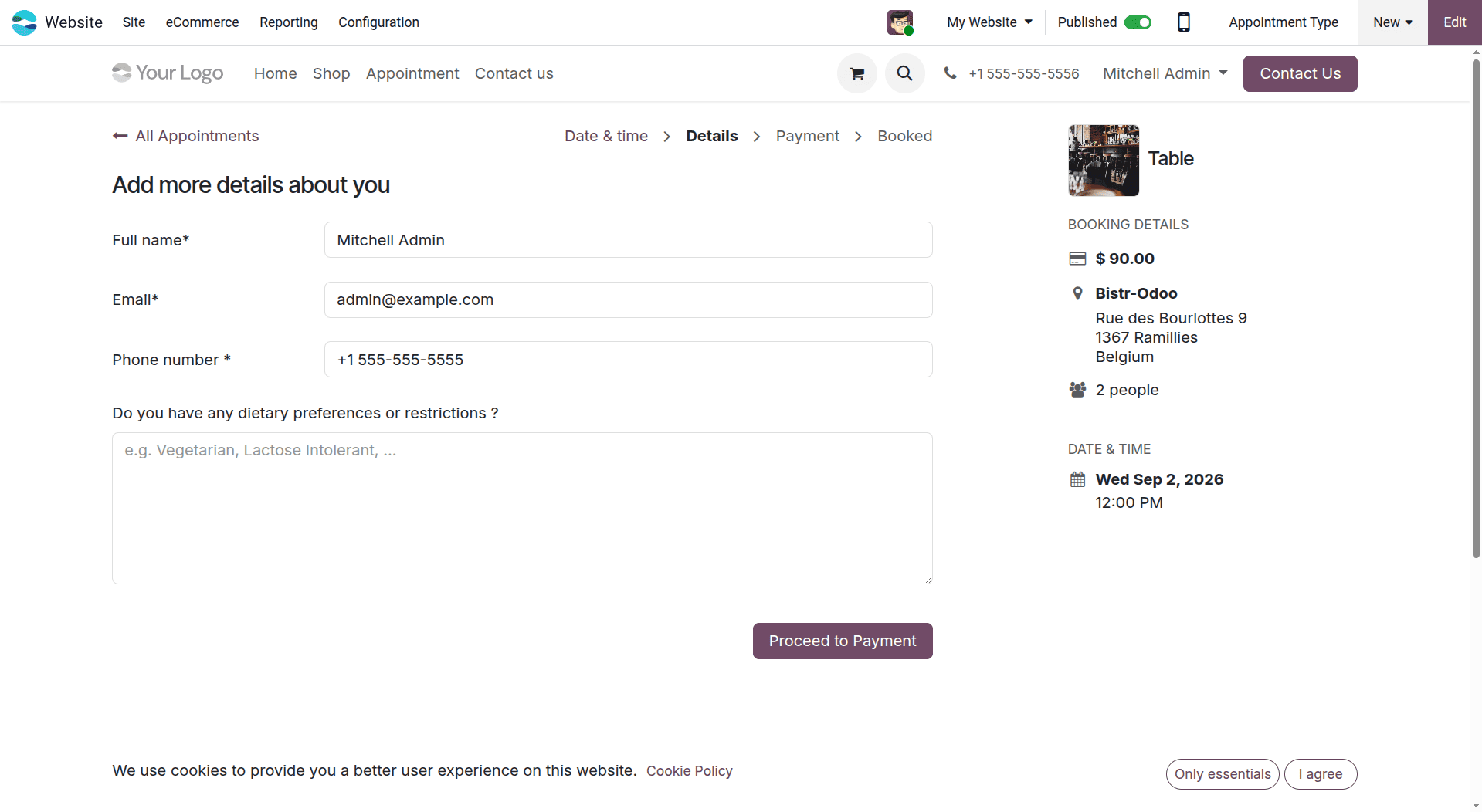
After reviewing the reservation details, click the Proceed to Payment button to complete the booking.
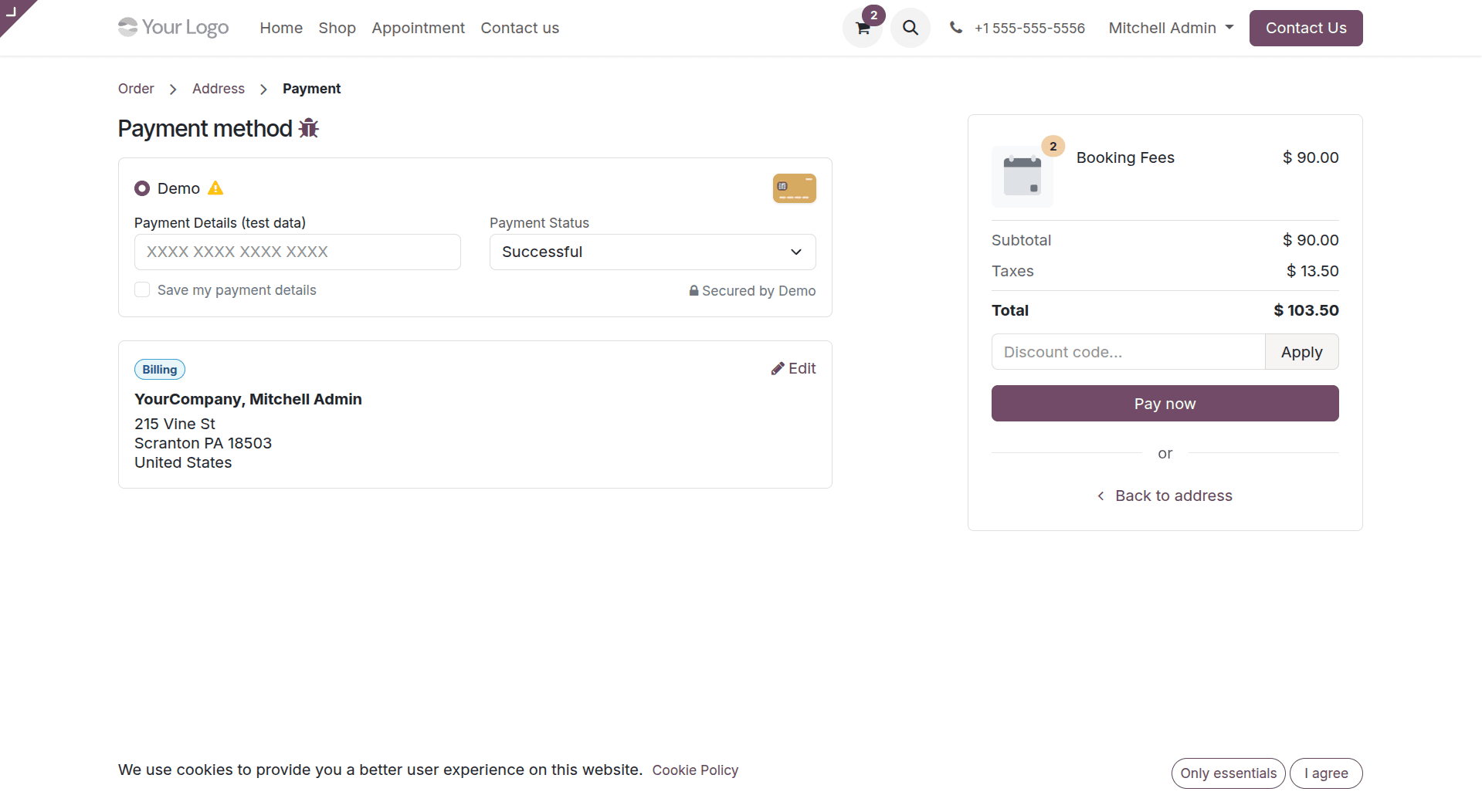
After confirming the reservation, the Order Overview page appears with the reservation details and the total amount to be paid. Click Pay to proceed with the payment process and complete the restaurant table reservation.
Once the payment is successfully processed, the table reservation appointment is confirmed. To view and manage the confirmed reservations, return to the Appointments module. The booked appointments will be listed there, allowing you to review the reservation details and manage them as needed.
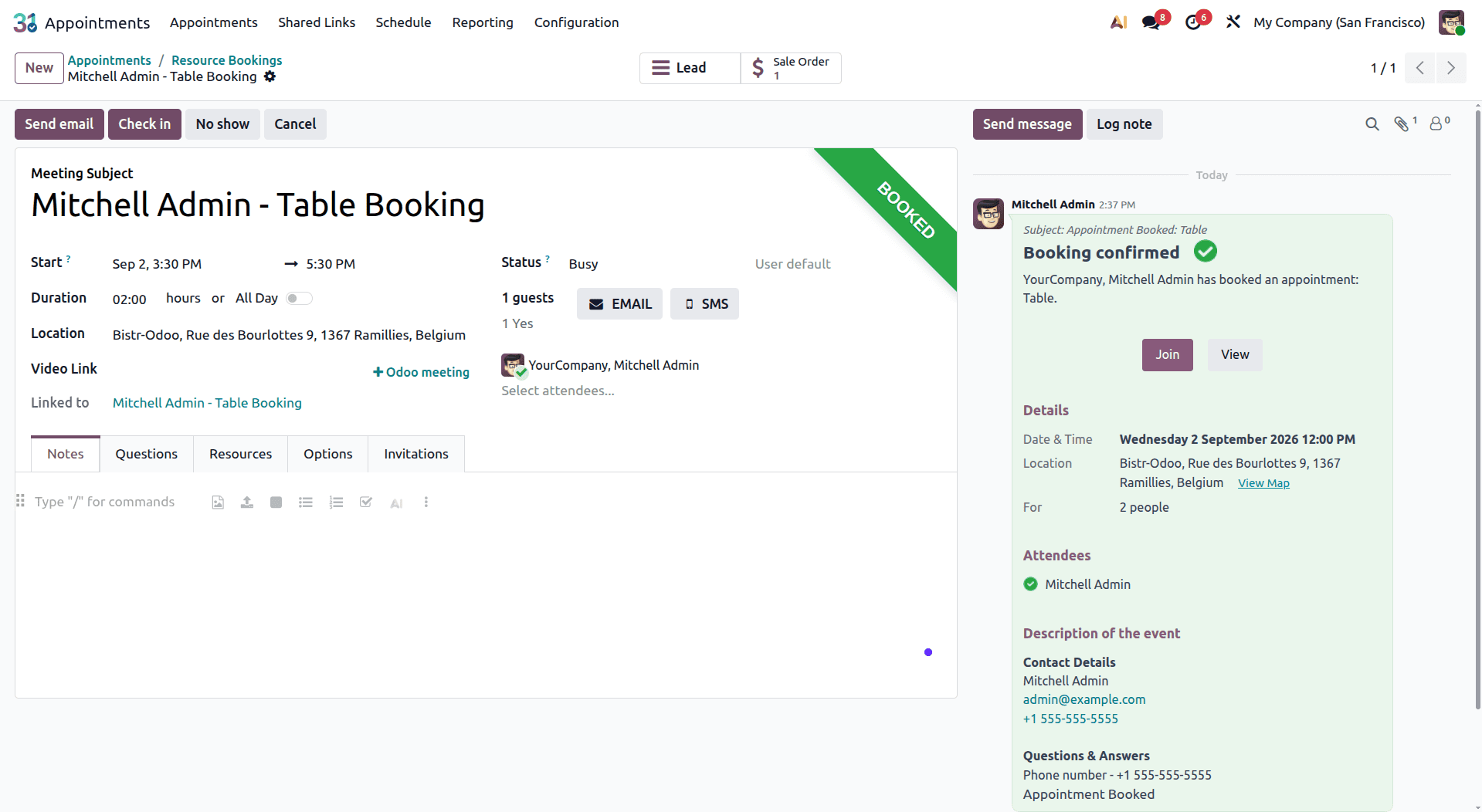
As discussed above, the Appointments module in Odoo 19 Enterprise provides a practical and integrated solution for managing restaurant table reservations. Its integration with the Point of Sale and Website modules allows restaurants to offer customers a convenient online booking experience while giving staff an efficient way to manage reservations.
From configuring restaurant floor plans and table capacities to accepting online reservations and collecting advance payments, the entire booking process can be managed from a single platform. This efficient process makes reservation management easier for restaurants while offering customers a seamless and hassle-free booking experience.
To read more about Online Table Reservation With Odoo 18 Point of Sale, refer to our blog Online Table Reservation With Odoo 18 Point of Sale.