Employee attendance helps in understanding the availability and work of the employees during the day. It will help the manager in organizing activities during the day and managing the team. It becomes easier for the organization to meet the needs of staff when Odoo 19 provides a built-in employee presence management tool.
Presence Display helps managers and HR team members have the necessary information about the availability of employees in the same place in the form of an employee presence display tool. There is no need to go through the records of individual employees, as all employees are listed in one place. Each employee is listed in the profile card along with other information and presence status. The green color depicts the presence of the employee, while the grey color indicates the absence of the employee.
The employee dashboard offers a clear view of all current employees, with each person presented in a dedicated card that highlights their essential details.
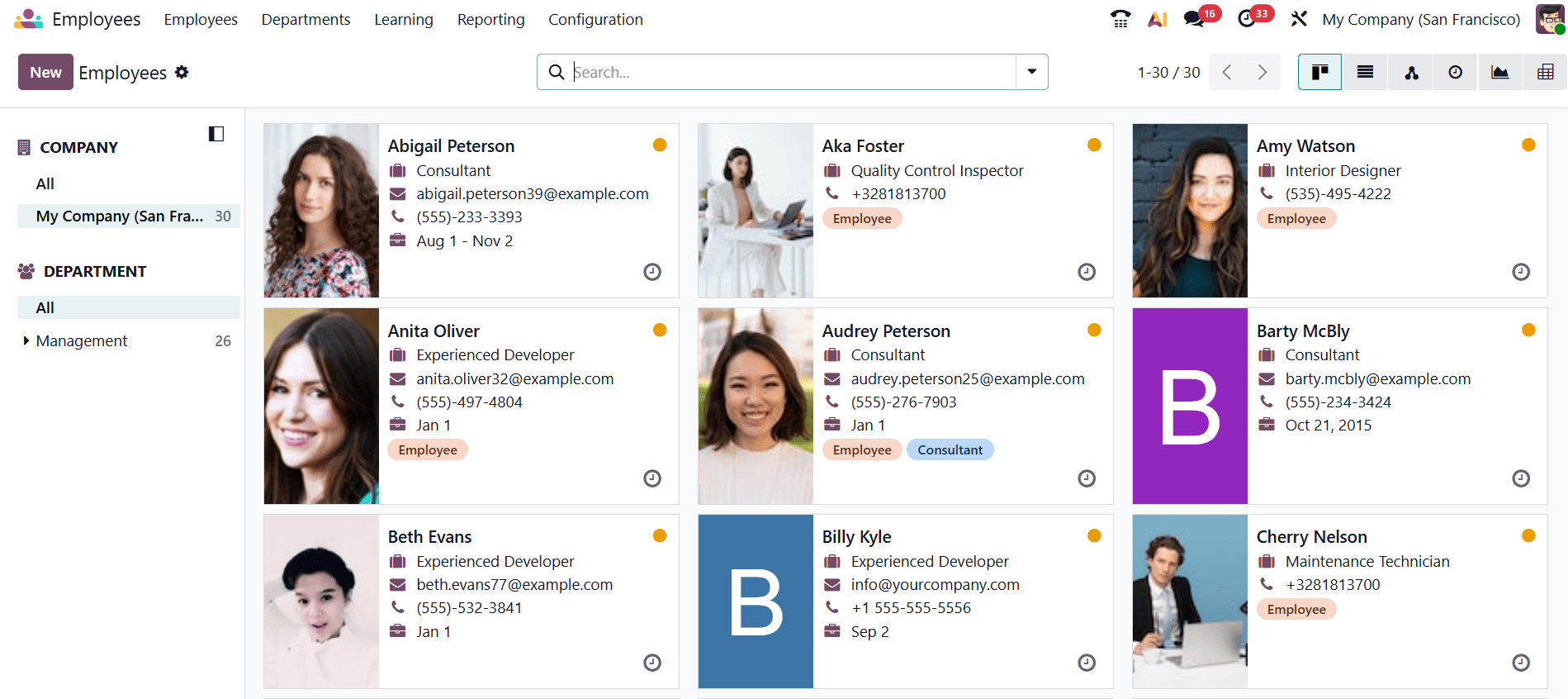
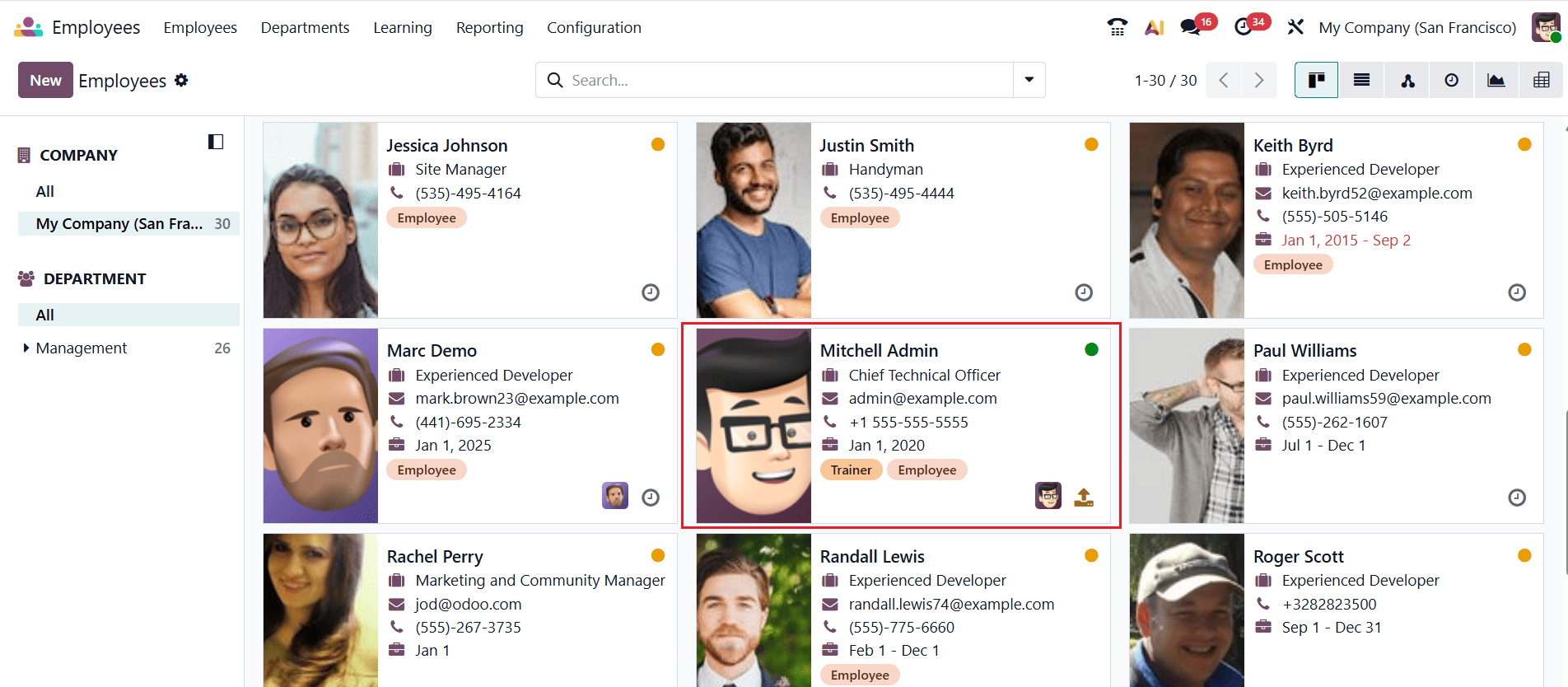
Each employee card gives managers a quick overview of the employee’s key information, such as their job position and contact details. In the card’s upper-right corner, a green status dot is displayed as well. This indicator helps identify employees who are currently online and active in the database, allowing managers to check employee presence quickly without opening individual profiles.
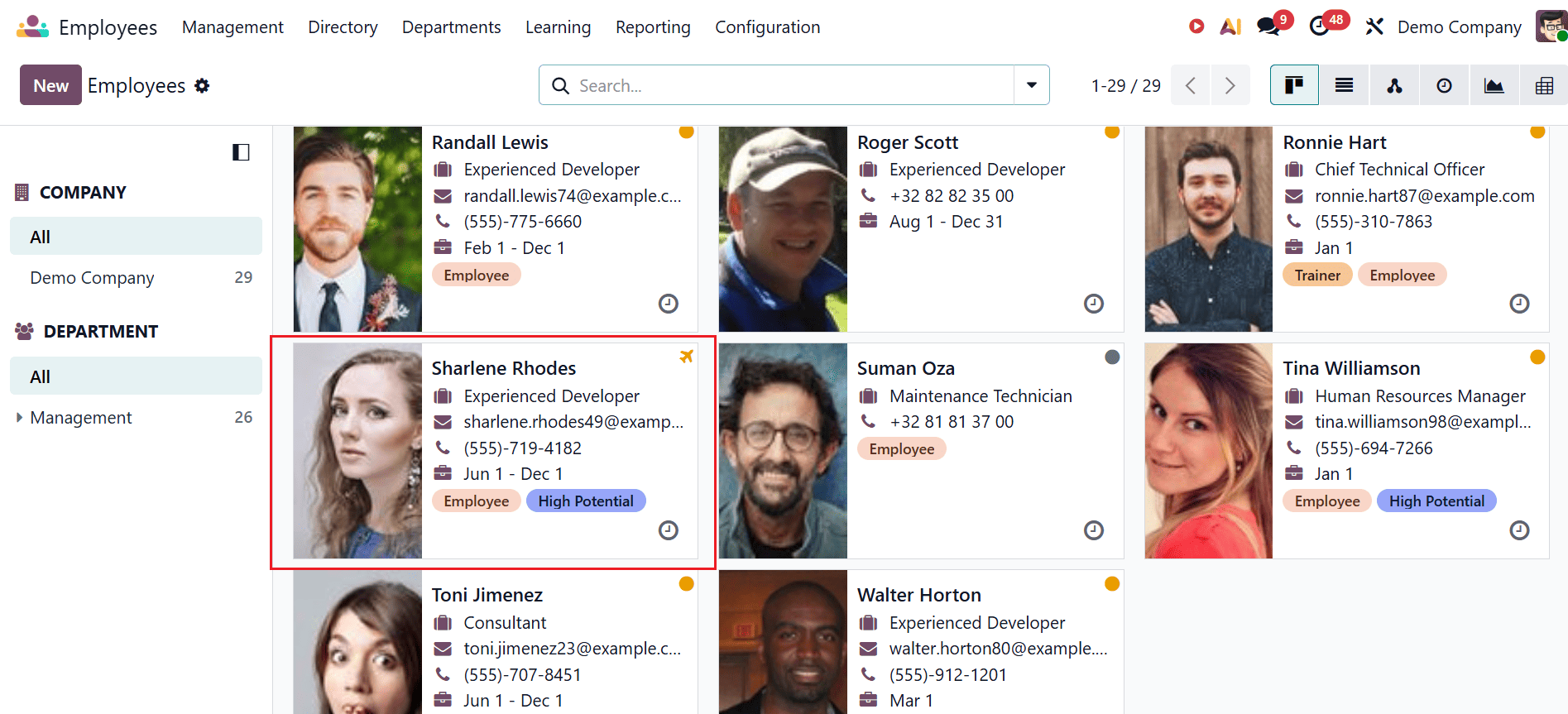
Employees who are on time off are marked with an airplane icon on their profile card. This icon represents any type of leave, including sick leave, vacation, or other approved time off, making employee availability easy to identify.
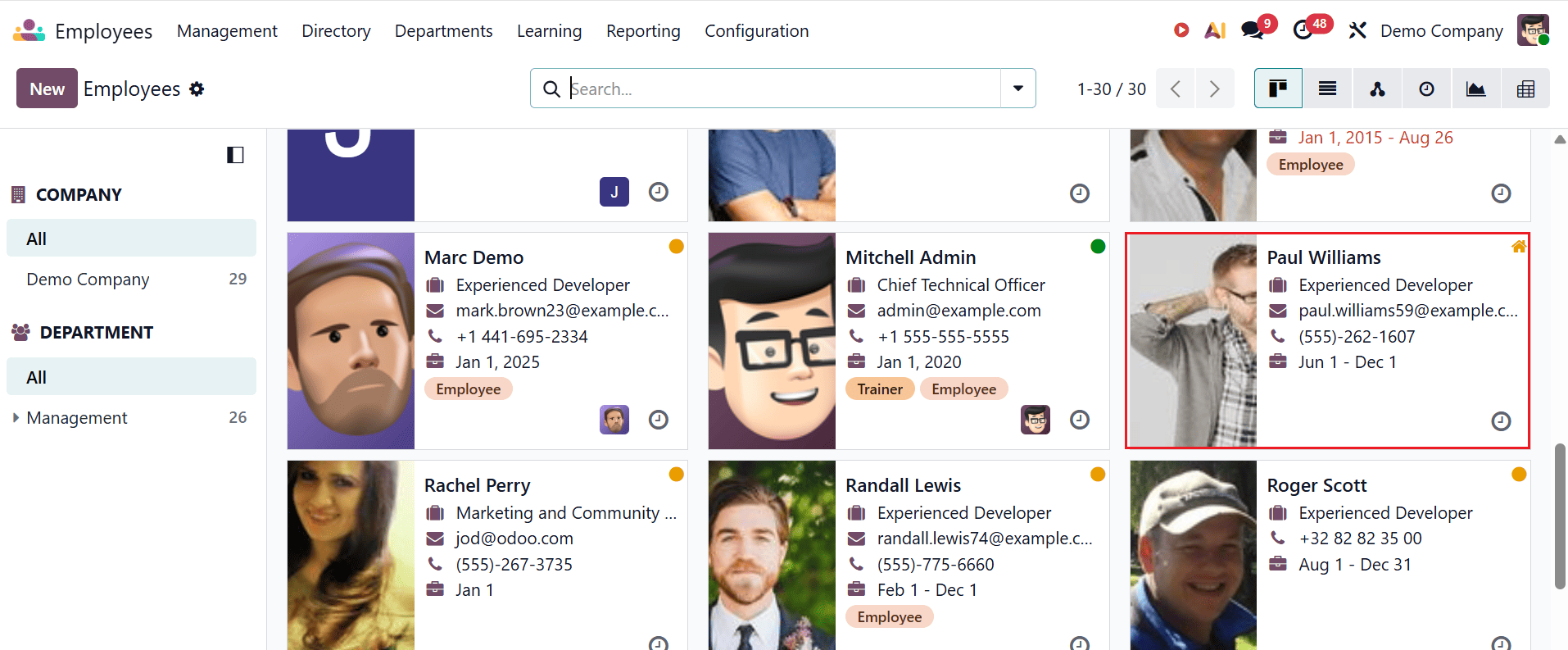
Employees who are currently working from home are marked with a house icon as shown below.
An office symbol on the employee card indicates that the employee is currently working from the workplace.
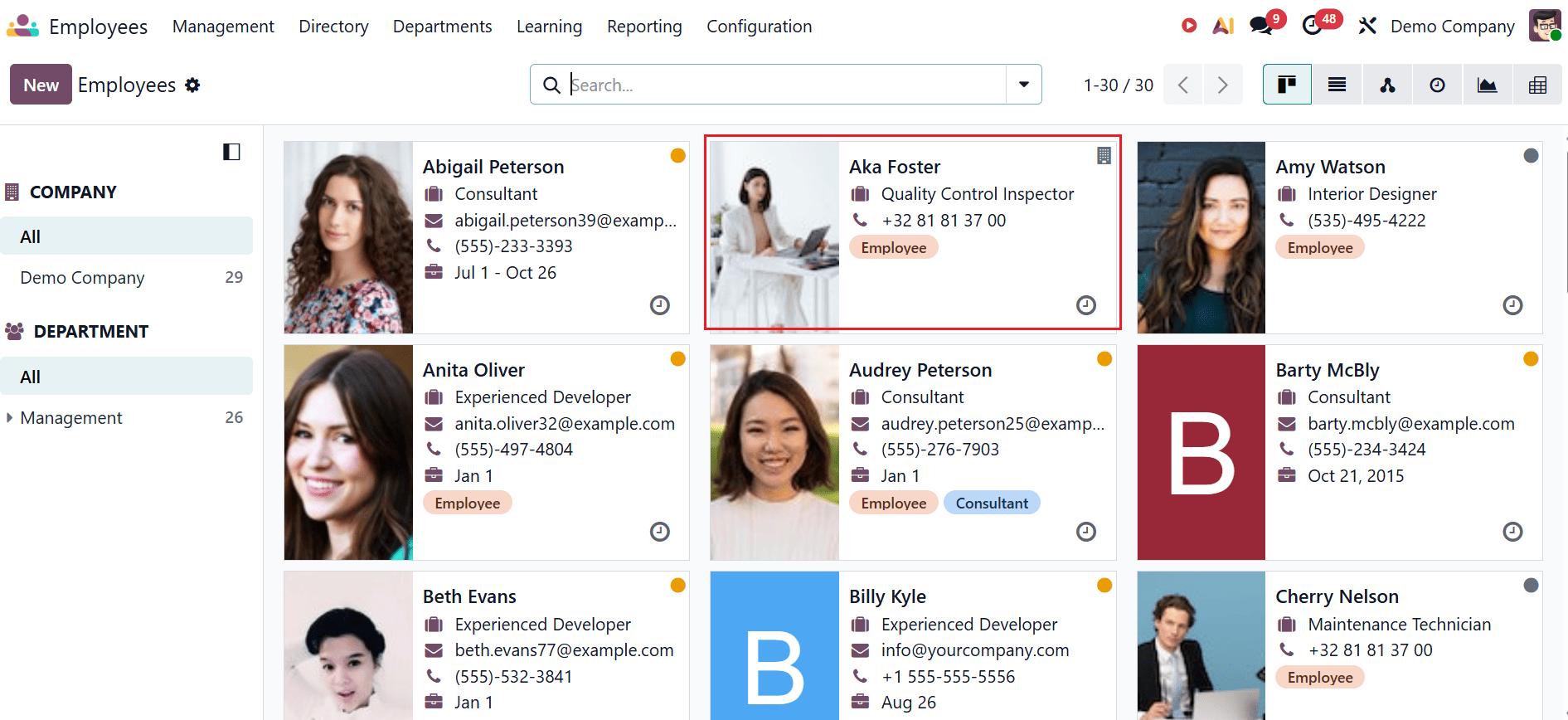
The employee presence status symbol indicates the status of an employee in the Odoo database:
- Green - the employee is logged in and currently active.
- Yellow - the employee is currently idle.
- Grey - the employee is logged in and currently not within work hours.
In addition to the presence icon, the activity status icon indicates that activities have been set up for the employee. The activity color indicates whether the activity has expired, is due today, or is scheduled for some future date.
Status icons are not updated manually by employees; the employee presence status is automatically calculated depending on their activity and work schedule in Odoo 19. Multiple Odoo options and applications run in the background to update the icons. This will be useful to organizations in order to determine the presence of employees and control their activity through Odoo.
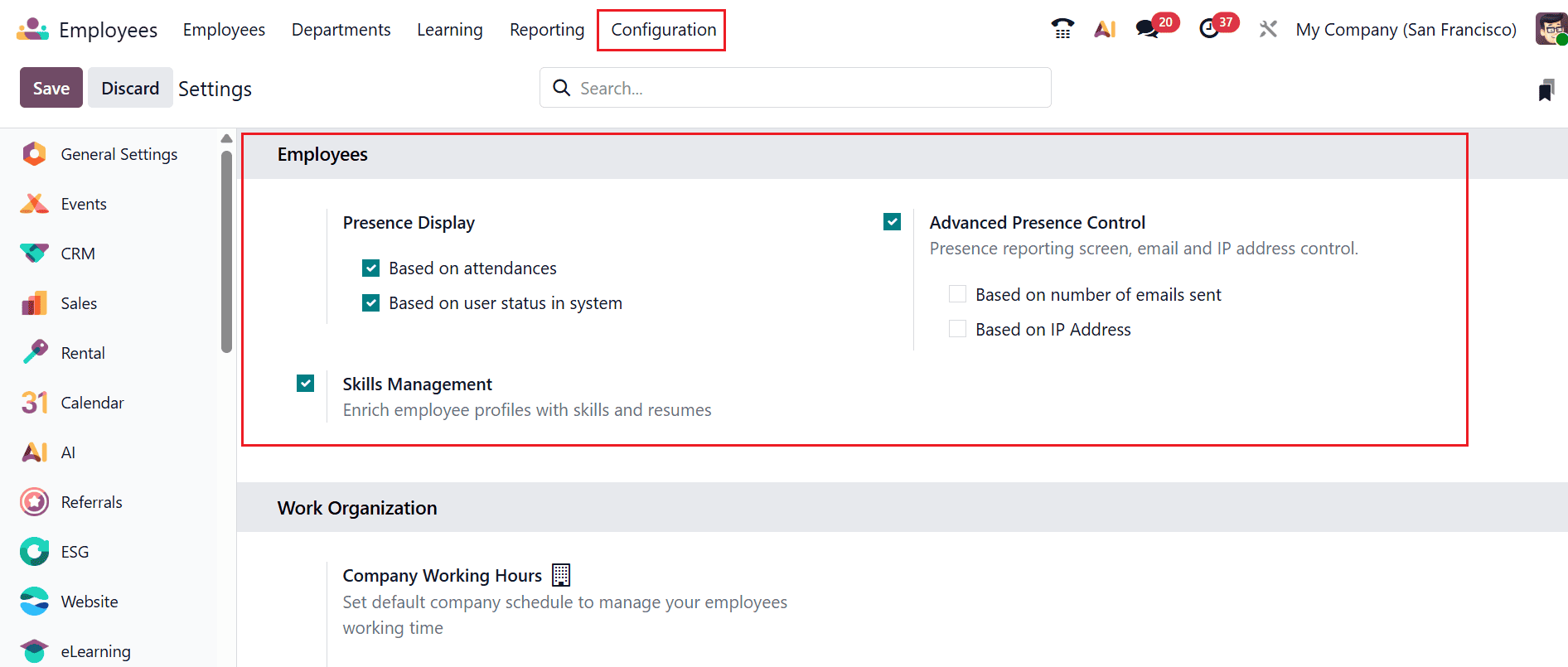
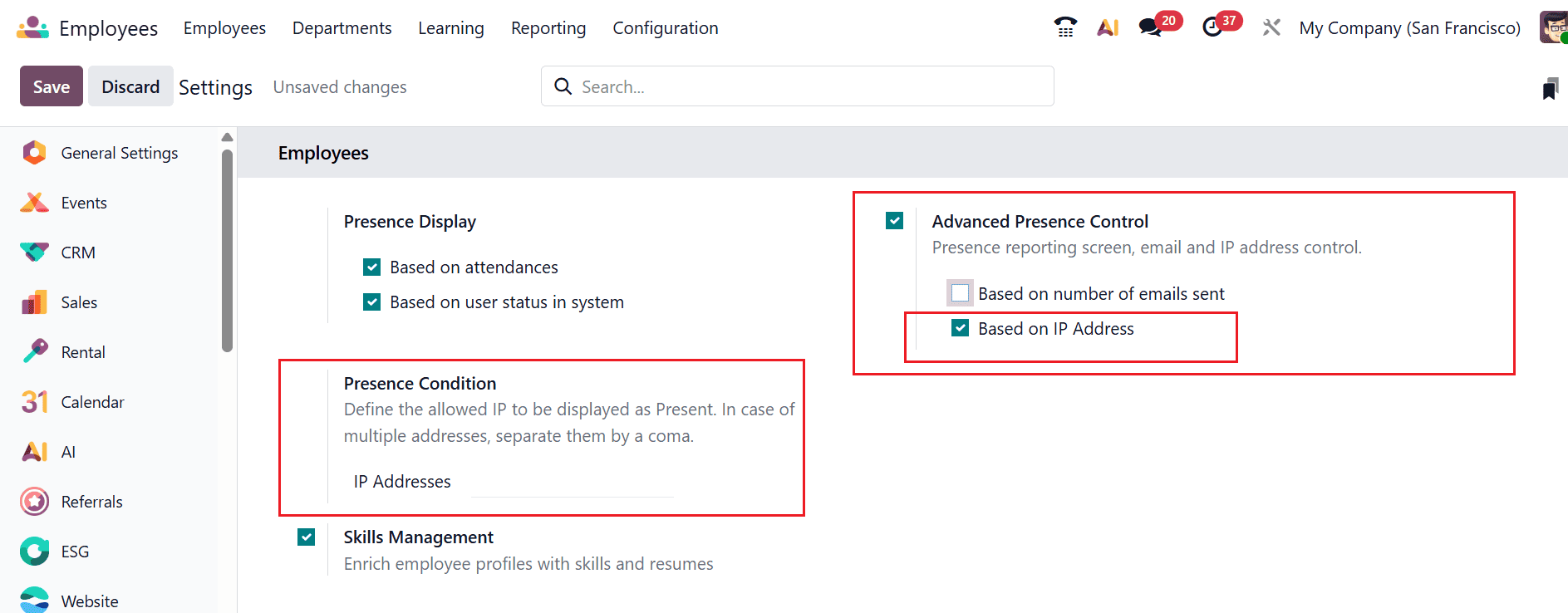
To configure employee presence tracking in Odoo 19, go to Employees > Configuration > Settings. From here, enable and manage the relevant presence tracking options.
The Employee Settings in Odoo 19 offer presence-related configurations to track and display employee availability.
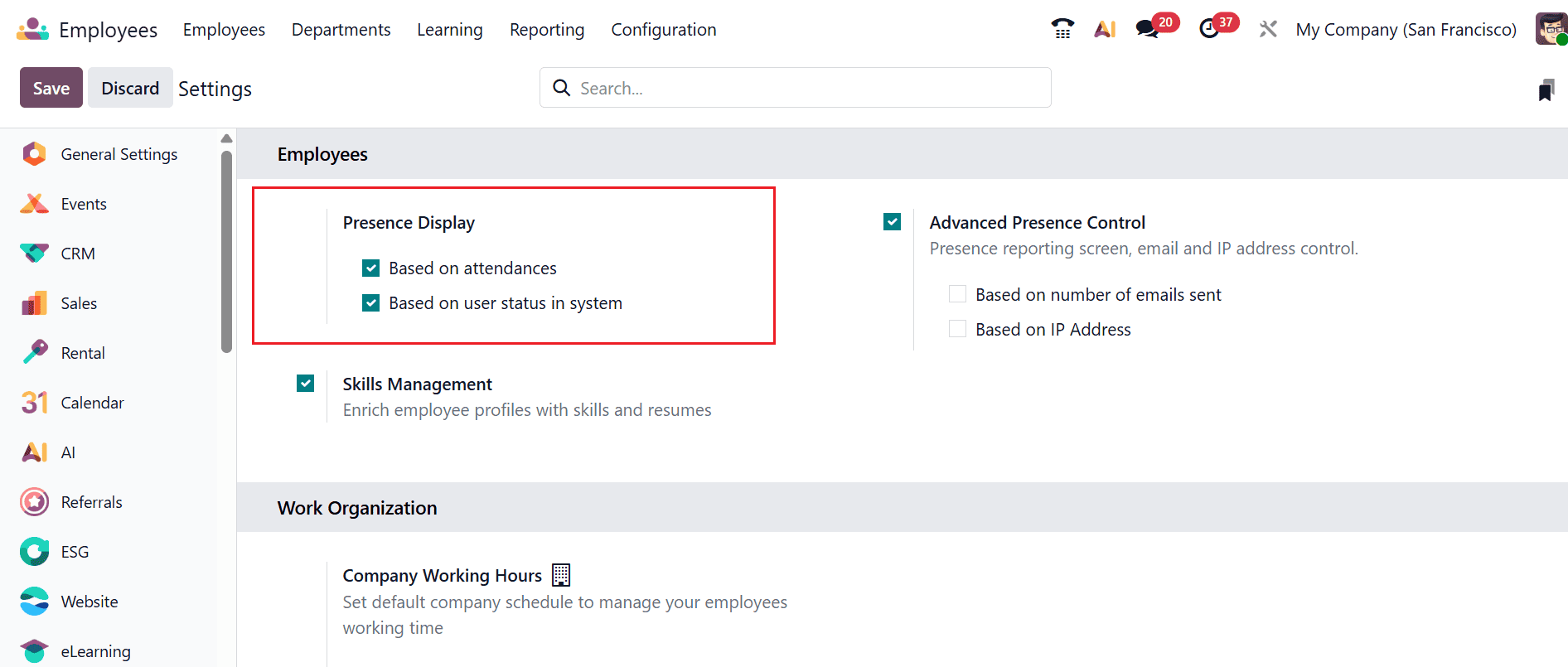
Under the Presence Display section, Odoo 19 offers two ways to display employee presence on the dashboard.
- Based on Attendance: An employee is shown as present after checking in through the Attendances app. The presence indicator reflects their current attendance status.
- Based on User Status: Employees are considered present when they are logged into Odoo and actively using the system. This setting helps monitor availability, whether employees are working from the office or remotely.
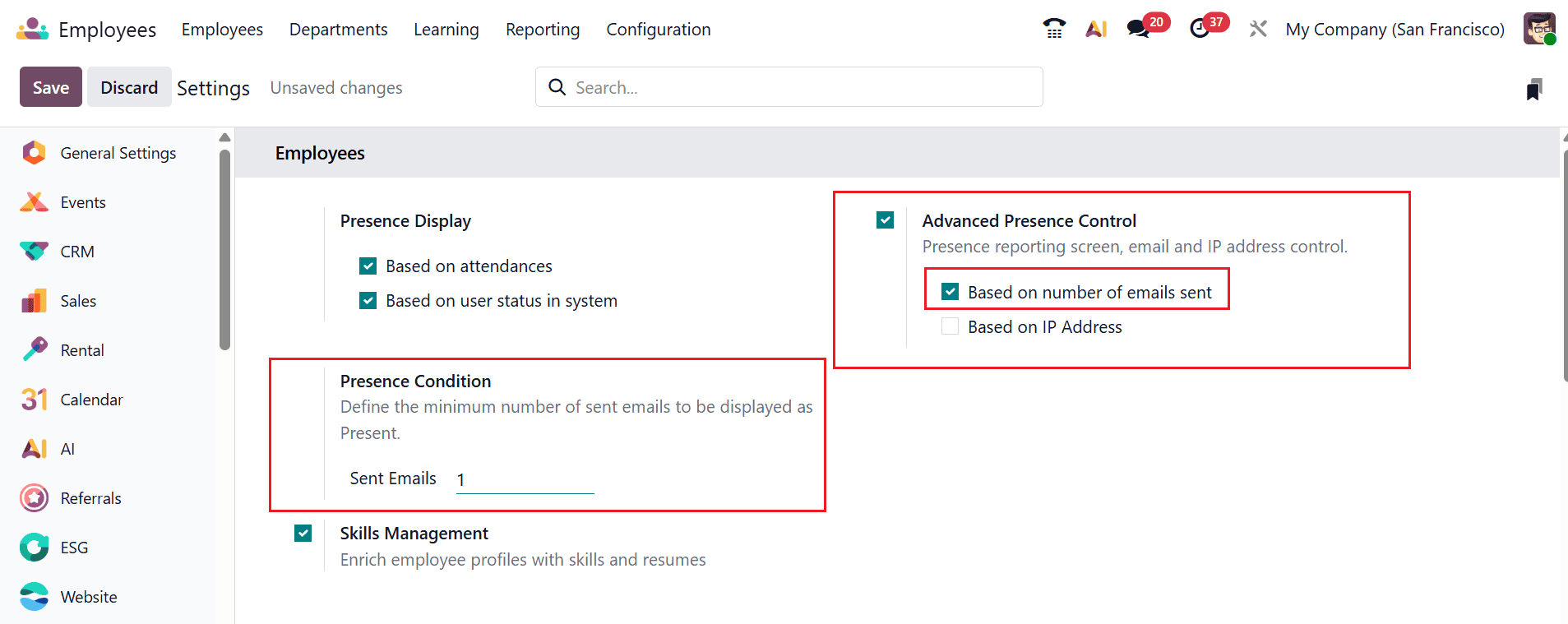
Odoo 19 provides an Advanced Presence Control feature that allows managers to update and monitor employee presence more precisely.
It includes additional criteria for determining an employee’s presence:
- Based on Number of Emails Sent: Employee presence is determined by the number of emails they send.
- Based on IP Address: Uses the employee’s IP address to help determine their presence.
When Based on Number of Emails Sent is enabled, a Presence Condition field appears. This field allows you to set the minimum number of emails an employee must send per hour to be considered present and displayed with a green status indicator.
For employees who do not regularly send emails, such as factory workers or on-site staff, the Based on IP Address option provides a more practical way to track presence.
After enabling this option, the Presence Condition field becomes available. Enter the approved company IP addresses in this field. Employees connected through any of these IP addresses are automatically marked as present in Odoo.
Multiple IP addresses can be added, separated by commas, to support different offices, branches, or other authorized work locations.
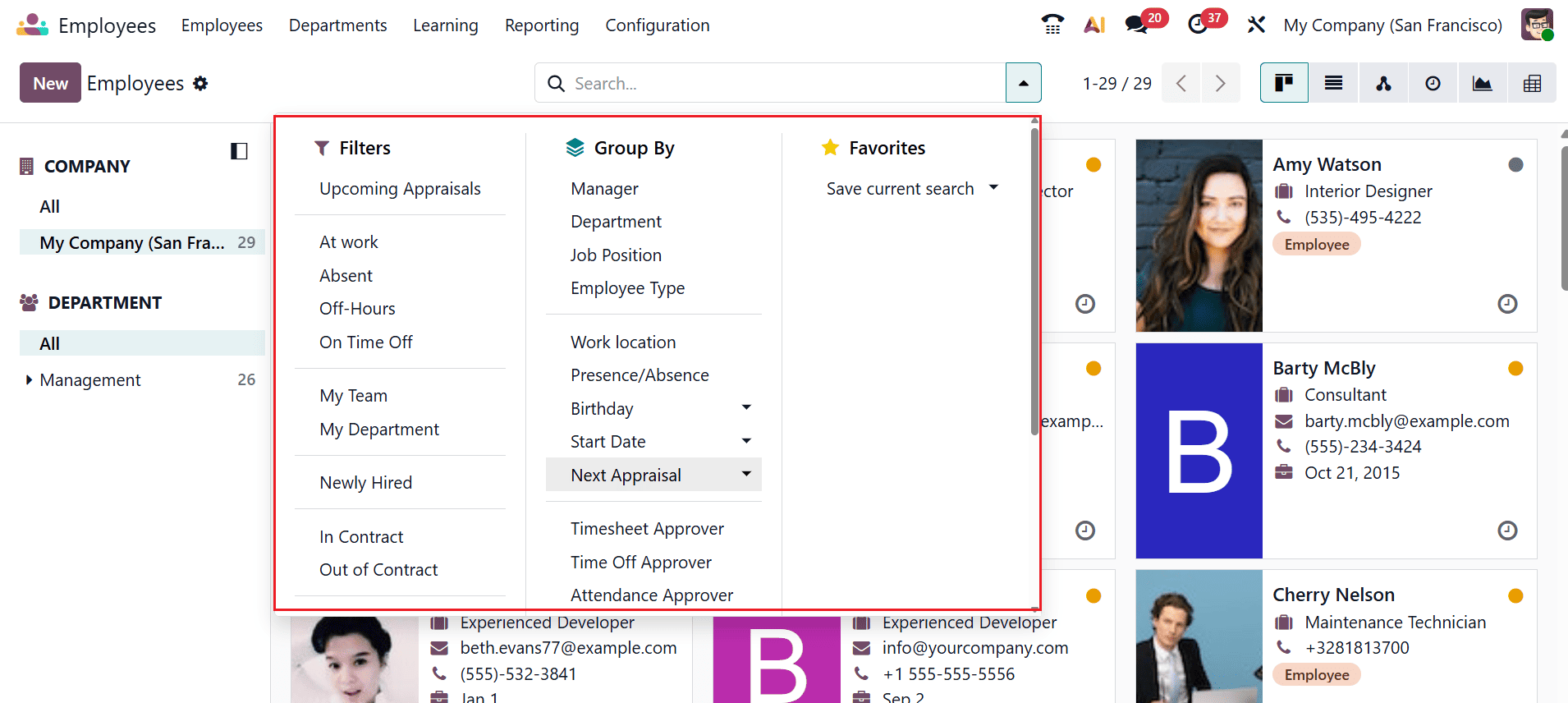
Odoo 19 provides managers with flexible Filters and Group By features to arrange employee records and access relevant information more efficiently. A range of predefined filters are available in the Employee module, making it easier to search and manage employee records. Available filters include At Work, Absent, Off Hours, On Time Off, Newly Hired, My Team, My Department, In Contract, Out of Contract, Contract Start Date, and Contract End Date.
The Group By feature provides another way to organize employee records by grouping them according to Manager, Presence Status, Department, Job Position, Skills, or Tags. These options help users quickly organize employee data based on specific requirements.
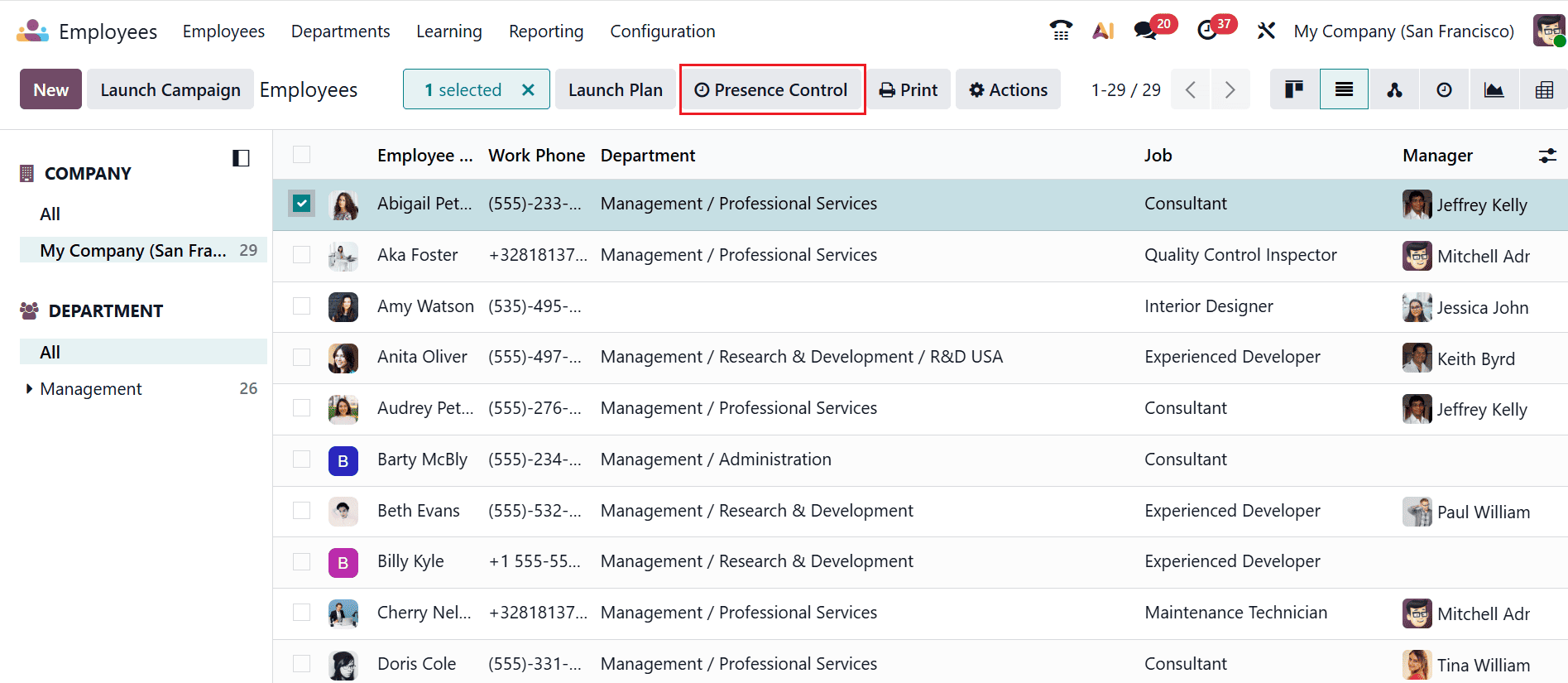
When one or more employees are selected in the Employee list view, the Presence Control option appears at the top of the screen. Managers can use this feature to update the presence status of multiple employees simultaneously, simplifying large attendance management.
The Presence Control option allows managers to manually update the attendance status of selected employees to Present or Absent. This can be particularly useful in situations such as off-site work, missed check-ins, or other cases where the employee’s presence needs to be updated manually. The Presence Control option is available only in the Employee list view.
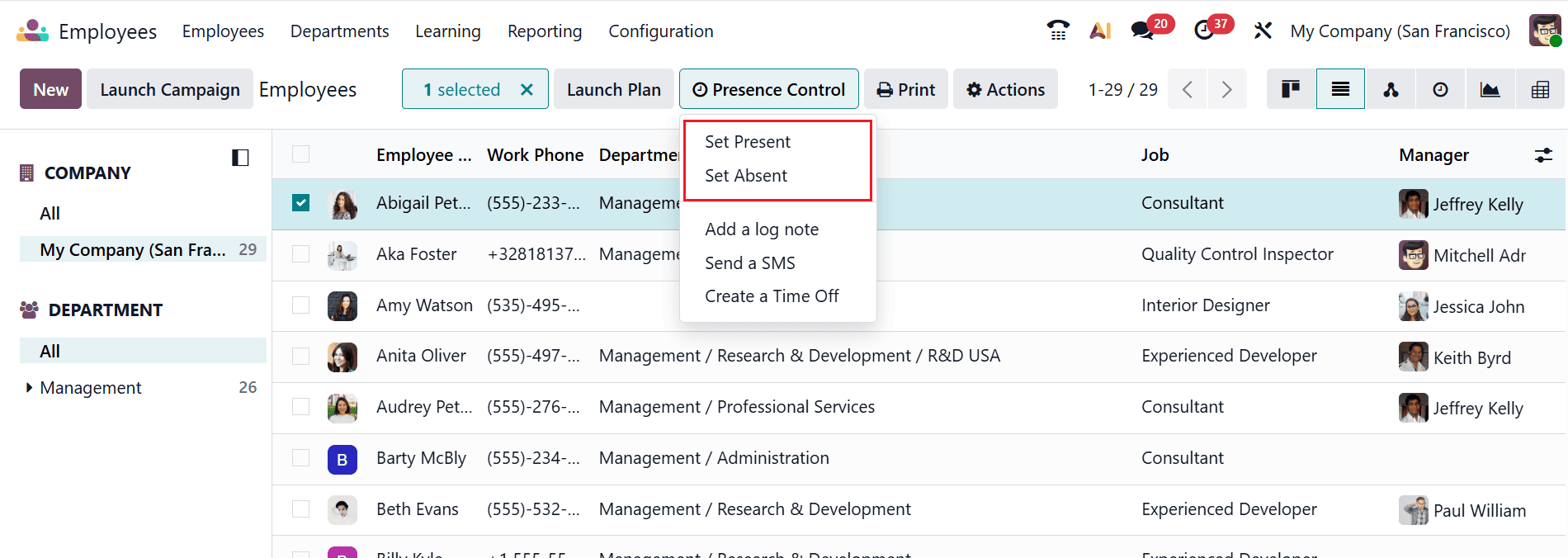
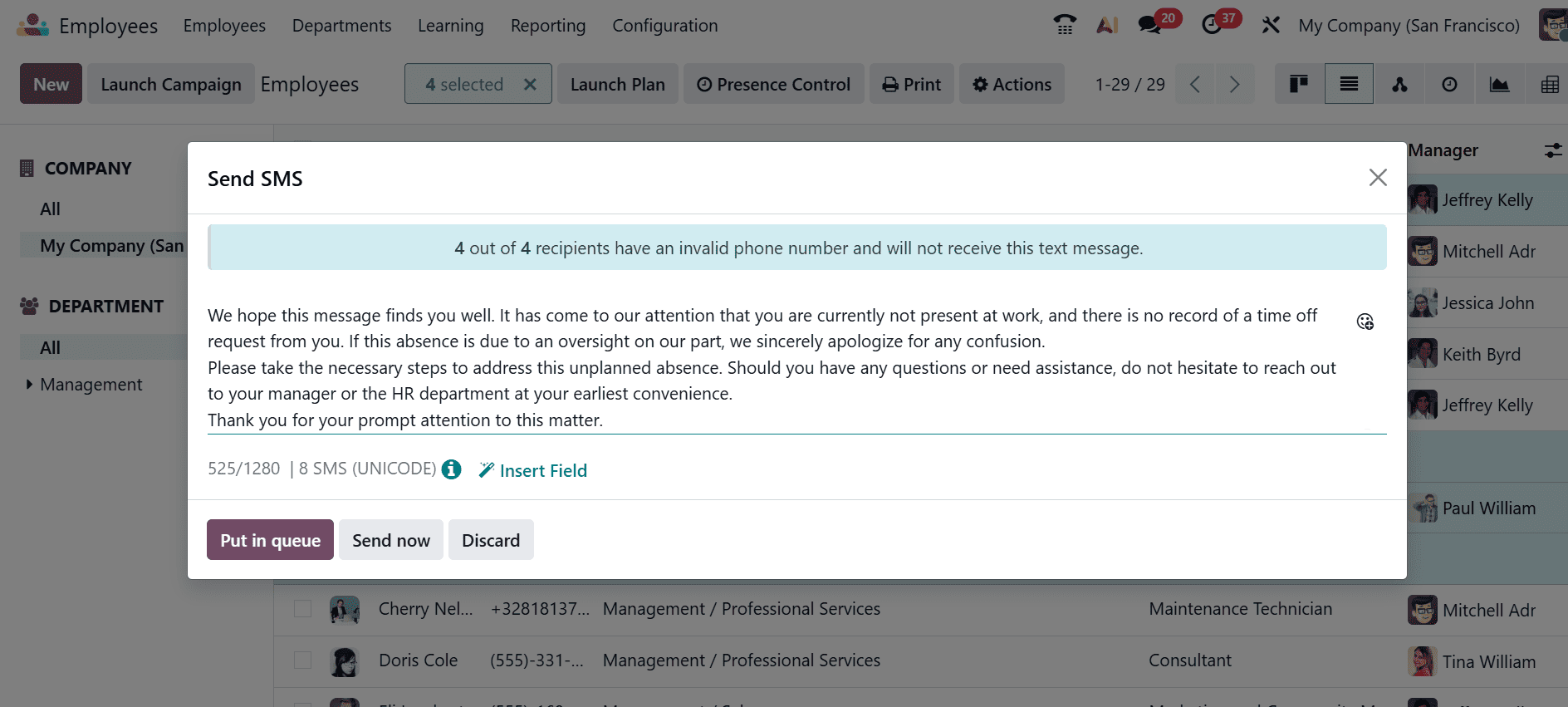
Using Presence Control, managers can send SMS messages to multiple employees directly from the Employee list view. After selecting the required employees, click Presence Control and choose Send SMS.
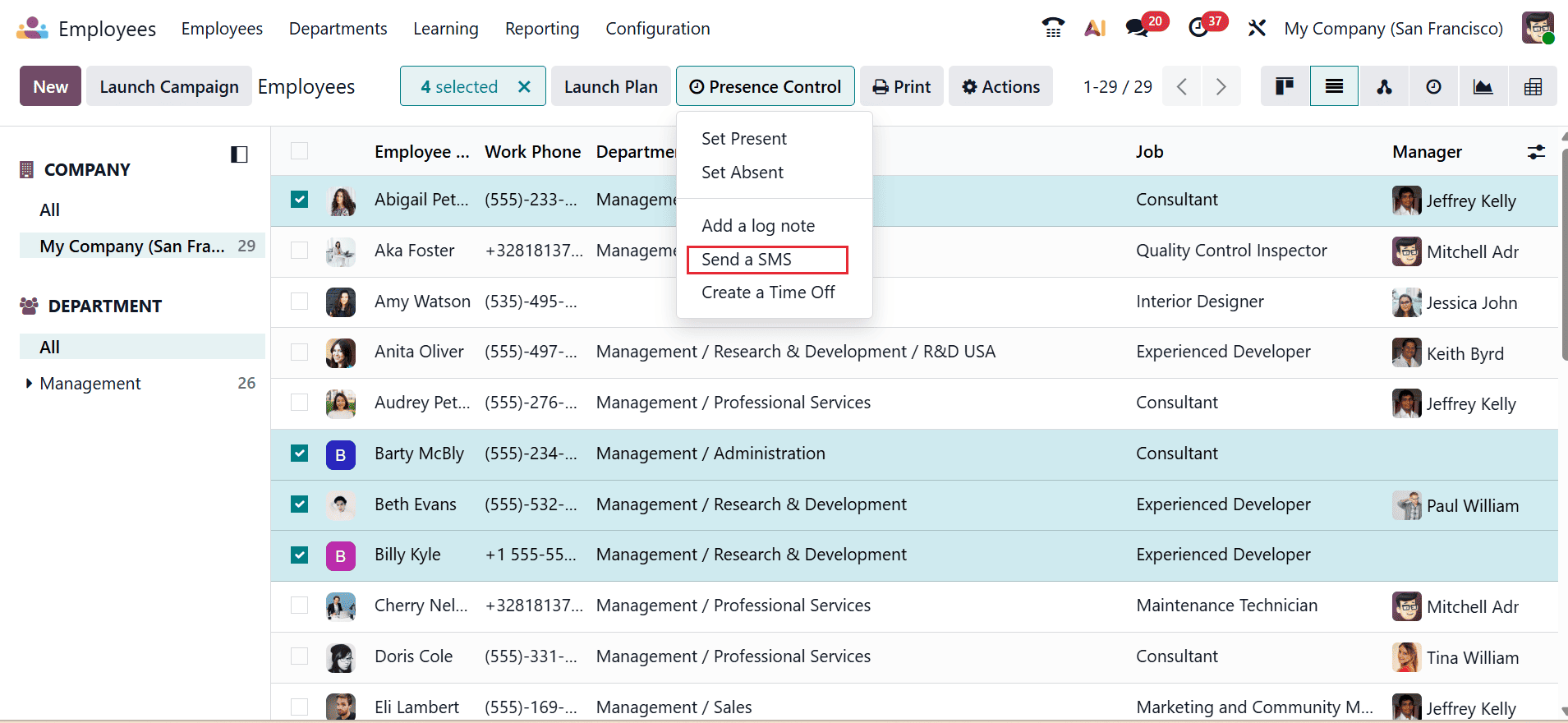
A pop-up window opens, providing a space to enter the message. After composing the message, click Send to send it to all selected employees at once. This provides a convenient way to share reminders, attendance updates, shift information, or other important notices.
The Add a Log note option allows managers to record notes, updates, or important information related to an employee directly from the Employee list view.
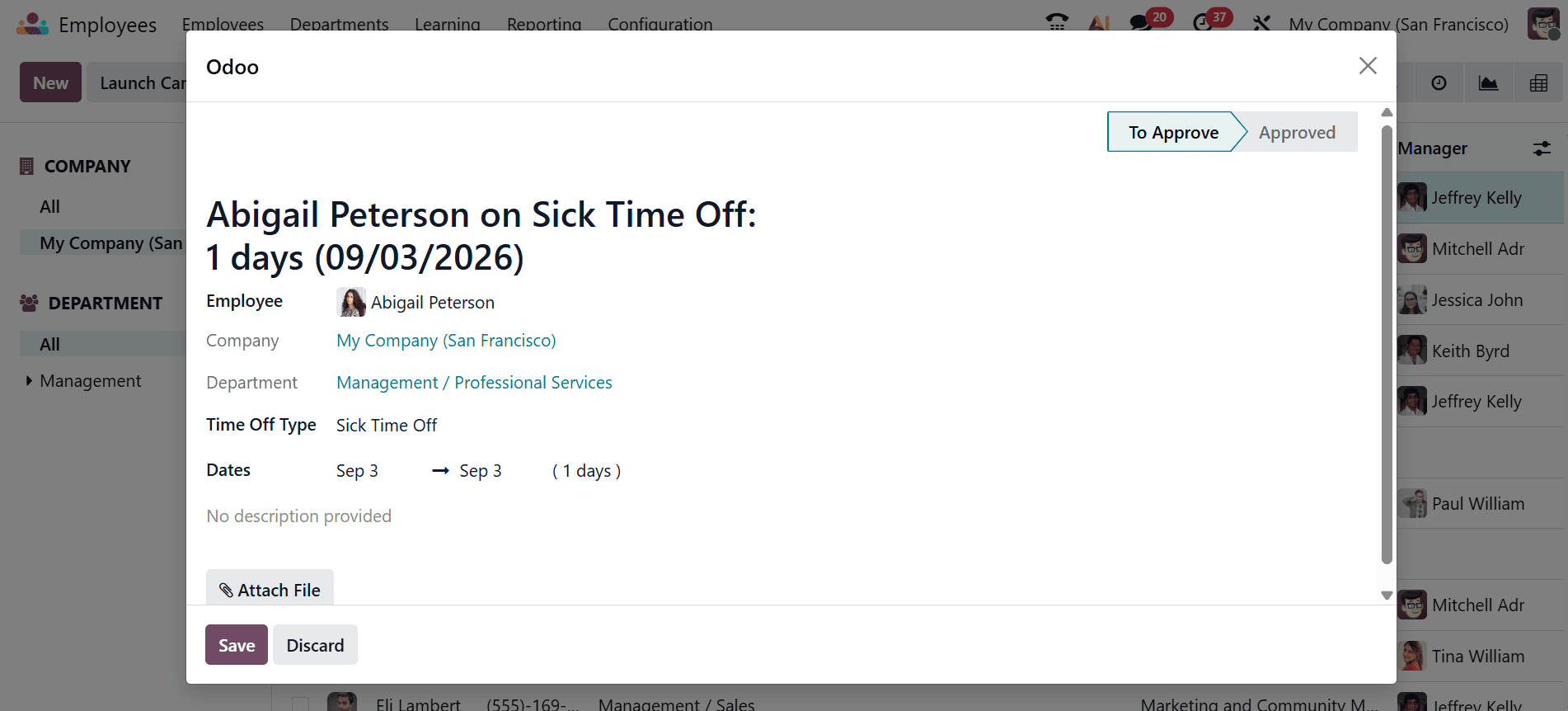
Managers can also use the Create Time Off option to create a time-off request for an employee directly from the Employee list view. A pop-up window opens, where you can enter the necessary details and select Save to confirm.
Odoo 19 offers an efficient and centralized approach to managing employee presence and availability. The Employee dashboard gives managers a quick overview of workforce status, while presence indicators, filters, and grouping tools make employee information easier to organize and access. Managers can also take direct actions such as updating attendance, sending SMS messages, adding log notes, and creating time-off requests. With flexible presence configuration and advanced tracking options, Odoo 19 reduces the need for manual monitoring and helps organizations maintain accurate employee information, improve communication, and manage daily workforce activities more effectively.
To read more about An Overview on Odoo 18 Attendance Module, refer to our blog An Overview on Odoo 18 Attendance Module.