E-invoicing systems around the globe are moving from PDFs in emails to real-time digital pipelines controlled by governments. While Saudi Arabia has ZATCA, Egypt has its own e-invoicing website, and now it is time for Oman with Fawtara, the e-invoicing system of the Oman Tax Authority (OTA). Your business should already be registered in Oman and use Odoo to comply with the new rule.
While you still need to pay for the account at an OTA-accredited provider, Odoo takes the burden of retyping everything into another web portal off your shoulders. In this article, we'll explore the reasons for such a provider's existence and two Odoo connectors built for it, Flick Network and ConvergeX.
Why Does Your Business Need a Third-Party ASP Provider for Fawtara?
There are several ways to handle e-invoices in most countries – direct connection to the tax authority or generation and storage of signed XML files. However, the system developed in Oman is a bit different, working under the 5-corner Peppol model:
- Corners 1 and 2 are the seller and their access point (i.e., Odoo and its connector in our case);
- Corners 3 and 4 are the two Peppol access points that will exchange the document between the seller and the buyer;
- Corner 5 is the Oman Tax Authority itself that will receive a report of the transaction, not "approve" it, as it is in the case of ZATCA in Saudi Arabia.
That is why you can't send your invoice to OTA via Odoo directly. All businesses must send their invoices to the OTA through an Accredited Service Provider (ASP) that will communicate with the Peppol network on your behalf. Flick Network and ConvergeX are examples of such service providers that have their own APIs, formats, and onboarding processes. This is why Cybrosys has developed two standalone connectors instead of one "universal" one – no matter whether you use Flick or ConvergeX.
Oman E-Invoicing – Flick Network
Think of this module as a messenger that will take the invoice you create in Odoo, package it according to the Flick requirements, and deliver it. Flick will deal with reporting to the tax authority.
What it does for you:
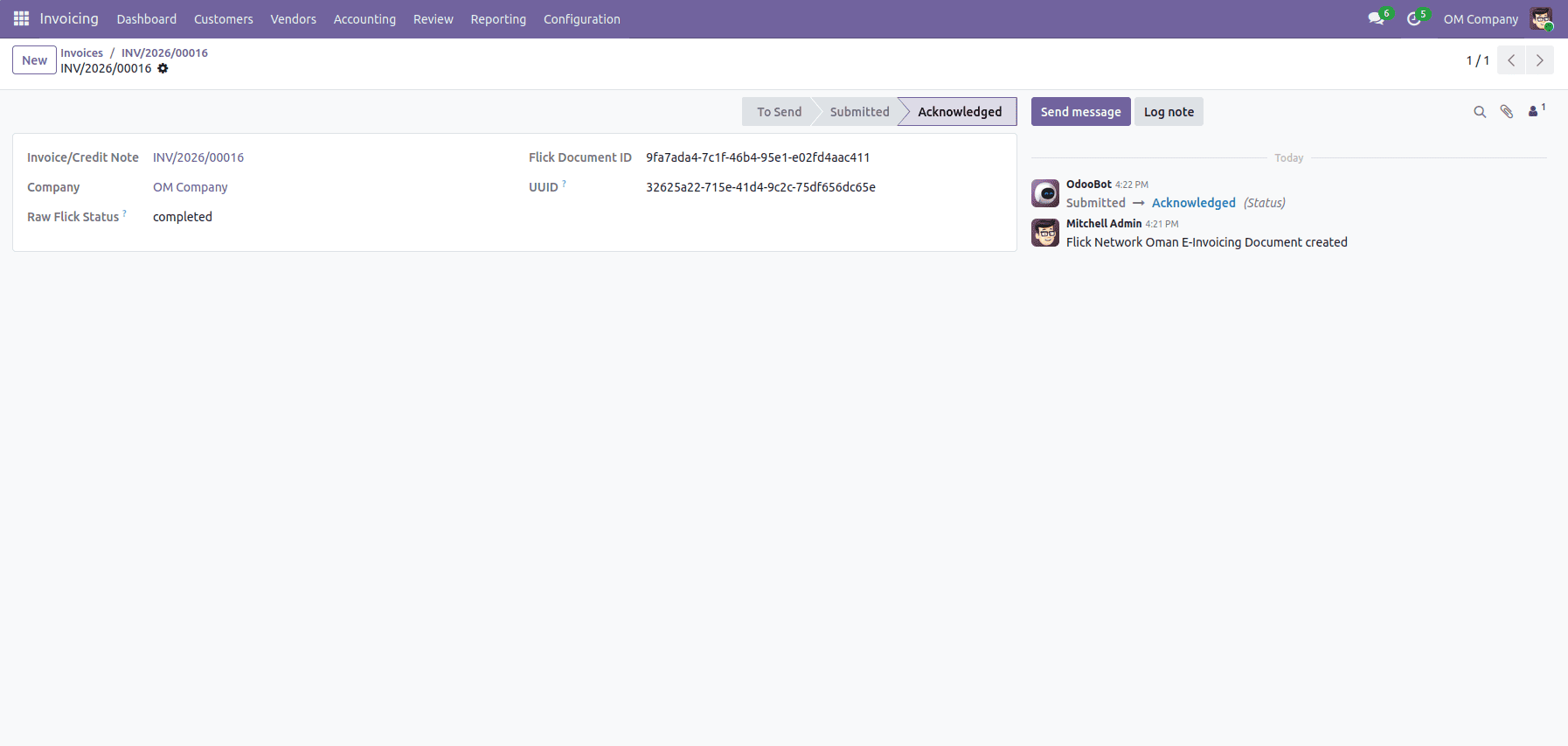
Works for both invoices and credit notes – not one type. Shows you exactly where each invoice stands: To Send > Submitted > Acknowledged (with Rejected and Error clearly flagged if something's wrong). Keeps checking Flick in the background for updates, so the status on your invoice stays current on its own.Before you start, your company first needs to be registered with Flick Network directly (through their own dashboard, not through Odoo) as a "Participant." This is a one-time step, and it gives you an ID that Odoo will ask for during setup.
Setting It Up
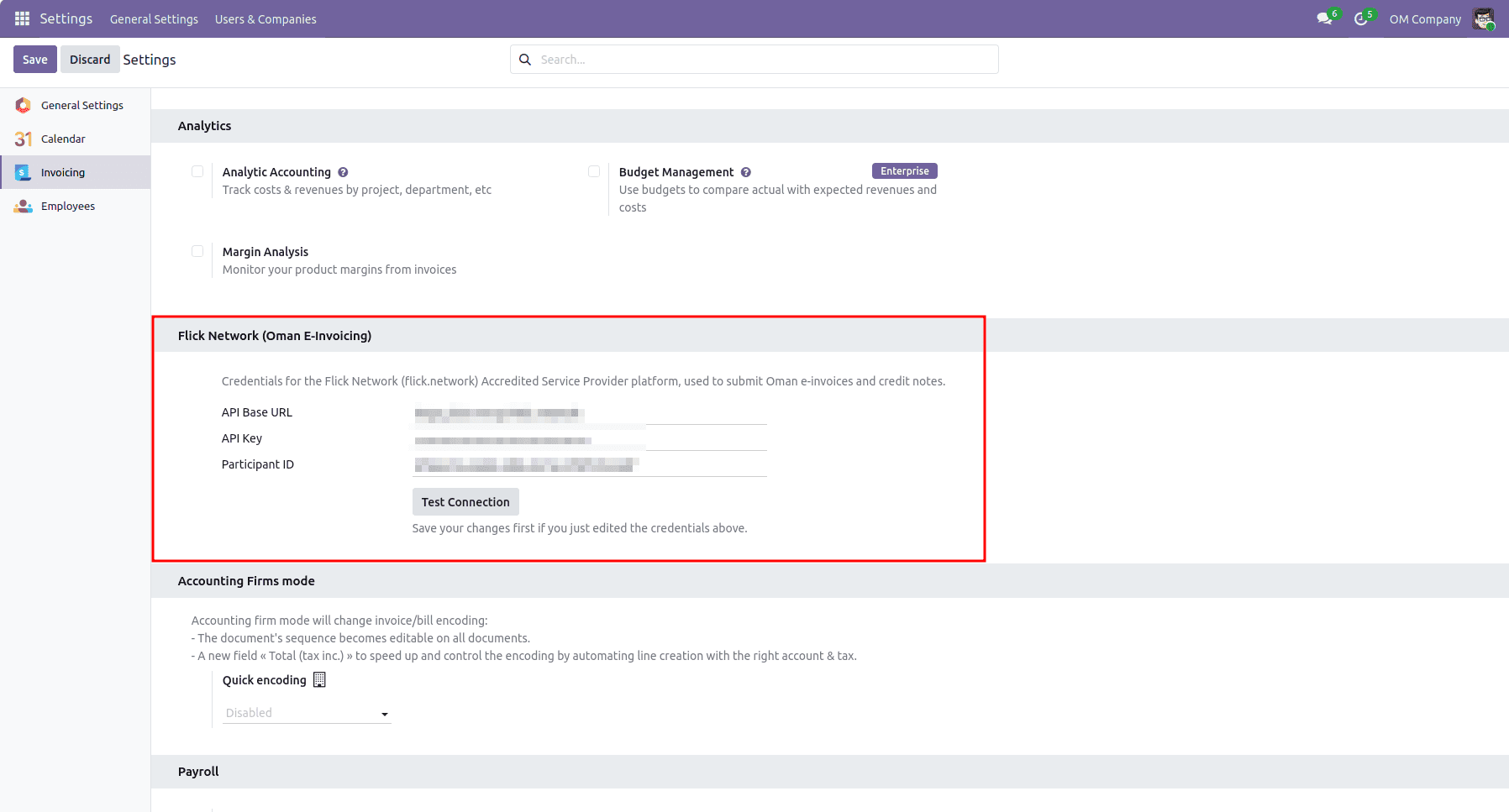
1. Go to Settings > Accounting/Invoicing > Flick Network (this section appears automatically once the module is installed).
2. Enter your details:
- Flick API Base URL – leave the default (Flick's test/sandbox address) until Flick gives you the live one.
- Flick API Key – the key Flick gave you.
- Flick Participant ID – the ID from your Flick registration.
3. Click Test Connection. Odoo checks with Flick right away and tells you if the details are correct – no invoice is sent during this check.
Submitting an Invoice
Once that's set up, open any confirmed invoice or credit note. You'll see a Submit to Flick Network button on it.
1. Click Submit to Flick Network.
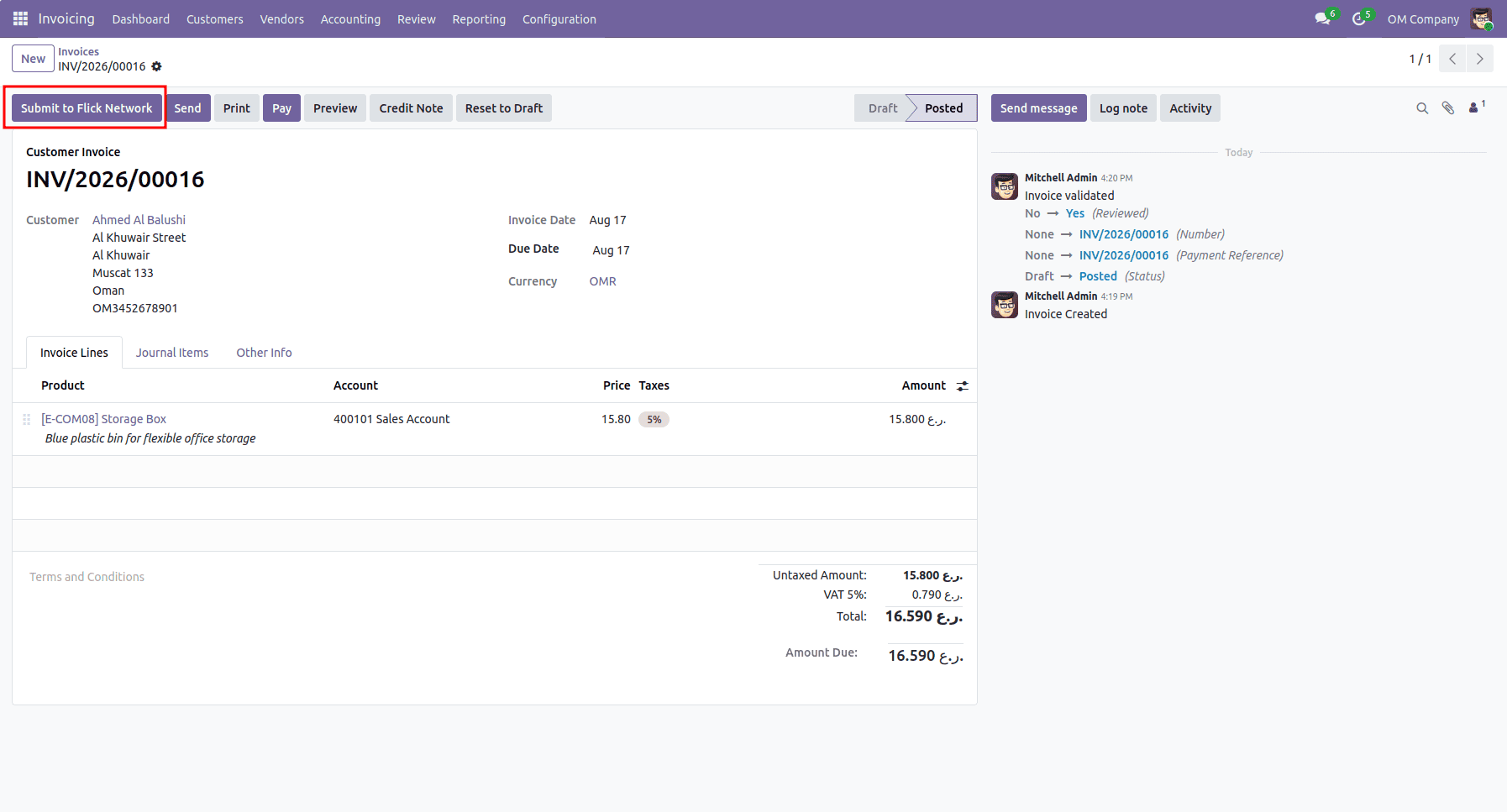
2. Odoo packages the invoice details and sends them to Flick.
3. The status changes to Submitted, and Odoo keeps checking automatically until Flick marks it Acknowledged.
If a submission fails for any reason, the exact error from Flick is shown on the invoice, and a Retry Submission button lets you send it again once it's fixed.
Oman E-Invoicing – ConvergeX
This second module does the same basic job – send your invoices to the tax authority through an approved provider – but for a different provider, ConvergeX. The end goal is the same as Flick Network; only the provider and a few steps behind the scenes are different.
What it does for you:
- Sends your invoices and credit notes to ConvergeX automatically, using the details already in Odoo.
- Registers your customer with ConvergeX in the background before sending the invoice – this is something ConvergeX requires, and Odoo takes care of it for you.
- Brings back a QR code, a tracking number, and an official reference number for every invoice sent successfully – all shown right there on the invoice.
- Keeps checking for updates until the tax authority confirms the invoice.
- If ConvergeX's server is slow or has a hiccup, Odoo quietly tries a couple of times again on its own before giving up – so you're not stuck manually retrying every time.
Setting It Up
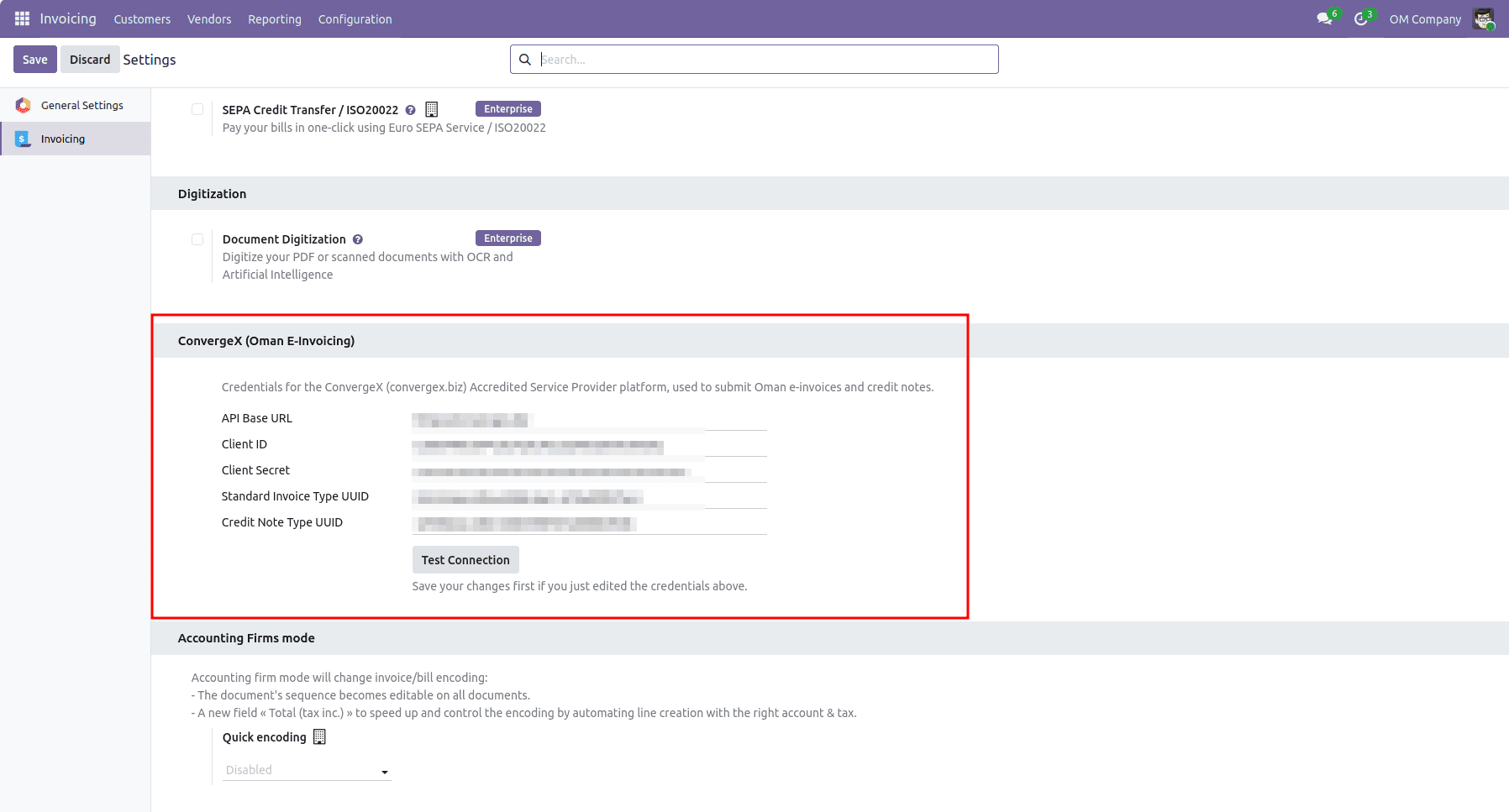
1. Go to Settings > Accounting/Invoicing > ConvergeX
2. Enter your details:
- ConvergeX API Base URL.
- ConvergeX Client ID and Client Secret – provided to you when you sign up with ConvergeX.
- Invoice Type UUID and Credit Note Type UUID – will be prefilled by default with sensible values; feel free to change them only if ConvergeX tells you that they are invalid for your account.
3. Click Test Connection to check the correctness of the entered details (no invoices will be submitted at this stage).
Submitting an Invoice
1. On the confirmed invoice or credit note, click Submit to ConvergeX.
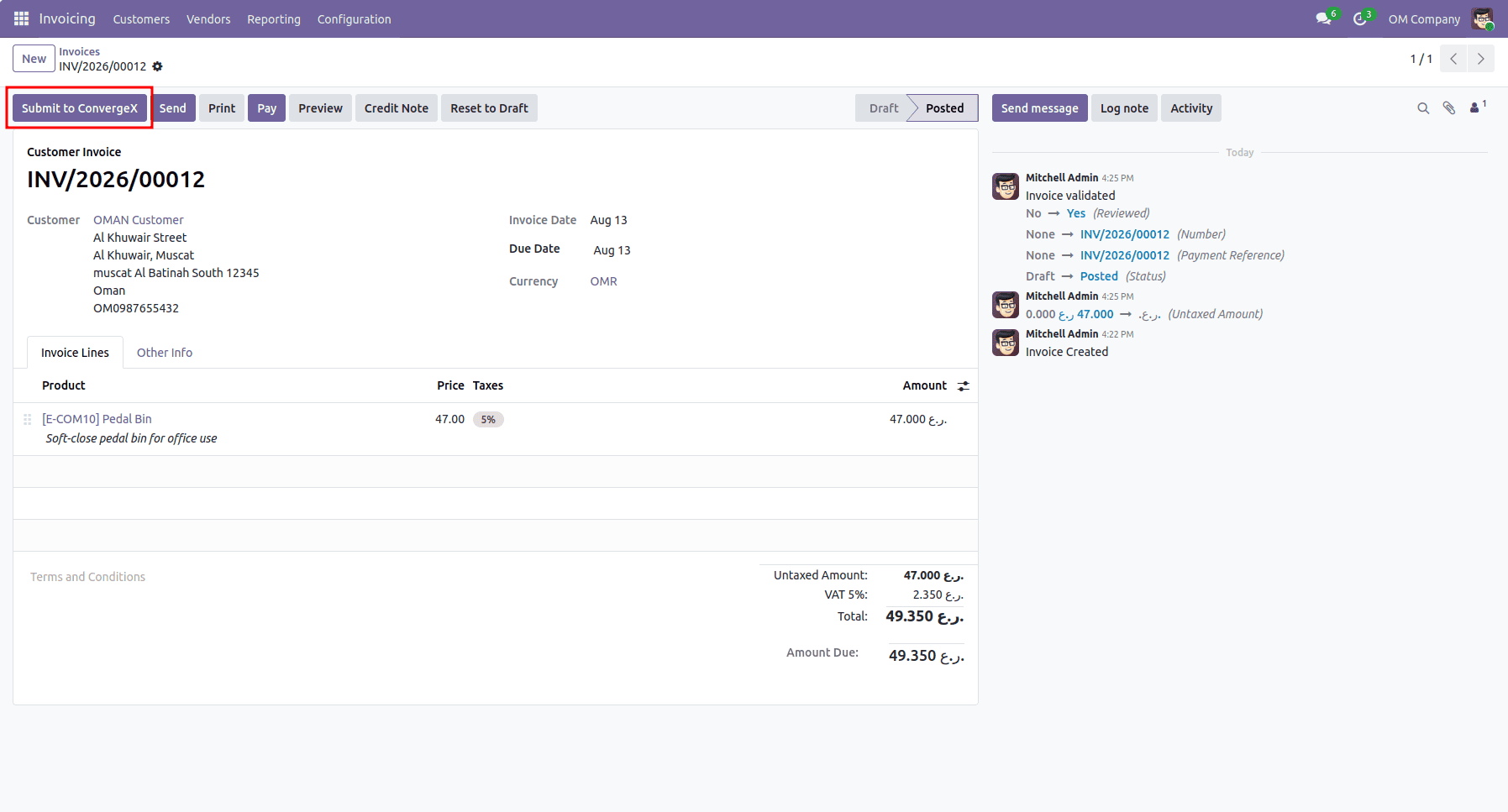
2. Odoo will register your customer with ConvergeX (if not done before) and send the invoice.
3. Once the invoice is accepted by ConvergeX, the status, QR code, tracking number, and reference number will be displayed automatically on the invoice.
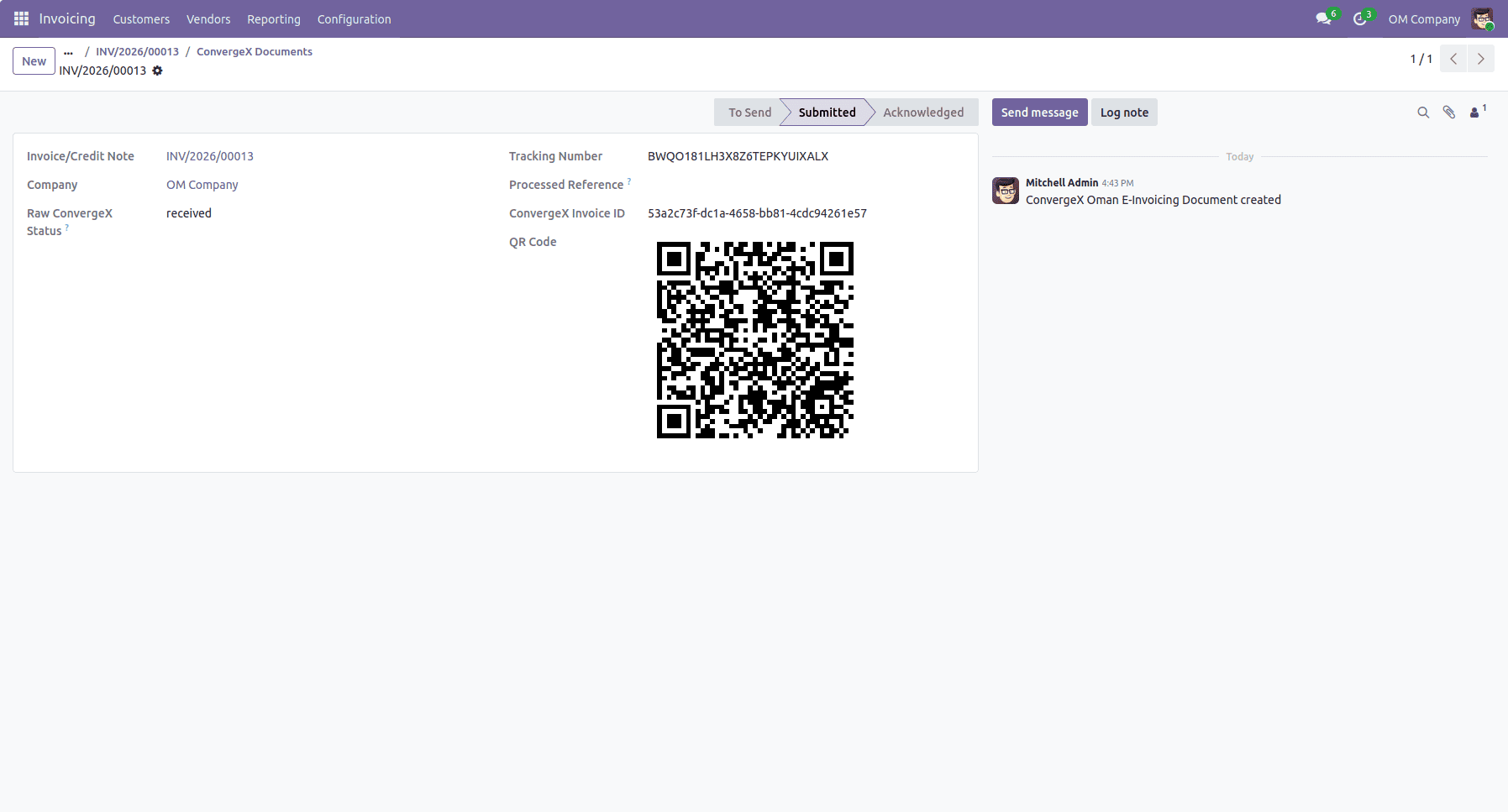
Just like in the case with Flick, you will always see the current state of the process: To Send > Submitted > Acknowledged (or Rejected/Error if something is wrong), with a Retry Submission button on hand whenever it is necessary.
New Fawtara e-invoicing rules of Oman require every invoice to be submitted to the tax authority via an approved provider – an additional step for most of the Odoo users. Using these two connectors, this step is performed transparently in the background: enter your provider's details once and let Odoo handle the rest.
To read more about Overview of Odoo 18 Accounting Localisation, refer to our blog Overview of Odoo 18 Accounting Localisation.