The Forecast Report is one of the most required pieces of information available in Odoo Inventory. It can be seen by clicking on the Forecast button that is available on a storable product and helps you know exactly what is scheduled to be received, shipped, or stored at any point in time. For the warehouse department, this is sufficient. For the planning department, however, it is typically not enough. In fact, once the company starts to provide delivery dates to its customers, the question shifts from how much will leave to when it will leave. This information is available in the sales order but is not transferred to the forecast screen, which makes the planner run a separate spreadsheet along with the report.
The first thought may be that one has to open the report in the developer tools and tweak it. But this doesn’t apply to the case of the Forecasted report. It is not a QWeb report but also not a regular list or form view. Rather, it is an OWL client action, where each of its rows is created in Python and passed to a JavaScript component for rendering. So, there is no ir.ui.view record, and therefore, there is nothing to edit using the Edit View functionality. The modifications will therefore occur in two places that need to be done in a consistent manner: in the abstract Python model which creates the rows and in the OWL template responsible for drawing the table.
In this blog, the team will do both. The plan is to get the commitment date from the relevant sales order and put it into every outgoing line as a new column, using only standard fields and a safe customization approach that remains manageable during upgrades
Extending the Report Data from Python
The entire Python component is contained within one file, models/stock_forecasted.py. We derive from stock.forecasted_product_product and change only one method, namely _prepare_report_line.
Python Code:
# -*- coding: utf-8 -*-
from odoo import models
from odoo.tools import format_date

class StockForecastedProductProduct(models.AbstractModel):
    """Extend the Forecasted report data with the sale order commitment date."""
    _inherit = 'stock.forecasted_product_product'
    def _prepare_report_line(
        self, quantity, move_out=None, move_in=None,
        replenishment_filled=True, product=False,
        reserved_move=False, in_transit=False, read=True
    ):
        """
        Override of stock.forecasted_product_product._prepare_report_line
        Attaches the Delivery Date of the originating sale order to every
        outgoing line of the Forecasted report. Lines with no sale order
        behind them keep the key with a False value so the template can
        print it without a guard on every row.
        """
        line_data = super()._prepare_report_line(
            quantity,
            move_out=move_out,
            move_in=move_in,
            replenishment_filled=replenishment_filled,
            product=product,
            reserved_move=reserved_move,
            in_transit=in_transit,
            read=read,
        )
        commitment_date = (
            move_out.sale_line_id.order_id.commitment_date
            if move_out
            and move_out.sale_line_id
            and move_out.sale_line_id.order_id
            and move_out.sale_line_id.order_id.commitment_date
            else False
        )
        line_data['commitment_date'] = (
            format_date(self.env, commitment_date) if commitment_date else False
        )
        return line_data
Selecting _prepare_report_line as the point of entry. The method _get_report_data compiles the report; this method iterates through incoming and outgoing movements, correlates them, and makes the call to _prepare_report_line for every line that has to be generated. If we were to re-implement _get_report_data, we would have to re-create the correlation mechanism, which could become obsolete with the next update of the core. However, if we decide to override _prepare_report_line, the core will always perform its task of determining existing lines and their order, and we will only add some additional information to each line. Specifically, we are invoking a super() method first, then saving its return result, adding one more key to it, and returning.
To resolve the sales order securely, the chained guard is mandatory. _prepare_report_line is used for direct incoming lines, for uncompleted replenishment records, and for virtual records which show the available stock, and in all those cases move_out equals None. It is also used for outward shipments created by hand or by manufacturing order, in which case sale_line_id is empty. Each link of the chain handles one of these cases, and the override stays silent on each record it does not have an opinion about, thus letting it pass through without raising the alarm at the first internal transfer it comes across. commitment_date is a core field on sale.order stored in the database, appearing in the user interface as Delivery Date; therefore, there is no custom field needed in the module. In case you would prefer the date computed by Odoo from lead times over the one entered by the sales manager, you can replace it with expected_date, which is also a core field but computed, not saved.
Formatting before leaving Python, using format_date, means that the value will be rendered with the current user's date format and language. Formatting on the server means that the OWL template is easy to implement since it would have to print just a string. When the line does not have a sale order, we still store the key with the value False on purpose so that the template can refer to the line. commitment_date for each line without any error in the JavaScript code.
Rendering the New Column in the OWL Template
When the value is set in the payload by means of a Python override, it does not have any effect on the visual interface. The actual drawing of the table is performed by the stock ForecastedDetails OWL template. The OWL templates employ the same inheritance method as the QWeb views do, in that it uses t-inherit with t-inherit-mode="extension"; hence, it is possible to add the missing column without duplicating the original.
xml code
<?xml version="1.0" encoding="utf-8"?>
<templates xml:space="preserve">
    <!--
        Template Extension: stock.ForecastedDetails
        Purpose:
        Enhance the Forecasted Inventory report by introducing a
        "Commitment Date" column.
        Changes:
        1. Adds a new column header "Commitment Date" after "Delivery Date".
        2. Displays the value from 'line.commitment_date' for each row.
        3. Adjusts header colspan to maintain proper table alignment.
    -->
    <t t-inherit="stock.ForecastedDetails" t-inherit-mode="extension">
        <!-- Add column (Commitment Date) -->
        <xpath expr="//th[contains(., 'Delivery Date')]" position="after">
            <th>Commitment Date</th>
        </xpath>
        <!-- Add value -->
        <xpath expr="//td[contains(@t-out, 'delivery_date')]" position="after">
            <td t-out="line.commitment_date or ''"/>
        </xpath>
        <!-- Adjust header colspan -->
        <xpath expr="//tr[contains(@class, 'o_forecasted_product_header')]//td"
               position="attributes">
            <attribute name="colspan">6</attribute>
        </xpath>
    </t>
</templates>
There are four salient observations to note about this template. The major point worth mentioning in this connection is that the extension has not been given any t-name, which is perfectly valid for a t-inherit-mode=”extension” entitlement: in this case, the template is patched, rather than being registered under the new name, thereby ensuring that every component that renders stock. ForecastedDetails automatically picks up the change. In addition, both the xpath depend on content, instead of position, as the header matches by its text, while the body cell matches with the expression in its t-out. Moreover, it is worth calling attention to the adjustment in colspan that is forgotten in this case: the product header row covers the entire width of the table, as it is in only one cell. Thus, adding a column without changing the colspan makes the header look short, while the borders are out of alignment.
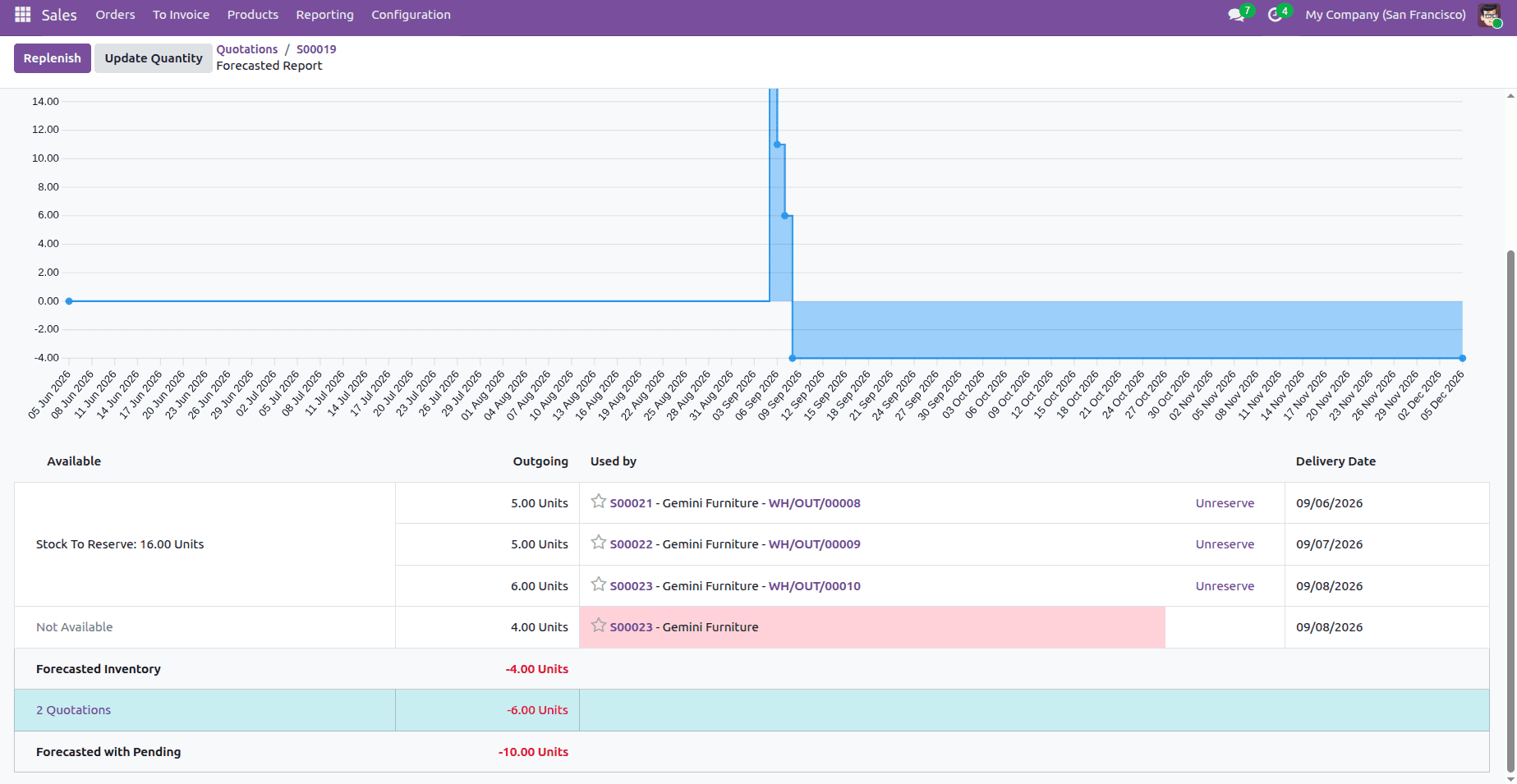
Forecasted report before customisation, showing the core columns only:
Forecasted report after customisation, with the Commitment Date column populated from the sales order:
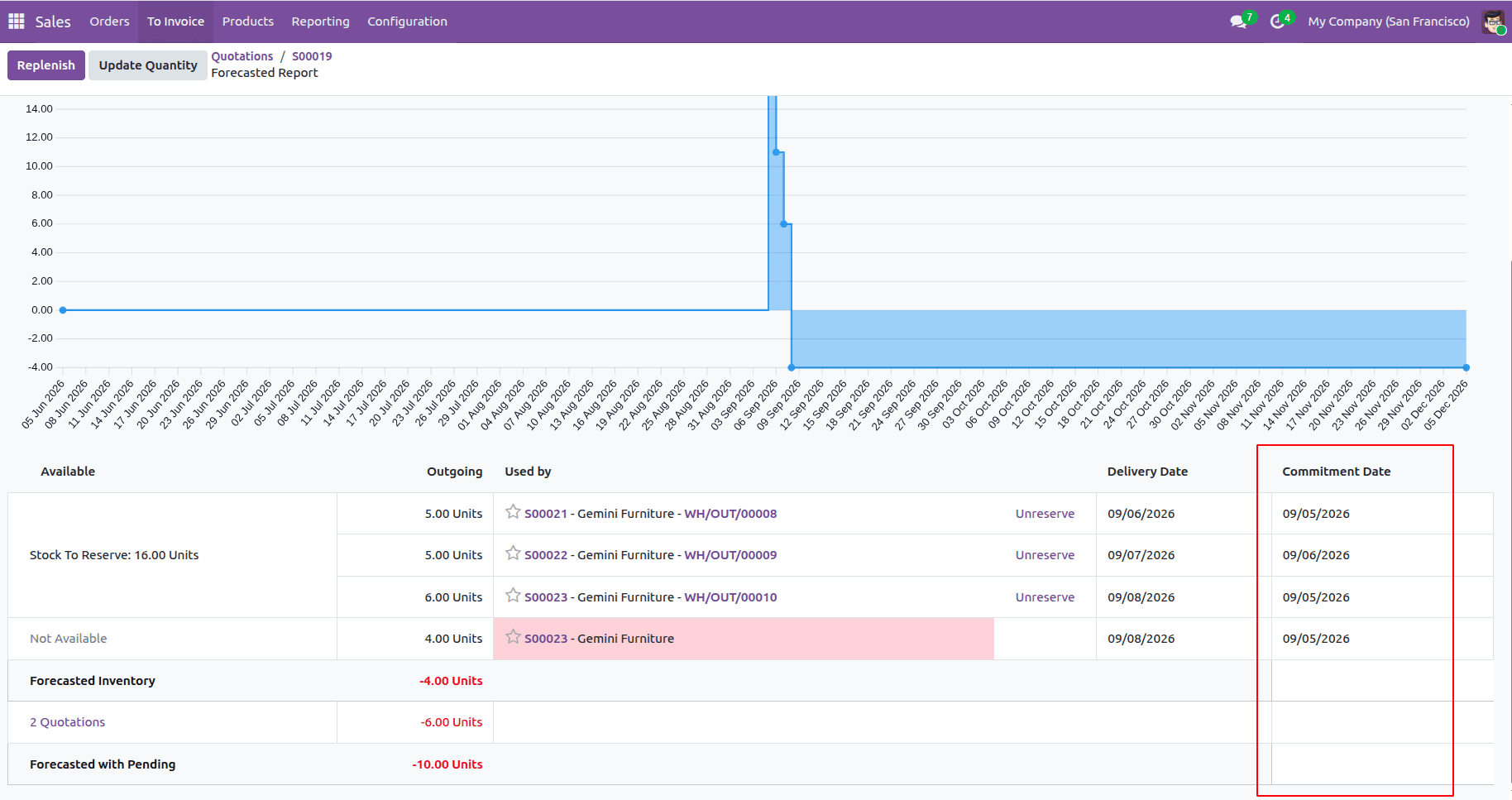
The ultimate aim of this blog is to highlight the steps involved in extending the Odoo 19 Forecast report. First, we discovered the reason why the traditional method of inheritance cannot be used in this specific case. In addition, we managed to overwrite the _prepare_report_line in the stock.forecasted_product_abstract model so that the date of the sales order commitment is added to each row of the report. Finally, we managed to modify the Smart OWL template for stock.ForecastedDetails to display this date as a separate column. Nevertheless, you can apply the same methodology for other types of information regardless of what it is. In other words, whether you would like to include the name of the salesperson, the customer reference, the name of the original document, or its priority status, the algorithm remains the same. At the same time, it is essential to mention that core still keeps control of the rows displayed in the final report and the general structure of the table.
To read more about How to Customize Existing Reports in Odoo 19, refer to our blog How to Customize Existing Reports in Odoo 19.