Odoo is a comprehensive open-source business management platform that provides a suite of integrated applications to streamline and automate business operations. It includes modules for Sales, Inventory, Accounting, Manufacturing, CRM, Human Resources, and more, all working together within a single unified system.
Odoo's modular architecture allows businesses to implement the applications they need and expand their system as their requirements evolve. Combined with its intuitive user interface, extensive customization capabilities, and the availability of both Community and Enterprise editions, Odoo is a scalable solution that meets the needs of businesses ranging from startups to large enterprises.
Odoo 19 Knowledge Module
The Knowledge module in Odoo 19 is a centralized collaboration platform that enables teams to create, organize, and share information efficiently across the organization.
It works like an integrated knowledge base or wiki inside Odoo, allowing employees to centralize important content such as procedures, product documentation, meeting notes, training materials, or best practices.
Key features in Odoo 19 Knowledge includes:
- Page creation and organization: Create and organize content using headings, lists, images, attachments, and embedded links for clear and structured documentation
- Tagging and search: Use tags and a powerful search tool to quickly locate information
- Collaboration tools: Multiple users can contribute, comment, and edit in real-time
- Access control: Set permissions to keep certain pages private or share them with specific teams or the entire organization.
- Integration with other Odoo apps: Easily link knowledge pages to tasks, projects, CRM records, or manufacturing processes.
With its clean interface and seamless integration, the Knowledge module in Odoo 19 helps replace scattered documents and external wikis, ensuring that employees have a single source of truth for all internal information.
Tools in Odoo 19 Knowledge Module
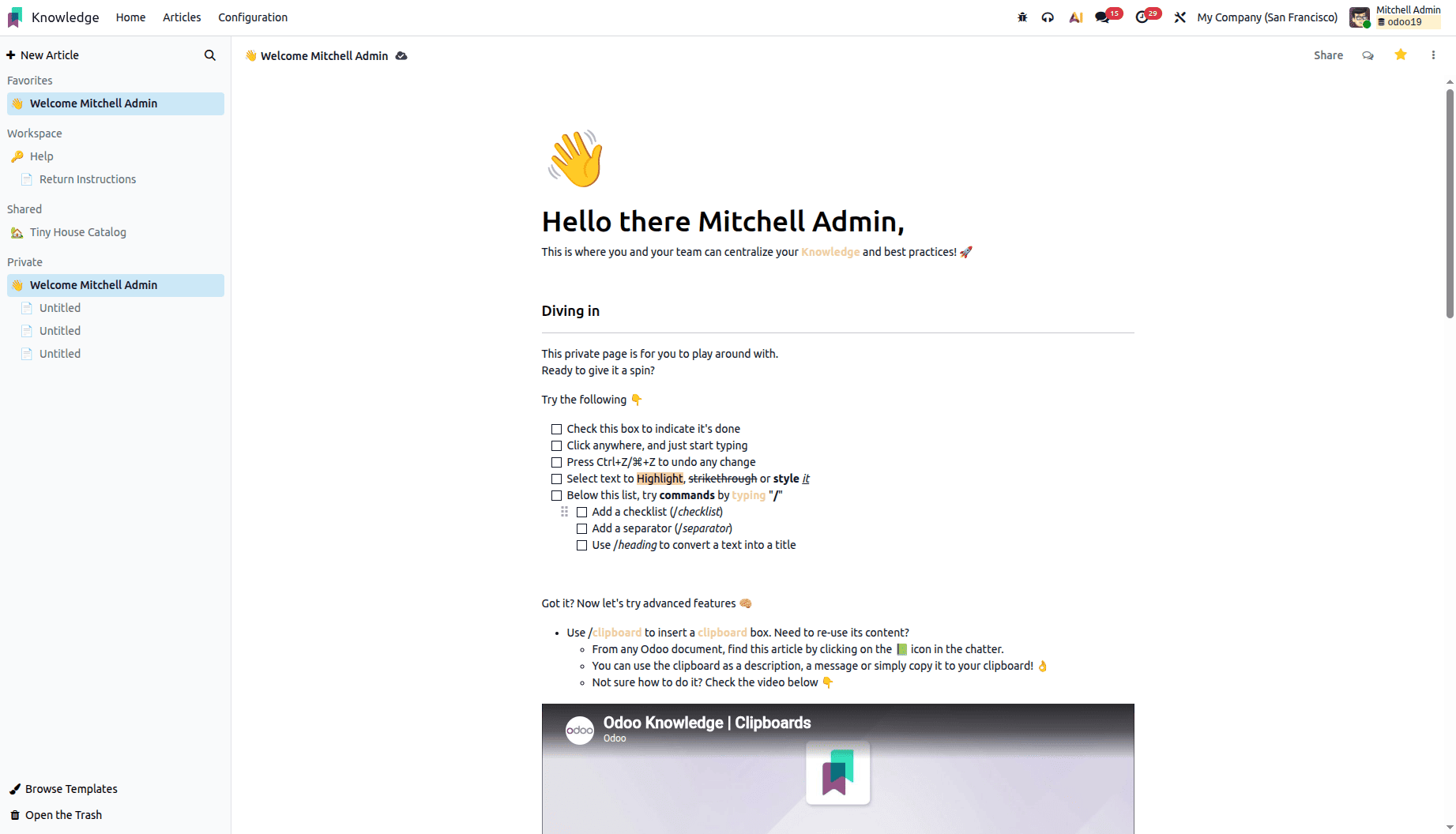
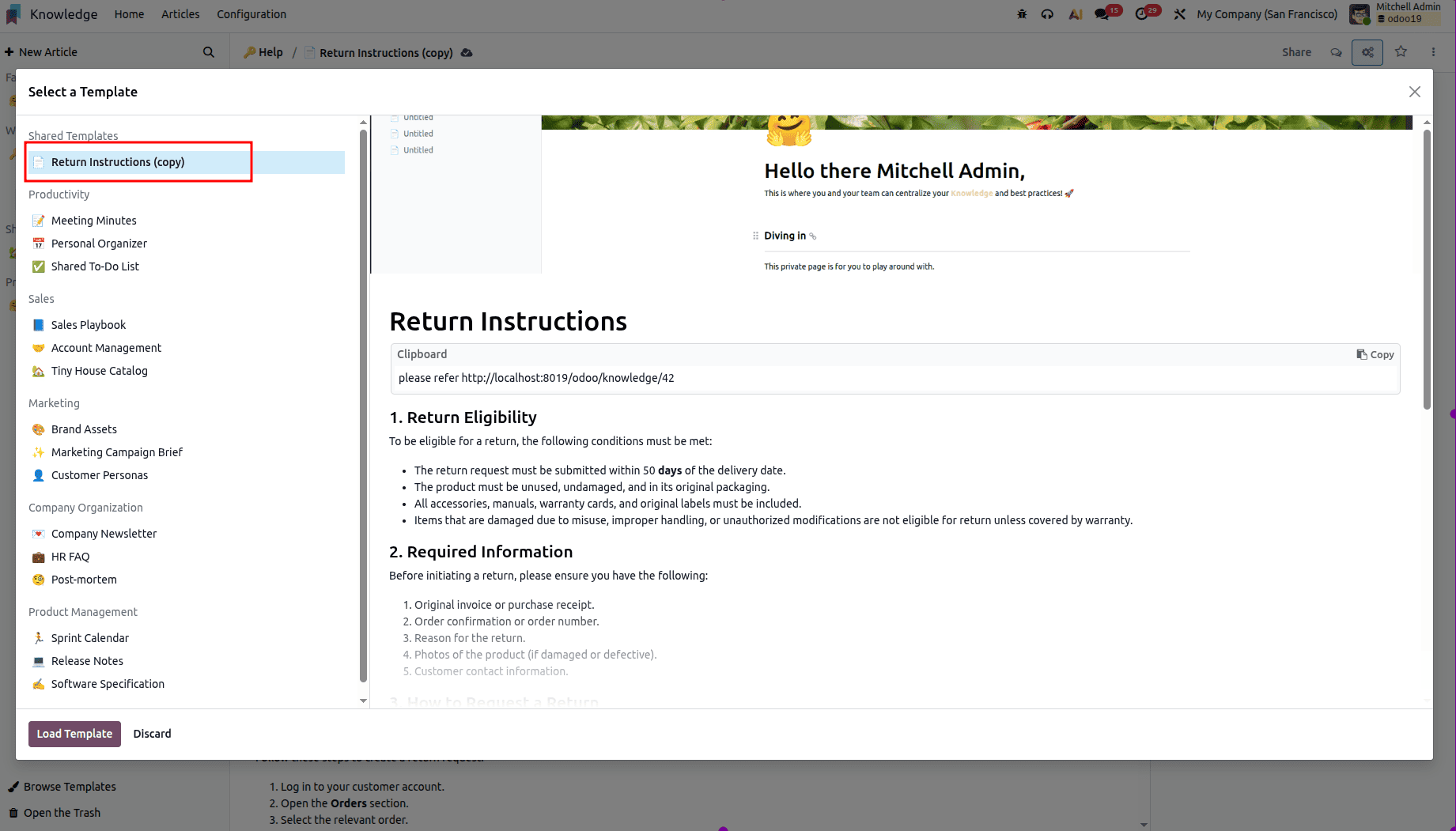
The article view in the Odoo 19 Knowledge module provides a comprehensive set of tools for creating, organizing, and collaborating on documentation. The top-right corner includes quick-access options to share the article, open the chatter for discussions, add the article to favourites, and access additional actions. The right-side panel displays the complete article hierarchy, including parent and child articles, making navigation simple and intuitive. At the bottom-left corner, users can insert predefined templates from the template library to structure content efficiently or delete the article when it is no longer needed.
We will now examine each option in detail to gain a deeper understanding of their functionality and usage.
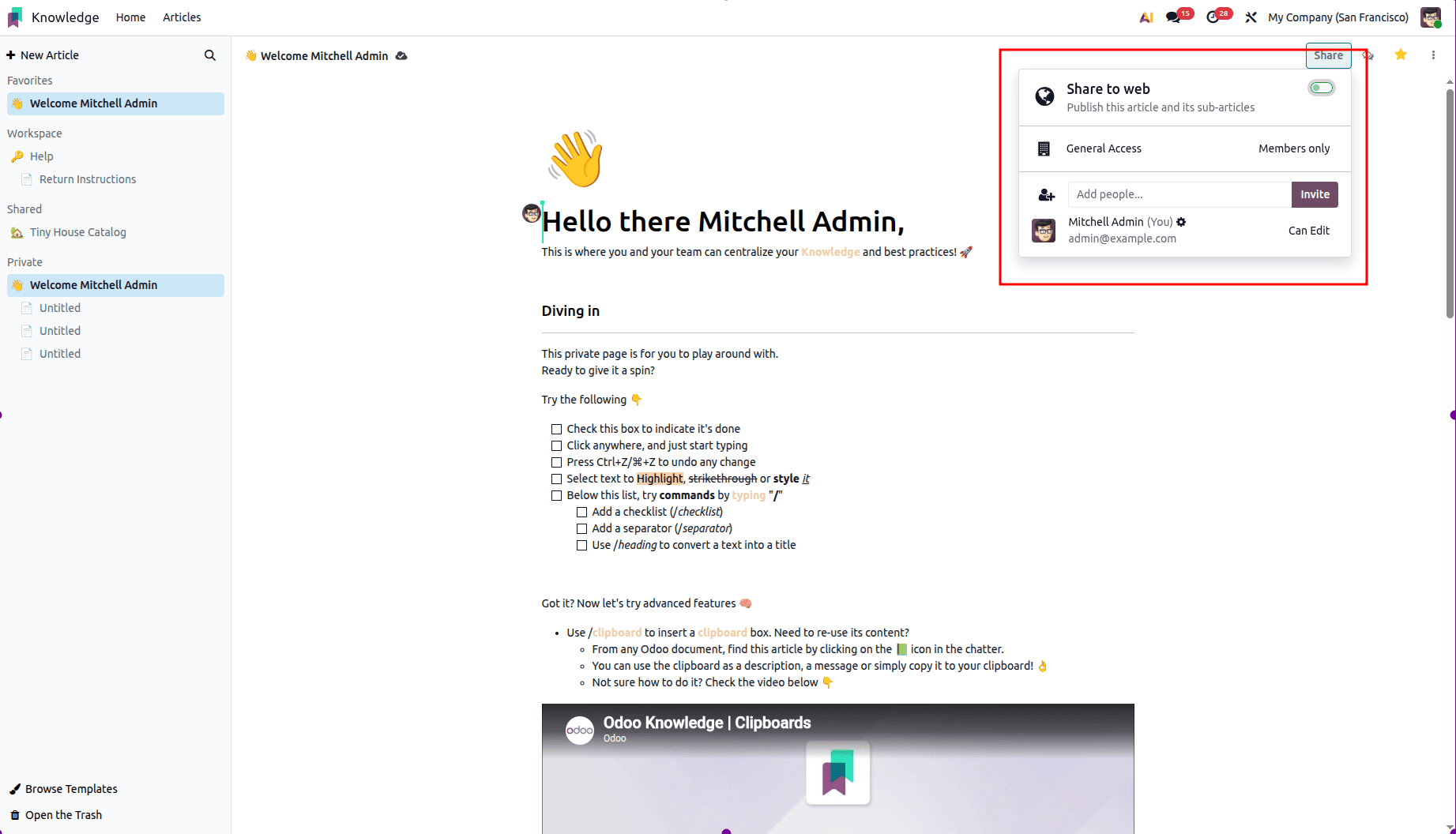
The Share feature in the Odoo 19 Knowledge module allows you to manage article access, collaboration, and visibility. By clicking the Share button in the top-right corner, you can configure access permissions, invite specific users, publish the article online, and control how it appears in the sidebar. Articles placed in a visible section of the sidebar are accessible to users with the appropriate permissions, while restricted articles remain hidden and can only be found using the command palette (Ctrl/Cmd + K) with the $ prefix. Odoo provides three default access levels for internal users who are not explicitly invited: Can Edit, which allows users to view and modify the article; Can Read, which grants read-only access; and No Access, which hides the article from both the sidebar and search results. Articles with Can Edit or Can Read permissions are automatically categorized under Workspace, whereas articles with No Access are placed in the Private category unless they are explicitly shared with selected users.
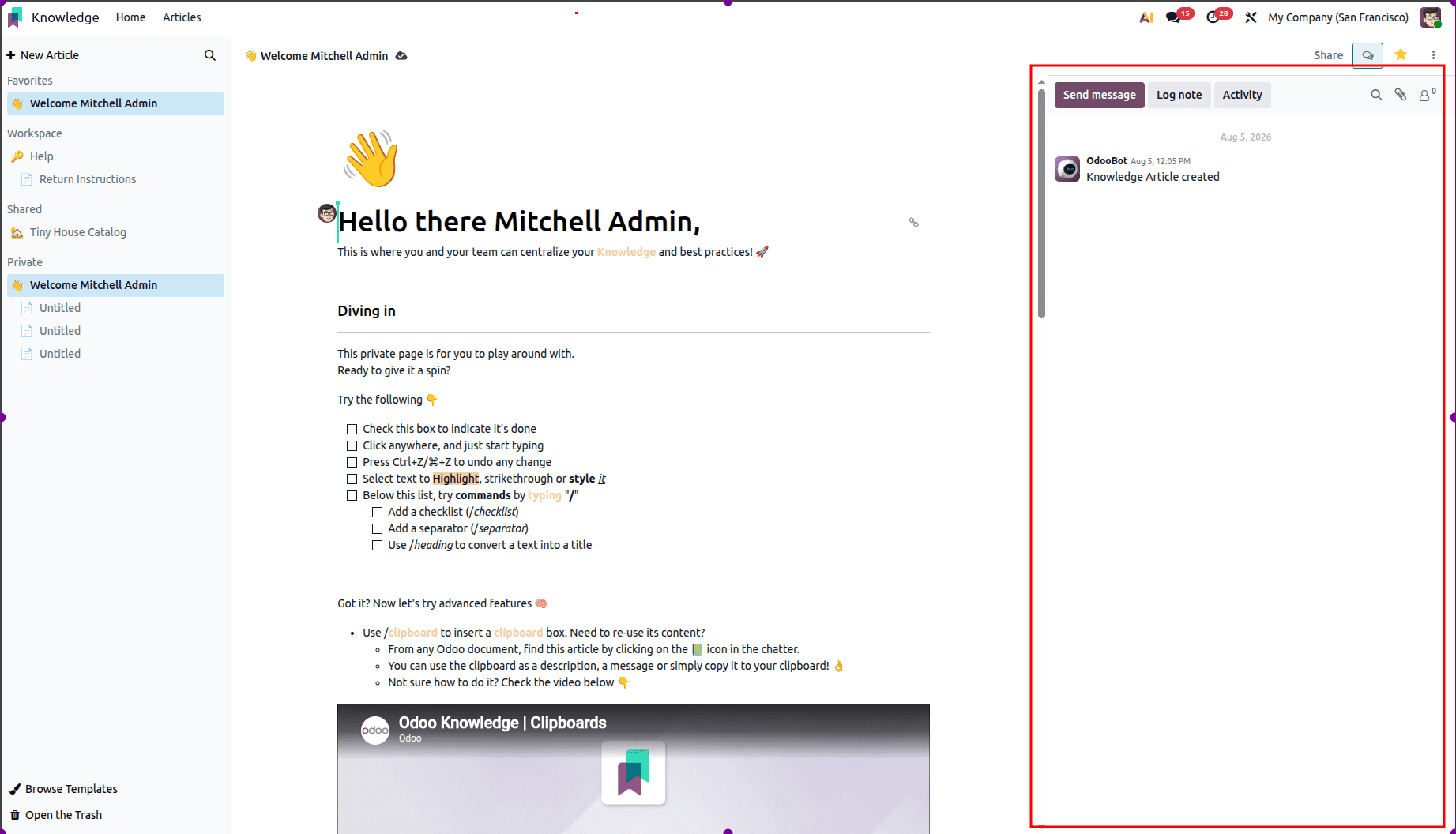
The Chatter panel in Odoo provides a centralized space for communication and activity tracking related to a specific record. By clicking the Chatter button, users can expand the panel to view messages, internal notes, scheduled activities, notifications, and the complete interaction history. This enables seamless team collaboration, keeps all updates in one place, and ensures every discussion and action is recorded without leaving the current record.
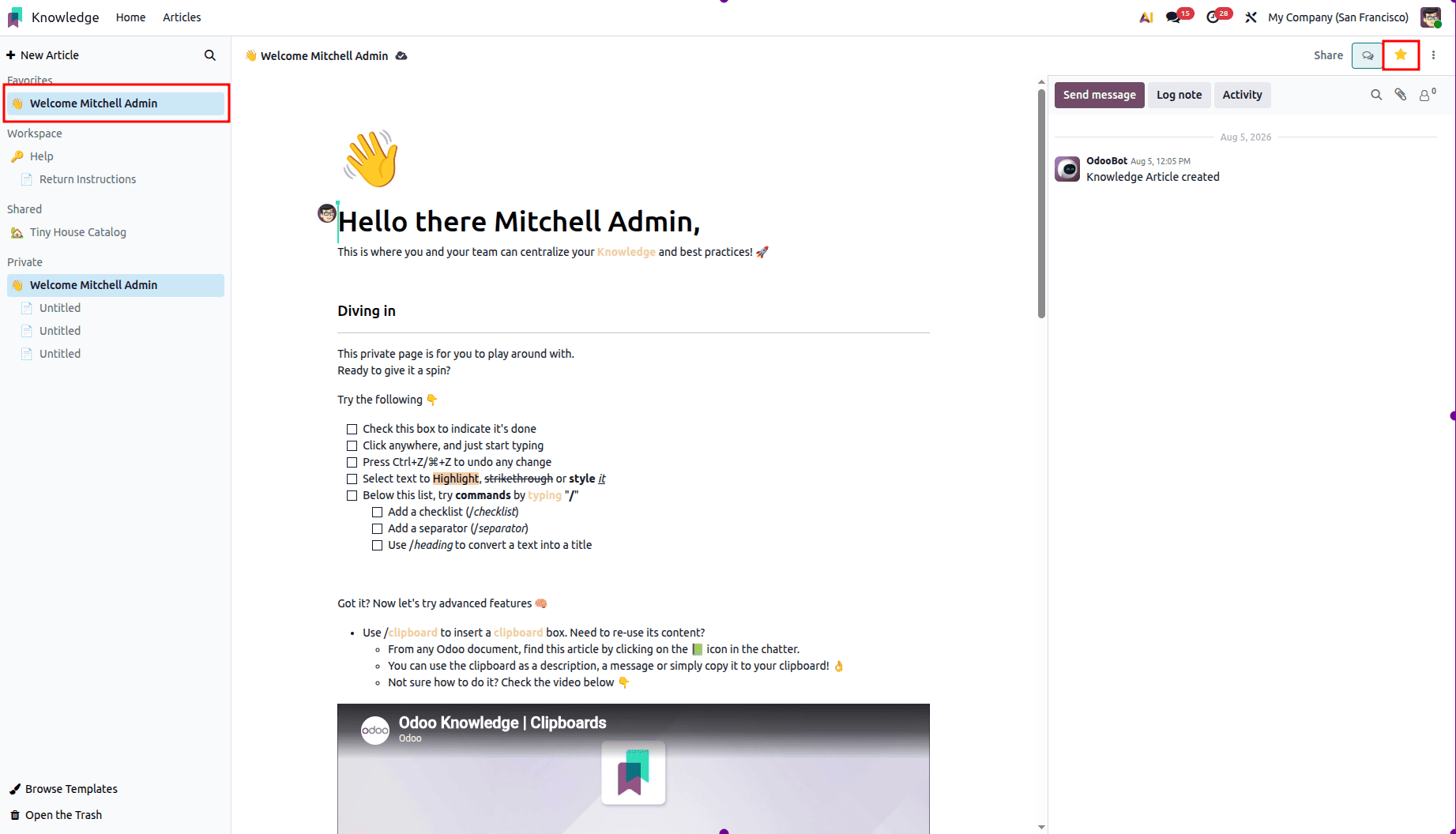
The Add to Favourites option lets users bookmark an article for quick and convenient access. All favourite articles can be viewed anytime from the Favourites menu in the top-right corner of the interface.
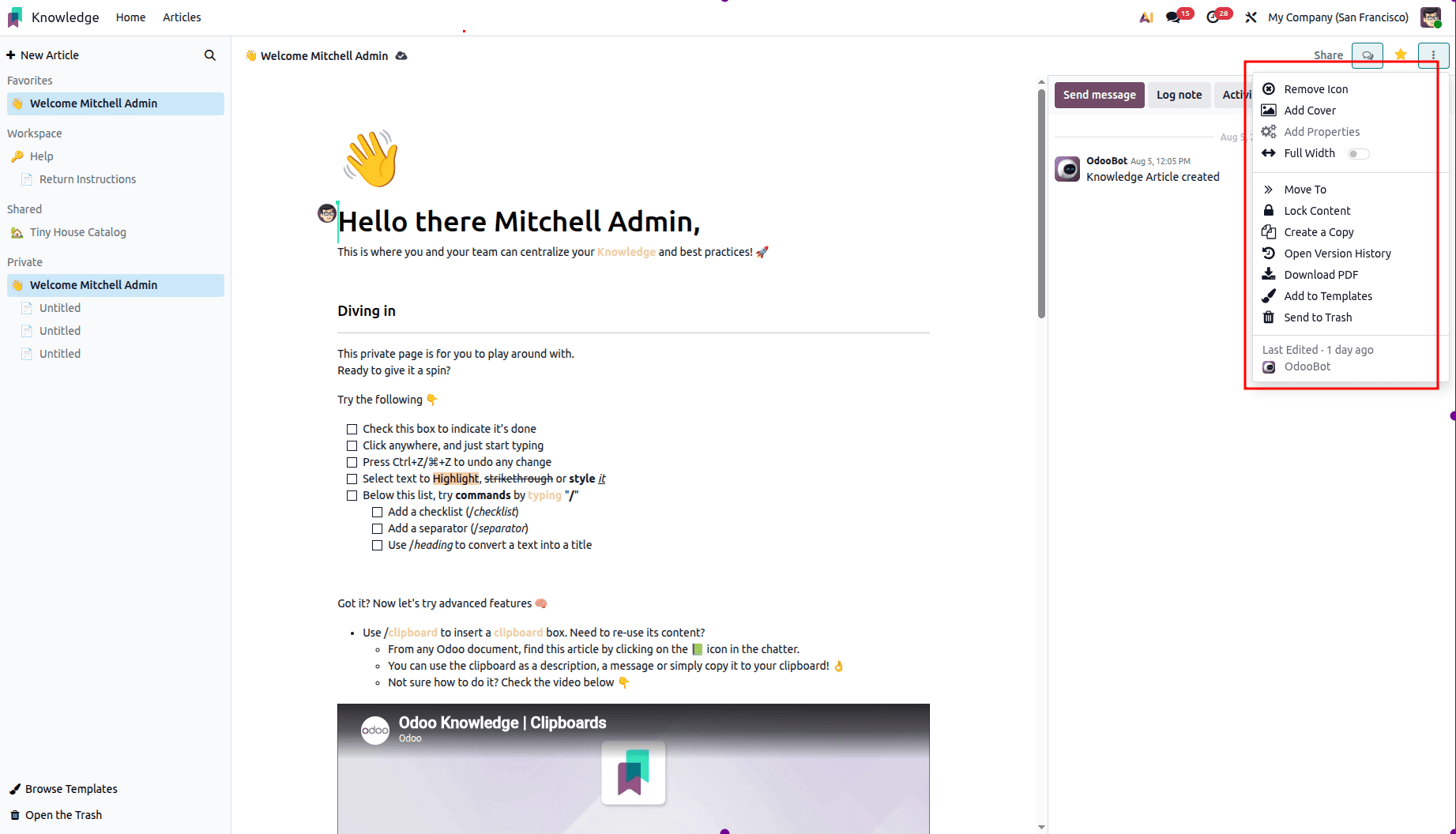
The three-dot menu in the top-right corner provides access to several additional features for managing articles. Let's explore each of these options in detail.
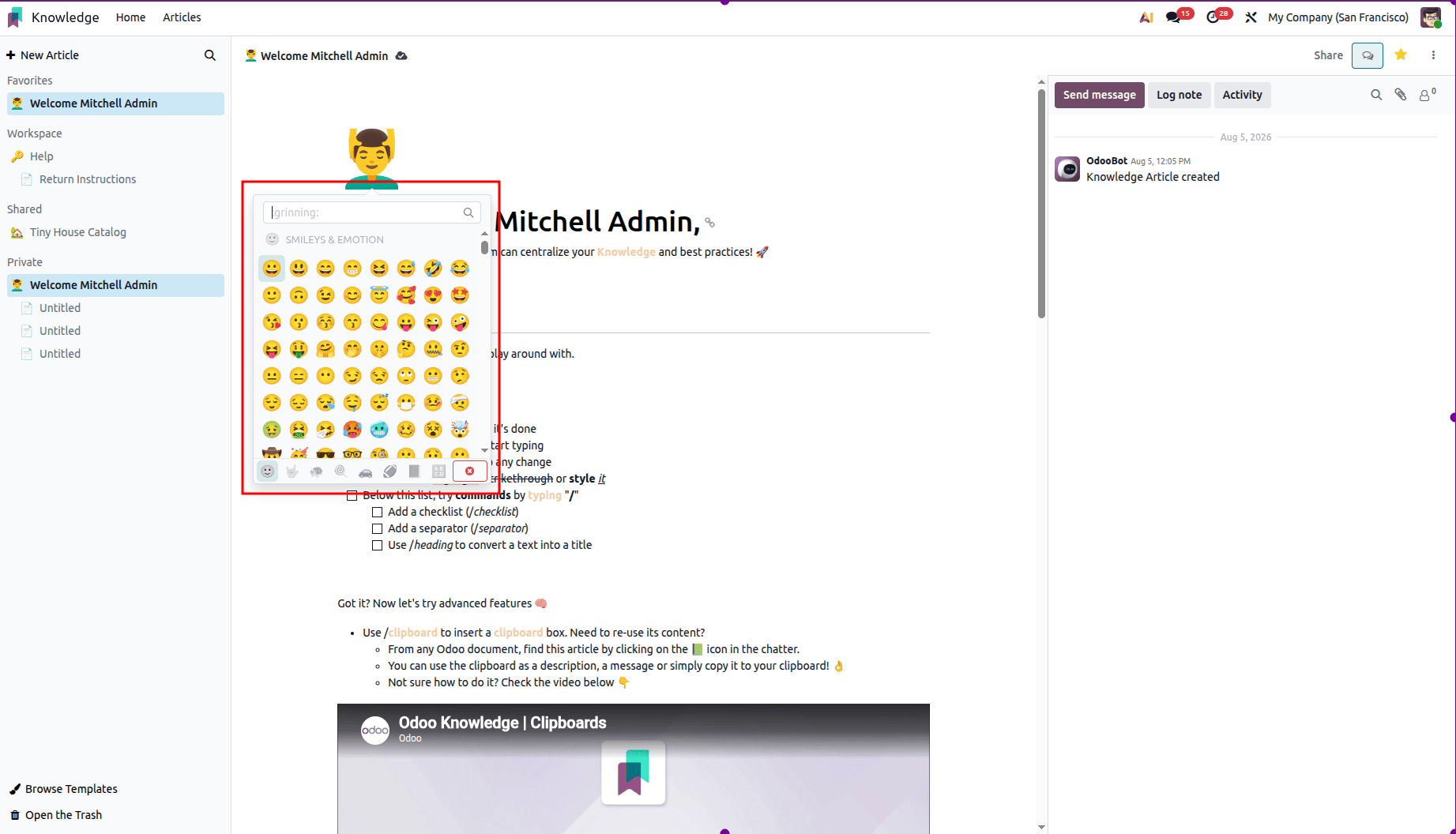
The Add/Remove Icon option in the Odoo 19 Knowledge module allows users to personalize articles by adding or removing icons. These icons act as visual identifiers, helping highlight important sections, improve content organization, and enhance the overall readability and appearance of the article.
Icons can be inserted anywhere within an article, such as before headings, alongside bullet points, or within the content, making articles more visually appealing and easier to navigate. If an icon is no longer required, it can be removed or replaced at any time using the same option.
Add Cover
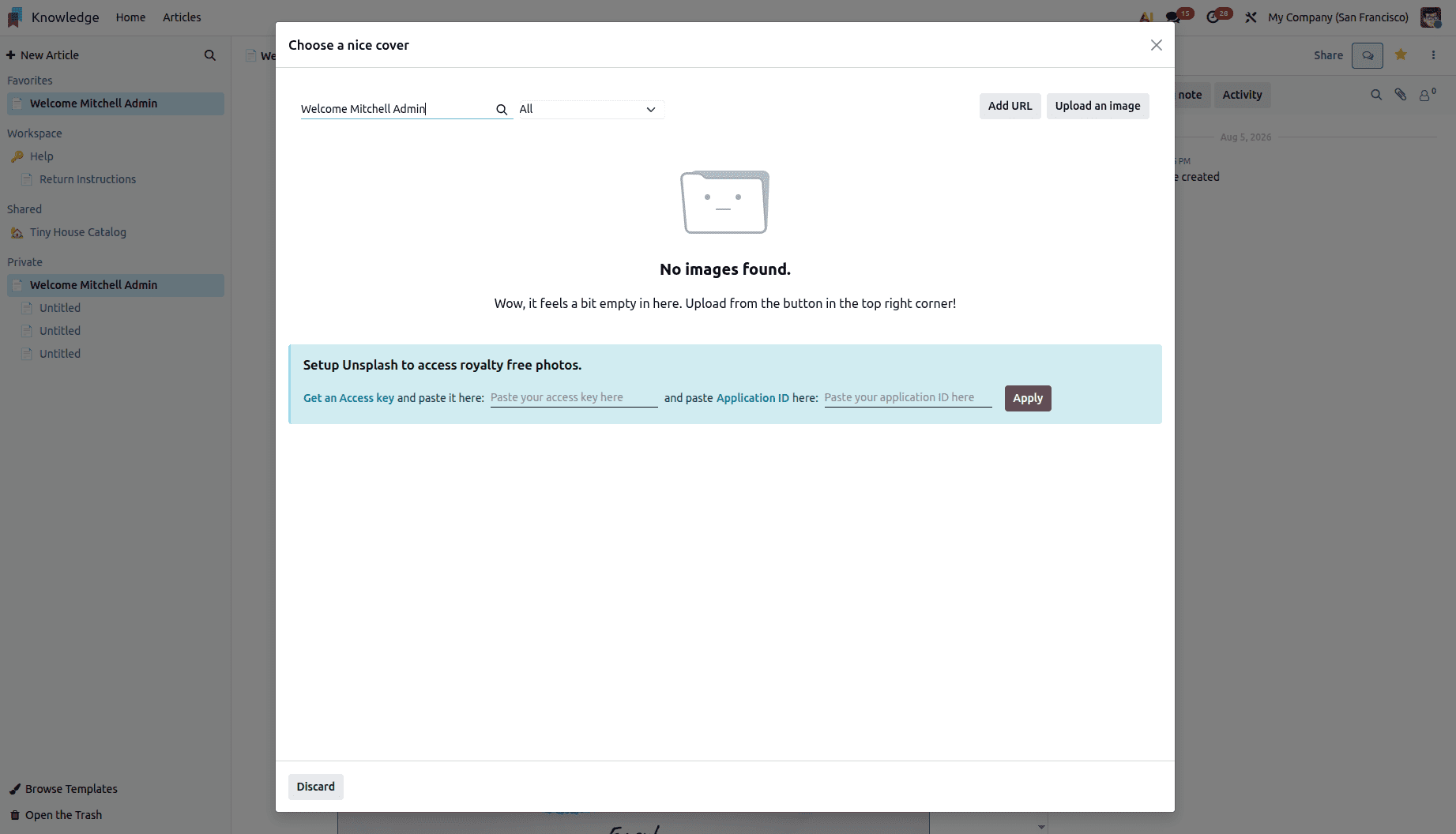
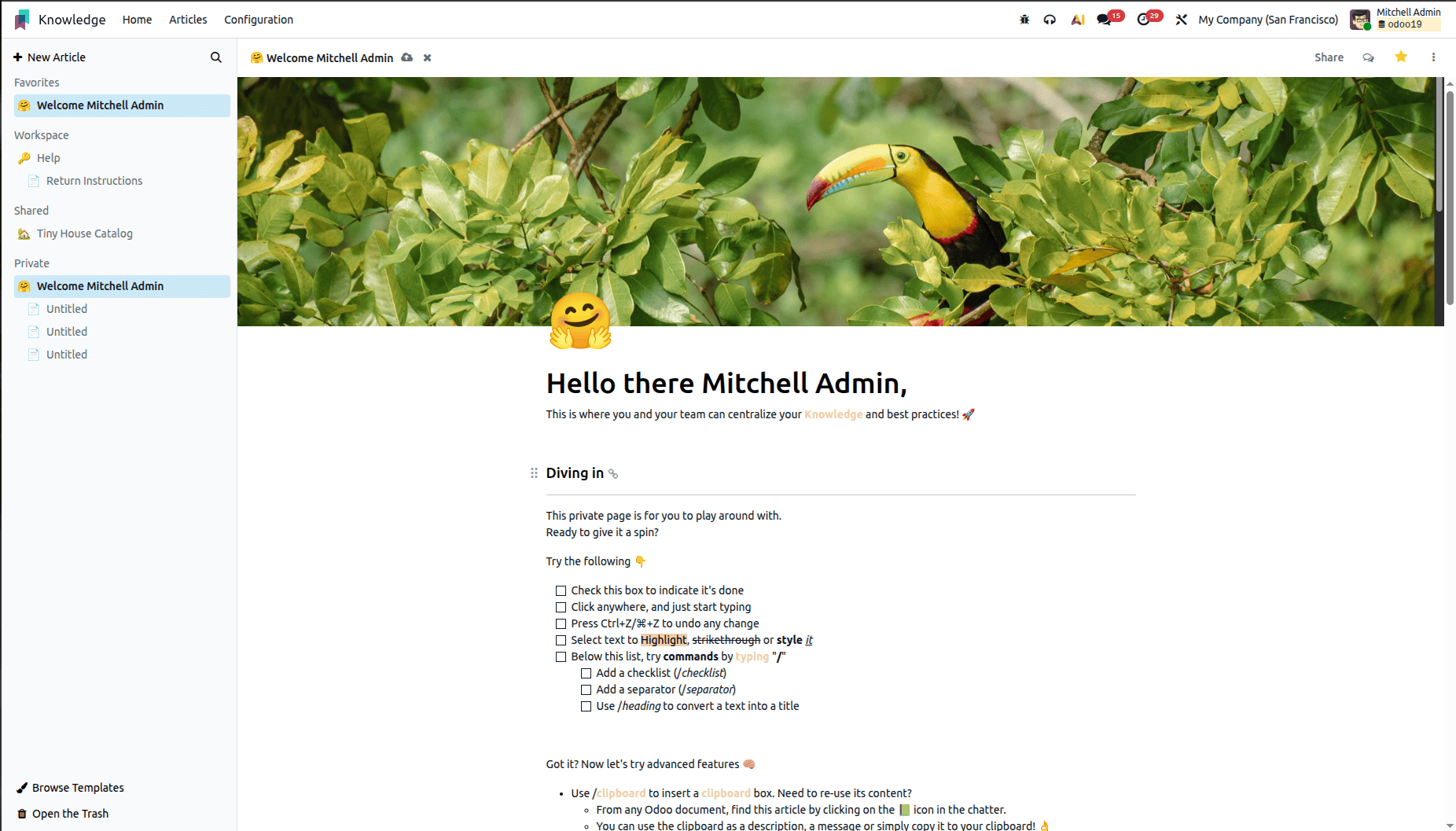
The Add Cover option in the Odoo 19 Knowledge module allows users to add a cover image to an article, enhancing its visual appeal and making the content more engaging. Displayed at the top of the article, the cover image helps establish the article's context and improves its overall presentation. Users can add a cover image in two ways:
- Upload from device: Select an image stored locally on your computer.
- Insert from URL: Provide a direct image link to load the cover from an online source
Once a cover image is added, the toolbar provides additional management options:
- Replace Cover: Change the current image to a different one without altering the article’s content.
- Reposition: Adjust the visible area of the image to ensure the focal point is displayed correctly
- Remove: Delete the cover image entirely, reverting the article to its default text-only header
This feature is especially useful for enhancing the visual appeal of articles, organizing content by topic, and creating a more professional and engaging reading experience.
Add Properties
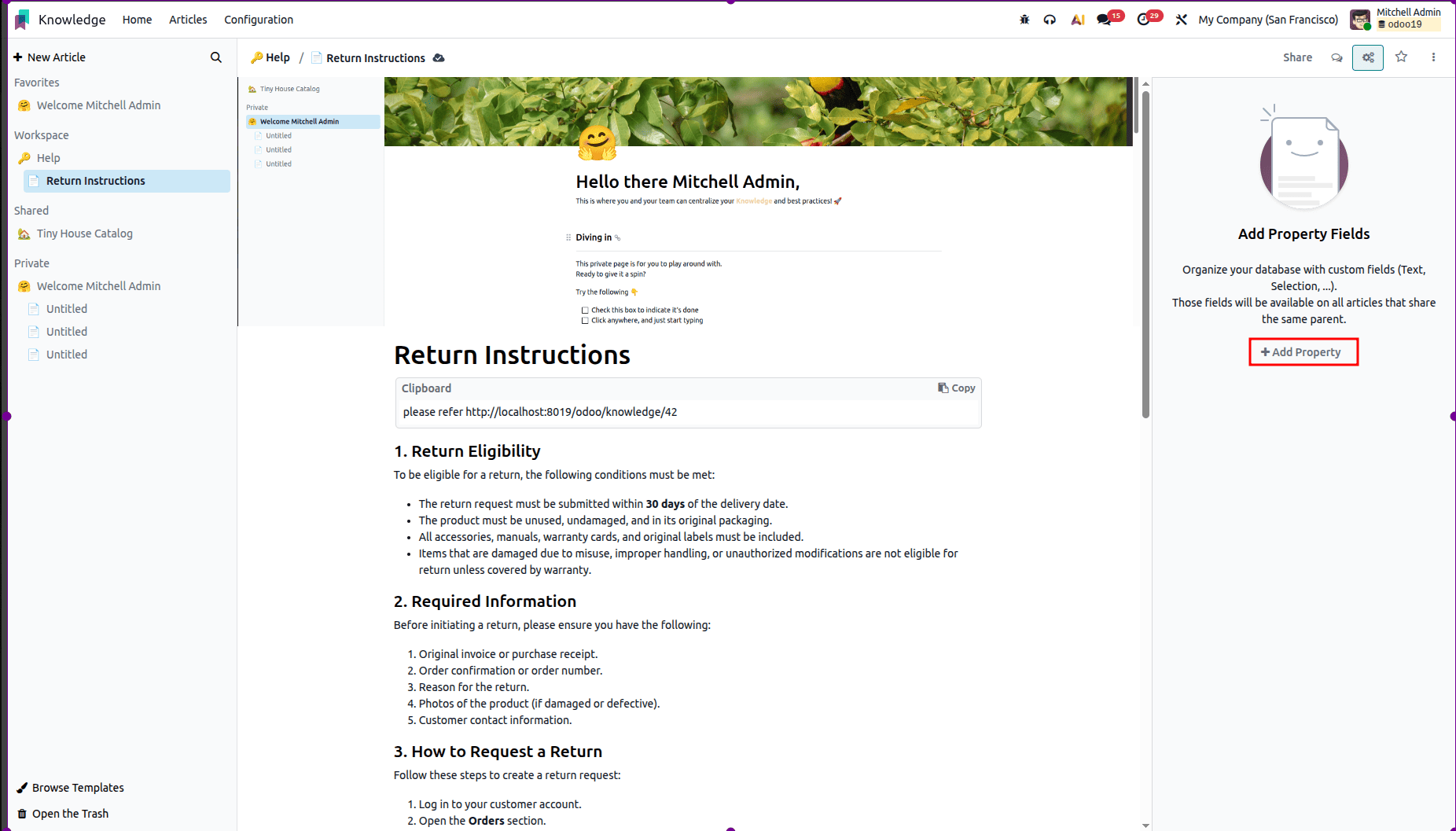
The Add Properties option allows you to define custom fields for an article, making it easy to store additional information beyond the standard content. To add a new property:
Click Add Properties > Add a Property
In the property creation dialog, enter a Label (this is the display name of the property).
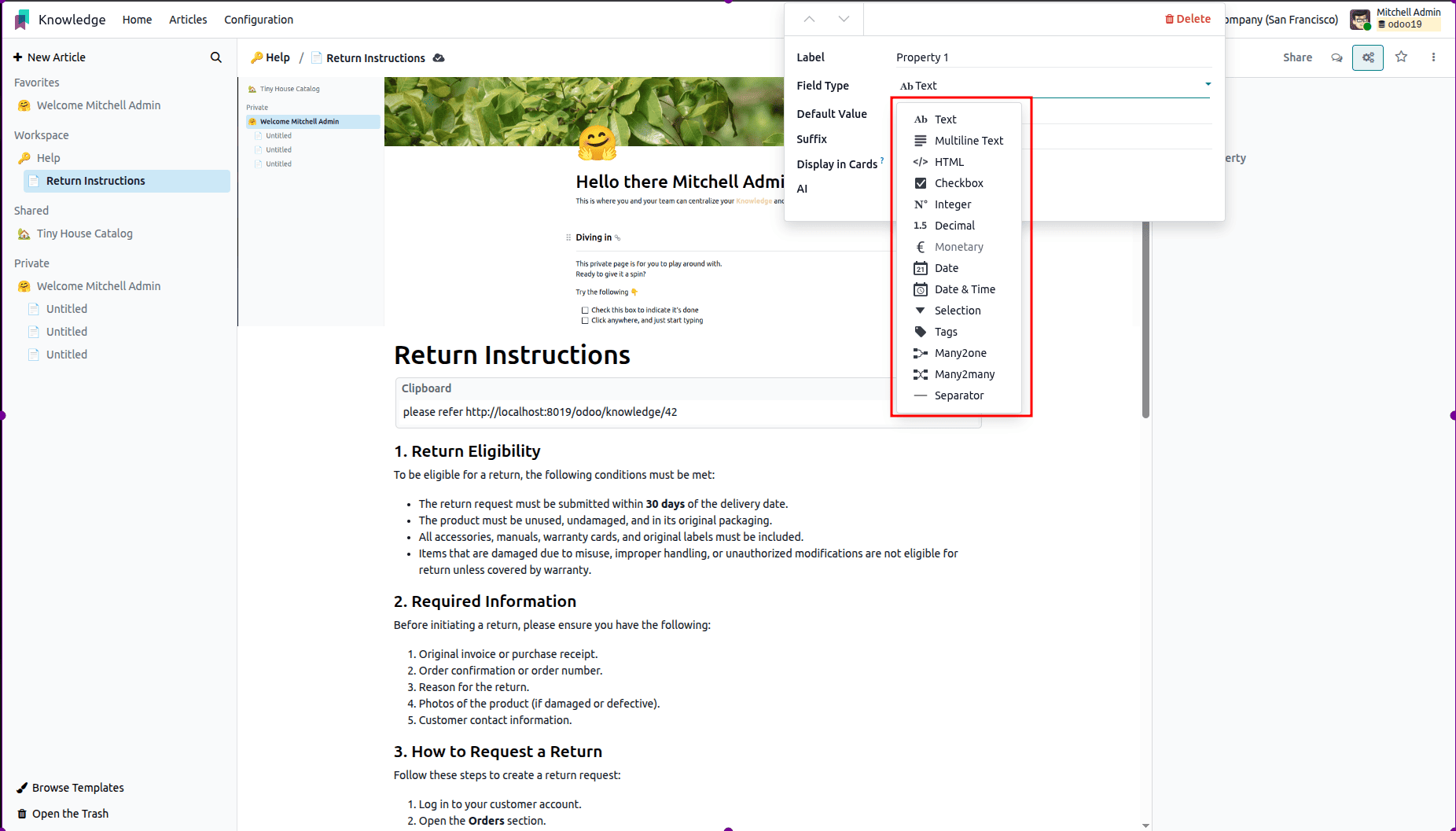
Choose a Field Type from the available options. The selected field type determines the type of data the property can store, such as Text, Number, Date, Checkbox, Dropdown Selection, or other supported formats.
After defining the property label and selecting its field type, you can enter the required value directly from the sidebar. Odoo automatically saves the property when you click anywhere outside the property window, eliminating the need for a manual save action.
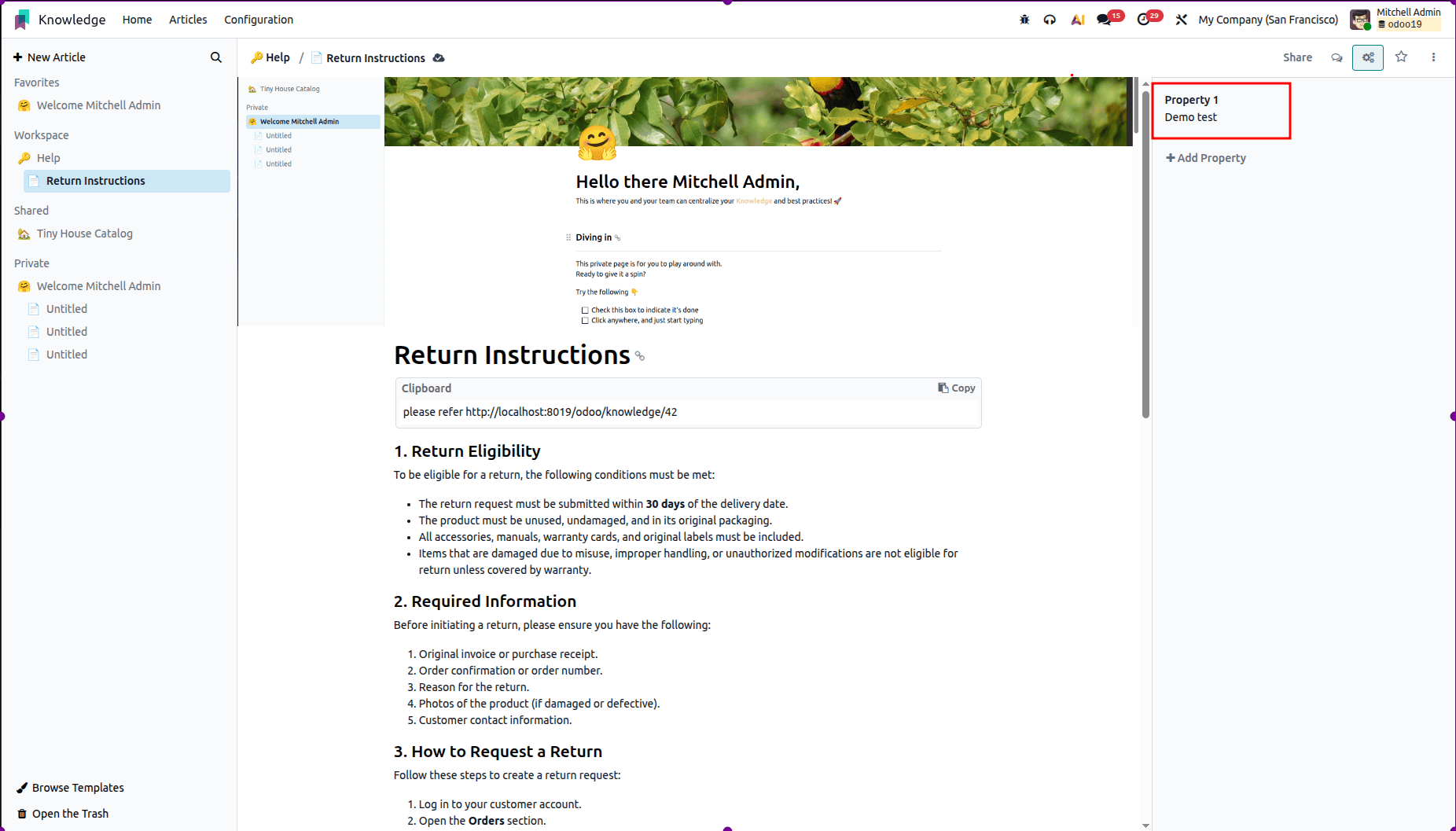
To delete a property, hover over its name in the sidebar and click the Edit (pencil) icon. Then, select Delete and confirm by clicking Delete again to permanently remove the property.
Deleting a property is permanent and cannot be undone. If all properties are removed from a parent article, the properties panel is automatically removed from its child articles and will only reappear when new properties are added to the parent article.
This feature is particularly useful for standardizing metadata, such as tags, due dates, version numbers, and responsible users, across related articles. It helps maintain consistency, improves content organization, and makes documentation easier to manage and search within Odoo 19.
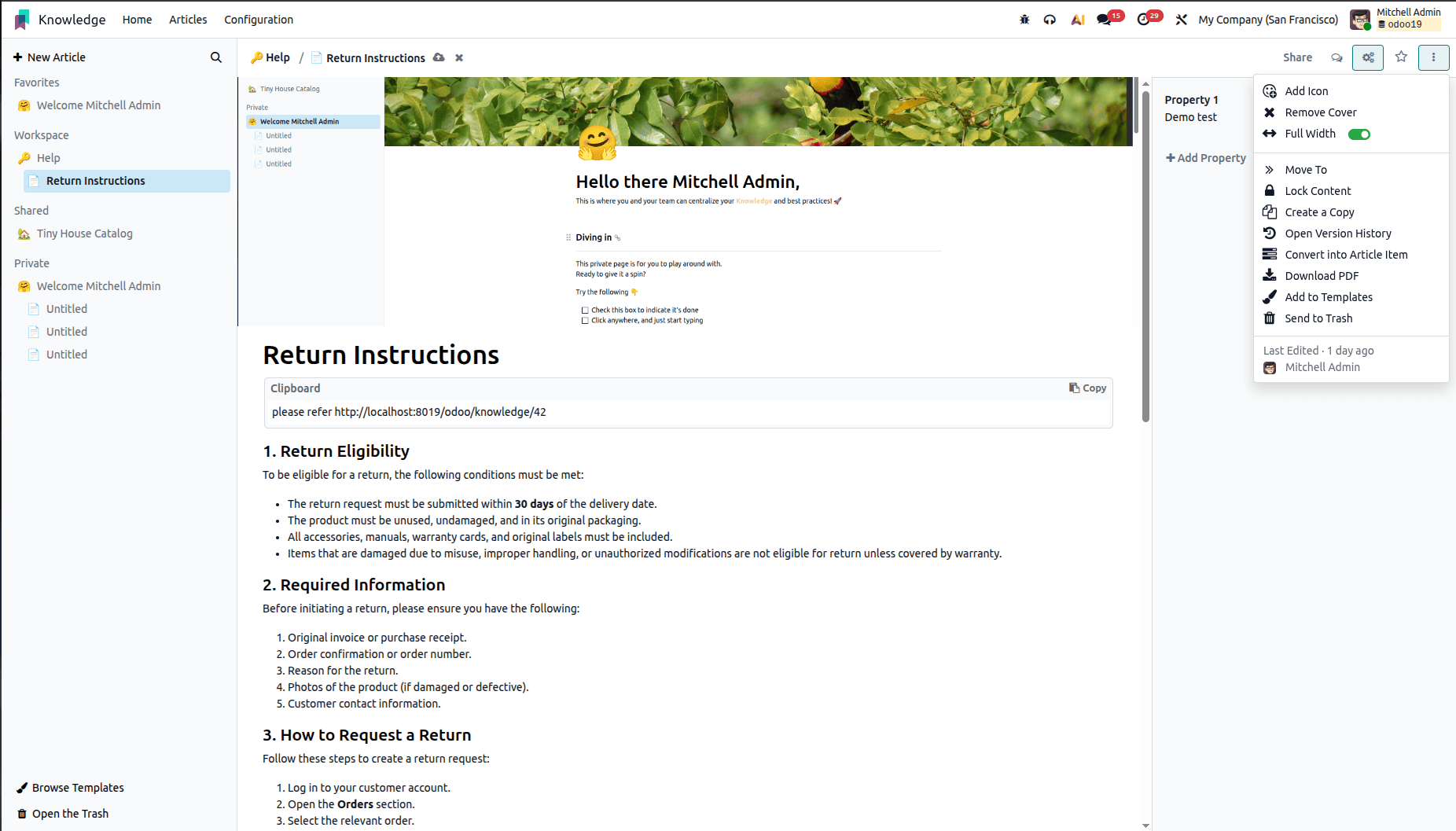
The Full Width option in the Odoo 19 Knowledge module expands an article to use the entire width of the screen, removing the default side margins for a larger workspace. This layout is ideal for displaying wide tables, large images, diagrams, or embedded content, providing a more comfortable viewing and editing experience while reducing the need for horizontal scrolling.
Move To
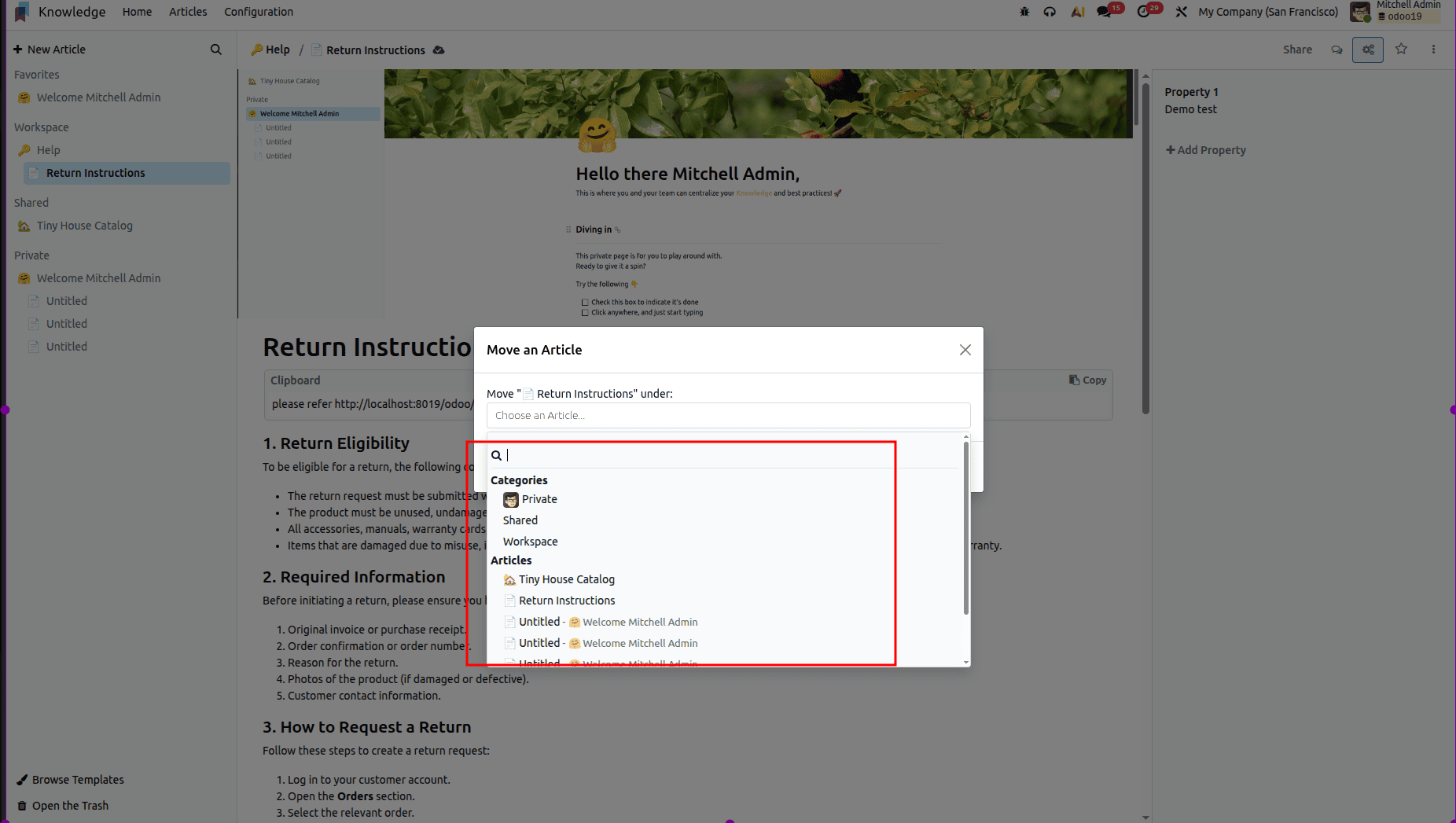
The Move To option allows you to relocate an article within the knowledge hierarchy. When selected, a pop-up window lets you choose a new destination, such as another section, a different parent article, or a separate workspace. Once confirmed, the article is moved to the selected location while preserving its content, properties, and child articles. This feature is useful for reorganize documentation and maintain a well-structured, easy-to-navigate knowledge base.
Lock Content
The Lock Content option protects an article being modified by making it read-only. When enabled, users can view the article but cannot edit its content, delete information, or change its formatting. This feature is ideal for finalized documentation, official policies, or reference materials that must remain consistent. To make changes, a user with the appropriate access rights must unlock the article, restoring its editing capabilities.
Create a Copy
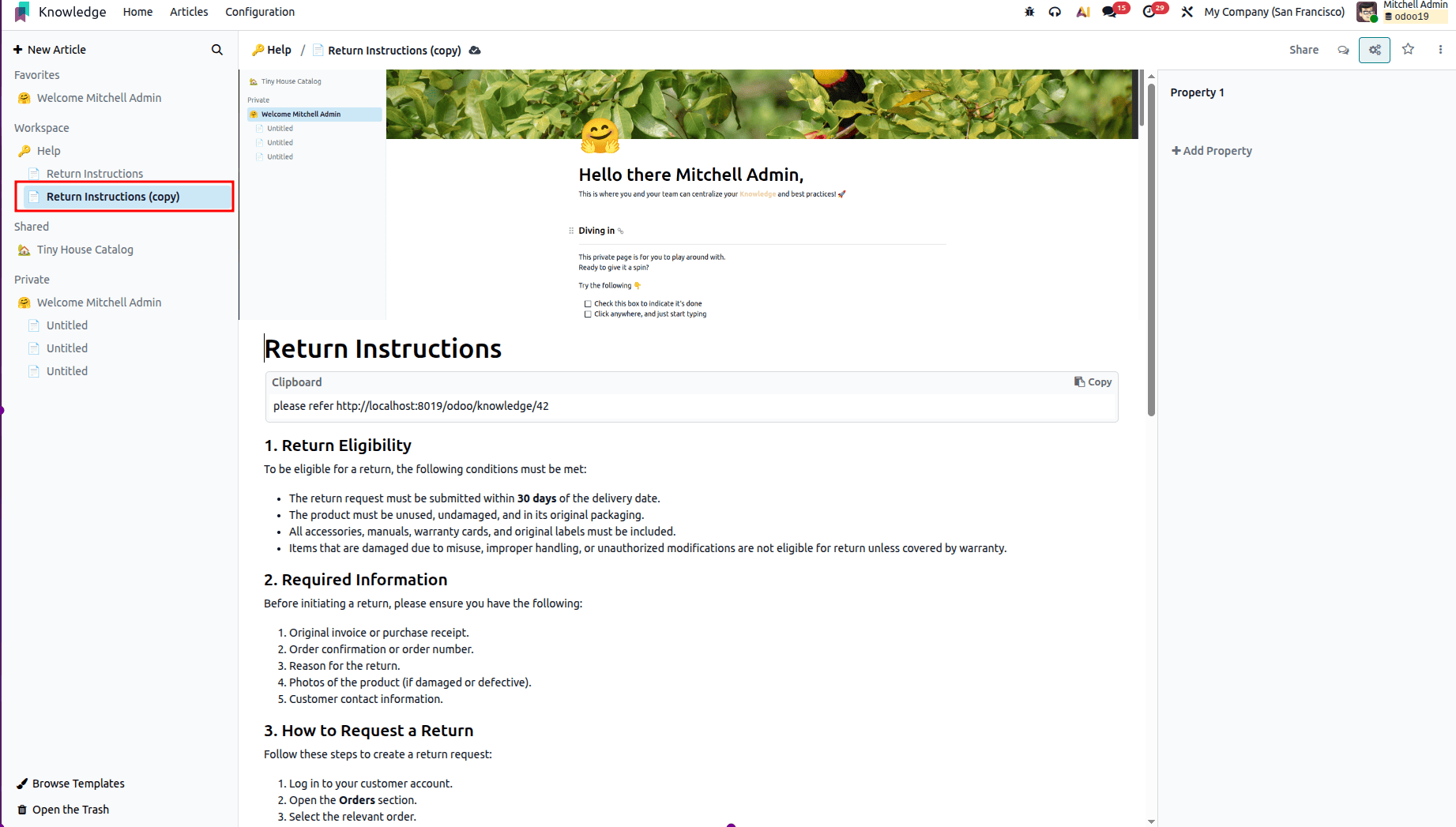
The Create a Copy option allows you to duplicate an article while preserving its content, formatting, and properties. The copied article can be placed anywhere within the Knowledge workspace, such as under a different parent article, in another section, or even in a separate workspace. This feature is useful for reusing articles as templates, creating variations for different teams, or maintaining multiple versions of similar documentation. Once created, the copy becomes an independent article, so any changes made to it do not affect the original.
Export
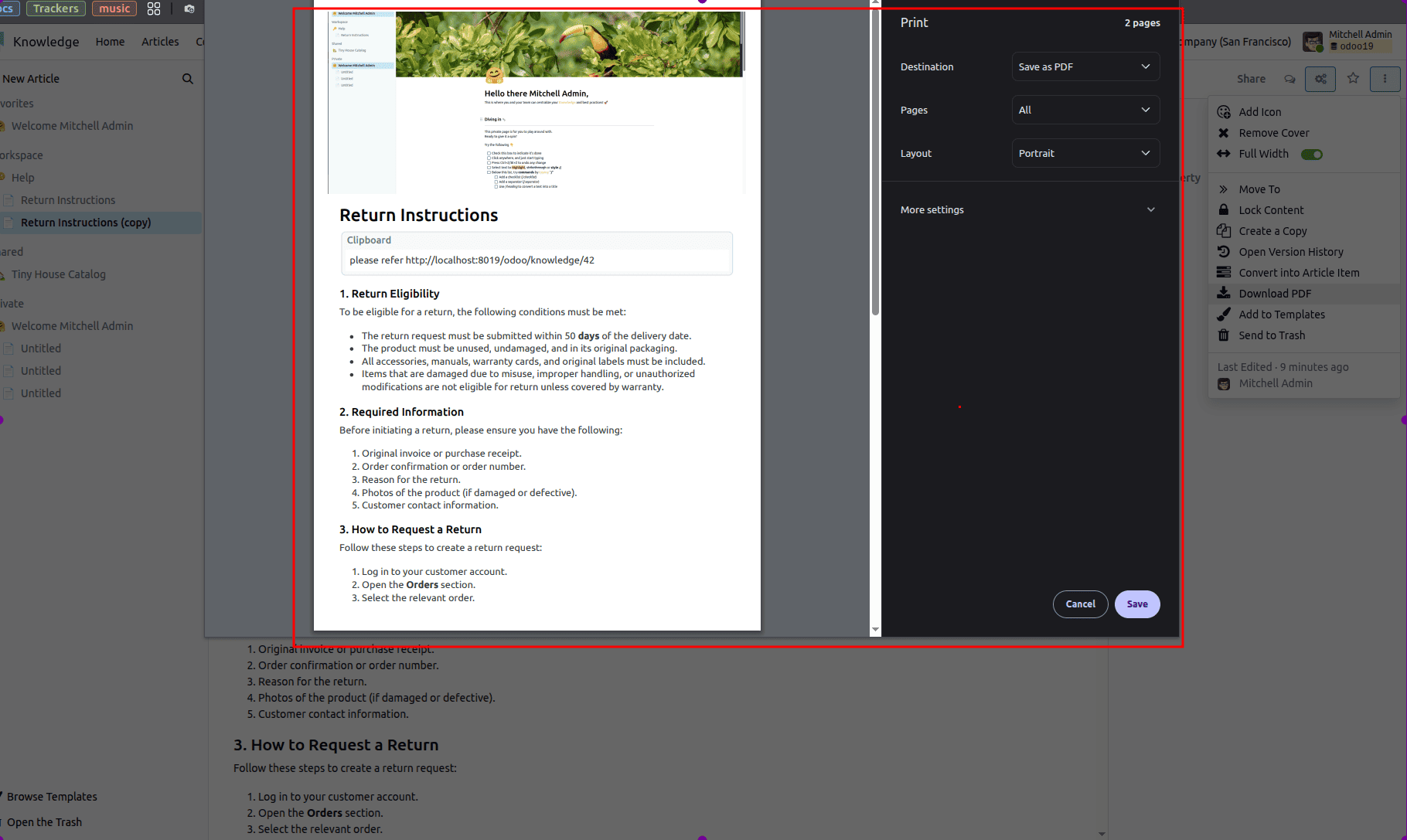
The Download PDF option allows you to generate and download a PDF version of the article. This makes it easy to save the article locally, share it with users outside the Odoo system, print it, or archive it for future reference. The generated PDF preserves the article's content and formatting, making it suitable for documentation, compliance, and offline access.
Add to Templates
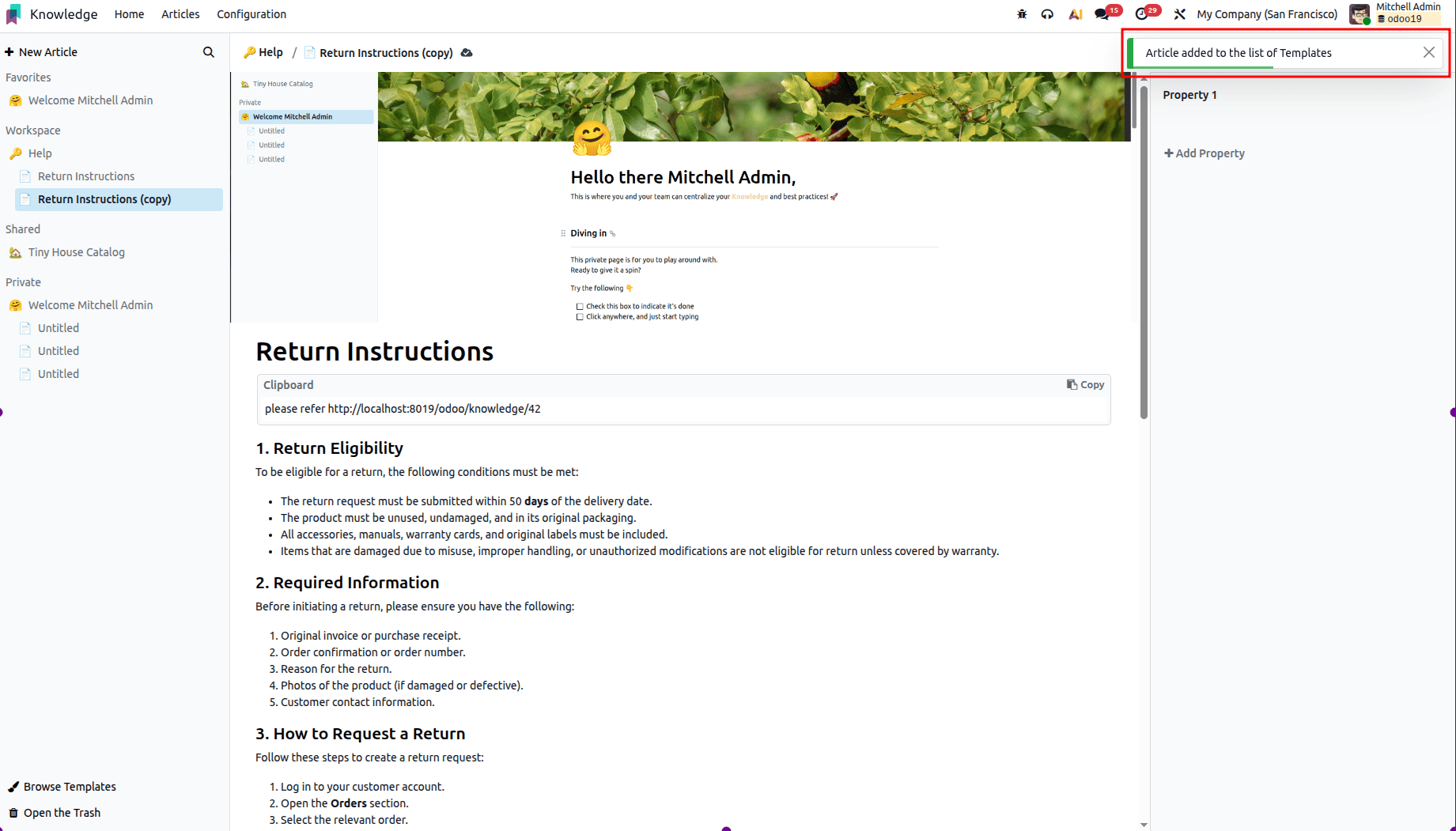
The Add to Templates option lets you save the current article as a reusable template. Once added, its content, formatting, and structure are preserved, allowing you to quickly create new articles with the same layout and style. This feature is ideal for recurring documents such as standard operating procedures, meeting notes, project plans, and reports, helping teams maintain consistency, reduce preparation time, and ensure a professional appearance across all documentation.
The Odoo 19 Knowledge module provides a comprehensive set of tools that simplify the creation, organization, and sharing of information across an organization. From structuring content and standardizing documentation to enabling collaboration, protecting critical information, and reusing templates, these features help teams build a well-organized knowledge base. Together, they improve productivity, ensure consistency, and make valuable information easily accessible whenever it is needed.
To read more about How to Write and Publish Articles with Odoo 18 Knowledge Tools, refer to our blog How to Write and Publish Articles with Odoo 18 Knowledge Tools.