Customer communications are very crucial for the growth of any business, and WhatsApp can be used by businesses to communicate effectively with their customers immediately. Odoo 19 comes integrated with WhatsApp, and through this integration, businesses are able to define and utilize templates for sending messages to customers. The templates can be used in various cases such as order confirmation, payment reminders, delivery status updates, receipts, promotions, and others. Templates can be configured based on one’s needs with headers, bodies, buttons, footers, and dynamic variables.
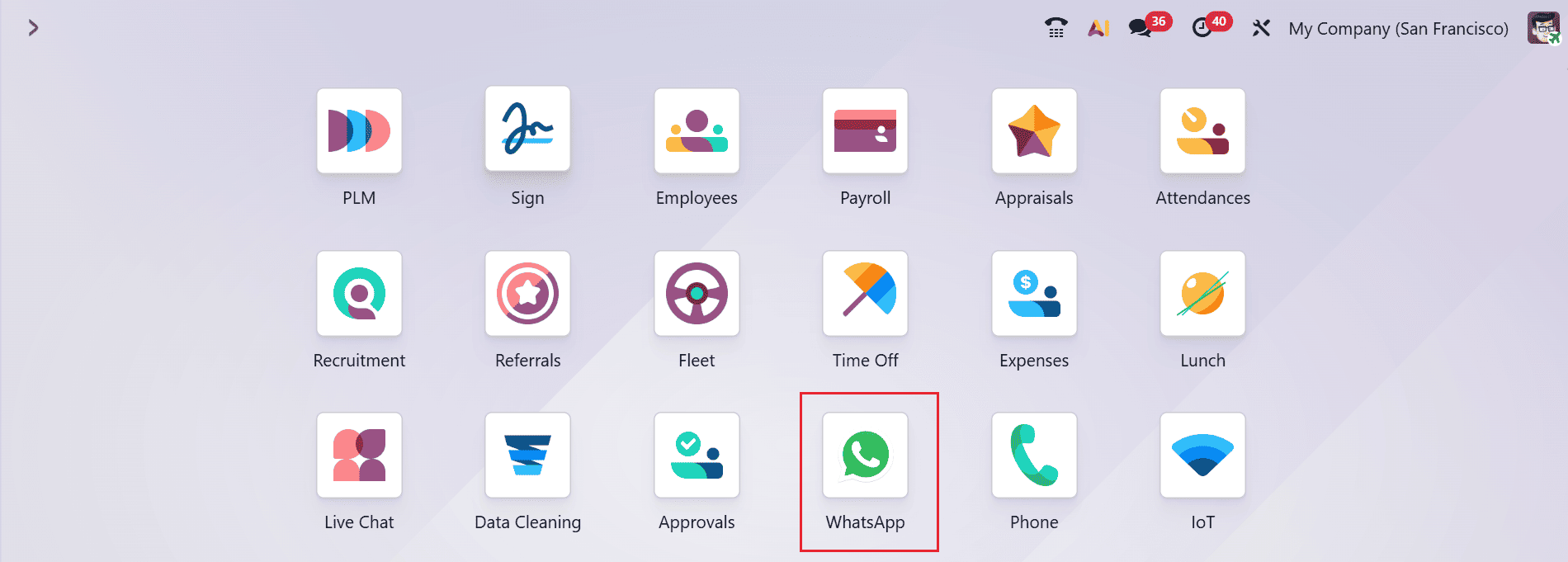
Open the WhatsApp module from the Odoo 19 dashboard.
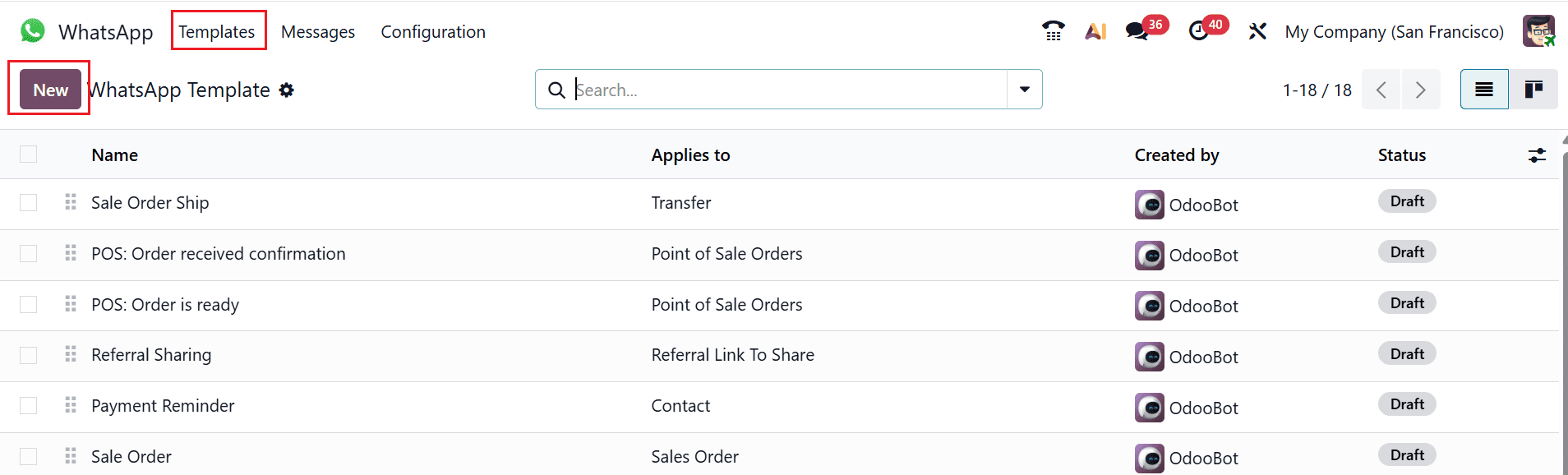
Click on the Templates menu option and then select the New button to create a new template for WhatsApp.
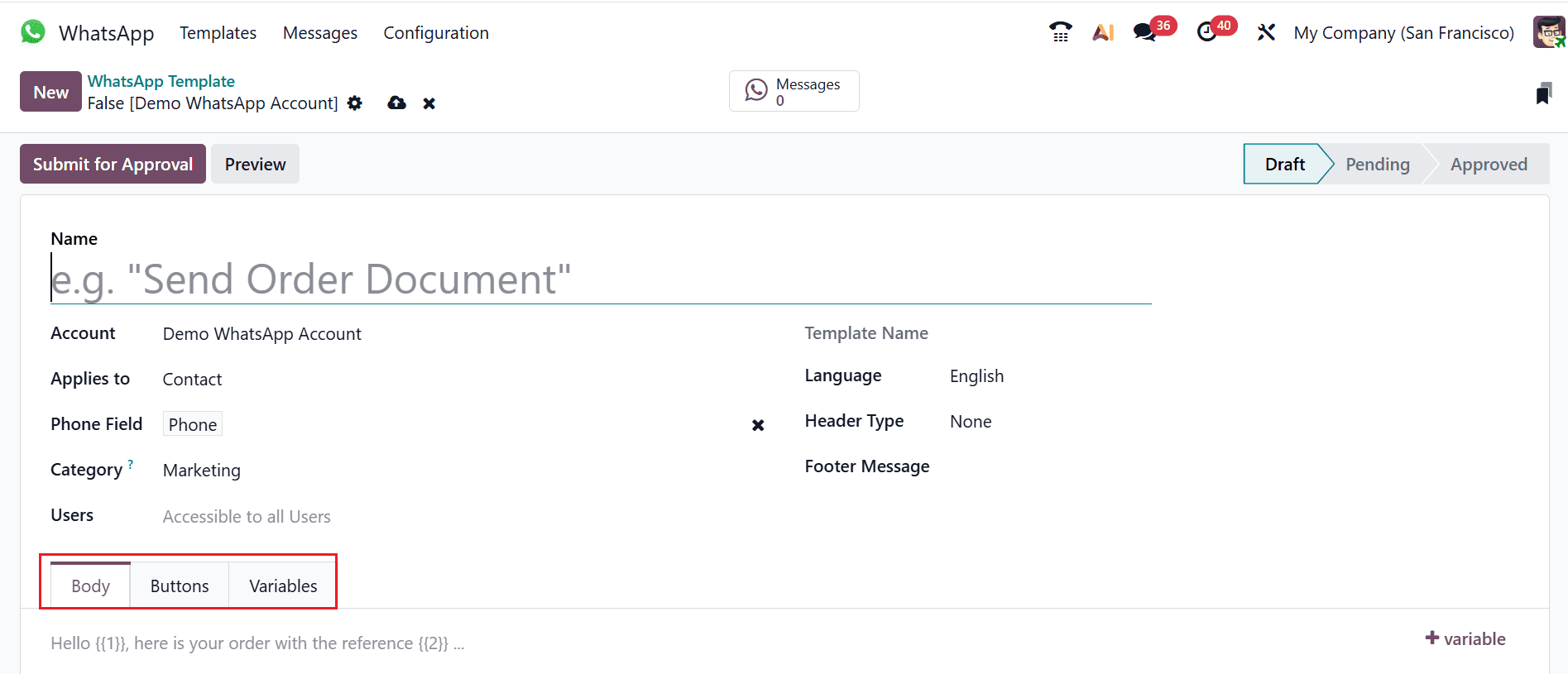
The template form enables you to set several fields such as Name, Account, Applies To, Phone Field, Category, Users, Language, Header Type, and Footer Message.
In the Name section, enter an appropriate name for the template. In the Account section, choose the WhatsApp Business account to which the template will be associated. In the Applies to section, choose the appropriate model on which the template will be created. It is possible to configure the Phone Field as well.
Further, choose a Category for the template. The available categories may be Marketing, Utility, and Authentication, based on the requirement of the message. In the Users section, define the users who are allowed to use the template and choose the language. It is also possible to configure the Header Type by choosing among the options like None, Image, Video, Document, and Location. If required, you can enter a message in the Footer Message section.
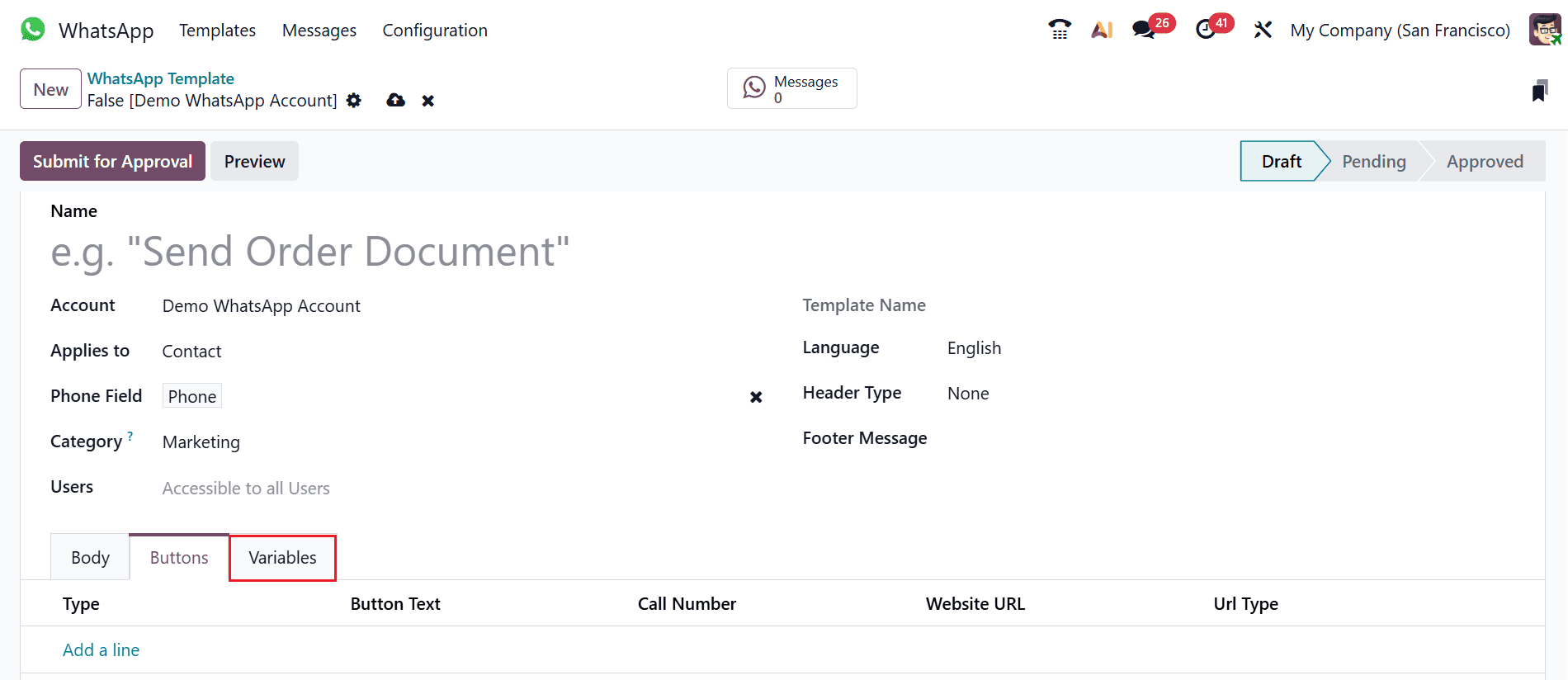
The template also includes Body, Buttons, and Variables tabs. Under the Body tab, enter the main message that you want to send to customers.
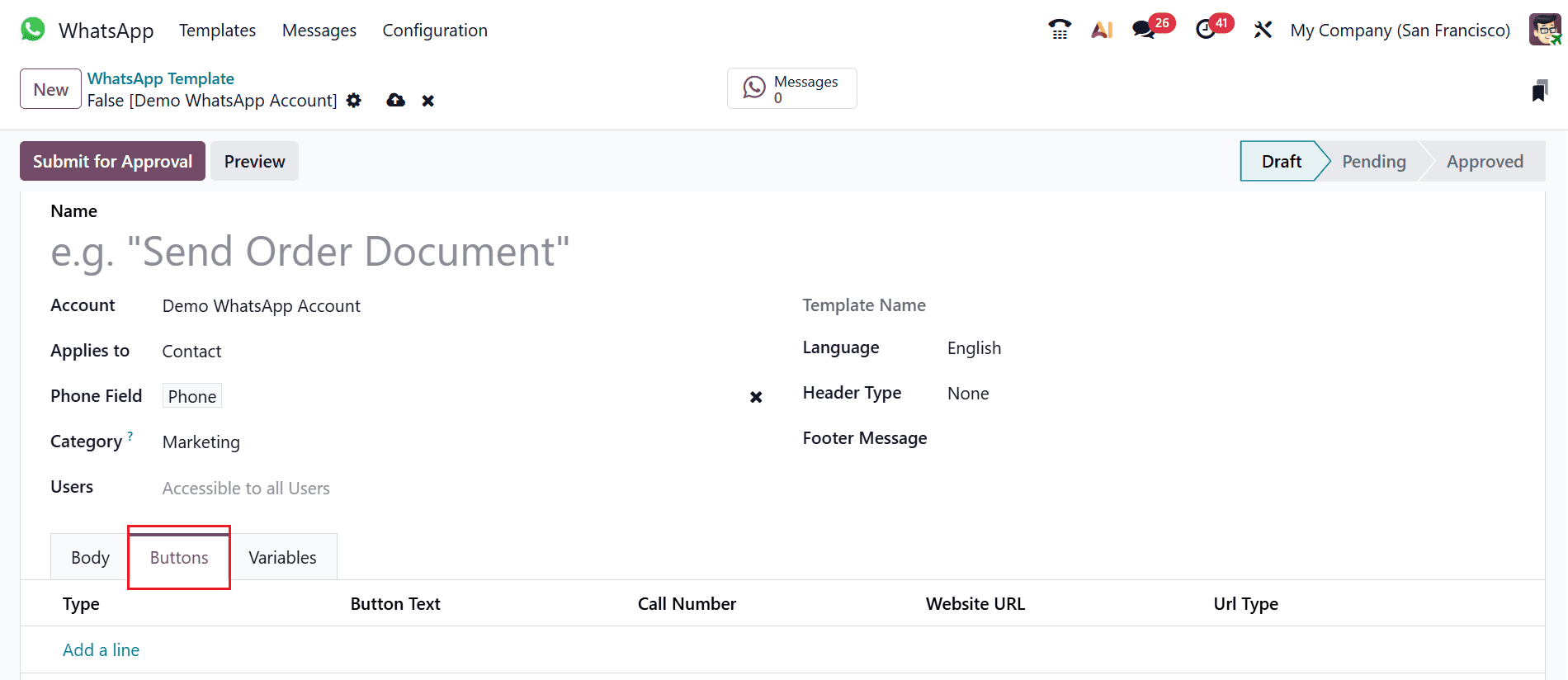
To include a button in the WhatsApp template, you should go to the Buttons tab and click Add a line. You will be able to choose the proper button type, for instance, Visit Website, Call Number, or Quick Reply.
Depending on the chosen button type, specify all necessary information, including Button Text, Phone Number, Website URL, and URL Type. The buttons enable your clients to act interactively with the message.
The Variables tab will allow you to enter the dynamic placeholders in the WhatsApp template. This means that the variables will automatically replace with the actual information, which corresponds to the fields of Odoo.
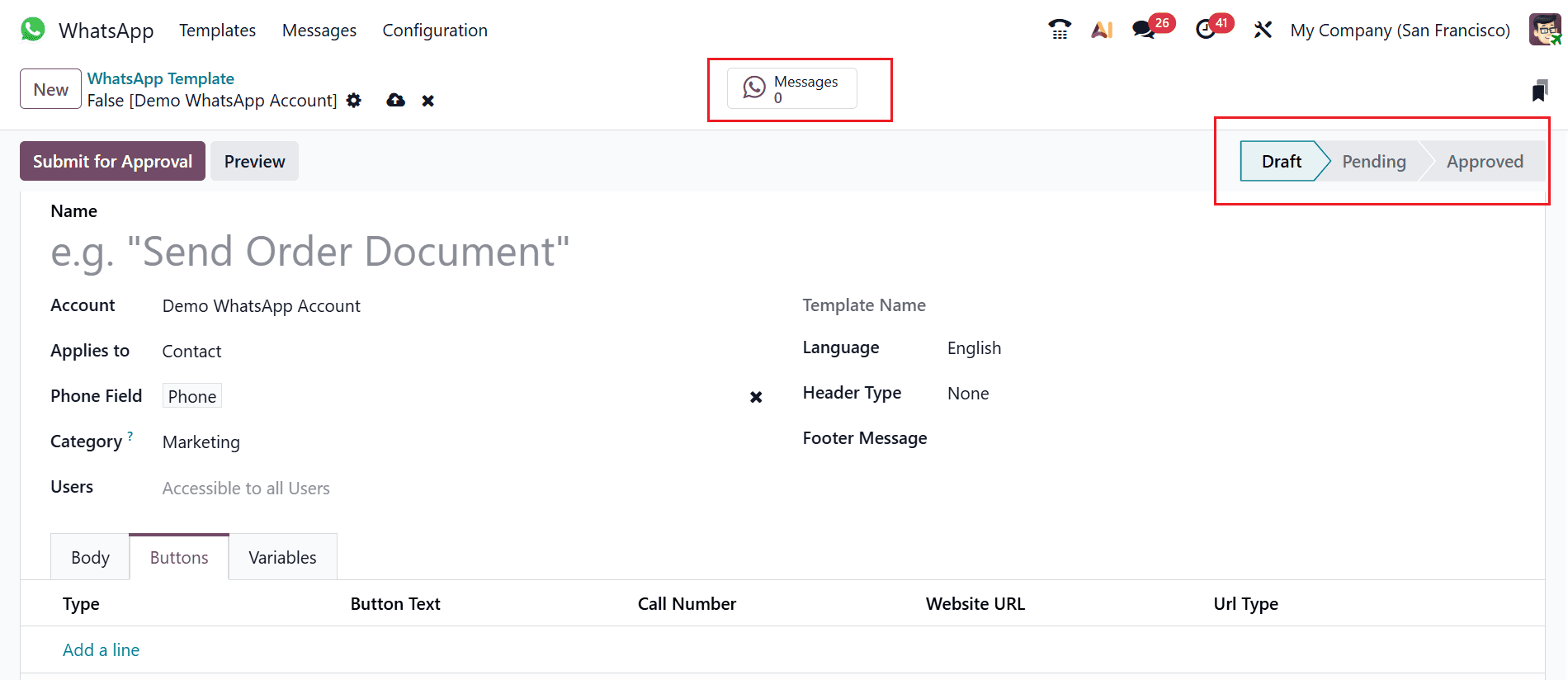
After the creation of the WhatsApp template, there will be various stages for the template, including the draft stage, pending stage, and approved stage.
The Messages smart tab displays all messages that have been sent using the selected WhatsApp template, allowing users to easily track and review the communication history.
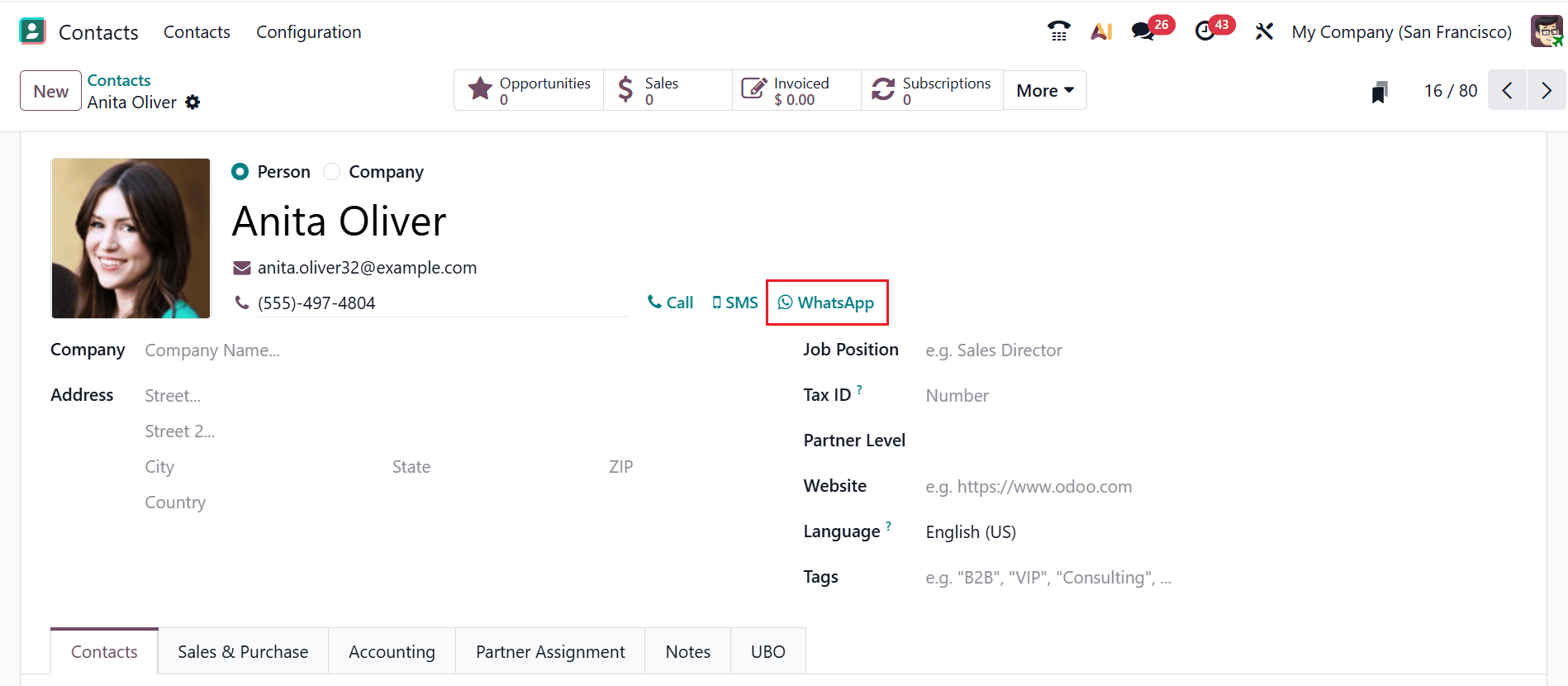
Odoo 19 users can use the configured WhatsApp templates to send messages directly to partners. In the Contacts module, open a partner’s record to find the WhatsApp button next to the phone number field, as shown below. This allows users to quickly initiate WhatsApp communication with the selected partner.
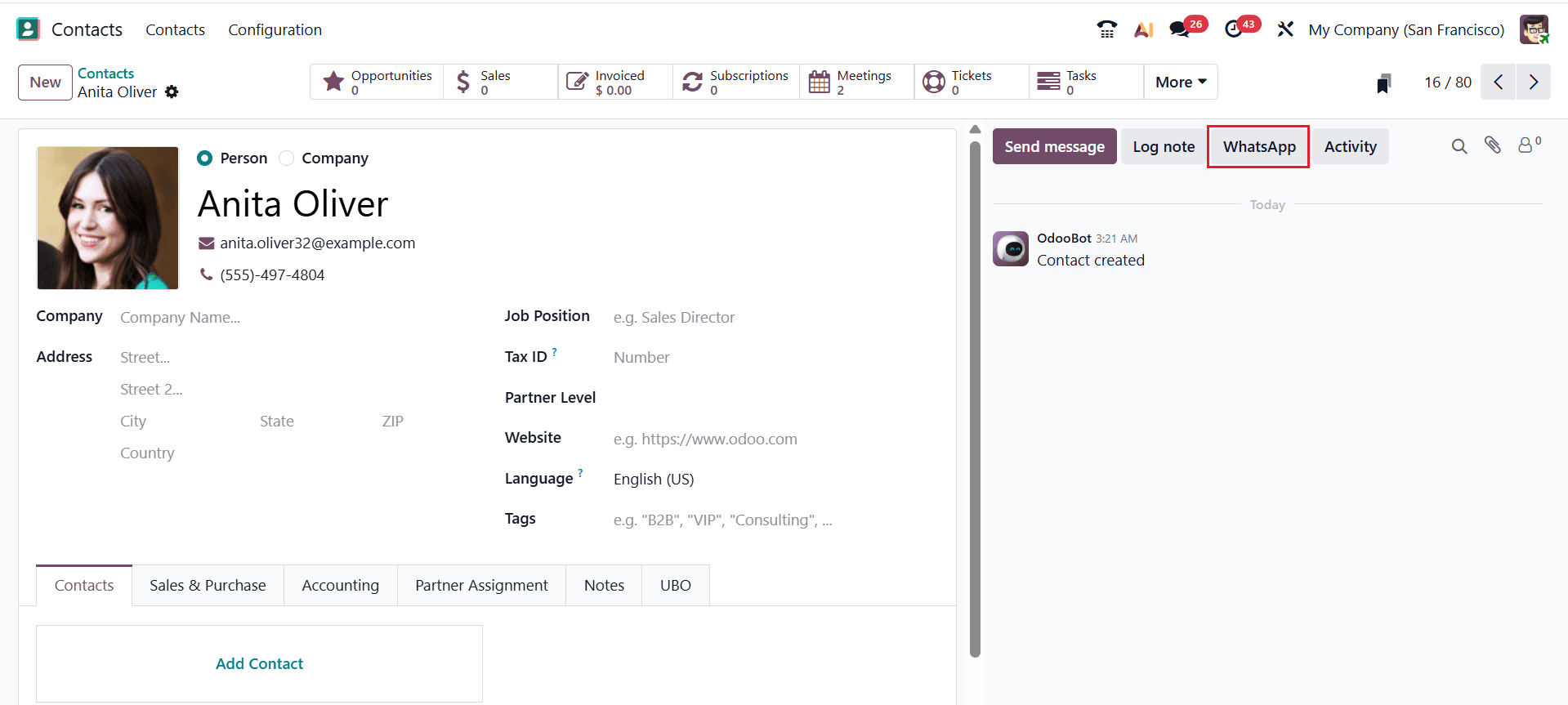
The WhatsApp option is also available in the chatter, enabling users to communicate directly with customers, as shown below. The WhatsApp button is also available in several tree views, thus making it possible for companies to send crucial information, including quotations, order confirmation, invoices, and other notifications via WhatsApp.
In Odoo 19, WhatsApp Templates offer businesses an effective solution to manage customer communication. Using WhatsApp templates, users can easily and efficiently send messages related to payments, orders, delivery, receipts, and even marketing through professional messages. Using such templates is advantageous since they allow configuring headers, body messages, buttons, footers, and dynamic variables, which makes them flexible enough to be used for different purposes. With approval from the system administrator, these templates will be available for use in Odoo operations. Thus, incorporating WhatsApp templates into Odoo 19 allows businesses to manage communication in an effective manner.
To read more about How WhatsApp Templates are Configured in Odoo 18, refer to our blog How WhatsApp Templates are Configured in Odoo 18.