When a user enters an address to a web application form, typing the complete address manually can be very time-consuming and error-prone. Google Places Autocomplete makes this process much easier and faster by displaying relevant place suggestions as the user types. It is particularly useful for checkout pages, delivery forms, registration forms, booking applications, and any other application that requires users to enter an address.
In this blog, we will set up and add the Google Places Autocomplete to a React application using the new Places API. Google provides both legacy and newer Places APIs, and also focus on the newer APIs that Google recommends.
The prerequisites for this setup are a Google Cloud project and a Google Maps API key.
Step 1: Set Up Google Cloud
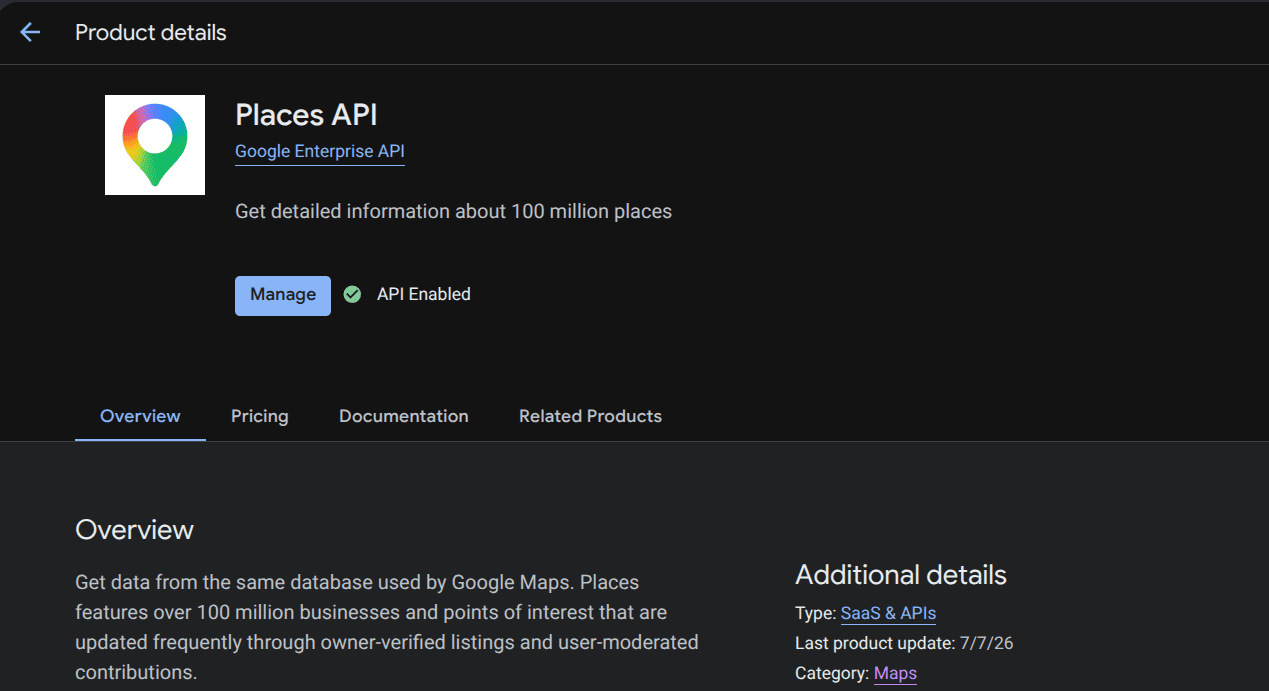
The first step is to create a project in the Google Cloud Console or select an existing project if you have one. Then, we need to enable the following APIs under APIs and Services > API Library
Places API
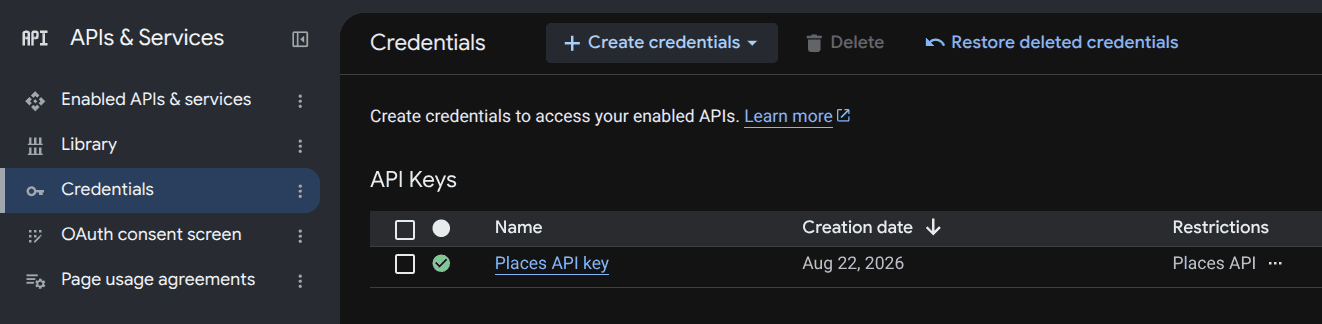
Next, create an API key from APIs and Services > Credentials
Step 2: Create a React Application
For a new React Vite project, run this, choose React, and then TypeScript or JavaScript
npm create vite@latest places-demo
Install the dependencies and start the application
cd places-demo
npm install
npm run dev
Step 3: Install the Google Maps Package
Now, we need to install the Google Maps package to load the Google Maps JavaScript APIs in React.
npm install @vis.gl/react-google-maps
Step 4: Add the API Key
Since we are using Vite, we can create a .env file in the project root and add the google api key.
VITE_GOOGLE_MAPS_API_KEY=your_api_key_here
Step 5: Load the Google Maps API
Next, we need to wrap the application with APIProvider. Update your src/App.jsx
import { APIProvider } from "@vis.gl/react-google-maps";
import AddressSearch from "./AddressSearch";
function App() {
 return (
   <APIProvider
     apiKey={import.meta.env.VITE_GOOGLE_MAPS_API_KEY}
   >
     <AddressSearch />
   </APIProvider>
 );
}
export default App;
Step 6: Create the Autocomplete Component
Now, we can create the autocomplete component. Create a new file src/AddressSearch.jsx
import { useEffect, useRef, useState } from "react";
import { useMapsLibrary } from "@vis.gl/react-google-maps";
function AddressSearch() {
 const places = useMapsLibrary("places");
 const containerRef = useRef(null);
 const [place, setPlace] = useState(null);
 useEffect(() => {
   if (!places) return;
   const autocomplete = new places.PlaceAutocompleteElement();
   const handleSelect = async ({ placePrediction }) => {
     const selectedPlace = placePrediction.toPlace();
     await selectedPlace.fetchFields({
       fields: [
         "formattedAddress",
         "location",
         "addressComponents",
       ],
     });
     setPlace(selectedPlace);
   };
   autocomplete.addEventListener("gmp-select", handleSelect);
   containerRef.current.appendChild(autocomplete);
   return () => {
     autocomplete.removeEventListener("gmp-select", handleSelect);
     autocomplete.remove();
   };
 }, [places]);
 return (
   <div>
     <h1>Search for an Address</h1>
     <div ref={containerRef} />
     {place && (
       <div>
         <h2>Selected Place</h2>
         <p>{place.formattedAddress}</p>
       </div>
     )}
   </div>
 );
}
export default AddressSearch;
Here, useMapsLibrary("places") gives access to Google’s Places library, and then we create a PlaceAutocompleteElement and attach it to the div using a ref. When the user selects a suggestion, the gmp-select event gives us the selected place data.
Step 7: Display Address Details
Now, we can set up a function to extract the individual fields in the address data, and we can use this to display in the UI
Helper function
function getComponent(components, type) {
 return (
   components?.find((item) =>
     item.types.includes(type)
   )?.longText || ""
 );
}
const city = getComponent(
place?.addressComponents,
"locality"
);
const state = getComponent(
place?.addressComponents,
"administrative_area_level_1"
);
const postalCode = getComponent(
place?.addressComponents,
"postal_code"
);
const country = getComponent(
place?.addressComponents,
"country"
);
Display them
{place && (
<div>
<h2>Selected Place</h2>
<p>{place.formattedAddress}</p>
<p>City: {city}</p>
<p>State: {state}</p>
<p>Postal Code: {postalCode}</p>
<p>Country: {country}</p>
</div>
)}Step 8: Display Latitude and Longitude
You can also display its geographic location data.
{place?.location && (
<div>
<p>Latitude: {place.location.lat()}</p>
<p>Longitude: {place.location.lng()}</p>
</div>
)}An example of data
Address: 12 MG Road, Bengaluru, Karnataka
City: Bengaluru
State: Karnataka
Postal Code: 560001
Country: India
Latitude: 12.9716
Longitude: 77.5946
Complete Example
import { useEffect, useRef, useState } from "react";
import { useMapsLibrary } from "@vis.gl/react-google-maps";
function getComponent(components, type) {
return (
components?.find((item) =>
item.types.includes(type)
)?.longText || ""
);
}
function AddressSearch() {
const places = useMapsLibrary("places");
const containerRef = useRef(null);
const [place, setPlace] = useState(null);
useEffect(() => {
if (!places || !containerRef.current) return;
const autocomplete =
new places.PlaceAutocompleteElement();
const handleSelect = async ({ placePrediction }) => {
const selectedPlace = placePrediction.toPlace();
await selectedPlace.fetchFields({
fields: [
"formattedAddress",
"location",
"addressComponents",
],
});
setPlace(selectedPlace);
};
autocomplete.addEventListener("gmp-select", handleSelect);
containerRef.current.appendChild(autocomplete);
return () => {
autocomplete.removeEventListener(
"gmp-select",
handleSelect
);
autocomplete.remove();
};
}, [places]);
const city = getComponent(
 place?.addressComponents,
 "locality"
);
const state = getComponent(
 place?.addressComponents,
 "administrative_area_level_1"
);
const postalCode = getComponent(
 place?.addressComponents,
 "postal_code"
);
const country = getComponent(
 place?.addressComponents,
 "country"
);
return (
<div>
<h1>Google Places Autocomplete</h1>
<p>Search for an address:</p>
<div ref={containerRef} />
{place && (
<div>
<h2>Selected Place</h2>
<p>
<strong>Address:</strong>{" "}
{place.formattedAddress}
</p>
<p>
<strong>City:</strong> {city}
</p>
<p>
<strong>State:</strong> {state}
</p>
<p>
<strong>Postal Code:</strong> {postalCode}
</p>
<p>
<strong>Country:</strong> {country}
</p>
{place.location && (
<>
<p>
<strong>Latitude:</strong>{" "}
{place.location.lat()}
</p>
<p>
<strong>Longitude:</strong>{" "}
{place.location.lng()}
</p>
</>
)}
</div>
)}
</div>
);
}
export default AddressSearch;Google Places Autocomplete is a practical way to improve the address entry in a React application. With the help of the Places API, we can create an autocomplete field and let users select a location and retrieve all the structured information about that place.
To read more about How to Secure a React App with Keycloak, refer to our blog How to Secure a React App with Keycloak.