Efficient helpdesk ticket management is essential for ensuring customer satisfaction and maintaining high service standards. With the release of Odoo 18, managing helpdesk tickets has become even more streamlined, particularly when it comes to closing tickets. In this blog, we’ll walk through the best practices and features in Odoo 18 to properly manage the ticket closing process.
Once the issue is resolved, Odoo Helpdesk provides multiple options for closing a ticket. The pipeline remains up-to-date when resolved tickets are manually closed; however, unnecessary blocking problems are avoided when dormant tickets are automatically closed. Allowing customers to close their own tickets provides a clear indication that their issue has been resolved. This self-service option improves customer satisfaction while reducing the workload on support teams and increasing their overall efficiency.
Creating the Ticket
We can create support tickets from both the Odoo backend and the website. After installing the Helpdesk module, a Help menu becomes available on the website. When users click on this menu, they are redirected to a ticket submission form.
This form includes all the necessary fields, such as name, email, subject, and description, allowing customers to add their issue clearly. Additionally, there is a file upload option, enabling users to attach screenshots or documents that may help the support team understand the problem better.
Thus, any files related to the ticket, such as screenshots, PDFs, or supporting documents, can be uploaded directly through this form. After filling in all the required fields and attaching the necessary files, the user can click the Submit button
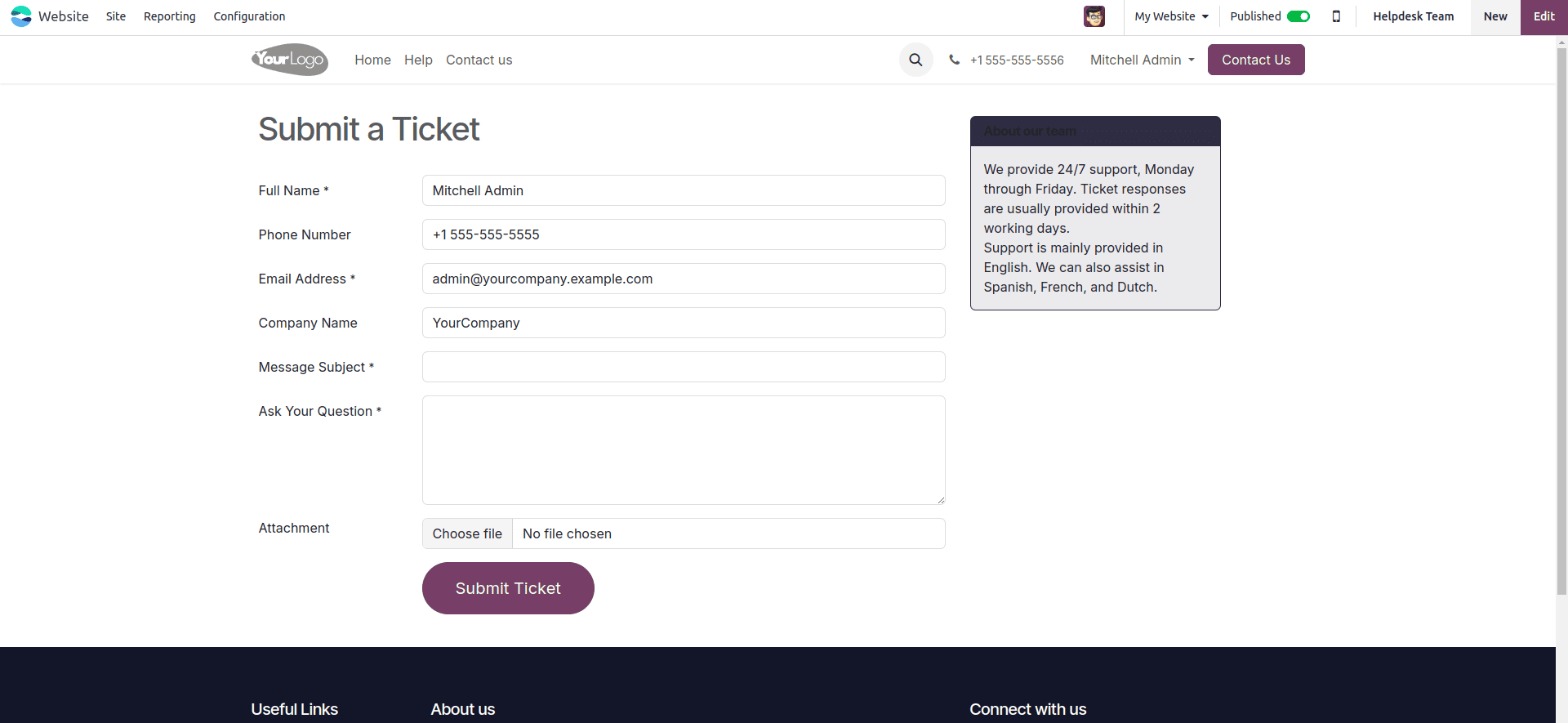
Once submitted, the helpdesk ticket is automatically created in the backend under the Helpdesk module. From there, support team members can access the ticket, review the information provided, check the attachments, and begin working on the issue.
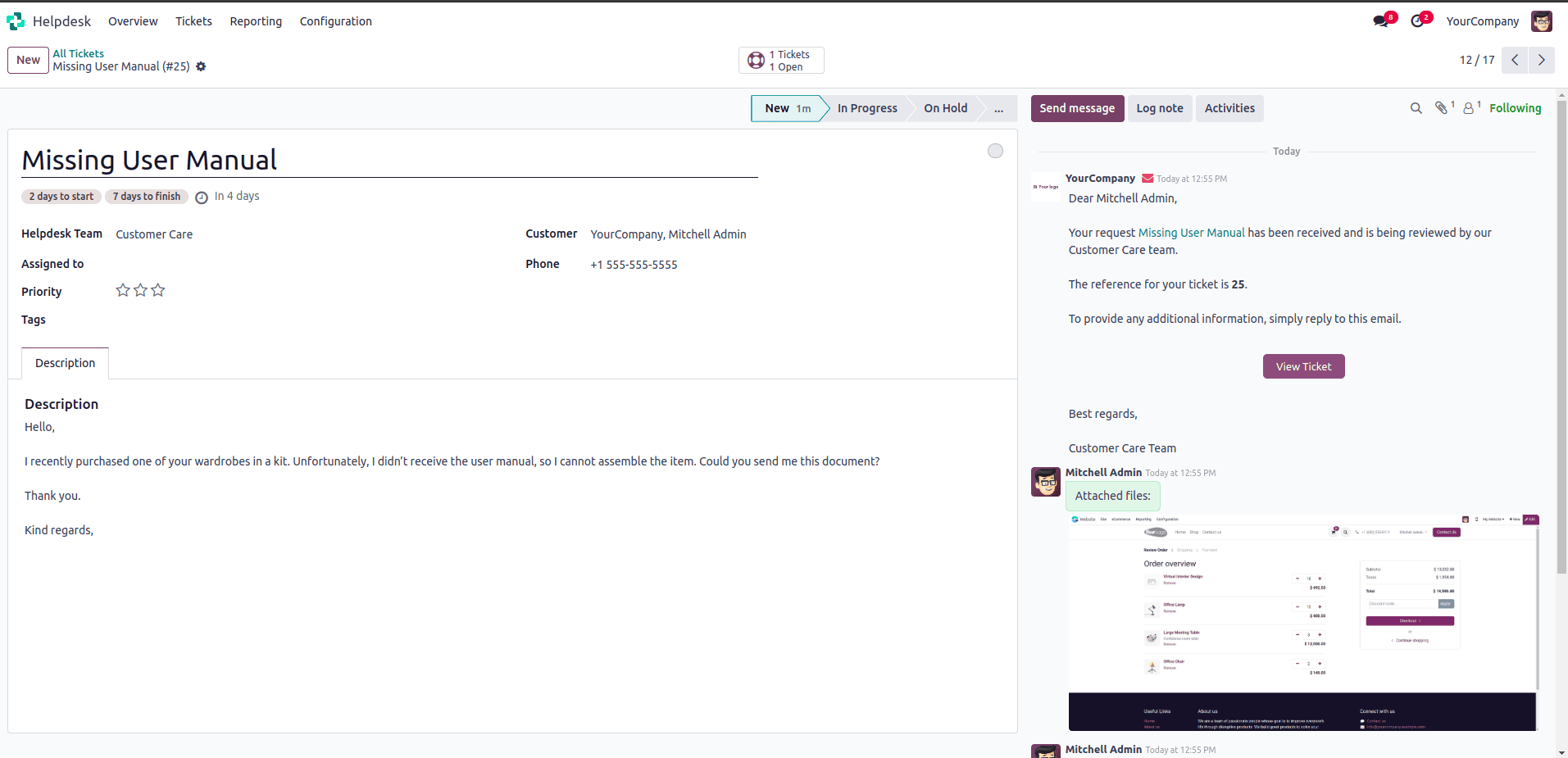
Also, we can create a ticket directly from the backend.
Manually Close Solved Tickets
A ticket is moved to the following stages of the pipeline as work on it continues. The ticket gets transferred to a folded stage once the problem has been resolved. The ticket is now considered closed.
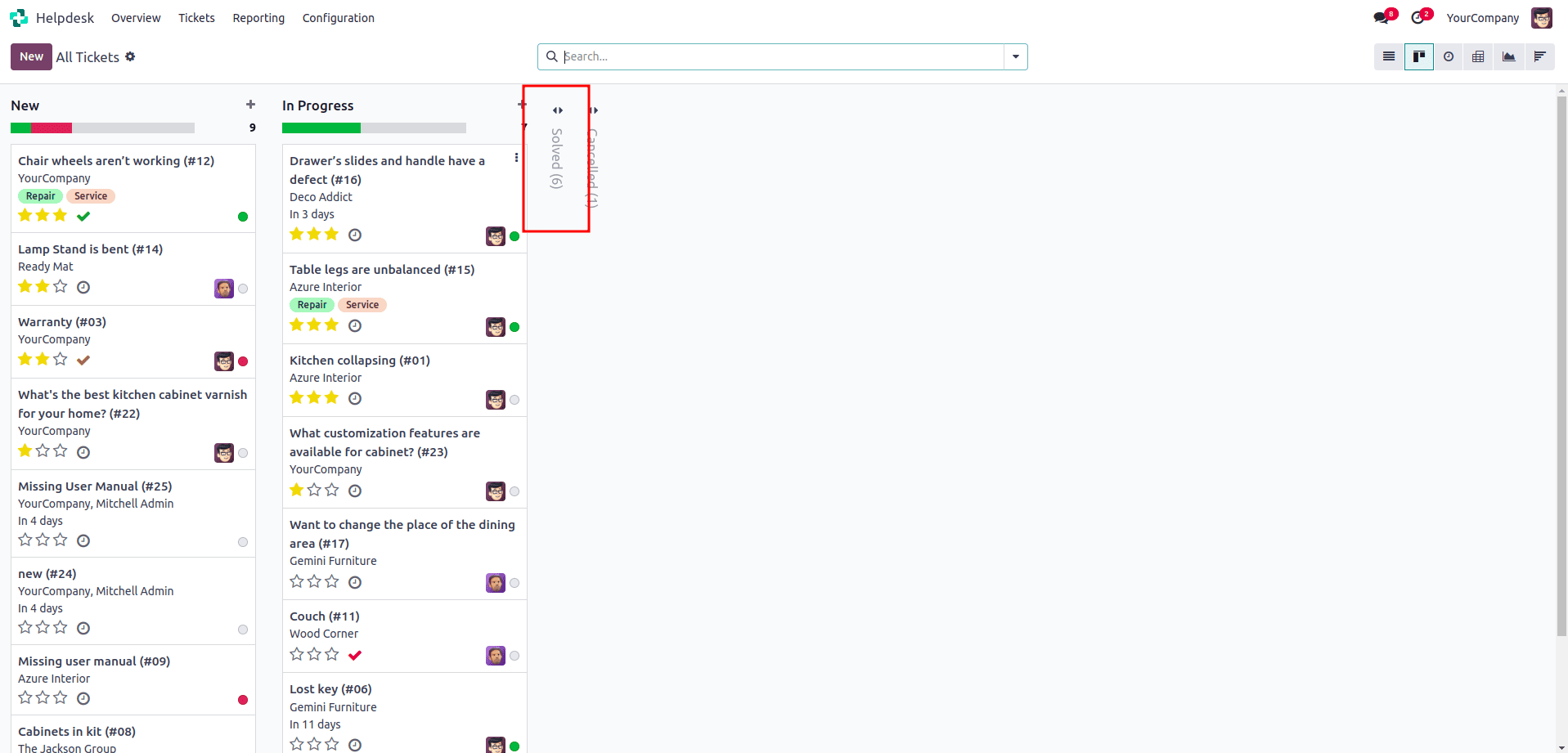
Automatically Close Inactive Tickets
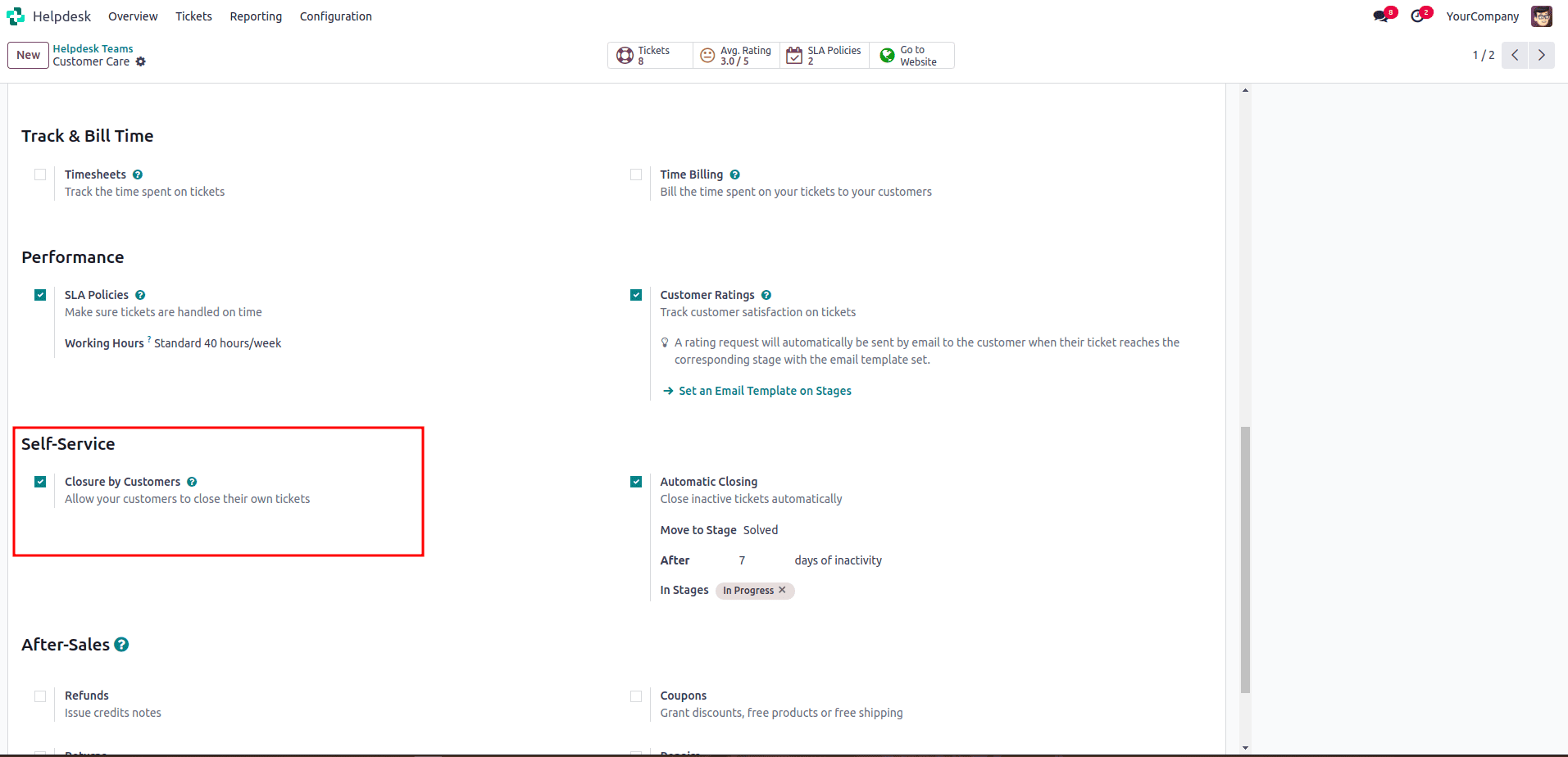
Tickets may be automatically closed after a predetermined amount of time if they remain inactive. Then they are transferred to a stage that is folded. Go to the helpdesk team’s settings by navigating to Configuration > Helpdesk Teams. Once there, open the Self-Service section and enable Automatic Closing.
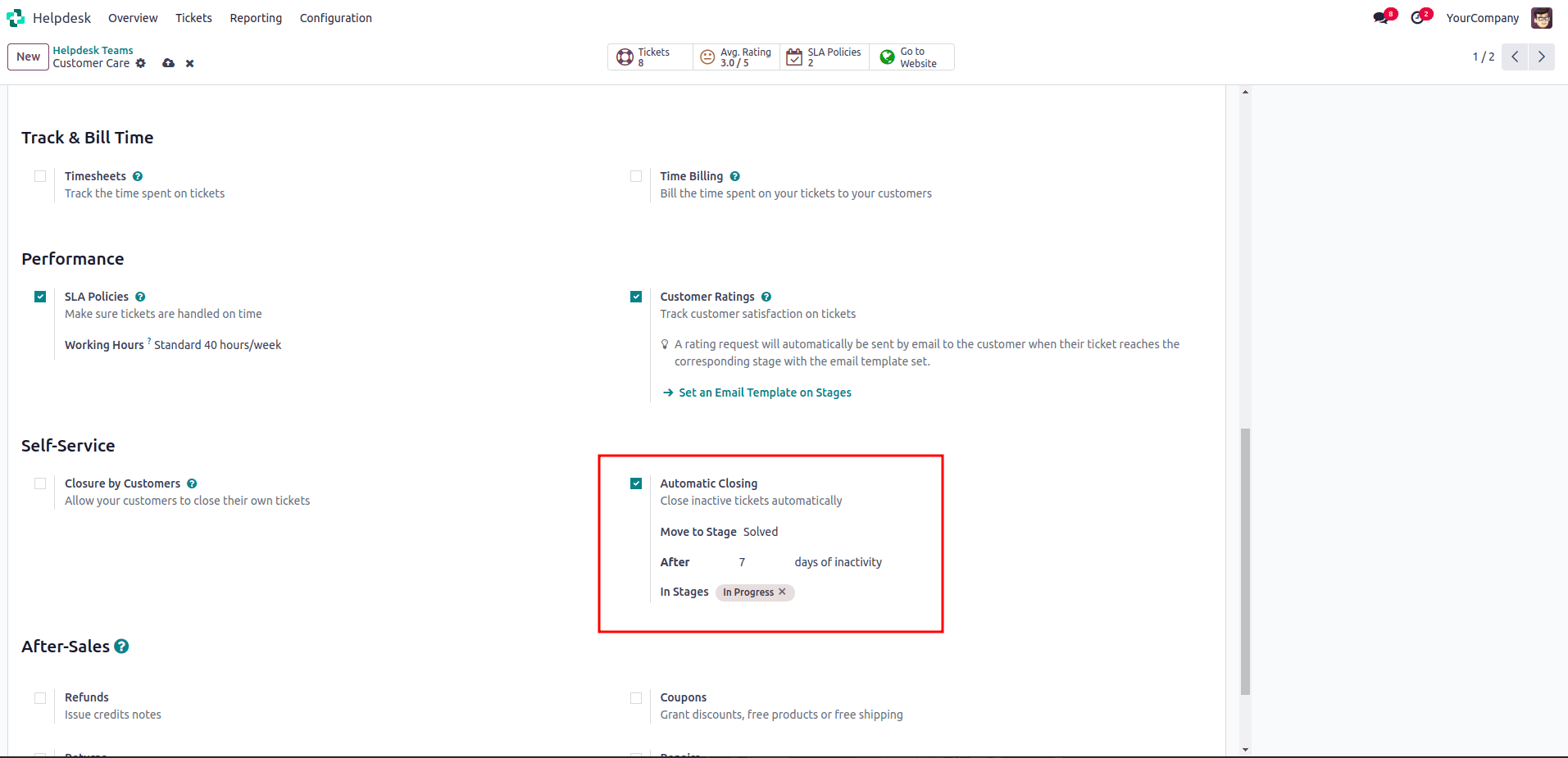
When enabling automatic ticket closure in Odoo 18, several configuration fields determine how and when inactive tickets are moved through the pipeline.
The Move to Stage field controls the destination stage for tickets that have been inactive beyond the specified time. By default, Odoo selects the stage in the team’s pipeline that is folded in the Kanban view, since folded stages typically represent completed or closed states.
If the team has multiple folded stages, Odoo chooses the first folded stage in the order of the pipeline. On the other hand, if no stages are folded, the system defaults to using the final stage in the pipeline, as it is usually where completed tasks are placed.
The After days of inactivity field determines how long a ticket can remain untouched before the system automatically closes it. This value is set to 7 days by default, but administrators can adjust it based on their internal response and follow-up standards.
One or more stages can also be specified in the In Stages field. When stages are added here, Odoo will track inactivity only when the ticket is in those specific stages, rather than monitoring inactivity throughout the entire pipeline. This allows more precise control, such as only tracking inactivity in “Waiting for Customer” or “Pending Feedback” stages.
Allow Customers to Close Their Tickets
Customers can close their own tickets once they are satisfied that their issue has been fully resolved. Instead of relying on support agents to manually close every ticket, this self-service option gives customers more control and reduces unnecessary workloads for the helpdesk team.
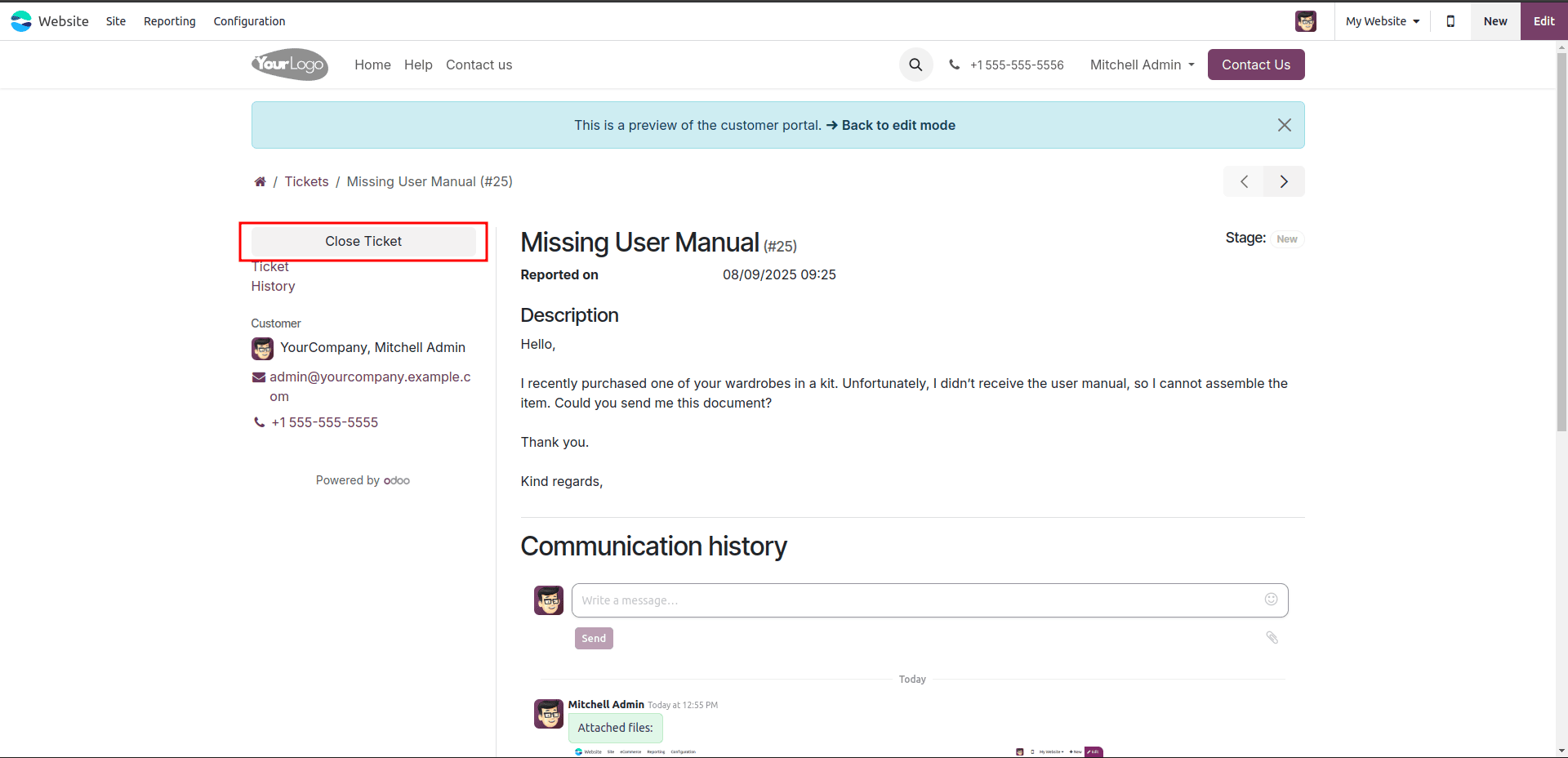
To enable this feature, go to Configuration > Helpdesk Teams and open the team for which you want to activate customer-driven closures. In the team’s settings, scroll down to the Self-Service section and check the Closure by Customers option. Once this setting is enabled, customers will see a “Close Ticket” button when they access their ticket from the customer portal. They can use this button to mark the ticket as solved whenever they are satisfied with the support provided.
Once the ticket closing settings are activated, customers can view a Close Ticket button when accessing their tickets through the customer portal.
Efficiently closing helpdesk tickets helps maintain a responsive and well-organized support system. With Odoo 18, businesses have flexible options to manage ticket resolution from manual closure by support agents to automatic workflows and customer self-service. By leveraging these features, you not only reduce ticket backlog and prevent unresolved issues from lingering but also empower customers and improve their overall support experience.
Adopting a well-structured ticket closing strategy in Odoo 18 helps ensure your helpdesk runs smoothly, your support team stays focused, and your customers stay satisfied.
To read more about How to Manage Website Helpdesk in Odoo 18, refer to our blog How to Manage Website Helpdesk in Odoo 18.