Microsoft OneDrive is a cloud-based storage service that enables users to store and share documents easily. This application helps users sync, manage, and back up attachments. It simplifies document workflows, reduces the load on the Odoo server, and makes files accessible from anywhere.
To connect OneDrive and Odoo, you first need a Microsoft Azure account. If you already have an account, log in to the Microsoft Azure portal, or create a new one.
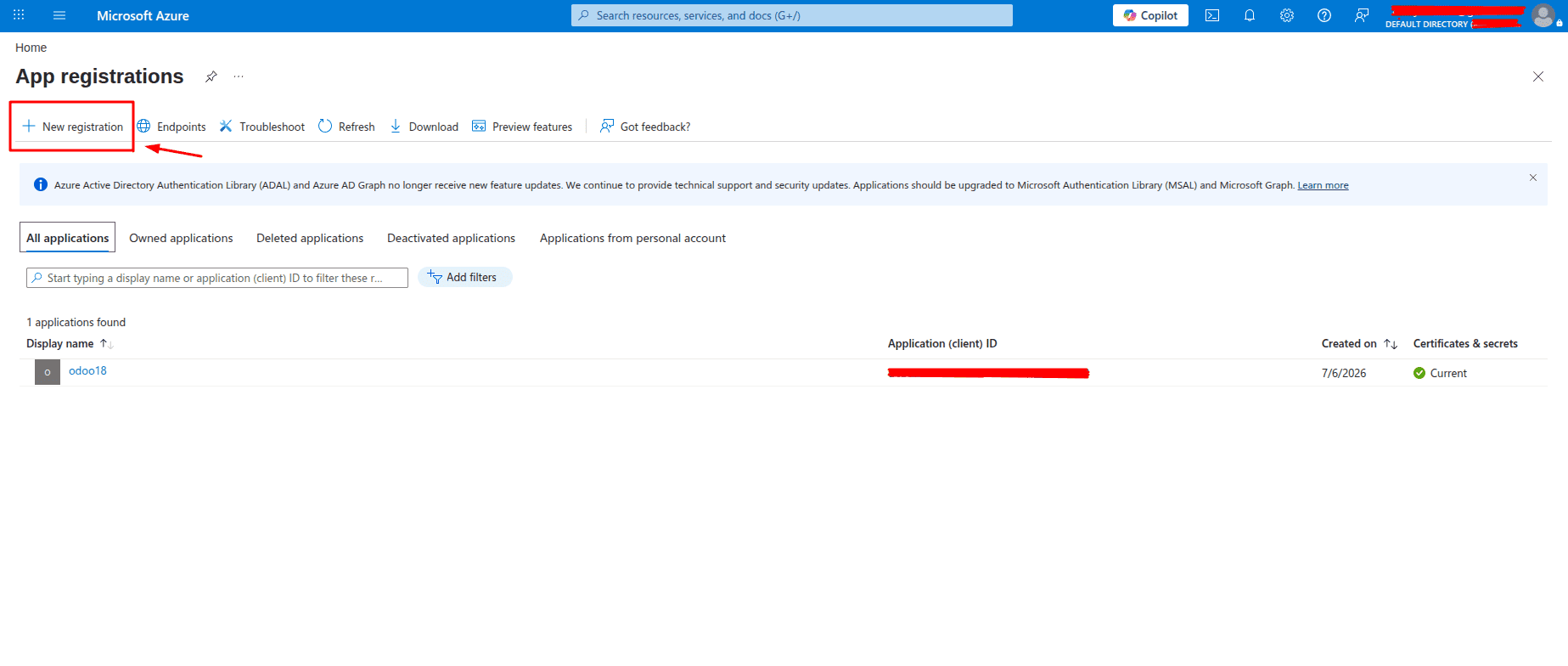
The next step is to create an Azure application to integrate it with Odoo. For that, search for the app, select the App registrations service, and create a new application by clicking onthe New registration button.
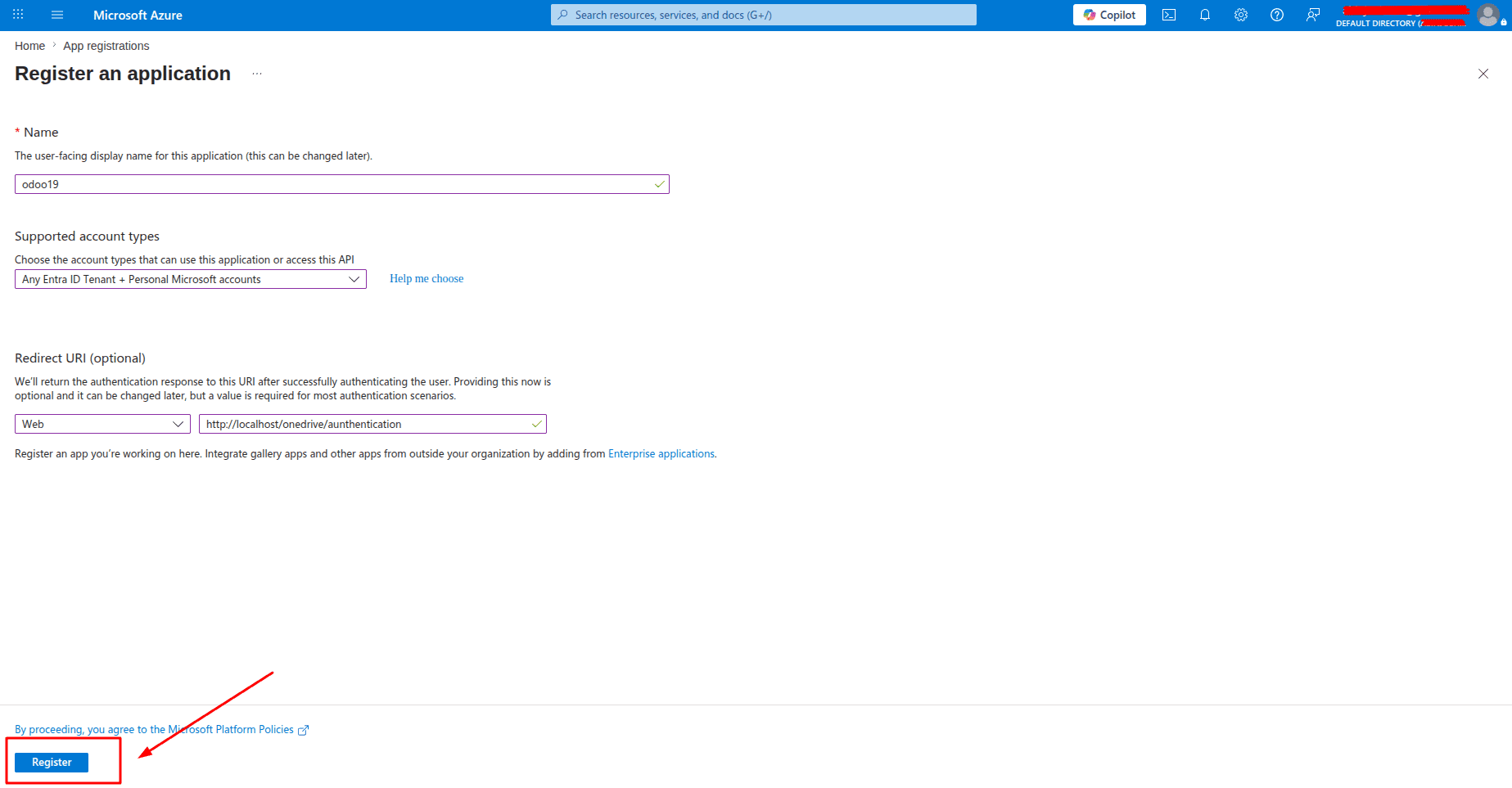
Then, add the Name for your application, select the supported account types (e.g., Any organizational directory and personal Microsoft accounts), and click the Register button.
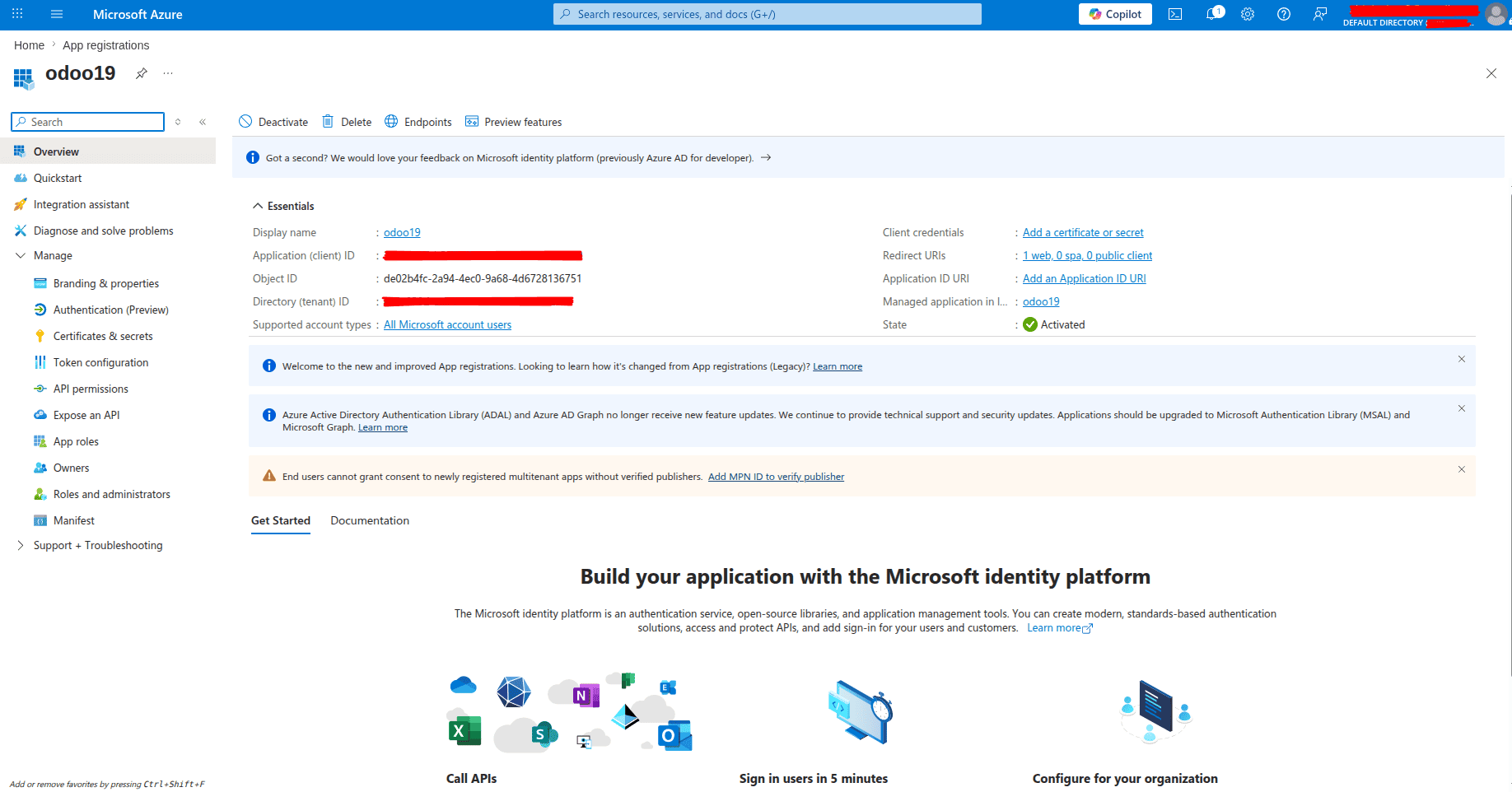
After completing the registration, you will be taken to the application’s overview page. Under the Essentials tab, you will find important details like the Application(client) ID and Directory(Tenant) ID. Store these credentials securely, as they will be required during the OneDrive integration setup in Odoo.
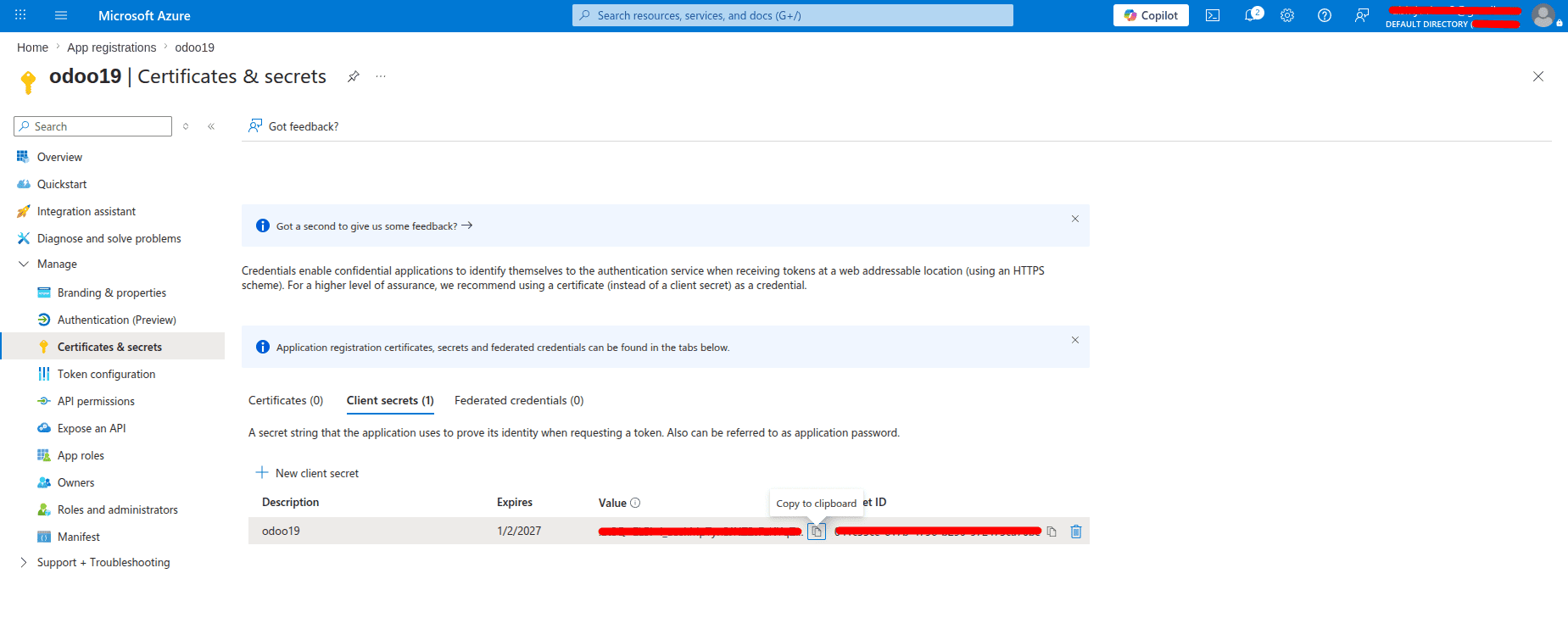
From the application’s left-side menu, open Certificates & secrets and select New client secret to create a new secret key.
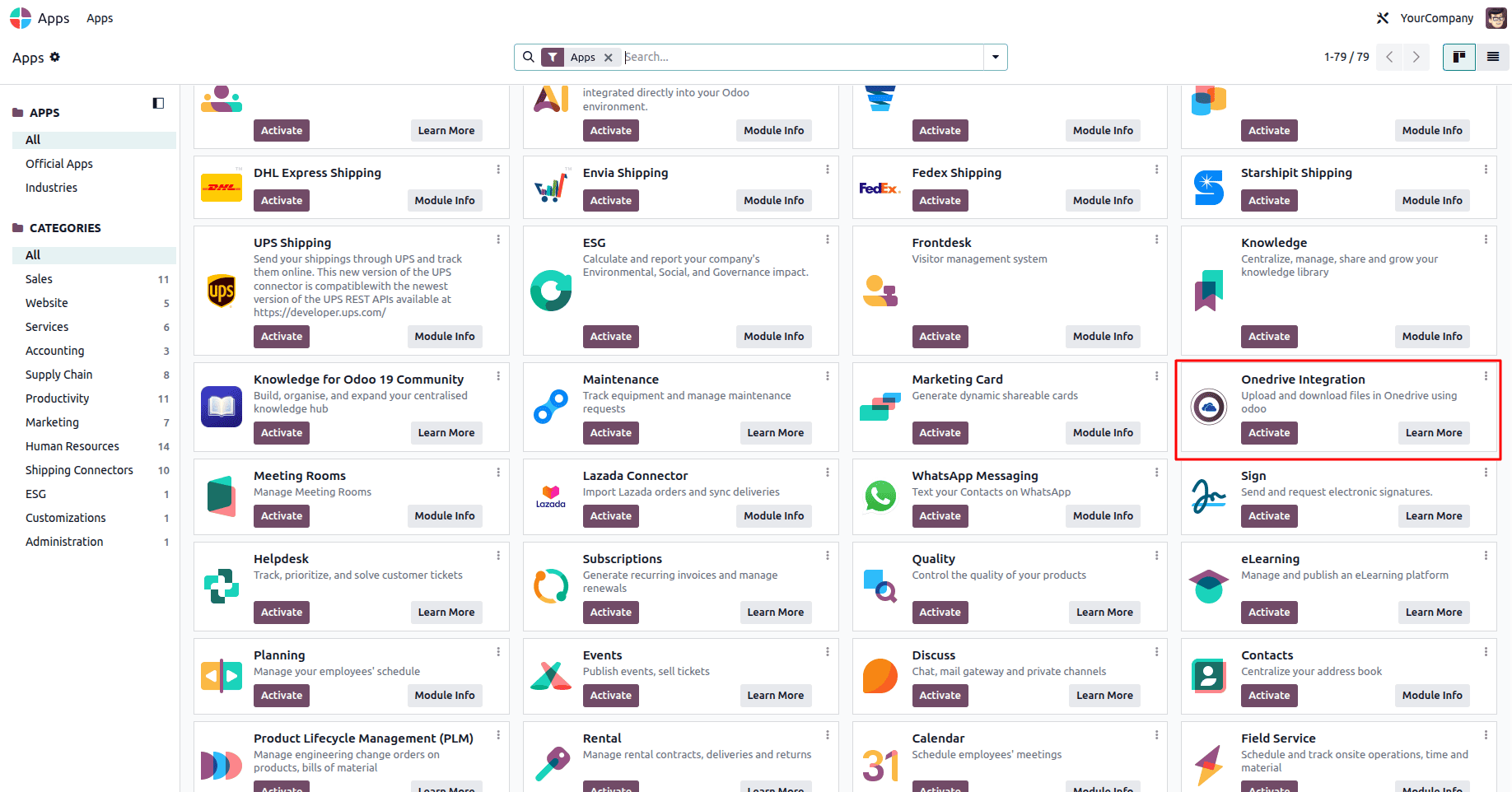
Once the Azure setup is complete, proceed to Odoo. Open the Apps menu, search for OneDrive Integration, and install the module. Before installing it, ensure that all required external Python dependencies are available in your Odoo environment. If not, you can install using the command below:
After the installation is complete, go to Odoo Settings and open the General Settings. Please scroll down to Integrations to configure the settings for the Microsoft OneDrive integration. You have to provide the credentials that are created from the Azure portal here. Provide your Client ID, Tenant ID, Client Secret, and the Folder Name accordingly.
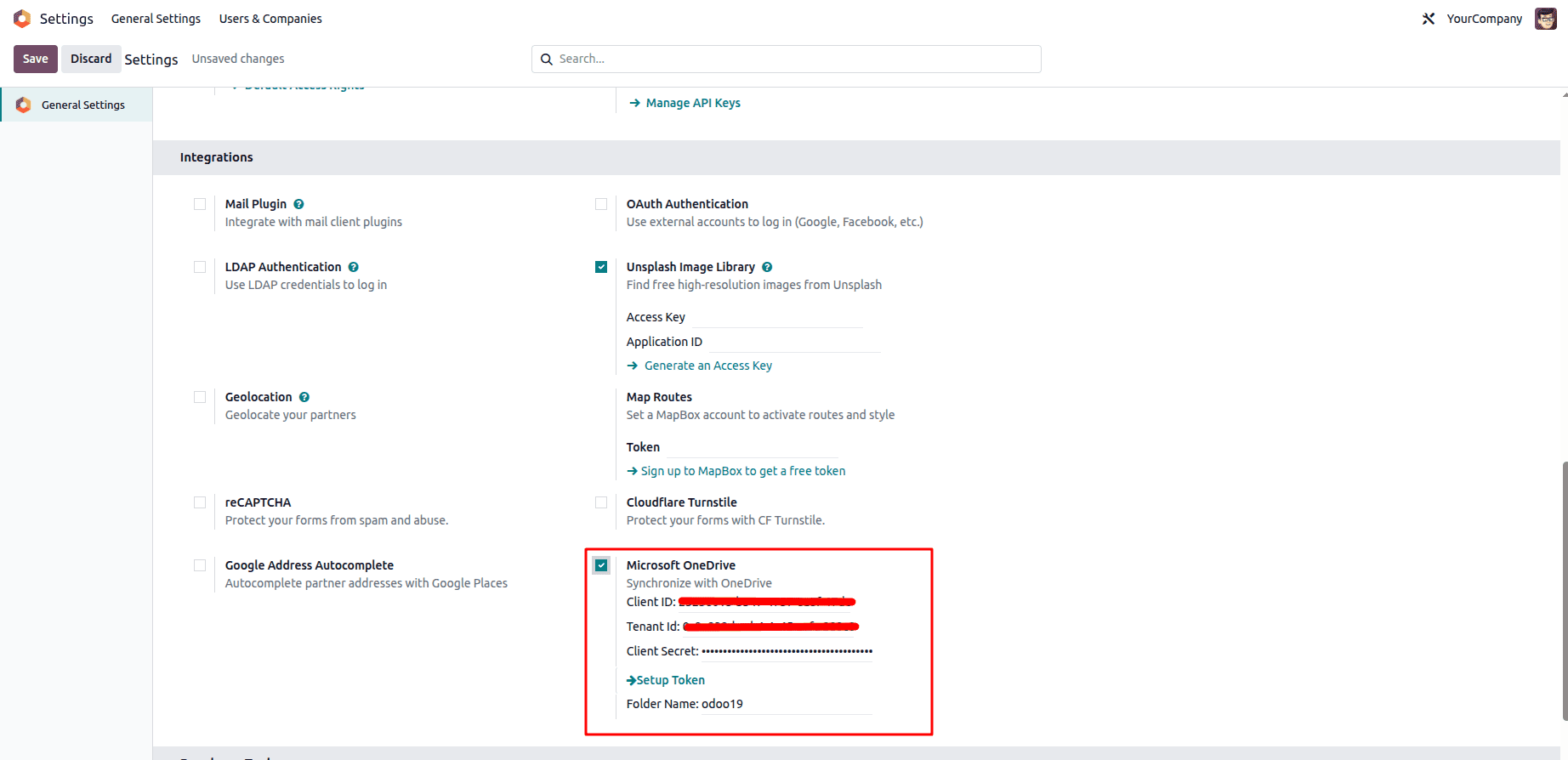
After entering all the necessary credentials, click on the Setup Token. Once done, this step will lead you to the Microsoft authorization page. A pop-up window will appear, where you have to accept the following question: “Let this app access your info?”
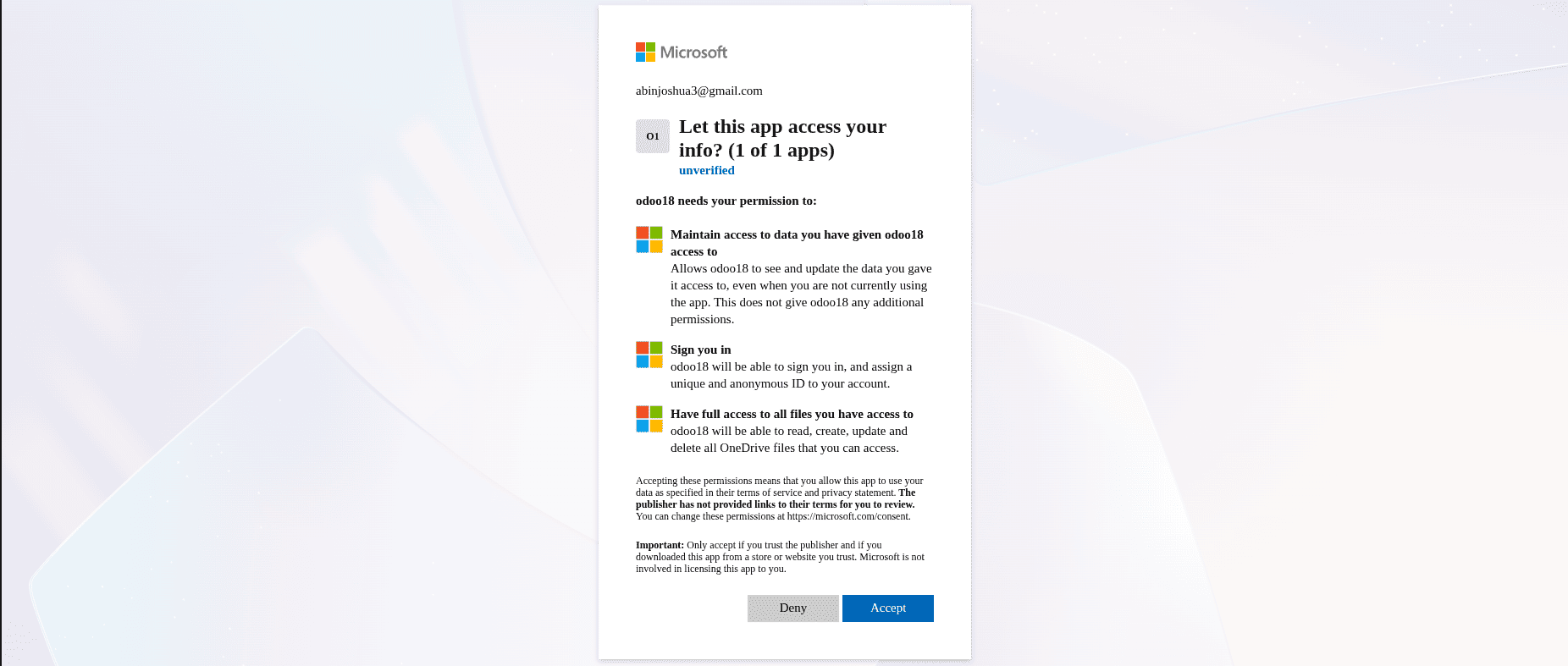
Once authenticated, your Odoo system is successfully linked to Microsoft OneDrive.
The Microsoft OneDrive Odoo Connector helps to sync attachments on Odoo, thus making improvements for businesses to store, track, and manage documents collaboratively. OneDrive is a better replacement for storing large files directly on your local Odoo server. It also enables organizations to manage and optimize their available disk space more effectively.
Troubleshooting: Folder Not Found
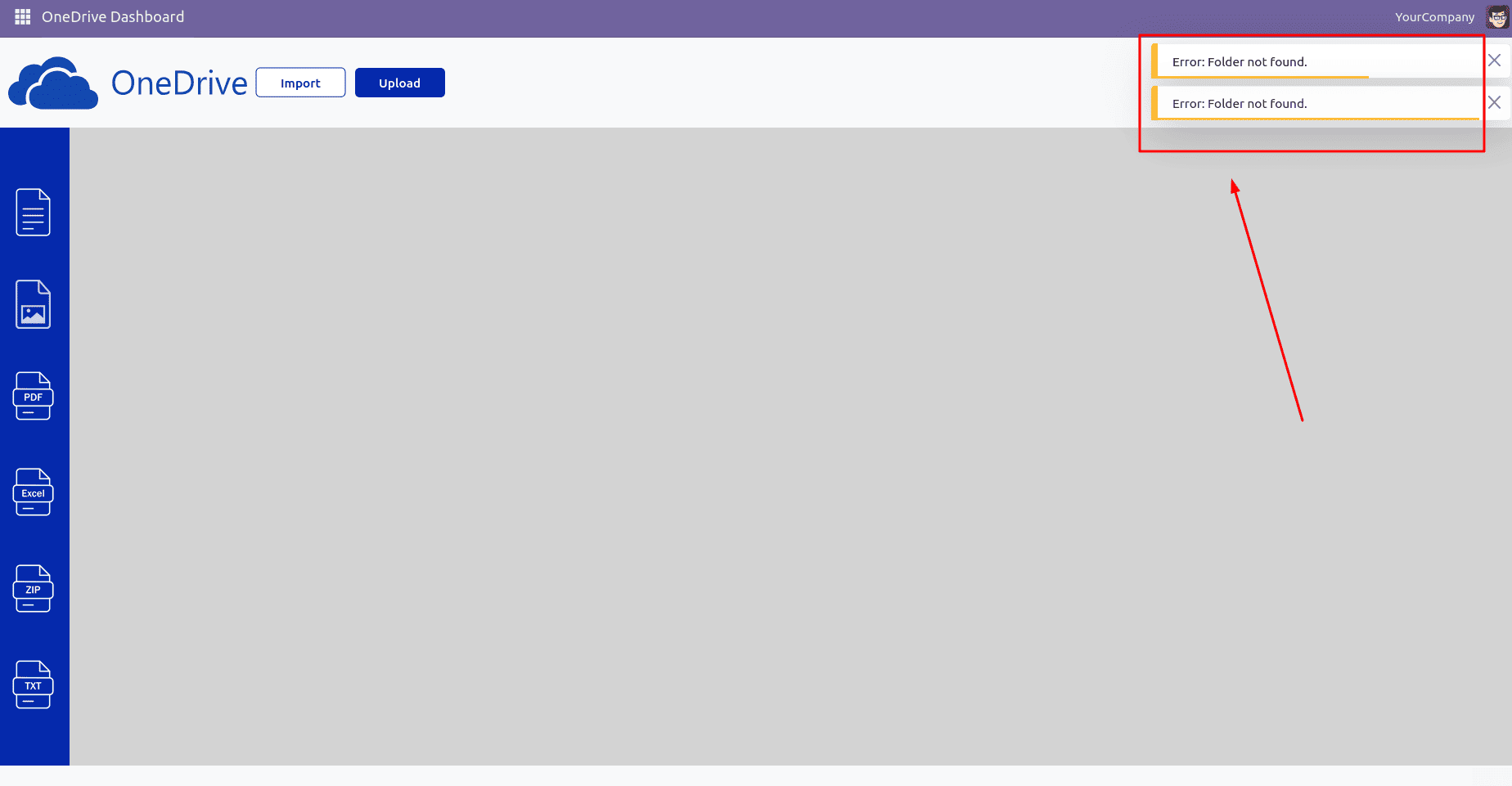
After completing the configuration, you may encounter a “Folder not found” error in the OneDrive dashboard, as shown above.
This occurs when the folder name specified in the Microsoft OneDrive configuration in Odoo does not exist in the connected OneDrive account. The folder name must match an existing folder in OneDrive.
To resolve this issue, sign in to your OneDrive account and ensure the folder name is typed correctly. Please note that folder names are case-sensitive.
Example: If Odoo Documents was entered as the Folder Name in Odoo, create a folder named Odoo Documents in OneDrive.
File Import from OneDrive
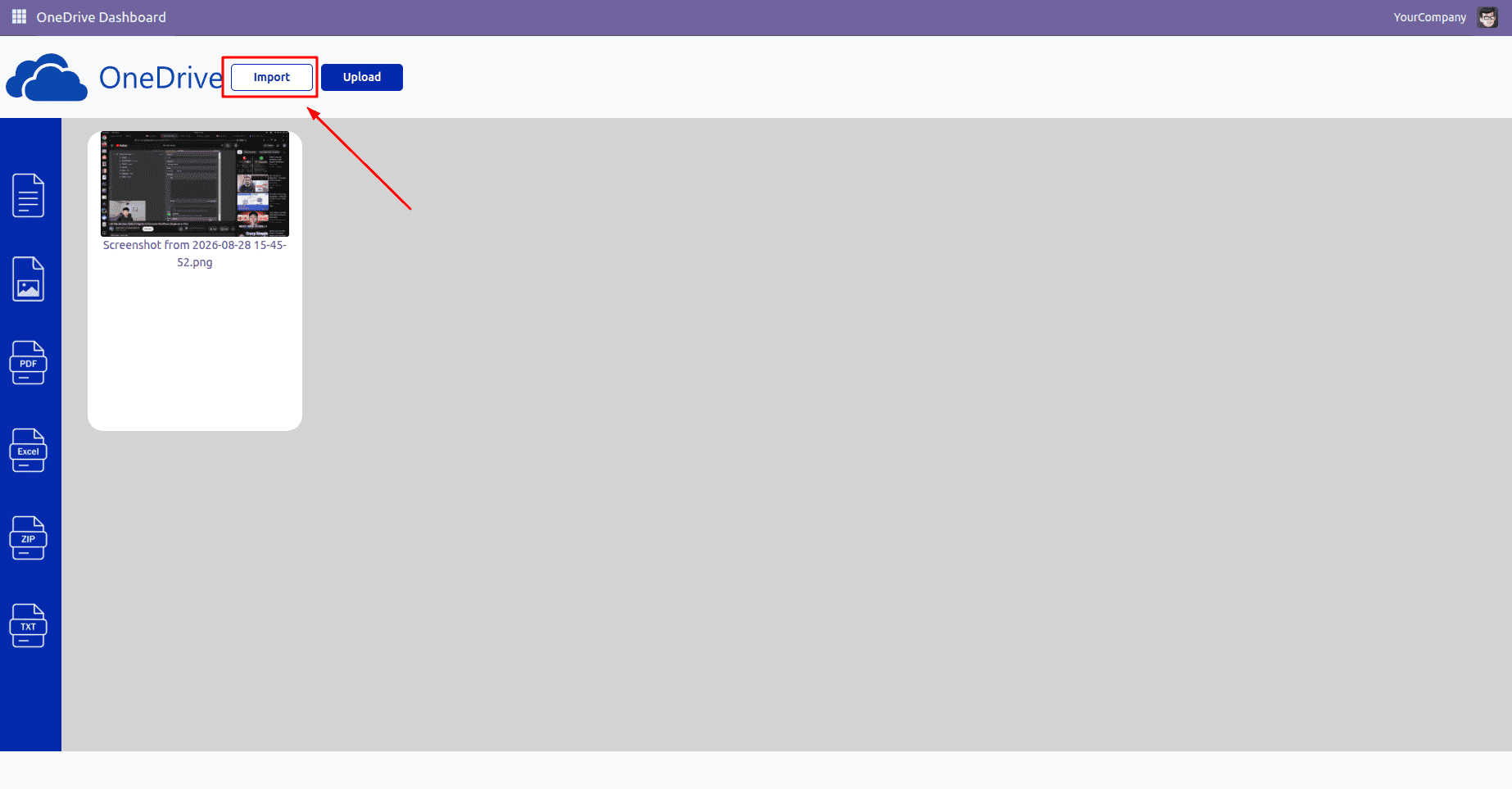
File Import: To import the files, go to the OneDrive dashboard of Odoo and press the Import button. This process will sync your files from the chosen OneDrive folder into Odoo. Then, you will see your files in the Documents module.
Within your OneDrive account, locate the specific file intended for transfer for instance, a file titled demo which we will now bring into the Odoo Documents module.
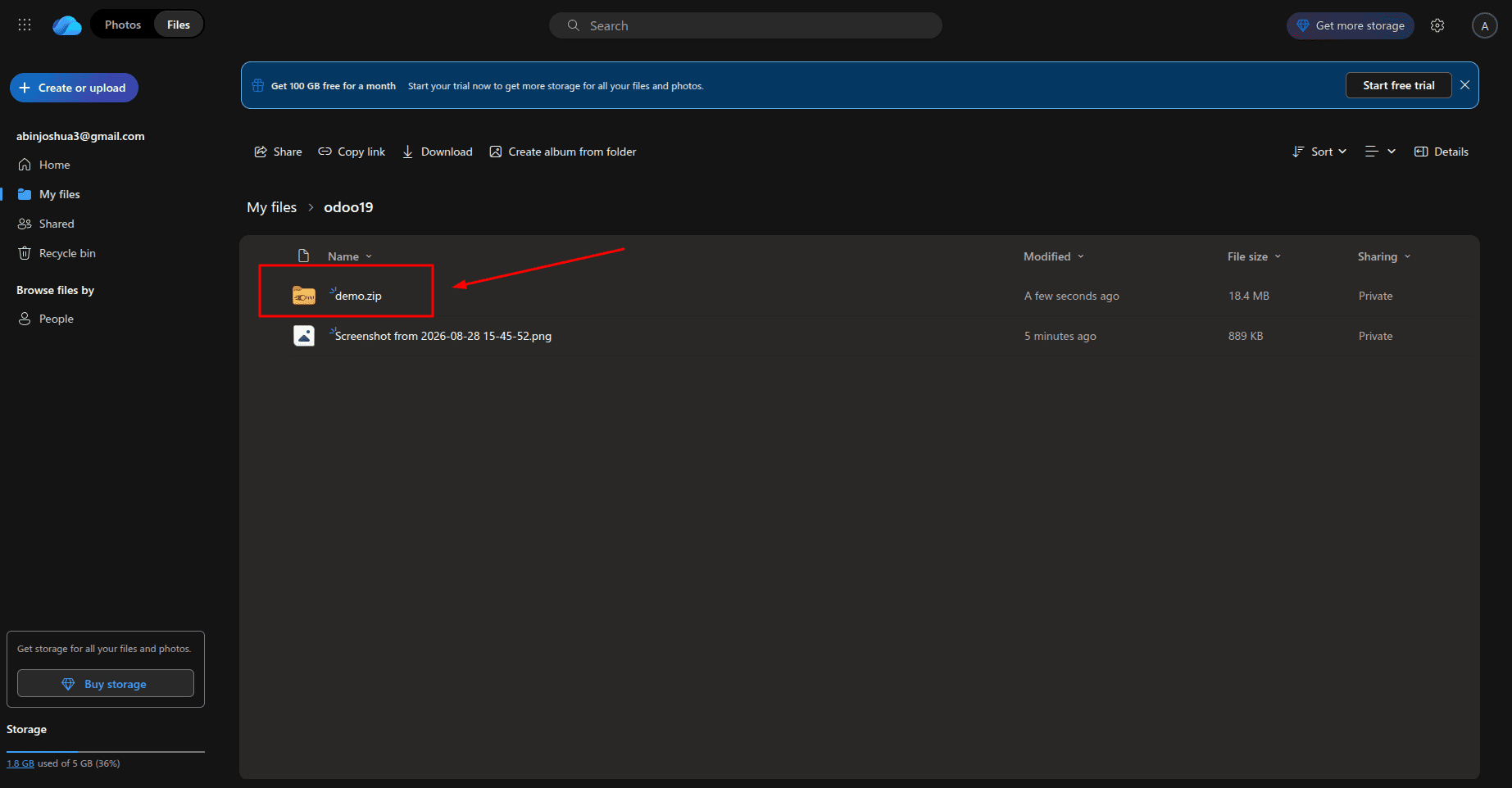
To initiate this synchronization, navigate to the Documents module interface and select the Import button.
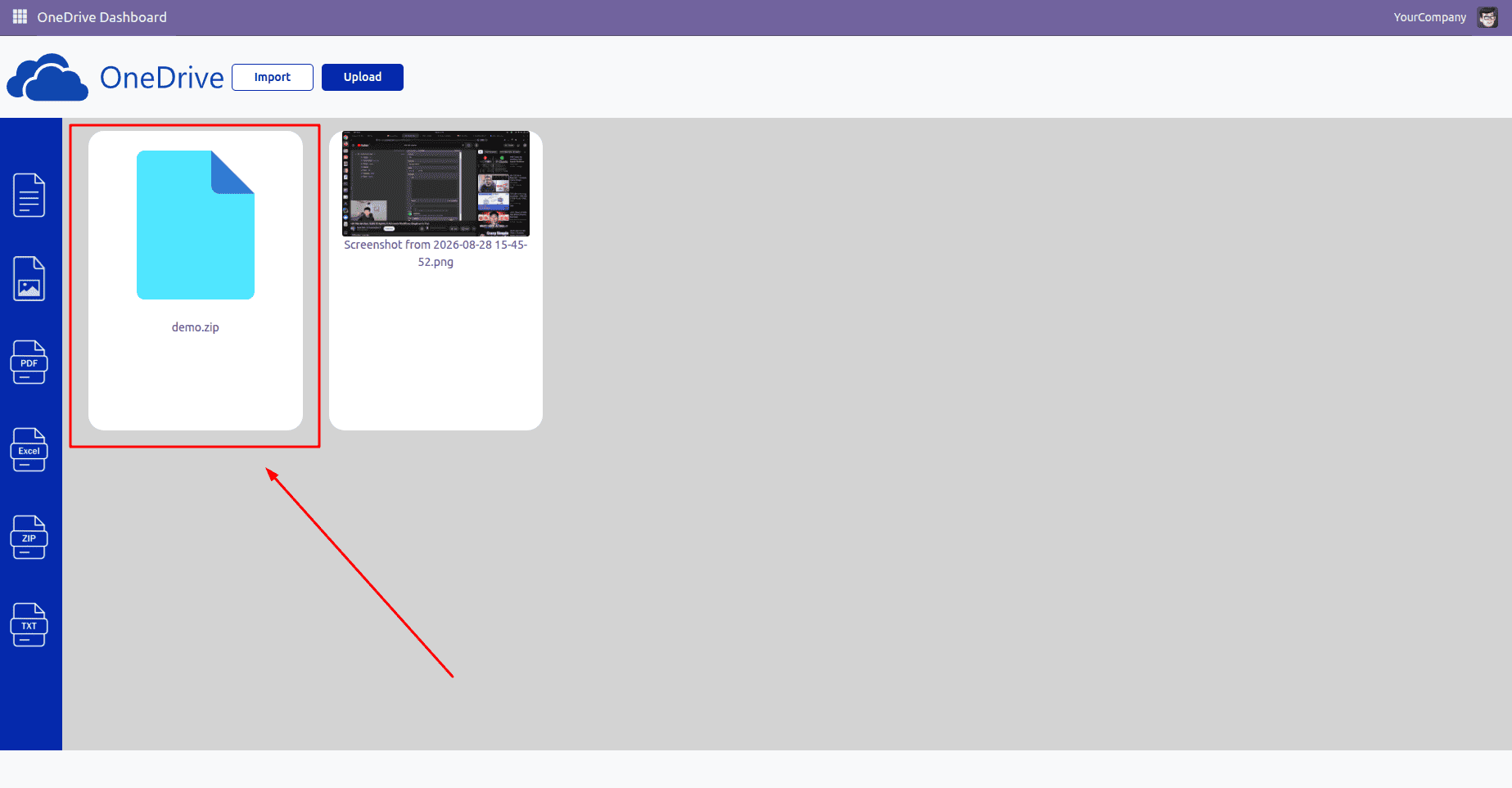
As illustrated in the image below, the file is processed and successfully integrated into your system.
File Upload to OneDrive
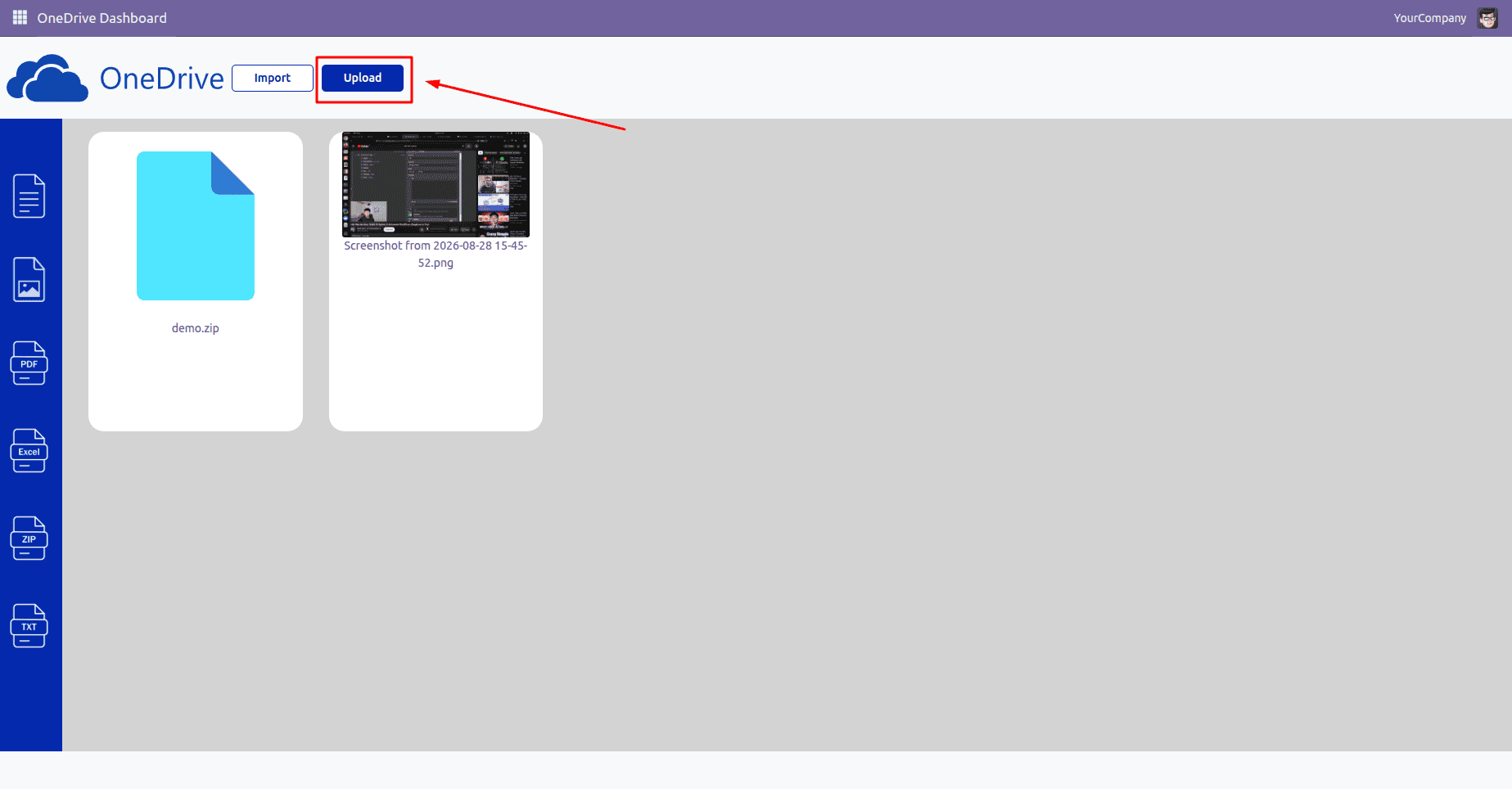
File Upload: To upload the files, press the Upload button on the OneDrive dashboard. Choose the file from your local system or Odoo, and then the upload will be completed.
To begin the transfer of a document into OneDrive, simply navigate to the dashboard and select the Upload button.
A pop-up window will then be displayed, allowing you to choose the option to upload your file.
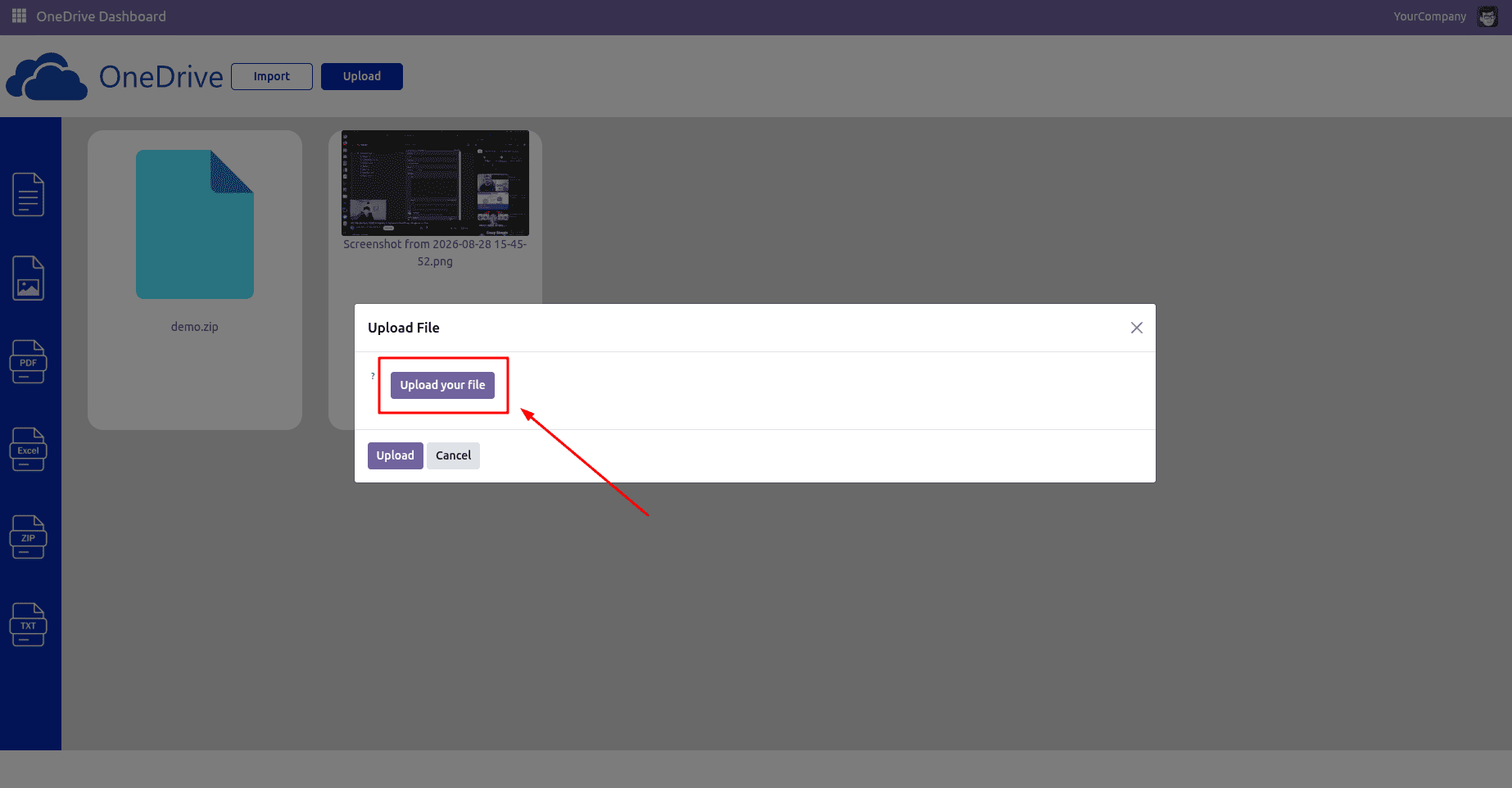
Locate the specific item intended for transfer for instance, a file titled upload which we will use for this demonstration.
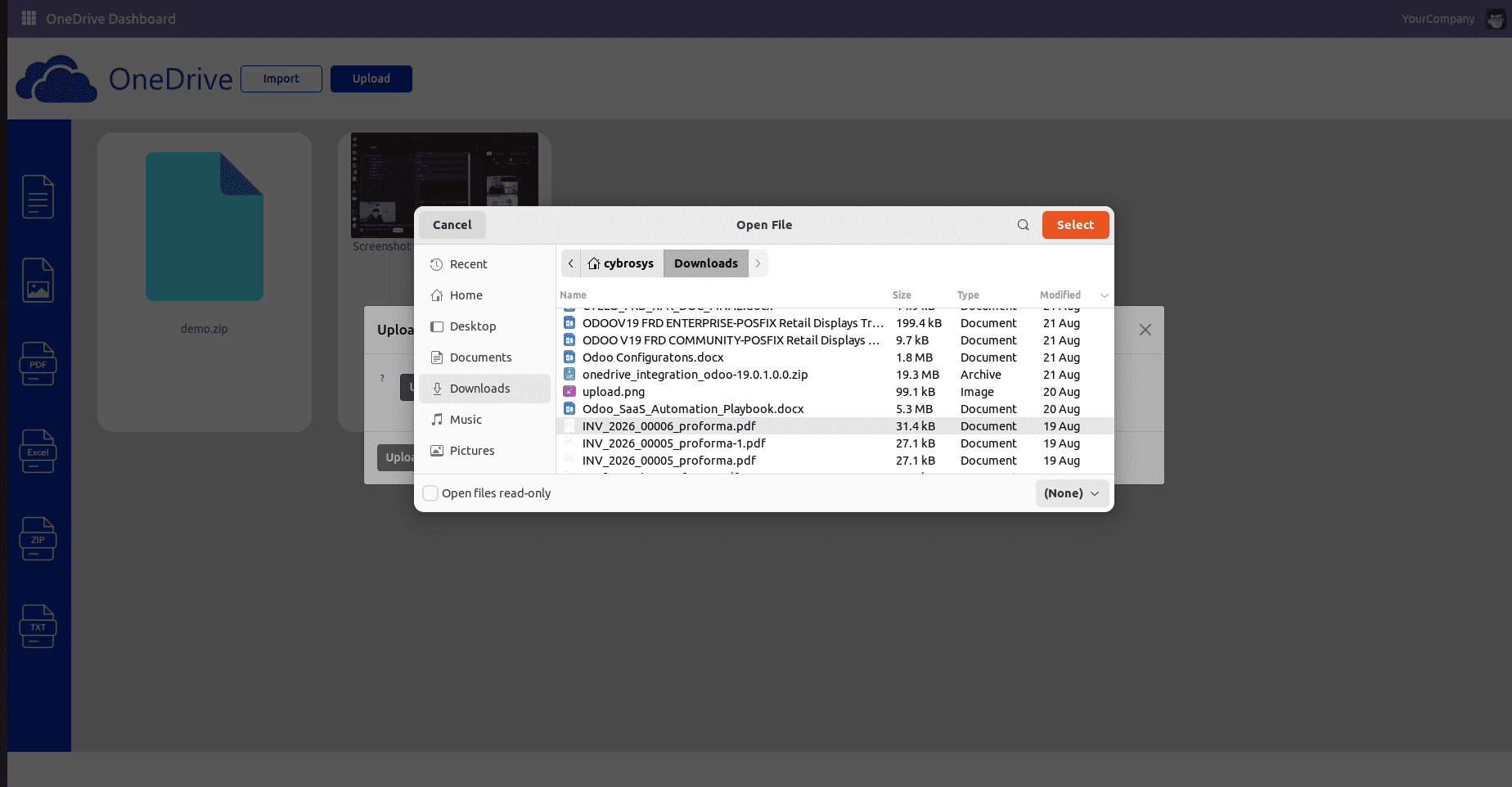
To finalize the process, click on the Upload button to sync the file to your cloud storage.
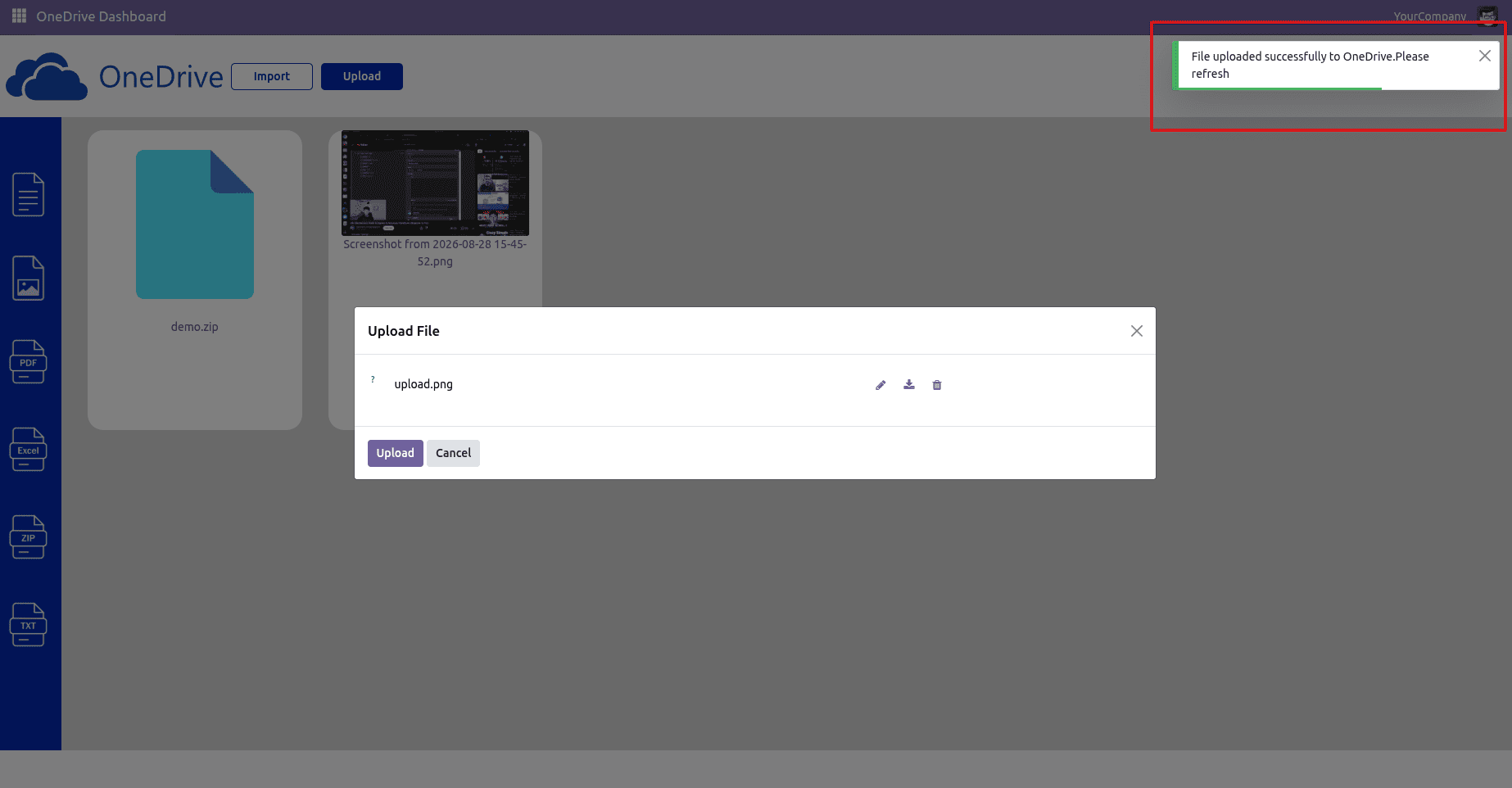
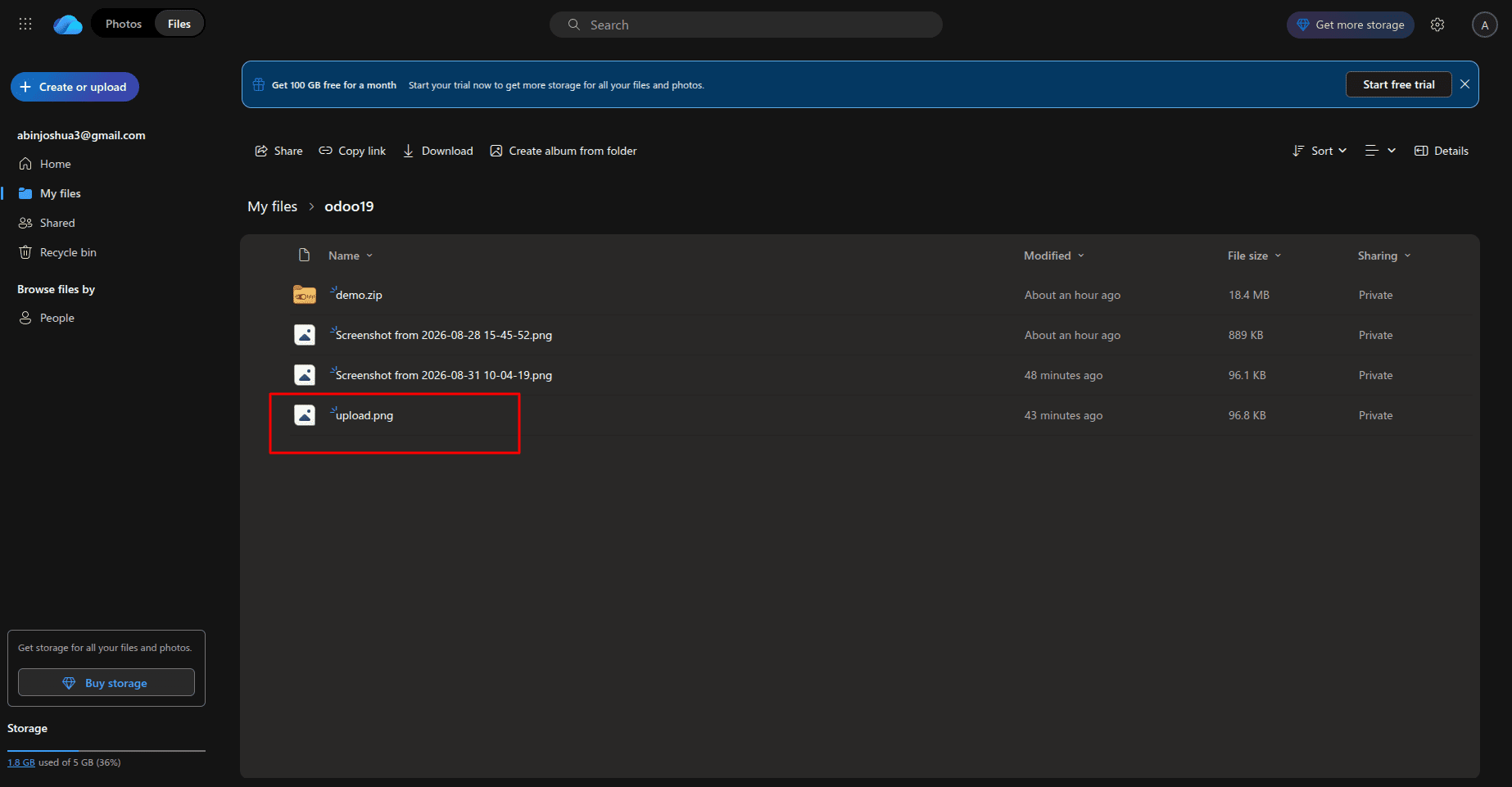
As illustrated in the image below, the file is processed and successfully integrated into your system.
Integrating Microsoft OneDrive with Odoo 19 provides businesses with an efficient way to streamline and optimize their document management workflows. By leveraging cloud storage, users can significantly improve document management through seamless synchronization and collaborative tools. This integration ensures that essential files are accessible from anywhere, providing a flexible work environment. Furthermore, offloading large attachments to OneDrive enhances storage efficiency by reducing the load on the local Odoo server and simplifying disk space management.
To read more about How to Connect Hardware Devices to Odoo 19 Using IoT, refer to our blog How to Connect Hardware Devices to Odoo 19 Using IoT.