If you are running an online store or a business website, knowing how your visitors behave on your site is just as important as the products or services you offer. Without that information, you are making decisions based on guesswork. Odoo 19 takes care of this by bringing website analytics directly into the platform, so you can track, understand, and act on your website data without switching between different tools.
In Odoo 19, the analytics feature is available under Website > Reporting > Analytics. It supports two tools, Plausible.io and Google Analytics.
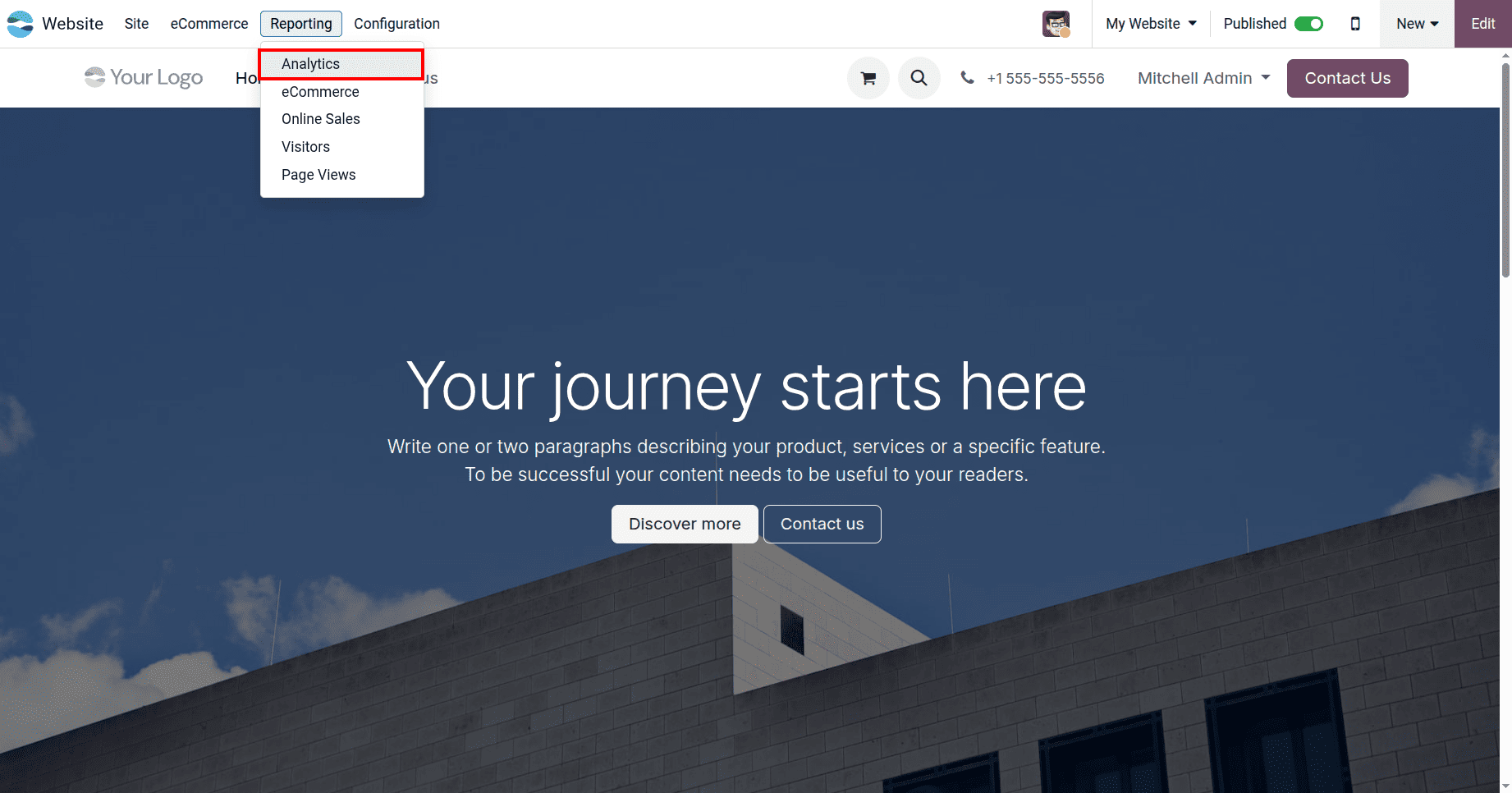
This blog walks through both options, what they do, and how to get them up and running on your Odoo 19 website.
Why website analytics matters
Visitors leave a digital footprint on your website, revealing which pages they explored, how long they stayed, where they came from, and what actions they took. Analytics tools collect and organise this data so you can actually use it. You can find out which traffic sources are bringing the most visitors, which pages are performing well, and where people are dropping off. This kind of insight helps you improve your website, fine-tune your marketing, and ultimately get better results from your online presence.
Odoo 19 makes it easy to access this data by integrating analytics tools directly into the Website module, so you do not need a separate platform or complicated setup to get started.
Plausible.io
Odoo recommends Plausible.io as the first choice for website analytics. It is a simple, lightweight tool that tracks website traffic without collecting personal data from your visitors and without using cookies. This makes it a much friendlier option from a privacy standpoint, and it is easier to stay compliant with data protection regulations like GDPR when using it.
What makes Plausible particularly convenient in Odoo is that the dashboard is built right into the platform. You do not need to open a separate website to check your traffic; everything is visible under Website > Reporting > Analytics. The dashboard shows a line graph of visitor sessions over time, and a table on the right side that breaks down traffic by medium, showing where your visitors are coming from across channels like Organic search, Referral, CPC, Email, and Social.
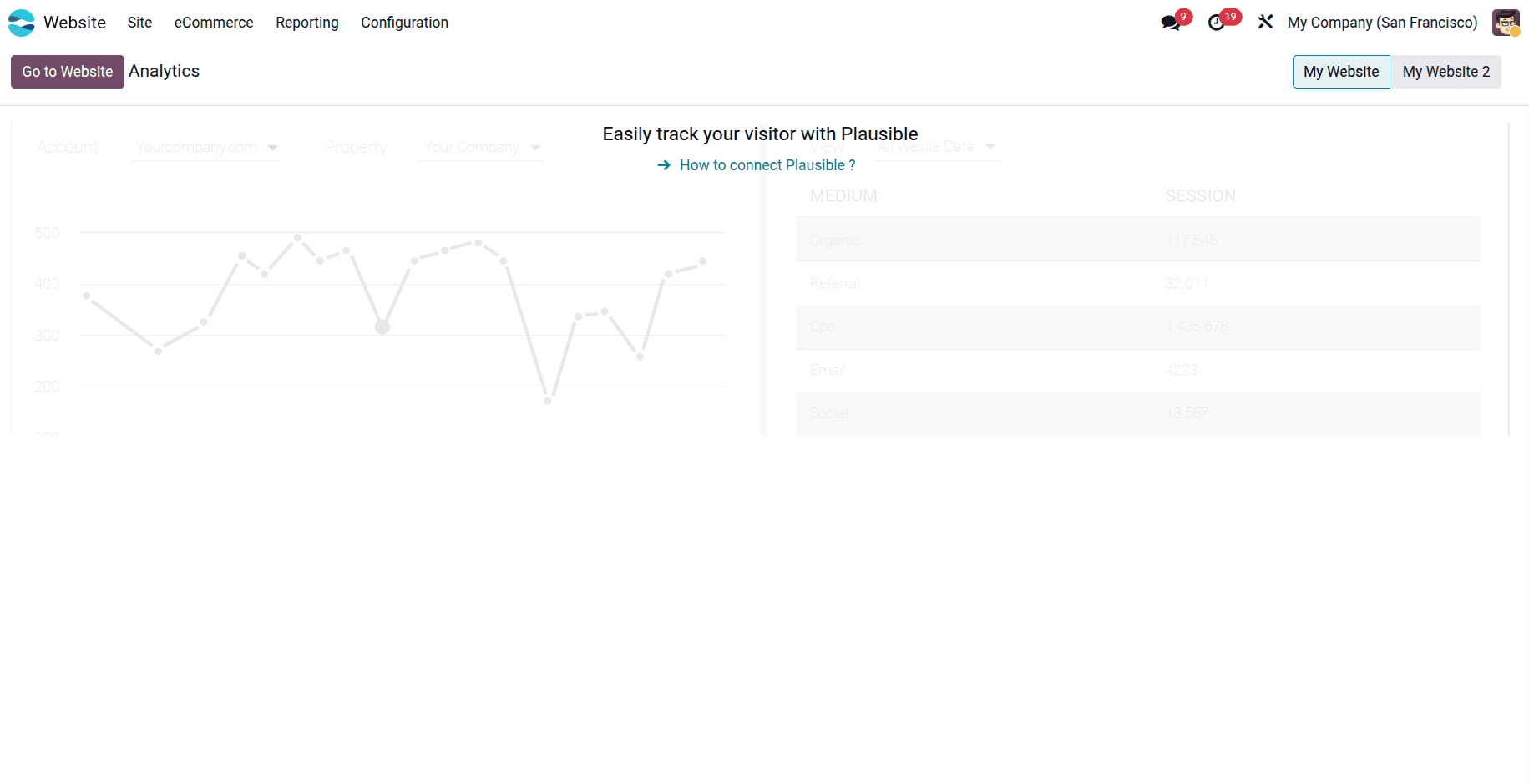
How you set up Plausible.io depends on how your Odoo database is hosted
If your database is on Odoo Online and you are using an odoo.com domain, the setup is almost automatic. Odoo sets up a free Plausible account for you and fills in all the required credentials. All you have to do is go to Website > Configuration > Settings, look for the Tracking & SEO section, and switch on Plausible Analytics. The fields fill themselves in, and you are good to go.
If you are using a custom domain like example.com, or if your database is on Odoo.sh or hosted on your own server, you will need to create your own Plausible.io account and connect it to Odoo. To begin, simply visit Plausible.io and sign up for your account. During setup, when asked for your site information, enter your domain name without the www or http part, for example, example.odoo.com, and pick your reporting timezone. Continue through the steps until your account is ready.
Once your account is set up, go back to the list of your websites in Plausible, click the options icon next to your website, and open Settings. From the sidebar, go to Visibility and click Add Shared Link. Give it a name, leave password protection turned off since Odoo does not support it for this integration, and click Create Shared Link. Copy the link that appears.
Now head back to Odoo, go to Website > Configuration > Settings, turn on Plausible Analytics in the Tracking & SEO section, paste the shared link into the Shared Link Auth field, and save.
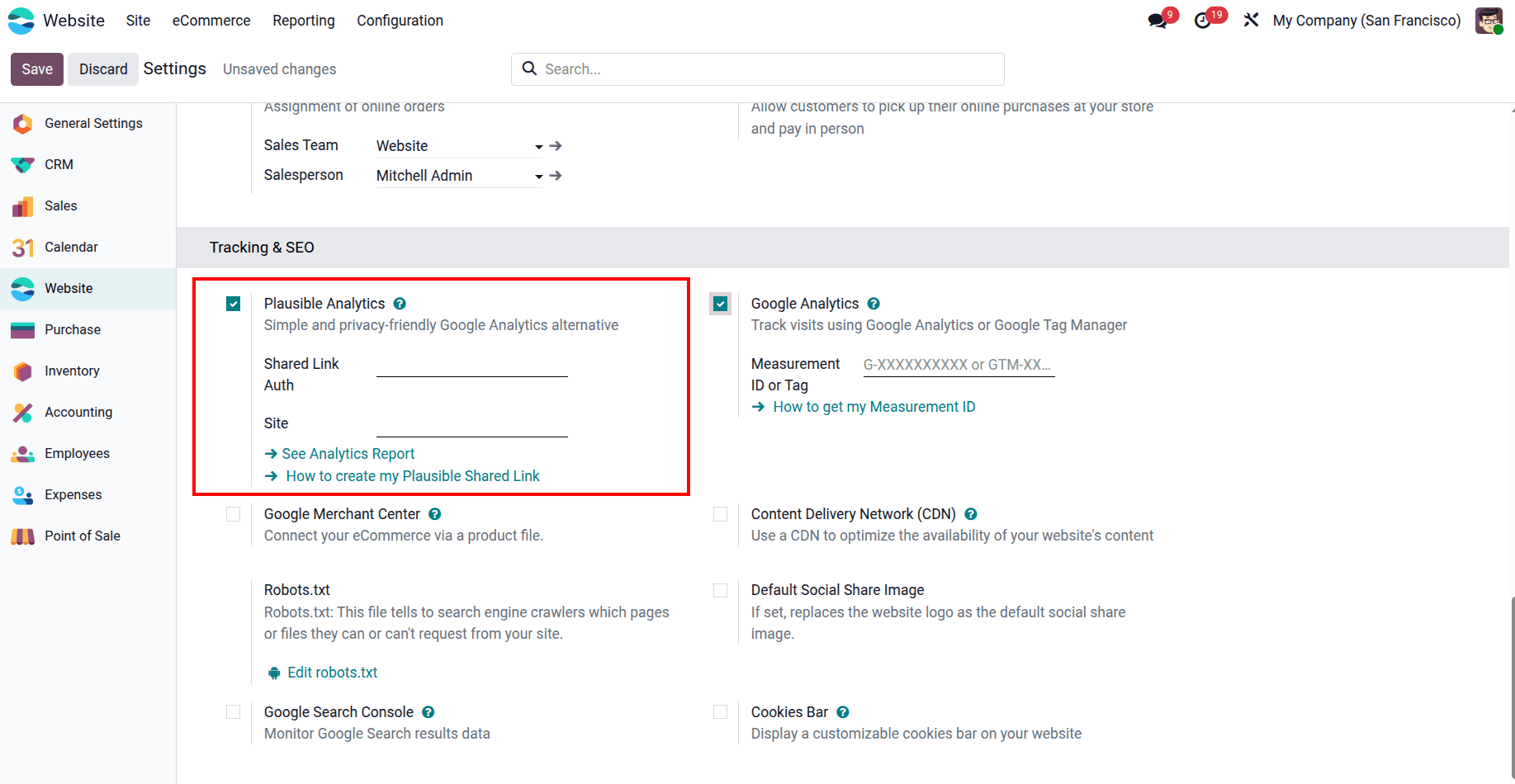
Your Plausible dashboard will now show up inside Odoo under the Analytics page.
If you manage more than one website, you can add each one separately to your Plausible account and make sure you select the right website in Odoo's settings before saving each shared link. Odoo also automatically sets up two tracking goals in Plausible for you, one for Lead Generation and one for Shop, which track important customer actions on your site. You can add more custom goals directly from within Plausible if you need to track other specific actions.
One thing to keep in mind: if your database is on Odoo Online and you deactivate the free Plausible account linked to it, the existing keys will be deleted and new ones will be created. Your past data stays linked to the old keys, so if you ever plan to deactivate the account, save the keys first so you can still access your historical data later.
If you already have your own Plausible.io account and want to use it with an Odoo Online database instead of the default one, you need to add two system parameters in developer mode. Go to General Settings > Technical > System Parameters and create two new entries. The first one should have the key website. plausible_script and the value https://plausible.io/js/plausible.js. The second should have the key website.plausible_server and the value https://plausible.io. After adding these, follow the Plausible setup steps to link your account to the database.
Google Analytics
If you are already using Google Analytics for your business or prefer it over Plausible, Odoo 19 supports that as well. Google Analytics is a more feature-rich tool that gives you deeper reporting and a wider range of metrics, though it does involve cookies and personal data collection, which means you need to handle consent and compliance carefully depending on where your customers are located.
To integrate Google Analytics with your Odoo website, first log in to your Google account through analytics.google.com. If you’re new to Google Analytics, select Start Measuring and follow the prompts to set up your account. If you already have a Google Analytics account, go to the Admin page by clicking the settings icon at the bottom left, then create a new property by clicking Create and selecting Property.
Work through the setup steps for your property, including business details and objectives. At the Data Collection stage, select Web as your platform. Add your website URL, enter a name for your data stream, and click Create & Continue. After the stream is set up, Google Analytics will display a Measurement ID-copy it for the next step.
Go to Odoo, open Website > Configuration > Settings, enable Google Analytics in the Tracking & SEO section, paste in the Measurement ID, and click Save.
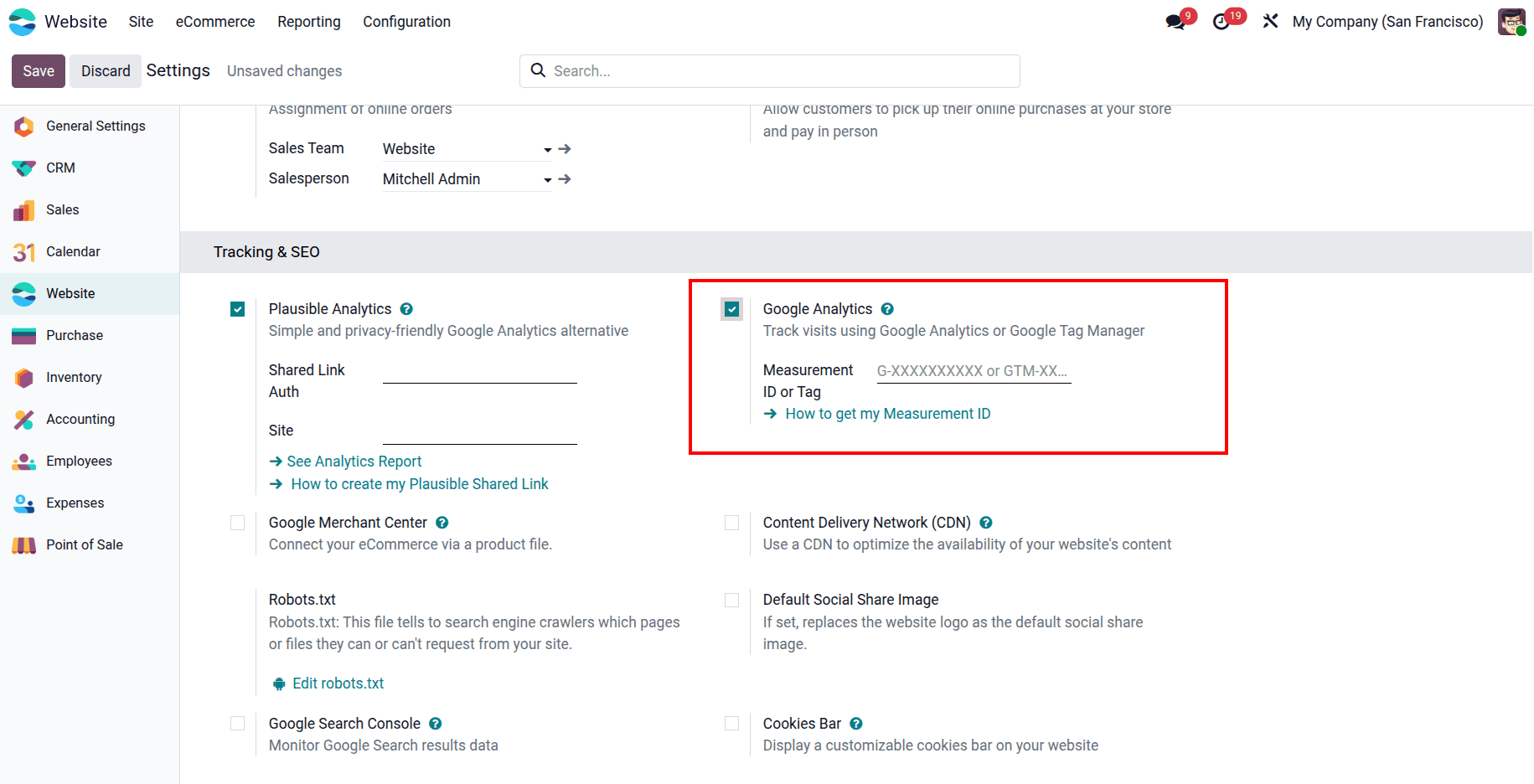
Google Analytics will now begin monitoring and recording activity on your website. If you run more than one website on separate domains, create a separate Google Analytics property for each domain and make sure you select the right website in Odoo before saving each Measurement ID.
The Analytics feature in Odoo 19 removes the need to manage your website tracking through a completely separate platform. Whether you go with Plausible.io for its simplicity and privacy-first approach, or Google Analytics for its depth and reporting power, both options are well-supported and easy to connect from within Odoo's Website settings. Once set up, your traffic data is always just a click away under Website > Reporting > Analytics, giving you the information you need to keep improving your website and growing your online presence.
To read more about Overview of Analyzing Online Sales Performance in Odoo 18 Website, refer to our blog Overview of Analyzing Online Sales Performance in Odoo 18 Website.