The Odoo 19 version allows for the seamless management of helpdesk requests that require a visit on-site with the help of its Field Service module. If it is impossible to solve a problem online, the Helpdesk ticket can be used to create a Field Service task for an on-site intervention, with all of the necessary data, such as the client, the place, and the nature of the problem, being transferred. The managers will be able to assign a technician, set up the visit, and monitor the progress of the work in real-time mode. At the same time, Customers can be kept informed through the available communication and portal features, with all communications and comments stored within the original ticket.
Odoo 19 offers a streamlined and unified way to manage support tickets that involve on-site intervention through the use of the Helpdesk and Field Service modules. In cases where the problem cannot be solved via remote means, a support agent can easily generate a task involving an on-site intervention with just one click right from the Helpdesk ticket. As a result, the generated Field Service task will contain all necessary data, such as customer information, the description of the problem, and internal notes, without the need for any additional data entry. This approach not only speeds up the process and prevents mistakes but also guarantees that field engineers will have access to the full and correct information before visiting the client.
In order to activate this function, we need to ensure that the Field Service is enabled for the correct Helpdesk team. Access the Helpdesk module and go to the Configuration > Helpdesk Teams submenu, where the team that is in charge of managing the on-site service requests should be selected. The Field Service function should then be enabled in the After Sales Section.
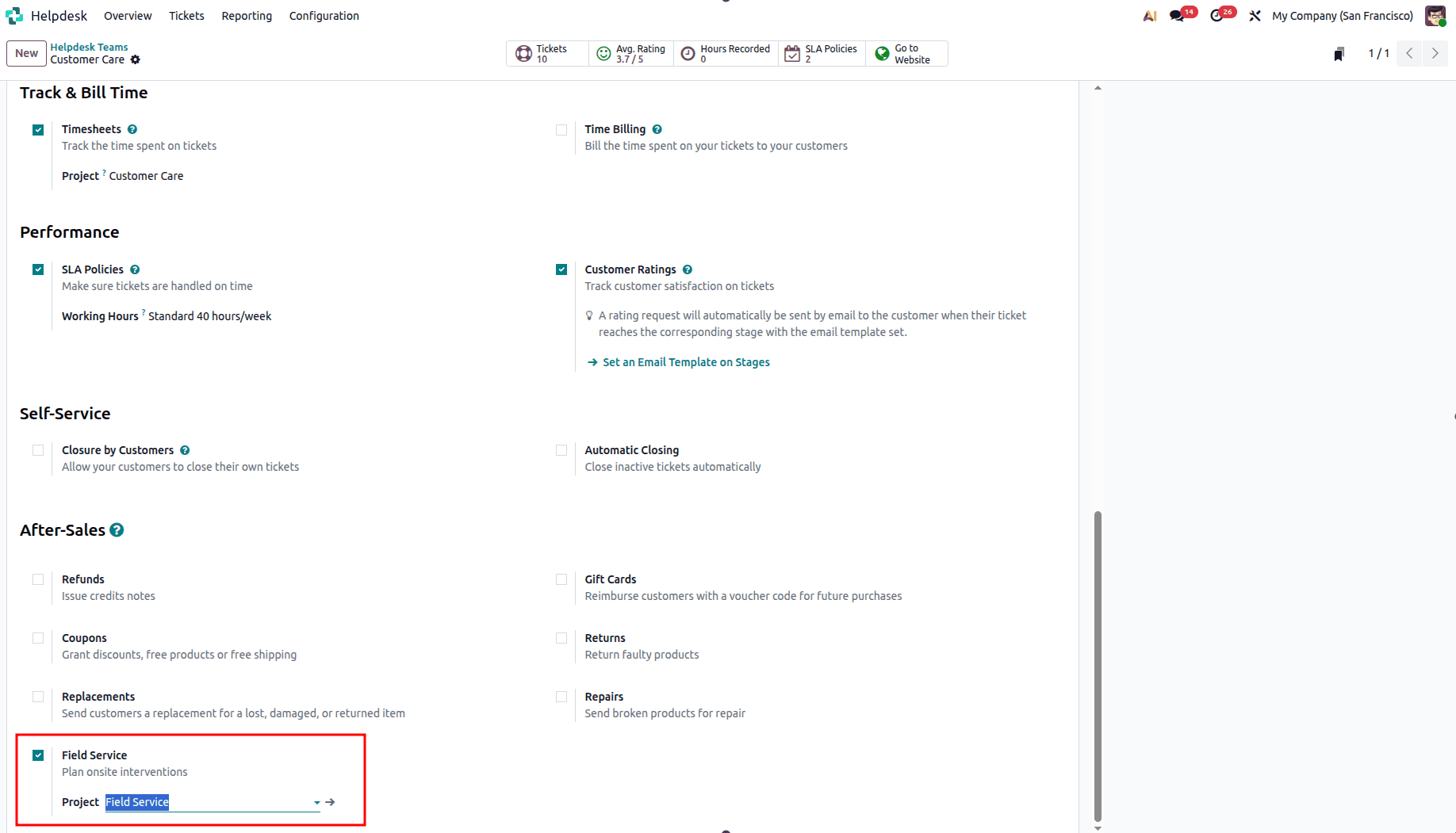
After enabling the Field Service feature, the user will be able to manage the intervention request through the Helpdesk ticket itself. In several companies, there is a billable service or maintenance contract, warranty claims, or service agreements linked to the on-site visit. Therefore, if the intervention involves a billable service, a Sales Order can be created and confirmed before scheduling the intervention. In order to achieve this, the Sales application should be opened, and a Sales Order should be created for the client, with all necessary service items added, and then the sales order should be confirmed.
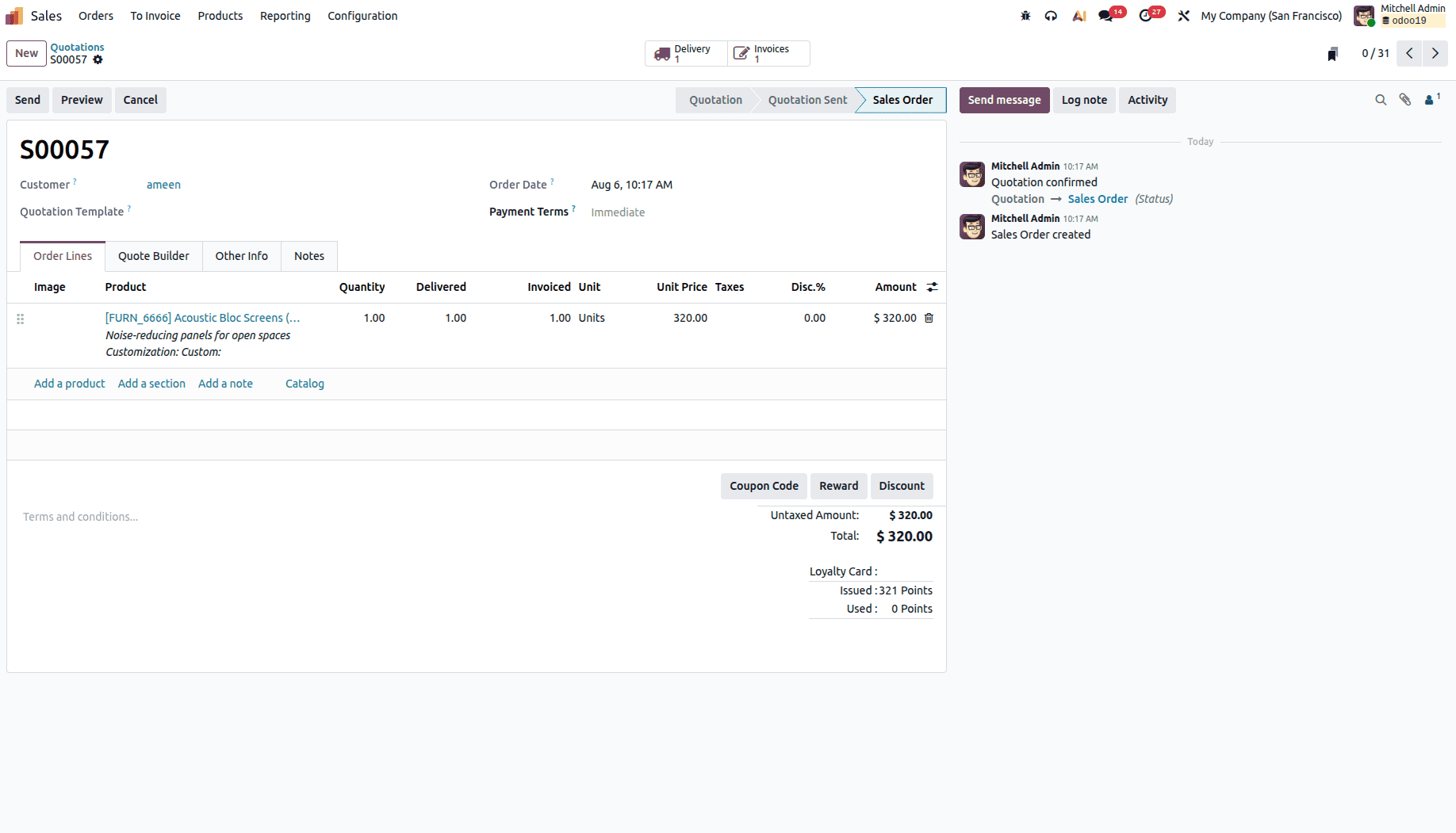
At this point, the user can move on to creating the helpdesk ticket. To achieve this, you will return to the Helpdesk module, click Overview, choose the team where Field Service was activated, and create a new ticket. In the process of creating a new ticket, it is essential to make sure that the customer chosen is the same one as in the Sales Order.
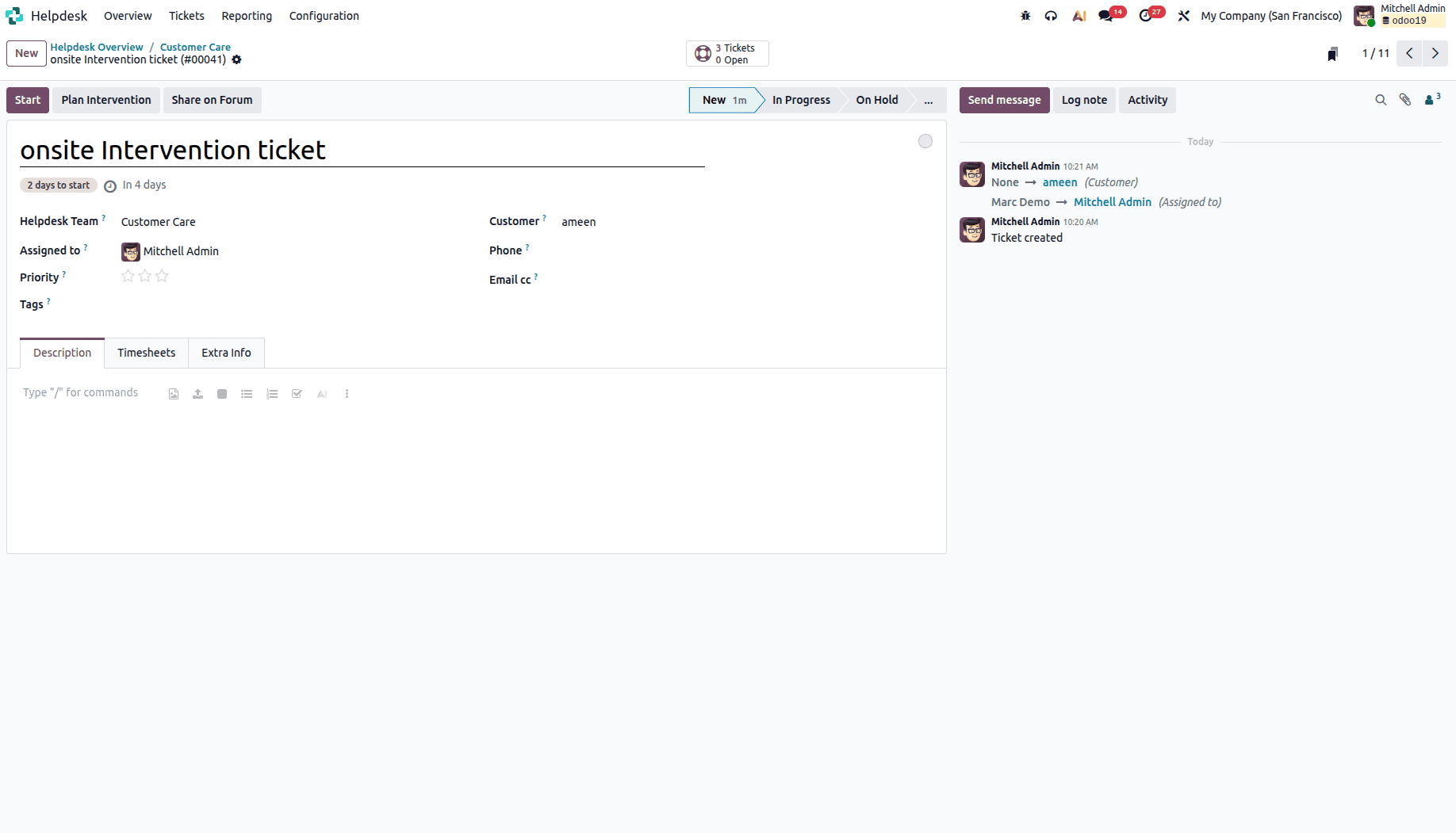
After saving the ticket, the Plan Intervention button becomes available. Click it to open a pop-up window where you can enter the required intervention details.
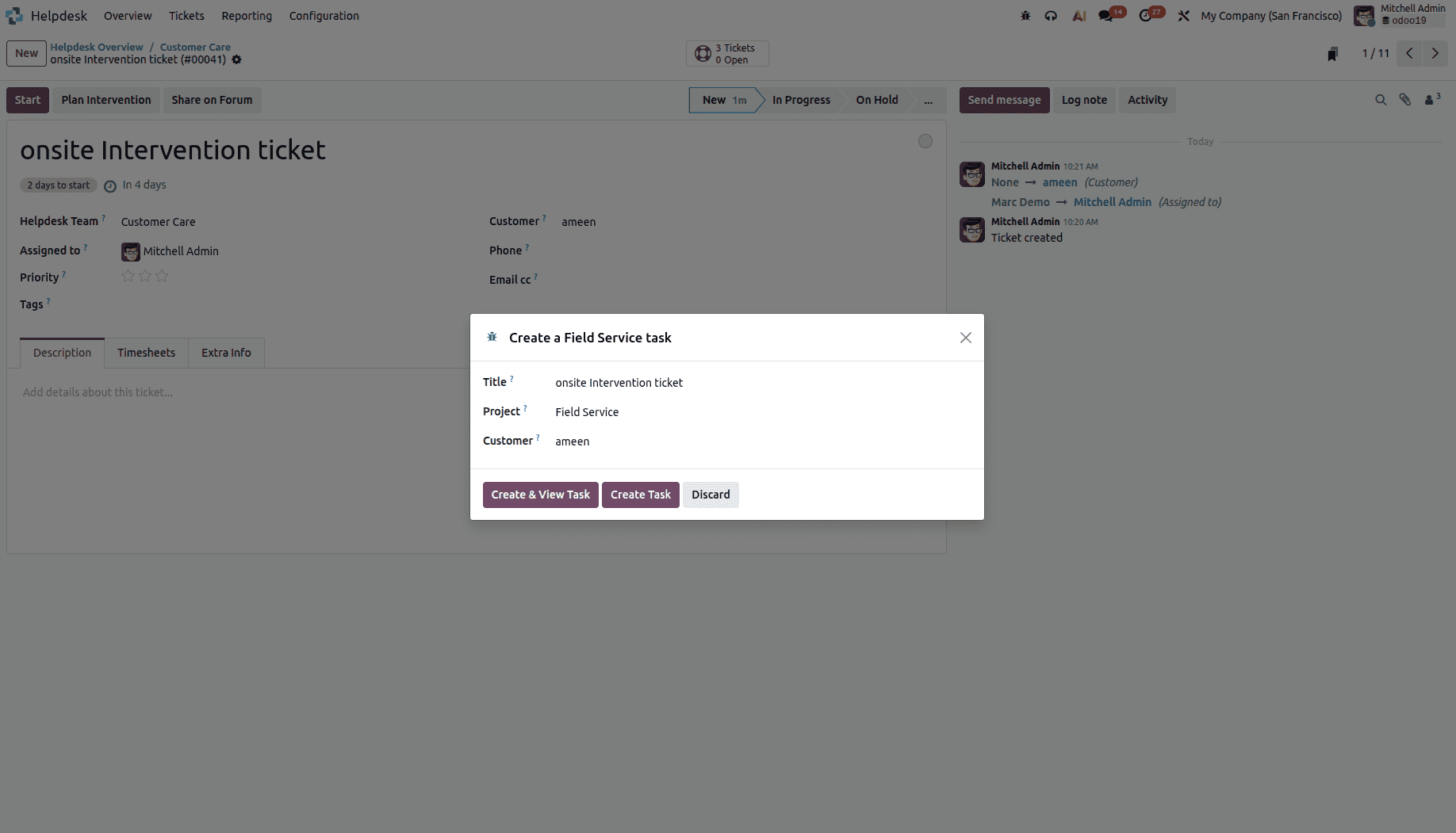
Clicking Create & View Task automatically creates a new task in the Field Service module with the information entered in the intervention form.
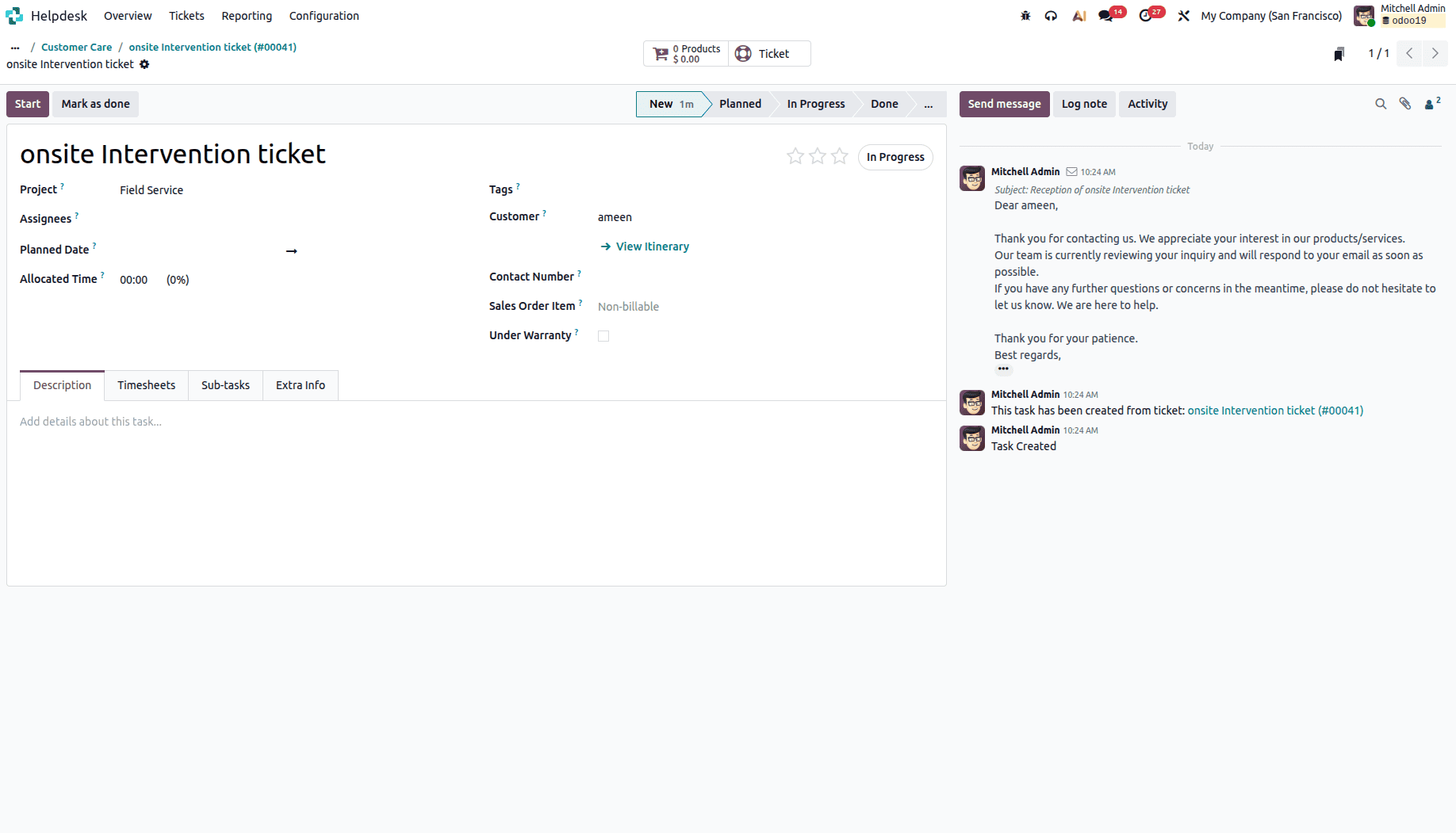
Additionally, the “Field Service” task lets you track time spent on the assignment via timesheets to have precise records of the time taken to perform the task. Also, you have an option to create and manage subtasks for organizing activities better and tracking progress.
After the creation of a Field Service task, the Tasks smart button appears on the Helpdesk ticket. This ensures that the help desk operator can conveniently see the task related to the ticket.
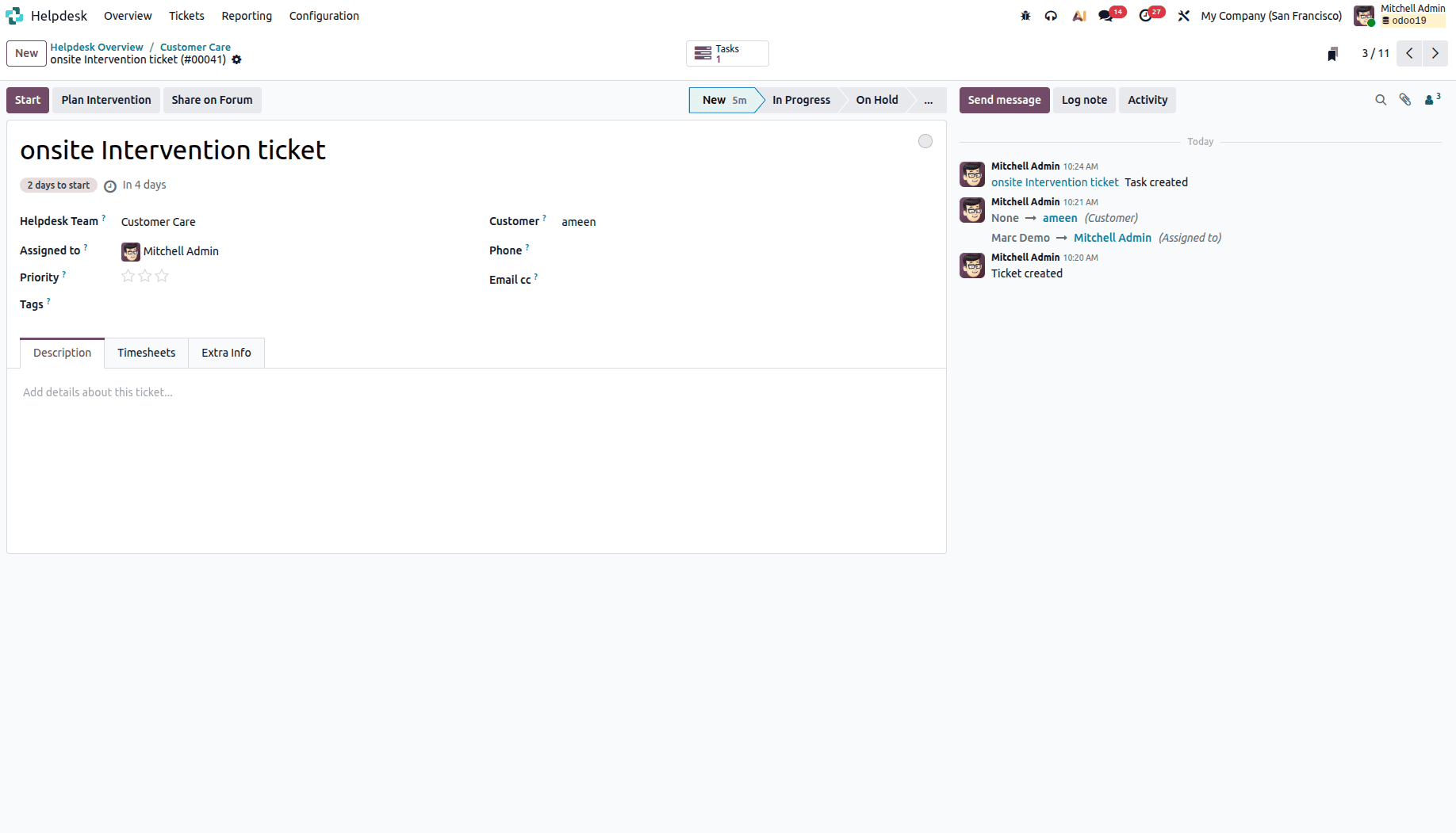
Creating the Onsite Intervention directly from the Helpdesk Ticket facilitates a smooth transition between customer support and field services. Odoo seamlessly imports all the necessary information, such as client information, the problem description, and urgency, without the need for manual data entry. This allows the intervention to be scheduled and assigned to the appropriate technician and ensures that the technician has access to the required information before visiting the customer prior to reaching the client’s site.
To read more about How to Raise On-Site Intervention Helpdesk Tickets in Odoo 18, refer to our blog How to Raise On-Site Intervention Helpdesk Tickets in Odoo 18.